Seasonal promotions are a great way to boost sales and engagement for your business during special occasions, such as Christmas. By creating specific promotions and marketing campaigns tailored to these holidays, you can catch the attention of your customers and encourage them to make a purchase.

The [Synerise Documents](/docs/assets/documents) feature facilitates distributing  seasonal promotions in your mobile application thanks to the ability of grouping them into specific categories. For example, you can create multiple documents that contain Christmas promotions and assign them to a single `Seasonal` group, then create a [screen view campaign](/docs/campaign/screen-views/creating-screen-views) which will display all documents assigned to the `Seasonal` group. You can schedule this screen view campaign to be displayed in the specific time of year.

In this use case, we'll show you how to create two documents with Christmas promotions and adding them to the `Seasonal` group. This group will be used while creating a screen view campaign, presented for your all users of the mobile application.  

## Prerequisites 
---
- [Implement Synerise SDK in your mobile app](/developers/mobile-sdk).
- [Create Christmas promotions](/docs/ai-hub/promotions)
- [Meet the screen views requirements](/docs/campaign/screen-views/introduction-to-screen-views#requirements)
- [Meet the documents requirements](/docs/assets/documents/introduction-to-documents#requirements)
    
## Process 
---

In this use case, you will go through the following steps:
1. [Create two documents](/use-cases/documents-promotion-groups#create-a-document) with basic Christmas promotion targeted to all application users, create a `Seasonal` group and add these two documents to this group.
2. [Create a screen view](/use-cases/documents-promotion-groups#create-a-screen-view) that will display the documents from the `Seasonal` group to all mobile application users.

## Create a document
---
As the first part of the process, you will create two documents with the promotions you created in Synerise. You will also create a `Seasonal` group and assign these two documents to this group.

1. Go to <img src="/api/docs/image/54176ad07f146575310749eba44b7c2f42c1b327/docs/assets/_gfx/assets-icon.png" alt="Data Modeling Hub icon" class="icon"> **Data Modeling Hub > Documents > Add document**.
2. Enter the name of your document.
2. In the **Audience** section, choose to whom the document will be displayed. Select **Everyone**.
3. In the **Configuration** section:
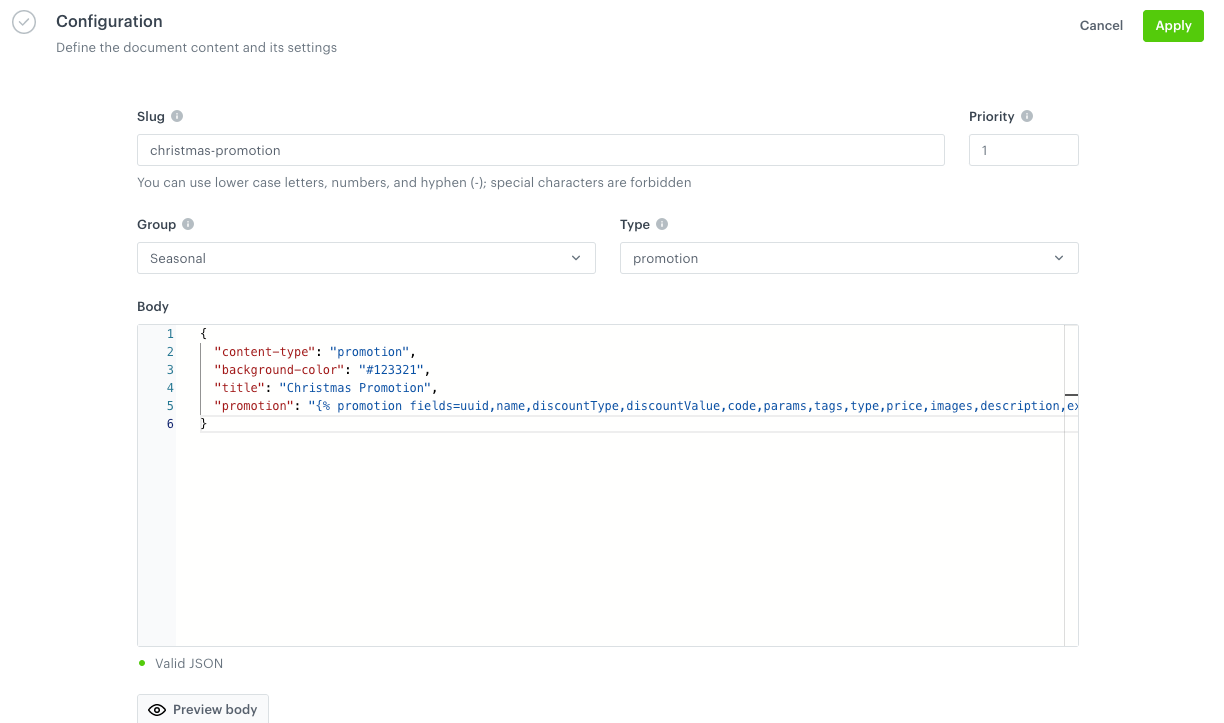
    1. In the **Slug** field, enter the slug of the document, we recommend using the following name convention: `this-is-slug-name`.
    2. In the **Priority** field, use a number to define the document priority. The order of documents is defined by the priority value (1 is the highest, 100 is the lowest).
    3. From the **Group** dropdown list, click **Add group**.
    4. On the pop-up, in the **Group name** field, enter `Seasonal`.
       **Result**: The group is added and selected.
    5. From the **Type** dropdown list, select a document type. Document type defines how the document is validated by your mobile application. To create a new type, from the dropdown list, click **Add type**. 
        
       <div class="admonition admonition-note"><div class="admonition-icon"><svg xmlns="http://www.w3.org/2000/svg" fill="none" viewBox="0 0 24 24" stroke="currentColor" stroke-width="2.5"><path stroke-linecap="round" stroke-linejoin="round" d="M13 16h-1v-4h-1m1-4h.01M21 12a9 9 0 11-18 0 9 9 0 0118 0z" /></svg></div><div class="admonition-body"><div class="admonition-content">

       Full explanation of the type is available [here](/docs/assets/documents/introduction-to-documents#terminology).

       </div></div></div>

    6. In the **Body** field, add the content of the promotion in the JSON format. Below you will find an easy examples of the document body that contains the promotion created in Synerise. You can add more elements to your JSON code like for example buttons, colors, tags, and so on. 
    
       <pre><code class="language-json">{
         "content-type": "promotion",
         "background-color": "#123321",
         "title": "Christmas Promotion",
         "promotion": "{% promotion fields=uuid,name,discountType,discountValue,code,params,tags,type,price,images,description,expireAt %} 3a3750b0-c00b-4c57-9c5f-d55652b417a0 {% endpromotion %}"
       }</code></pre>

        <figure><img src="/api/docs/image/54176ad07f146575310749eba44b7c2f42c1b327/use-cases/all-cases/_gfx/document-christmas-promotion.png" alt="The view of document congifuration"  class="large"><figcaption>Document configuration</figcaption></figure>  

    7. Optionally, to check the document display for a specific customer, use **Preview body**.
    8. To save your changes, click **Apply**.
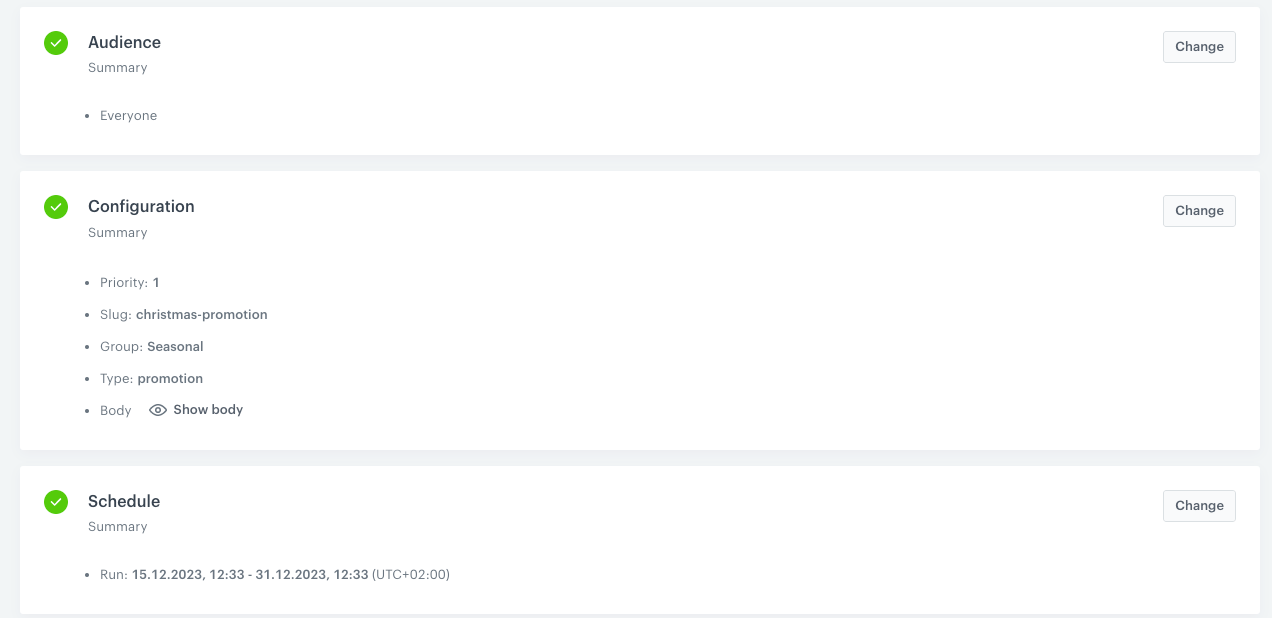
1. In the **Schedule** section, set up when the document will be active.
   2. Select the **Scheduled** tab.
   3. Select the date and time when the document will be active.
   2. Click **Apply** to save your changes.
3. Click **Activate**.

    <figure>
    <img src="/api/docs/image/54176ad07f146575310749eba44b7c2f42c1b327/use-cases/all-cases/_gfx/document-christmas-promotion2.png" alt="The view of document congifuration"  class="large">
    <figcaption>Document configuration</figcaption>
    </figure> 
4. Create another document with the Christmas promotion in the same way as described previously. Change the visual project and JSON code for this document. Remember to add this promotion to the `Seasonal` group. Additionally, you can change the schedule for this second promotion, based on your business needs.


   <div class="admonition admonition-note"><div class="admonition-icon"><svg xmlns="http://www.w3.org/2000/svg" fill="none" viewBox="0 0 24 24" stroke="currentColor" stroke-width="2.5"><path stroke-linecap="round" stroke-linejoin="round" d="M13 16h-1v-4h-1m1-4h.01M21 12a9 9 0 11-18 0 9 9 0 0118 0z" /></svg></div><div class="admonition-body"><div class="admonition-content">

   If you want to add the specific document to more than one group, duplicate it and then assign it to another group.

   </div></div></div>
 

## Create a screen view
---
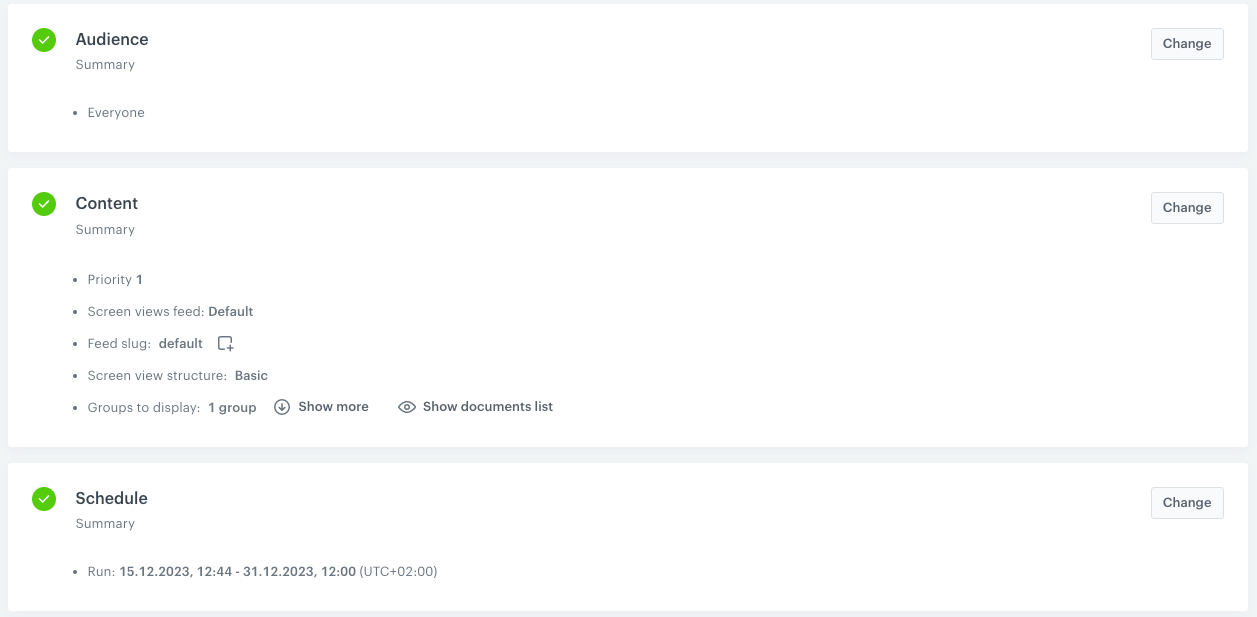
Create a screen view campaign for the group of documents created in the previous part of the process.

1. Go to <img src="/api/docs/image/54176ad07f146575310749eba44b7c2f42c1b327/icons/experience-hub-icon.svg" alt="Image presents the Experience Hub icon" class="icon"> **Experience Hub > Screen views > New Screen View**. 
2. Enter the name of the screen view.
2. In the **Audience** section, choose to whom the message will be displayed. In this case, select **Everyone**.
5. Confirm your choice by clicking the **Apply** button.
6. To create the content of your screen view, in the **Content** section click the **Change** button.
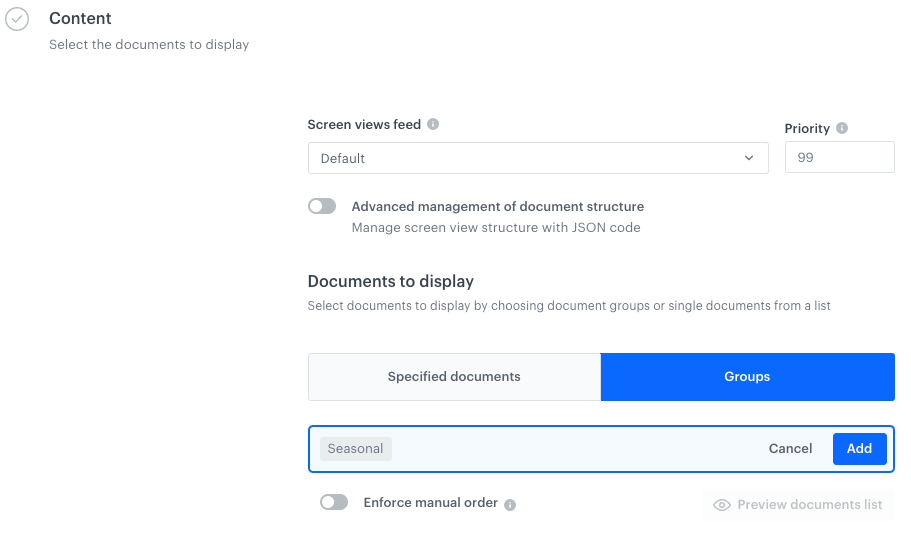
    1. In the **Screen views feed**, select the general feed to display.
    2. Set up the **Priority**. If multiple screen views match the conditions, the one with the higher priority is displayed (1 is the highest, 100 is the lowest).  
        
       <div class="admonition admonition-note"><div class="admonition-icon"><svg xmlns="http://www.w3.org/2000/svg" fill="none" viewBox="0 0 24 24" stroke="currentColor" stroke-width="2.5"><path stroke-linecap="round" stroke-linejoin="round" d="M13 16h-1v-4h-1m1-4h.01M21 12a9 9 0 11-18 0 9 9 0 0118 0z" /></svg></div><div class="admonition-body"><div class="admonition-content">

       You can learn more about the order of displaying multiple screen views [here](/docs/campaign/screen-views/creating-screen-views#conflicts).

       </div></div></div>

    3. In the **Documents to display** section, click **Groups**.
    4. Select the `Seasonal` group.

        <figure><img src="/api/docs/image/54176ad07f146575310749eba44b7c2f42c1b327/use-cases/all-cases/_gfx/screen-view-seasonal.png" class="full" alt="The configuration of the screen view"><figcaption>The configuration of the screen view</figcaption></figure> 

    4. Confirm the choice by clicking **Add**.
    4. To save your changes, click **Apply**.
6. Go to the **Schedule** section and click the **Change** button.

    7. Set up when campaign will be active using the **Run immediately** option or schedule the display of the screen view using the **Scheduled** option. 
    8. To apply your changes, click **Save**.
5. To run your screen view campaign, click **Activate**.


<figure><img src="/api/docs/image/54176ad07f146575310749eba44b7c2f42c1b327/use-cases/all-cases/_gfx/screen-view-final-config.png" class="full" alt="The configuration of the screen view"><figcaption>The configuration of the screen view</figcaption></figure>


## What's next
---
For a screen view to be visible in a mobile application, you must fetch it using the appropriate SDK method for:
- [iOS](/developers/mobile-sdk/method-reference/ios/content#generate-screen-view),
- [Android](/developers/mobile-sdk/method-reference/android/content#generate-screen-view),
- [React Native](/developers/mobile-sdk/method-reference/react-native/content#generate-screen-view)
- [Flutter](/developers/mobile-sdk/method-reference/flutter/content#generate-screen-view)

## Read more
---

- [Documents](/docs/assets/documents)
- [Screen views](/docs/campaign/screen-views)