 **Data Modeling Hub > Files**
- [Meet the screen views requirements](/docs/campaign/screen-views/introduction-to-screen-views#requirements)
- [Meet the documents requirements](/docs/assets/documents/introduction-to-documents#requirements)
## Process
---
In this use case, you will go through the following steps:
1. [Create a document](/use-cases/documents-promotion#create-a-document) with basic promotion targeted to everyone.
2. [Create a screen view](/use-cases/documents-promotion#create-a-screen-view) based on the document with the general promotion and target it to everyone.
## Create a document
---
As the first part of the process, create a document with general promotion targeted to the whole database.
1. Go to **Data Modeling Hub > Documents > Add document**.
2. Enter the name for your document.
2. In the **Audience** section, choose to whom the message will be displayed. Select **Everyone**.
3. In the **Configuration** section:
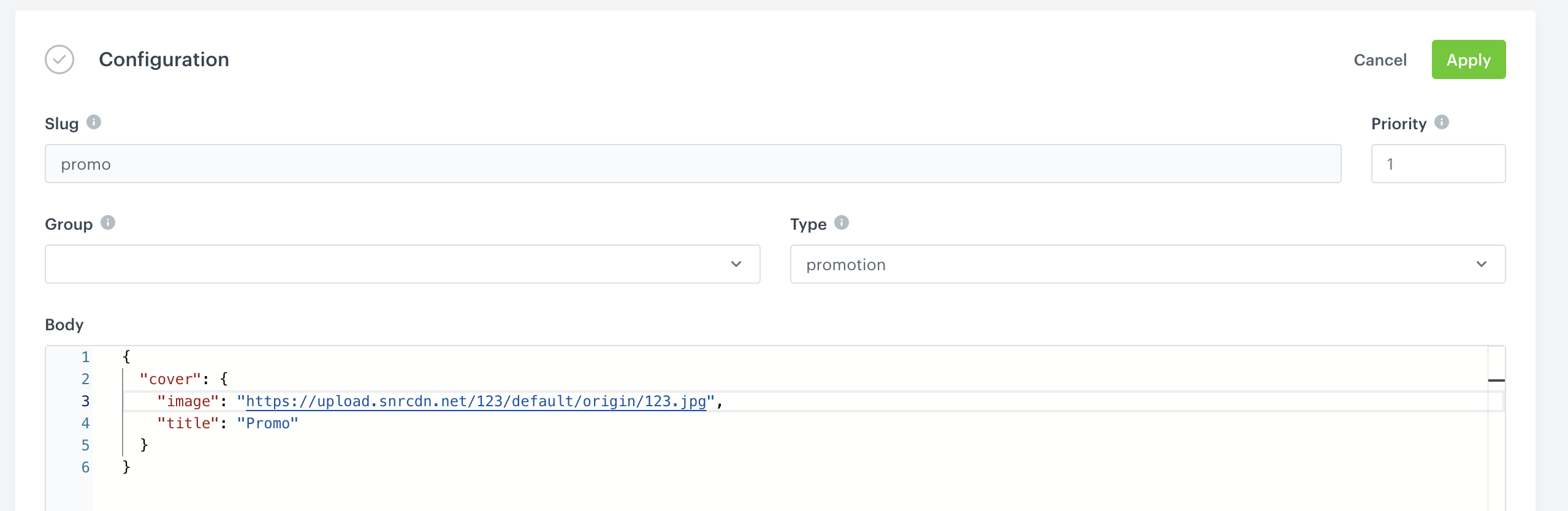
1. In the **Slug** field, enter the slug of the document, we recommend using the following name convention: `this-is-slug-name`.
2. In the **Priority** field, use a number to define the document priority. The order of documents is defined by the priority value (1 is the highest, 100 is the lowest).
3. Optionally you can choose the **Group** to which you add your document. In this case we focus on single promotion.
4. From the **Type** dropdown list, select a document type. Document type defines how the document is validated by your mobile application. To create a new type, from the dropdown list, click **Add type**.
**Data Modeling Hub > Files**
- [Meet the screen views requirements](/docs/campaign/screen-views/introduction-to-screen-views#requirements)
- [Meet the documents requirements](/docs/assets/documents/introduction-to-documents#requirements)
## Process
---
In this use case, you will go through the following steps:
1. [Create a document](/use-cases/documents-promotion#create-a-document) with basic promotion targeted to everyone.
2. [Create a screen view](/use-cases/documents-promotion#create-a-screen-view) based on the document with the general promotion and target it to everyone.
## Create a document
---
As the first part of the process, create a document with general promotion targeted to the whole database.
1. Go to **Data Modeling Hub > Documents > Add document**.
2. Enter the name for your document.
2. In the **Audience** section, choose to whom the message will be displayed. Select **Everyone**.
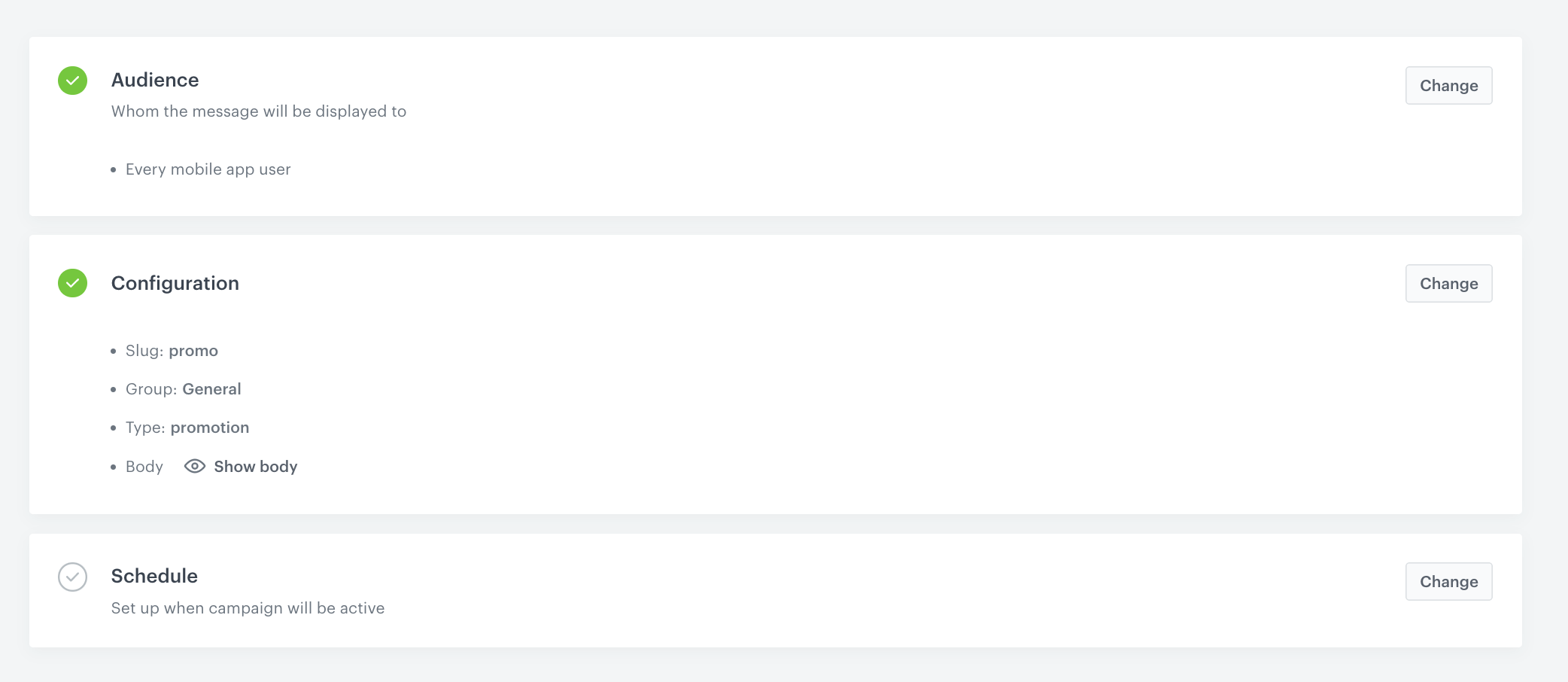
3. In the **Configuration** section:
1. In the **Slug** field, enter the slug of the document, we recommend using the following name convention: `this-is-slug-name`.
2. In the **Priority** field, use a number to define the document priority. The order of documents is defined by the priority value (1 is the highest, 100 is the lowest).
3. Optionally you can choose the **Group** to which you add your document. In this case we focus on single promotion.
4. From the **Type** dropdown list, select a document type. Document type defines how the document is validated by your mobile application. To create a new type, from the dropdown list, click **Add type**.
{
       "cover": {
       "image": "https://example.com/link-to-image/",
       "title": "Promo"
         }
       }
 **Experience Hub > Screen views > New Screen View**.
2. Enter the name of the screen view.
2. In the **Audience** section, choose to whom the message will be displayed. In this case, select **Everyone**.
5. Confirm your choice by clicking the **Apply** button.
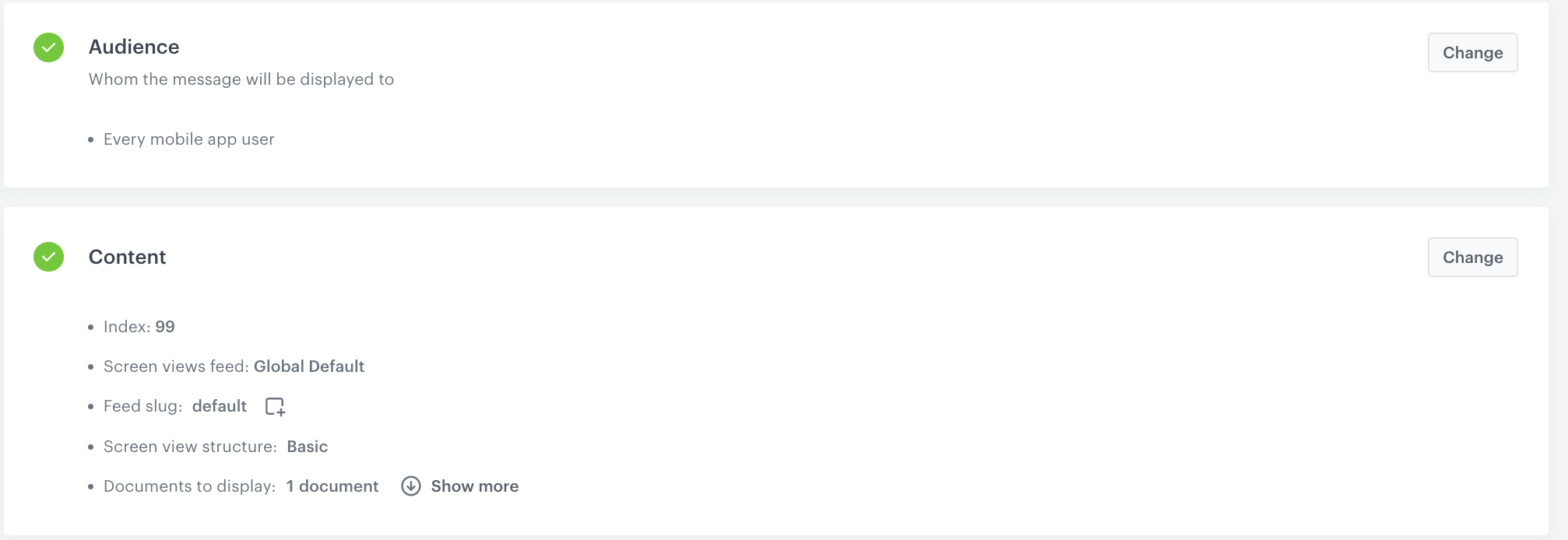
6. To create the content of your screen view, in the **Content** section click the **Change** button.
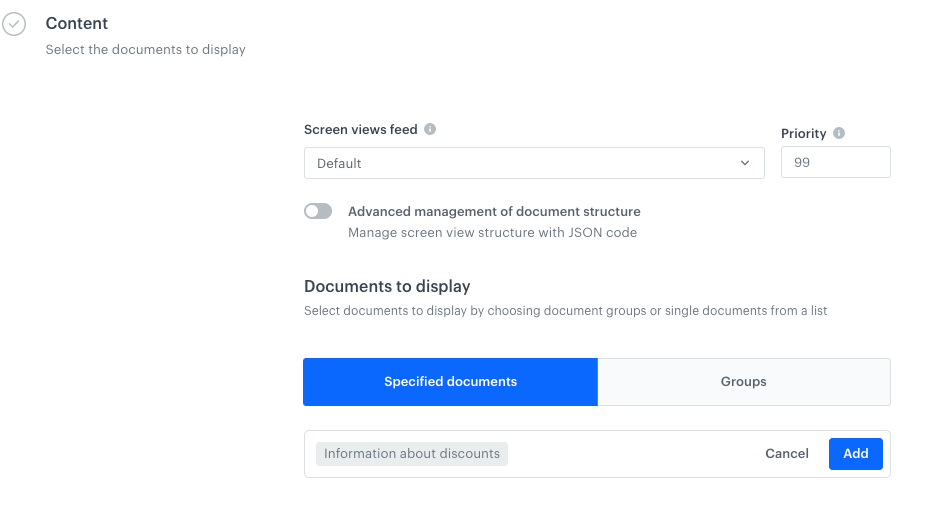
1. In the **Screen views feed**, select the general feed to display.
2. Set up the **Priority**. If multiple screen views match the conditions, the one with the higher priority is displayed (1 is the highest, 100 is the lowest).
**Experience Hub > Screen views > New Screen View**.
2. Enter the name of the screen view.
2. In the **Audience** section, choose to whom the message will be displayed. In this case, select **Everyone**.
5. Confirm your choice by clicking the **Apply** button.
6. To create the content of your screen view, in the **Content** section click the **Change** button.
1. In the **Screen views feed**, select the general feed to display.
2. Set up the **Priority**. If multiple screen views match the conditions, the one with the higher priority is displayed (1 is the highest, 100 is the lowest).