There are various business cases in which personalized attachments need to be sent to customers through email. One reason for this is the specific nature of industries like finance, banking, insurance, or healthcare. Email communication in various industries often involves sending dedicated documents to customers, often due to legal requirements. Additionally, personalizing attachments can be beneficial for specific marketing campaigns aiming to meet particular business needs. Our Dynamic Attachments feature enables the process of sending customized attachments to each customer by email.
In this use case, we demonstrate how to add two dynamic attachments to an email communication, with each attachment tailored to individual customer. To do this, we create a workflow in which we upload selected files then attach them to an email and send them to customers. This use case illustrates a scenario where we send two requests with a single file.
## Prerequisites
---
- [Create an email account](/docs/campaign/e-mail/configuring-email-account) which you will use to send emails.
- [Create an email template](/docs/campaign/e-mail/creating-email-templates) that you will use in your communication.
- You must integrate your system that generates files dedicated to customers and upload them to Synerise through the [Synerise API](https://developers.synerise.com/AssetManagement/AssetManagement.html#operation/addClientFiles) (with content encoded in base64).
To see the event reference related to attachment upload events, click [here](/docs/assets/events/event-reference/automation).
## Create a workflow
---
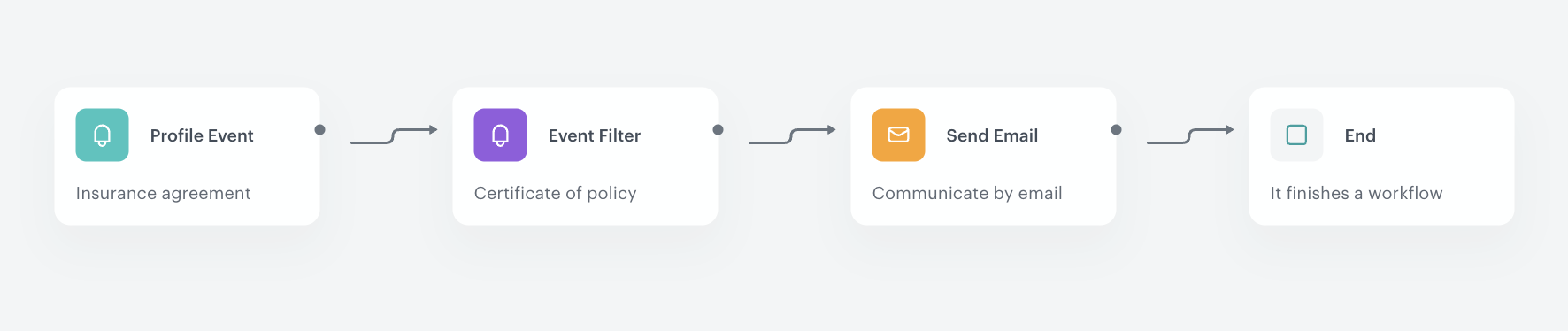
Create a workflow in which you specify the files you want to attach to the email communication. In this use case, we follow a scenario in which the workflow is triggered by the **attachment.upload** event, which retrieves information about the Insurance Agreement files. Then, we wait for the Policy Certificate to be uploaded, and then send email with both of these documents in attachments, where each attachment is dedicated to an individual customer.
Event **attachment.upload** can be extended with any custom attributes. In our case, we are sending an additional parameter **docType**, which contains information about the type of the uploaded file. We will use this parameter to specify the event from which we want to get the uploaded files.
1. Go to **Automation Hub > Workflows > New workflow**.
2. Enter the name of the workflow.
### Define the Profile Event trigger node
---
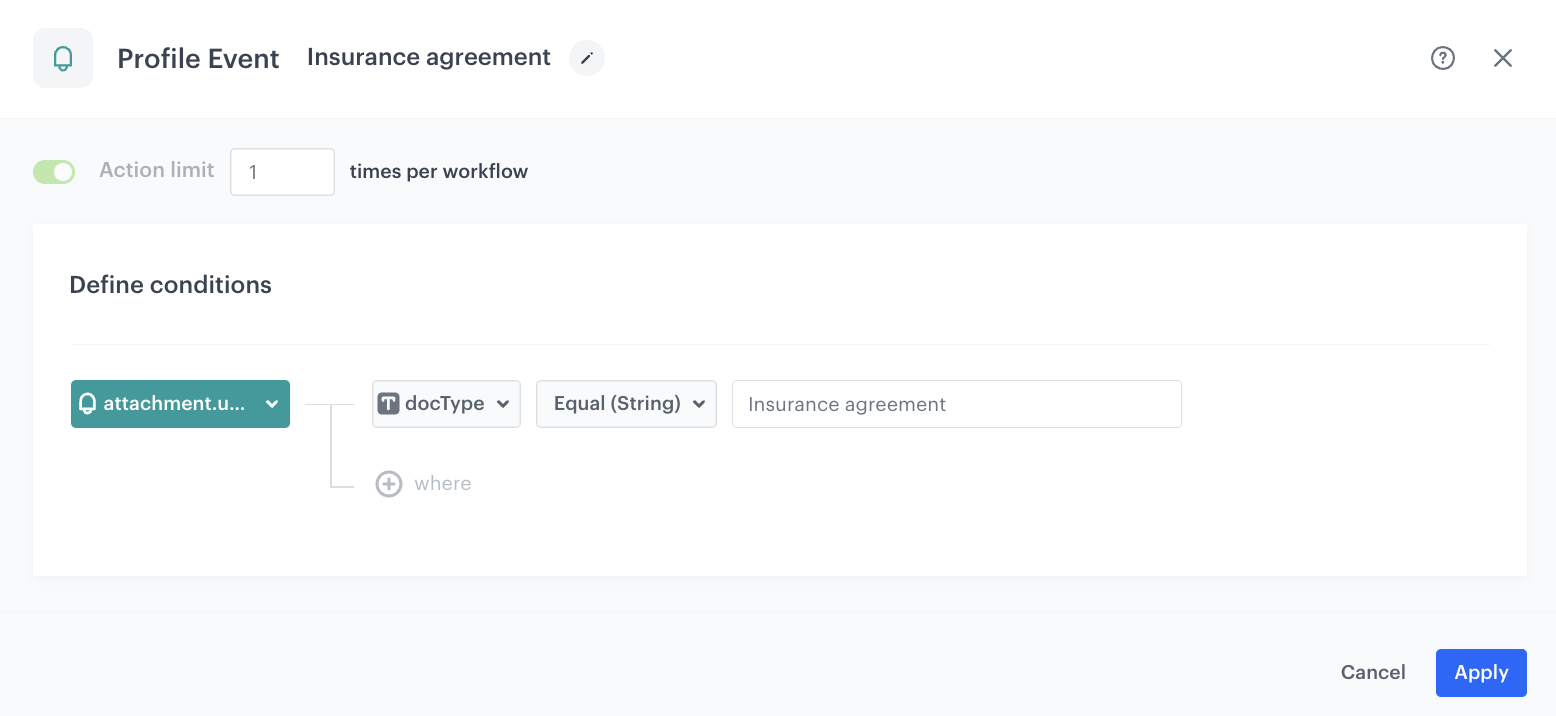
The trigger for starting this workflow is the **attachment.upload** event that appears in the customers profiles when files sent from the external source have been successfully uploaded and are ready to be used as a dynamic attachment. The first event from which we want to get file was send with **docType** parameter value - `Insurance agreement`.
1. As the first node of the workflow, add **Profile Event**.
2. Name this node with a unique name.
2. From **Choose event** dropdown menu, choose the **attachment.upload** event.
3. Click the **+ where** button and from the dropdown list, choose the parameter that specify the type of uploaded file. In our case, it is the **docType** parameter.
4. From the **Choose operator** dropdown, select **Equal(String)**.
5. In the text field, type the type of the file. In our case, it is `Insurance agreement`.
6. Confirm by clicking **Apply**.
Profile Event trigger node
### Define Event Filter
---
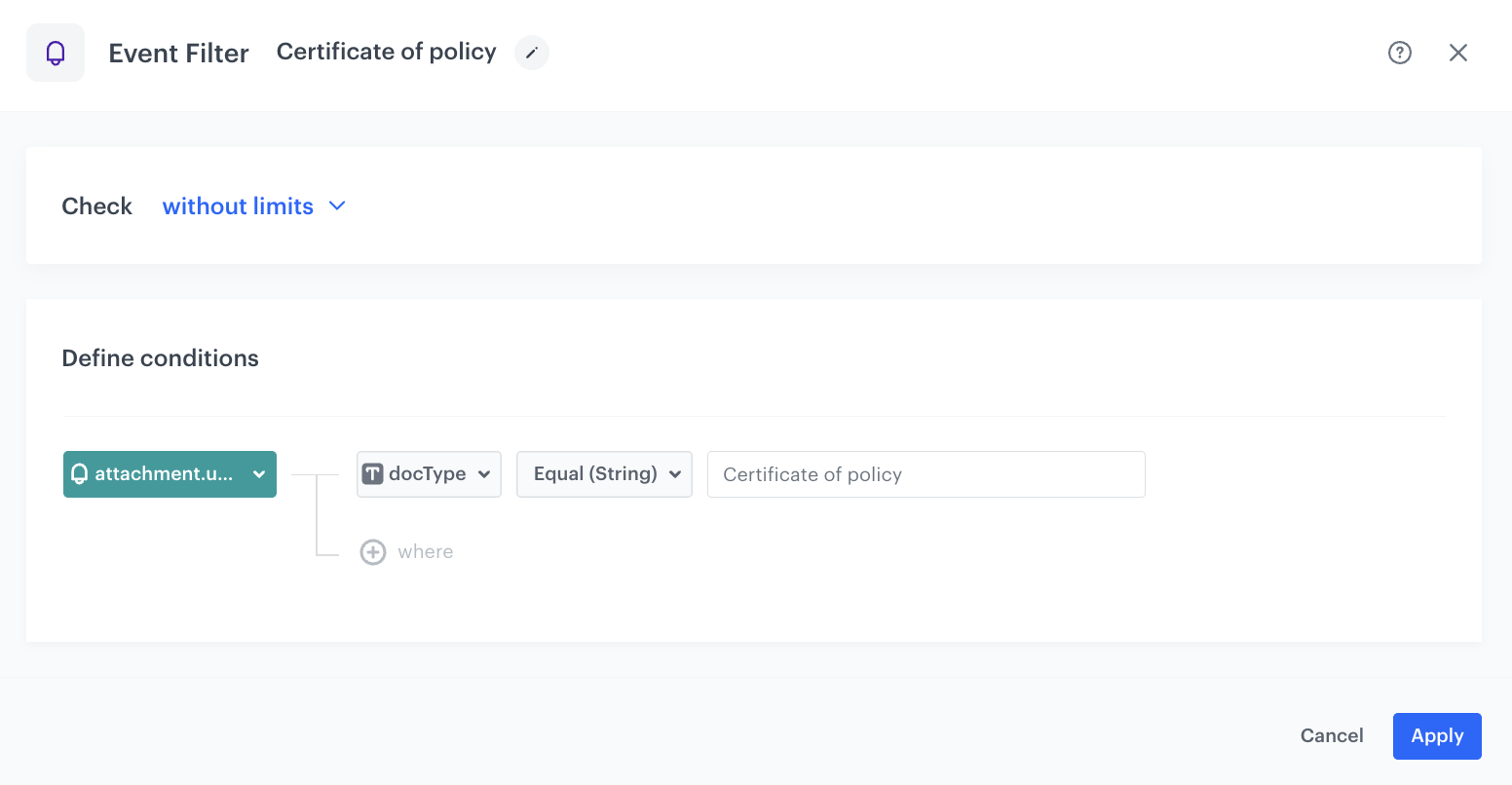
After the first file is uploaded, define the second event from which you want to upload file. We use **attachment.upload** event with the **docType** parameter value - `Certificate of policy`.
1. Add the **Event Filter** node.
2. Name this node with a unique name.
2. From **Choose event** dropdown menu, choose the **attachment.upload** event.
3. Click the **+ where** button and from the dropdown list, choose the parameter that specify the type of uploaded file. In our case, it is the **docType** parameter.
4. From the **Choose operator** dropdown, select **Equal(String)**.
5. In the text field, type the type of the file. In our case, it is `Certificate of policy`.
6. Confirm by clicking **Apply**.
Event Filter node
### Define the Send Email node
---
When all files are already uploaded, add them as attachments to the email communication.
1. Add the **Send Email** node.
2. In the **Sender details** section, choose the email account from which the email will be sent.
3. In the **Content** section, in the **Subject** field, enter the subject of the email, and from the **Template** dropdown, select [the template you created as part of the prerequisites](#prerequisites).
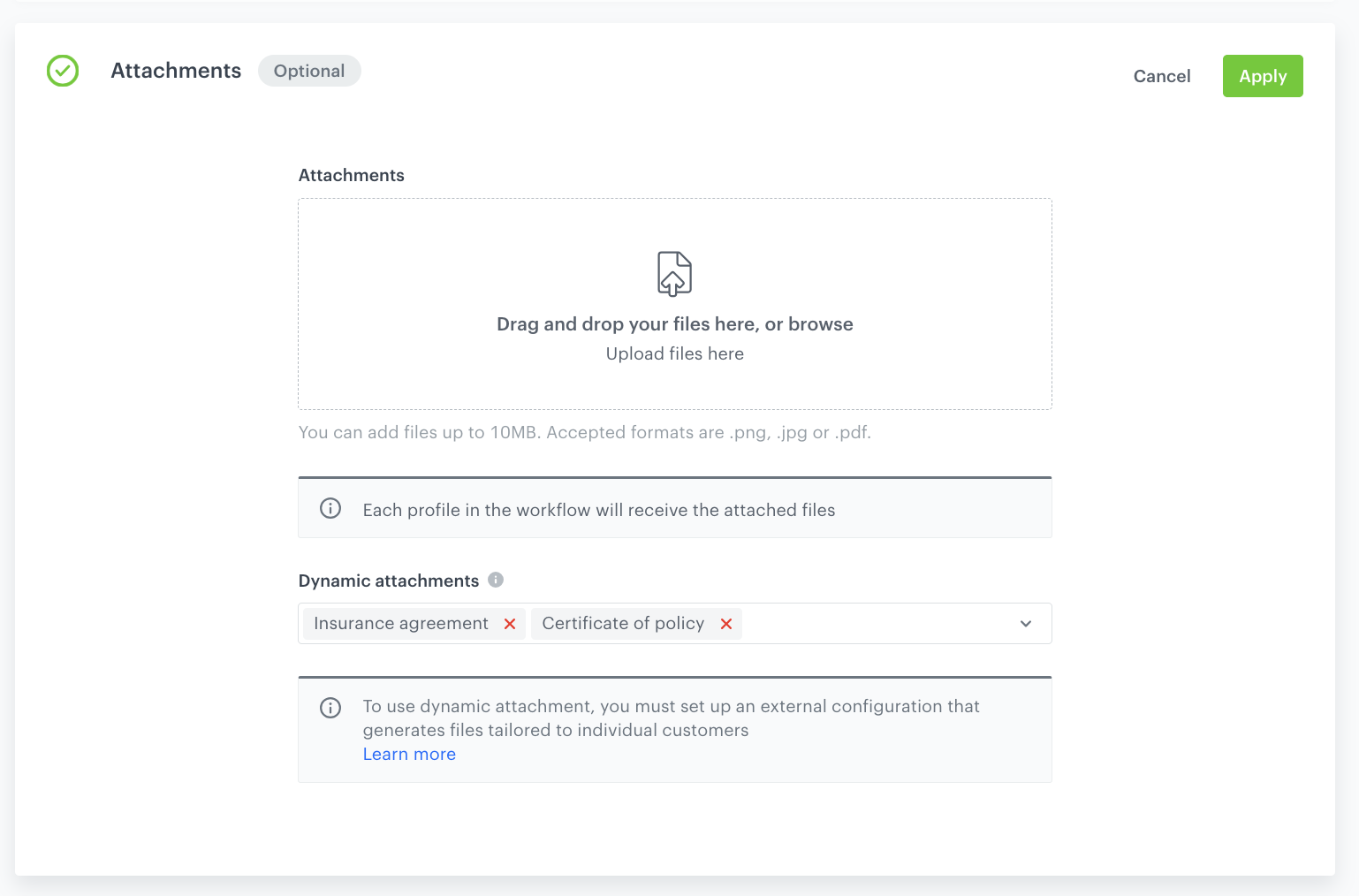
4. In the **Dynamic Attachment** section select the files which will be added.
Send Email node
5. In the **UTM & URL parameters** section, you can define the UTM parameters added to the links included in the email.
6. In the **Additional parameters** section, you can optionally describe campaigns with [additional parameters](/docs/campaign/e-mail/creating-email-campaigns#adding-custom-parameters).
7. Click **Apply**.
### Add the finishing node
---
1. Add the **End** node.
2. In the upper right corner, click **Save & Run**.
Workflow configuration
## Check the use case set up on the Synerise Demo workspace
---
You can check the configuration of the [workflow](https://app.synerise.com/automations/automation-diagram/eca92056-9e89-4199-a7fb-77dc72330c82) directly in Synerise Demo workspace.
If you’re our partner or client, you already have automatic access to the **Synerise Demo workspace (1590)**, where you can explore all the configured elements of this use case and copy them to your workspace.
If you’re not a partner or client yet, we encourage you to fill out the contact [form](https://demo.synerise.com/request) to schedule a meeting with our representatives. They’ll be happy to show you how our demo works and discuss how you can apply this use case in your business.
## Read more
---
- [Automation Hub](/docs/automation)
- [Dynamic attachments](/docs/automation/actions/send-email#dynamic-attachments)