This use case is dedicated to companies seeking deeper insights into their product performance which can be achieved by automating the creation of reports of bestsellers from recent transactional data. In this use case, two reports are created:
- first, with top 10 products bought in the last 90 days,
- second, with products most often bought together in the same order with top 10 products from the last 90 days.
The reports will show which products are often purchased together with bestsellers, helping the company make decisions about inventory, marketing, and customer preferences.
The process starts with creating an aggregate that returns the list of 1000 IDs of orders from the last 90 days. Then, you will proceed to creating two metrics: the first one calculates the total quantity of purchased products over the last 90 days, the second metric sums the quantity of products purchased within the order IDs returned by the aggregate created earlier. This way, you will identify frequently co-purchased items. Based on those metrics, you will create reports mentioned before.
As the final part of the process, you will create a workflow that retrieves data from those reports and once a day updates the aggregate, metrics, and reports with the current data. This ensures that all analyses remain up to date everyday. Through this process, the company can effectively monitor product performance, identify trends, and strategize based on data-driven insights. This not only streamlines decision-making but also empowers the company to stay competitive in a dynamic market landscape.
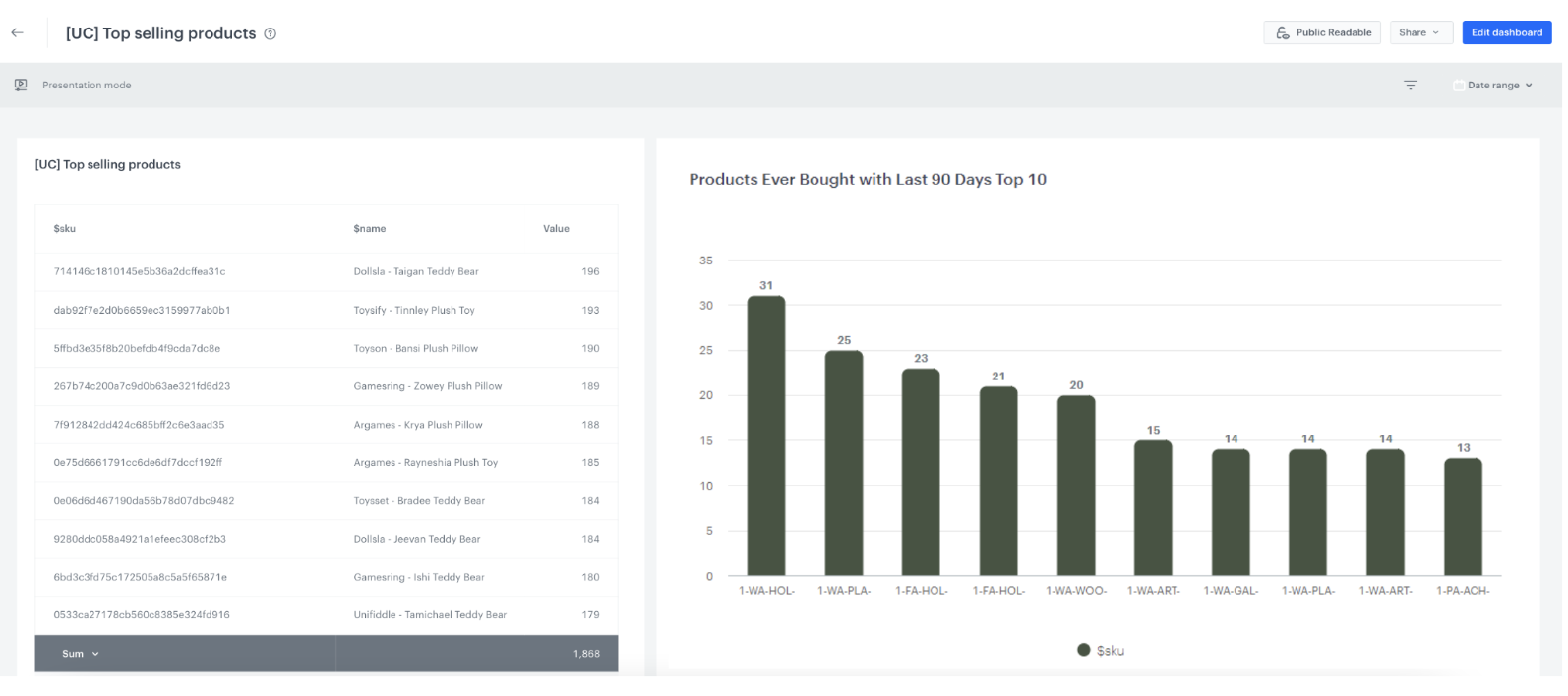
To conveniently monitor and visualize results, a dashboard is created, showing both the bestsellers report and the dynamic report.
## Prerequisites
---
- Implement a [tracking code](/docs/settings/tool/tracking_codes) into your website.
- Import a [product feed](/developers/product-feed) to a catalog.
- Import [transaction events](/developers/web/transactions-sdk).
- [Enrich transactional data from your product feed](/use-cases/enriching-product-page-with-data-from-the-catalog).
- Create a [Workspace API key](/docs/settings/tool/api) with following permissions:
`ANALYTICS_BACKEND_METRIC_UPDATE`, `ANALYTICS_BACKEND_AGGREGATE_UPDATE`, `ANALYTICS_BACKEND_REPORT_READ`.
## Process
---
In this use case, you will go through the following steps:
1. [Create an aggregate](/use-cases/dynamic-report#create-an-aggregate) that returns a list of order IDs in the last 90 days.
2. [Create a metric that returns the quantity of purchased products](/use-cases/dynamic-report#create-a-metric-that-returns-the-quantity-of-purchased-products) in the last 90 days.
3. [Create a metric that returns the quantity of purchased products in the specific order](/use-cases/dynamic-report#create-a-metric-that-returns-the-quantity-of-purchased-products-in-the-specific-order).
5. [Create a report with top 10 bestsellers](/use-cases/dynamic-report#create-a-report) based on the metric that returns the quantity of purchased products in the last 90 days.
6. [Create a dynamic report](/use-cases/dynamic-report#create-a-dynamic-report) with top 10 complementary products to 10 bestsellers.
7. [Create a workflow](/use-cases/dynamic-report#create-a-workflow) which retrieves and updates the analyses created in the previous parts of the process.
7. [Create a dashboard](/use-cases/dynamic-report#create-a-dashboard) with two reports created earlier.
## Create an aggregate
---
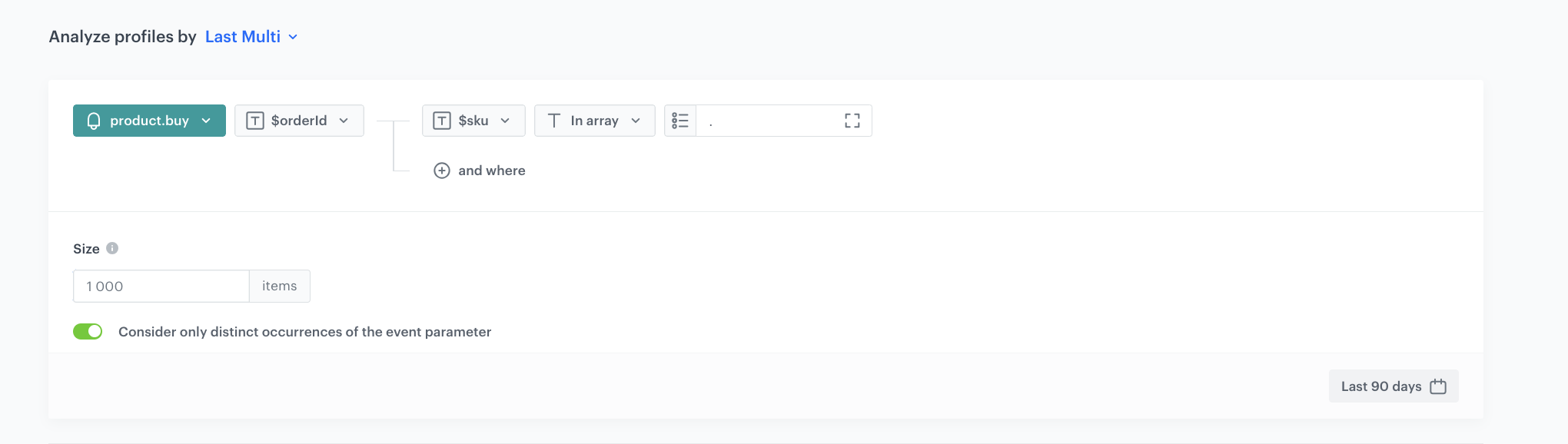
The first step is creating an aggregate that returns IDs of the last 1000 orders which included products from a pre-defined list which will be updated later in the workflow.
1. Go to **Behavioral Data Hub > Live Aggregates > Create aggregate**.
2. As the aggregate type, select **Profile**.
2. Enter the name of the aggregate.
3. Click **Analyze profiles by** and select **Last multi** and in the **Size** field, enter `1000`.
The number of last multi should be chosen depending on the specific company's sales volume.
4. Select the **Consider only distinct occurrences of the event parameter** button.
5. From the **Choose event** dropdown list, select the **product.buy** event.
6. As the event parameter, select **$orderId**.
7. Click **+ where** button.
8. From the **Choose parameter** dropdown list, select the **$sku** parameter.
9. From the **Choose operator** dropdown list, select **In Array**.
10. Enter the `.` character. This value will be updated later through a workflow created in the further part of the process.
11. Set the period from which the aggregate will analyze the results. In our case, it's **last 90 days**.
12. Save the aggregate.
Aggregate with top selling products
## Create a metric that returns the quantity of purchased products
---
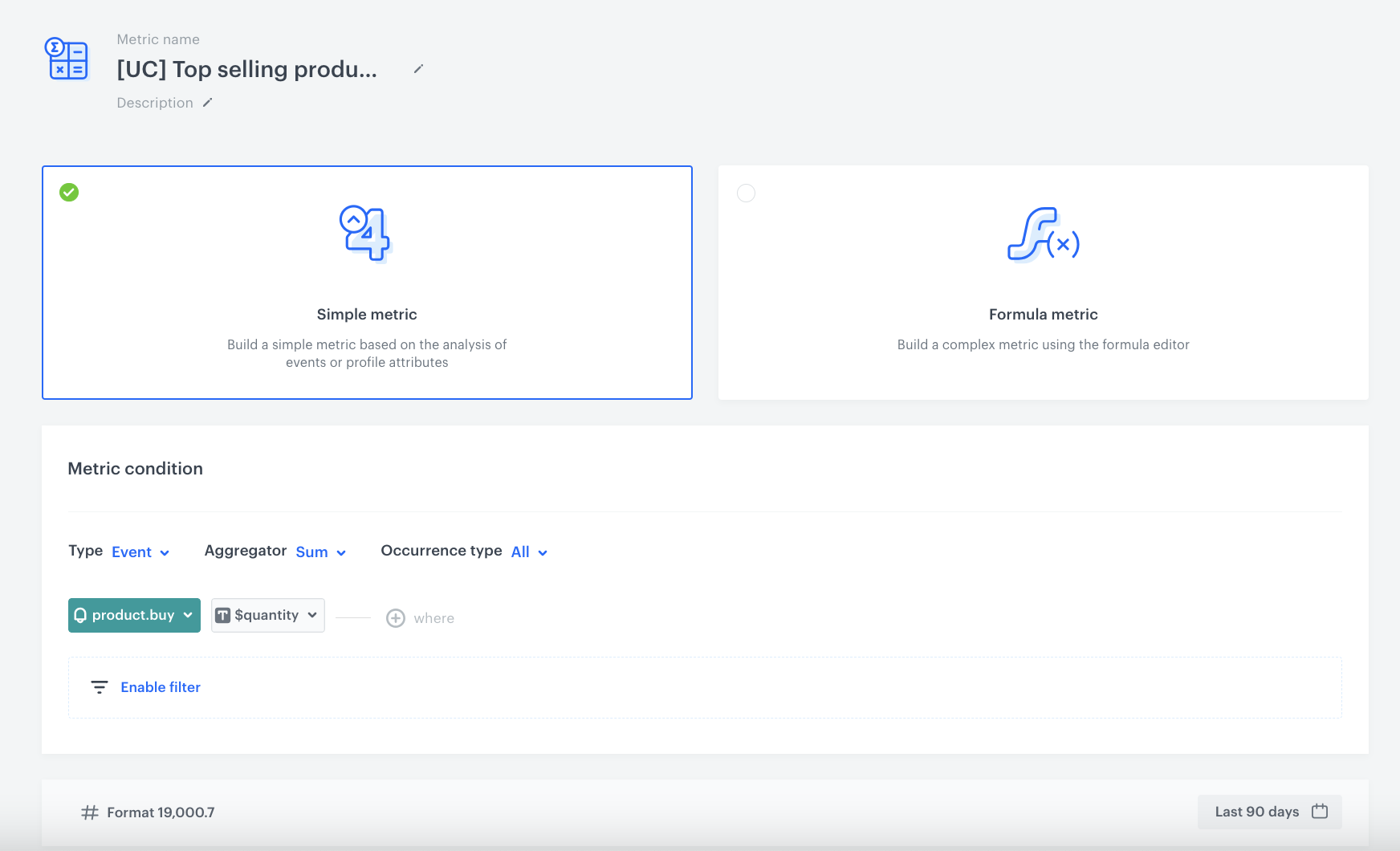
The next step involves creating a metric that calculates the total sum of purchased items. This simple metric, which considers all occurrences of the `product.buy` event in the last 90 days, will be used in the report which will give you insights into the most frequently purchased products in the defined time frame (in our case - last 90 days).
1. Go to **Decision Hub > Metrics > New metric**.
2. Enter the name of the metric.
3. As the kind of the metric, select **Simple metric**.
4. As the aggregator, set **Sum**.
5. As the occurrence type, set **All**.
6. From the **Choose event** dropdown list, select the **product.buy** event.
7. Click the **Where** button.
8. Click the **Choose parameter** button.
9. Choose the **$quantity** parameter.
15. To specify the analyzed period, click the **calendar** icon.
15. Choose the **last 90 days**.
16. Confirm your selection by clicking the **Apply** button.
17. Save the metric.
Metric with top selling products
## Create a metric that returns the quantity of purchased products in the specific order
---
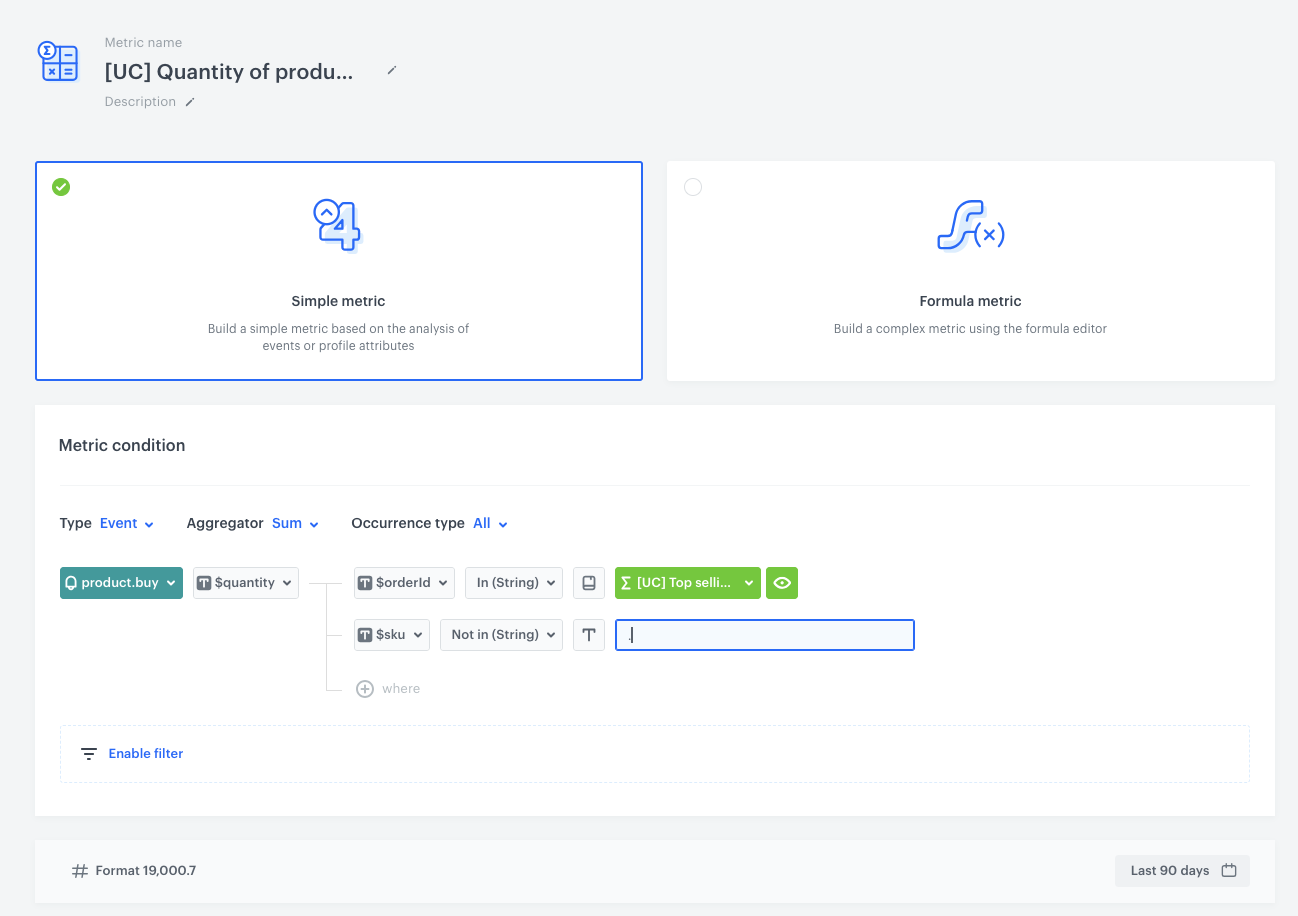
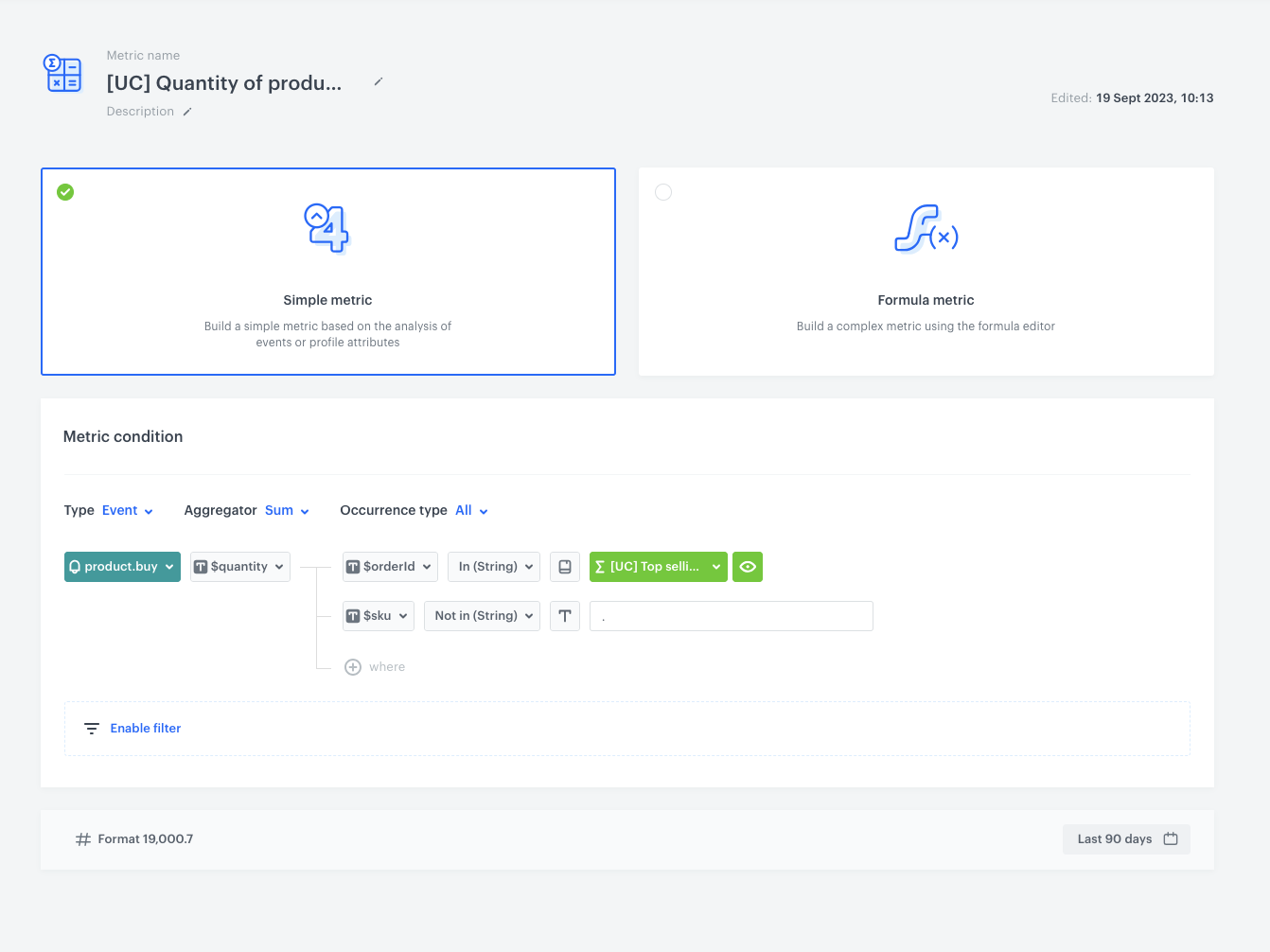
In this part of the process, create a metric that returns the quantity of products purchased within specific order IDs. This metric is essential for grouping together products bought in the same order. Later it will be used to identify frequently co-purchased items. This metric will not return results until the workflow, which will be created in the further part of the process, is launched.
1. Go to **Decision Hub > Metrics > New metric**.
2. Enter the name of the metric.
3. As the kind of the metric, select **Simple metric**.
4. As the aggregator, set **Sum**.
5. As the occurrence type, set **All**.
6. From the **Choose event** dropdown list, select the **product.buy** event.
7. As a parameter choose **$quantity**.
7. Click the **Where** button.
8. Click the **Choose parameter** button.
9. Choose the **$orderId** parameter.
10. As an operator select, **In (String)**.
11. As a value of the `$orderId` parameter, select an [aggregate](/use-cases/dynamic-report#create-an-aggregate) created in the previous step.
12. Click the **+where** button.
13. From the dropdown, select the parameter **$sku**.
14. As an operator, select **Not in (String)**.
14. As the value, enter the `.` sign. This value will be updated later through a workflow created in the further part of the process.
11. Set the period from which the metric will analyze the results. In our case **Last 90 days**.
16. Confirm your selection by clicking the **Apply** button.
17. Save the metric.
Metric presented the quantity of products bought
## Create a report
---
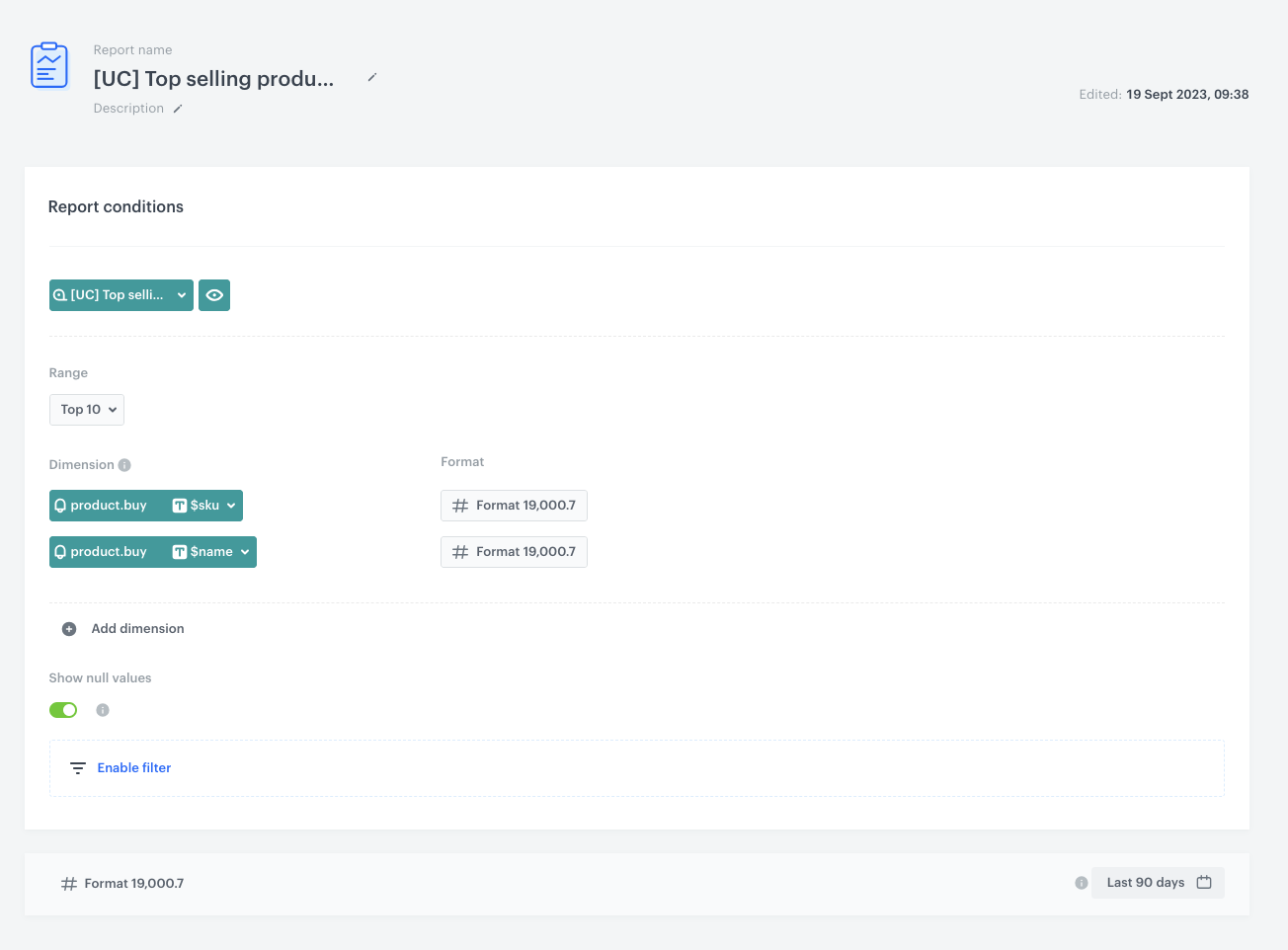
In this part of the process, you will create a report that returns the top 10 bestselling products from the last 90 days. This report helps you understand which products are performing exceptionally well, providing insights for inventory management and marketing strategies.
1. Go to **Decision Hub > Report > New report**.
2. Enter a name of the report.
3. Select the metric you created in [the previous part](/use-cases/dynamic-report#create-a-metric-that-returns-the-quantity-of-purchased-products) of the process.
4. From the **Range** dropdown list, choose **10 top**.
5. In the **Dimension** section, from the **product.buy** event, select **$sku** to display the SKU of each product included in the report results.
6. In the **Dimension** section, from the **product.buy** event, select **$name** to display the name of each product included in the report results.
6. For the date range, select the time period you want to analyze. In this case, choose last 90 days.
7. Save the report.
8. Click on **Preview** to view the results.
Report presented top selling products
## Create a dynamic report
---
This report identifies the top 10 products most frequently bought together with the bestselling products from the last 90 days. This dynamic report relies on the [metric](/use-cases/dynamic-report#create-a-metric-that-returns-the-quantity-of-purchased-products-in-the-specific-order) created in the previous step and lets you uncover complementary products. This report will not return results until the workflow, which will be created in the further part of the process, is launched.
1. Go to **Decision Hub > Report > New report**.
2. Enter a name of the report.
3. Select the metric you created in [the previous part](/use-cases/dynamic-report#create-a-metric-that-returns-the-quantity-of-purchased-products-in-the-specific-order) of the process.
4. From the **Range** dropdown list, choose **10 top**.
5. In the **Dimension** section, from the **product.buy** event, select **$sku** to display the SKU of each product included in the report results.
6. In the **Dimension** section, from the **product.buy** event, select **$name** to display the name of each product included in the report results.
6. For the date range, select the time period you want to analyze. In this case, choose last 90 days.
7. Save the report.
8. Click **Preview** to view the results.
Report presented top selling products
## Create a workflow
---
In this part of the process, create a workflow which retrieves data from the report and update the report, metric and aggregate with proper SKUs. This ensures that the analyses created before remain up to date.
1. Go to **Automation Hub > Workflows > New workflow**.
2. Enter the name of the workflow.
### Define the Audience trigger node
---
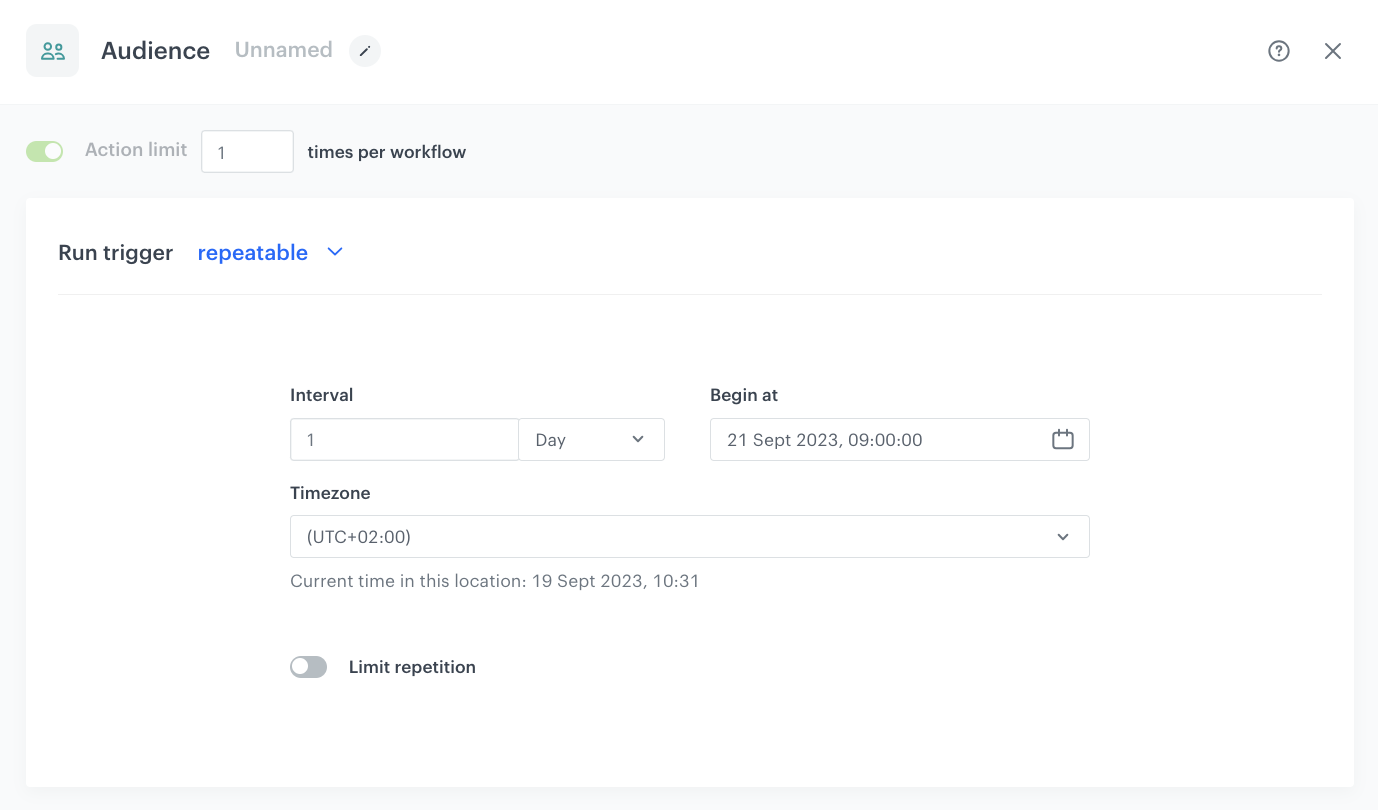
Choose the **Audience** node as the trigger. Set the workflow as repeatable, starting everyday at 9:00 A.M. This node is necessary to facilitate repetitive launching, using the customer-related nodes (such as Event Filter) and using customer context.
1. Start the workflow with the **Audience** node.
2. In the configuration of the node, set the **Run trigger** option to **repeatable**.
3. Set the interval to 1 per day.
4. Choose the day and time when the process starts. Choose 9 A.M.
5. As the audience of the node, you may include only yourself or a test user. The audience is not a priority.
6. Click **Apply**.
Configuration of the Audience node
### Define the first Delay node
---
This node creates a 10 seconds delay before moving to the next condition of the workflow. It helps you minimize the risk that possible server errors or delays will influence your workflow.
1. Add the **Delay** node. In the node settings:
1. In the **Delay** field, type `10`.
2. From the dropdown list, choose **second**.
2. Click **Apply**.
### Configure the first Outgoing Integration node
---
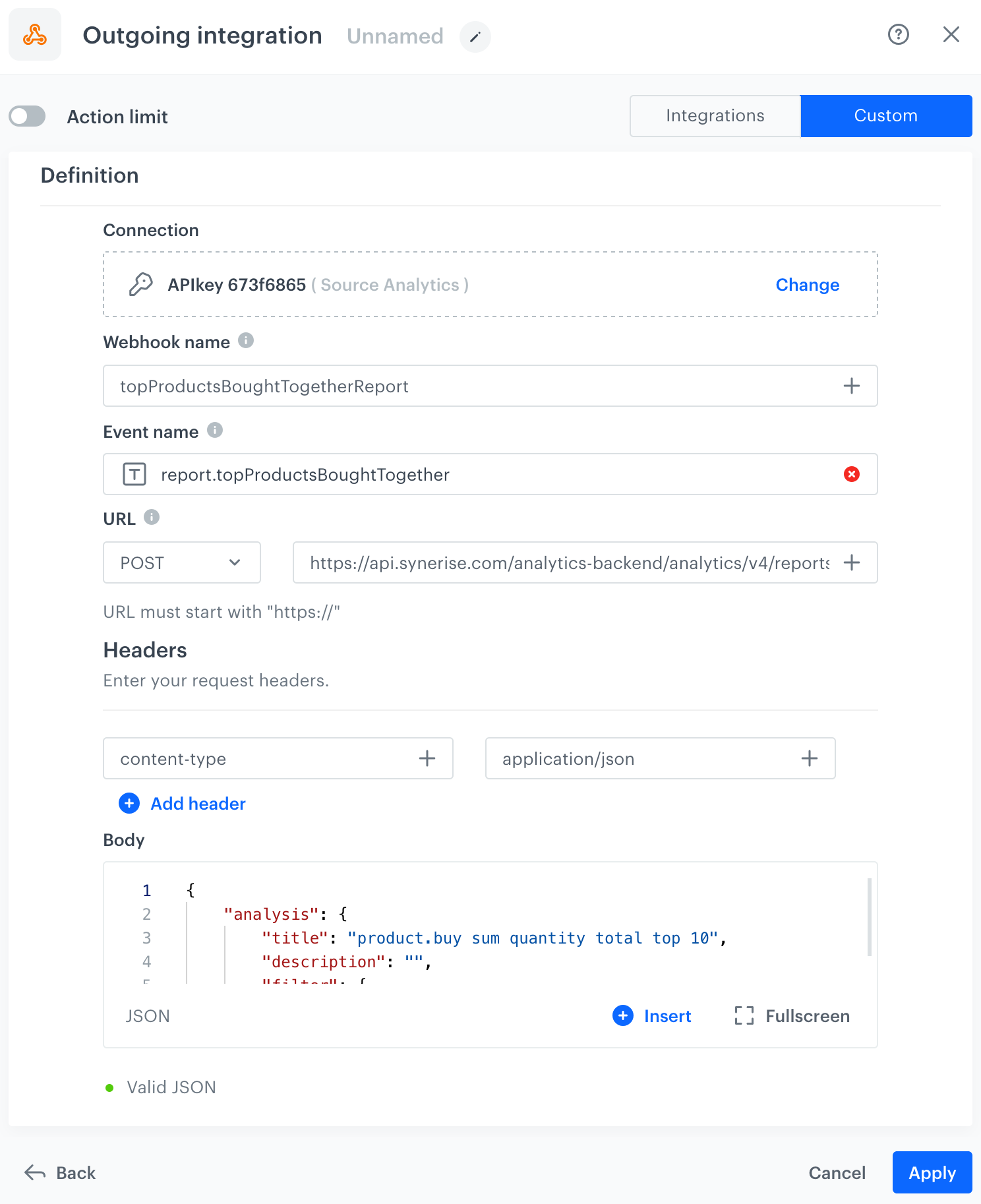
This Outgoing Integration Node fetches the top 10 products from our [report](/use-cases/dynamic-report#create-a-report) generated earlier. These products represent the bestsellers and will serve as the foundation for further analysis.
1. Add **Outgoing Integration**. In the configuration of the node:
1. Choose the authentication method. In our case, it will be **API key**.
2. Click **Add connection**, and on the pop-up, enter the name of the connection and from the dropdown list, select the API Key created as a part of prerequisites.
2. Click **Apply**.
2. In the **Webhook name** field, enter the value of the `name` parameter of the event generated by this integration. In our case, it's `topProductsBoughtTogetherReport`.
3. In **Webhook event name**, click **Create event** and create a new event:
1. As **Name**, enter `report.topProductsBoughtTogether`
2. As **Display name**, enter `Top product report generated`
3. In the **URL** section, select the **POST** method and as the endpoint URL, enter `https://api.synerise.com/analytics/analytics/v4/reports/preview`
4. In the **Headers** section, as the header, add **content-type** and as a value, add **application/json**.
5. In the **Body** section, enter the following JSON code. As the value of the **metricId**, enter the ID of the [metric](/use-cases/dynamic-report#create-a-metric-that-returns-the-quantity-of-purchased-products) which you can find in the URL of this metric.
11. Confirm the settings by clicking **Apply**.
12. Confirm by clicking **Apply**.
Outgoing Integration configuration
### Configure the Event Filter node
---
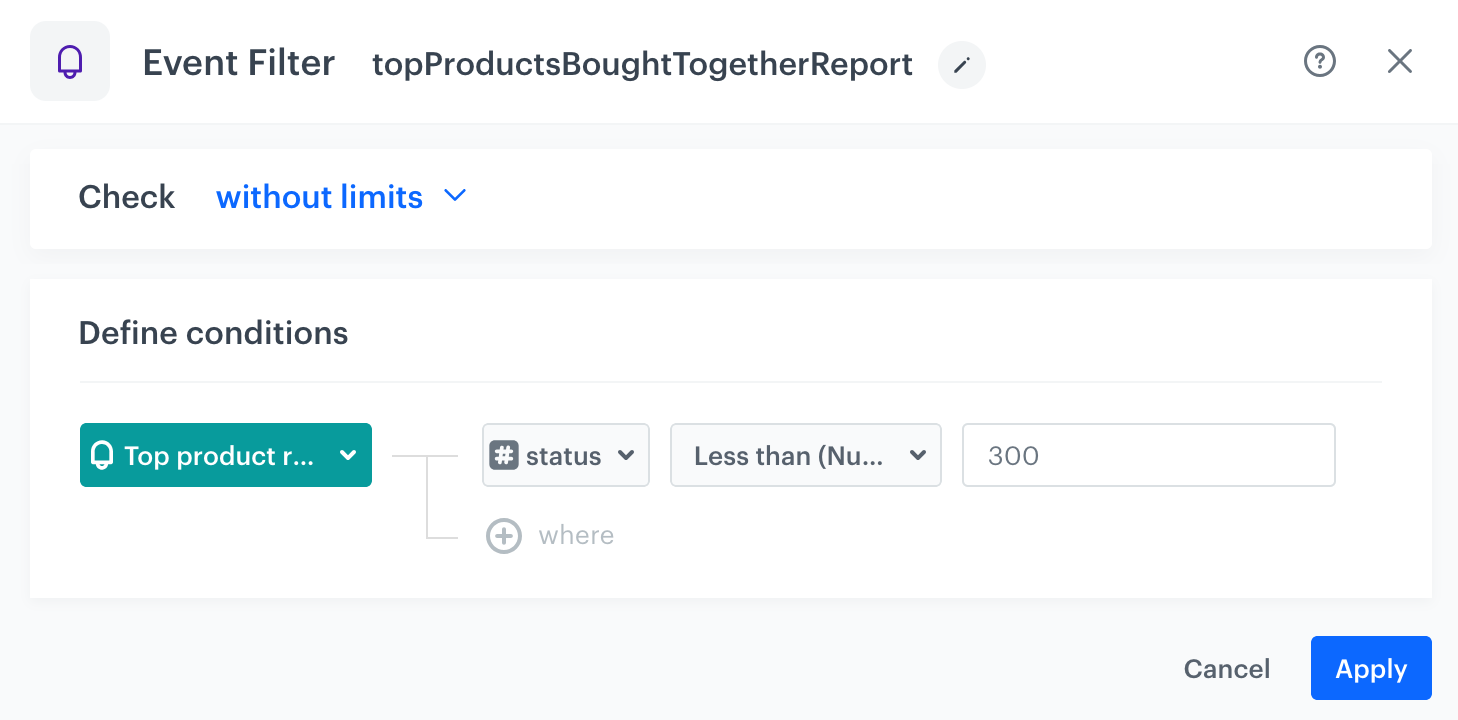
In this node, the workflow waits for the response from the report generation initiated in the previous step. It ensures that we proceed only when the report data is available.
1. Add the **Event Filter** node.
2. Add the name for the node, in our case it has to be: `topProductsBoughtTogetherReport`, because the exact name was used as the webhook name in the previous step.
1. Check **without limits**.
2. From the **Choose event** dropdown list, select the `report.topProductsBoughtTogether` event.
4. As the event parameter select **status**. The status parameter usually refers to an HTTP status code.
5. From the **Choose operator** dropdown list, select **less than (number)**.
6. As the value, enter `300` to avoid server errors.
7. Confirm by clicking **Apply**.
Event Filter node configuration
### Define the second Delay node
---
This node creates a 10 second delay before moving to the next node in the workflow. It helps you minimize the risk of server errors or delays that could affect your workflow.
1. Add the **Delay** node. In the node settings:
1. In the **Delay** field, type `10`.
2. From the dropdown list, choose **second**.
2. Click **Apply**.
### Configure the second Outgoing Integration node
---
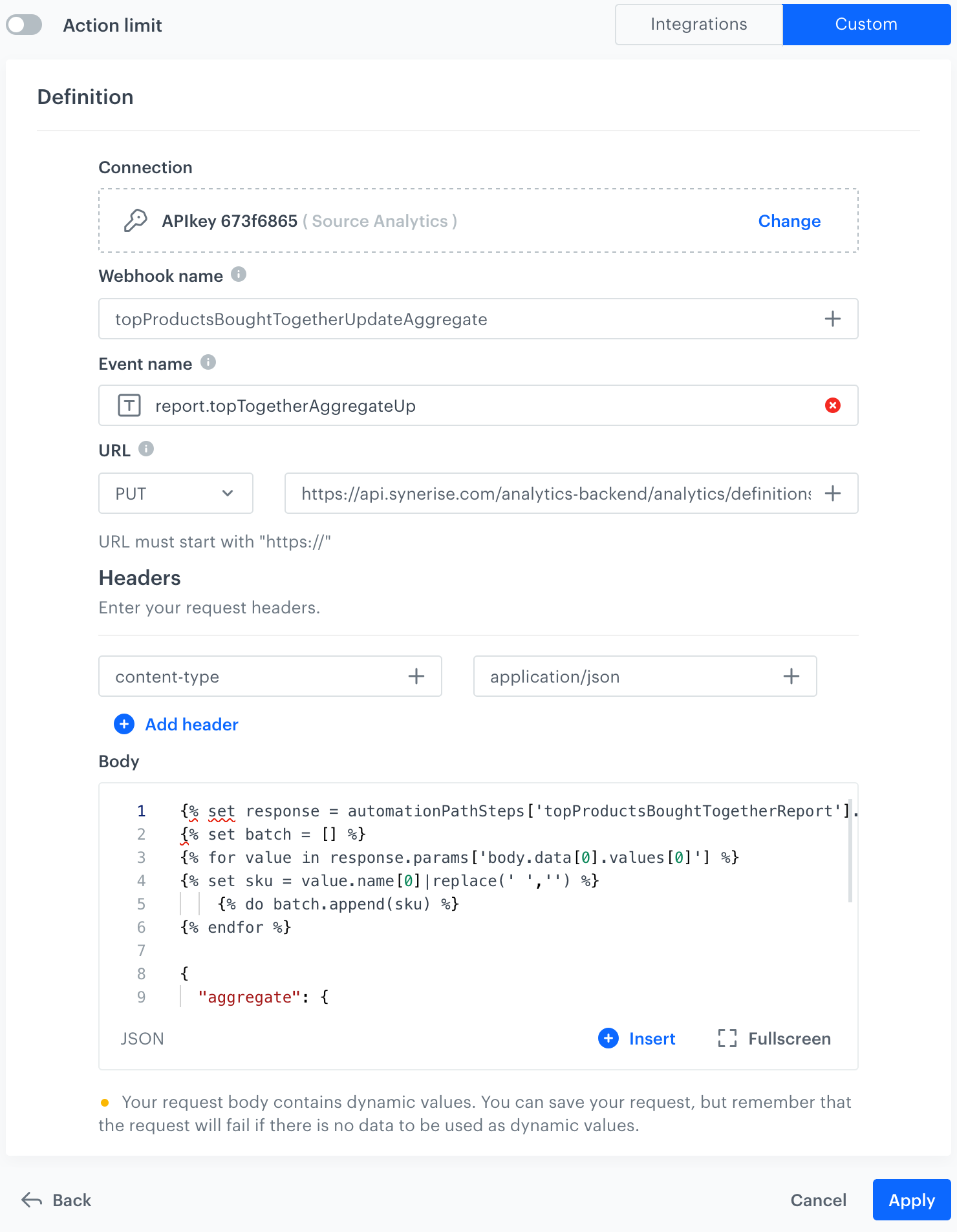
The step involves updating the [aggregate you created in the previous step](/use-cases/dynamic-report#create-an-aggregate) with additional SKUs obtained from the report generated in the first Outgoing Integration node in this workflow. This ensures that the aggregate data remains up to date. The goal of this step is to keep our aggregate data up to date, allowing us to analyze product purchases accurately.
1. Add **Outgoing Integration**. In the configuration of the node:
1. Choose the authentication method. In our case, it will be **API key**.
2. Click **Add connection**, and on the pop-up, enter the name of the connection and from the dropdown list, select the API Key created as a part of prerequisites.
2. Click **Apply**.
2. In the **Webhook name** field, enter the value of the `name` parameter of the event generated by this integration. In our case, it's `topProductsBoughtTogetherUpdateAggregate`.
3. In **Webhook event name**, click **Create event** and create a new event:
1. As **Name**, enter `report.topTogetherAggregateUp`
2. As **Display name**, enter `Top product aggregate updated`
3. In the **URL** section, select the **PUT** method and as the endpoint URL, enter `https://api.synerise.com/analytics/analytics/definitions-manager/aggregates/394379f0-f851-39d8-a62e-fc0613860798`. Remember to replace the ID in the link with the ID of the [aggregate](/use-cases/dynamic-report#create-an-aggregate) created in the previous step.
4. In the **Headers** section, as the header, add **content-type** and as a value, add **application/json**.
5. In the **Body** section add the following code snippet. As values of **id** and **uuid**, enter the ID of the [aggregate](/use-cases/dynamic-report#create-an-aggregate) which you can find in the URL of this aggregate.
11. Confirm the settings by clicking **Apply**.
12. Confirm by clicking **Apply**.
Outgoing Integration configuration
### Define the third Delay node
---
This node creates a 10 second delay before moving to the next condition of the workflow. It helps you minimize the risk of server errors or delays that could affect your workflow.
1. Add the **Delay** node. In the node settings:
1. In the **Delay** field, type `10`.
2. From the dropdown list, choose **second**.
2. Click **Apply**.
### Configure the third Outgoing Integration node
---
The next step involves updating the metric with SKUs obtained from the report generated in the first Outgoing Integration node in this workflow. This ensures that the metric data remains up to date.
1. Add **Outgoing Integration**. In the configuration of the node:
1. Choose the authentication method. In our case, it will be **API key**.
2. Click **Add connection**, and on the pop-up, enter the name of the connection and from the dropdown list, select the API Key created as a part of prerequisites.
2. Click **Apply**.
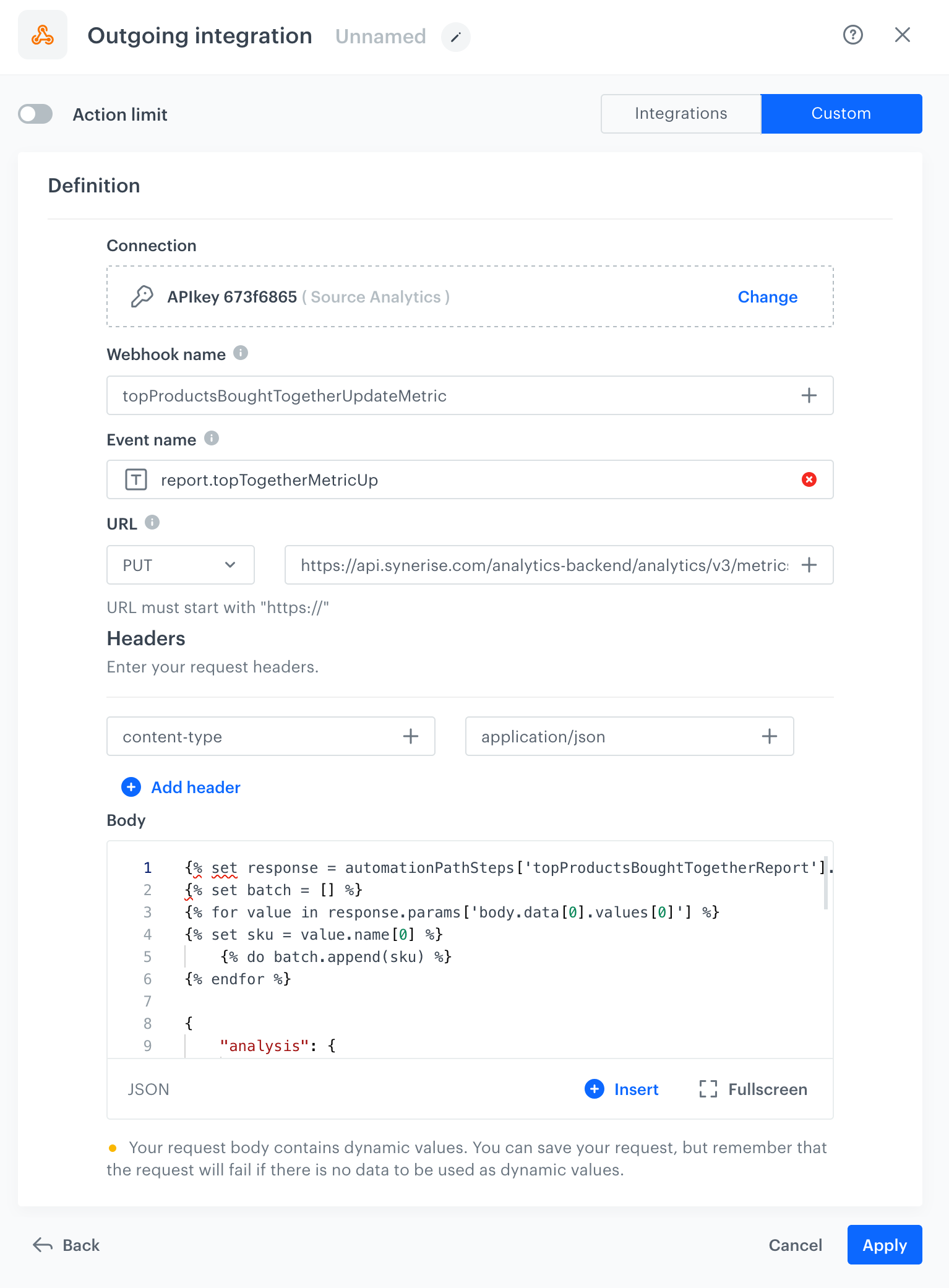
2. In the **Webhook name** field, enter the value of the `name` parameter of the event generated by this integration. In our case, it's `topProductsBoughtTogetherUpdateMetric`.
3. In **Webhook event name**, click **Create event** and create a new event:
1. As **Name**, enter `report.topTogetherMetricUp`
2. As **Display name**, enter `Top product metric updated`
3. In the **URL** section, select the **PUT** method and as the endpoint URL, enter `https://api.synerise.com/analytics/analytics/v3/metrics/ca35c24c-de50-4f7b-8e1d-38adaa819036`. Remember to replace the ID in the link with the ID of the [metric](/use-cases/dynamic-report#create-a-metric-that-returns-the-quantity-of-purchased-products-in-the-specific-order) created in the previous step.
4. In the **Headers** section, as the header, add **content-type** and as a value, add **application/json**.
5. In the **Body** section add the following JSON frame with Jinjava code. In the place **id** and **uuid** enter the [aggregate](/use-cases/dynamic-report#create-an-aggregate) ID which is located in the link to this aggregate.
11. Confirm the settings by clicking **Apply**.
Outgoing Integration configuration
### Prepare the final settings
---
1. Add the **End** node.
2. Optionally, add titles to each node so the workflow will be more understandable to your colleagues.
4. Enter the name of the workflow.
5. To save it as a draft, click Save, or activate the workflow by clicking **Save & Run**.
The whole workflow process
## Create a dashboard
---
In this part of the process, to conveniently preview the results of all reports you created in the previous part of the process, create a dashboard. This dashboard serves as a central hub for accessing key insights into your product performance.
1. Go to **Decision Hub > Dashboard > New dashboard**.
2. Enter a meaningful name of the dashboard.
3. Add both reports you created earlier in the process:
- [Report with top 10 bestsellers](/use-cases/dynamic-report#create-a-report),
- [Dynamic report](/use-cases/dynamic-report#create-a-dynamic-report).
You can learn more about creating dashboards [here](/docs/analytics/analytics-dashboard/creating-dashboards).
4. Save the dashboard.
Dashboard with both reports
## Check the use case set up on the Synerise Demo workspace
---
You can check the configuration of all elements used in the use case, directly in Synerise Demo workspace:
- [aggregate](https://app.synerise.com/analytics/aggregates/394379f0-f851-39d8-a62e-fc0613860798)
- [metric with top selling products](https://app.synerise.com/analytics/metrics/6860f5d4-5ae2-4cc0-8472-50ddee1e4496)
- [metric with the sum of quantity of products in the specific order](https://app.synerise.com/analytics/metrics/ca35c24c-de50-4f7b-8e1d-38adaa819036)
- [report with top selling products](https://app.synerise.com/analytics/reports/9cf9ba76-a9db-4fab-855d-95437ffab472)
- [dynamic report](https://app.synerise.com/analytics/reports/e640ffb8-8f6f-4bdc-a9ea-417d69c85d3a)
- [automation](https://app.synerise.com/automations/automation-diagram/bbbbc55f-75fa-4b46-ad9f-ada582366ecc)
- [dashboard](https://app.synerise.com/analytics/dashboards/2fd2f93f-a643-40c2-8655-6058ffc9c6d1)
If you’re our partner or client, you already have automatic access to the **Synerise Demo workspace (1590)**, where you can explore all the configured elements of this use case and copy them to your workspace.
If you’re not a partner or client yet, we encourage you to fill out the contact [form](https://demo.synerise.com/request) to schedule a meeting with our representatives. They’ll be happy to show you how our demo works and discuss how you can apply this use case in your business.
## Read more
---
- [Aggregates](/docs/analytics/aggregates)
- [Automation Hub](/docs/automation)
- [API](/developers/api)
- [Metrics](/docs/analytics/metrics)
- [Reports](/docs/analytics/reports)
 **Behavioral Data Hub > Live Aggregates > Create aggregate**.
2. As the aggregate type, select **Profile**.
2. Enter the name of the aggregate.
3. Click **Analyze profiles by** and select **Last multi** and in the **Size** field, enter `1000`.
**Behavioral Data Hub > Live Aggregates > Create aggregate**.
2. As the aggregate type, select **Profile**.
2. Enter the name of the aggregate.
3. Click **Analyze profiles by** and select **Last multi** and in the **Size** field, enter `1000`.
 **Decision Hub > Report > New report**.
2. Enter a name of the report.
3. Select the metric you created in [the previous part](/use-cases/dynamic-report#create-a-metric-that-returns-the-quantity-of-purchased-products) of the process.
4. From the **Range** dropdown list, choose **10 top**.
5. In the **Dimension** section, from the **product.buy** event, select **$sku** to display the SKU of each product included in the report results.
6. In the **Dimension** section, from the **product.buy** event, select **$name** to display the name of each product included in the report results.
6. For the date range, select the time period you want to analyze. In this case, choose last 90 days.
7. Save the report.
8. Click on **Preview** to view the results.
**Decision Hub > Report > New report**.
2. Enter a name of the report.
3. Select the metric you created in [the previous part](/use-cases/dynamic-report#create-a-metric-that-returns-the-quantity-of-purchased-products) of the process.
4. From the **Range** dropdown list, choose **10 top**.
5. In the **Dimension** section, from the **product.buy** event, select **$sku** to display the SKU of each product included in the report results.
6. In the **Dimension** section, from the **product.buy** event, select **$name** to display the name of each product included in the report results.
6. For the date range, select the time period you want to analyze. In this case, choose last 90 days.
7. Save the report.
8. Click on **Preview** to view the results.
 **Automation Hub > Workflows > New workflow**.
2. Enter the name of the workflow.
### Define the Audience trigger node
---
Choose the **Audience** node as the trigger. Set the workflow as repeatable, starting everyday at 9:00 A.M. This node is necessary to facilitate repetitive launching, using the customer-related nodes (such as Event Filter) and using customer context.
1. Start the workflow with the **Audience** node.
2. In the configuration of the node, set the **Run trigger** option to **repeatable**.
3. Set the interval to 1 per day.
4. Choose the day and time when the process starts. Choose 9 A.M.
5. As the audience of the node, you may include only yourself or a test user. The audience is not a priority.
6. Click **Apply**.
**Automation Hub > Workflows > New workflow**.
2. Enter the name of the workflow.
### Define the Audience trigger node
---
Choose the **Audience** node as the trigger. Set the workflow as repeatable, starting everyday at 9:00 A.M. This node is necessary to facilitate repetitive launching, using the customer-related nodes (such as Event Filter) and using customer context.
1. Start the workflow with the **Audience** node.
2. In the configuration of the node, set the **Run trigger** option to **repeatable**.
3. Set the interval to 1 per day.
4. Choose the day and time when the process starts. Choose 9 A.M.
5. As the audience of the node, you may include only yourself or a test user. The audience is not a priority.
6. Click **Apply**.