The best way to improve your sales results are personalized recommendations. They are much more effective than simply offering bestsellers or popular products. Each of us has different tastes. Taking into account the user's previous visits to the website and previously viewed products is much easier if we use **AI algorithms.**

There are many examples where these recommendations can be applied, including emails informing customers about a discount in the online store. Showing personalized products can increase engagement, click rates and conversions.  

## Example of use - Retail industry

**Challenge**

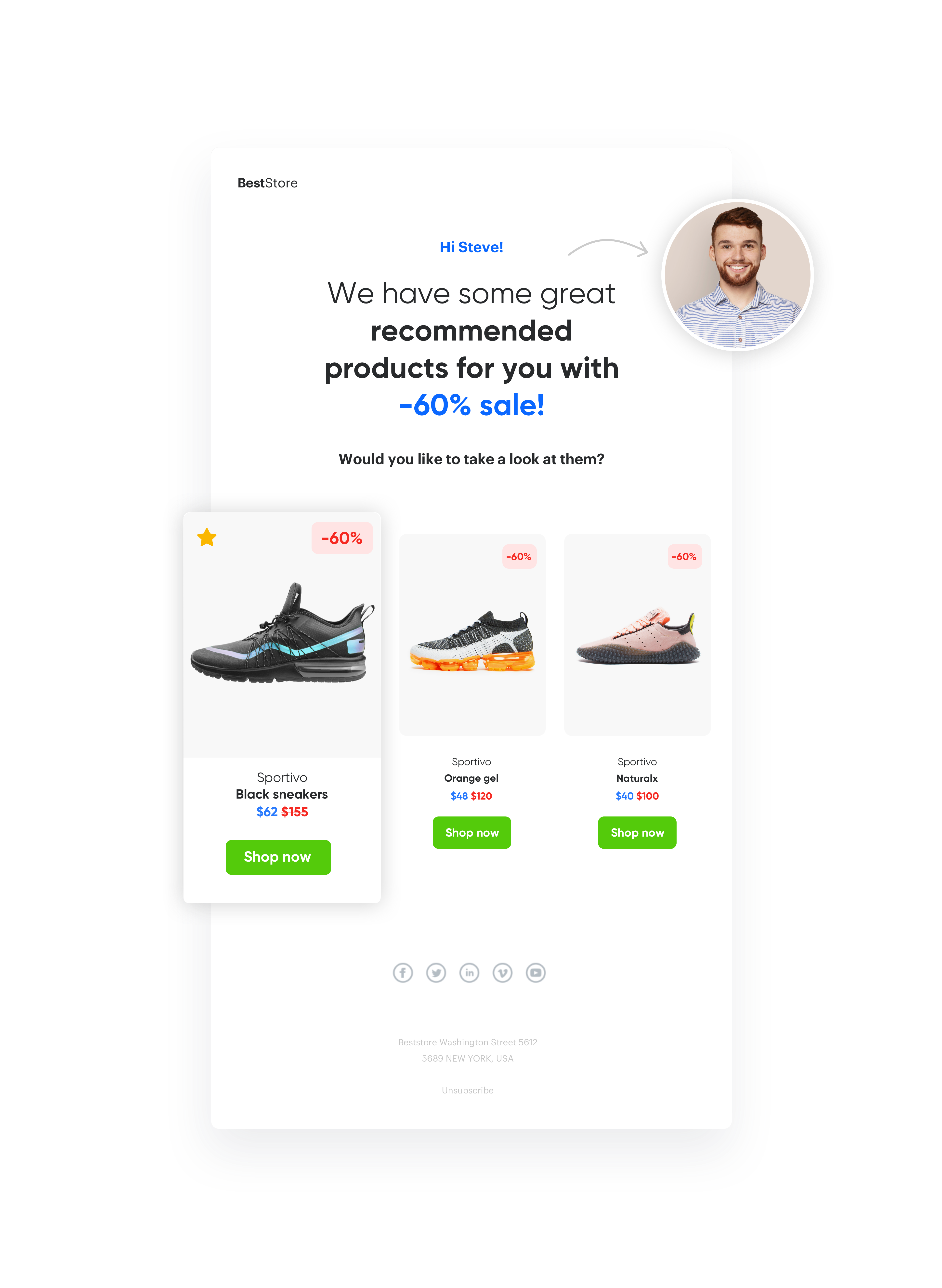
A customer from the footwear industry decided to supplement their standard newsletter informing customers about a sale with personalized recommendations, e.g. products selected by AI for each user individually based on their previous activities.

<figure>
<img src="/api/docs/image/54176ad07f146575310749eba44b7c2f42c1b327/use-cases/all-cases/_gfx/email-discount-personalized.png" alt="Screenshot presenting email with discounted product recommendations" class="full no-frame">
<figcaption> Email with discounted product recommendations </figcaption>
</figure>

They completed the recommendations with the key filter for this communication - the **customer could only receive discounted products** in the message, so that it would be connected with the main message about the discount, which could shorten the customer's path to buying products covered by the promotion. 

## Results

Results from this use case:

- OR 14,53% 
- CTR 2,18% 
- Conversion rate (transaction from AI Recommendation to clicks) 0,8% 

## Prerequisites 
---
- [Tracking code](/docs/settings/tool/tracking_codes) implemented on your website.
- [Product feed](/developers/product-feed) which:
    - will have price and sale price attributes,
    - or will have special attribute which labels the products on sale.
- [Email account](/docs/settings/configuration/email-account) configured.
- [Subscriber’s database](/docs/automation/actions/synerise-integrations/import-customers) implemented.

 
## Process
---
To prepare an email with discounted product recommendations, perform the following steps:

1. [Prepare an AI Recommendation](/use-cases/email-discount-personalized#prepare-an-ai-recommendation).
2. [Prepare an HTML email template](/use-cases/email-discount-personalized#prepare-an-html-email-template) and set up the email communication.

## Prepare an AI Recommendation 
---

1. Go to <img src="/api/docs/image/54176ad07f146575310749eba44b7c2f42c1b327/icons/ai-hub-icon.svg" alt="AI Hub icon" class="icon" > **AI Hub > (AI Recommendations) Models > Add recommendation**.
2. Enter the **name** of the recommendation (it is only visible on the list of recommendation).
   
   <div class="admonition admonition-important"><div class="admonition-icon"><svg xmlns="http://www.w3.org/2000/svg" fill="none" viewBox="0 0 24 24" stroke="currentColor" stroke-width="2.5"><path stroke-linecap="round" stroke-linejoin="round" d="M12 8v4m0 4h.01M21 12a9 9 0 11-18 0 9 9 0 0118 0z" /></svg></div><div class="admonition-body"><div class="admonition-content">

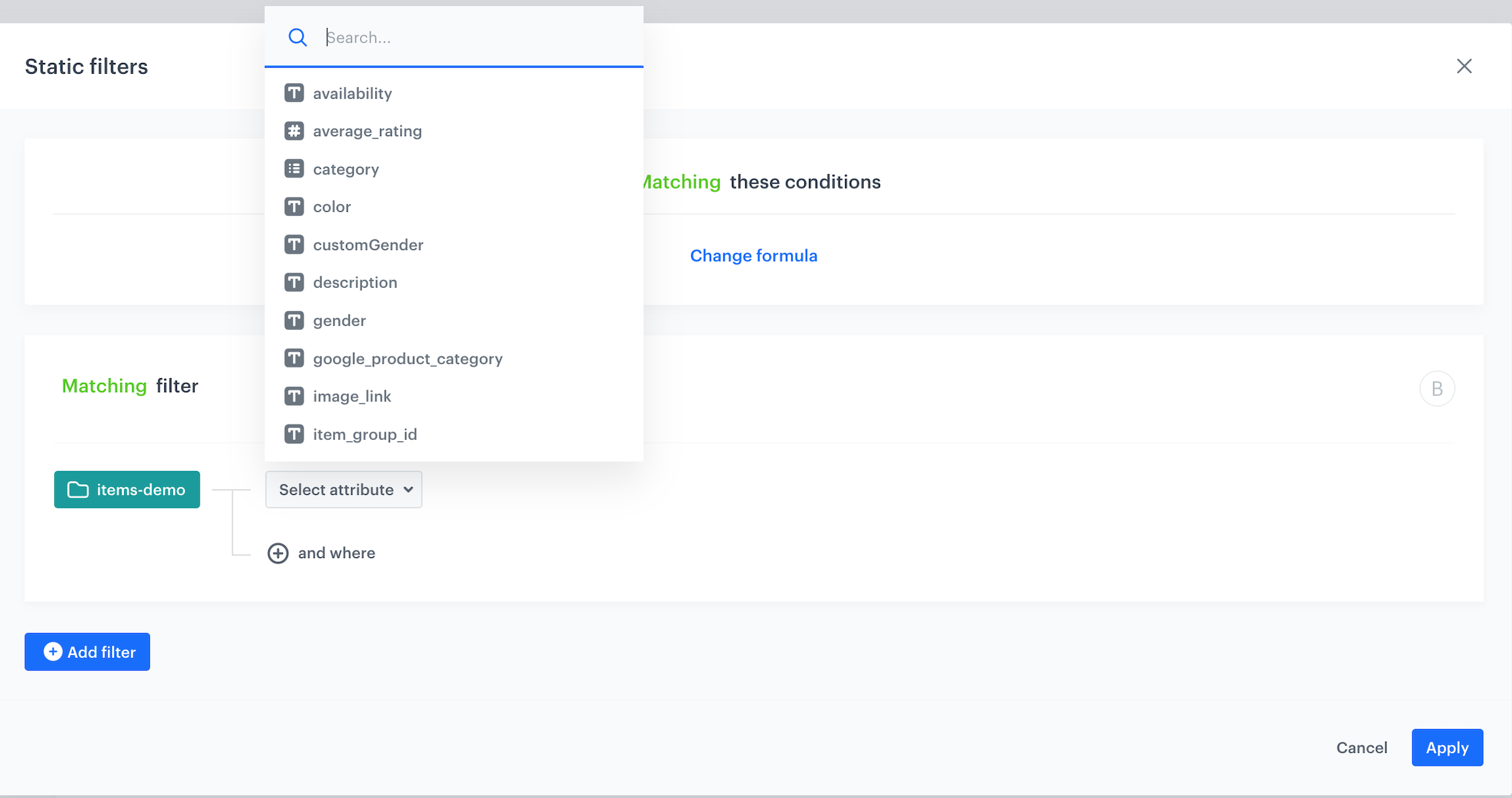
   If you have a dedicated attribute in the feed that tags only available products, **go to additional attributes**, select it from the list and indicate its value.

   </div></div></div>
   

   <figure>
    <img src="/api/docs/image/54176ad07f146575310749eba44b7c2f42c1b327/use-cases/all-cases/_gfx/emailwithpersonalizeddiscount1.png" alt="`Screenshot presenting attributes`" class="large">
    <figcaption> Attributes </figcaption>
    </figure>

3. In the **Type & Items feed** section, click **Define**.
4. From the Catalog dropdown list, select a **trained product feed**.
5. Select the recommendation type. If the recommendations are greyed out, it means the AI engine is not trained yet.
6. Confirm the settings by clicking Apply.

## Prepare an HTML email template
--- 

Prepare and HTML email template in which, using Jinjava, you can add the previously prepared AI Recommendation. 

1. Go to **Experience Hub > Email**.
2. Click Email template icon.
3. Create email templates in CSS and HTML by selecting the **Code editor**.
4. Click the **Insert** you want to add to the email. As a result, a field with the Jinjava code appears.
5. To copy the code to the clipboard, click the icon on the right side of the field.

   
   <details class="accordion"><summary>Check the jinja code</summary><div class="accordion-content"><pre><code class="language-jinja">{% recommendations3 campaignId=yYr1om9rS8H1 %} {% for p in recommended_products3 %} &lt;td style="width: 146px;text-align: center;padding: 0 2px;" data-snr-ai-product-id="{{ p.productRetailerPartNo }}"&gt; &lt;a style="width: 150px;color: #3b4652;text-decoration: none;font-family: Arial;" class="snrs-AI--item-link" href="{{ p.link }}" title="{{ p.title }}"&gt; &lt;img src="{{ p.image_link }}" class="products-slider__item-image snrAI-product-image snrAI-product-image-{{p.productRetailerPartNo}}" width="90" alt="{{ p.title }}" id="snrAI-image-{{ p.productRetailerPartNo }}" /&gt; &lt;h3 class="snrs-AI-product--product-name"&gt; &lt;span class="snrs-AI-product--name-first"&gt;{{ p.title }}&lt;/span&gt; &lt;/h3&gt; &lt;/a&gt; &lt;/td&gt; {% endfor %} {% endrecommendations3 %}</code></pre></div></details>


6. Prepare an HTML email template
7. Add the title of the email.
8. In the **Schedule tab**, decide when your email is sent.
9. In the UTM & URL parameters section, add the parameters to track the email performance.
10. Send tests of your message to verify if the content of the email is displayed correctly.

<figure>
  <img src="/api/docs/image/54176ad07f146575310749eba44b7c2f42c1b327/use-cases/all-cases/_gfx/email_with_a_promotion_customers_size_5.png" alt="Screenshot with final setings" class="large">
  <figcaption> Set up settings page </figcaption>
  </figure>


<div class="admonition admonition-tip"><div class="admonition-icon"><svg xmlns="http://www.w3.org/2000/svg" fill="none" viewBox="0 0 24 24" stroke="currentColor" stroke-width="2.5"><path stroke-linecap="round" stroke-linejoin="round" d="M9.663 17h4.673M12 3v1m6.364 1.636l-.707.707M21 12h-1M4 12H3m3.343-5.657l-.707-.707m2.828 9.9a5 5 0 117.072 0l-.548.547A3.374 3.374 0 0014 18.469V19a2 2 0 11-4 0v-.531c0-.895-.356-1.754-.988-2.386l-.548-.547z" /></svg></div><div class="admonition-body"><div class="admonition-content">

Test message can only be sent when it has a title. More information about creating emails you will find in this [article.](/docs/campaign/e-mail/creating-email-campaigns)

</div></div></div>
 

## Check the use case set up on the Synerise Demo workspace
---

Check the [AI campaign](https://app.synerise.com/ai-v2/recommendations/yYr1om9rS8H1) in Synerise Demo workspace. Email campaign settings you can find [here](https://app.synerise.com/campaigns/create/561efe4f-edbf-46ff-ab6b-188bf8270e29).

If you’re our partner or client, you already have automatic access to the **Synerise Demo workspace (1590)**, where you can explore all the configured elements of this use case and copy them to your workspace.  

If you’re not a partner or client yet, we encourage you to fill out the contact [form](https://demo.synerise.com/request) to schedule a meeting with our representatives. They’ll be happy to show you how our demo works and discuss how you can apply this use case in your business.


## Read more
---
- [Creating emails](/docs/campaign/e-mail/creating-email-campaigns)
- [Jinjava inserts](/developers/inserts/insert-usage)
- [Personalized recommendations](/docs/ai-hub/recommendations-v2/recommendation-types#personalized)
- [Segmentation](/docs/analytics/segmentations/creating-segmentations)

 
