Sometimes your customers are not sure what they are looking for. Help them to decide by sending the best-selling items - promote them further in your communication. When people see the bestseller label on your product, they’ll feel more inclined to buy it over another items offering in the same category. It is called “purchase pressure.” Some buyers go straight to the bestseller list to see what is popular now.

You can promote your bestsellers among your customers. You can dynamically add to this email all bestsellers from all categories or just from specific category, often visited by customers. 

## Examples of use - Retail industry

**Challenge**

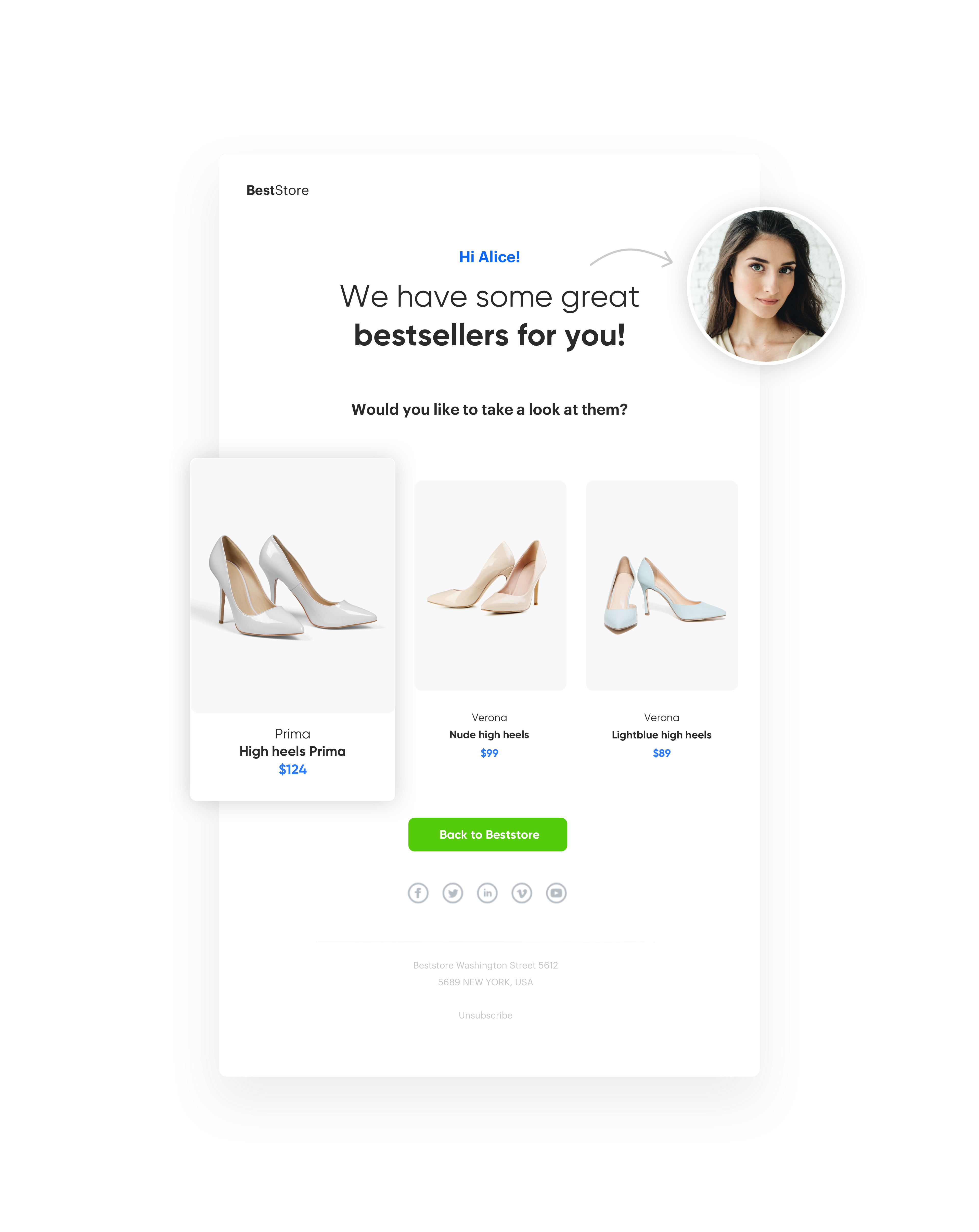
A client from the retail industry prepared a -20% summer sale for the entire collection. This client have sent an email with information about the discount to half of the customers. The second half received an email with a discount and several best-selling items. The email with bestsellers had better results. 

<figure>
<img src="/api/docs/image/54176ad07f146575310749eba44b7c2f42c1b327/use-cases/all-cases/_gfx/email-with-bestsellers.png" alt="Example email with best-selling items" class="full no-frame">
<figcaption> Example email with best-selling items </figcaption>
</figure>

**Results**

- 2,3% CTR for email with bestsellers 
- 1,8% CTR for email only with discount

## Prerequisites 
---

To be able to implement this use case, you must:
- [Implement a tracking code](/docs/settings/tool/tracking_codes).
- [Upload a product feed](/first-steps/integration/product).
- [Configure AI recommendations](/docs/settings/configuration/ai-engine-configuration/engine-configuration-for-recommendations).
- [Create transaction events](/developers/web/transactions-sdk).
- [Configure email account](/docs/campaign/e-mail/configuring-email-account).
- [Upload subscriber’s database](/docs/automation/actions/synerise-integrations/import-customers).

## Process
---

To create an email with top products, perform the steps in the following order: 

1. [Configure AI recommendations](/use-cases/email-with-top-products#create-ai-recommendations-with-top-products) with top products.
2. [Create email template](/use-cases/email-with-top-products#create-email-template) with previously created recommendations.
3. [Create an email campaign](#create-an-email-campaign).
 
## Create AI recommendations with top products
---


<div class="admonition admonition-important"><div class="admonition-icon"><svg xmlns="http://www.w3.org/2000/svg" fill="none" viewBox="0 0 24 24" stroke="currentColor" stroke-width="2.5"><path stroke-linecap="round" stroke-linejoin="round" d="M12 8v4m0 4h.01M21 12a9 9 0 11-18 0 9 9 0 0118 0z" /></svg></div><div class="admonition-body"><div class="admonition-content">

If you do not have AI models trained yet, follow this [instruction](/docs/settings/configuration/ai-engine-configuration/engine-configuration-for-recommendations) to import product feed to Synerise.

</div></div></div>
 

To be able to recommend items from the top category in various communication types, first you need to initiate the model training for the item feed from which you want to recommend your items.

1. Go to **Settings > AI Engine Configuration > Add feed**.
2. Select the type of the feed.
   
   <div class="admonition admonition-tip"><div class="admonition-icon"><svg xmlns="http://www.w3.org/2000/svg" fill="none" viewBox="0 0 24 24" stroke="currentColor" stroke-width="2.5"><path stroke-linecap="round" stroke-linejoin="round" d="M9.663 17h4.673M12 3v1m6.364 1.636l-.707.707M21 12h-1M4 12H3m3.343-5.657l-.707-.707m2.828 9.9a5 5 0 117.072 0l-.548.547A3.374 3.374 0 0014 18.469V19a2 2 0 11-4 0v-.531c0-.895-.356-1.754-.988-2.386l-.548-.547z" /></svg></div><div class="admonition-body"><div class="admonition-content">

   We recommend using Google Merchant feed due to the size limits for XML files imported to catalogs.

   </div></div></div>

3. After you add the feed, it's added to the list.
4. Double-click the feed on the list of feeds.
5. In the **Recommendation models** section, select **top products**.
    <figure>
     <img src="/api/docs/image/54176ad07f146575310749eba44b7c2f42c1b327/use-cases/all-cases/_gfx/email_with_top_products5.png" alt="Screenshot presenting model of recommendation" class="large">
     <figcaption> Top products recommendations </figcaption>
     </figure>
4. In the **Items** section, define the type of items to be included in the recommendation by using filters. 
 
   <div class="admonition admonition-tip"><div class="admonition-icon"><svg xmlns="http://www.w3.org/2000/svg" fill="none" viewBox="0 0 24 24" stroke="currentColor" stroke-width="2.5"><path stroke-linecap="round" stroke-linejoin="round" d="M9.663 17h4.673M12 3v1m6.364 1.636l-.707.707M21 12h-1M4 12H3m3.343-5.657l-.707-.707m2.828 9.9a5 5 0 117.072 0l-.548.547A3.374 3.374 0 0014 18.469V19a2 2 0 11-4 0v-.531c0-.895-.356-1.754-.988-2.386l-.548-.547z" /></svg></div><div class="admonition-body"><div class="admonition-content">

   You can check the [instruction](/docs/ai-hub/recommendations-v2/recommendation-filters) for the recommendation filters and explore [examples of use](/docs/ai-hub/recommendations-v2/recommendation-filters-examples).

   </div></div></div>

    1. You must choose **Minimum** and **Maximum** number of items which the recommendation frame includes.`
    2. Use elastic and static filters to select items to your recommendation frame.
    3. In the **Additional settings** section, you have to influence the arrangement of items in the recommendation. More information is available [here](/docs/ai-hub/recommendations-v2/creating-recommendation-campaign#define-the-boosting-factors).
    
   <div class="admonition admonition-important"><div class="admonition-icon"><svg xmlns="http://www.w3.org/2000/svg" fill="none" viewBox="0 0 24 24" stroke="currentColor" stroke-width="2.5"><path stroke-linecap="round" stroke-linejoin="round" d="M12 8v4m0 4h.01M21 12a9 9 0 11-18 0 9 9 0 0118 0z" /></svg></div><div class="admonition-body"><div class="admonition-content">

   Items section requires you to define more details about your recommendation. Obligatory choose **Min.** and **Max.**  number of products which user has to get, and in **Sorting** define metric which has to be used to find products to the message.

   </div></div></div>
 
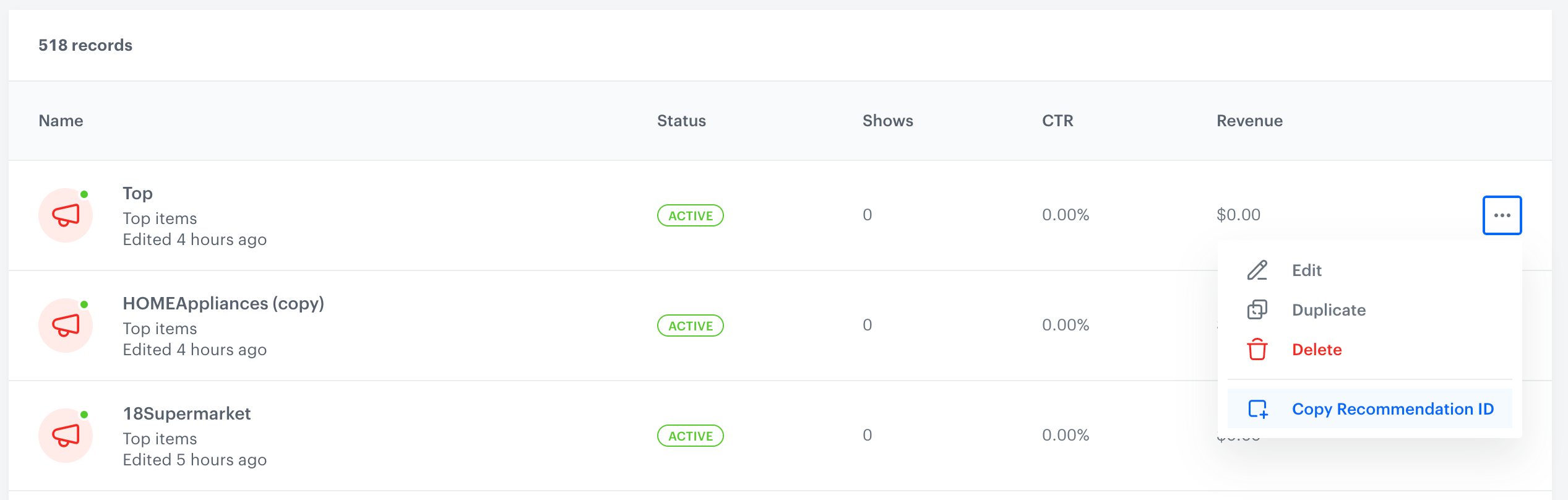
5. After saving the recommendation, get the ID of the message.
    <figure>
     <img src="/api/docs/image/54176ad07f146575310749eba44b7c2f42c1b327/use-cases/all-cases/_gfx/email-with-top-products4.png" alt="Screenshot presenting site with list of campaign" class="large">
     <figcaption> List of email recommendation </figcaption>
     </figure>
6. **Save** your recommendations.

## Create email template
---
1. Go to **Experience Hub > Email > Templates** and add new template.
2. Prepare your email message, according to your business needs.
3. Using **Inserts** choose previously created recommendations from the list and add them to your template as special code with ID of your recommendations. 
4. Save your template.

## Create an email campaign
---

In this use case, configure an email communication that will reuse the content of the recommendation you created in the previous step. While configuring the email, you must select a group of customers, create the content of the email and set up the final setting.

### Select the audience of the email message

Select the customers who will get the email with the top selling items. 

1. Choose the customers in [segmentation](https://app.synerise.com/spa/modules/analytics/segmentations/new) or create a new segment directly in the **email message**.
2. Choose users who will get email.  

<figure>
 <img src="/api/docs/image/54176ad07f146575310749eba44b7c2f42c1b327/use-cases/all-cases/_gfx/email_with_a_promotion_customers_size_3.png" alt="Screenshot with define audience mode" class="large">
 <figcaption> Define the audience </figcaption>
 </figure>

### Create content 

After selecting the email recipients, create content.  

1. Select the **email account** from which the email will be sent.  
2. Prepare the subject of the email.
3. Click **Create message** and built the template of your email. To include the top item recommendations, use the following Jinjava code and your own CSS. Let’s look at how to prepare the appropriate jijnava code. 

   
   <details class="accordion"><summary>Check the Jinjava code</summary><div class="accordion-content"><pre><code class="language-jinja">&lt;!-- Opening the tag that retrieves the value from one recommendation prepared in point 1--&gt; {% recommendations3 campaignId=xxx %} for loop below: &lt;!-- In the section {% for r in recommended_products3 %} a {% endfor %} there is access to all variables from a given object (products here) - which parameters you add to the template depends on you. --&gt; {% for r in recommended_products3 %} &lt;!-- {{ r.itemId }} {{ r.title }} {{ r.imageLink }}{{r.price.value}}{{r.salePrice.value}} - parameters taken from the recommendation. The itemId is a standard name, but others (like category, price, salePrice, title, imageLink) only depend on names defined in the feed--&gt; {{r.itemId}} {{r.title}} {{r.imageLink}} {{r.price.value}} {{r.salePrice.value}} {% endfor %} &lt;!-- Closing of the tag that gets the value from the recommendation prepared in point 1 --&gt; {% endrecommendations3 %}</code></pre></div></details>
 

4. Optionally, add the B variant of the template which will not contain the top product. 

### Prepare the final settings  
 
1. Add the title of the email.
2. In the **Schedule tab**, decide when your email is sent.
3. In the **UTM & URL** parameters section, add the parameters to track the email performance.
4. Send **tests** of your message to verify if the content of the email is displayed correctly.

<figure>
  <img src="/api/docs/image/54176ad07f146575310749eba44b7c2f42c1b327/use-cases/all-cases/_gfx/email_with_a_promotion_customers_size_5.png" alt="Screenshot with final setings" class="large">
  <figcaption> Set up settings page </figcaption>
  </figure>


<div class="admonition admonition-important"><div class="admonition-icon"><svg xmlns="http://www.w3.org/2000/svg" fill="none" viewBox="0 0 24 24" stroke="currentColor" stroke-width="2.5"><path stroke-linecap="round" stroke-linejoin="round" d="M12 8v4m0 4h.01M21 12a9 9 0 11-18 0 9 9 0 0118 0z" /></svg></div><div class="admonition-body"><div class="admonition-content">

Test message can only be sent when it has a title.

</div></div></div>
 

## Check the use case set up on the Synerise Demo workspace
---

Check the [AI recommendations settings](https://app.synerise.com/ai-v2/recommendations/VrEXZm00A7CK) and [email campaign](https://app.synerise.com/campaigns/create/49d6e315-06ab-4a35-bb45-deb5f5264cec) directly in Synerise Demo workspace.

If you’re our partner or client, you already have automatic access to the **Synerise Demo workspace (1590)**, where you can explore all the configured elements of this use case and copy them to your workspace.  

If you’re not a partner or client yet, we encourage you to fill out the contact [form](https://demo.synerise.com/request) to schedule a meeting with our representatives. They’ll be happy to show you how our demo works and discuss how you can apply this use case in your business.

## Read more
---
- [AI recommendation](/docs/ai-hub/recommendations-v2/creating-recommendation-campaign)
- [Emails](/docs/campaign/e-mail/creating-email-campaigns)
- [Email communication](/docs/campaign/e-mail)