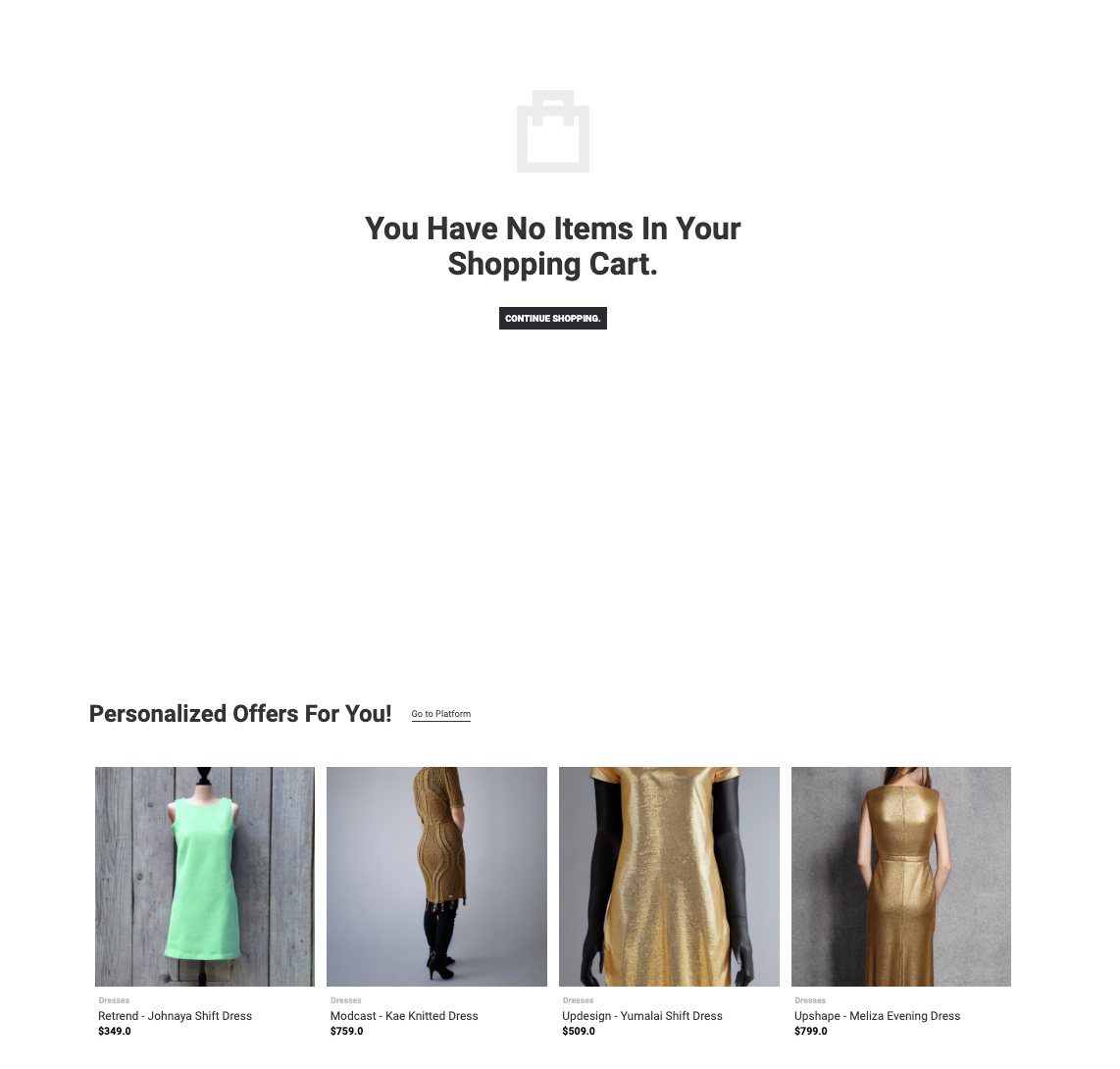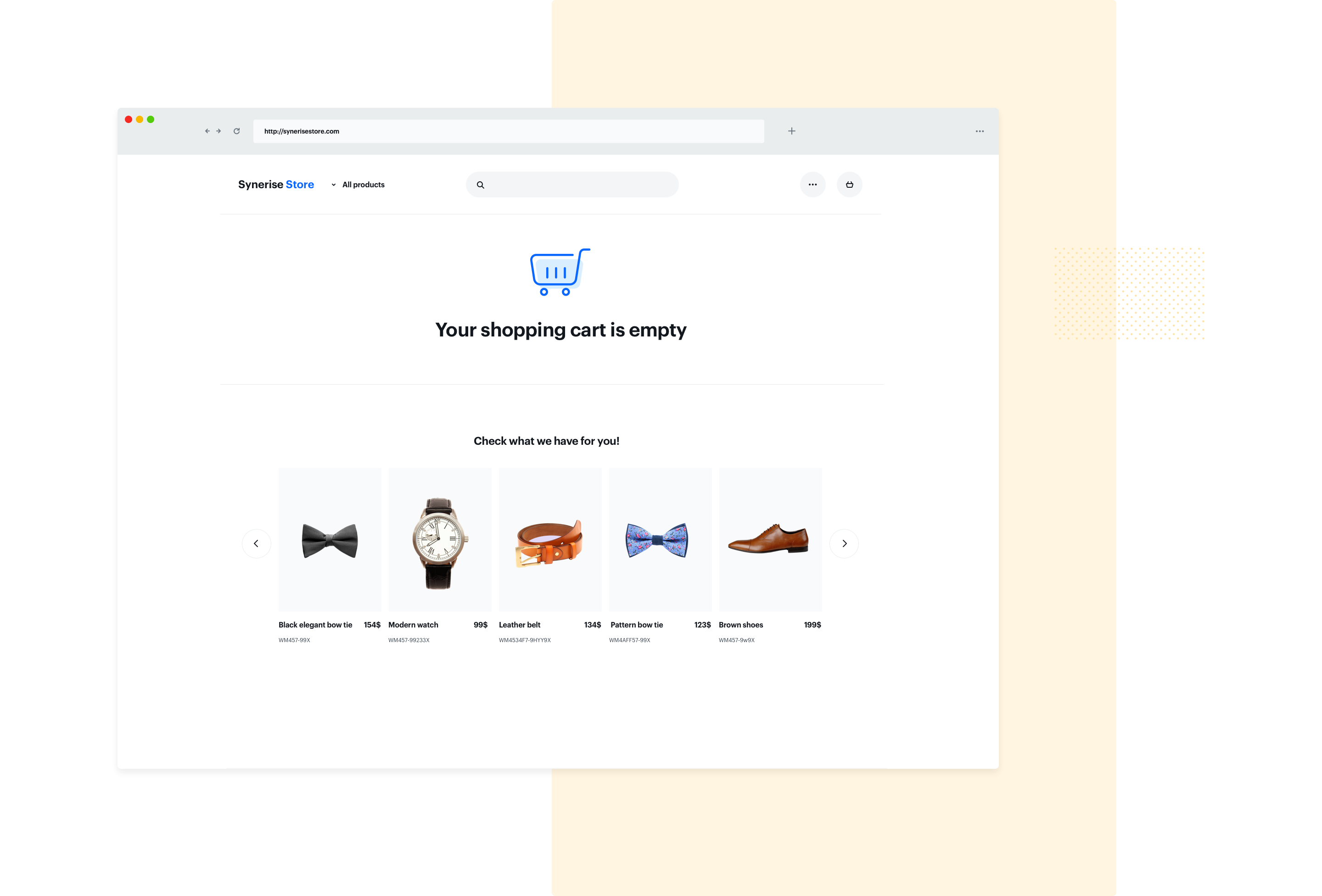
Not every customer on your website converts. Some of them leave their basket empty after deleting products from it. You should remember to use every valuable place on your website to encourage customers to make a purchase and an empty basket is one of them. A empty shopping cart page is definitely a place with sales potential that usually remains unused.

**Why do customers leave behind an empty basket?**

-	They added something to their shopping cart during a previous visit and they want to check it, but its content has already expired.
-	They checked the contents of their basket, after which they decided to remove all products from it.
-	They do not know what the online shopping process looks like or they just have clicked it by accident.

In all of these cases you can optimize the empty shopping cart page and help the customer find the products they need thanks to personalized recommendations.
Our algorithms implemented in the basket could help them make a choice and make a purchase. Recommendations that present personalized products based on previous purchases or recently viewed items can be more effective than simply leaving the space empty.

In this use case, we will present product recommendations on an empty basket page. There we will display a personalized offer where customers can find products selected for them. Those products are selected based on each customer’s behavioral history. 

<figure>
<img src="/api/docs/image/54176ad07f146575310749eba44b7c2f42c1b327/use-cases/all-cases/_gfx/recommendations_on_an_empty.png" alt="The view of recommendations on an empty basket"  class="full no-frame">
</figure>

## Prerequisites 
---

- [Implement a tracking code](/docs/settings/tool/tracking_codes).
- [Import product feed to Synerise](/developers/product-feed).
- [Track transaction events](/developers/web/event-tracking).
- Implement [OG Tags](/developers/web/og-tags) on your website.
- [Configure AI engine](/docs/settings/configuration/ai-engine-configuration/engine-configuration-for-recommendations).
- [Configure an item catalog for recommendations](/docs/settings/configuration/ai-engine-configuration/engine-configuration-for-recommendations). Enable personalized recommendations.

## Process
---
In this use case, you will go through the following steps:
1. [Create AI recommendations](/use-cases/empty-basket#create-ai-recommendations) with personalized products.
2. [Create a dynamic content](/use-cases/empty-basket#create-a-dynamic-content) on the empty basket page.


## Create AI recommendations
---
In this part of the process, you will configure a personalized recommendation which will be later used in the dynamic content campaign.

1. Go to <img src="/api/docs/image/54176ad07f146575310749eba44b7c2f42c1b327/icons/ai-hub-icon.svg" alt="AI Hub icon" class="icon" > **AI Hub > (AI Recommendations) Models > Add recommendation**.
2. Enter the name of the recommendation (it is only visible on the list of recommendations).
3. In the **Type & Items feed** section, click **Define**.
4. From the **Items feed** dropdown list, select an item feed.
5. In the **Type** section, choose the **Personalized** recommendation type.
6. Confirm the settings by clicking **Apply**.
7. In the **Items** section, click **Define**.
    1. Click **Add slot**.
    2. Define the minimum and maximum number of items that will be recommended to the user in each slot.
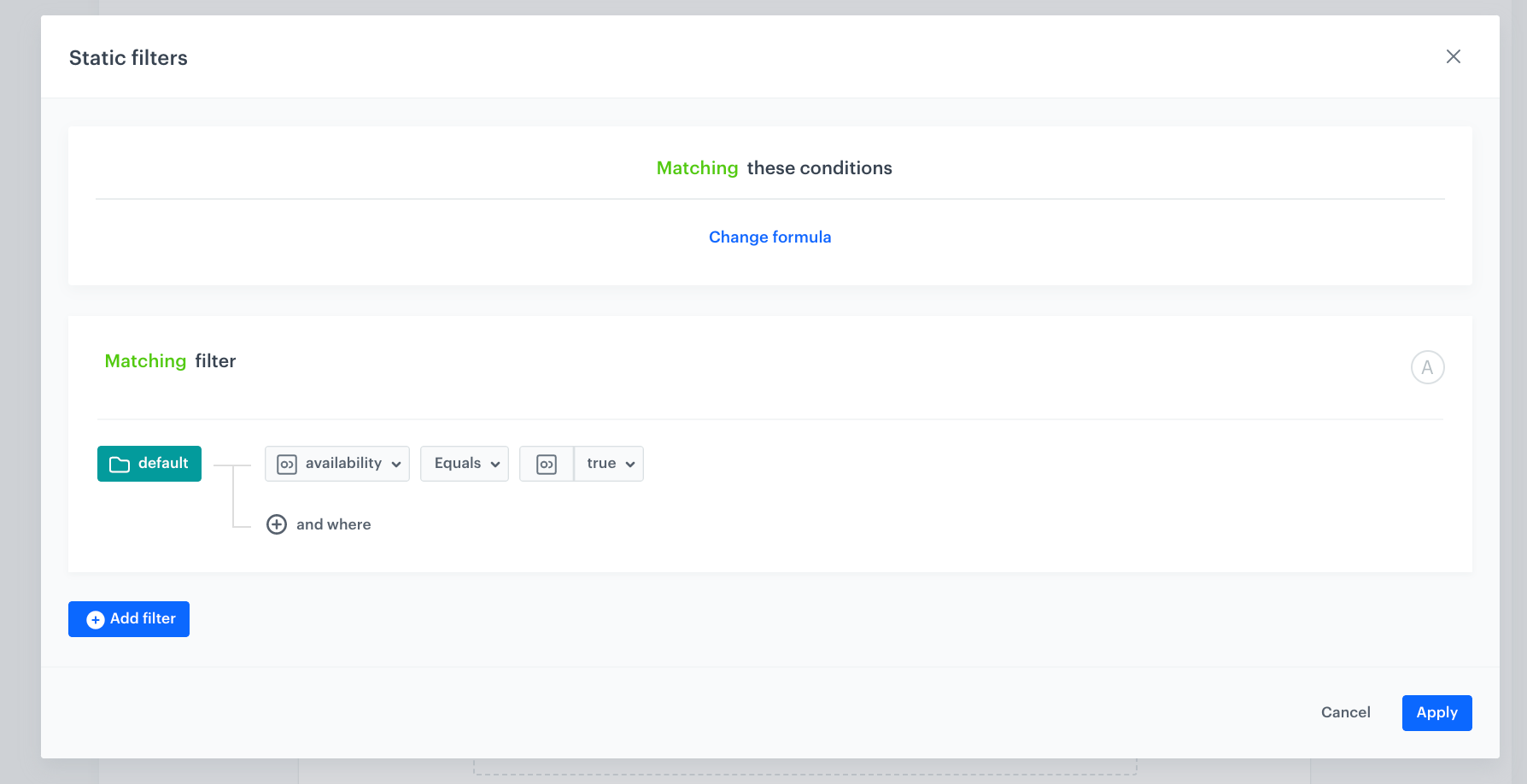
    3. Optionally, define [Static filters](/docs/ai-hub/recommendations-v2/creating-recommendation-campaign#static-filters) and [Elastic filters](/docs/ai-hub/recommendations-v2/creating-recommendation-campaign#elastic-filters). In our case, in the static filters, select availability equals true to show only available products
    <figure>
    <img src="/api/docs/image/54176ad07f146575310749eba44b7c2f42c1b327/use-cases/all-cases/_gfx/staticfilters.png" alt="`Screenshot presenting display settings`" class="medium">
    <figcaption> Filters </figcaption>
    </figure>
   

    4. Confirm by clicking **Apply**. 
8. Optionally, you can define the **Boosting** factors and settings in the **Additional settings** section.
9. In the right upper corner, click **Save**.

## Create a dynamic content
---
Create a dynamic content campaign, which will be displayed on an empty basket page.

1. Go to **Experience Hub > Dynamic content > Create new**.
2. Enter the name of the dynamic content.
1. Choose the **Insert Object** type.
2. As the audience, select **everyone**.
3. In the **Content** section, select **Simple message**, and set the CSS to **after** and add the value `.cart-empty`.
4. In the **Content** tab, click **Create Message**.
5. In the code editor, insert Jinjava with the AI recommendation and add your own CSS. 

   
   <details class="accordion"><summary>Click to see Jinjava</summary><div class="accordion-content"><p>Replace <code>your_campaign_ID</code> with the ID of the AI recommendation (either of the bestselling shoes suitable for asphalt or off-road). The ID of the AI campaign is contained in the URL of the recommendation.</p> <pre><code class="language-html">&lt;div class="title-and-link"&gt; &lt;h2&gt;Personalized offers for you!&lt;/h2&gt; &lt;a href="https://app.synerise.com/ai-v2/recommendations/bWdoIUSmSfLO" target="_blank" class="border-bottom"&gt;Go to Platform&lt;/a&gt; &lt;/div&gt; &lt;div id="recommendationsForYou" class="block widget block-products-list grid products-grid__layout-default products-grid__buttons-below secondary-top-right product-columns-4 product-columns-l-4 product-columns-m-2 product-columns-s-2 title--align-center quickview-bottom-left "&gt; &lt;div class="block-content"&gt; &lt;div class="products-grid grid"&gt; &lt;ol class="product-items widget-product-grid"&gt; {% recommendations3 campaignId=CjmCJ4X4RfRL %} {% for p in recommended_products3 %} &lt;li class="product-item"&gt; &lt;div class="product-item-info"&gt; &lt;div class="product-grid__image-wrapper"&gt; &lt;a href="{{p.productUrl}}" class="product-item-photo"&gt; &lt;span class="product-image-container product-image-container-5600" style="width: 489px;"&gt; &lt;span class="product-image-wrapper" style="padding-bottom: 100%;"&gt; &lt;img class="product-image-photo" src="{{p.image}}" data-original="{{p.image}}" loading="lazy" width="489" height="489" alt="{{p.name}}"&gt;&lt;/span&gt; &lt;/span&gt; &lt;/a&gt; &lt;/div&gt; &lt;/div&gt; &lt;div class="product-grid-overlay"&gt;&lt;/div&gt; &lt;div class="product-item-details"&gt; &lt;div class="ox-product-grid__categories"&gt;&lt;a href="https://demoshop.synerise.com/men/watches.html" class="ox-product-grid__category-link"&gt;{{p.category.split('&gt;')[3]}}&lt;/a&gt;&lt;/div&gt; &lt;strong class="product-item-name"&gt; &lt;a title="{{p.name}}" href="{{p.productUrl}}" class="product-item-link"&gt; {{p.name}}&lt;/a&gt; &lt;/strong&gt; &lt;div class="price-box price-final_price" data-role="priceBox" data-product-id="5600" data-price-box="product-id-5600"&gt; &lt;span class="price-container price-final_price tax weee"&gt; &lt;span id="old-price-5600-widget-product-grid" data-price-amount="619" data-price-type="finalPrice" class="price-wrapper "&gt;&lt;span class="price"&gt;${{p.price|float(2)}}&lt;/span&gt;&lt;/span&gt; &lt;/span&gt; &lt;/div&gt; &lt;/div&gt; &lt;/div&gt; &lt;/li&gt; {% endfor %} {% endrecommendations3 %} &lt;/ol&gt; &lt;/div&gt; &lt;/div&gt; &lt;/div&gt;</code></pre></div></details>


8. Save the template.
5. In the **Schedule** section, select the date when the dynamic content is activated.
6. In **Display settings**, configure the settings:
    - Set **Triggers** to **On landing**.  
    - Leave **Delay** at default.  
    - In the **Page targeting** section, select **Others**:
        - Under **Display on pages** banner, click **Add rule**.
        - From the dropdown list, select **Page containing URL**. 
        - In the text field, enter the link to your basket.
        - Leave the rest of the settings at default.

    <figure>
    <img src="/api/docs/image/54176ad07f146575310749eba44b7c2f42c1b327/use-cases/all-cases/_gfx/emptybasketdc.png" alt="`Screenshot presenting display settings`" class="medium">
    <figcaption> Display settings </figcaption>
    </figure>

6. Confirm by clicking **Apply**.
7. In the **UTM & URL parameters** section, click **Skip step**.  
8. Activate the dynamic content.
9. Create the second dynamic content template to display the recommendations with the other group bestselling shoes for specific terrain. Repeat all the steps.  
    **Result**: The recommendation frames are displayed at the URLs with the empty basket.

## Check the use case set up on the Synerise Demo workspace
---
You can check the configuration of the campaign components directly in Synerise Demo workspace:
- [AI recommendation configuration](https://app.synerise.com/ai-v2/recommendations/CjmCJ4X4RfRL),
- [Dynamic content campaign](https://app.synerise.com/campaigns/create/1595de2d-86b9-44be-b435-154908667c8a),

If you’re our partner or client, you already have automatic access to the **Synerise Demo workspace (1590)**, where you can explore all the configured elements of this use case and copy them to your workspace.  

If you’re not a partner or client yet, we encourage you to fill out the contact [form](https://demo.synerise.com/request) to schedule a meeting with our representatives. They’ll be happy to show you how our demo works and discuss how you can apply this use case in your business. 

## Read more
---
- [API Recommendations](https://developers.synerise.com/AIRecommendations/AIRecommendations.html#tag/Recommendations) 
- [Dynamic content campaigns](/docs/campaign/dynamiccontent)
- [Recommendations](/docs/ai-hub/recommendations-v2)