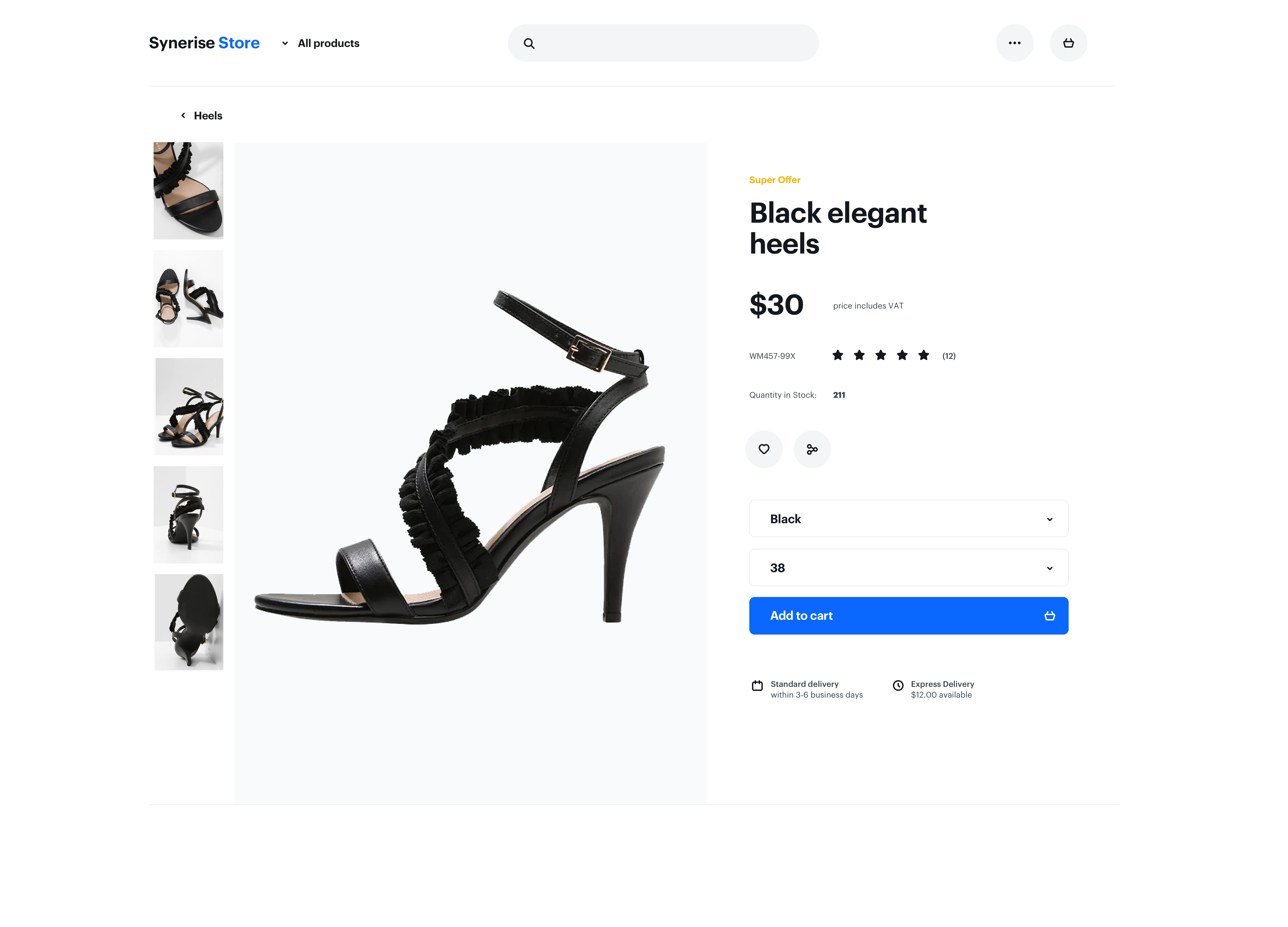
In Synerise, we can use dynamic content campaigns in many different ways: to display a recommendation, pop-up, or use it as a tag manager that embeds various scripts on the website. One of the ways that we can also use dynamic content is enriching information about the product on the product page, for example, adding information about the low stock of the product, or displaying a label that the product is new / discounted or soon will be unavailable. We can use any information about the product that we collect in a product catalog to later display it on the product page in any way.

In this use case, we will show you how to enrich your product pages with information collected in the product catalog about quantity in stock and the "Super Offer" label. 

<figure>
<img src="/api/docs/image/54176ad07f146575310749eba44b7c2f42c1b327/use-cases/all-cases/_gfx/quantityinstock.png" alt="Quantity in stock"  class="full no-frame">
</figure> 

## Prerequisites 
---
- Implement [Synerise tracking code](/developers/web/installation-and-configuration#creating-a-tracking-code) on your website.
- Implement [OG Tags](/developers/web/og-tags) on your website.
- Create [a product catalog](/use-cases/import-product-feed-to-catalog).
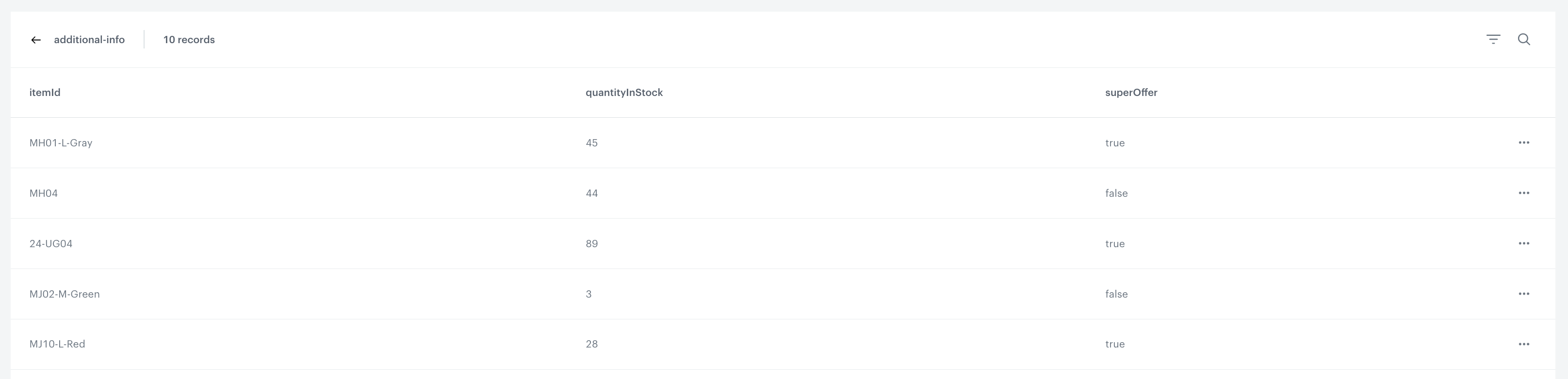
In your product catalog add the following columns as custom attributes:
    - a column with information about quantity in stock for every product
    - a column in which you include information if a specific product has the "Super Offer" label - adjust the name to your business needs. 

 <figure>
<img src="/api/docs/image/54176ad07f146575310749eba44b7c2f42c1b327/use-cases/all-cases/_gfx/example-csv.png" class="full" alt="Example CSV file imported to the catalog">
<figcaption>Example of a product catalog with necessary information about stock availability and "supper offer" label</figcaption></figure>

## Create a dynamic content campaign
---
In this part of the process, you will create the dynamic content campaign which will display stock data on your product pages and assign the "super offer" label to the specific products.

### Create a dynamic content message
---

1. Go to <img src="/api/docs/image/54176ad07f146575310749eba44b7c2f42c1b327/icons/experience-hub-icon.svg" alt="Image presents the Experience Hub icon" class="icon"> **Experience Hub > Dynamic Content > Create new**.
2. Enter the name of the campaign.
3. Choose the **Insert Object** type.
4. In the **Audience** section, select the **Everyone** tab.
4. In the **Content** section, select **Simple message**, and in the CSS selector field, enter where you want to insert the content. 
5. Click **Create message** and choose **Code editor**.
6. In the HTML section add the following code, which allows you to extract an item from the catalog and then obtain the values of particular columns for the product on the website. 

 
   <pre><code class="language-jinja">{% set additionalParamSku = metric_additional_params[ "product:retailer_part_no" ] %} 
    {% catalogitem.catalog-name(additionalParamSku) %} 
    {% set object = catalog_result %} 
    {{ object.get("superOffer") }} 
    {{ object.get("quantityInStock") }} 
    {% endcatalogitem %}</code></pre>


 Where:
 - `superOffer` is the column name from your catalog in which you can find the information if the specific product has the "Super Offer" label.
 - `quantityInStock` is the column name from your catalog in which you can find the information how many products are in the stock currently.
 - `metric_additional_params ["product:retailer_part_no"]` is the ID of the product on the website, extracted from [OG tags](/developers/inserts/dynamic-content#accessing-meta-properties).
 - `catalog-name` is the name of the product catalog.


<div class="admonition admonition-note"><div class="admonition-icon"><svg xmlns="http://www.w3.org/2000/svg" fill="none" viewBox="0 0 24 24" stroke="currentColor" stroke-width="2.5"><path stroke-linecap="round" stroke-linejoin="round" d="M13 16h-1v-4h-1m1-4h.01M21 12a9 9 0 11-18 0 9 9 0 0118 0z" /></svg></div><div class="admonition-body"><div class="admonition-content">

Both column names are exemplary and based on the specific product catalog.

</div></div></div>


 Check the example campaign code used in this particular use case below.
 
 
<pre><code class="language-jinjava">{% set additionalParamSku = metric_additional_params[ "product:retailer_part_no" ] %}
 {% catalogitem.additional-info(additionalParamSku) %}
 {% set object = catalog_result %}
 &lt;div class ="short-description"&gt;
 &lt;h3&gt;Quantity In Stock&lt;/h3&gt;
 {{ object.get ("quantityInStock") }}
 &lt;/div&gt;

 {% set ifOffer = object.get ("superOffer") %}
 {% if ifOffer == 'true' %}
 &lt;div class="short-decription"&gt;
 &lt;h3 style="color: red"&gt;Super Offer&lt;/h3&gt;
  &lt;/div&gt;
 {% endif %}
 {% endcatalogitem %}</code></pre>


<div class="admonition admonition-important"><div class="admonition-icon"><svg xmlns="http://www.w3.org/2000/svg" fill="none" viewBox="0 0 24 24" stroke="currentColor" stroke-width="2.5"><path stroke-linecap="round" stroke-linejoin="round" d="M12 8v4m0 4h.01M21 12a9 9 0 11-18 0 9 9 0 0118 0z" /></svg></div><div class="admonition-body"><div class="admonition-content">

This is an example implementation and this code should be adapted to your business needs, taking into account the appropriate label layout and stock info. You should add the appropriate CSS styles and HTML code as well as JS code if needed.

</div></div></div>


### Set up the schedule and display settings 
---
6. In the **Schedule** section, set the display time to **Display immediately** and save your changes.
7. In the **Display settings** section, choose **On landing** and add additional delay if it is necessary.
8. In the **UTM & URL parameters** section, click **Skip step**.
9. Click **Activate** and start your dynamic content campaign.

**Result:** Quantity in stock section with the number of available products in stock is visible on every product page. 
If a specific product has the Super Offer label, the label is also visible on a product page.

## Check the video

Watch the video with this use case to see how to prepare it step by step.


## Check the use case set up on the Synerise Demo workspace
---
You can check the [dynamic content campaign](https://app.synerise.com/campaigns/create/81379aba-331b-4898-8da0-6e22eb6f5738) configuration directly in Synerise Demo workspace. 

If you’re our partner or client, you already have automatic access to the **Synerise Demo workspace (1590)**, where you can explore all the configured elements of this use case and copy them to your workspace.  

If you’re not a partner or client yet, we encourage you to fill out the contact [form](https://demo.synerise.com/request) to schedule a meeting with our representatives. They’ll be happy to show you how our demo works and discuss how you can apply this use case in your business. 

## Read more
---
- [Catalogs](/docs/assets/catalogs/introduction-to-catalogs)
- [Dynamic content](/docs/campaign/dynamiccontent)
- [Dynamic content inserts](/developers/inserts/dynamic-content)
- [Jinjava inserts](/developers/inserts)

