Anonymous online surveys can give you the honest and accurate feedback you need, straight from your customers. Customer surveys can have an enormous impact on your organization and let you change your communication, offer and personalize your website. 

You can target your exit pop up based on different capabilities, for example:

- time on page (you can display it only if your visitor has spent specific amount of time on your website),
- URL (you can display it only to a visitor who has visited specific pages),
- device (mobile/desktop),
- location (language).

Using those options, you can precisely describe who will see your survey. It allows you to personalize the content by combining targeting options and be sure that you will have answers only from visitors who can be your target.


## Examples of use - Book industry

**Challenge**

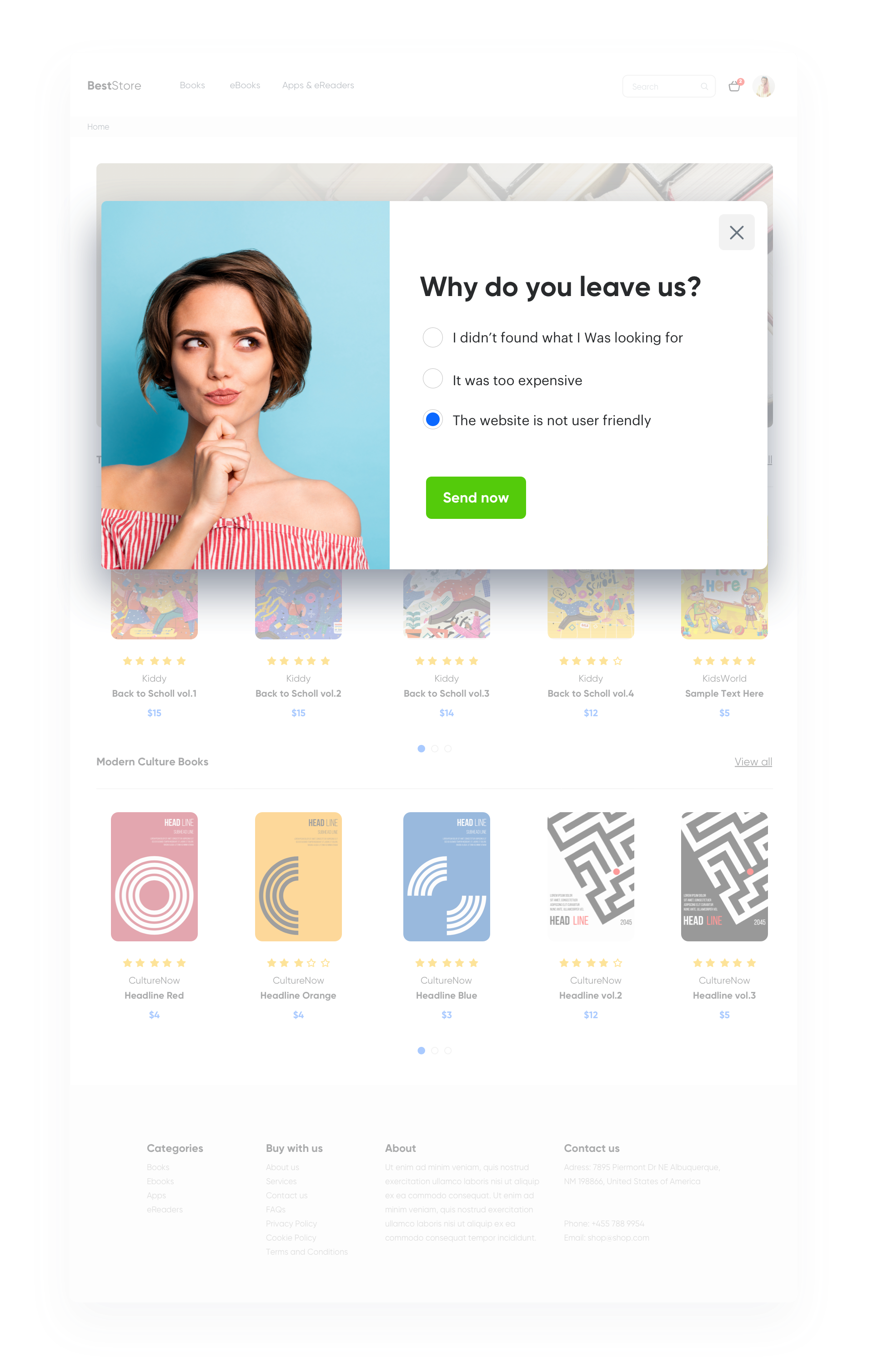
A client from the book industry implemented a survey on the website that was displayed to the visitors in the moment of leaving the website. The exit pop up includes a survey with multiple choice. The purpose of the survey is to get information about why the customer wants to leave the website to improve the customer journey.  

<figure>
<img src="/api/docs/image/54176ad07f146575310749eba44b7c2f42c1b327/use-cases/all-cases/_gfx/exit_pop_up_with_survey1.png" alt="Screenshot presenting exit pop up with survey" class="full no-frame">
<figcaption> Exit pop up with a survey </figcaption>
</figure>

Remember to properly analyze your results. Customer surveys can have a huge impact on your organization and let you change your communication, offer and personalize you website. 

## Prerequisites 
---

To implement this use case, perform the following steps in the given order:
- [Implement a tracking code](/docs/settings/tool/tracking_codes).
- [Create tracking forms](/developers/web/tracking-form-data).
- [Create dynamic content](/docs/campaign/dynamiccontent).

## Process
---

To display an exit pop up with a survey on your website, perform the steps in the following order:

1. [Prepare dynamic content](/use-cases/exit-popup-with-survey#prepare-dynamic-content).
2. [Set up a dynamic content](/use-cases/exit-popup-with-survey#set-up-a-dynamic-content).
3. [Analyze results](/use-cases/exit-popup-with-survey#analyze-results).

## Prepare dynamic content
---  


<div class="admonition admonition-note"><div class="admonition-icon"><svg xmlns="http://www.w3.org/2000/svg" fill="none" viewBox="0 0 24 24" stroke="currentColor" stroke-width="2.5"><path stroke-linecap="round" stroke-linejoin="round" d="M13 16h-1v-4h-1m1-4h.01M21 12a9 9 0 11-18 0 9 9 0 0118 0z" /></svg></div><div class="admonition-body"><div class="admonition-content">

In our example we will use two variants of Dynamic content:
- **Variant A** is useful if you want to let a visitor to the website choose only **1 answer**.
- **Variant B** is usefull if you want to let a visitor to the website choose only **several answers**.

  </div></div></div>
 

1. Go to **Dynamic content** > **Templates** > **New template**.
2. Create one of separate templates for Variant A or Variant B that contain **script** with your survey which will send data to Synerise. 
- **Variant A** - In this variant of the survey, only **1 answer** can be selected, which will be stored in the parameter answer. In this case, we use the attribute: **answer --> Prices**. 

  
  <details class="accordion"><summary>Check the Jinjava code</summary><div class="accordion-content"><pre><code class="language-html">&lt;form action="" method="post" data-synerise="exit.survey "&gt; &lt;p&gt;Why do you leave?&lt;/p&gt; &lt;div&gt; &lt;input type="radio" data-synerise="answer" id="stock" value="stock" name="answer"&gt; &lt;label for="stock"&gt;I didn’t find what I was looking for &lt;/label&gt; &lt;/div&gt; &lt;div&gt; &lt;input type="radio" data-synerise="answer" id="prices" value="prices" name="answer"&gt; &lt;label for="prices"&gt;It was too expensive &lt;/label&gt; &lt;/div&gt; &lt;div&gt; &lt;input type="radio" id="ux" data-synerise="answer" value="ux" name="answer"&gt; &lt;label for="ux"&gt;The website is not user friendly &lt;/label&gt; &lt;/div&gt; &lt;input type="submit" value="Save"&gt; &lt;/form&gt;</code></pre></div></details>
 

- **Variant B** - In this variant of the survey, a user can choose **several answers**, and you want to store each answer in a separate attribute. In this case, we can use the following attributes: stock, prices and UX. 

  
  <details class="accordion"><summary>Check the Jinjava code</summary><div class="accordion-content"><pre><code class="language-html">&lt;form action="" method="post" data-synerise="exit.survey "&gt; &lt;p&gt;Why do you leave?&lt;/p&gt; &lt;div&gt; &lt;input type="radio" data-synerise="stock" id="stock" value="yes" name="stock"&gt; &lt;label for="stock"&gt;I didn’t find what I was looking for &lt;/label&gt; &lt;/div&gt; &lt;div&gt; &lt;input type="radio" data-synerise="prices" id="prices" value="yes" name="prices"&gt; &lt;label for="prices"&gt;It was too expensive &lt;/label&gt; &lt;/div&gt; &lt;div&gt; &lt;input type="radio" id="ux" data-synerise="ux" value="yes" name="ux"&gt; &lt;label for="ux"&gt;The website is not user friendly &lt;/label&gt; &lt;/div&gt; &lt;input type="submit" value="Save"&gt; &lt;/form&gt;</code></pre></div></details>


  <div class="admonition admonition-tip"><div class="admonition-icon"><svg xmlns="http://www.w3.org/2000/svg" fill="none" viewBox="0 0 24 24" stroke="currentColor" stroke-width="2.5"><path stroke-linecap="round" stroke-linejoin="round" d="M9.663 17h4.673M12 3v1m6.364 1.636l-.707.707M21 12h-1M4 12H3m3.343-5.657l-.707-.707m2.828 9.9a5 5 0 117.072 0l-.548.547A3.374 3.374 0 0014 18.469V19a2 2 0 11-4 0v-.531c0-.895-.356-1.754-.988-2.386l-.548-.547z" /></svg></div><div class="admonition-body"><div class="admonition-content">

  If you want to postpone the event on the customer's card after the pop up is displayed, use the **dynamicContent.show** event.

  </div></div></div>


## Set up a dynamic content
---

Create a dynamic content communication and use the previously prepared templates.

1. Choose **Web Layer** type.
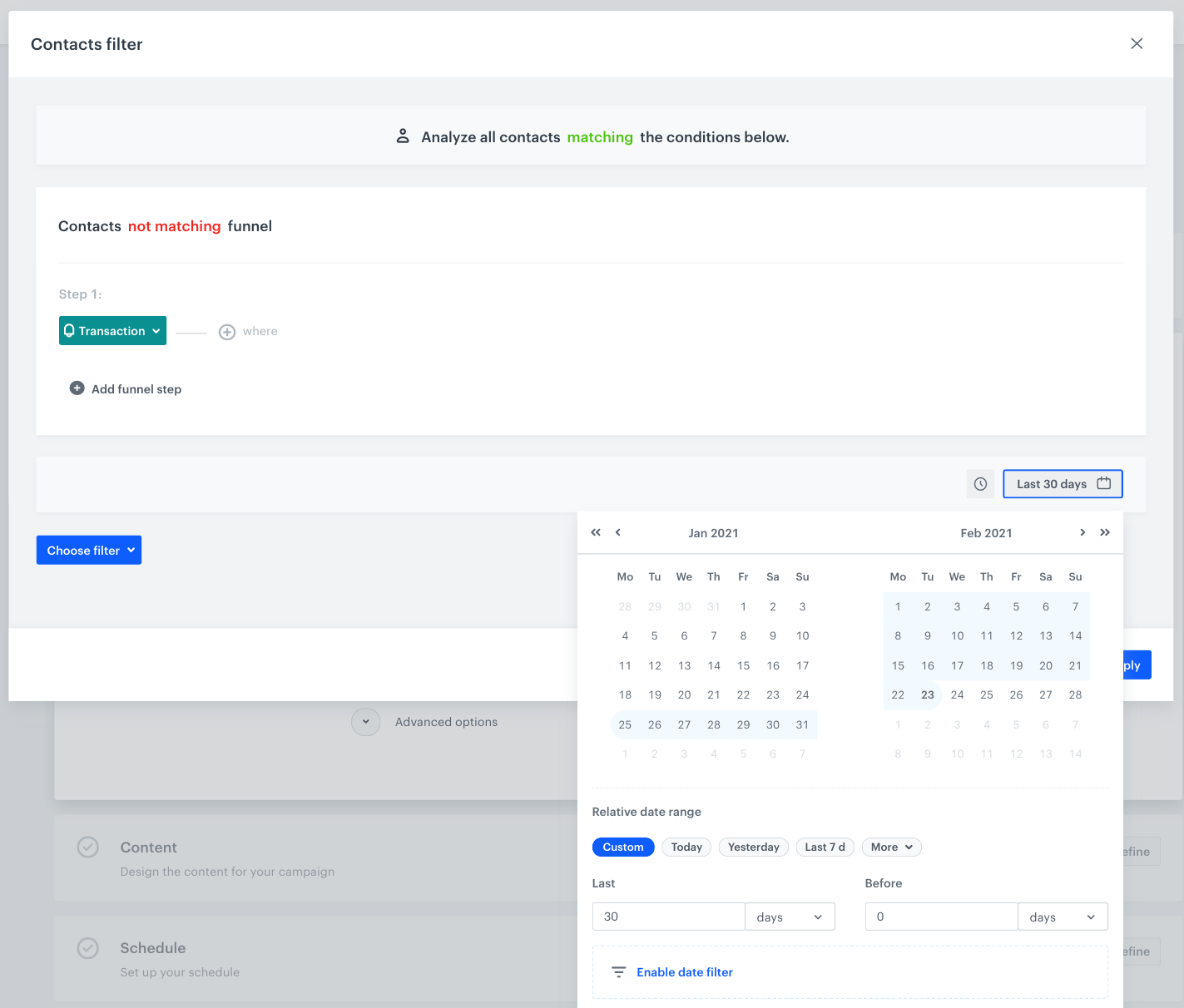
2. Select your **Audience** depending on your needs. You can target your communication to everyone or select segment of users. In our example we target dynamic content to users, who didn’t make transaction in last 30 days.  
    1. In the **Audience** section, choose **New audience** tab.
    2. Click **Define conditions**.
    3. From the dropdown list, select **Transaction** event.
    4. As the time range, select last 30 days.
    <figure>
     <img src="/api/docs/image/54176ad07f146575310749eba44b7c2f42c1b327/use-cases/all-cases/_gfx/exit_pop_up_with_survey2.png" alt="Screenshot presenting contacts filter with open calander" class="large">
     <figcaption> Contacts filter </figcaption>
     </figure>
3. In the **Content** section, click **Create message > From template** and find the folders in which you prepared template.
4. **Schedule** when the communication has to be active. 
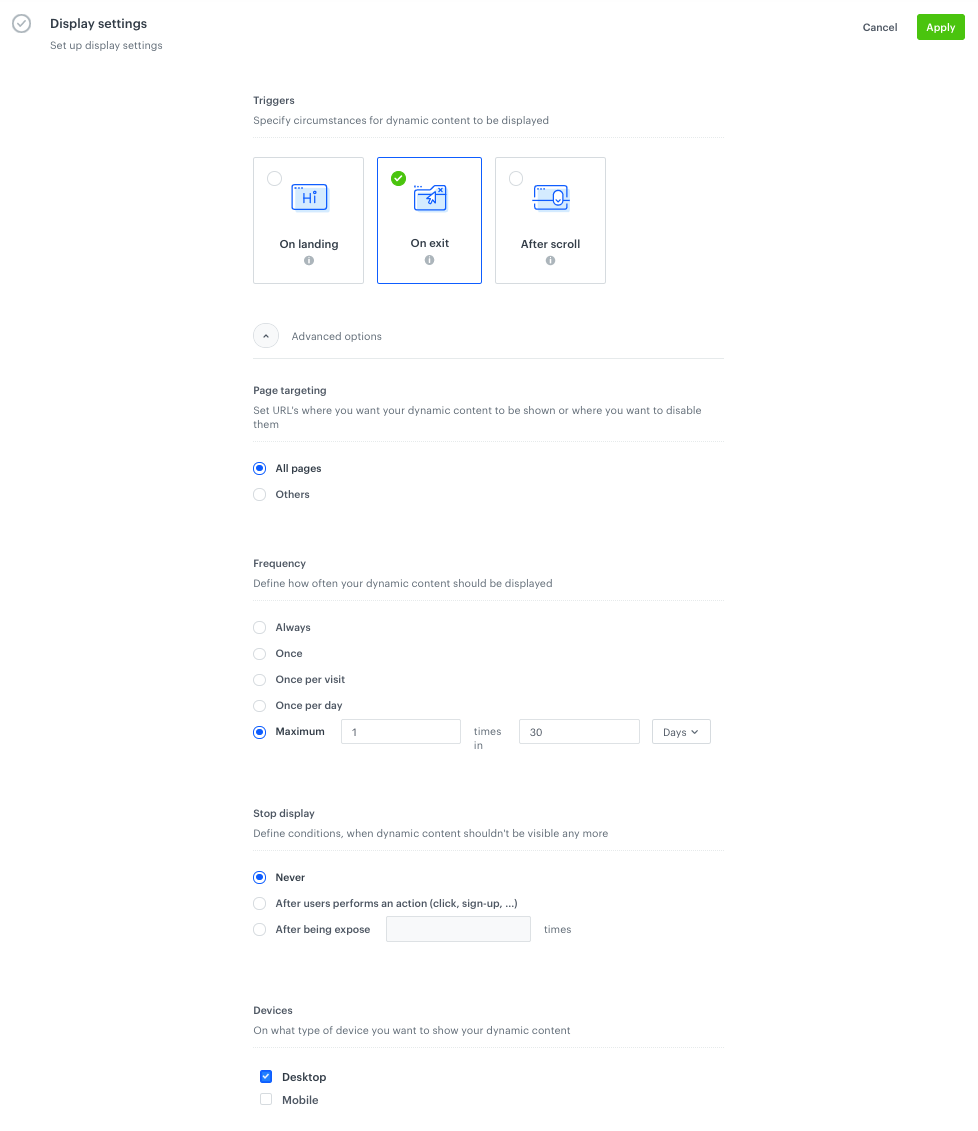
5. In the **Display settings** section define:- Trigger: On exit.
    - Page targeting: **All pages** (in our example, you can include or exclude any subpage).
    - Frequency: **1 time in 30 days** (in our example, you can define a different capping).
    - Stop display: **Never**
    - Devices: **Desktop**
    
    <figure>
     <img src="/api/docs/image/54176ad07f146575310749eba44b7c2f42c1b327/use-cases/all-cases/_gfx/exit_pop_up_with_survey3.png" alt="Screenshot presenting exit popup with survey" class="large">
     <figcaption> Settings of the dynamic content </figcaption>
     </figure>
    
6. Skip **UTM** section  
7. In the upper right corner, click **Activate**.


## Analyze results
---

Check how to analyze results of your surveys. 


<div class="admonition admonition-important"><div class="admonition-icon"><svg xmlns="http://www.w3.org/2000/svg" fill="none" viewBox="0 0 24 24" stroke="currentColor" stroke-width="2.5"><path stroke-linecap="round" stroke-linejoin="round" d="M12 8v4m0 4h.01M21 12a9 9 0 11-18 0 9 9 0 0118 0z" /></svg></div><div class="admonition-body"><div class="admonition-content">

Below, you can see 2 variants of results, separate for Variant A and Variant B of surveys.

</div></div></div>
 

### Analyze the Variant A results

In **Variant A**, the visitors to the website can choose only **1 answer**, which will be stored in the **answer** parameter. 

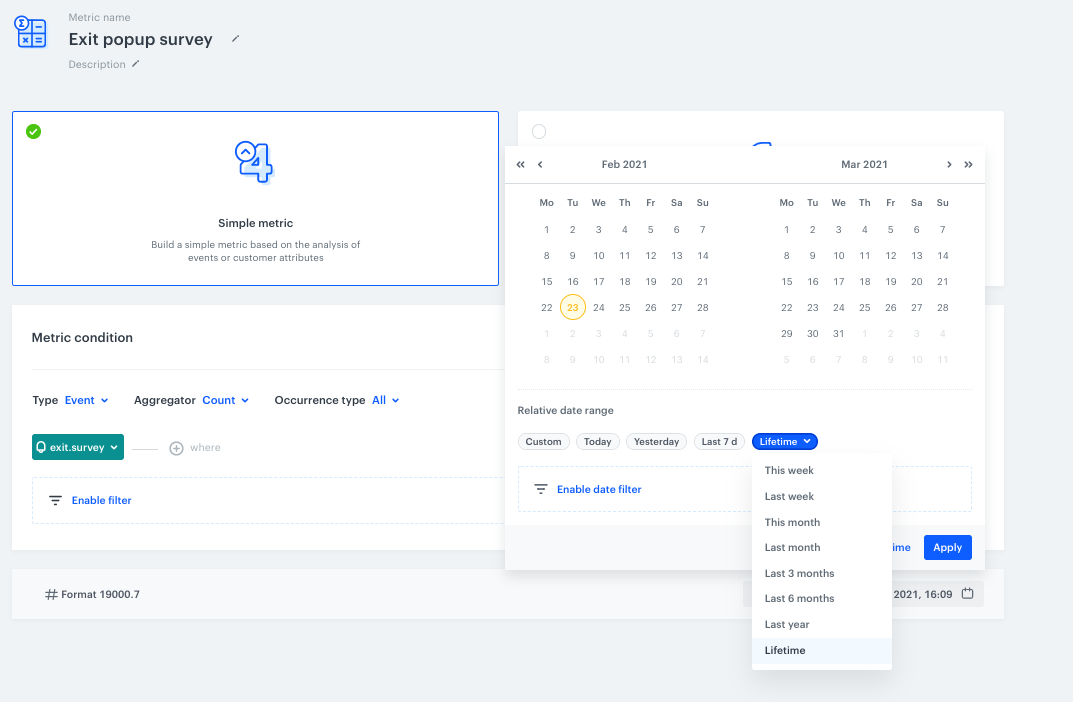
1. Go to **Decision Hub > Metrics > New metric**.
2. Select the **simple metric** type.
3. Leave the following settings to default: 
    - Type: Events 
    - Aggregator: Count 
    - Occurence type: All
4. From the dropdown list, select event which refers to filling out the survey. In this use case, it is **exit.survey**.
5. Select the **Lifetime** period and save metrics.
    <figure>
     <img src="/api/docs/image/54176ad07f146575310749eba44b7c2f42c1b327/use-cases/all-cases/_gfx/exit_pop_up_with_survey4.png" alt="Screenshot presenting site with simple metric options" class="large">
     <figcaption> A simple metric for the exit pop up with survey </figcaption>
     </figure>
6. Go to **Decision Hub > Reports > New report**.
7. From the **Choose metric** dropdown list, select the metric you prepared in the previous step. In this case, it's **exit popup survey**.
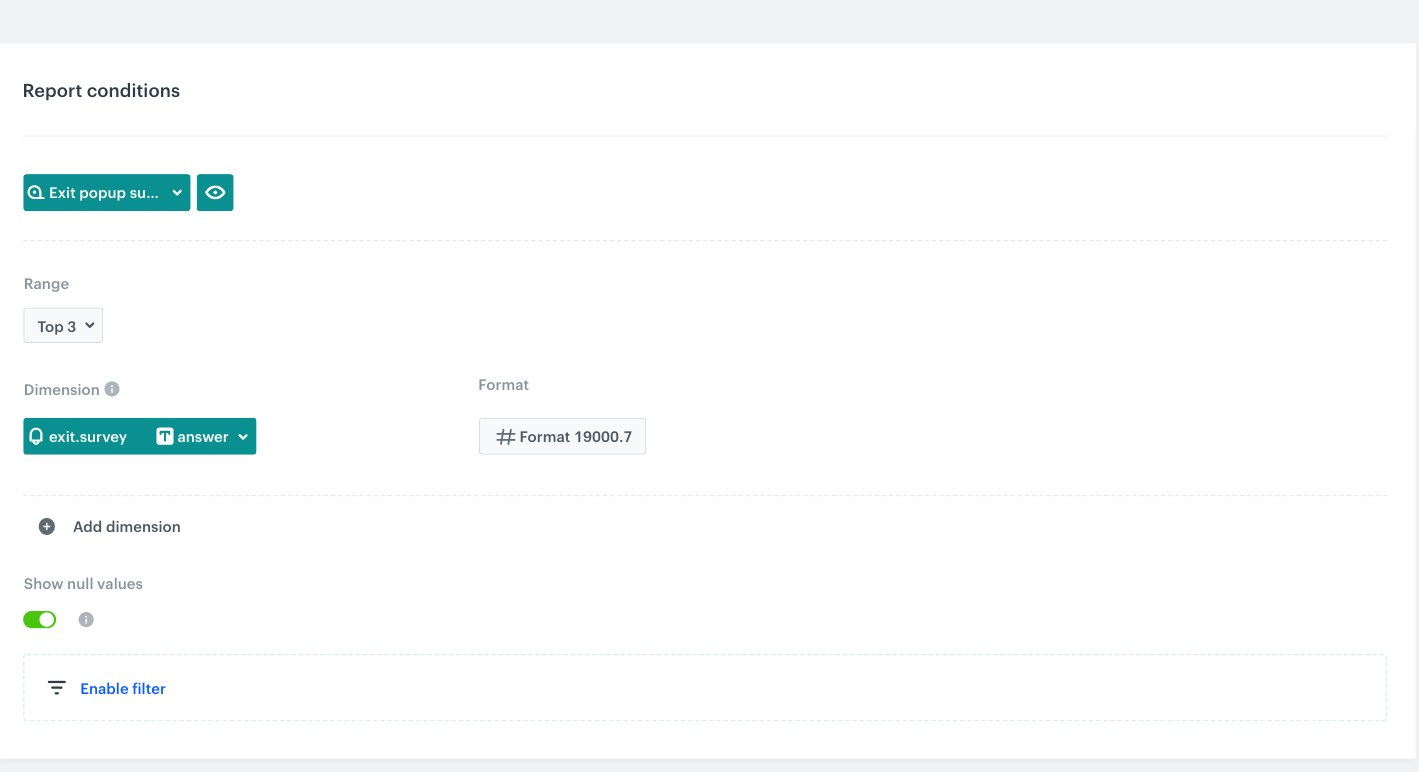
8. In the **Range** section, select **Top 3** (or more, it depends on how many answers your survey contains).
9. In the **Dimension** section, from the dropdown list, select the event that refers to submitting a survey and the attribute that contains the answer. 
10. In the time range settings, select **Lifetime**. 
    <figure>
     <img src="/api/docs/image/54176ad07f146575310749eba44b7c2f42c1b327/use-cases/all-cases/_gfx/exit_pop_up_with_survey5.png" alt="Screenshot presenting raport conditions for exit popup variant A" class="large">
     <figcaption> Settings of the report on the survey on the exit pop up? </figcaption>
     </figure>
11. To see the results, click **Preview**. The report shows the most frequently chosen answer. 
    
### Analyze the Variant B results

In **Variant B**, the visitors to the website can choose several answers and each answer is stored in a separate attribute.

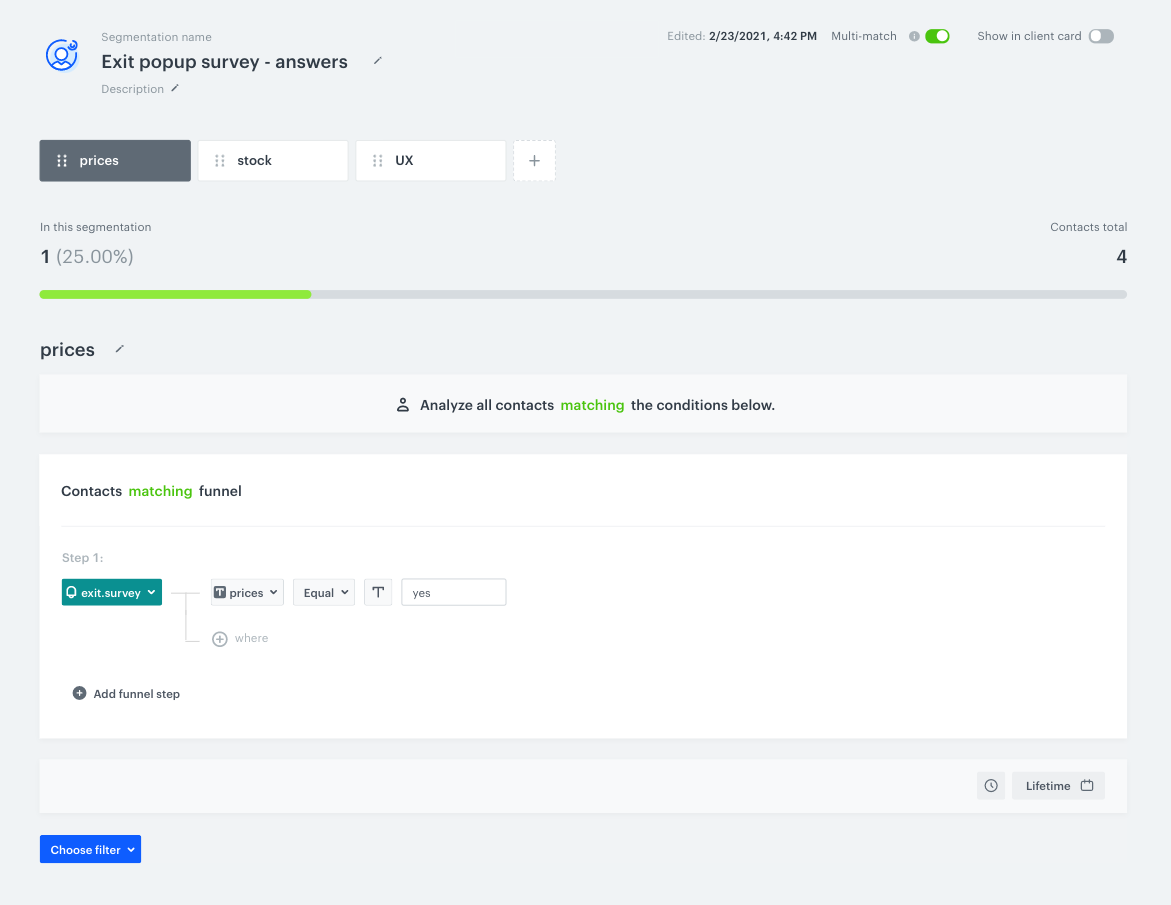
1. Go to **Decision Hub > Segmentation > New segmentation**.
2. From the **Choose filter** dropdown list, select an event that refers to submitting the survey. In this case it's **exit.survey**.
3. Click the **+ where** button to select the event parameter that contains an answer. In this case, it's **prices**. 
4. From the **Choose operator** dropdown list, select **Equals**. In the text field, type **yes** (applies only to this use case, it can be different for you). 
5. In the time range settings, select **Lifetime**.
6. Duplicate this subsegment as many times to match the number of answers in the survey. In each duplicated subsegment, change the answer parameter.
7. Switch the **Multi-match** toggle on because a visitor could have chosen several answers.
    <figure>
     <img src="/api/docs/image/54176ad07f146575310749eba44b7c2f42c1b327/use-cases/all-cases/_gfx/exit_pop_up_with_survey6.png" alt="Screenshot presenting segmentation for variant B of exit popup" class="large">
     <figcaption> egmentation of customers who filled out the survey on the exit pop up? </figcaption>
     </figure>
8. To see the results, click **Preview**. To save the analysis, click **Save**.  

## Check the use case set up on the Synerise Demo workspace
---
You can check the configuration of use case in Synerise Demo workspace:  
- **Ver. 1**:
    - [Metric](https://app.synerise.com/analytics/metrics/3a39e002-22a8-46b7-bbce-b69cb87aa058)
    - [Report](https://app.synerise.com/analytics/reports/101b66cb-0e89-4adc-ab48-a1180990249f)  

- **Ver. 2**:
    - [Segmentation](https://app.synerise.com/analytics-v2/segmentations/3582d609-f51e-4dc3-81aa-e03e8eb36e6c)

    - [Dynamic content campaign](https://app.synerise.com/campaigns/create/75fa7763-4943-4af8-8e70-9b649484f3dc)

If you’re our partner or client, you already have automatic access to the **Synerise Demo workspace (1590)**, where you can explore all the configured elements of this use case and copy them to your workspace.  

If you’re not a partner or client yet, we encourage you to fill out the contact [form](https://demo.synerise.com/request) to schedule a meeting with our representatives. They’ll be happy to show you how our demo works and discuss how you can apply this use case in your business.

## Read more 
---
- [Dynamic content](/docs/campaign/dynamiccontent)
- [Track forms](/developers/web/tracking-form-data) 
- [Tracking code](/docs/settings/tool/tracking_codes)