If you manage a large number of segmentations, having their metadata in one exportable file makes it easier to compare and analyze them as a whole. 

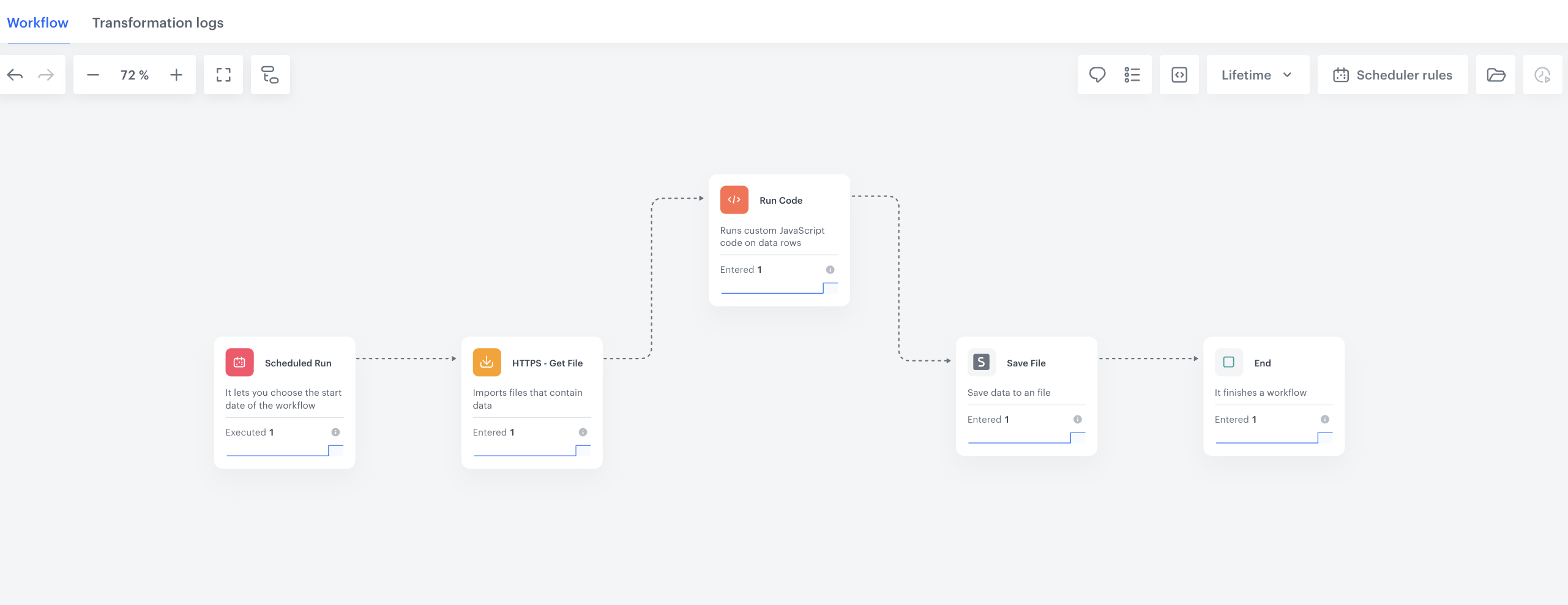
This use case describes how to build an automated workflow that retrieves the list of your segmentations from the Synerise API, converts the JSON response into flat rows with the **Run Code** node, and saves the result as a file you can download and open in a spreadsheet application. This gives you a self-service way to filter, sort, and analyze your segmentations — for example, to identify segmentations that haven't been used in a long time, or to audit which segmentations were created by which author — without needing to query the API manually.

The same pattern (retrieving a list from a Synerise API endpoint, reshaping it with **Run Code**, and exporting it as a file) can be reused for other list-type endpoints, such as automations, message templates, or recommendation configurations.

## Prerequisites

---

- You must have segmentations created in <img src="/api/docs/image/c21aaebe5623f27983659ac543148284023eb33f/icons/decision-hub-icon.svg" alt="Decision Hub icon" class="icon" > **Decision Hub > Segmentation**.
- You must have a [workspace API key](/docs/settings/tool/api) with the `ANALYTICS_BACKEND_SEGMENTATIONS_LIST_READ` permission, used to authorize the request to the [Segmentations - List](https://hub.synerise.com/api-reference/analytics-suite#tag/Analytics:-Segmentations/operation/analytics2-segmentations-list) endpoint.
- You must be assigned a [user role](/docs/settings/identity-access-management/permissions) with the **Data export > Save file** - **Read**, **Edit**, and **Execute** [permissions](/docs/settings/identity-access-management/permissions#permissions), required to configure and run the **Save File** node.
- Basic knowledge of JavaScript, required to configure the [**Run Code** node](/docs/automation/operation/run-code-node).


## Prepare a workflow

---

Create a workflow which retrieves your list of segmentations from the Synerise API, transforms the response into rows, and exports it as a downloadable file.

1. Go to <img src="/api/docs/image/c21aaebe5623f27983659ac543148284023eb33f/icons/automation-hub-icon.svg" alt="Automation Hub icon" class="icon" > **Automation Hub > Workflows > New workflow**.
2. Enter the name of the workflow.

### Trigger the workflow on a schedule

As the first part of the process, define when the workflow runs, so the segmentation list is refreshed automatically without you having to launch the process manually.

1. As the trigger node, add **Scheduled Run**.
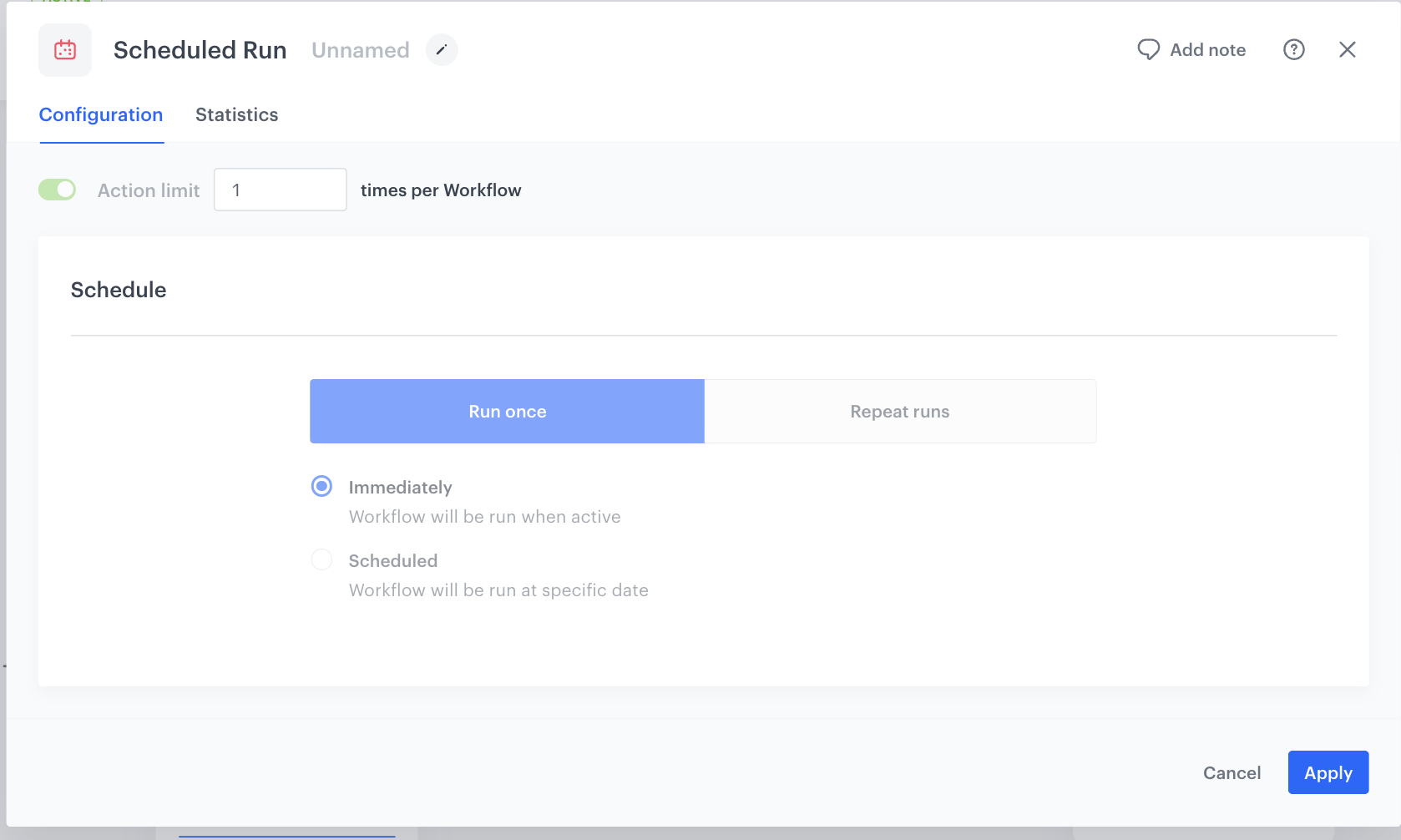
2. In the configuration of the node select the **Repeat runs** tab, where the workflow runs on a recurring basis. **Repeat runs** is the recommended option if you want the segmentation export to refresh automatically at regular intervals, for example once a day.
    1. From the **Timezone** dropdown list, select the time zone consistent with the timezone selected for your workspace.
    2. Define the frequency of the workflow — for example, once a day at a fixed time — according to how often you want the segmentation list refreshed.
3. Confirm by clicking **Apply**.
<figure><img src="/api/docs/image/c21aaebe5623f27983659ac543148284023eb33f/use-cases/all-cases/_gfx/segmentations-list-csv-trigger.png" class="full" alt="The configuration of the Schedule Run triggering node"><figcaption>The configuration of the Schedule Run node</figcaption></figure>

### Retrieve the list of segmentations from the Synerise API

In this part of the process, you configure an HTTP request that retrieves the current list of your segmentations from the Synerise API. 

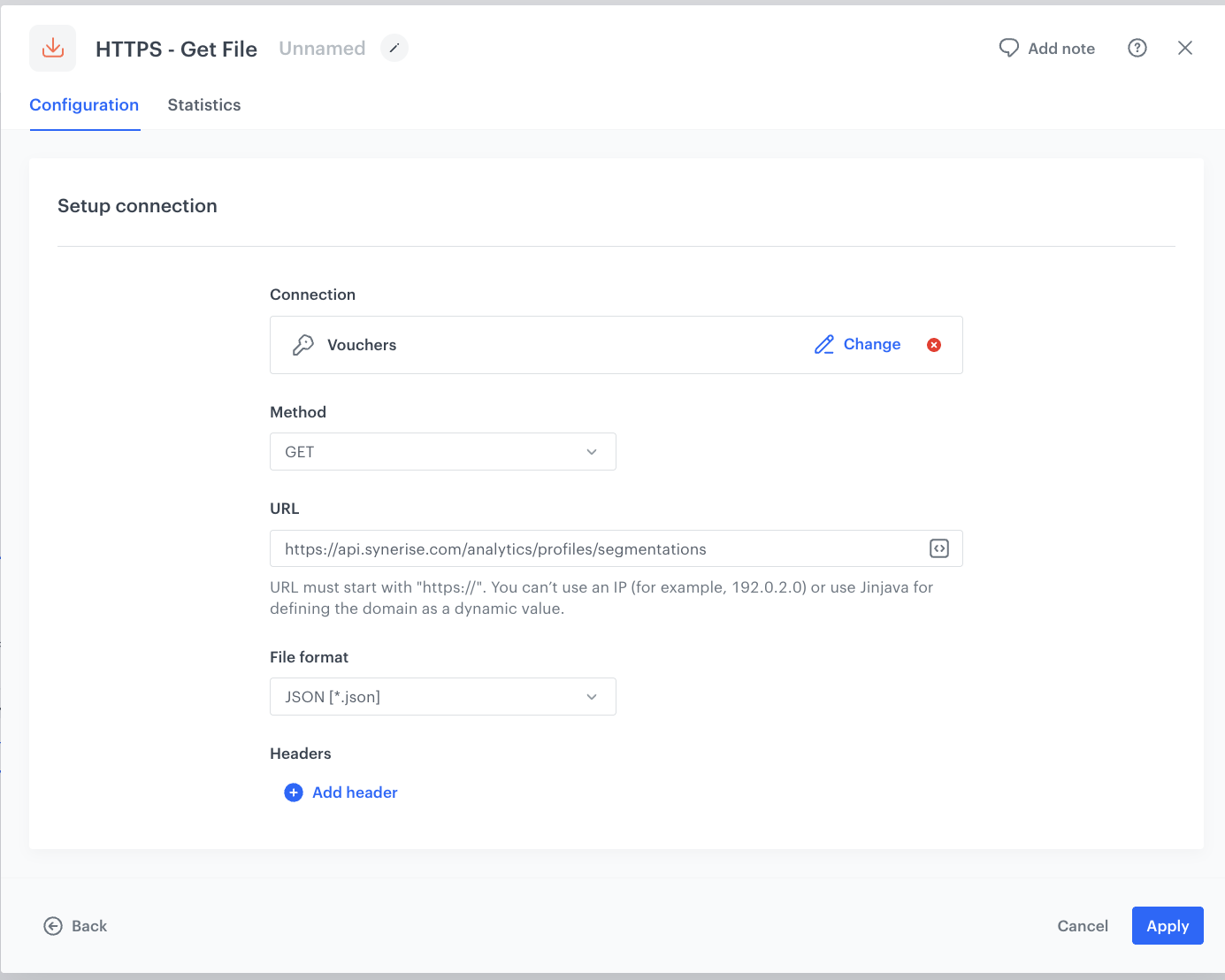
1. Add the **[HTTPS - Get File](/docs/automation/integration/http-integrations/http-get-file)** node and configure the connection with an API key that has the `ANALYTICS_BACKEND_SEGMENTATIONS_LIST_READ` permission. 
2. Set the **Method** to **GET**, the **URL** to `https://api.synerise.com/analytics/profiles/segmentations`, and the **File format** to **JSON**.


<div class="admonition admonition-note"><div class="admonition-icon"><svg xmlns="http://www.w3.org/2000/svg" fill="none" viewBox="0 0 24 24" stroke="currentColor" stroke-width="2.5"><path stroke-linecap="round" stroke-linejoin="round" d="M13 16h-1v-4h-1m1-4h.01M21 12a9 9 0 11-18 0 9 9 0 0118 0z" /></svg></div><div class="admonition-body"><div class="admonition-content">

The [Segmentations - List](https://hub.synerise.com/api-reference/analytics-suite#tag/Analytics:-Segmentations/operation/analytics2-segmentations-list) endpoint accepts parameters you can append to the URL to narrow down the returned set of segmentations, for example: `page` and `limit` (pagination), `search` (search by name), `sortBy` (sorting, for example `name:asc` or `author:desc`), `directoryId` (segmentations from a specific directory), and `ids` (a comma-separated list of specific segmentation IDs).

</div></div></div>


<figure><img src="/api/docs/image/c21aaebe5623f27983659ac543148284023eb33f/use-cases/all-cases/_gfx/segmentations-list-csv-get-file.png" class="full" alt="The configuration of the HTTPS - Get File node retrieving the list of segmentations"><figcaption>The configuration of the HTTPS - Get File node</figcaption></figure>

### Transform the raw API response into individual rows

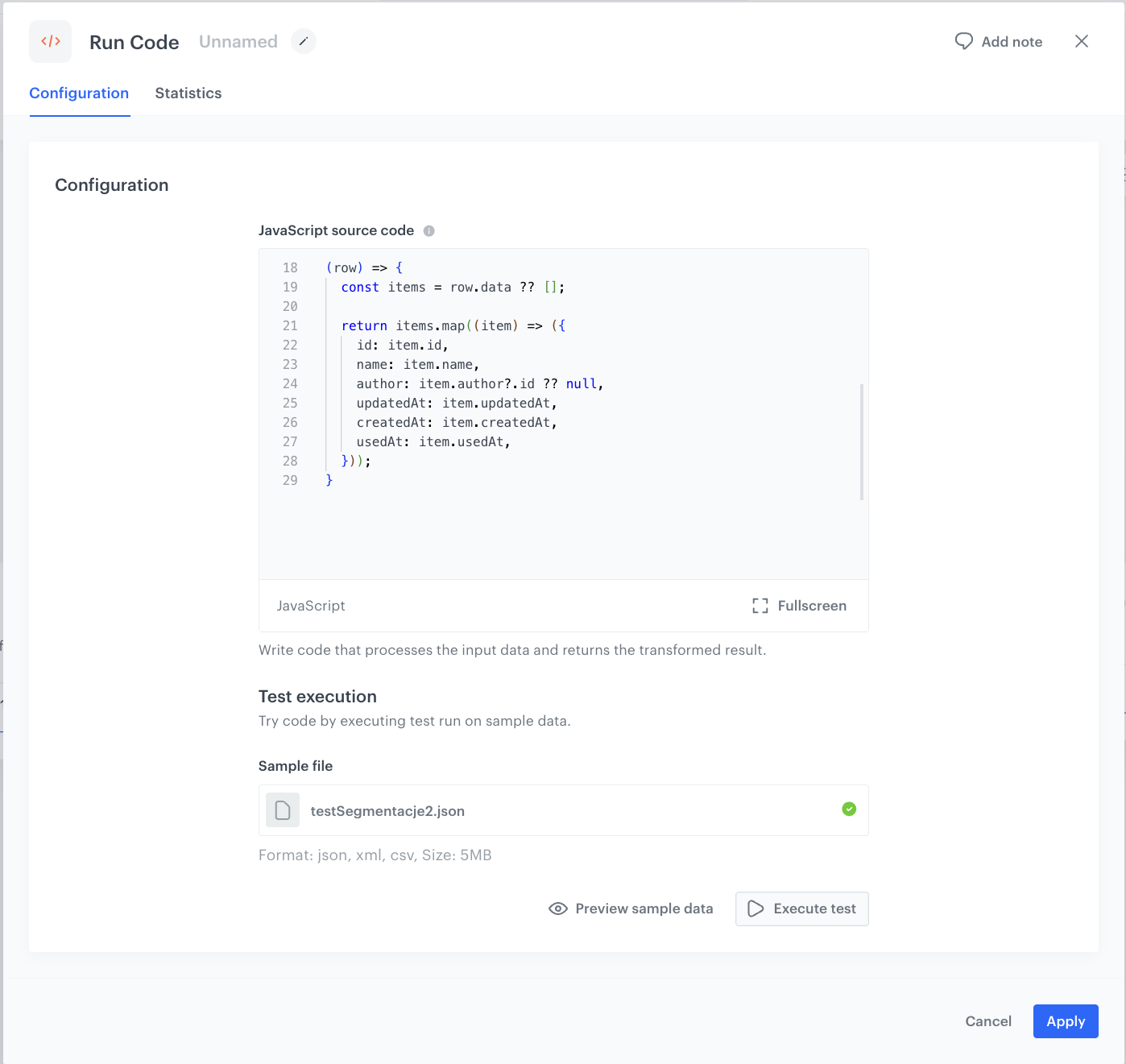
The API response has the structure `{ "meta": {...}, "data": [...] }`. This entire object arrives at the **Run Code** node as a single row, and the a function in the node reaches into the `data` field and returns an array of objects with the selected fields. Returning an array of objects means each element becomes a separate output row, which is how a single API response turns into a full set of rows ready to be saved as a file.

1. Click **THEN** and add the **Run Code** node.
2. In the **JavaScript source code** field, enter the following function:

    ```javascript
    (row) => {
      const items = row.data ?? [];

      return items.map((item) => ({
        id: item.id,
        name: item.name,
        author: item.author?.id ?? null,
        updatedAt: item.updatedAt,
        createdAt: item.createdAt,
        usedAt: item.usedAt,
      }));
    }
    ```

3. Under **Test execution**, in the **Sample file** field, upload a sample JSON file with the same structure as the API response (for example, a response exported earlier from the same endpoint), to preview how your code reads the data.
4. Click **Preview sample data** to check the structure, then click **Execute test** to run the function against the sample and confirm the output contains the expected fields.
5. Confirm by clicking **Apply**.

<figure><img src="/api/docs/image/c21aaebe5623f27983659ac543148284023eb33f/use-cases/all-cases/_gfx/segmentations-list-csv-run-code.png" class="full" alt="The configuration of the Run Code node transforming the segmentations API response into rows"><figcaption>The configuration of the Run Code node</figcaption></figure>

### Export the transformed data to a downloadable file

As the final part of the process, save the rows produced by the **Run Code** node as a file you can download.

1. Click **THEN** and add the **Save File** node.
2. In the configuration of the node:
    1. In the **File name** field, enter the name of the exported file (up to 128 characters).
    2. Optionally, from the **File name suffix** dropdown list, select **Date** to add the current date to the file name.
    3. Optionally, in the **File expiration** field, define how long the exported file will be available for download. The minimum value is 30 minutes; if left empty, the default expiration period is 7 days.
3. Confirm by clicking **Apply**.

<figure><img src="/api/docs/image/c21aaebe5623f27983659ac543148284023eb33f/use-cases/all-cases/_gfx/segmentations-list-csv-workflow.png" class="full" alt="The configuration of the Save File node saving the transformed segmentation data as an exportable file"><figcaption>The configuration of the Save File node</figcaption></figure>

### Add the finishing node

1. Add the **End** node and connect it to the **Save File** node.
2. In the upper-right corner, click **Save & Run**.  
    **Result**: The file is available for download, both as JSON and as CSV, from <img src="/api/docs/image/c21aaebe5623f27983659ac543148284023eb33f/icons/data-modeling-hub-icon.svg" alt="Data Modeling Hub icon" class="icon" > **Data Modeling Hub > Export**, or from the **Transformation logs** tab in the workflow view.

    <figure><img src="/api/docs/image/c21aaebe5623f27983659ac543148284023eb33f/use-cases/all-cases/_gfx/segmentations-list-csv-workflow.png" class="full" alt="Automation Hub workflow retrieving and exporting the list of segmentations"><figcaption>The workflow configuration</figcaption></figure>

## What's next

---

The combination of an HTTPS - Get File node pointed at a Synerise API list endpoint and a Run Code node that flattens the response can be reused for other data you'd like to export as a file, such as lists of automations, message templates, or recommendation configurations — as long as a corresponding "list" endpoint is available in the [API Reference](https://hub.synerise.com/api-reference/).

If the client needs the file to be delivered automatically to an external system instead of being downloaded manually, the **Save File** node can be replaced with a **Send File** node for [SFTP](/docs/automation/integration/sftp-integrations/sftp-send-file), [HTTPS](/docs/automation/integration/http-integrations/http-send-file), [Amazon S3](/docs/automation/integration/amazon-s3-bucket/send-file-amazon-s3-bucket), [Azure Blob Storage](/docs/automation/integration/azure-blob-storage/send-file-azure-blob-storage), or [Google Cloud Storage](/docs/automation/integration/google-cloud-storage/send-file-to-gcp).


## Read more

---

- ["End" node](/docs/automation/flow-control/end-node)
- ["Get File" node (HTTP)](/docs/automation/integration/http-integrations/http-get-file)
- ["Run Code" node](/docs/automation/operation/run-code-node)
- ["Save File" node](/docs/automation/actions/synerise-integrations/save-file)
- ["Scheduled Run" node](/docs/automation/triggers/scheduled-run)
- [Segmentations - List (API Reference)](https://hub.synerise.com/api-reference/analytics-suite#tag/Analytics:-Segmentations/operation/analytics2-segmentations-list)