<div class="youtube-embed youtube-facade not-prose" data-youtube-id="Ql6xqehxI6E" role="button" tabindex="0" aria-label="Play YouTube video"><img src="https://img.youtube.com/vi/Ql6xqehxI6E/hq720.jpg" alt="YouTube video" class="youtube-facade-thumb" loading="lazy" /><span class="youtube-facade-play" aria-hidden="true"><svg viewBox="0 0 68 48" width="68" height="48"><path d="M66.52 7.74c-.78-2.93-2.49-5.41-5.42-6.19C55.79.13 34 0 34 0S12.21.13 6.9 1.55c-2.93.78-4.64 3.26-5.42 6.19C.06 13.05 0 24 0 24s.06 10.95 1.48 16.26c.78 2.93 2.49 5.41 5.42 6.19C12.21 47.87 34 48 34 48s21.79-.13 27.1-1.55c2.93-.78 4.64-3.26 5.42-6.19C67.94 34.95 68 24 68 24s-.06-10.95-1.48-16.26z" fill="red"/><path d="M45 24 27 14v20" fill="white"/></svg></span></div>

---

Personalized recommendations is a great way to enhance customers experiences while serving them with products tailored for their preferences. With Synerise, you can go a step further and narrow those already personalized recommendations to product attributes specific for each customer. These can be cusomers' favorite color, style, size, or any other attribute. By enhancing personalized recommendations with those attributes, you can increase customers engagement, boost conversion rates and foster brand loyalty.

In this use case we will create a set of personalized product recommendations based on recently seen styles for customers who have not made a purchase in the last 30 days and send these recommendations through email. 

This use case provides you with an instruction how to use a ready-made email template that can be used 1:1 in a business scenario.

## Prerequisites 
---
- Implement a [tracking code](/developers/web/installation-and-configuration) into your website.
- [Import an item catalog for recommendations](/docs/settings/configuration/ai-engine-configuration/engine-configuration-for-recommendations). Enable Personalized recommendations.
- [Implement OG tags](/developers/web/og-tags), in this use case we use `product:style`. You can implement any other data on which you want to base the aggregate.
- Configure a [sender account](/docs/campaign/e-mail/configuring-email-account).


## Process 
---

In this use case, you will go through the following steps:
1. [Create an aggregate](#create-an-aggregate) returning the top style of products visited by customer, it will be used in the recommendation configuration.
2. [Prepare an AI recommendation](#prepare-an-ai-recommendation).
3. [Prepare an email template](#prepare-an-email-template) with recommendation.
4. [Create a workflow](#create-a-workflow).

## Create an aggregate
---
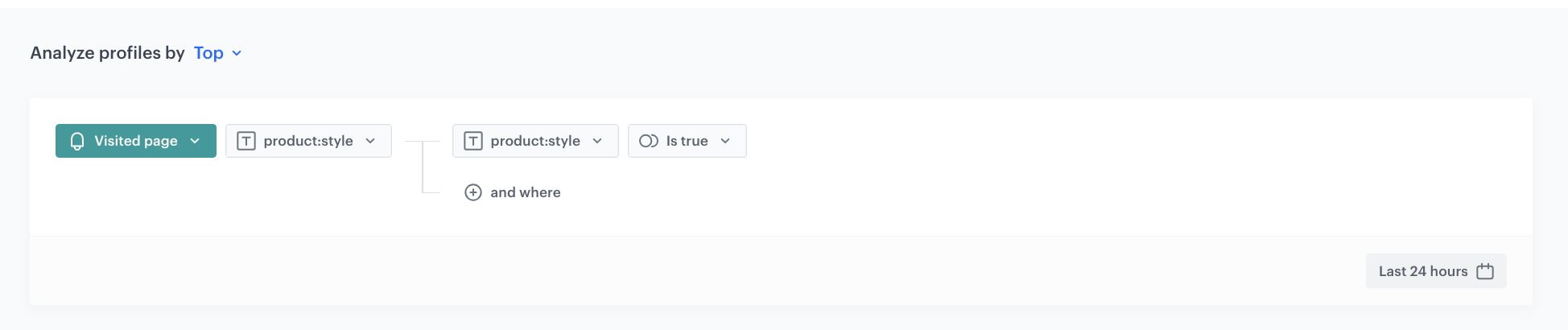
In this part of the process, create an aggregate that returns the most frequently seen style of products by a customer in the last 24 hours. Those products will not be displayed in the template, but the aggregate result will serve as a context for recommendations.


1. Go to <img src="/api/docs/image/54176ad07f146575310749eba44b7c2f42c1b327/icons/behavioral-data-hub-icon.svg" alt="Behavioral Data Hub icon" class="icon"> **Behavioral Data Hub > Live Aggregates > Create aggregate**.
2. As the aggregate type, select **Profile**.  
2. Enter the name of the aggregate.
3. Click **Analyze profiles by** and select **Top**.
4. From the **Choose event** dropdown list, select the **Visited page** event.
5. As the event parameter, select **product:style**.
6. Click the **+ where** button.
7. From the **Choose parameter** dropdown list, select the **product:style** parameter.
8. From the **Choose operator** dropdown list, select **Is true (Boolean)**.
9. Using the date picker in the lower-right corner, set the time range to **Last 24 hours**. Confirm your choice with the **Apply** button.
7. Click **Save**.
<figure>
<img src="/api/docs/image/54176ad07f146575310749eba44b7c2f42c1b327/use-cases/all-cases/_gfx/reco_agg_style.png" alt="The view of the configuration of the aggregate returning top styles in the last 24 hours"  class="large">
<figcaption>Configuration of the aggregate returning top styles in the last 24 hours</figcaption>
</figure> 

## Prepare an AI recommendation
---
In this part of the process, you will configure a personalized recommendation which will be later used in the email template. This recommendation will suggest items based on the [results of the aggregate created in the previous step](#create-an-aggregate).

1. Go to <img src="/api/docs/image/54176ad07f146575310749eba44b7c2f42c1b327/icons/ai-hub-icon.svg" alt="AI Hub icon" class="icon" > **AI Hub > (AI Recommendations) Models > Add recommendation**.
2. Enter the name of the recommendation (it is only visible on the list of recommendation).
3. In the **Type & Items feed** section, click **Define**.
4. From the **Items feed** dropdown list, select an item feed.
5. In the **Type** section, choose the **Personalized** recommendation type.
6. Confirm the settings by clicking **Apply**.
7. In the **Items** section, click **Define**.
    1. Click **Add slot**.
    2. Define the minimum and maximum number of items that will be recommended to the customer in each slot.
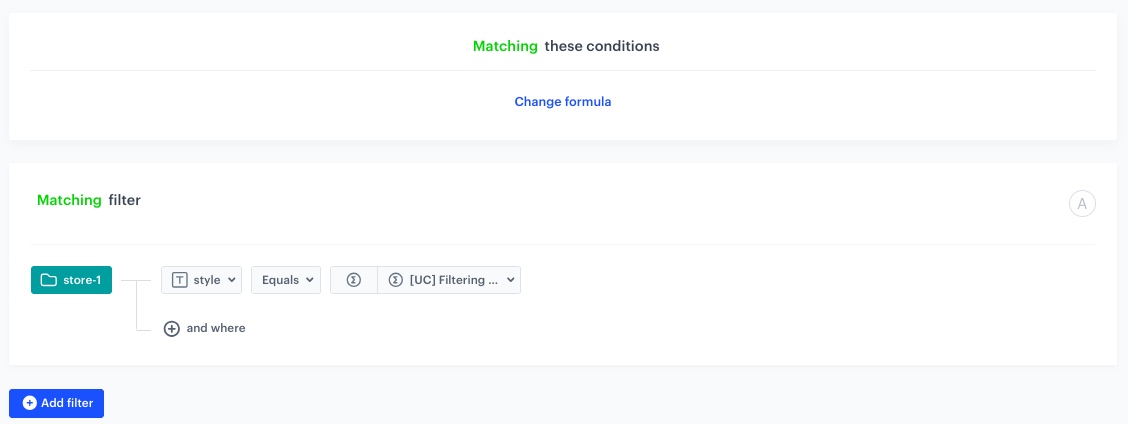
    3. Click **Define filter** in the [Static filter](/docs/ai-hub/recommendations-v2/creating-recommendation-campaign#static-filters) section, and from the dropdown list choose **Visual Builder**.
    4. From the **Select attribute** dropdown list, choose **style**.
    5. From the **Operator** dropdown list, select **Equals**.
    6. Change the **Value** atribute to **Aggregate**.
    7. From the **Select value** dropdown list, select the [aggregate created in the previous step](#create-an-aggregate).
    8. Click **Apply**.
        <figure>
        <img src="/api/docs/image/54176ad07f146575310749eba44b7c2f42c1b327/use-cases/all-cases/_gfx/filt_agg.png" alt="The view of the configuration of the static filter"  class="large">
        <figcaption>Configuration of the static filter</figcaption>
        </figure>
    9. Optionally, define [Elastic filters](/docs/ai-hub/recommendations-v2/creating-recommendation-campaign#elastic-filters).
    10. Click **Apply**.
8. Optionally, you can define the **Boosting** factors and settings in the **Additional settings** section.
9. In the right upper corner, click **Save**.

## Prepare an email template
---
In this part of the process, you will create an email template. We will use a predefined template for the personalized recommendations, so there is no need to create a template from scratch. If you want to create a template from scratch, you can use the following email builders:
- [email template builder](/docs/campaign/e-mail/creating-email-templates/email-code-editor)
- [basic drag & drop builder](/docs/campaign/e-mail/creating-email-templates/creating-custom-html-block-basic-builder).

1. Go to <img src="/api/docs/image/54176ad07f146575310749eba44b7c2f42c1b327/icons/experience-hub-icon.svg" alt="Image presents the Experience Hub icon" class="icon"> **Experience Hub > Email**.  
2. On the left pane, click **Templates** and from the list of template folders, select **Predefined dynamic templates**.
3. Select the **Recommended products** template.

**Result:** You are redirected to the code editor.


<div class="admonition admonition-note"><div class="admonition-icon"><svg xmlns="http://www.w3.org/2000/svg" fill="none" viewBox="0 0 24 24" stroke="currentColor" stroke-width="2.5"><path stroke-linecap="round" stroke-linejoin="round" d="M13 16h-1v-4h-1m1-4h.01M21 12a9 9 0 11-18 0 9 9 0 0118 0z" /></svg></div><div class="admonition-body"><div class="admonition-content">

You can edit the template in two ways, by editing the code of the template ([add inserts](/docs/campaign/in-app-messages/creating-inapp-templates/creating-inapp-template#adding-a-snippet-to-the-template-code), [add variables](/docs/campaign/in-app-messages/creating-inapp-templates/creating-inapp-template#adding-a-variable) and/or by filling out the form in the Config tab. In this use case, we will use the capabilities of the predefined Config tab.

</div></div></div>


### Edit form in the Config tab 
---
The form in the **Config** tab is pre-filled with default values, which you can modify to suit your business needs.  

1. In the **Logo** section, you have the option to customize the logo's height, link, title, and image source.
2. In the **Main image** section, you can specify the height, link, title, and the source of the main image.
4. In the **First recommendation header** section, you can type the header you want to display and define the background and font colors.
5. In the **First recommendation products** section:
    1. Set the value in the **Number of product in row** field.
    1. From the **Recommendation id** dropdown list select the [recommendation you prepared in the previous step](#prepare-an-ai-recommendation). You can find it by typing its name or ID in the search box.
    2. Customize the **Product name font color**, **Font color**, **Button font color**, **Button background color**, **Button border radius** and **Button text** options.
6. Optionally, repeat steps 3-4 for **Second recommendation header** and **Second  recommendation products** and configure **Category section**, **Contact section**, **Social media** and **Footer** or hide them by switching off the respective toggle.

    
   <div class="admonition admonition-note"><div class="admonition-icon"><svg xmlns="http://www.w3.org/2000/svg" fill="none" viewBox="0 0 24 24" stroke="currentColor" stroke-width="2.5"><path stroke-linecap="round" stroke-linejoin="round" d="M13 16h-1v-4h-1m1-4h.01M21 12a9 9 0 11-18 0 9 9 0 0118 0z" /></svg></div><div class="admonition-body"><div class="admonition-content">

   To preview the template without switched off sections, use the **Preview Contexts** option.

   </div></div></div>


7. After you make changes to the template, you can check the preview. 
    1. Click the **Preview Contexts** button on the upper left side.
    2. Enter the ID of a customer.
    3. Click **Apply**.
8. If the template is ready, click the arrow next to **Use in communication** in the upper right corner, and from the dropdown select **Save as**.
9. On the pop-up:
    1. In the **Template name field**, enter the name of the template.
    2. From the **Template folder** dropdown list, select the folder where the template will be saved.
    3. Confirm by clicking **Save**.

## Create a workflow
---
In this part of the process, you will create a workflow which sends emails with personalized recommendations to customers, triggered when they finish their session on the site. The email will be sent maximum once a month, to customers who did not made a purchase in the last 30 days.

1. Go to <img src="/api/docs/image/54176ad07f146575310749eba44b7c2f42c1b327/icons/automation-hub-icon.svg" alt="Automation Hub icon" class="icon" > **Automation Hub > Workflows > New workflow**.  
2. Enter the name of the workflow. 

### Define the trigger node
---
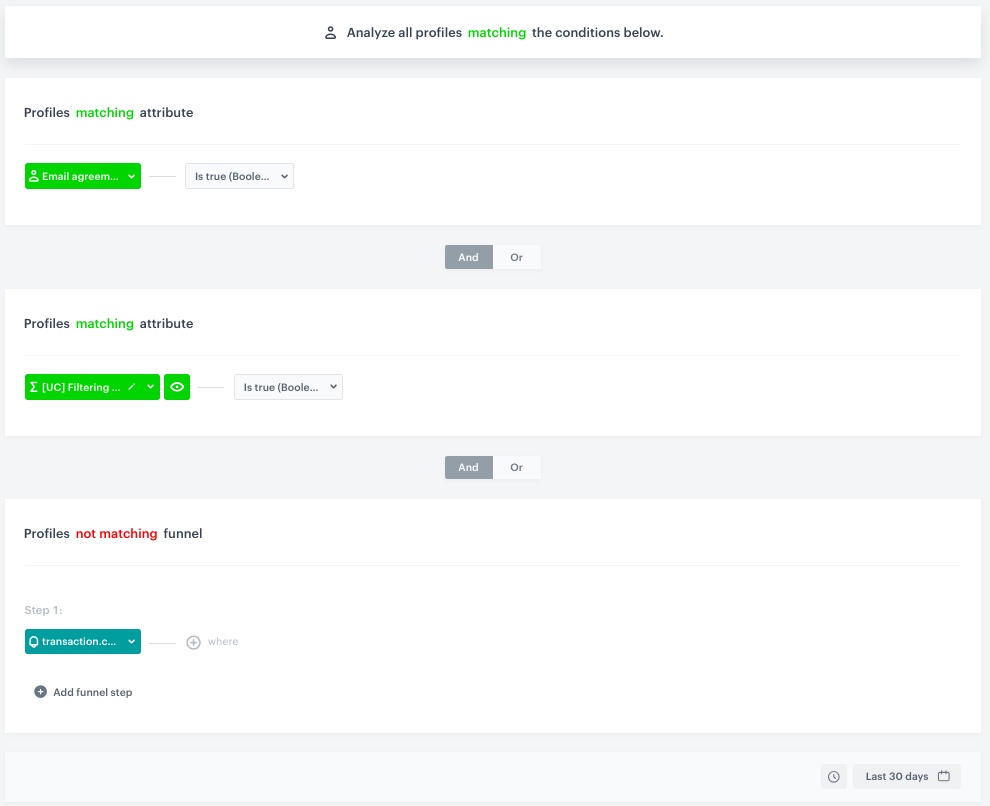
The workflow is triggered for specific group of customers every day at a defined time. In our case - customers with email marketing agreement who have not made a transaction, and for whom the [the results of the aggregate created in the previous step](#create-an-aggregate) is valid.

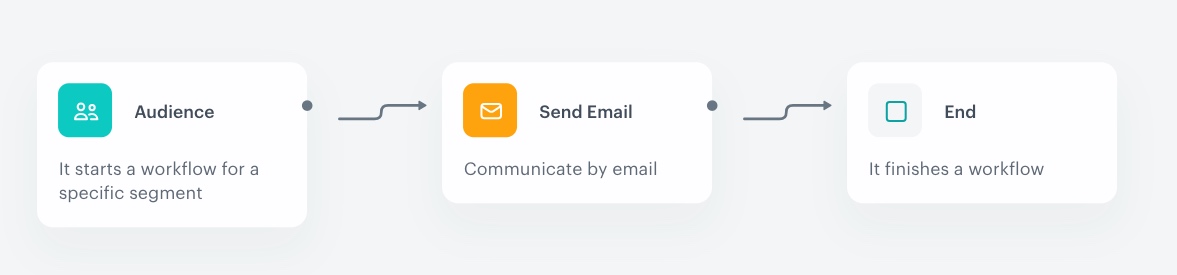
1. As the first node, add the **Audience** node.
2. In the configuration of the node, set the **Run trigger** option to **repeatable**.
3. Set the interval to 1 per day.
4. Choose the day and time when the process starts.
5. Select the time zone.
6. In **Define audience**, choose **New Audience** and click **Define conditions**.
    1. As the first condition, from the **Choose filter** dropdown menu, choose **Email agreement** attribute.
    2. From the **Choose operator** dropdown list, select **Is true (Boolean)**.
    3. As the second condition, from the **Choose filter** dropdown menu, choose the [aggregate created in the previous step](#create-an-aggregate).
    4. From the **Choose operator** dropdown list, select **Is true (Boolean)**.
    5. As the third condition, from the **Choose filter** dropdown menu, choose the `transaction.charge` event, and change condition to **not matching**.
    6. Using the date picker in the lower-right corner, set the time range to **Custom** and set to **30 days**. Confirm your choice with the **Apply** button.
        <figure>
        <img src="/api/docs/image/54176ad07f146575310749eba44b7c2f42c1b327/use-cases/all-cases/_gfx/filter_aud_wrkflw.png" alt="The view of the configuration of the Audience trigger node"  class="large">
        <figcaption>Configuration of the Audience trigger node</figcaption>
        </figure> 
    7. Click **Apply**.
7. Click **Apply**.

### Define the Send Email node
---
1. Add the **Send Email** node. In the node settings:
    1. In the **Sender details** section, choose the email account from which the email will be sent.
    2. In the **Content** section, type the **Subject** and from the **Template** dropdown, select [the template you created in the previous step](#prepare-an-email-template).
    3. In the **UTM & URL parameters** section, you can define the UTM parameters added to the links included in the email. 
    4. In the **Additional parameters** section, you can assign  [additional parameters](/docs/campaign/e-mail/creating-email-campaigns#adding-custom-parameters) to the events generated by sending and interacting with this email.
2. Click **Apply**.

### Add the finishing node and set capping
---
1. Add the **End** node.
2. In the upper right corner, click **Set Capping** and define the limit of workflows a profile can start:
    1. Set **Limit** to 1.
    2. Set **Time** to 1 month.
2. In the upper right corner, click **Save & Run**.

<figure>
<img src="/api/docs/image/54176ad07f146575310749eba44b7c2f42c1b327/use-cases/all-cases/_gfx/agg_wrkflw.png" alt="The view of the workflow configuration"  class="full">
<figcaption>Workflow configuration</figcaption>
</figure> 

## Check the use case set up on the Synerise Demo workspace
---
You can check the configuration of each step directly in Synerise Demo workspace:
- [Aggregate](https://app.synerise.com/analytics/aggregates/7523f982-51b6-3a28-8fbf-183613936caf)
- [Personalized Recommendation](https://app.synerise.com/ai-v2/recommendations/qu78KmoKeviP)
- [Workflow](https://app.synerise.com/automations/automation-diagram/87212121-30f6-437d-9c39-df60aa492efe)

If you’re our partner or client, you already have automatic access to the **Synerise Demo workspace (1590)**, where you can explore all the configured elements of this use case and copy them to your workspace.  

If you’re not a partner or client yet, we encourage you to fill out the contact [form](https://demo.synerise.com/request) to schedule a meeting with our representatives. They’ll be happy to show you how our demo works and discuss how you can apply this use case in your business. 

## Read more
---

- [Aggregates](/docs/analytics/aggregates)
- [Automation Hub](/docs/automation)
- [Email templates](/docs/campaign/e-mail/creating-email-templates)
- [Recommendations](/docs/ai-hub/recommendations-v2)
- [Segmentation](/docs/analytics/segmentations)