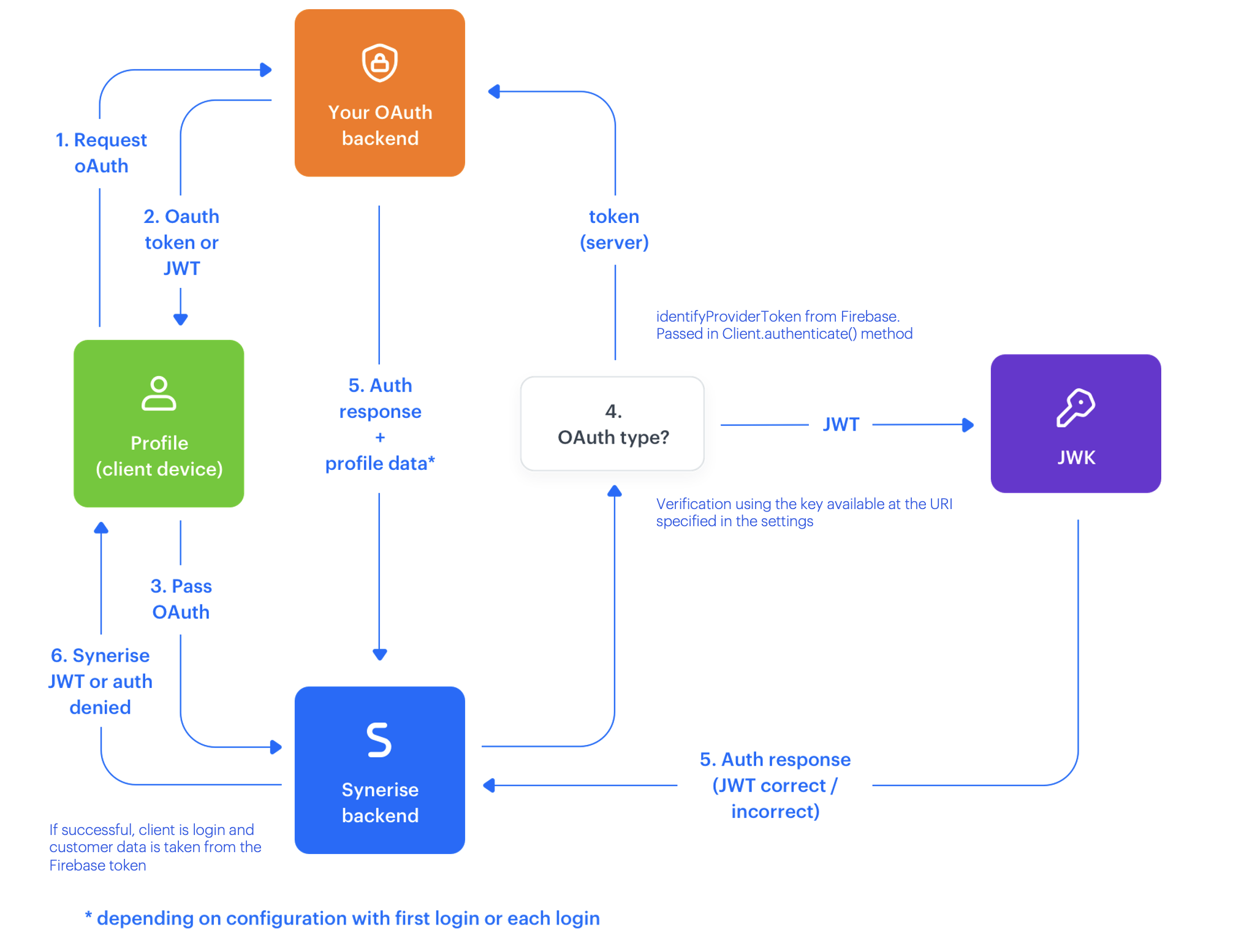
OAuth-based authentication is one of the most secure and scalable ways to identify users across platforms. In this use case, we show you how to integrate Firebase Authentication with Synerise Identity and Access Management (IAM) using the JWK method. This setup allows you to authenticate users via Firebase and automatically create or update their Synerise profiles — all based on validated token data, without handling credentials directly.
This method is ideal for mobile and web applications that use Firebase for user authentication and need to seamlessly connect those identities with Synerise.
## Prerequisites
---
- Firebase project with OAuth enabled. More info in [Firebase documentation](https://firebase.google.com/docs).
## Process
---
In this use case, you will go through the following steps:
1. [Enable OAuth Method in IAM](/use-cases/firebase#enable-oauth-method-in-iam).
6. [Integrate the method in the mobile application](/use-cases/firebase#integrate-in-mobile-application).
## Enable OAuth Method in IAM
---
In this part of the process, you will activate OAuth-based authentication in Synerise.
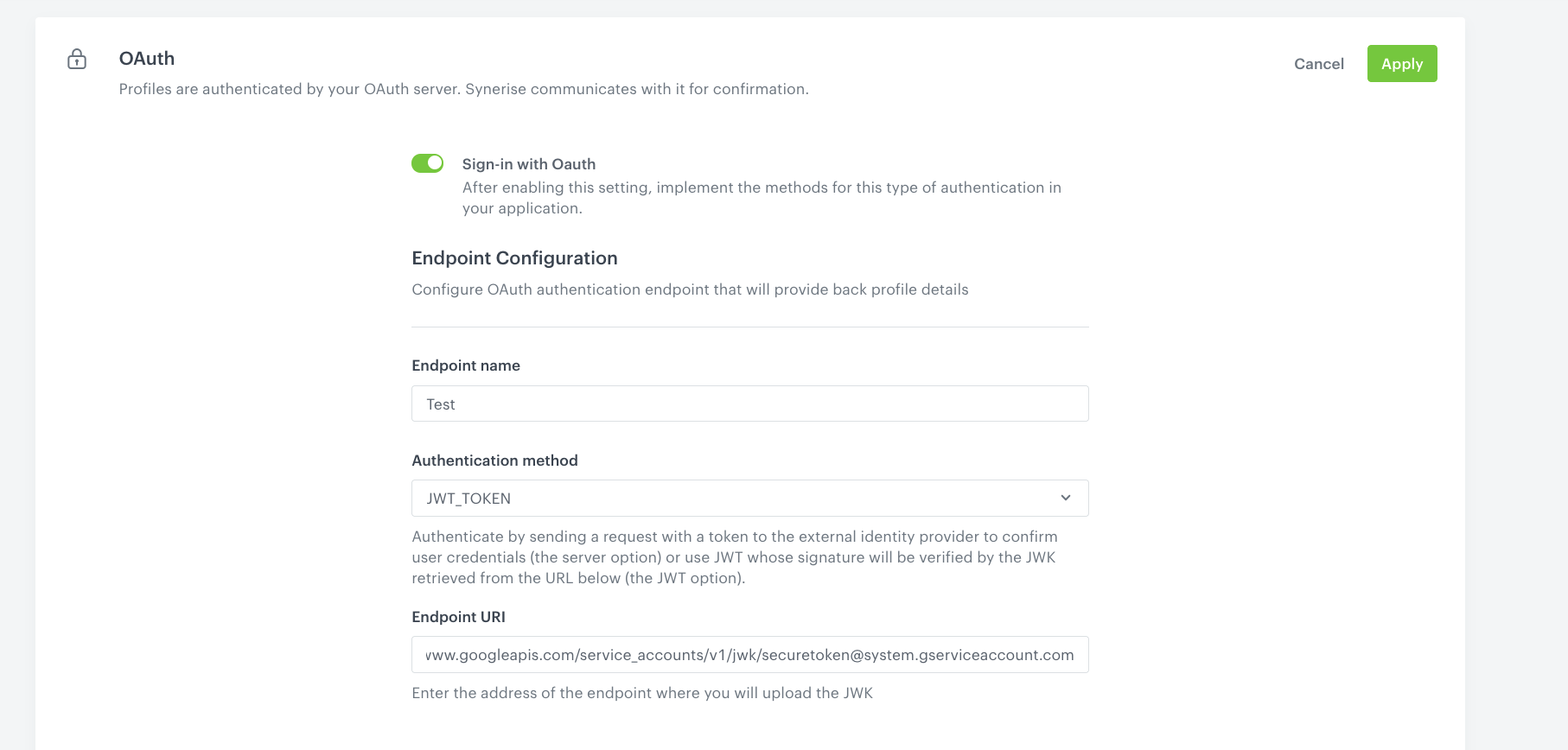
1. Go to **Settings > Authentication for mobile apps**
2. Choose and click **OAuth** from Authentication methods.
3. Enable the OAuth method.
4. Provide a name for this authentication method.
5. Select JWT_TOKEN as the authentication method.
6. In **Endpoint URI** provide the URI where the JSON Web Key (JWK) is stored. For Firebase, use: `https://www.googleapis.com/service_accounts/v1/jwk/securetoken@system.gserviceaccount.com`
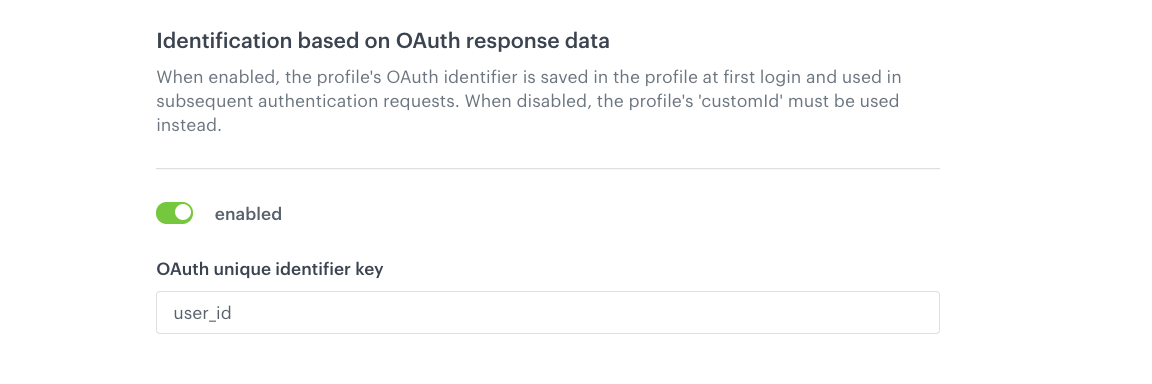
7. Enable the **Identification based on OAuth response data** option.
8. Specify a unique identifier key from the token (for example, `user_id` or `sub`).
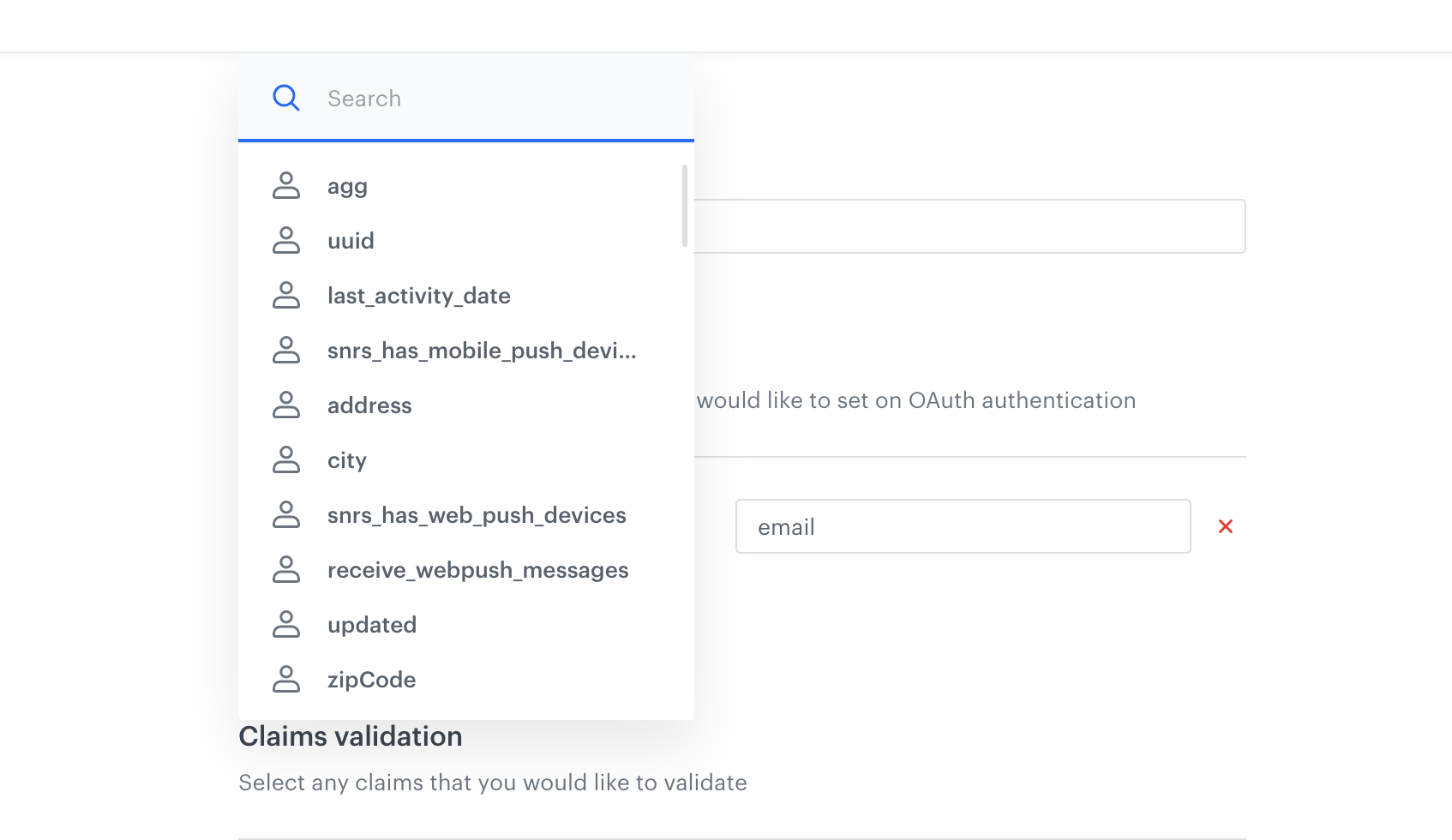
9. Map any additional fields from the OAuth response token to corresponding Synerise profile attributes as needed.
**Example of a decoded Firebase token:**
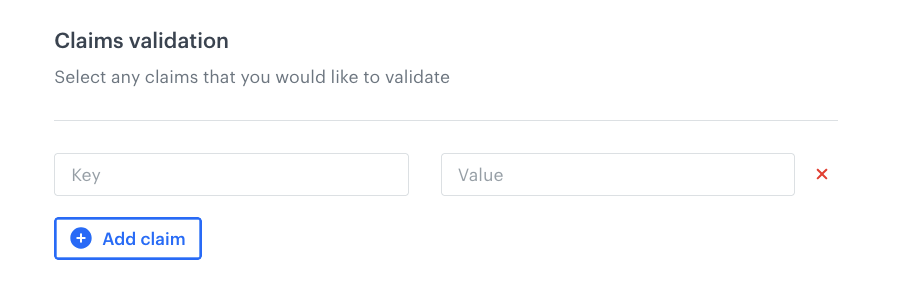
10. Enable Claim Validation. It is recommended to enable claim validation to verify token claims during the authentication process. This ensures that only valid and trusted tokens are accepted.
11. To save your settings, click **Apply**.
## Integrate in mobile application
--
In this final step, you will implement login via the Synerise Mobile SDK.
After a user successfully logs in via OAuth, invoke the authentication method from the Synerise mobile SDK: [Authenticate Customer by Identity Provider – Mobile SDK](/developers/mobile-sdk/method-reference/android/client-authentication#authenticate-customer-by-identityprovider).
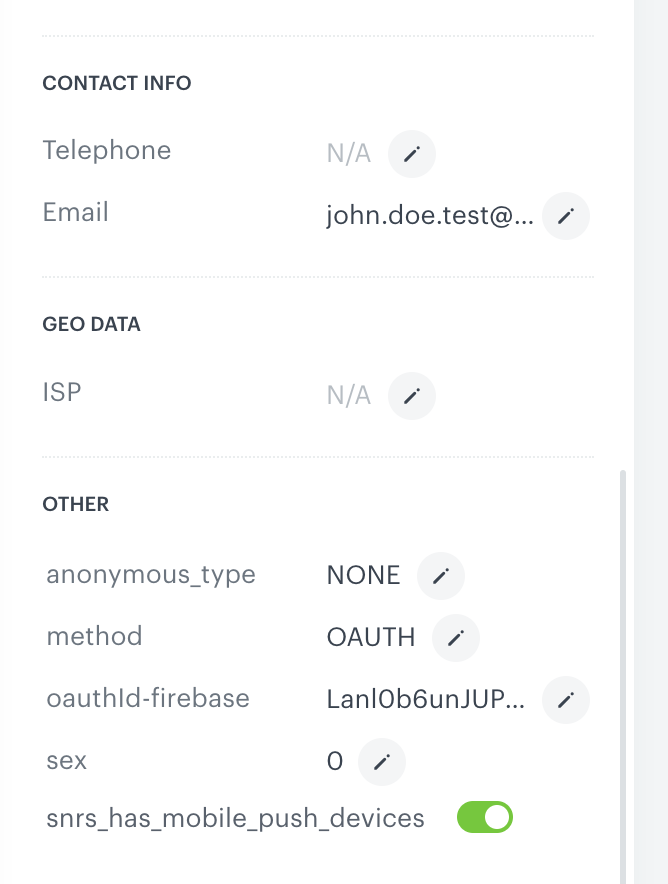
Upon successful authentication, a customer profile is automatically created and recognized within Synerise. This integration ensures that users authenticated via Firebase are automatically recognized in Synerise without managing credentials separately. It allows seamless identity synchronization, enabling consistent user data for personalization, analytics, and automation.
Profile
## More information
---
If you need more information about the autentication process, we recommend you to start the [free course](https://academy.synerise.com/course/android-integration-labs) on our Synerise Academy platform.
This course will teach you how to implement Synerise features in your mobile applications by using an example application and explaining how to add functionalities to it, step-by-step. After each codelab, you can check the related folders in our Github repository to see if your code matches the expected results.
You need to just create a free account to be able to start the course.
## Read more
---
- [Method reference - Android - Mobile SDK - mobile SDK help](/developers/mobile-sdk/method-reference/android/client-authentication#authenticate-customer-by-identityprovider)
- [OAuth - OAuth documentation](/docs/settings/tool/iam-for-apps/oauth)