Gender marketing is a sales strategy used to reach out to women and men consumers by understanding their tastes, preferences and consumption trends. It involves the use of market segmentation and focuses on building specific strategies to reach out to female or male consumers, incorporating consumers' gender-specific needs into communication. You can use gender-based promotions to advertise and sell your goods and services successfully. 

This use case describes how to create a promotion for customers based on their gender with the use of segmentation.

## Prerequisites
---
- Implement promotions in your [mobile application](/developers/mobile-sdk/loyalty), website or through [API](https://developers.synerise.com/LoyaltyandEngagement/LoyaltyandEngagement.html#operation/profileLogin)
- [Implement transactional events](/developers/web/methods-reference#tracking-transactions).
- [Import your product feed to catalog](/use-cases/import-product-feed-to-catalog).

## Process
---
- [Prepare two segmentations](/use-cases/gender-based-promotion#prepare-two-segmentations) of customers based on the category of the products they already bought.
- [Create two promotions](/use-cases/gender-based-promotion#create-two-promotions) based on gender.

## Prepare two segmentations
---
In this part of the process create two segmentations that will group customers based on the category of purchased items.

<div class="admonition admonition-note"><div class="admonition-icon"><svg xmlns="http://www.w3.org/2000/svg" fill="none" viewBox="0 0 24 24" stroke="currentColor" stroke-width="2.5"><path stroke-linecap="round" stroke-linejoin="round" d="M13 16h-1v-4h-1m1-4h.01M21 12a9 9 0 11-18 0 9 9 0 0118 0z" /></svg></div><div class="admonition-body"><div class="admonition-content">

In this use case, we will assign gender based on the category of products they purchase. These are just example conditions of the segmentation. These conditions may be completely different depending on your business goals and do not have to be based on this event.

</div></div></div>


1. Go to <img src="/api/docs/image/54176ad07f146575310749eba44b7c2f42c1b327/icons/decision-hub-icon.svg" alt="Behavioral Data Hub icon" class="icon"> **Decision Hub > Segmentations > New segmentation**.
2. Enter the name of segmentation. 
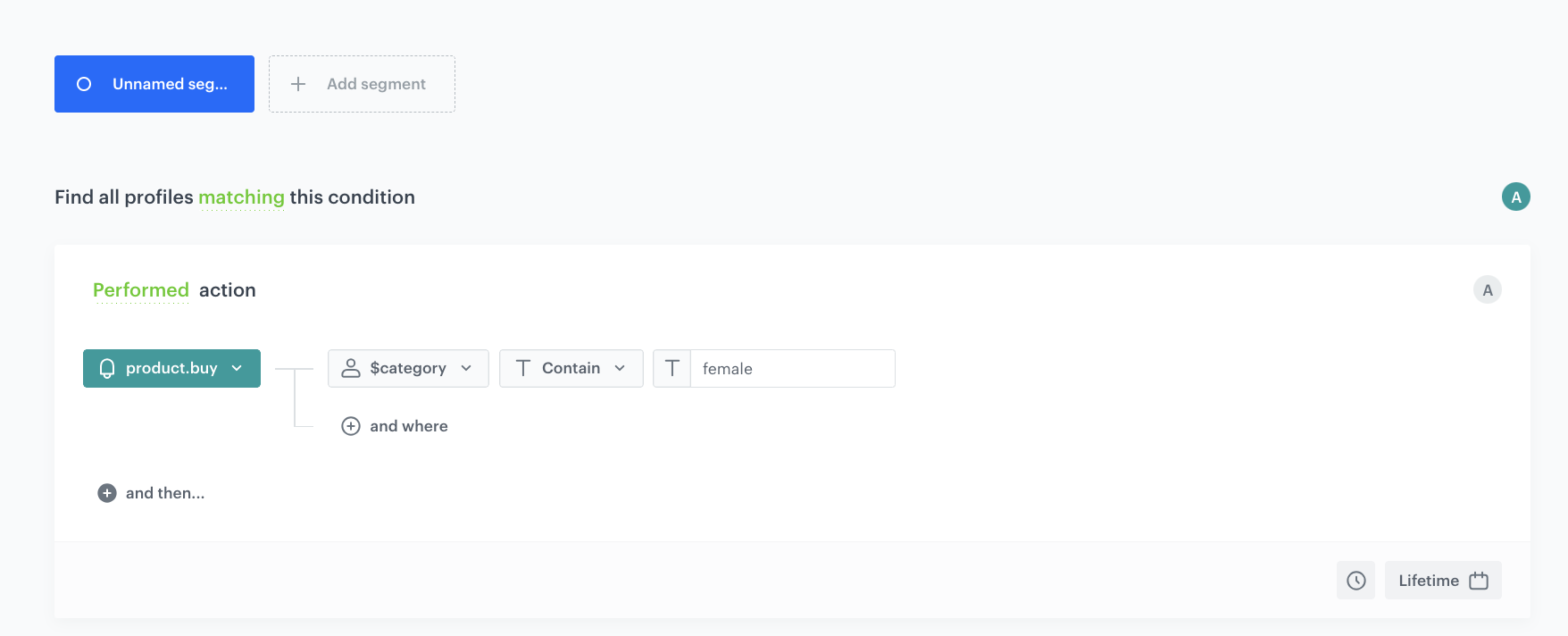
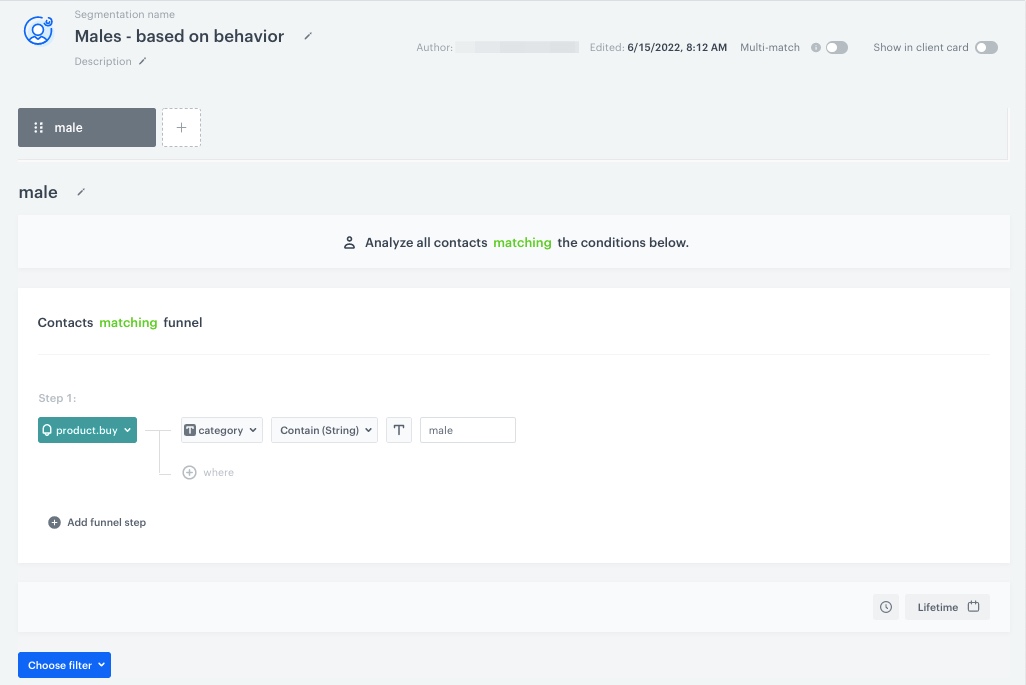
3. From the **Choose filter** dropdown list, select the `product.buy` event.
4. From the **Choose parameter** dropdown list, select **category**.
5. From the dropdown list that appears, select the **Contain** operator.
6. In the next field enter the phrase "-female-" or "-male-".
    
   <div class="admonition admonition-tip"><div class="admonition-icon"><svg xmlns="http://www.w3.org/2000/svg" fill="none" viewBox="0 0 24 24" stroke="currentColor" stroke-width="2.5"><path stroke-linecap="round" stroke-linejoin="round" d="M9.663 17h4.673M12 3v1m6.364 1.636l-.707.707M21 12h-1M4 12H3m3.343-5.657l-.707-.707m2.828 9.9a5 5 0 117.072 0l-.548.547A3.374 3.374 0 0014 18.469V19a2 2 0 11-4 0v-.531c0-.895-.356-1.754-.988-2.386l-.548-.547z" /></svg></div><div class="admonition-body"><div class="admonition-content">

   The construction of this condition depends on the implementation of transactional events and may vary.

   </div></div></div>


7. To determine the time range from which the data will be analyzed, click the calendar icon and choose the **Lifetime** time range. Confirm your choice with the Apply button. 
8. Click **Save**.
9. To create the second segmentation repeat the process from steps 1 to 8.

**Result**: The segmentations are saved and can be used as an audience for promotions.

<figure>
<img src="/api/docs/image/54176ad07f146575310749eba44b7c2f42c1b327/use-cases/all-cases/_gfx/segment-g-female.png" alt="An example of a segmentation of female customers" class="full" >
<figcaption>An example of a segmentation of female customers</figcaption>
</figure>
<figure>
<img src="/api/docs/image/54176ad07f146575310749eba44b7c2f42c1b327/use-cases/all-cases/_gfx/segment-male.png" alt="An example of a segmentation of male customers" class="full" >
<figcaption>An example of a segmentation of male customers</figcaption>
</figure>

## Create two promotions
---
1. Go to <img src="/api/docs/image/54176ad07f146575310749eba44b7c2f42c1b327/icons/ai-hub-icon.svg" alt="AI Hub icon" class="icon" > **AI Hub > Regular Promotions > Add promotion**.
2. Enter a name for the promotion.
3. According to your business needs select one of the scopes:
   - **For selected items**
   - **For entire basket**
4. In the **Audience** section, choose **Segments** and select one of segmentations created in [this step](/use-cases/gender-based-promotion#prepare-two-segmentations).
5. In the **Content** section:
    1. Define the name, description, and image of the promotion. 
    2. Define the rest of the settings according to your needs.
    3. Confirm the settings by clicking **Apply**. 
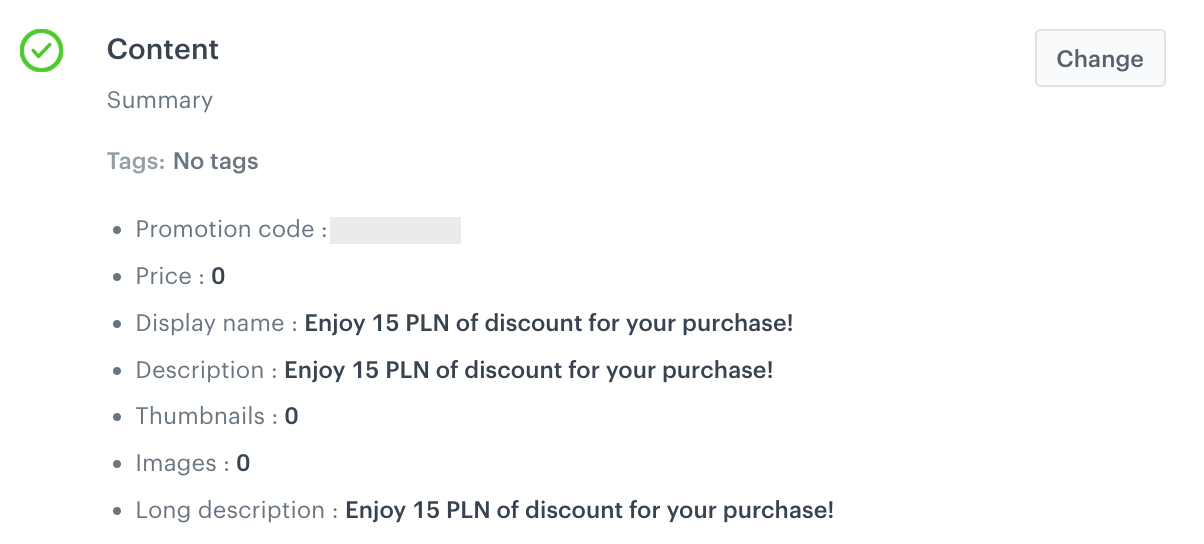
    
    <figure>
     <img src="/api/docs/image/54176ad07f146575310749eba44b7c2f42c1b327/use-cases/all-cases/_gfx/location-based-promotion-content.png" class="large" alt="Example of promotion content">
    <figcaption>Example of promotion content</figcaption>
    </figure>

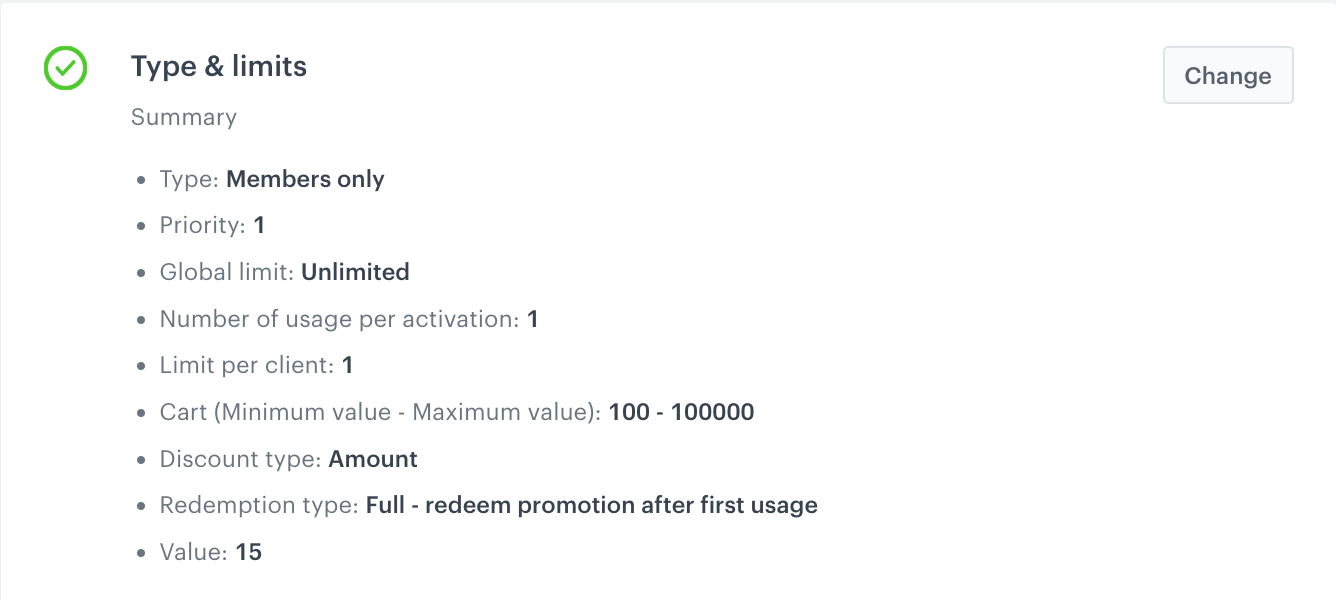
5. Define the **Type and limits** section according to your business needs.
        <figure>
        <img src="/api/docs/image/54176ad07f146575310749eba44b7c2f42c1b327/use-cases/all-cases/_gfx/location-based-promotion-types-and-limits.png" class="large" alt="Example of Type and limits settings">
        <figcaption>Example of Type and limits settings</figcaption>
        </figure>

6. In the **Schedule** section, define the promotion distribution period according to your business needs.
7. In the **Stores** section, according to you business needs you can specify stores where the promotion is available.
    
    
   <div class="admonition admonition-note"><div class="admonition-icon"><svg xmlns="http://www.w3.org/2000/svg" fill="none" viewBox="0 0 24 24" stroke="currentColor" stroke-width="2.5"><path stroke-linecap="round" stroke-linejoin="round" d="M13 16h-1v-4h-1m1-4h.01M21 12a9 9 0 11-18 0 9 9 0 0118 0z" /></svg></div><div class="admonition-body"><div class="admonition-content">

   This is possible only if the list of stores is imported into a [catalog](/docs/assets/catalogs).

   </div></div></div>


8. In the **Items** section, specify the catalog item to be discounted:
    1. In the **Source catalog** field, select an item catalog to select the promotional items from.
    2. In the **Include items** section, pick one according to your business needs. 
11. To apply configuration and run the promotion, click **Publish**.
12. To create second promotion repeat all the steps.

## Check the use case set up on the Synerise Demo workspace
---

You can check the configuration of the segmentations directly in Synerise demo workspace:
- [a segmentation of female customers](https://app.synerise.com/analytics/segmentations/e4046377-e385-42ff-88c0-92fa14740c61),
- [a segmentation of male customers](https://app.synerise.com/analytics/segmentations/4040a08c-f30a-4709-9ab2-610701e61aaf).

Here you can find the configuration of promotions, available on Synerise demo workspace:
- [for female customers](https://app.synerise.com/campaigns/promotions/ef6a9396-70a9-4d8f-b1d0-fde456e49a9d),
- [for male customers](https://app.synerise.com/campaigns/promotions/0a79c12c-eaa7-4a70-9e35-aa055c0b72db).

If you’re our partner or client, you already have automatic access to the **Synerise Demo workspace (1590)**, where you can explore all the configured elements of this use case and copy them to your workspace.  

If you’re not a partner or client yet, we encourage you to fill out the contact [form](https://demo.synerise.com/request) to schedule a meeting with our representatives. They’ll be happy to show you how our demo works and discuss how you can apply this use case in your business.


## Read more
---
- [Promotions](/docs/ai-hub/promotions)
- [Segmentations](/docs/analytics/segmentations)