Synerise allows you to collect data from any customer touchpoint. Using Synerise's seamless integration with Google Cloud Storage (GCS), you can transfer any data stored in the GCS directly to Synerise and use it in the platform.
In this use case, we will import a file with transactional data and purchase history from Google Cloud Storage.
## Prerequisites
---
- You must have a Google Cloud account.
- Create a project in Google Cloud.
## Prepare a workflow
---
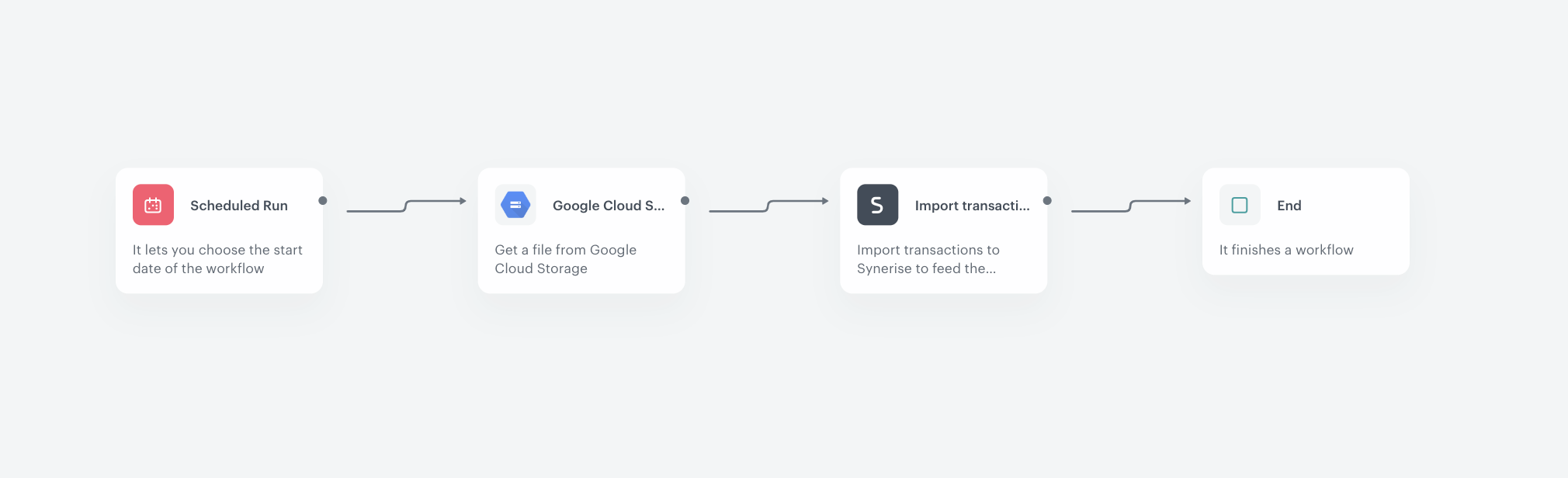
Create a workflow which performs a single import of the file with transactional data and purchase history from Google Cloud Storage to Synerise.
1. Go to **Automation Hub > Workflows > New workflow**.
2. Enter the name of the workflow.
### Define the Scheduled Run trigger node
---
At this stage, we will configure conditions that launch the workflow. As a trigger, we will use the **Scheduled Run** node.
3. As the trigger node, add **Scheduled Run**.
4. In the configuration of the node:
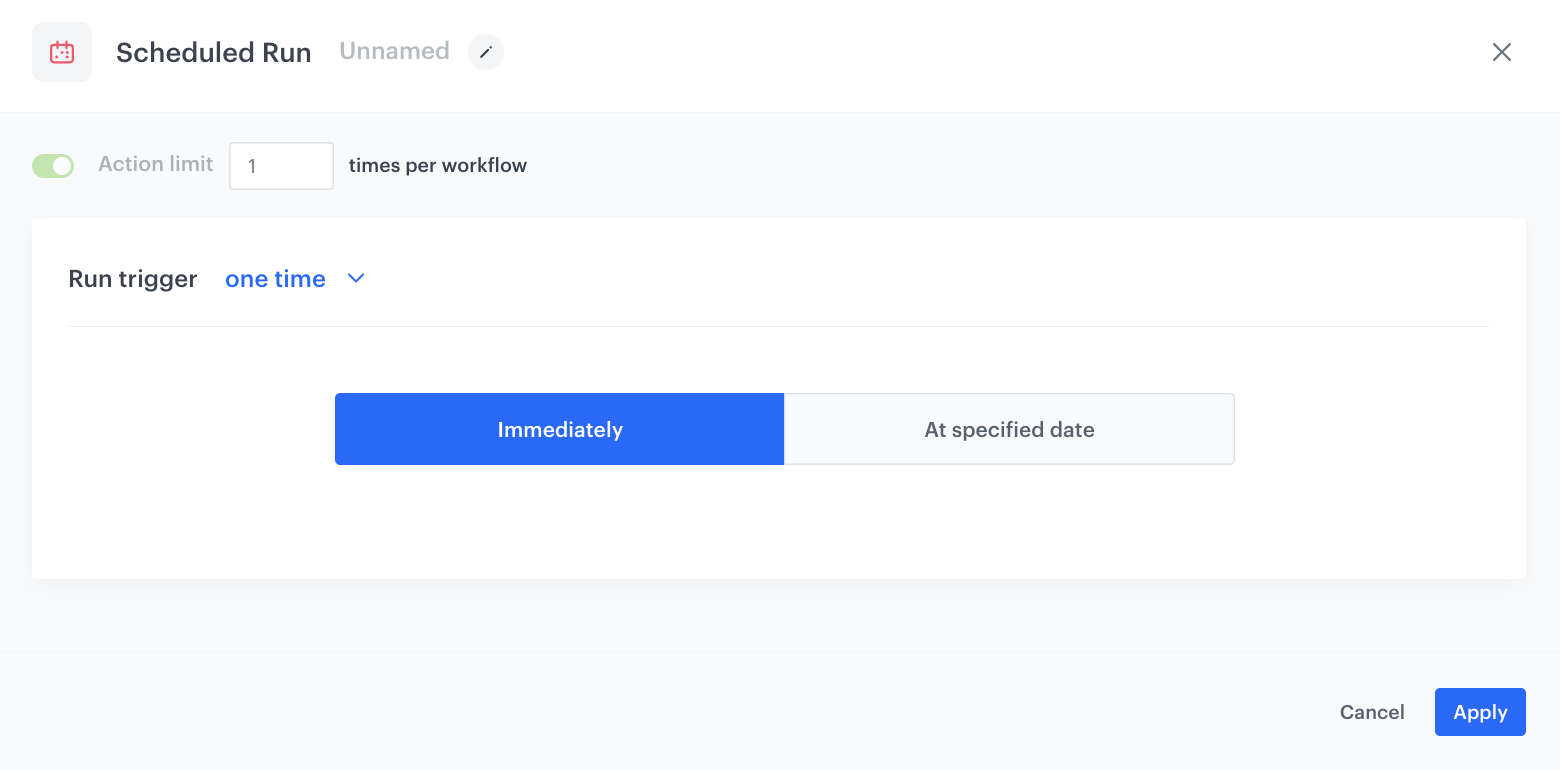
1. Change the **Run trigger** option to **one time**.
2. Select **Immediately**.
4. Confirm by clicking **Apply**.
The configuration of the Scheduled Run node
### Configure the Get File node
---
In this step, to allow the data exchange, establish a connection between Synerise and Google Cloud Storage.
1. Add **Google Cloud Storage > Get File** node.
2. Click **Select connection**.
3. From the dropdown list, select the connection.
- If no connections are available or you want to create a new one, see [Create a connection](/docs/automation/integration/google-cloud-storage/get-file-from-gcs).
- If you selected an existing connection, proceed with the integration settings.
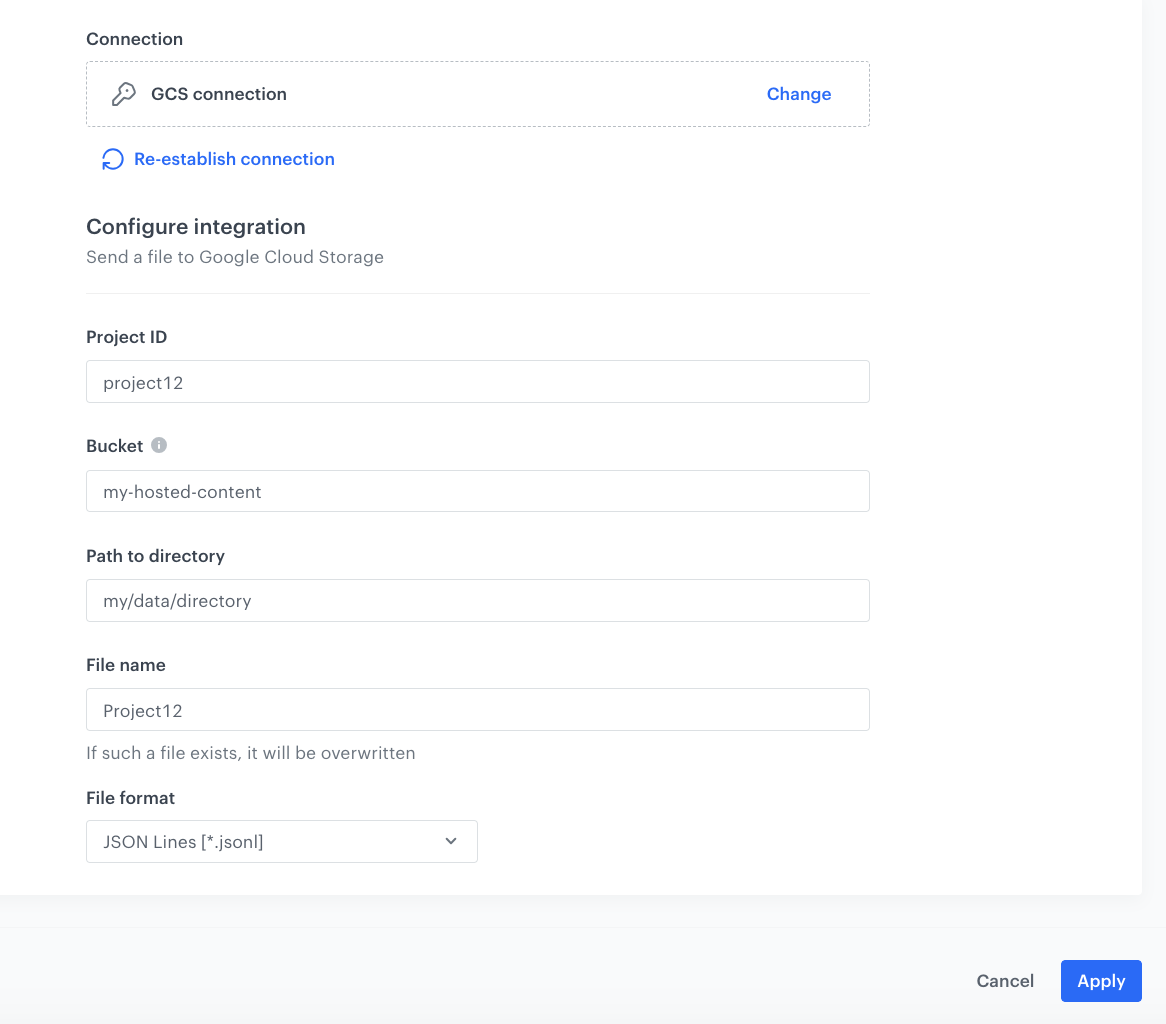
1. In the **Project ID** field, enter the unique identifier of your project in Google Cloud.
You can learn how to find the project ID [here](https://support.google.com/googleapi/answer/7014113).
2. In the **Bucket** field, enter the name of an existing bucket (container) from which you will download a file with data.
3. In the **Path to directory** field, enter the path from which the file will be downloaded.
4. In the **File name** field, enter the name of the file you want to download from the storage. If the file already exists, the contents of the file will be overwritten.
5. From the **File format** dropdown list, select the format of the file which will be downloaded.
6. Confirm by clicking **Apply**.
The configuration of the Get File node
### Add Import Transactions node
---
In this step, add the **Import Transactions** node to import the file with transactions directly to Synerise.
1. Choose **Synerise** node.
2. From the list that opens, select **Synerise > Import Transactions**.
### Add the finishing node
12. Add the **End** node.
13. In the upper right corner, click **Save & Run**.
The workflow configuration
## Check the use case set up on the Synerise Demo workspace
---
You can check the configuration of the [workflow](https://app.synerise.com/automations/automation-diagram/79b22158-ca02-4d10-8e03-e26bc7839b3a)in this use case on our Synerise Demo workspace.
If you’re our partner or client, you already have automatic access to the **Synerise Demo workspace (1590)**, where you can explore all the configured elements of this use case and copy them to your workspace.
If you’re not a partner or client yet, we encourage you to fill out the contact [form](https://demo.synerise.com/request) to schedule a meeting with our representatives. They’ll be happy to show you how our demo works and discuss how you can apply this use case in your business.
## Read more
---
- [Get File](/docs/automation/integration/google-cloud-storage/get-file-from-gcs)
- [Workflows](/docs/automation)
 **Automation Hub > Workflows > New workflow**.
2. Enter the name of the workflow.
### Define the Scheduled Run trigger node
---
At this stage, we will configure conditions that launch the workflow. As a trigger, we will use the **Scheduled Run** node.
3. As the trigger node, add **Scheduled Run**.
4. In the configuration of the node:
1. Change the **Run trigger** option to **one time**.
2. Select **Immediately**.
4. Confirm by clicking **Apply**.
**Automation Hub > Workflows > New workflow**.
2. Enter the name of the workflow.
### Define the Scheduled Run trigger node
---
At this stage, we will configure conditions that launch the workflow. As a trigger, we will use the **Scheduled Run** node.
3. As the trigger node, add **Scheduled Run**.
4. In the configuration of the node:
1. Change the **Run trigger** option to **one time**.
2. Select **Immediately**.
4. Confirm by clicking **Apply**.