 **Decision Hub > Metrics > New metric**.
2. Enter the name of the metric.
3. As a metric kind, select **Simple metric**.
4. As the type, set **Event**.
5. As the aggregator, set **Sum**.
4. As the occurrence type, set **All**.
5. From the **Choose event** dropdown list, select `product.buy`.
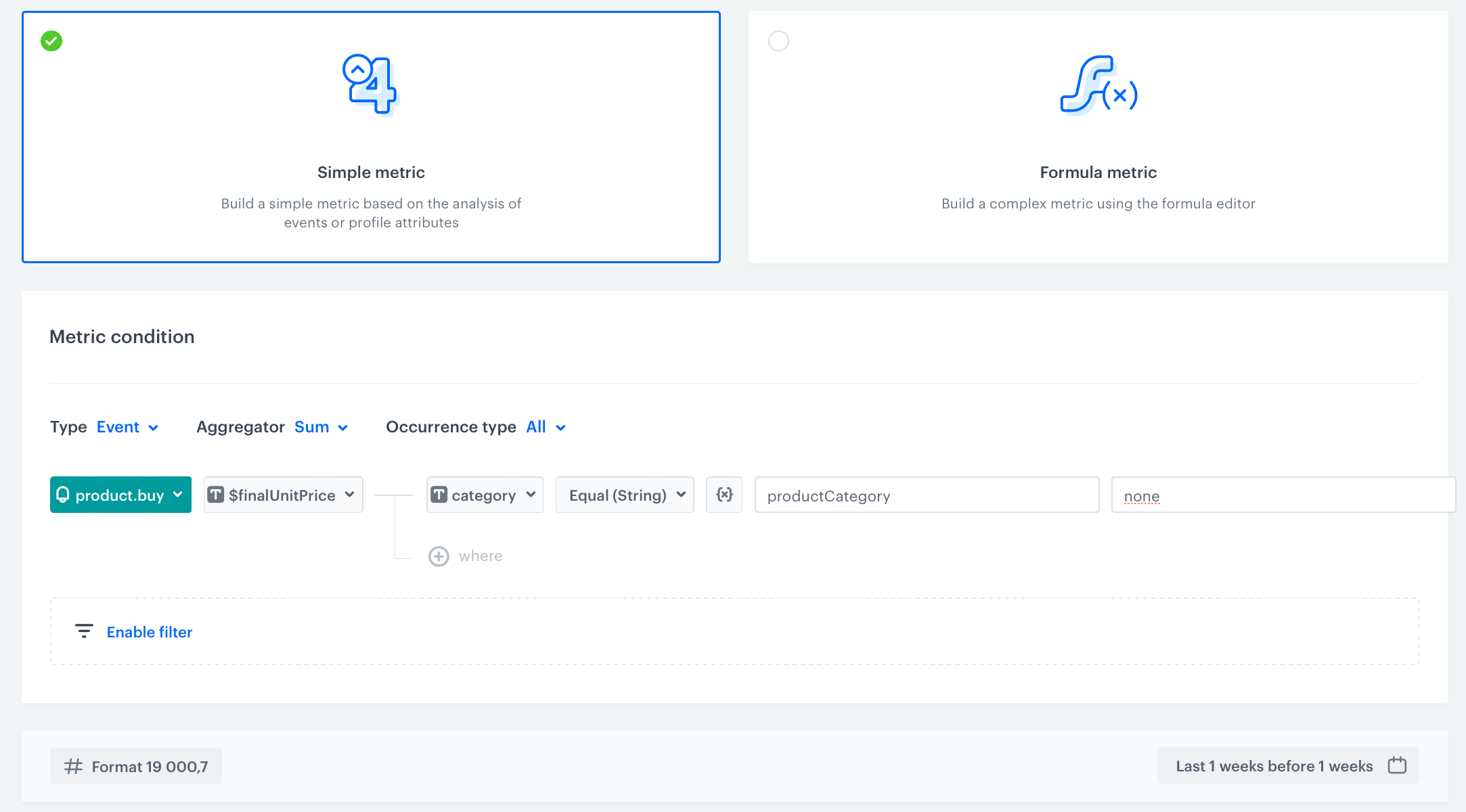
6. From the **Choose parameter** dropdown list, select the `finalUnitPrice` parameter.
7. Click the **+ where** button.
8. From the **Choose parameter** dropdown list, select the `category` parameter.
9. From the **Choose operator** dropdown list, choose **String**, and then select **Equal**.
10. Next to the operator, click the
**Decision Hub > Metrics > New metric**.
2. Enter the name of the metric.
3. As a metric kind, select **Simple metric**.
4. As the type, set **Event**.
5. As the aggregator, set **Sum**.
4. As the occurrence type, set **All**.
5. From the **Choose event** dropdown list, select `product.buy`.
6. From the **Choose parameter** dropdown list, select the `finalUnitPrice` parameter.
7. Click the **+ where** button.
8. From the **Choose parameter** dropdown list, select the `category` parameter.
9. From the **Choose operator** dropdown list, choose **String**, and then select **Equal**.
10. Next to the operator, click the  icon until you get two fields: **Dynamic key** and **Value**.
1. In the **Dynamic key** field, enter the name of the dynamic key, in our case: `productCategory`. The value for the key will be sourced from the `category` parameter.
2. In the **Value** field, enter `none`.
6. To select a specific time range, click the calendar icon. In our case, it will be **Last week**. Confirm your choice with the **Apply** button.
7. Click **Save**.
**Decision Hub > Metrics > New metric**.
2. Enter the name of the metric.
3. As a metric kind, select **Simple metric**.
4. As the type, set **Event**.
5. As the aggregator, set **Sum**.
4. As the occurrence type, set **All**.
5. From the **Choose event** dropdown list, select `product.buy`.
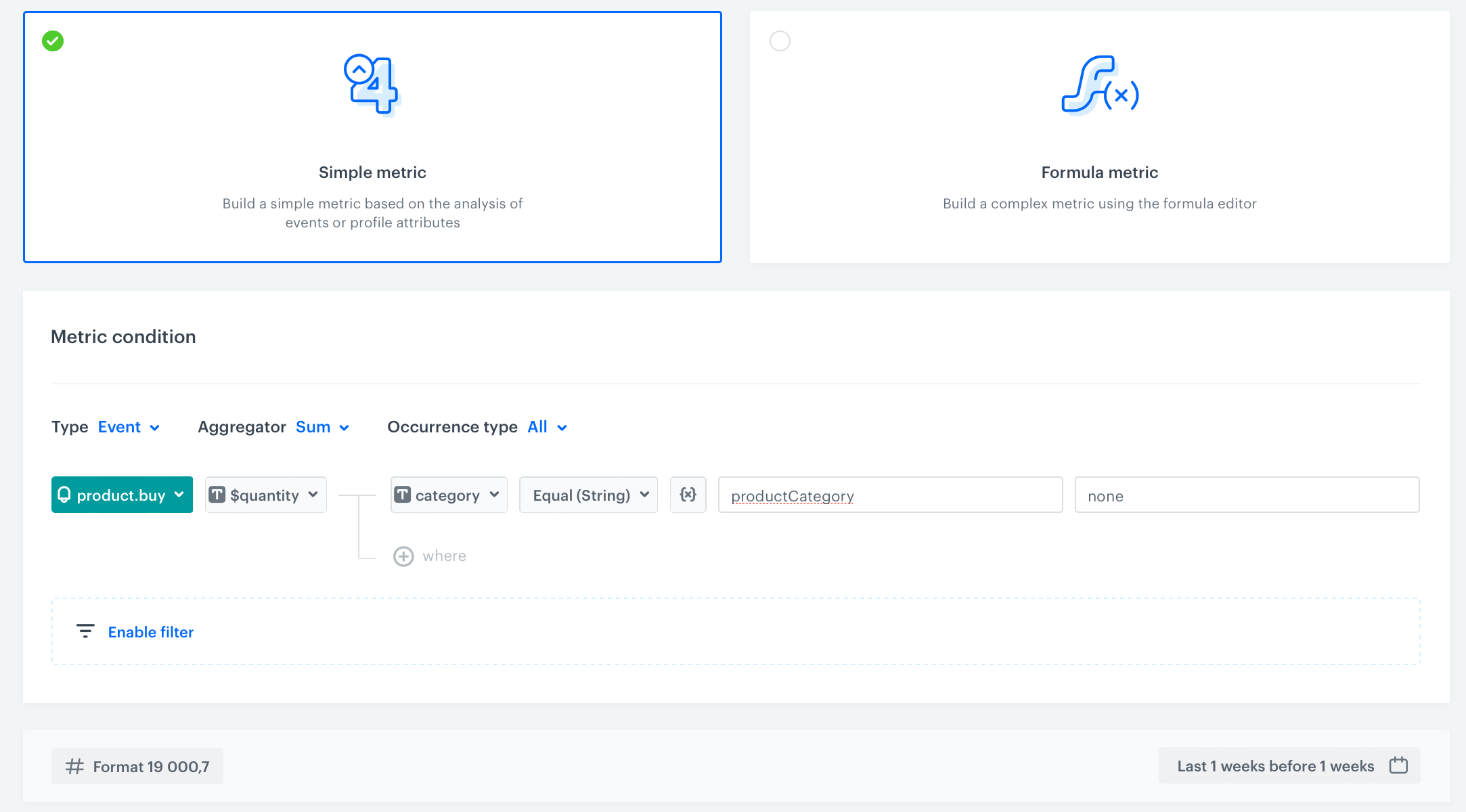
6. From the **Choose parameter** dropdown list, select the `quantity` parameter.
7. Click the **+ where** button.
8. From the **Choose parameter** dropdown list, select the `category` parameter.
9. From the **Choose operator** dropdown list, choose **String**, and then select **Equal**.
10. Next to the operator, click the icon until you get two fields: **Dynamic key** and **Value**.
1. In the **Dynamic key** field, enter the name of the dynamic key, in our case: `productCategory`. The value for the key will be sourced from the `category` parameter.
2. In the **Value** field, enter `none`.
6. To select a specific time range, click the calendar icon. In our case, it will be **Last week**. Confirm your choice with the **Apply** button.
7. Click **Save**.
icon until you get two fields: **Dynamic key** and **Value**.
1. In the **Dynamic key** field, enter the name of the dynamic key, in our case: `productCategory`. The value for the key will be sourced from the `category` parameter.
2. In the **Value** field, enter `none`.
6. To select a specific time range, click the calendar icon. In our case, it will be **Last week**. Confirm your choice with the **Apply** button.
7. Click **Save**.
**Decision Hub > Metrics > New metric**.
2. Enter the name of the metric.
3. As a metric kind, select **Simple metric**.
4. As the type, set **Event**.
5. As the aggregator, set **Sum**.
4. As the occurrence type, set **All**.
5. From the **Choose event** dropdown list, select `product.buy`.
6. From the **Choose parameter** dropdown list, select the `quantity` parameter.
7. Click the **+ where** button.
8. From the **Choose parameter** dropdown list, select the `category` parameter.
9. From the **Choose operator** dropdown list, choose **String**, and then select **Equal**.
10. Next to the operator, click the icon until you get two fields: **Dynamic key** and **Value**.
1. In the **Dynamic key** field, enter the name of the dynamic key, in our case: `productCategory`. The value for the key will be sourced from the `category` parameter.
2. In the **Value** field, enter `none`.
6. To select a specific time range, click the calendar icon. In our case, it will be **Last week**. Confirm your choice with the **Apply** button.
7. Click **Save**.
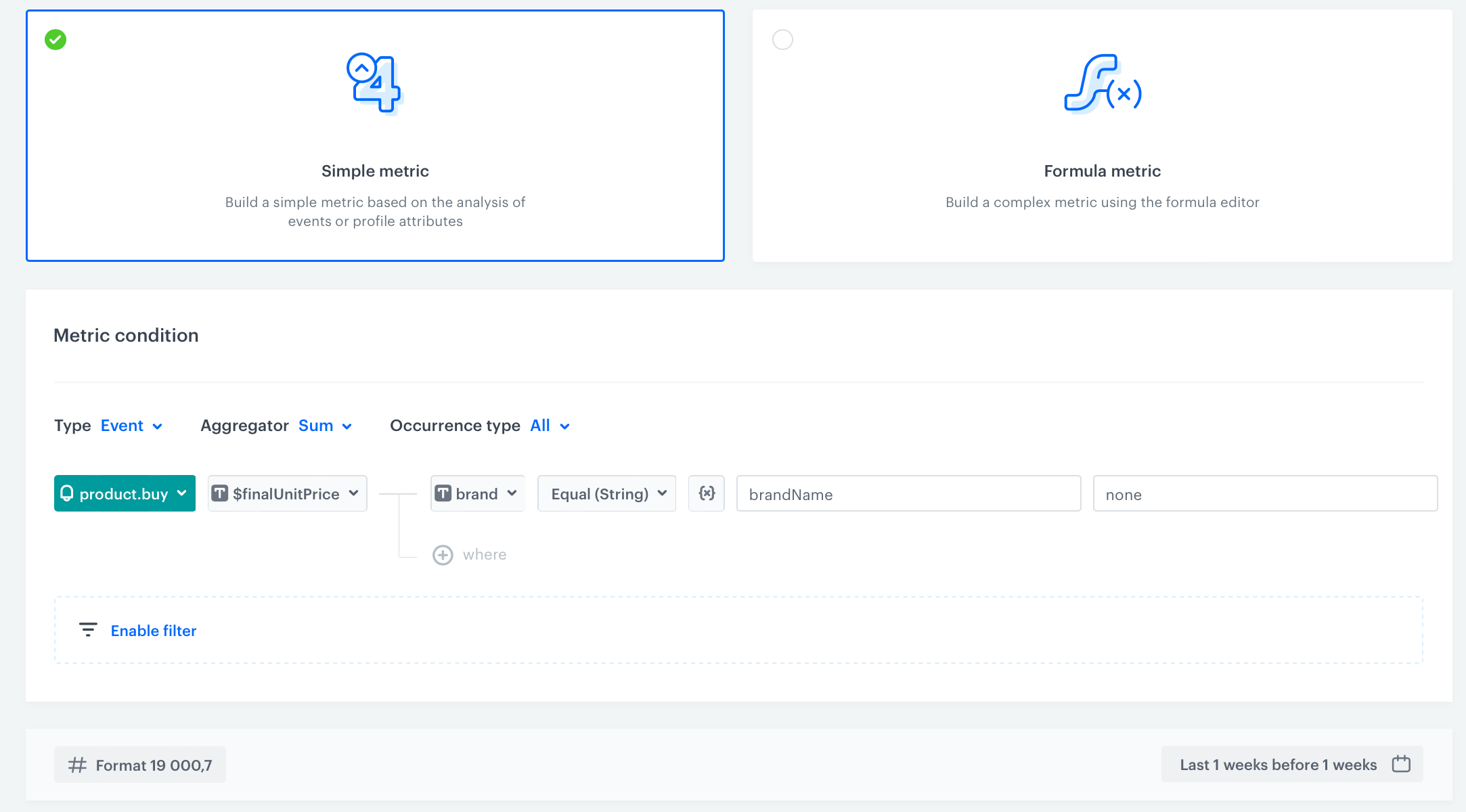
 **Decision Hub > Metrics > New metric**.
2. Enter the name of the metric.
3. As a metric kind, select **Simple metric**.
4. As the type, set **Event**.
5. As the aggregator, set **Sum**.
4. As the occurrence type, set **All**.
5. From the **Choose event** dropdown list, select `product.buy`.
6. From the **Choose parameter** dropdown list, select the `finalUnitPrice` parameter.
7. Click the **+ where** button.
8. From the **Choose parameter** dropdown list, select the `brand` parameter.
9. From the **Choose operator** dropdown list, choose **String**, and then select **Equal**.
10. Next to the operator, click the icon until you get two fields: **Dynamic key** and **Value**.
1. In the **Dynamic key** field, enter the name of the dynamic key, in our case: `brandName`. The value for the key will be sourced from the `brand` parameter.
2. In the **Value** field, enter `none`.
6. To select a specific time range, click the calendar icon. In our case, it will be **Last week**. Confirm your choice with the **Apply** button.
7. Click **Save**.
**Decision Hub > Metrics > New metric**.
2. Enter the name of the metric.
3. As a metric kind, select **Simple metric**.
4. As the type, set **Event**.
5. As the aggregator, set **Sum**.
4. As the occurrence type, set **All**.
5. From the **Choose event** dropdown list, select `product.buy`.
6. From the **Choose parameter** dropdown list, select the `finalUnitPrice` parameter.
7. Click the **+ where** button.
8. From the **Choose parameter** dropdown list, select the `brand` parameter.
9. From the **Choose operator** dropdown list, choose **String**, and then select **Equal**.
10. Next to the operator, click the icon until you get two fields: **Dynamic key** and **Value**.
1. In the **Dynamic key** field, enter the name of the dynamic key, in our case: `brandName`. The value for the key will be sourced from the `brand` parameter.
2. In the **Value** field, enter `none`.
6. To select a specific time range, click the calendar icon. In our case, it will be **Last week**. Confirm your choice with the **Apply** button.
7. Click **Save**.
 **Automation Hub > Workflows > New workflow**.
2. Enter the name of the workflow.
### Define the Scheduled Run trigger node
---
At this stage, configure the conditions that trigger the workflow.
1. As the trigger node, select **Scheduled Run**.
2. In the configuration of the node:
1. Leave the **Run trigger** option at default (**all time**).
2. Select the timezone in which the workflow will be launched.
3. To launch the workflow every week at the defined time, click the **Every week** tab below.
4. Select the desired day, in our case **Monday**.
5. Click **Add time** and set it according to your needs, in our case to `9:45`.
6. Confirm by clicking **Apply**.
### Configure the Get Metrics node
---
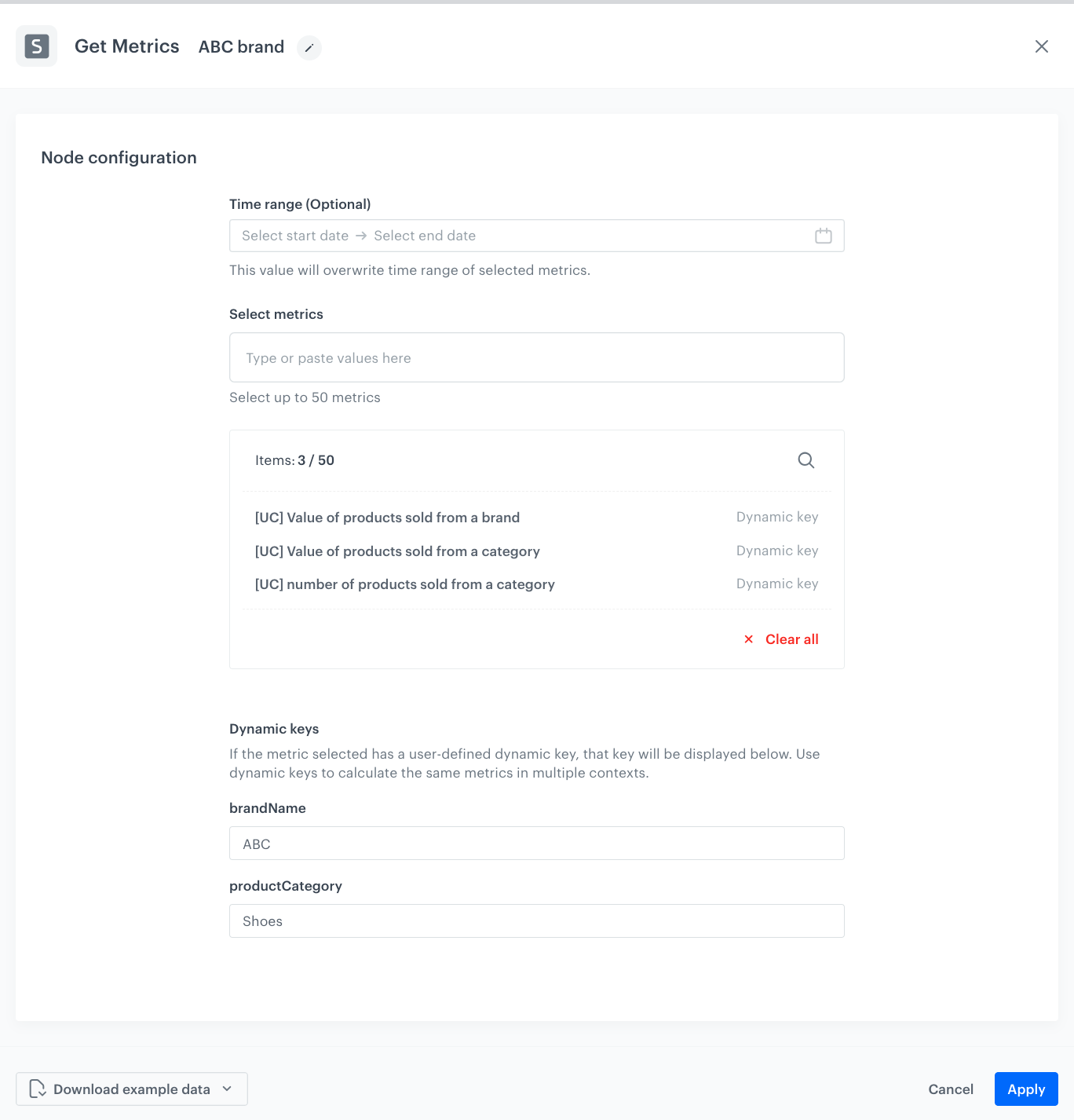
As the next node, choose **Get Metrics** to retrieve metrics for specific categories and brand.
1. Optionally, in the **Time range** field, on the calendar, select the time range from which you want to get the results of the metric or metrics. The time range you select will override the original time range settings of the metrics.
2. In the **Select metrics** field, select [metrics created in the previous part of the process](#create-metrics).
3. In the **Dynamic keys** section:
- in the **brandName**, enter the name of the brand
- in the **productCategory**, enter the name of the category
4. Confirm by clicking **Apply**.
**Automation Hub > Workflows > New workflow**.
2. Enter the name of the workflow.
### Define the Scheduled Run trigger node
---
At this stage, configure the conditions that trigger the workflow.
1. As the trigger node, select **Scheduled Run**.
2. In the configuration of the node:
1. Leave the **Run trigger** option at default (**all time**).
2. Select the timezone in which the workflow will be launched.
3. To launch the workflow every week at the defined time, click the **Every week** tab below.
4. Select the desired day, in our case **Monday**.
5. Click **Add time** and set it according to your needs, in our case to `9:45`.
6. Confirm by clicking **Apply**.
### Configure the Get Metrics node
---
As the next node, choose **Get Metrics** to retrieve metrics for specific categories and brand.
1. Optionally, in the **Time range** field, on the calendar, select the time range from which you want to get the results of the metric or metrics. The time range you select will override the original time range settings of the metrics.
2. In the **Select metrics** field, select [metrics created in the previous part of the process](#create-metrics).
3. In the **Dynamic keys** section:
- in the **brandName**, enter the name of the brand
- in the **productCategory**, enter the name of the category
4. Confirm by clicking **Apply**.