If you use the Gravity Form plugin for building custom forms in WordPress, you can use webhooks to send data from forms to Synerise. In this use case, the answers from the form are saved as the event parameters on a customer's profile.


<div class="admonition admonition-note"><div class="admonition-icon"><svg xmlns="http://www.w3.org/2000/svg" fill="none" viewBox="0 0 24 24" stroke="currentColor" stroke-width="2.5"><path stroke-linecap="round" stroke-linejoin="round" d="M13 16h-1v-4h-1m1-4h.01M21 12a9 9 0 11-18 0 9 9 0 0118 0z" /></svg></div><div class="admonition-body"><div class="admonition-content">

Completing this procedure requires some knowledge on sending API requests using cURL, Postman, or similar tools.

</div></div></div>


<div class="admonition admonition-tip"><div class="admonition-icon"><svg xmlns="http://www.w3.org/2000/svg" fill="none" viewBox="0 0 24 24" stroke="currentColor" stroke-width="2.5"><path stroke-linecap="round" stroke-linejoin="round" d="M9.663 17h4.673M12 3v1m6.364 1.636l-.707.707M21 12h-1M4 12H3m3.343-5.657l-.707-.707m2.828 9.9a5 5 0 117.072 0l-.548.547A3.374 3.374 0 0014 18.469V19a2 2 0 11-4 0v-.531c0-.895-.356-1.754-.988-2.386l-.548-.547z" /></svg></div><div class="admonition-body"><div class="admonition-content">

You may want to split your browser window into two. In one browser window, open the WordPress account, in the other, log in to the Synerise application.

</div></div></div>


## Prerequisites 
---
- Create a form in Gravity Form plugin. The example form used in this use case contains three pieces of information:
    - Email address of a user who submits the form
    - The name of the form
    - A question about a vehicle condition
- Install and activate [the webhooks add-on](https://docs.gravityforms.com/installing-a-gravity-forms-add-on/) in your WordPress account.

## Process
---
In this use case, you will go through the following steps:
1. [Create an incoming webhook](/use-cases/gravity-form-integration#create-an-incoming-webhook).
2. [Create a webhook in Gravity Form](/use-cases/gravity-form-integration#create-a-webhook-in-gravity-form).
3. [Finish incoming integration](/use-cases/gravity-form-integration#finish-incoming-integration).
4. [Create a workflow](/use-cases/gravity-form-integration#create-a-workflow).
5. [Testing](/use-cases/gravity-form-integration#testing).

## Create an incoming webhook
---
In this part of the process, create an incoming webhook to which you will send the data submitted through Gravity forms.  

1. In Synerise, go to **Automation Hub > Incoming > New integration**.
2. Enter the name of the webhook.
3. In the **Endpoint** section, click **Define**.  
        
   <div class="admonition admonition-important"><div class="admonition-icon"><svg xmlns="http://www.w3.org/2000/svg" fill="none" viewBox="0 0 24 24" stroke="currentColor" stroke-width="2.5"><path stroke-linecap="round" stroke-linejoin="round" d="M12 8v4m0 4h.01M21 12a9 9 0 11-18 0 9 9 0 0118 0z" /></svg></div><div class="admonition-body"><div class="admonition-content">

   The URL field is already is filled in with the endpoint to which the data submitted through the form will be sent.

   </div></div></div>
 
    1. Optionally, you can add an icon to this integration.
    3. Confirm by clicking **Apply**.
4. Click **Finish later**.  
    **Result**: The incoming webhook is saved as a draft.

## Create a webhook in Gravity Form
---
In this part of the process, you need to configure the webhook which will send data from the form to Synerise.

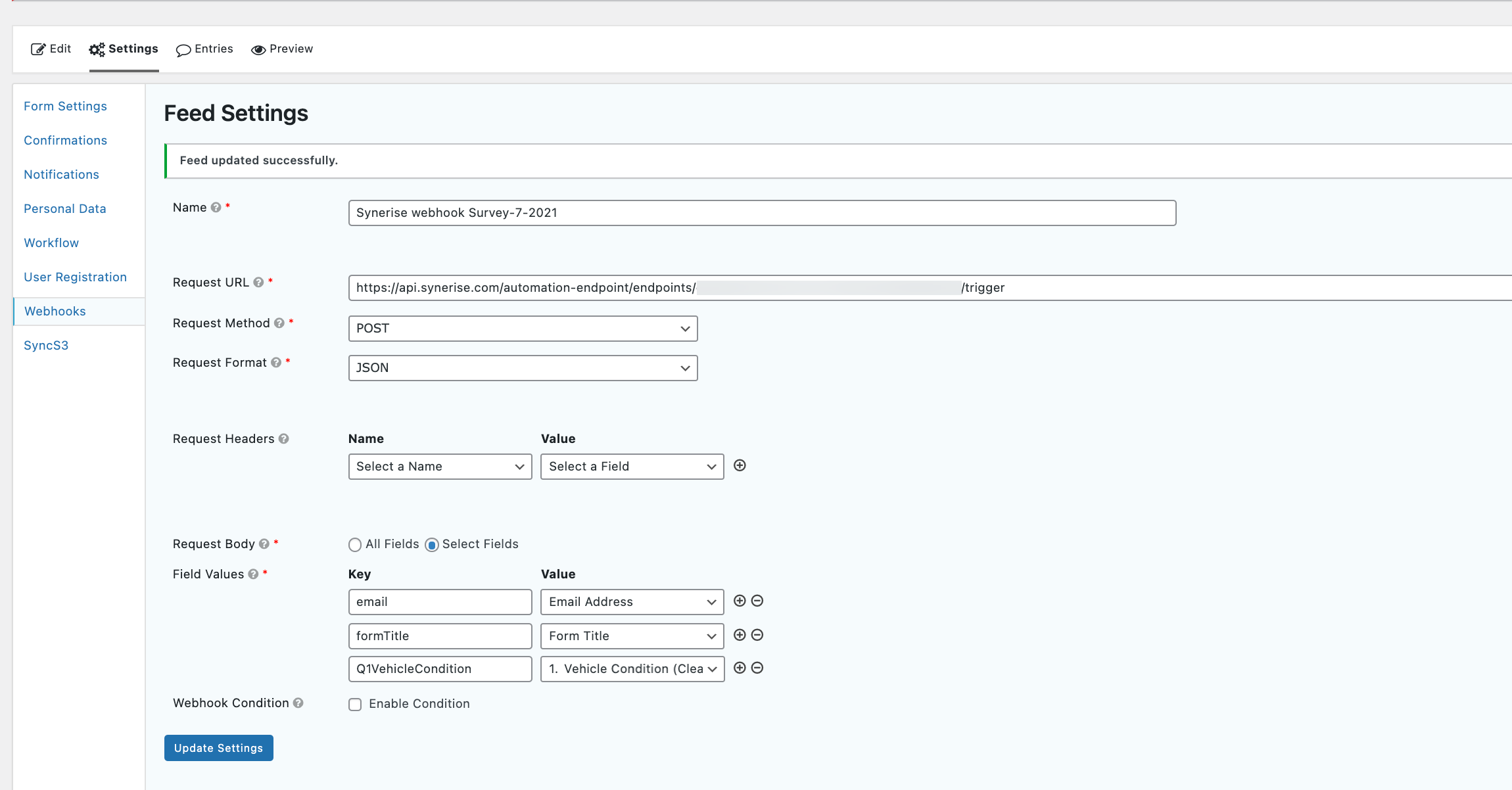
1. In the WordPress account,  go to **Form Settings > Webhooks tab**, and then click the **Add New** button.
2. Fill in the form:  
    1. In the **Name** field, enter a name for your form.
    2. In the **Request URL**, enter the Synerise endpoint URL from step 3 in [Creating an incoming webhook](/use-cases/gravity-form-integration#create-an-incoming-webhook) procedure.
    3. From the **Request method** dropdown list, select **POST** method.  
    4. From the **Requested Format** dropdown list, select **JSON** format.  
    5. In the **Request body** input, choose **Select fields** (recommended set-up).  
        
   <div class="admonition admonition-note"><div class="admonition-icon"><svg xmlns="http://www.w3.org/2000/svg" fill="none" viewBox="0 0 24 24" stroke="currentColor" stroke-width="2.5"><path stroke-linecap="round" stroke-linejoin="round" d="M13 16h-1v-4h-1m1-4h.01M21 12a9 9 0 11-18 0 9 9 0 0118 0z" /></svg></div><div class="admonition-body"><div class="admonition-content">

   - The **Select Fields** option displays the field values setting which let you define what you send to Synerise.
   - The **All Fields** option sends the entire unformatted entry.

   </div></div></div>

    6.  In the **Field Values** inputs, define how each entry from the survey should be sent in the webhook response.
        - In the **Key** column, enter the name of variables visible in the webhook response. 
          <div class="admonition admonition-warning"><div class="admonition-icon"><svg xmlns="http://www.w3.org/2000/svg" fill="none" viewBox="0 0 24 24" stroke="currentColor" stroke-width="2.5"><path stroke-linecap="round" stroke-linejoin="round" d="M12 9v2m0 4h.01m-6.938 4h13.856c1.54 0 2.502-1.667 1.732-2.5L13.732 4c-.77-.833-1.964-.833-2.732 0L4.082 16.5c-.77.833.192 2.5 1.732 2.5z" /></svg></div><div class="admonition-body"><div class="admonition-content">

          Use letters only without diacritical characters.

          </div></div></div>

        - In the **Value** column, enter the question in the form that is assigned to the key.
7. Confirm the settings by clicking **Update settings**.  
        **Result**: From now, everytime somebody submits the survey, the request will be sent to the Synerise endpoint.  
        <figure>
        <img src="/api/docs/image/54176ad07f146575310749eba44b7c2f42c1b327/use-cases/all-cases/_gfx/gravity-forms-webhooks.png" alt="Configuration of the Gravity form webhooks" class="full" >
        <figcaption> Configuration of the Gravity form webhooks </figcaption>
        </figure>

## Finish incoming integration
---
Go back to creating the incoming webhook in Synerise.  

1. In Synerise, go to **Automation Hub > Incoming**.
2. On the list, find the draft incoming integration you created in step [Create an incoming webhook](/use-cases/gravity-form-integration#create-an-incoming-webhook).
3. In the **Incoming data** section, click **Define**.
6. Fill in the form you created in Gravity Forms and submit it. Alternatively, you can send a request in Postman to this endpoint.

    Example request: 

    
   <div class="admonition admonition-important"><div class="admonition-icon"><svg xmlns="http://www.w3.org/2000/svg" fill="none" viewBox="0 0 24 24" stroke="currentColor" stroke-width="2.5"><path stroke-linecap="round" stroke-linejoin="round" d="M12 8v4m0 4h.01M21 12a9 9 0 11-18 0 9 9 0 0118 0z" /></svg></div><div class="admonition-body"><div class="admonition-content">

   Replace the body of the request with a sample of the data you will send from the form

   </div></div></div>


   <pre><code class="language-plain">curl --location --request POST 'ENDPOINT_URL_FROM_STEP_3' \
    --header 'Content-Type: application/json' \
    --data-raw '{
        "email": "john.doe@example.com",
        "formType": "formTitle",
        "VehicleCondition": "neutral",
    }'</code></pre>

5. In the **Incoming data** section in Synerise, click **Retrieve data**. The system waits for the incoming request for 1 minute and 30 seconds. 

## Create a workflow
---
In this part of the process, you create a workflow in Synerise. The workflow starts with the business event trigger that is launched every time a customer submits the form. In response to that, on the profile of the customer who submitted the form, an event is saved with the answers in the survey in the form of parameters. 

1. Go to **Automation Hub > Workflows > New workflow**.
2. Enter the name of the workflow.
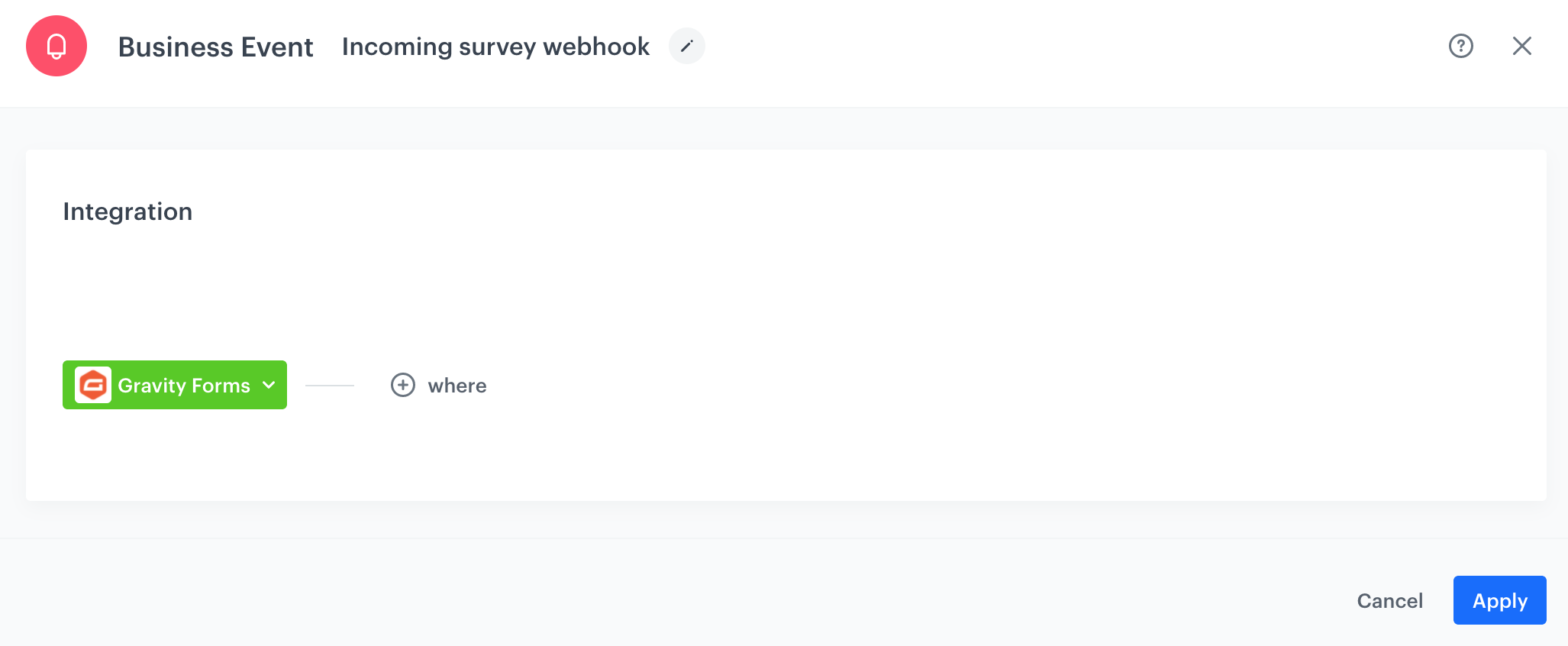
3. As the first node, select **Business Event**. In the configuration of the node:  
    1. Select the incoming webhook you created as the first part of this use case.
    2. Confirm by clicking **Apply**.  
        <figure>
        <img src="/api/docs/image/54176ad07f146575310749eba44b7c2f42c1b327/use-cases/all-cases/_gfx/business-event-gravity.png" alt="Configuring the Business Event node" class="full">
        <figcaption>Configuring the Business Event node</figcaption>
        </figure>
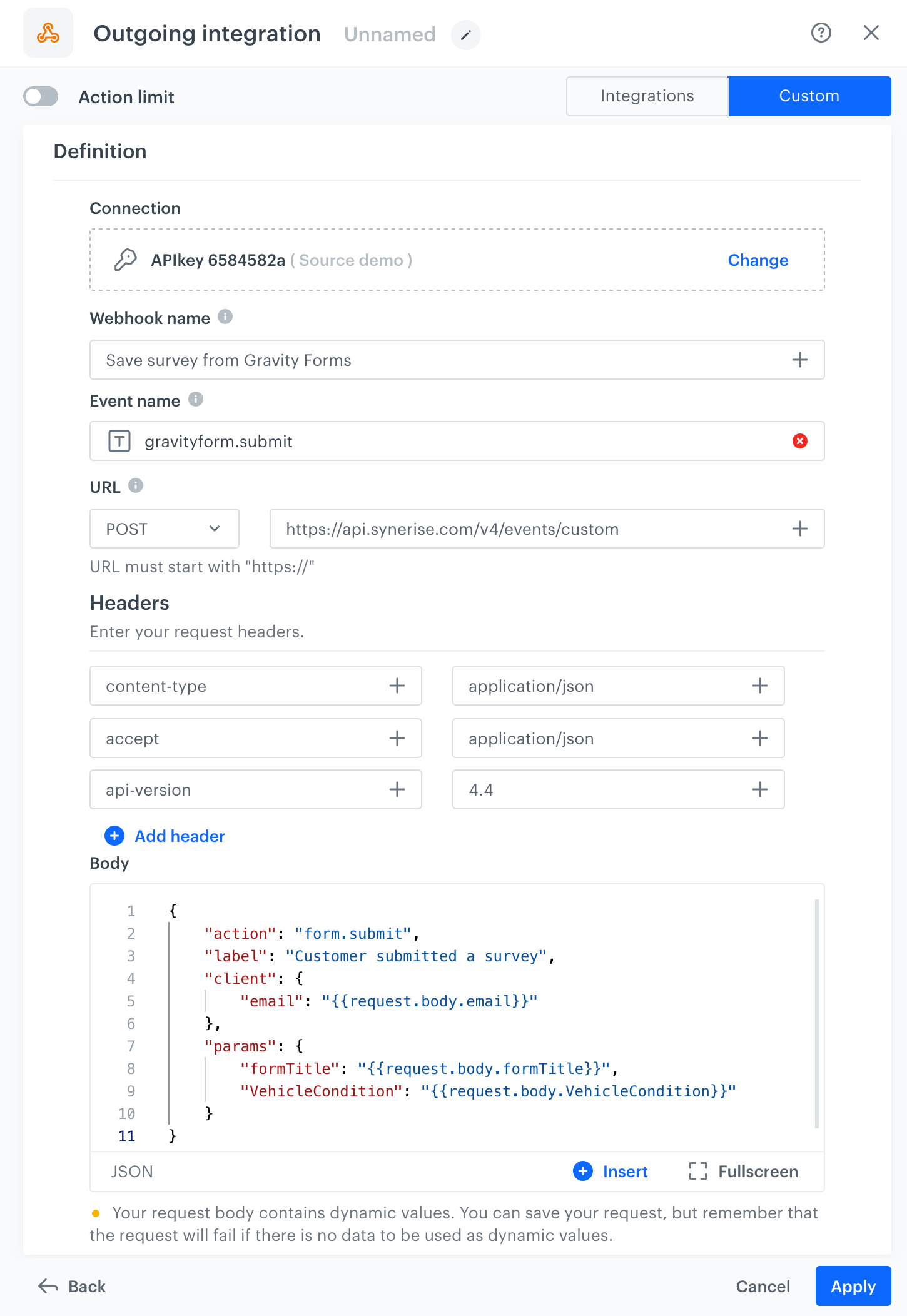
4. Add the **Outgoing integration** to the workflow. In the configuration of the node:  
    1. Change the webhook type to **Custom**.
    2. As the connection type, select **API Key**.
    3. Click **Select connection** and select a connection.
        If you want to create a connection, click **Add connection** and [create it](/docs/automation/actions/webhook-node#set-up-a-connection).
    1. Enter the name of the webhook. This name will be used as the value of the `name` parameter of the event generated by this integration.
    3. In **Webhook event name**, click **Create event** and create a new event:
        1. As **Name**, enter `gravityform.submit`
        2. As **Display name**, enter `Gravity Form survey submitted`
    2. Select the **POST** method.
    3. Enter the endpoint URL:
        - For workspaces hosted in Microsoft Azure EU server: `https://api.synerise.com/v4/events/custom`
        - For workspaces hosted in Microsoft Azure USA server: `https://api.azu.synerise.com/v4/events/custom`
        - For workspaces hosted in Google Cloud Platform: `https://api.geb.synerise.com/v4/events/custom`
    4. Enter the following headers:  
        - set the `content-type` header to `application/json` (default),
        - set the `accept` header to `application/json`,
        - set the `api-version` header to `4.4`
    5. Enter the request body. For the form used in this case, the body is as follows:  
        
       <pre><code class="language-json">{
           "action": "form.submit",
           "label": "Customer submitted a survey",
           "client": {
               "email": "{{request.body.email}}"
           },
           "params": {
               "formTitle": "{{request.body.formTitle}}",
               "VehicleCondition": "{{request.body.VehicleCondition}}"
           }
       }</code></pre>
       
   <div class="admonition admonition-note"><div class="admonition-icon"><svg xmlns="http://www.w3.org/2000/svg" fill="none" viewBox="0 0 24 24" stroke="currentColor" stroke-width="2.5"><path stroke-linecap="round" stroke-linejoin="round" d="M13 16h-1v-4h-1m1-4h.01M21 12a9 9 0 11-18 0 9 9 0 0118 0z" /></svg></div><div class="admonition-body"><div class="admonition-content">

   Learn more about reusing data from incoming integrations in the Outgoing Integration node [here](/docs/automation/integration/incoming-webhook-node#example-of-use)

   </div></div></div>


6. Confirm by clicking **Apply**.  
    <figure>
    <img src="/api/docs/image/54176ad07f146575310749eba44b7c2f42c1b327/use-cases/all-cases/_gfx/outgoing-integration-gravity.png" alt="Configuring the Outgoing Integration node" class="large">
    <figcaption>Configuring the Outgoing Integration node</figcaption>
    </figure>
7. Add the **End** node.
8. Activate your workflow by clicking **Save & Run**.  
    <figure>
    <img src="/api/docs/image/54176ad07f146575310749eba44b7c2f42c1b327/use-cases/all-cases/_gfx/gravity-form-workflow.png" alt="Final workflow configuration" class="large">
    <figcaption>Final workflow configuration</figcaption>
    </figure>

## Testing
---
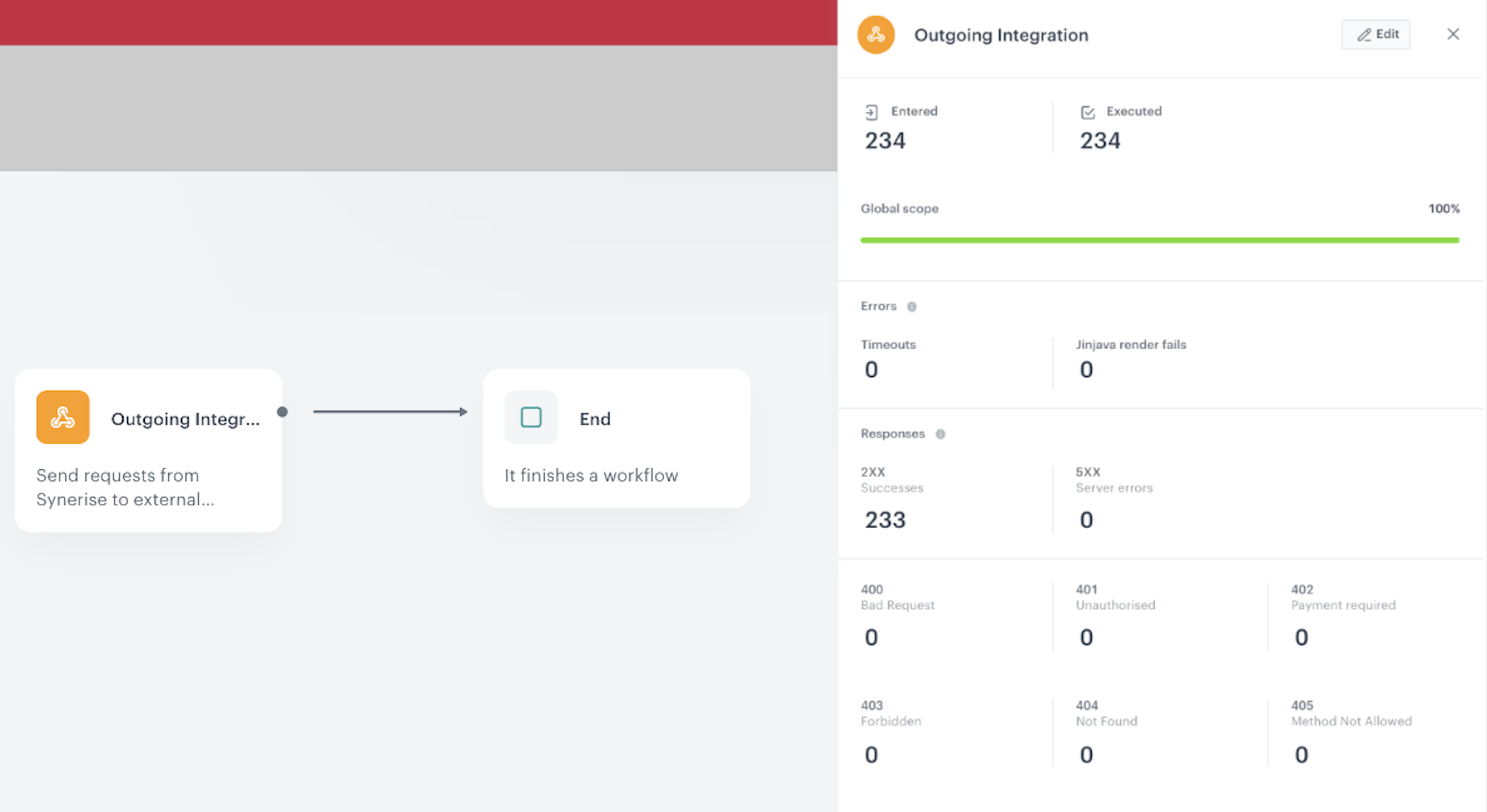
Fill in your survey and check if data is collected in Synerise properly. Open the workflow statistics and the survey. Fill in the survey, send it, and observe the statistics. If the **Entered** and **Executed** counters increment, your survey triggered the workflow and completed it.

<figure>
<img src="/api/docs/image/54176ad07f146575310749eba44b7c2f42c1b327/use-cases/all-cases/_gfx/gravity-form-workflow.png" alt="Final workflow configuration" class="large">
<figcaption>Final workflow configuration</figcaption>
</figure>
 
            
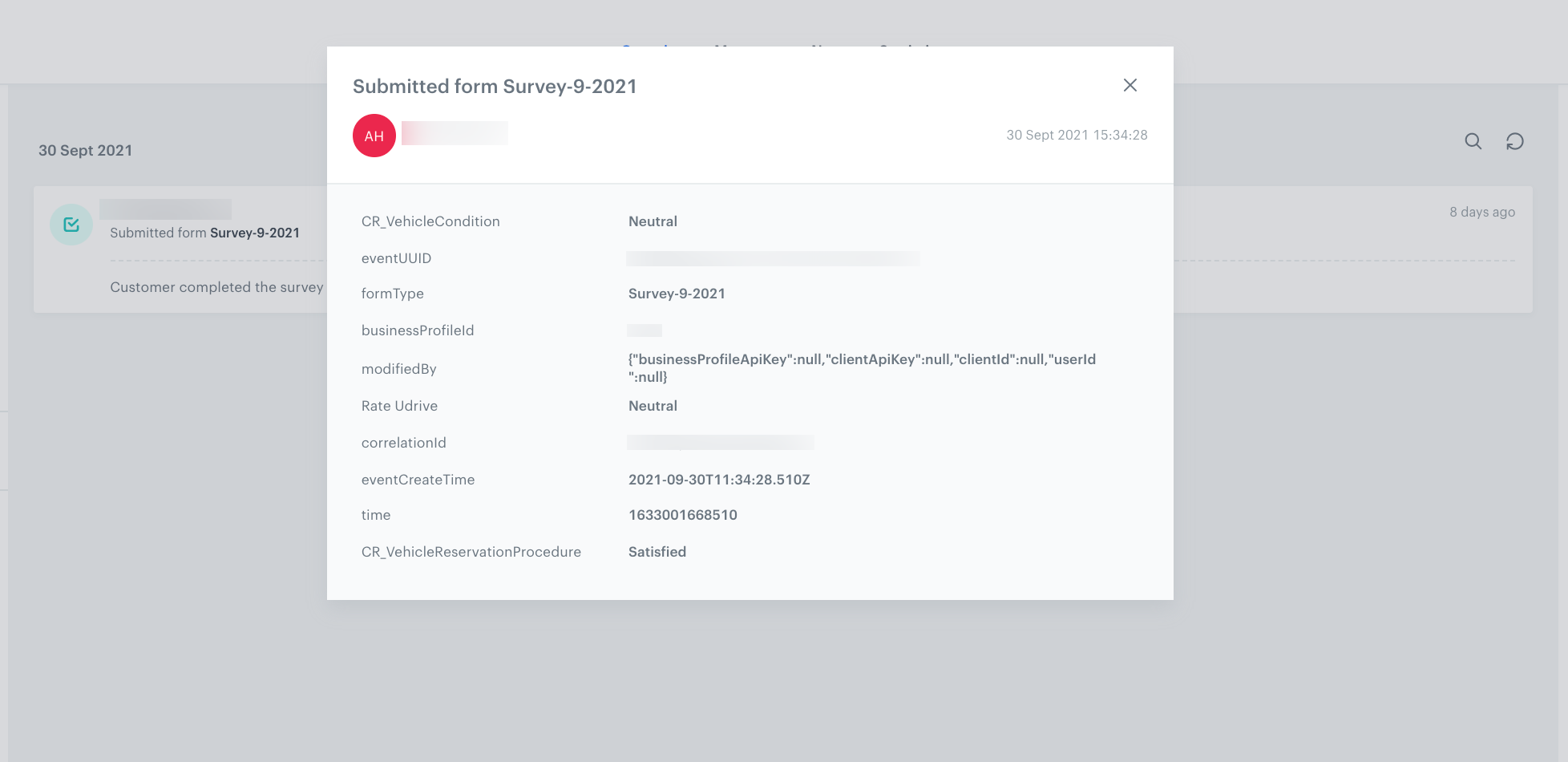
The profile whose identifier was entered in the survey is updated. 

<figure>
<img src="/api/docs/image/54176ad07f146575310749eba44b7c2f42c1b327/use-cases/all-cases/_gfx/event-gravity-forms.png" alt="Event with survey on a customer's profile" class="full">
<figcaption>Event with survey on a customer's profile</figcaption>
</figure> 

## Read more
---
- [Automation Hub](/docs/automation)
- [Integration](/docs/automation/integration)