To leverage the AI capabilities of Synerise, personalize communication, and explore numerous other possibilities, you need a seamless method of importing your customer profiles. Whether you're migrating from another system or starting from scratch, our Imports feature, available in Data Modeling Hub, offers a streamlined process for importing profiles into our platform. Unlock the complete potential of your customer data with Synerise and gain invaluable insights to drive your business forward. By utilizing the Imports feature, you can conveniently upload and integrate customer data in CSV files, ensuring a smooth transition and accurate representation of your customer base.
In this use case, you will import customers' data to Synerise using a `.csv` file in a seamless and efficient manner.
## Prerequisites
---
- Prepare a `.csv` file that contains one of the following profile identifiers: (the list contains recommended column names, if you use different names you will be able to map data during the process):
- `email`,
- `uuid`,
- `clientID`,
- or `customID`.
This is the only required column, the rest is optional.
If you choose an email as an identifier, pay attention to the correct format of emails. Otherwise, your import will fail.
In this case, we will use data from a sample file, which can be downloaded during the [Select the file for import](#select-the-file-for-import) step, using the **Get Sample File** button.
- `.CSV` files must be UTF-8 encoded, spaces and special characters in the column headers are not allowed. Check [tips for preparing a CSV file](/docs/assets/imports/importing-clients#tips-for-preparing-a-csv-file).
## Select the file for import
---
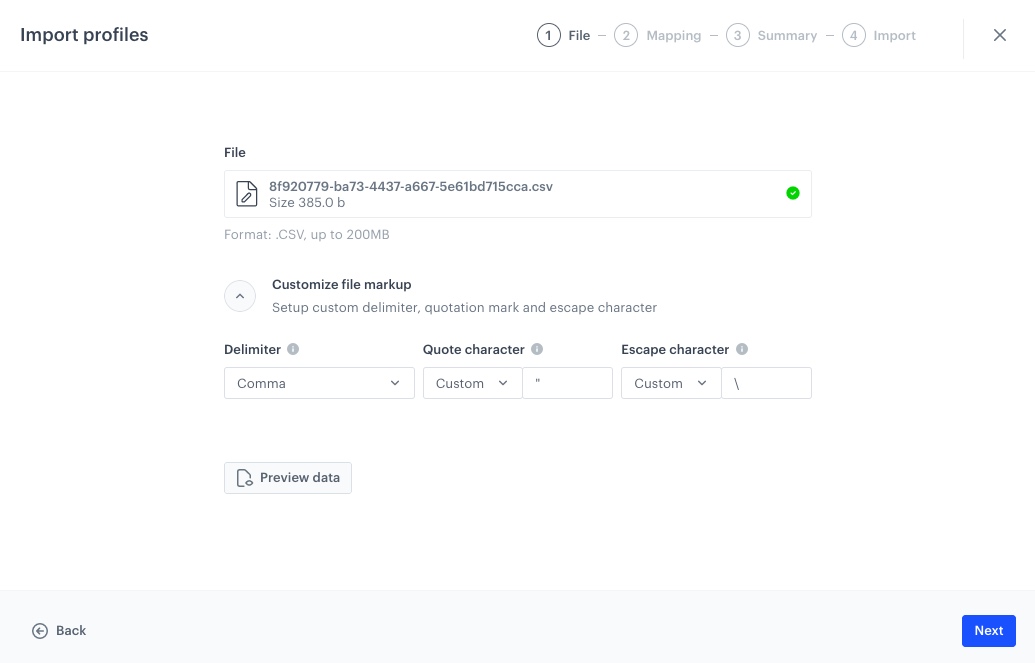
In this part of the process, you will upload a file from your device.
1. Go to **Data Modeling Hub > Imports> New import**.
2. As the data type for import, select **Profiles**.
3. As the import method, to import a single `.csv` file to Synerise, select **Import a local file**.
4. To upload the `.csv` file, click the **+ Upload file or drag one here field** .
5. Optionally, you can customize the file metacharacters by clicking the arrow down icon next to **Customize file markup**.
1. From the **Delimiter** dropdown, select the character that marks the end of a column.
2. From the **Quotation mark** dropdown list, select the characters that contain the text.
3. From the **Escape character** dropdown lists, select the character which changes the default interpretation of a character or a string followed by the escape character.
6. You can preview the data output by clicking **Preview data**.
7. Click the **Next** button to upload the file.
8. When the file is uploaded, click **Next** to proceed.
Import Profiles configuration
## Mapping the columns with parameters in Synerise
---
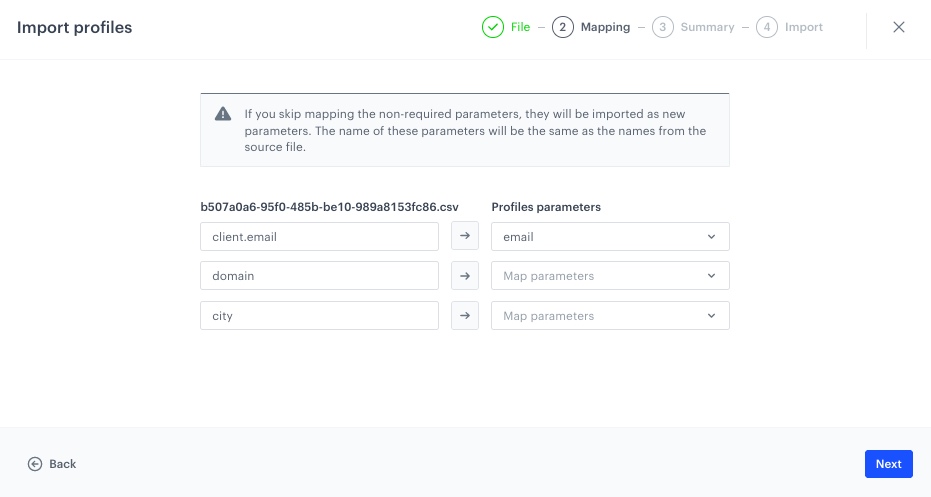
In this part of the process, you will connect the columns from the file with their counterparts (the existing attributes) in Synerise. This way, you will point which parameters in Synerise will contain the profile information from the imported file.
You can also exclude parameters from the import.
On the user interface, you will be presented with two columns - the left column displays the names of the columns from the imported file, the other contains dropdown lists with the parameters available in Synerise. The dropdown lists indicate required parameters for a successful import.
If you skip mapping the non-required parameters, the name of these parameters will be the same as the names from the imported file. If parameters don't exist in Synerise, they will be imported as new parameters.
1. Next to the file column name, from the dropdown list, select the corresponding parameter in Synerise. Perform this step for all columns in your file.
In our case, we do not need to map the parameters, because the uploaded file meets all the requirements from the prerequisites.
2. To exclude a parameter from import, next to the column name, click this icon: Mapping
3. To proceed to the summary of the import, click **Next**.
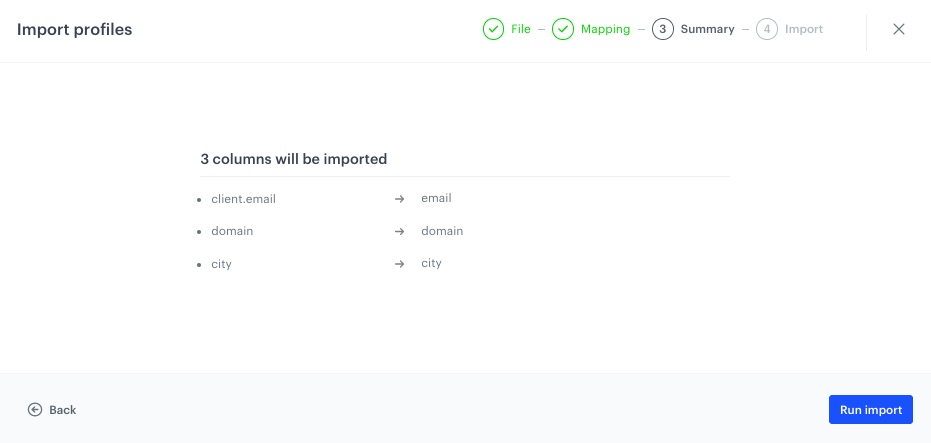
**Result:** The summary of the import is displayed.
Import summary
4. After checking the import summary, to start the import, click **Run import**.
5. You can monitor the status of your import and potential errors due to incorrect data in the **Imports List**.
## Read more
---
- [Imports](/docs/assets/imports/introduction-to-imports)