In the fast-paced world of mobile applications, effective communication with users is key to ensure engagement and satisfaction. Imagine a scenario in which you want to inform users through a mobile app about an exclusive 20% discount on the `electronics` category. To effectively deliver such promotional message, implement a two-step approach: launch an automation that sends push notifications and display visually appealing in-app messages within the mobile application.

The described use case is an omni-channel case - the user navigates through the website and receives both push notifications and in-app messages in the application.

The first step is to set up a workflow that sends a simple push notification to mobile app users who have visited items in the electronics category on the website. After a user clicks the push notification, the fullscreen banner is displayed in the application. The core of this use case revolves around the new, pre-defined in-app template that is ready-to-use. You can easily tailor the content of the banner, add dynamic inserts to personalize the message further. 

## Prerequisites 
---
- [Implement Synerise SDK in your mobile app](/developers/mobile-sdk).
- [Integrate JS SDK](/developers/web/installation-and-configuration).
- Implement mobile pushes in your mobile application: [iOS](/developers/mobile-sdk/configuring-push-notifications/ios), [Android](/developers/mobile-sdk/configuring-push-notifications/android).
- Implement customer identification [on the website](/developers/web/tracking-form-data) and [in your mobile application](/developers/mobile-sdk/user-identification-and-authorization).


## Process
---

In this use case, you will go through the following steps:
1. [Create mobile push](/use-cases/in-app-banner#create-mobile-push) with information about the promotion.
3. [Create an in-app banner campaign](/use-cases/in-app-banner#create-an-in-app-banner-campaign) based on the ready-to-use template.
2. [Create a workflow](/use-cases/in-app-banner#create-a-workflow) that sends a mobile push message to users who have visited items from the electronics category.


## Create mobile push
---

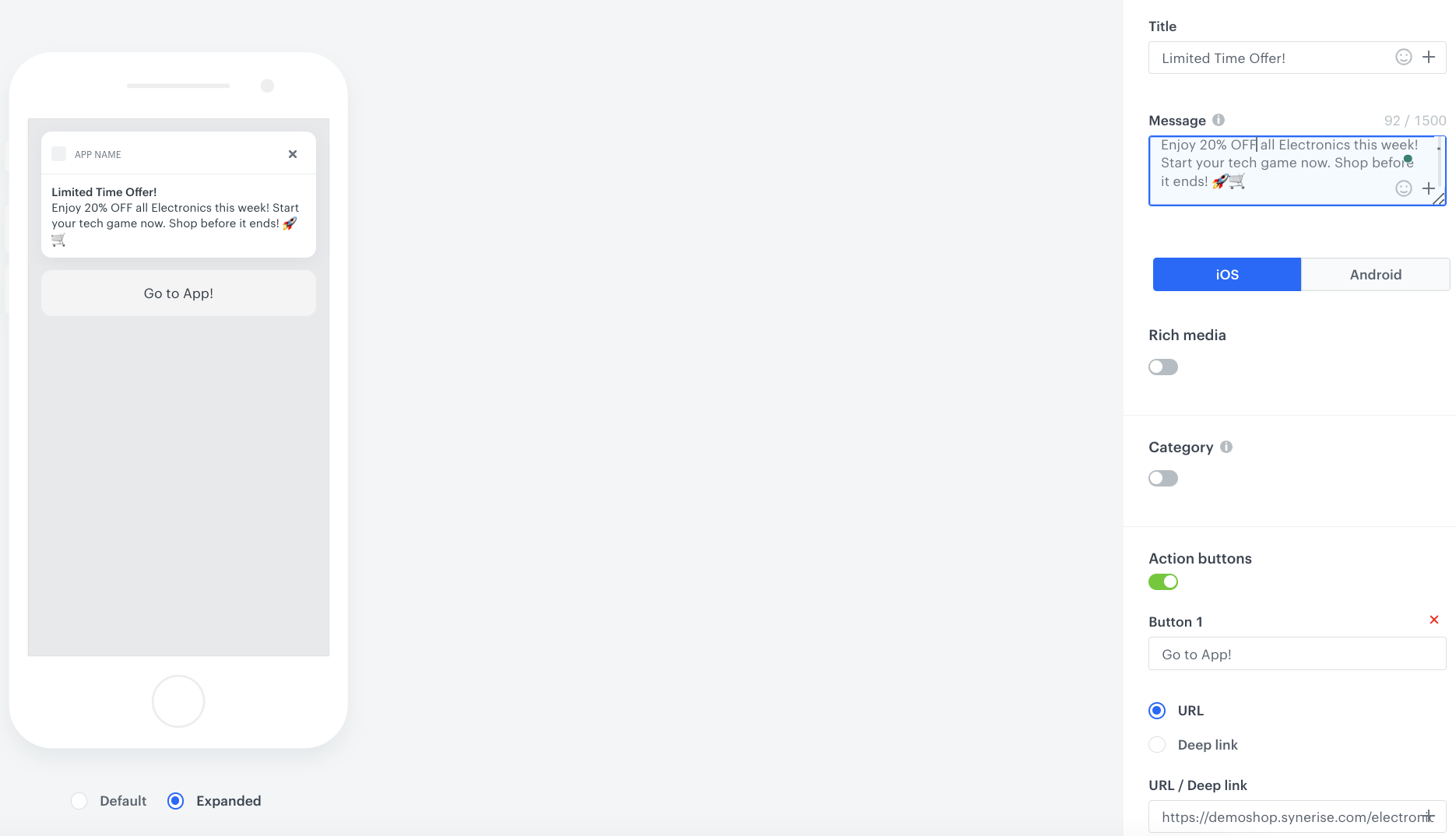
In this part of the process, you will create a mobile push template that contains information about the 20% discount for the electronics category and with the link that opens a mobile application.

1. Go to **Experience Hub > Mobile > Templates**.
2. Create your mobile push in the code editor. In the content of the push notification:  
   - Add a message
   - Add the link to mobile application  
     After a user clicks the link, the mobile application opens and an in-app message, which will be configured in the further part of the process, will be displayed

For more information on creating a simple mobile push, refer to the [Simple push](/docs/campaign/Mobile/simple_push) documentation.

<figure>
    <img src="/api/docs/image/54176ad07f146575310749eba44b7c2f42c1b327/use-cases/all-cases/_gfx/inappbanner1.png" alt="Mobile push settings"  class="full">
    <figcaption>Mobile push campaign settings</figcaption>
    </figure> 

## Create an in-app banner campaign
---

In this part of the process, you will create an in-app banner campaign triggered by the [`push.click`](/docs/assets/events/event-reference/mobile-push#pushclick) event. The campaign will be displayed after users clicked the link in the mobile push message sent to them.

1. Go to <img src="/api/docs/image/54176ad07f146575310749eba44b7c2f42c1b327/icons/experience-hub-icon.svg" alt="Experience Hub menu icon" class="icon"> **Experience Hub > In-app messages > Create new**
2. Enter a meaningful name for the in-app campaign.
3. In the **Audience** section:
    1. Click **Define**.
    2. Select the **Everyone** tab.
    3. Click **Apply**.
4. In the **Content** section:
    1. Click **Create message**.
    2. Go to **Predefined templates** folder and choose **Fullscreen** template.

   <div class="admonition admonition-note"><div class="admonition-icon"><svg xmlns="http://www.w3.org/2000/svg" fill="none" viewBox="0 0 24 24" stroke="currentColor" stroke-width="2.5"><path stroke-linecap="round" stroke-linejoin="round" d="M13 16h-1v-4h-1m1-4h.01M21 12a9 9 0 11-18 0 9 9 0 0118 0z" /></svg></div><div class="admonition-body"><div class="admonition-content">

   You can edit the template in two ways, by editing the code of the template ([add inserts](/docs/campaign/in-app-messages/creating-inapp-templates/creating-inapp-template#adding-a-snippet-to-the-template-code), [add variables](/docs/campaign/in-app-messages/creating-inapp-templates/creating-inapp-template#adding-a-variable)) and/or by filling out the form in the **Config** tab. In this use case, we will use the capabilities of the predefined **Config** tab.

   </div></div></div>


#### Edit form in the Config tab
---
The form in the **Config** tab is already filled in with default values. You can keep them or change them to fit your business needs.  
The apperance fields in **Config** affect only the visual layer of the in-app message.
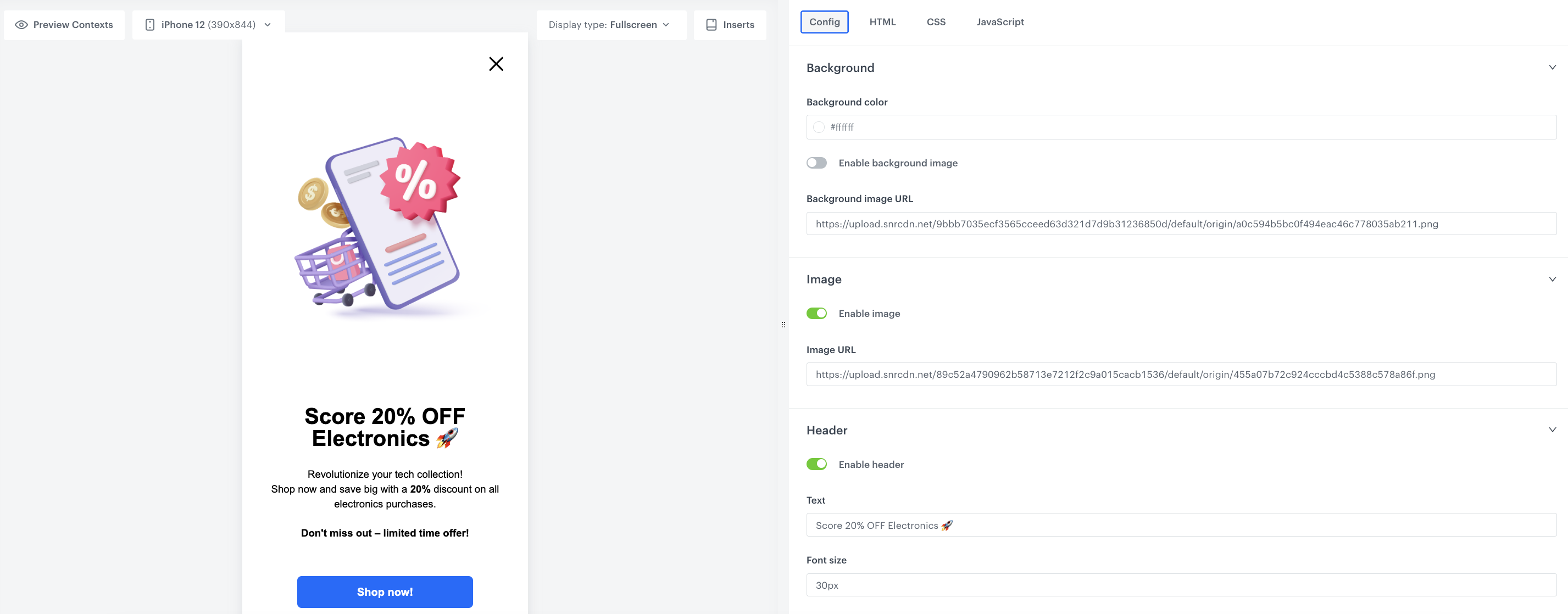
1. In the **Background** section, use the color picker to select the color of the background or enable background image and enter the link to this image (add the image to **Data Modeling Hub > Files** and then you can find there the URL to this image).
1. In the **Image** section, enable the image in your banner campaign and add the link to this image (add the image to **Data Modeling Hub > Files** and then you can find there the URL to this image).
1. In the **Header** section, enable header and add the text, font size and color of the header you want to display in the in-app message.
1. In the **Description** section, enable description and add the text, font size and color of the description you want to display in the in-app message.
12. In the **CTA button** section, enable the CTA and add the text, corner radius, color, background color and add the URL to which you want to redirect users afer clicking the button.
13. In the **Close button** section, enable this option and set up the close position.
14. In the **Automatically disappear** section, set up when the campaign banner will automatically disappear.
14. After you make changes to the template, you can check the preview.
    1. Click the **Preview** button on the upper left side.
    2. Enter the ID of a customer or a product.
    3. Click **Apply**.
15. To continue the process of configuring the in-app campaign, click **Next**.
16. To save your content changes, click **Apply**. 

    <figure>
    <img src="/api/docs/image/54176ad07f146575310749eba44b7c2f42c1b327/use-cases/all-cases/_gfx/inappbanner7.png" alt="In-app campaign settings"  class="full">
    <figcaption>In-app campaign settings</figcaption>
    </figure> 

### Select events that trigger the in-app message display
---
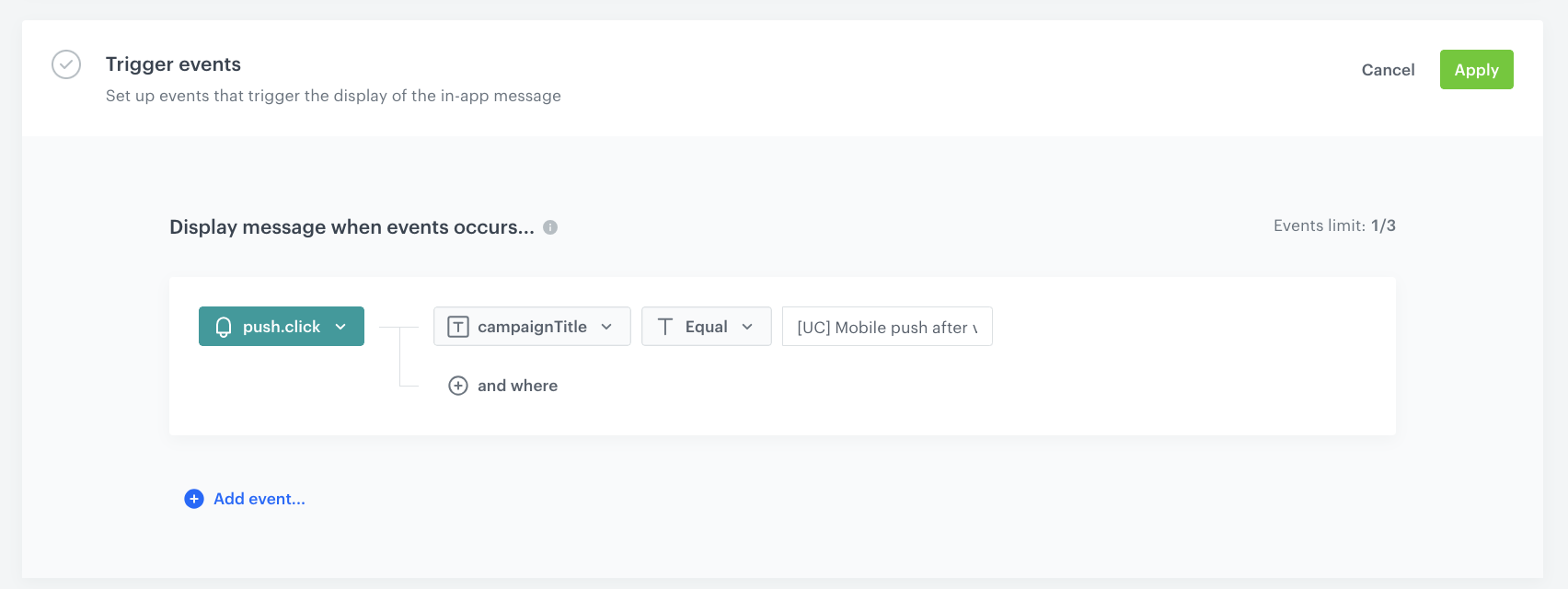
In this part of the process, define the event that triggers the display of the in-app message. In our case, the trigger is the click in the mobile push campaign created in the [previous step](/use-cases/in-app-banner#create-a-workflow).

1. In the **Trigger events** section:
    1. Click **Define**.
    2. Select **Add event** and from the dropdown list, choose the `push.click` event.
    2. Click the **+ where** button and as the parameter, choose `campaignTitle`. You can take its value from the name of the campaign visible on the list of all campaigns.
    3. As the logical operator, select **Equal** and as the value add the campaign title of the mobile push campaign created in the previous step to analyze only clicks from this specific campaign.
    4. Click **Apply**.

    <figure>
    <img src="/api/docs/image/54176ad07f146575310749eba44b7c2f42c1b327/use-cases/all-cases/_gfx/inappbanner5.png" alt="Trigger event settings"  class="full">
    <figcaption>Trigger event settings</figcaption>
    </figure> 

1. In the **Schedule** section:
    1. Click **Define**.
    2. Choose the **Run immediately** option.
    3. Click **Apply**.

2. In the **Display settings** section:
    1. Click **Change**.
    2. Define the **Delay display** as **0** and **Priority index** as **1**. 
        
       <div class="admonition admonition-note"><div class="admonition-icon"><svg xmlns="http://www.w3.org/2000/svg" fill="none" viewBox="0 0 24 24" stroke="currentColor" stroke-width="2.5"><path stroke-linecap="round" stroke-linejoin="round" d="M13 16h-1v-4h-1m1-4h.01M21 12a9 9 0 11-18 0 9 9 0 0118 0z" /></svg></div><div class="admonition-body"><div class="admonition-content">

       The mobile application can display one in-app message at a time. If the conditions allow the triggering of several in-apps at a time, the priority is a decisive factor for displaying the message. The messages with lower priority aren’t queued for displaying after the first one is closed.

       </div></div></div>

    3. Enable the **Frequency limit** toggle to manage the frequency of in-app message display in the application.  
        In our case, we set it to once per day.
    3. Click **Apply**.

1. Optionally, you can define **UTM parameters**. Otherwise, click **Skip step**.
2. Optionally, you can add the custom parameters in the **Additional parameters** section. Otherwise, click **Skip step**.
3. To start your campaign, click **Activate**.

## Create a workflow
---

In this step, prepare a workflow that sends the push message that opens a mobile application to customers who have visite the electronics category. The workflow has capping set once per day, so the workflow can be launch towards a user only once a day.

1. Go to <img src="/api/docs/image/54176ad07f146575310749eba44b7c2f42c1b327/icons/automation-hub-icon.svg" alt="Automation Hub icon" class="icon" > **Automation Hub > Workflows > New workflow**.  
2. Enter the name of the workflow.

### Define the Profile Event trigger node
---
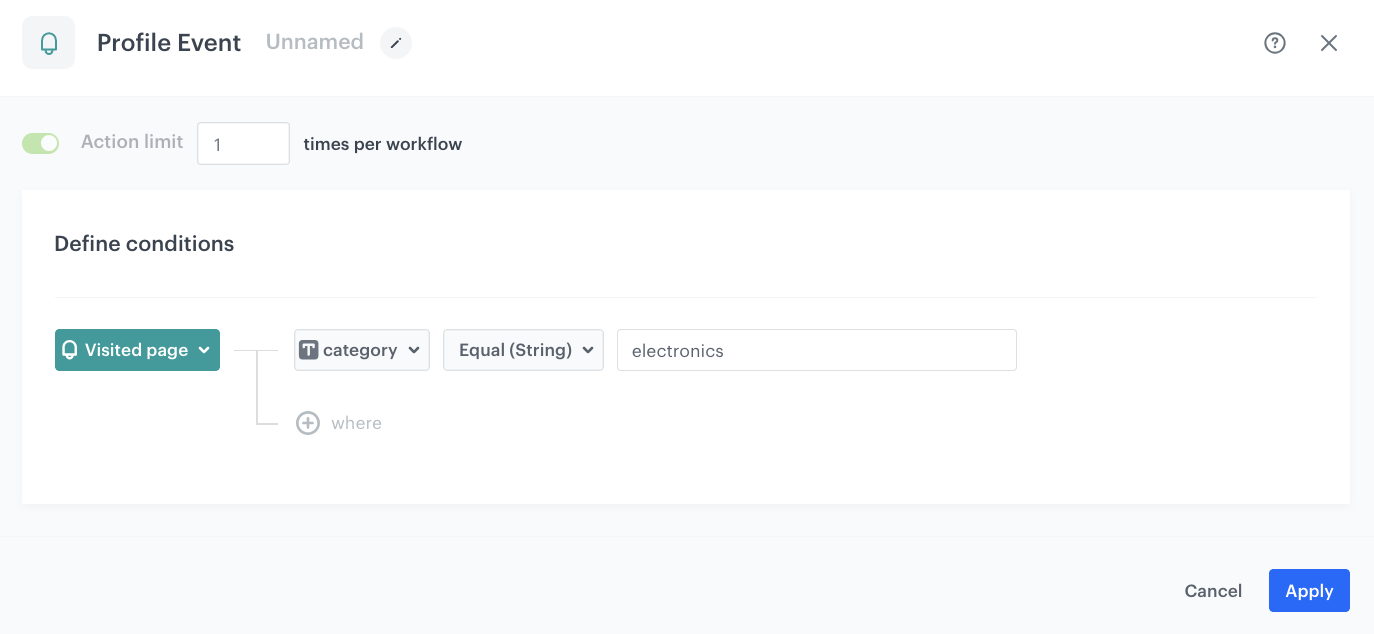
At this stage, we will configure conditions that launch the workflow. As a trigger, we will use the `page.visit` event in the `electronics` category.

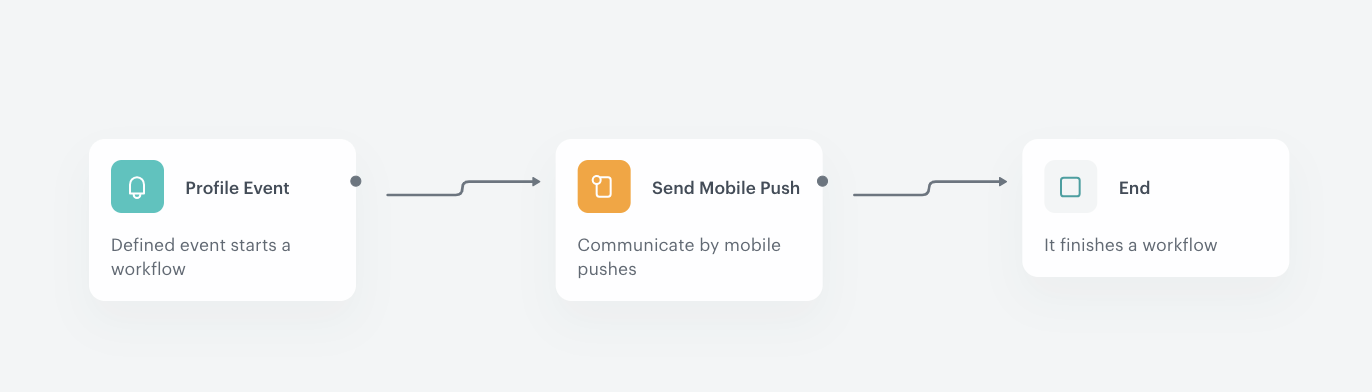
1. As the first node of the workflow, add **Profile Event**. In the configuration of the node: 
    1. From the **Choose event** dropdown menu, choose the `page.visit` event.
    2. Click the **+ where** button, from the **Choose parameter** dropdown menu, choose **category**.
    3. From the **Choose operator** dropdown, choose **String**, and then select **Equal (String)**.
    4. In the next field, type `electronics` to analyze only visits to the items from the electronics category.
2. Confirm by clicking **Apply**.
<figure>
<img src="/api/docs/image/54176ad07f146575310749eba44b7c2f42c1b327/use-cases/all-cases/_gfx/inappbanner2.png" alt="Profile Event node in automation"  class="full">
<figcaption>Profile Event node configuration</figcaption>
</figure> 

### Configure the Send Mobile Push node
---

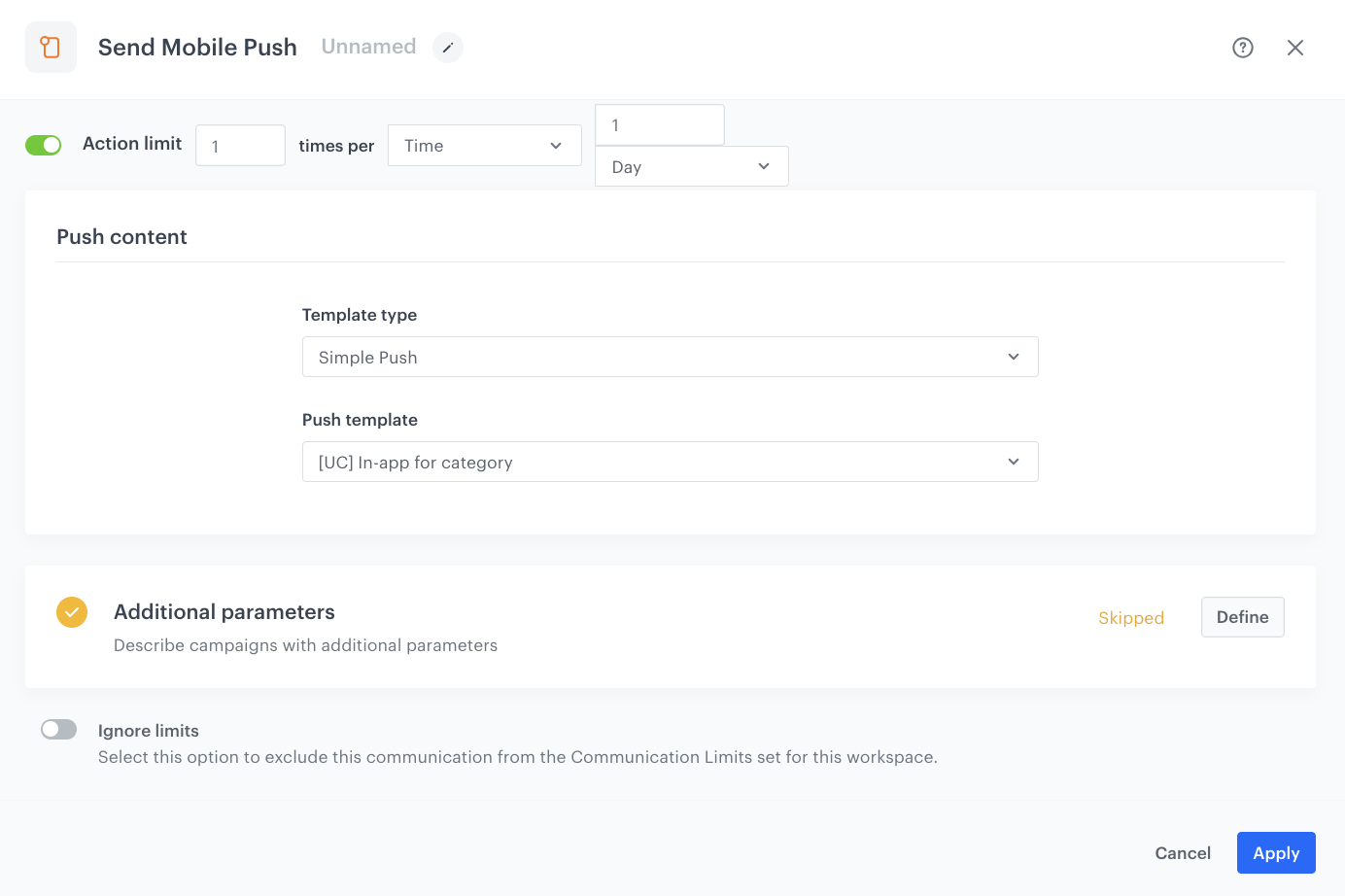
1. As the next node, add the **Send Mobile Push** node. 
1. In the settings of the node, leave the template type at default (**Simple Push**).
2. From the **Template type** dropdown list, select the template you have prepared in the [previous step](/use-cases/in-app-banner#create-mobile-push).
6. Enable the **Action limit** toggle and set the limit to `1` per workflow.
3. If you want to add parameters to the [event generated by this message](/docs/assets/events/event-reference/mobile-push#pushsend), in the **Additional parameters**, click **Define**. If not, click **Skip step**.  
    
   <div class="admonition admonition-note"><div class="admonition-icon"><svg xmlns="http://www.w3.org/2000/svg" fill="none" viewBox="0 0 24 24" stroke="currentColor" stroke-width="2.5"><path stroke-linecap="round" stroke-linejoin="round" d="M13 16h-1v-4h-1m1-4h.01M21 12a9 9 0 11-18 0 9 9 0 0118 0z" /></svg></div><div class="admonition-body"><div class="admonition-content">

   You can read more about Additional parameters in the [Define additional parameters](/docs/campaign/Mobile/creating-mobile-push#define-additional-parameters) section.

   </div></div></div>

2. Click **Apply**.

<figure><img src="/api/docs/image/54176ad07f146575310749eba44b7c2f42c1b327/use-cases/all-cases/_gfx/inappbanner3.png" class="full" alt="The send mobile push node configuration"><figcaption>The send mobile push node configuration</figcaption></figure>

### Prepare the final settings 
---

1. After **Send Mobile Push**, add the **End** node.
3. Optionally, add titles to each node so the workflow will be more understandable to your colleagues.
9. To define capping, next to the workflow name, click **Set capping** and  set it to `1 per 1 day`.
4. Activate the workflow by clicking **Save & Run**.

<figure><img src="/api/docs/image/54176ad07f146575310749eba44b7c2f42c1b327/use-cases/all-cases/_gfx/inappbanner4.png" class="full" alt="The workflow configuration"><figcaption>The workflow configuration</figcaption></figure>


## Check the use case set up on the Synerise Demo workspace
---
You can check the configuration of the campaign components directly in Synerise Demo workspace:
- [automation](https://app.synerise.com/automations/automation-diagram/7024931e-ccd6-47ca-9588-a35a300c6809),
- [in-app campaign with the banner](https://app.synerise.com/communications/in-app/a3dbe6da-524a-429c-8e11-40d6cc33b3c5).

If you’re our partner or client, you already have automatic access to the **Synerise Demo workspace (1590)**, where you can explore all the configured elements of this use case and copy them to your workspace.  

If you’re not a partner or client yet, we encourage you to fill out the contact [form](https://demo.synerise.com/request) to schedule a meeting with our representatives. They’ll be happy to show you how our demo works and discuss how you can apply this use case in your business. 

## Read more
---
- [In-app messages](/docs/campaign/in-app-messages)
- [Mobile campaigns](/docs/campaign/Mobile)
- [Recommendations](/docs/ai-hub/recommendations-v2)
- [Recommendations inserts](/developers/inserts/recommendations-v2)