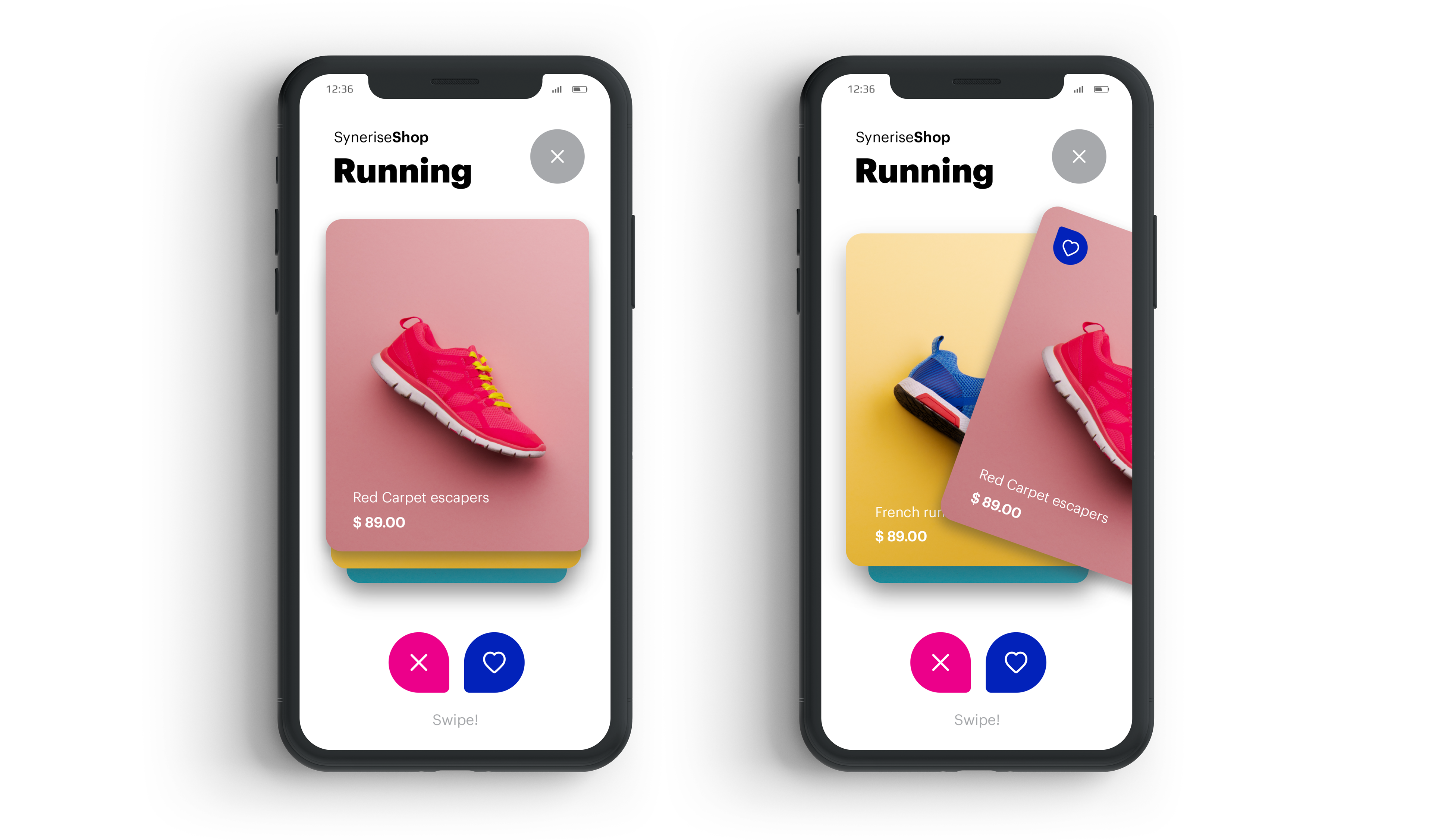
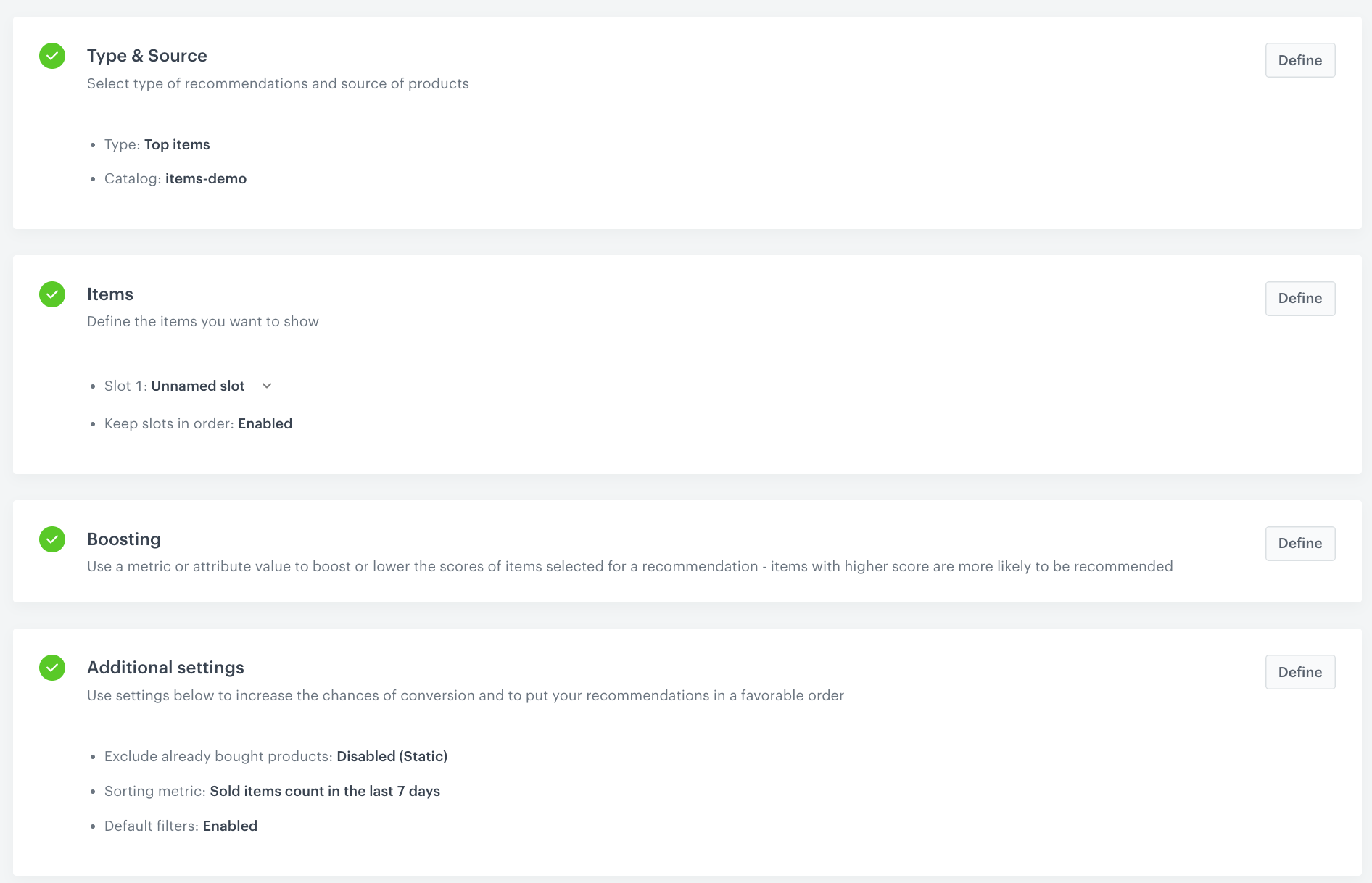
 **AI Hub > (AI Recommendations) Models > Add recommendation**.
2. Enter the name of the recommendation (it is only visible on the list of recommendations).
3. In the **Type & Items feed** section, click **Define**.
4. From the **Items feed** dropdown list, select a product feed.
5. Select the **Top products** recommendation type.
6. Confirm the recommendation type by clicking **Apply**.
6. In the **Items** section, click **Define**.
7. Click **Add slot**.
8. Click the **Unnamed slot** that was created.
8. Define the minimum and maximum number of products displayed in the frame according to your needs.
9. In **Static filters**, select the **availability** parameter and set it to **is defined**, so the recommendations will show only available items.
9. Optionally, you can use filters to include specific items in the recommendation frame.
10. Confirm the configuration by clicking **Apply**.
10. In the **Additional settings**, click **Define**.
11. From the **Sort metric** dropdown list, select **Sold items count in the last 7 days**.
12. Confirm the configuration of **Additional settings** by clicking **Apply**.
12. Click **Save**.
**AI Hub > (AI Recommendations) Models > Add recommendation**.
2. Enter the name of the recommendation (it is only visible on the list of recommendations).
3. In the **Type & Items feed** section, click **Define**.
4. From the **Items feed** dropdown list, select a product feed.
5. Select the **Top products** recommendation type.
6. Confirm the recommendation type by clicking **Apply**.
6. In the **Items** section, click **Define**.
7. Click **Add slot**.
8. Click the **Unnamed slot** that was created.
8. Define the minimum and maximum number of products displayed in the frame according to your needs.
9. In **Static filters**, select the **availability** parameter and set it to **is defined**, so the recommendations will show only available items.
9. Optionally, you can use filters to include specific items in the recommendation frame.
10. Confirm the configuration by clicking **Apply**.
10. In the **Additional settings**, click **Define**.
11. From the **Sort metric** dropdown list, select **Sold items count in the last 7 days**.
12. Confirm the configuration of **Additional settings** by clicking **Apply**.
12. Click **Save**.
 **Experience Hub > In-app messages > Create in-app**
2. Enter a meaningful name for the in-app campaign.
3. In the **Audience** section:
1. Click **Define**.
2. Select the **Everyone** tab.
3. Click **Apply**.
4. In the **Content** section:
1. Click **Define**.
2. Click **Create message** and select **Code Editor**
3. Create the content of your in-app campaign. You can reuse the code snippets presented below in your in-app template.
**Experience Hub > In-app messages > Create in-app**
2. Enter a meaningful name for the in-app campaign.
3. In the **Audience** section:
1. Click **Define**.
2. Select the **Everyone** tab.
3. Click **Apply**.
4. In the **Content** section:
1. Click **Define**.
2. Click **Create message** and select **Code Editor**
3. Create the content of your in-app campaign. You can reuse the code snippets presented below in your in-app template.
<div class="in-app-wrapper bottom_bar"> <div class="in-app-close"> <svg viewBox="0 0 24 24" class="close-m"> <path fill="none" d="M0 0h24v24H0z"></path> <path d="M13.06 12l4.72-4.72a.75.75 0 00-1.06-1.06L12 10.94 7.28 6.22a.75.75 0 00-1.06 1.06L10.94 12l-4.72 4.72a.75.75 0 101.06 1.06L12 13.06l4.72 4.72a.75.75 0 001.06-1.06z"> </path> </svg> </div> <div class="in-app-content"> <p class="in-app-title">Do you like our products?</p> <p class="in-app-subtitle">Let us know your taste 🔥</p> </div> </div>@import url("https://fonts.googleapis.com/css2?family=Nunito:wght@400;600;700;900&display=swap"); .in-app-wrapper.bottom_bar { margin: 15px; background-color: whitesmoke; height: 95px; border-radius: 30px; box-shadow: 0 0px 10px 0 rgba(35, 41, 54, 0.2); display: flex; flex-direction: column; flex-wrap: nowrap; align-content: center; justify-content: center; align-items: center; } .in-app-close { cursor: pointer; position: absolute; padding: 10px; top: 15px; right: 15px; } .in-app-close svg { width: 32px; height: 32px; } .in-app-content { text-align: center; } .in-app-title { margin: 0; font-weight: 600; font-size: 20px; margin-bottom: 2px; font-family: "Nunito", sans-serif; } .in-app-subtitle { margin: 0; font-size: 14px; font-family: "Nunito", sans-serif; }(function () { var inApp = document.querySelector('.in-app-wrapper.bottom_bar'); var close = inApp.querySelector('.in-app-close'); close.addEventListener('click', function () { SRInApp.close(); }) var content = inApp.querySelector('.in-app-content'); content.addEventListener('click', function () { SRInApp.close(); setTimeout(function() { SRInApp.trackCustomEvent('preferences.trigger', {}, 'Preferences trigger event'); }, 0) }) })();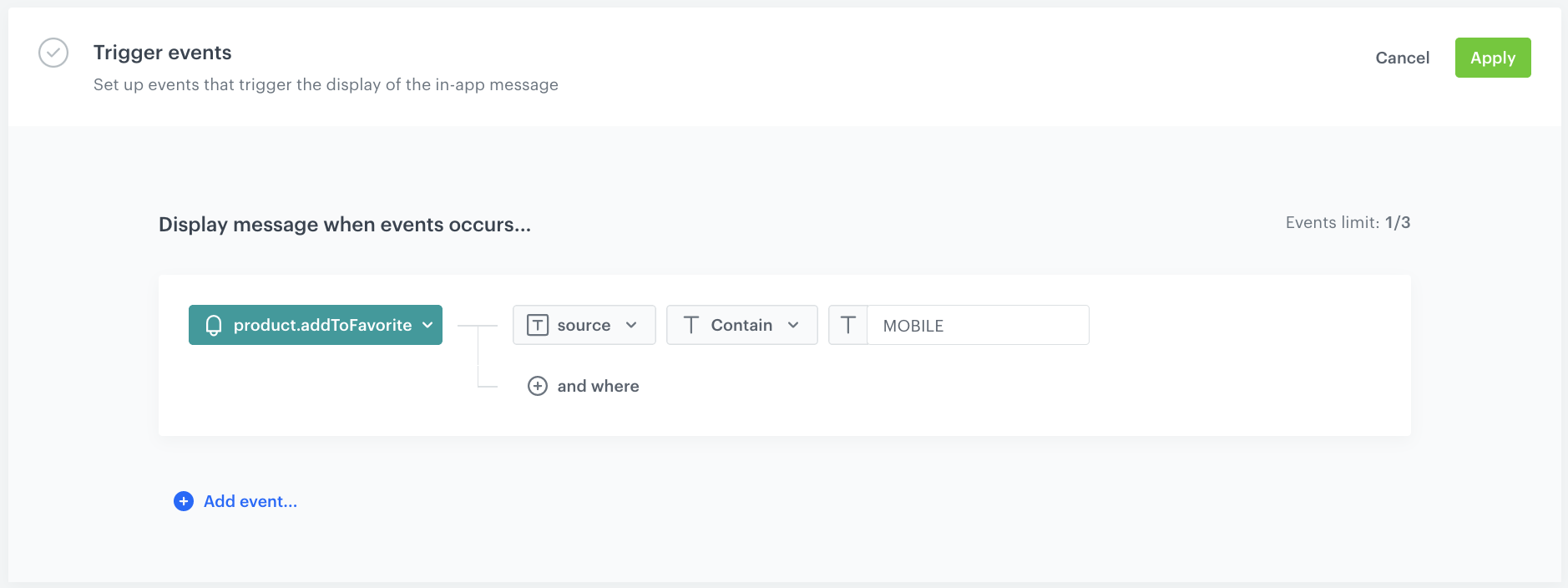
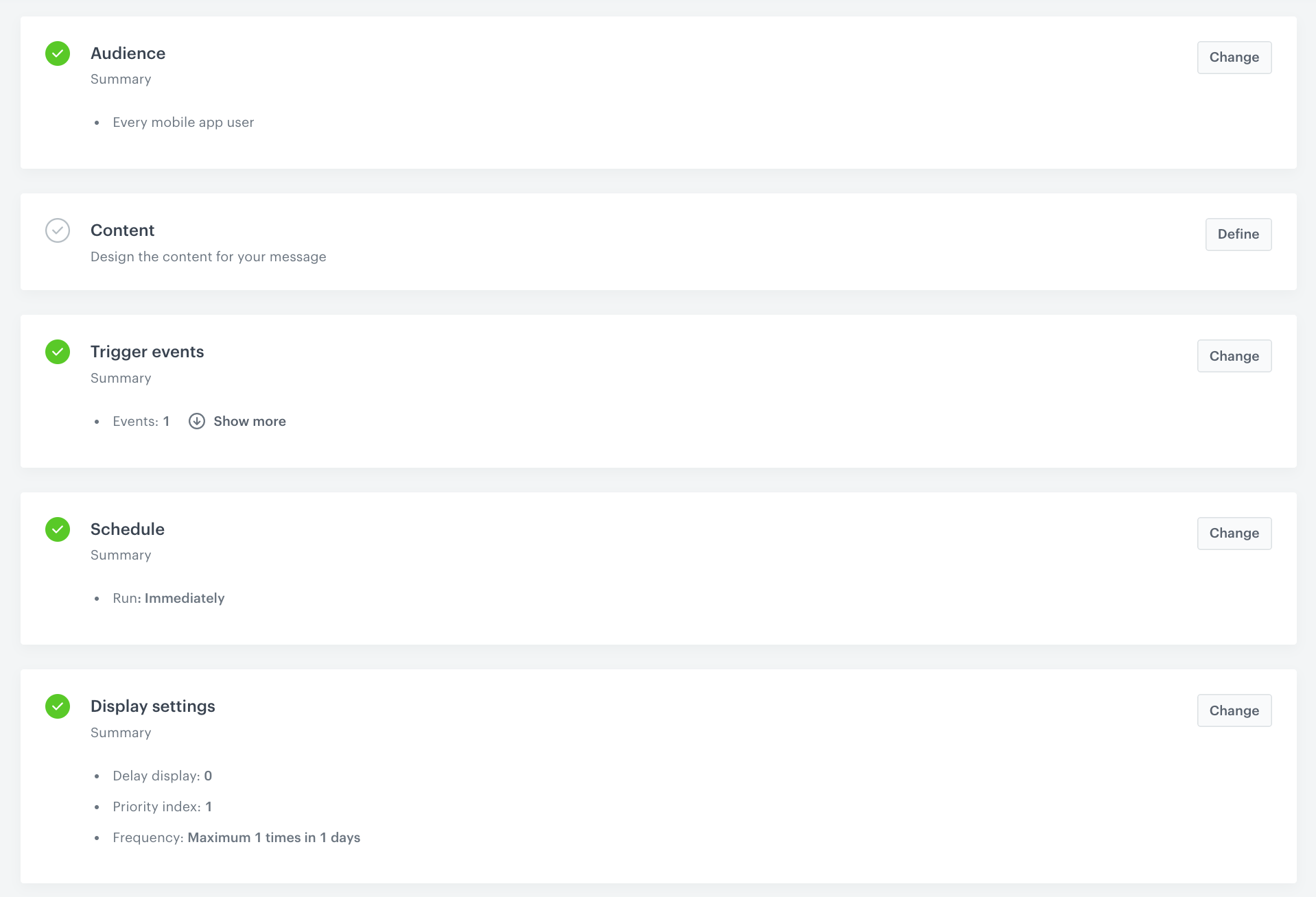 **Experience Hub > In-app messages > Create in-app**
2. Enter a meaningful name for the in-app campaign.
1. In the **Audience** section:
1. Click **Define**.
2. Select the **Everyone** tab.
3. Click **Apply**.
1. In the **Content** section:
1. Click **Define**.
2. Click **Create message** and select **Code Editor**.
2. In the right upper corner, change the **Bottom bar** default option to **Fullscreen** by using the dropdown menu.
2. Create the content of your in-app campaign. You can reuse the code snippets presented below in your in-app template.
**Experience Hub > In-app messages > Create in-app**
2. Enter a meaningful name for the in-app campaign.
1. In the **Audience** section:
1. Click **Define**.
2. Select the **Everyone** tab.
3. Click **Apply**.
1. In the **Content** section:
1. Click **Define**.
2. Click **Create message** and select **Code Editor**.
2. In the right upper corner, change the **Bottom bar** default option to **Fullscreen** by using the dropdown menu.
2. Create the content of your in-app campaign. You can reuse the code snippets presented below in your in-app template.
<div class="in-app-close" style="width: 100%;text-align: right;width: 90%;"> <svg viewBox="0 0 24 24" class="close-m"> <path fill="none" d="M0 0h24v24H0z"></path> <path d="M13.06 12l4.72-4.72a.75.75 0 00-1.06-1.06L12 10.94 7.28 6.22a.75.75 0 00-1.06 1.06L10.94 12l-4.72 4.72a.75.75 0 101.06 1.06L12 13.06l4.72 4.72a.75.75 0 001.06-1.06z"> </path> </svg> </div> <div class="frame"></div> <div class="icons"> <svg id="hate" xmlns="http://www.w3.org/2000/svg" viewBox="0 0 128.07 127.89"> <path class="a" d="M128.07,64.07c-.5,36.31-28,63.57-64,63.82S-.17,99.33,0,63.29C.17,28.25,29.23-.3,64.43,0A63.88,63.88,0,0,1,128.07,64.07ZM45.32,38.54c-2.44.36-4.63,1.12-6,3.68a6.39,6.39,0,0,0,.94,7.83A143,143,0,0,0,50.42,60.36c2.73,2.48,3.44,4.31.2,7a98.44,98.44,0,0,0-9.52,9.53c-3.62,4-3.66,7.48-.47,10.59,2.82,2.76,7.12,2.54,10.7-.79,3.05-2.83,5.91-5.86,8.85-8.8,2.58-2.57,5.16-2.53,7.73,0,2.83,2.81,5.62,5.67,8.52,8.42,3.87,3.68,8.08,4.08,11,1.15,3.23-3.21,3-6.85-.83-11C83.57,73.21,80.44,70,77.1,67c-2.37-2.13-2.71-3.65-.13-5.91,3.24-2.85,6.15-6.08,9.2-9.15,4.17-4.2,4.66-8,1.45-11.34-2.93-3-7.58-2.61-11.49,1.19-3.34,3.25-6.66,6.52-9.85,9.91-1.64,1.74-2.85,1.73-4.49,0-3.32-3.5-6.84-6.81-10.21-10.26A9,9,0,0,0,45.32,38.54Z" /> <path d="M45.32,38.54a9,9,0,0,1,6.26,2.87c3.37,3.45,6.89,6.76,10.21,10.26,1.64,1.73,2.85,1.74,4.49,0,3.19-3.39,6.51-6.66,9.85-9.91C80,38,84.69,37.52,87.62,40.57c3.21,3.34,2.72,7.14-1.45,11.34-3,3.07-6,6.3-9.2,9.15-2.58,2.26-2.24,3.78.13,5.91,3.34,3,6.47,6.24,9.53,9.52,3.87,4.16,4.06,7.8.83,11-2.95,2.93-7.16,2.53-11-1.15-2.9-2.75-5.69-5.61-8.52-8.42-2.57-2.54-5.15-2.58-7.73,0-2.94,2.94-5.8,6-8.85,8.8-3.58,3.33-7.88,3.55-10.7.79-3.19-3.11-3.15-6.6.47-10.59a98.44,98.44,0,0,1,9.52-9.53c3.24-2.72,2.53-4.55-.2-7A143,143,0,0,1,40.28,50.05a6.39,6.39,0,0,1-.94-7.83C40.69,39.66,42.88,38.9,45.32,38.54Z" /> </svg> <svg id="like" xmlns="http://www.w3.org/2000/svg" viewBox="0 0 128.06 127.99"> <path class="a" d="M128.06,63.83a63.65,63.65,0,0,1-64,64.16A63.57,63.57,0,0,1,0,64a64,64,0,0,1,128.06-.13ZM96,56.53c0-5.82-3.9-13.3-10.19-16.05-6.9-3-13.67-2.67-19.37,2.82-2,1.9-3.16,1.41-4.93-.17-2.34-2.08-4.86-3.89-8.25-4.24-9.13-.92-15.31,2.3-19.11,10.25-3.89,8.11-2.42,17.27,4,23.34,7.5,7,15.22,13.88,22.77,20.89,2.06,1.92,3.76,2.27,6,.21C74.36,86.7,82,80,89.39,73.09,93.57,69.21,96.06,64.45,96,56.53Z" /> <path d="M96,56.53c.08,7.92-2.41,12.68-6.59,16.56C82,80,74.36,86.7,66.93,93.58c-2.23,2.06-3.93,1.71-6-.21-7.55-7-15.27-13.84-22.77-20.89-6.46-6.07-7.93-15.23-4-23.34,3.8-8,10-11.17,19.11-10.25,3.39.35,5.91,2.16,8.25,4.24,1.77,1.58,2.95,2.07,4.93.17,5.7-5.49,12.47-5.84,19.37-2.82C92.08,43.23,96,50.71,96,56.53Z" /> </svg> </div>@import url("https://fonts.googleapis.com/css2?family=Nunito:wght@400;600;700;900&display=swap"); html, body { display: flex; flex-direction: column; align-items: center; justify-content: center; width: 100%; height: 100%; overflow: hidden; font-family: "Nunito", sans-serif; background-color: rgba(0, 0, 0, 0.4); } .frame { position: relative; width: 90%; height: 70%; max-width: 400px; max-height: 600px; z-index: 1; } .icons { margin-top: 3vh; user-select: none; z-index: 1; } .icons>svg { width: 10vh; height: 10vh; max-width: 60px; max-height: 60px; border-radius: 50%; box-shadow: 0 5px 15px rgba(0, 0, 0, 0.1); cursor: pointer; } .icons>svg:nth-child(1) { fill: #fb4f68; margin-right: 2vh; } .icons>svg:nth-child(2) { fill: #4dca93; } .icons>svg>path:nth-child(1) { fill: #fff; } .card { background-color: #fff; position: absolute; display: flex; align-items: flex-end; justify-content: center; width: 100%; height: 100%; color: #f1f1f1; border-radius: 10px; user-select: none; cursor: pointer; overflow: hidden; background-size: cover; background-repeat: no-repeat; background-position: center; touch-action: none; } .card .is-like { width: 100%; height: 100%; position: absolute; opacity: 0; } .card .is-like::after { position: absolute; left: 50%; bottom: 30%; transform: translateX(-50%) rotate(-10deg); width: 30%; height: 13%; font-size: 3em; letter-spacing: 0.2em; font-weight: 600; border-radius: 0.15em; display: flex; align-items: center; justify-content: center; } .card .like::after { content: "👍"; } .card .nope::after { content: "👎"; } .card .bottom { width: 100%; height: 25%; background: linear-gradient(to top, #000000b8, #00000000); display: flex; flex-direction: column; align-items: flex-start; justify-content: center; padding-left: 7%; font-weight: 400; padding-bottom: 25px } .card .bottom .title>span:nth-child(1) { font-size: 2em; font-weight: 700; margin-right: 0.2em; } .card .bottom .title>span:nth-child(2) { font-size: clamp(13px, 1.5em, 25px); } .card .bottom .title>span:nth-child(2)>b { font-size: 0.6em; margin-right: 0.2em; } .card .bottom .info { margin: 0; } @media screen and (max-height: 540px) { .frame { width: 90%; height: 70%; font-size: 13px; } } @media screen and (max-height: 440px) { .frame { font-size: 8px; } } .in-app-close svg { width: 32px; height: 32px; cursor: pointer; background-color: #000; fill: #fff; } .in-app-close { max-width: 400px; margin-bottom: 16px; }let imgCount = 0; const data = {% set arr = [] %}{% recommendations3 campaignId=CAMPAIGN-ID %}{% for p in recommended_products3 %}{% set obj = {itemId: p.itemId, img: p.image_link, name: p.title, price: p.price, distance: p.category} %}{% do arr.append(obj) %}{% endfor %}{{arr|tojson}}{% endrecommendations3 %} const frame = document.body.querySelector(".frame"); data.forEach((_data) => appendCard(_data)); let current = frame.querySelector(".card:last-child"); let likeText = current.children[0]; let startX = 0, startY = 0, moveX = 0, moveY = 0; document.querySelector("#like").onclick = () => { moveX = 1; moveY = 0; complete('like'); }; document.querySelector("#hate").onclick = () => { moveX = -1; moveY = 0; complete('hate'); }; function appendCard(data) { const firstCard = frame.children[0]; const newCard = document.createElement("div"); newCard.className = "card"; newCard.setAttribute('data-sku', data.itemId); newCard.setAttribute('data-brand', data.name); newCard.setAttribute('data-title', data.distance); newCard.style.backgroundImage = `url(${data.img})`; newCard.innerHTML = ` <div class="is-like">LIKE</div> <div class="bottom"> <div class="title"> <span>${data.name}</span> <span>${data.price}<b>zł</b></span> </div> <div class="info"> ${data.distance} </div> </div> `; if (firstCard) frame.insertBefore(newCard, firstCard); else frame.appendChild(newCard); imgCount++; } function initCard(card) { card.addEventListener("pointerdown", onPointerDown); } function setTransform(x, y, deg, duration) { current.style.transform = `translate3d(${x}px, ${y}px, 0) rotate(${deg}deg)`; likeText.style.opacity = Math.abs((x / innerWidth) * 2.1); likeText.className = `is-like ${x > 0 ? "like" : "nope"}`; if (duration) current.style.transition = `transform ${duration}ms`; } function onPointerDown({ clientX, clientY }) { startX = clientX; startY = clientY; current.addEventListener("pointermove", onPointerMove); current.addEventListener("pointerup", onPointerUp); current.addEventListener("pointerleave", onPointerUp); } function onPointerMove({ clientX, clientY }) { moveX = clientX - startX; moveY = clientY - startY; setTransform(moveX, moveY, (moveX / innerWidth) * 50); } function onPointerUp() { current.removeEventListener("pointermove", onPointerMove); current.removeEventListener("pointerup", onPointerUp); current.removeEventListener("pointerleave", onPointerUp); if (Math.abs(moveX) > frame.clientWidth / 2) { current.removeEventListener("pointerdown", onPointerDown); complete(String(moveX).match('-') ? 'hate' : 'like'); } else cancel(); } function complete(type) { try { const flyX = (Math.abs(moveX) / moveX) * innerWidth * 1.3; const flyY = (moveY / moveX) * flyX; setTransform(flyX, flyY, (flyX / innerWidth) * 50, innerWidth); SRInApp.trackCustomEvent('preferences.action', { actionType: type, itemId: current.getAttribute('data-sku'), title: current.getAttribute('data-title'), brand: current.getAttribute('data-brand') }, 'Preferences action'); const prev = current; const next = current.previousElementSibling; if (next) initCard(next); current = next; likeText = current.children[0]; // appendCard(data[imgCount % 4]); setTimeout(() => frame.removeChild(prev), innerWidth); } catch(error) { document.querySelector('body').style.backgroundColor = 'rgba(0, 0, 0, 0.6)'; document.querySelector('body').innerHTML = '<h1 style="color: #fff; width: 90%; max-width: 400px;">Thank you!<br>We will reach out to you</h1>'; setTimeout(function(){ SRInApp.close(); }, 3000) } } function cancel() { setTransform(0, 0, 0, 100); setTimeout(() => (current.style.transition = ""), 100); } var close = document.querySelector('.in-app-close svg'); close.addEventListener('click', function () { SRInApp.close(); }) initCard(current); Behavioral Data Hub > Live Aggregates > Create aggregate.
preferences.action event. like.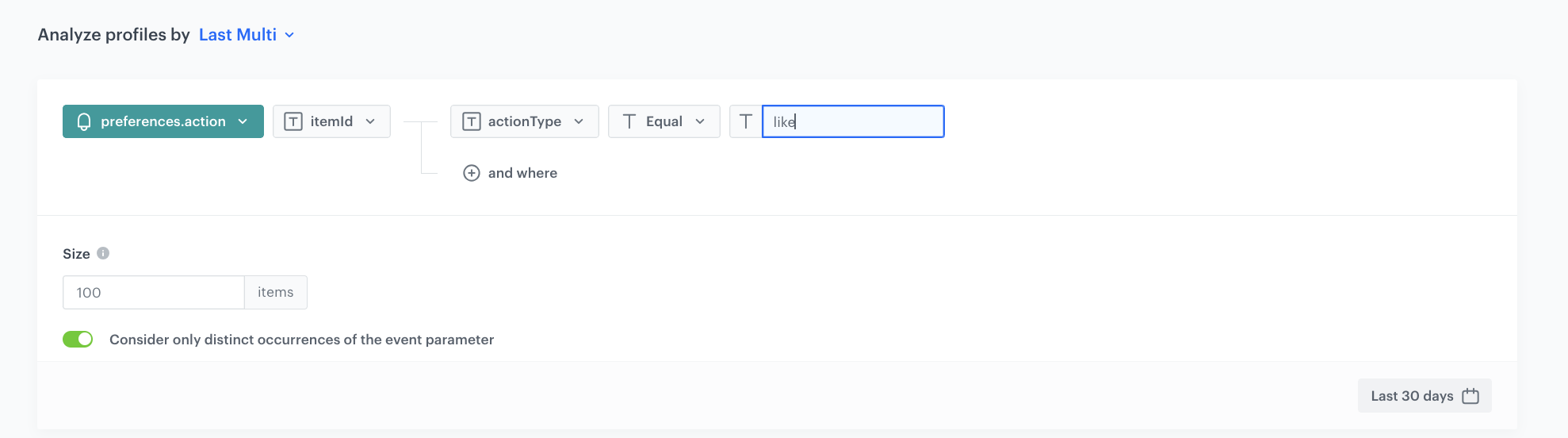
To create an aggregate with product rejected by the customer, duplicate the aggregate created above and change the value of the parameter to hate.