In the world of mobile applications, engaging users effectively and generating revenue are paramount objectives. One powerful strategy for achieving both of these goals is the implementation of in-app cross-sell campaigns. These campaigns are designed to present users with complementary product suggestions precisely when they are most likely to make a purchase, thereby enhancing their experience and increasing the app's revenue potential.

A compelling example of the impact in-app cross-sell campaigns can have is demonstrated through the "product.addToCart" event. In this specific use case, when a mobile app user adds an item to their shopping cart within a mobile application, it triggers a dynamic campaign. This campaign's unique feature is its ability to display cross-selling products tailored to the specific item added to the cart, all based on event parameters such as the SKU (Stock Keeping Unit). By leveraging these parameters and the underlying code of the cross-sell recommendation campaign, the app can deliver a highly personalized and targeted experience to its users.

The primary purpose of this use case is to optimize the user experience within a mobile application by offering relevant product recommendations at a critical moment in the customer's journey – when they are actively making a purchase. By harnessing the "product.addToCart" event, this in-app campaign can provide users with product suggestions that align with their interests and the specific product they have chosen. 

In this use case, we provide you with ready-to-use campaign code that you can use 1:1 in your business scenario.


## Prerequisites 
---
- [Implement Synerise SDK in your mobile app](/developers/mobile-sdk).
- Implement transaction events using [SDK](/developers/web/transactions-sdk) or [API](https://developers.synerise.com/DataManagement/DataManagement.html#operation/CreateATransaction).
- [Configure AI engine](/docs/settings/configuration/ai-engine-configuration/engine-configuration-for-search). Enable **Cross-sell** recommendations.
- [Implement the product.addToCart event in your mobile application](/developers/mobile-sdk/event-tracking#product-added-to-cart).

## Process
---
In this use case, you will go through the following steps:
1. [Create AI recommendations](/use-cases/in-app-bestsellers#create-ai-recommendations) with cross-sell products.
2. [Create an in-app campaign](#create-an-in-app-campaign) with the usage of an event parameter.

## Create AI recommendations
---

In this stage, you will create an AI recommendation campaign which will be used to display products in your in-app message. It will present cross-sell recommendations.

1. Go to <img src="/api/docs/image/54176ad07f146575310749eba44b7c2f42c1b327/icons/ai-hub-icon.svg" alt="AI Hub icon" class="icon" > **AI Hub > (AI Recommendations) Models > Add recommendation**.
2. Enter the name of the recommendation (it is only visible on the list of recommendations).
3. In the **Type & Items feed** section, click **Define**.
4. From the **Items feed** dropdown list, select a product feed.
5. Select the **Cross-sell** recommendation type.  
6. Confirm the recommendation type by clicking **Apply**.  
6. In the **Items** section, click **Define**.  
7. Click **Add slot**.  
8. Click the **Unnamed slot** that was created.    
8. Define the minimum and maximum number of products displayed in the frame according to your needs.
9. In **Static filters**, select the **availability** parameter and set it to **is defined**, so the recommendations will show only available items.   
9. Optionally, you can use filters to include specific items in the recommendation frame.
10. Confirm the configuration by clicking **Apply**.  
8. Optionally, you can define the **Boosting** factors and settings in the **Additional settings** sections.
9. In the right upper corner, click **Save**.
10. Copy the recommendation ID from its URL to use it in [in-app campaign](#create-an-in-app-campaign).

## Create an in-app campaign
---

In this part of the process, you create an in-app campaign triggered by the `product.addToCart` event. After that, the recommendation campaign with cross-sell products for the products added to cart will be displayed. 

1. Go to <img src="/api/docs/image/54176ad07f146575310749eba44b7c2f42c1b327/icons/experience-hub-icon.svg" alt="Experience Hub menu icon" class="icon"> **Experience Hub > In-app messages > Create in-app**
2. Enter a meaningful name for the in-app campaign.
3. In the **Audience** section:
    1. Click **Define**.
    2. Select the **Everyone** tab.
    3. Click **Apply**.
4. In the **Content** section:
    1. Click **Create message**.
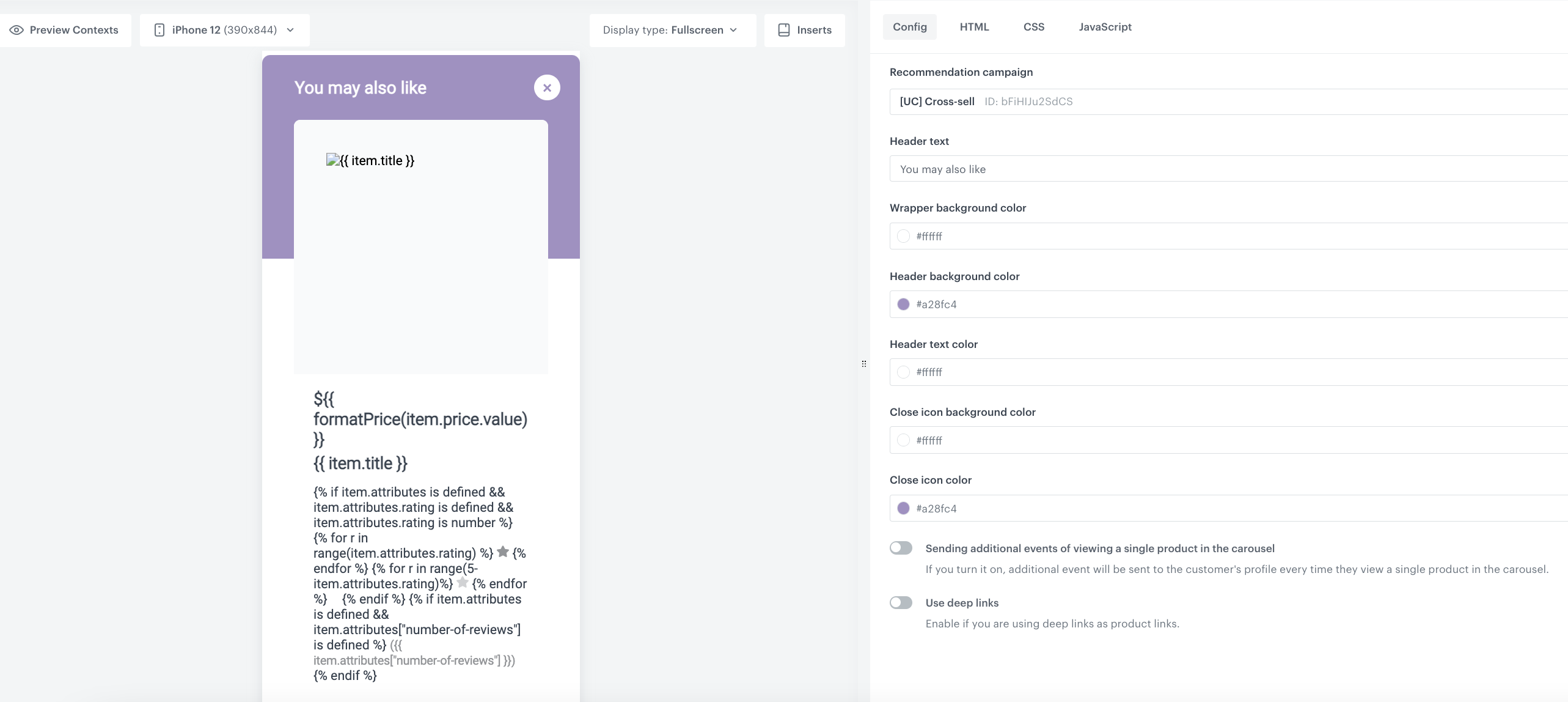
    2. Go to **Use cases** folder and choose **In-app carousel with personalized recommendations** template.
 

   <div class="admonition admonition-note"><div class="admonition-icon"><svg xmlns="http://www.w3.org/2000/svg" fill="none" viewBox="0 0 24 24" stroke="currentColor" stroke-width="2.5"><path stroke-linecap="round" stroke-linejoin="round" d="M13 16h-1v-4h-1m1-4h.01M21 12a9 9 0 11-18 0 9 9 0 0118 0z" /></svg></div><div class="admonition-body"><div class="admonition-content">

   You can edit the template in two ways, by editing the code of the template ([add inserts](/docs/campaign/in-app-messages/creating-inapp-templates/creating-inapp-template#adding-a-snippet-to-the-template-code), [add variables](/docs/campaign/in-app-messages/creating-inapp-templates/creating-inapp-template#adding-a-variable)) and/or by filling out the form in the **Config** tab. In this use case, we will use the capabilities of the predefined **Config** tab.

   </div></div></div>

 
#### Edit form in the Config tab
---
The form in the **Config** tab is already filled in with default values. You can keep them or change them to fit your business needs.  
The fields in **Config** are split into two types: ones for dynamic content (related to Jinja) and ones for in-app appearance. The dynamic content fields must match the values in the catalog and the names of the attributes returned by the recommendations. The appearance fields only affect the visual layer of the in-app message.
 
1. From the **Recommendation campaign** dropdown list, select the AI recommendation created [in the previous step](/use-cases/in-app-bestsellers#create-ai-recommendations).
2. In the **Header** section, add the text you want to display as the header of the in-app message.
3. In the **Wrapper background color** field, use the color picker to select the color of the wrapper background.
4. In the **Header background color** field, use the color picker to select the color of the header background.
3. In the **Header text color** field, use the color picker to select the text color.
6. In the **Close icon background color** field, use the color picker to select the icon background color.
6. In the **Close icon color** field, use the color picker to select the color of the close icon.
6. **Name of the product attribute with average rating** and **Name of the product attribute with number of reviews** leave empty, because in this case we do not have this kind of attributes in our catalog.
7. Additionally, you can enable the following options:  
    - **Sending additional events of viewing a single product in the carousel** - when enabled, an event is generated when a single product from the carousel is viewed. The event will be available in the customer's profile.
    - **Use deep links** - when enabled, instead of refering a user to a product on the website, you refer them to a product in the mobile application.
15. To continue the process of configuring the in-app campaign, click **Next**.
16. To save your content changes, click **Apply**.


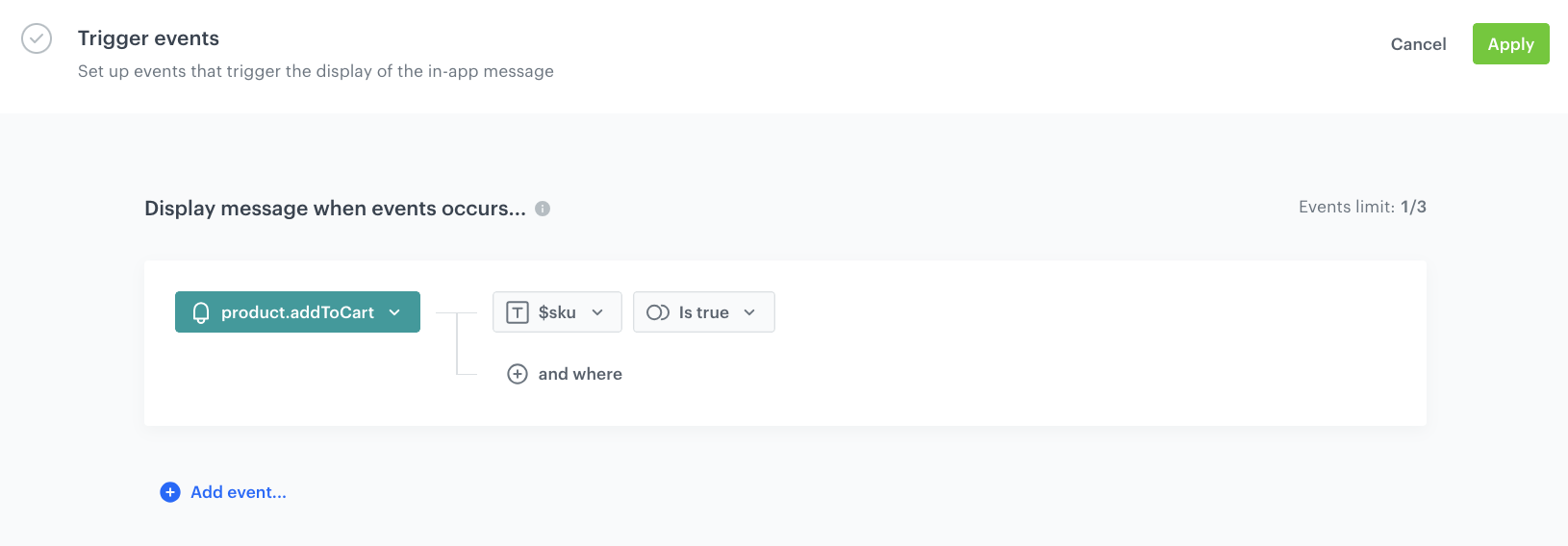
1. In the **Trigger events** section:
    1. Click **Define**.
    2. Select **Add event** and from the dropdown list, choose the `product.addToCart` event.
    2. Click the **+ where** button and as the parameter, choose `$sku`.
    3. As the logical operator, select **is true**.
    4. Click **Apply**.

    <figure>
    <img src="/api/docs/image/54176ad07f146575310749eba44b7c2f42c1b327/use-cases/all-cases/_gfx/inapp-cross.png" alt="Trigger event settings"  class="full">
    <figcaption>Trigger event settings</figcaption>
    </figure> 

1. In the **Schedule** section:
    1. Click **Define**.
    2. Choose the **Run immediately** option.
    3. Click **Apply**.

2. In the **Display settings** section:
    1. Click **Define**.
    2. Define the **Delay display** as **0** and **Priority index** as **1**. 
    3. Enable the **Frequency limit** toggle to manage the frequency of in-app message display in the application.  
        In our case, we set it to once per hour.
    3. Click **Apply**.

1. Optionally, you can define the **UTM parameters**. Otherwise, click **Skip step**.
2. Optionally, you can add the custom parameters in the **Additional parameters** section. Otherwise, click **Skip step**.
3. To start your campaign, click **Activate**.

<figure>
<img src="/api/docs/image/54176ad07f146575310749eba44b7c2f42c1b327/use-cases/all-cases/_gfx/inappcross.png" alt="The in-app configuration" class="full">
<figcaption> The in-app configuration </figcaption>
</figure>

## Check the use case set up on the Synerise Demo workspace
---
You can check the configuration of the campaign components directly in Synerise Demo workspace:
- [AI recommendation configuration](https://app.synerise.com/ai-v2/recommendations/bFiHIJu2SdCS)
- [In-app campaign](https://app.synerise.com/communications/in-app/aa837e27-ab55-4bfa-820b-090ff5ef24df)

If you’re our partner or client, you already have automatic access to the **Synerise Demo workspace (1590)**, where you can explore all the configured elements of this use case and copy them to your workspace.  

If you’re not a partner or client yet, we encourage you to fill out the contact [form](https://demo.synerise.com/request) to schedule a meeting with our representatives. They’ll be happy to show you how our demo works and discuss how you can apply this use case in your business. 

## Read more
---
- [In-app messages](/docs/campaign/in-app-messages)
- [Mobile campaigns](/docs/campaign/Mobile)
- [Recommendations](/docs/ai-hub/recommendations-v2)
- [Recommendations inserts](/developers/inserts/recommendations-v2)
- [Trigger event parameters](/developers/inserts/inapp#trigger-event-parameters)
