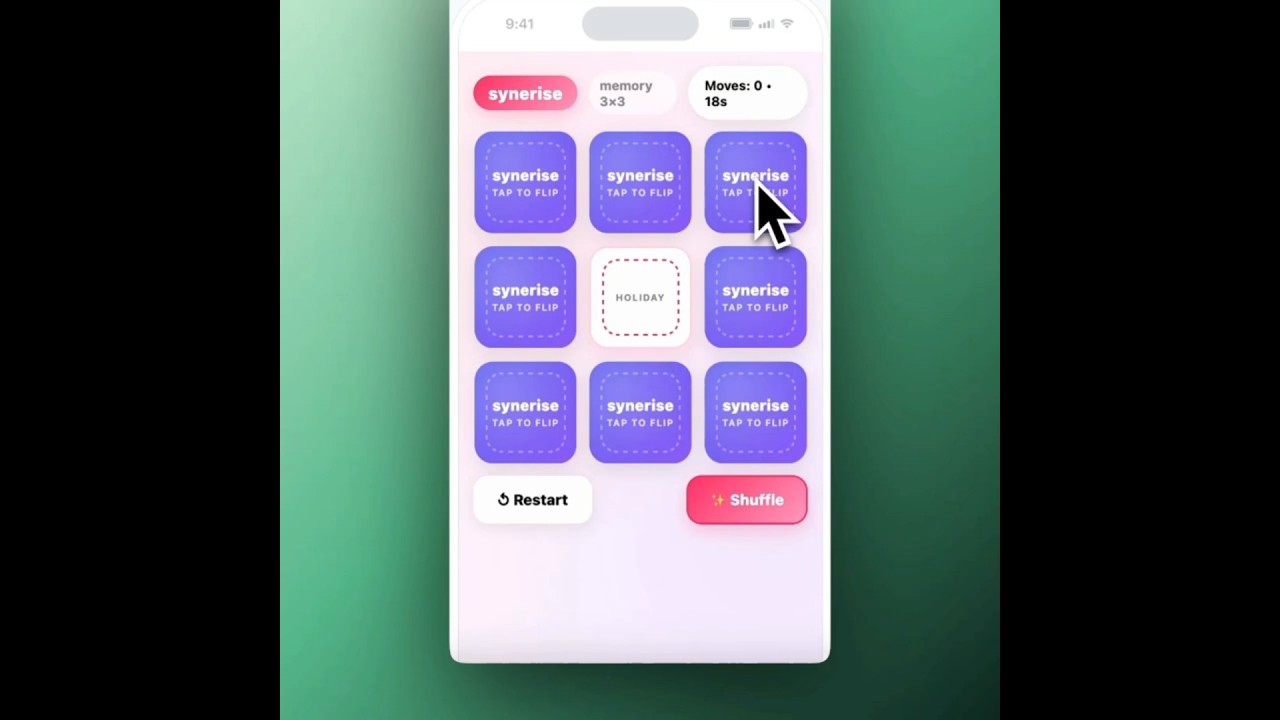
Gamification is an effective way to increase user engagement, boost session duration, and make in-app experiences more memorable. By combining a simple interactive game with product discovery, brands can capture user attention while promoting key products in an enjoyable and interactive way.

In this use case, you’ll create an in-app memo game (3x3 grid) where the tiles feature images of your most viewed products from the last 30 days. This approach blends entertainment with commerce — users play to match pairs while naturally discovering your bestsellers.

The in-app will be activated after every transaction, giving user the chance to gain the discount for the next shopping.

The game dynamically loads product images using a predefined recommendation frame. When a player completes the game, they can be rewarded with a discount code for your bestsellers for the next transaction. 

It’s built on a ready-to-use template, so you don’t need any coding skills to set it up — the layout and logic are preconfigured.

 <div class="youtube-embed youtube-facade not-prose" data-youtube-id="bAYf7MiEtr4" role="button" tabindex="0" aria-label="Play YouTube video"><img src="https://img.youtube.com/vi/bAYf7MiEtr4/hq720.jpg" alt="YouTube video" class="youtube-facade-thumb" loading="lazy" /><span class="youtube-facade-play" aria-hidden="true"><svg viewBox="0 0 68 48" width="68" height="48"><path d="M66.52 7.74c-.78-2.93-2.49-5.41-5.42-6.19C55.79.13 34 0 34 0S12.21.13 6.9 1.55c-2.93.78-4.64 3.26-5.42 6.19C.06 13.05 0 24 0 24s.06 10.95 1.48 16.26c.78 2.93 2.49 5.41 5.42 6.19C12.21 47.87 34 48 34 48s21.79-.13 27.1-1.55c2.93-.78 4.64-3.26 5.42-6.19C67.94 34.95 68 24 68 24s-.06-10.95-1.48-16.26z" fill="red"/><path d="M45 24 27 14v20" fill="white"/></svg></span></div>

## Prerequisites 
---
- [Implement Synerise SDK in your mobile app](/developers/mobile-sdk).
- [Configure AI engine](/docs/settings/configuration/ai-engine-configuration/engine-configuration-for-search). Enable the **Top items** model.
- [Configure an item catalog for recommendations](/docs/settings/configuration/ai-engine-configuration/engine-configuration-for-recommendations). Select the **Top items** model to train the feed.  
- Create a [promotion](/docs/ai-hub/promotions) code which will enable a discount when finalizing the purchase.

## Process
---
In this use case, you will go through the following steps:
1. [Create AI recommendations](/use-cases/in-app-memo#create-ai-recommendations) with top items.
2. [Create an in-app campaign](/use-cases/in-app-memo#create-an-in-app-campaign) with a memo game with top products.

## Create AI recommendations
---

In this step, create an AI recommendation campaign that will be used to display products in your in-app memo game.

1. Go to <img src="/api/docs/image/54176ad07f146575310749eba44b7c2f42c1b327/icons/ai-hub-icon.svg" alt="AI Hub icon" class="icon" > **AI Hub > (AI Recommendations) Models > Add recommendation**.
2. Enter the name of the recommendation (it is only visible on the list of recommendations).
3. In the **Type & Items feed** section, click **Define**.
4. From the **Items feed** dropdown list, select a product feed.
6. Choose the **Top items** recommendation type.
8. Click **Apply**.
9. In the **Items** section, click **Define**.
10. Click **Add slot**.
11. Define the minimum and maximum number of products that will be recommended to the user.  
    In our example, it is from 3 (minimum) to 3 (maximum).
12. Optionally, add a **Static filter**.  
    
    <div class="admonition admonition-note"><div class="admonition-icon"><svg xmlns="http://www.w3.org/2000/svg" fill="none" viewBox="0 0 24 24" stroke="currentColor" stroke-width="2.5"><path stroke-linecap="round" stroke-linejoin="round" d="M13 16h-1v-4h-1m1-4h.01M21 12a9 9 0 11-18 0 9 9 0 0118 0z" /></svg></div><div class="admonition-body"><div class="admonition-content">

    Learn about the differences between [elastic, static filters](/docs/ai-hub/recommendations-v2/creating-recommendation-campaign#select-conditions-of-displaying-items), and [distinct filters](/docs/ai-hub/recommendations-v2/creating-recommendation-campaign#distinct-filter).

    </div></div></div>
    *.
21. In the **Boosting** section, you can enable [boosting](/docs/ai-hub/recommendations-v2/creating-recommendation-campaign#define-the-boosting-factors).
22. In **Additional settings**, you can exclude already bought products.
23. Save the recommendation by clicking **Save**.


## Create an in-app campaign
---
In this part of the process, you will create an in-app campaign, presented after the user makes a transaction.

1. Go to <img src="/api/docs/image/54176ad07f146575310749eba44b7c2f42c1b327/icons/experience-hub-icon.svg" alt="Experience Hub menu icon" class="icon"> **Experience Hub > In-app messages > Create new**
2. Enter a meaningful name for the in-app campaign.

### Define the audience
--- 
1. In the **Audience** section, click **Define**.
2. Select the **Everyone** tab.
3. Click **Apply**.

### Define content
---

1. In the **Content** section, click **Define**.
2. Click **Create message** and from the list of template folders, select **Predefined templates**.
3. Select **Memo game**.   
    **Result:** You are redirected to the code editor.
   <div class="admonition admonition-note"><div class="admonition-icon"><svg xmlns="http://www.w3.org/2000/svg" fill="none" viewBox="0 0 24 24" stroke="currentColor" stroke-width="2.5"><path stroke-linecap="round" stroke-linejoin="round" d="M13 16h-1v-4h-1m1-4h.01M21 12a9 9 0 11-18 0 9 9 0 0118 0z" /></svg></div><div class="admonition-body"><div class="admonition-content">

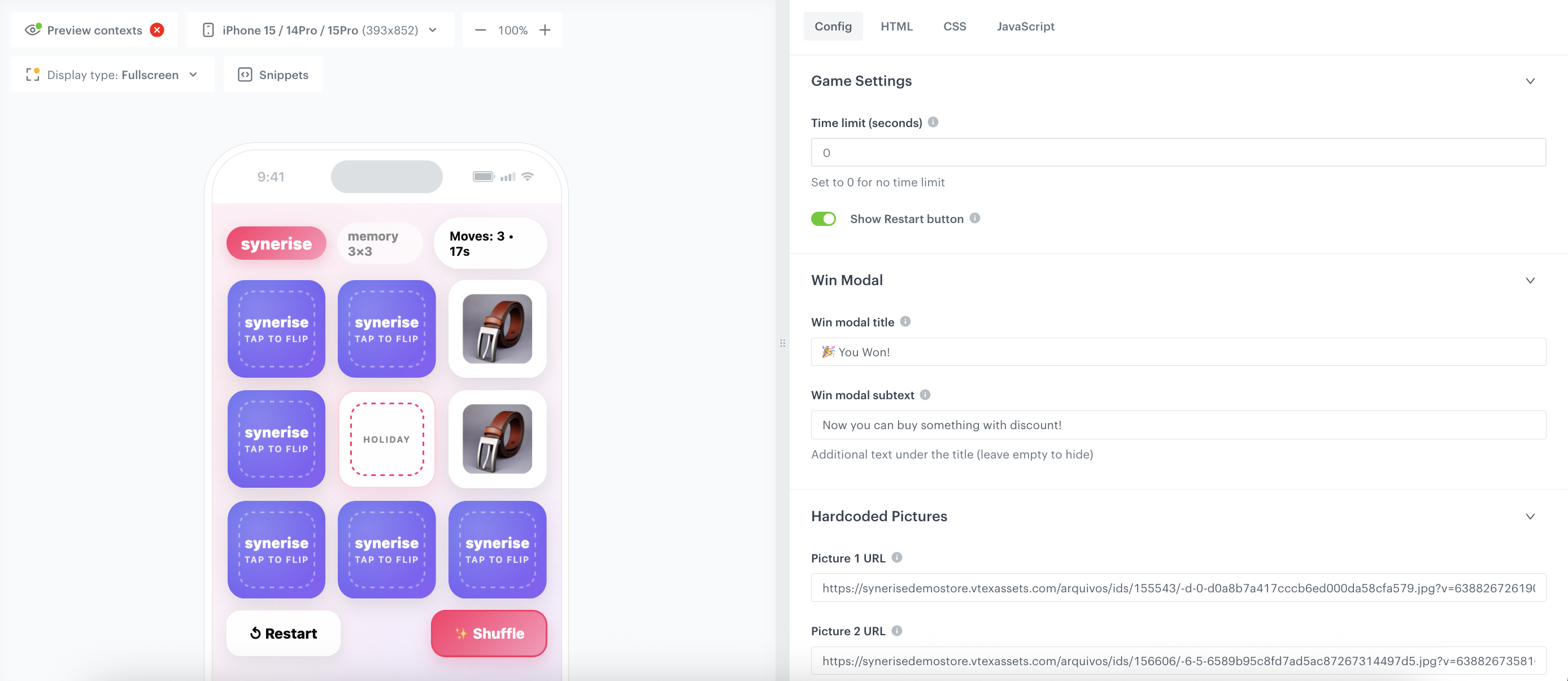
   You can edit the template in two ways, by editing the code of the template ([add inserts](/docs/campaign/in-app-messages/creating-inapp-templates/creating-inapp-template#adding-a-snippet-to-the-template-code), [add variables](/docs/campaign/in-app-messages/creating-inapp-templates/creating-inapp-template#adding-a-variable)) and/or by filling out the form in the **Config** tab. In this use case, we will use the capabilities of the predefined **Config** tab.

   </div></div></div>


#### Edit form in the Config tab
---
The **Config** tab already has default values filled in. You can keep them or change them to fit your business needs.  

 <figure><img src="/api/docs/image/54176ad07f146575310749eba44b7c2f42c1b327/use-cases/all-cases/_gfx/inapp-memo.png" class="full" alt="In-app configuration"><figcaption>In-app configuration</figcaption></figure>  

1. In the **General Settings** section:
    1. In the **Brand name** field, enter the name of your brand (for example, Synerise).
    2. In the **Promotion code** field, enter the discount code displayed after the game is completed, created as a part of [prerequisites](#prerequisites).
    3. In the **Promotion name** field, type the campaign name, presented in the middle box in the game.
    4. In the **Picture source** field, select the source of images for the cards:
    - Hardcoded URLs – enter image links manually.
    - AI Recommendations – dynamically load images from an existing recommendation campaign (like in this case).
    
    
   <div class="admonition admonition-important"><div class="admonition-icon"><svg xmlns="http://www.w3.org/2000/svg" fill="none" viewBox="0 0 24 24" stroke="currentColor" stroke-width="2.5"><path stroke-linecap="round" stroke-linejoin="round" d="M12 8v4m0 4h.01M21 12a9 9 0 11-18 0 9 9 0 0118 0z" /></svg></div><div class="admonition-body"><div class="admonition-content">

   If you select AI Recommendations, enter the AI Recommendations Campaign ID in the dedicated field in the last section (for example, 5tf3u77lj3Hq).

   </div></div></div>


2. In the **Game Settings** section: 
    1. Set up the time limit. To remove the time limit, enter `0`
    2. If you want to allow users to replay the game, enable the **Show Restart button** option.

3. In the **Win Modal** section, enter the success message displayed after the user completes the game. Optionally, you can include a link or CTA to redirect users to a product page or a personalized offer.

4. In the **Hardcoded Pictures** section (optional): If you selected Hardcoded URLs as your picture source, paste the image links for each card in the fields provided.

5. In the **Colors** section, define your game’s color scheme.
6. In the **Layout** section, personalize the layout of the game.
7. In the **AI Recommendations** section, confirm that the AI Recommendations Campaign ID field contains the ID of the campaign you have created in the [previous step](#create-ai-recommendations) (for example, 5tf3u77lj3Hq). This setup ensures that images in the memo game come directly from your recommendation frame — for instance, Top Viewed Products – Last 30 Days.
8. After you make changes to the template, you can check the preview.
    1. Click the **Preview** button on the upper left side.
    2. Enter the ID of a customer or a product.
    3. Click **Apply**.

   <div class="admonition admonition-important"><div class="admonition-icon"><svg xmlns="http://www.w3.org/2000/svg" fill="none" viewBox="0 0 24 24" stroke="currentColor" stroke-width="2.5"><path stroke-linecap="round" stroke-linejoin="round" d="M12 8v4m0 4h.01M21 12a9 9 0 11-18 0 9 9 0 0118 0z" /></svg></div><div class="admonition-body"><div class="admonition-content">

   Considering that the in-app is very interactive, the preview in the platform may not be enough to test the in-app performance. That's why we suggest checking how this campaign displays altogether directly in the mobile app.

   </div></div></div>

9. If the template is ready, in the upper right corner, click **Save this template > Save as**.
10. On the pop-up:
    1. In the **Template name** field, enter the name of the template.
    2. From the **Template folder** dropdown list, select the folder where the template will be saved.
    3. Confirm by clicking **Apply**.
11. Click **Next** to continue the process of configuring the in-app campaign.
12. Click **Apply** to save your content changes. 

### Select events that trigger the in-app message display
---
In this part of the process, define the event that triggers the display of the in-app message. In our case, the trigger is `transaction.charge` event.

1. In the **Trigger events** section, click **Define**.
2. Click **Add event** and from the dropdown list, choose the `transaction.charge` event.
3. Click the **+ where** button and as the parameter, choose `source`.
4. As the logical operator, select **Equal** and as the value add `MOBILE`.
5. Click **Apply**.

### Schedule the message and configure display settings
---
As the final part of the process, you need to set the schedule, display settings configuration, capping, priority of the message among other in-app messages.

1. In the **Schedule** section:
    1. Click **Define**.
    2. Choose **Run immediately** option.
    3. Click **Apply**.
2. In the **Display settings** section:
    1. Click **Define**.
    2. Define the **Delay display** as **0** and **Priority index** as **1**. 
    5. Click **Apply**.
3. Optionally, you can define the UTM parameters in the **UTM & URL parameters** section. Otherwise, click **Skip step**.
4. Optionally, you can add the custom parameters in the **Additional parameters** section. Otherwise, click **Skip step**.
3. To start your campaign, click **Activate**.

## What's next
---

Use the data collected from the memo game to:
- Retarget players who completed the game but did not make another purchase.
- Create follow-up in-app or email campaigns featuring items from the memo grid.
- Rotate the recommendation type (e.g., “Top purchased” or “Trending now”) to keep the game fresh.

## Check the use case set up on the Synerise Demo workspace
---
You can check the configuration of the campaign components directly in Synerise Demo workspace:
- [AI recommendation configuration](https://app.synerise.com/ai-v2/recommendations/tvHzWPoH4YfY),
- [In-app campaign](https://app.synerise.com/communications/in-app/0ff7a956-4372-45f2-8c4b-9b8c13798e1d)

If you’re our partner or client, you already have automatic access to the **Synerise Demo workspace (1590)**, where you can explore all the configured elements of this use case and copy them to your workspace.  

If you’re not a partner or client yet, we encourage you to fill out the contact [form](https://demo.synerise.com/request) to schedule a meeting with our representatives. They’ll be happy to show you how our demo works and discuss how you can apply this use case in your business. 

## Read more
---
- [In-app messages](/docs/campaign/in-app-messages)
- [Using in-app template builder](/docs/campaign/in-app-messages/creating-inapp-templates/creating-inapp-template)
- [Mobile campaigns](/docs/campaign/Mobile)
- [Recommendations](/docs/ai-hub/recommendations-v2)