Loyalty programs are an important part of any business as they help companies build strong relationships with their customers. Every brand knows that the key to building a successful brand is building long-lasting relationships with customers. The strategies used by companies may vary, but most are based on earn&burn programs. This program is quite popular with both customers and companies, although it can sometimes lead to unforeseen consequences for the business. 

The most common problem companies face is that customers are not spending their loyalty points. This raises the need to encourage customers to unlock this unredeemed value. To do this, you can remind customers when their points expire to encourage them to "burn" their points, while personalizing this message to the individual customer. 

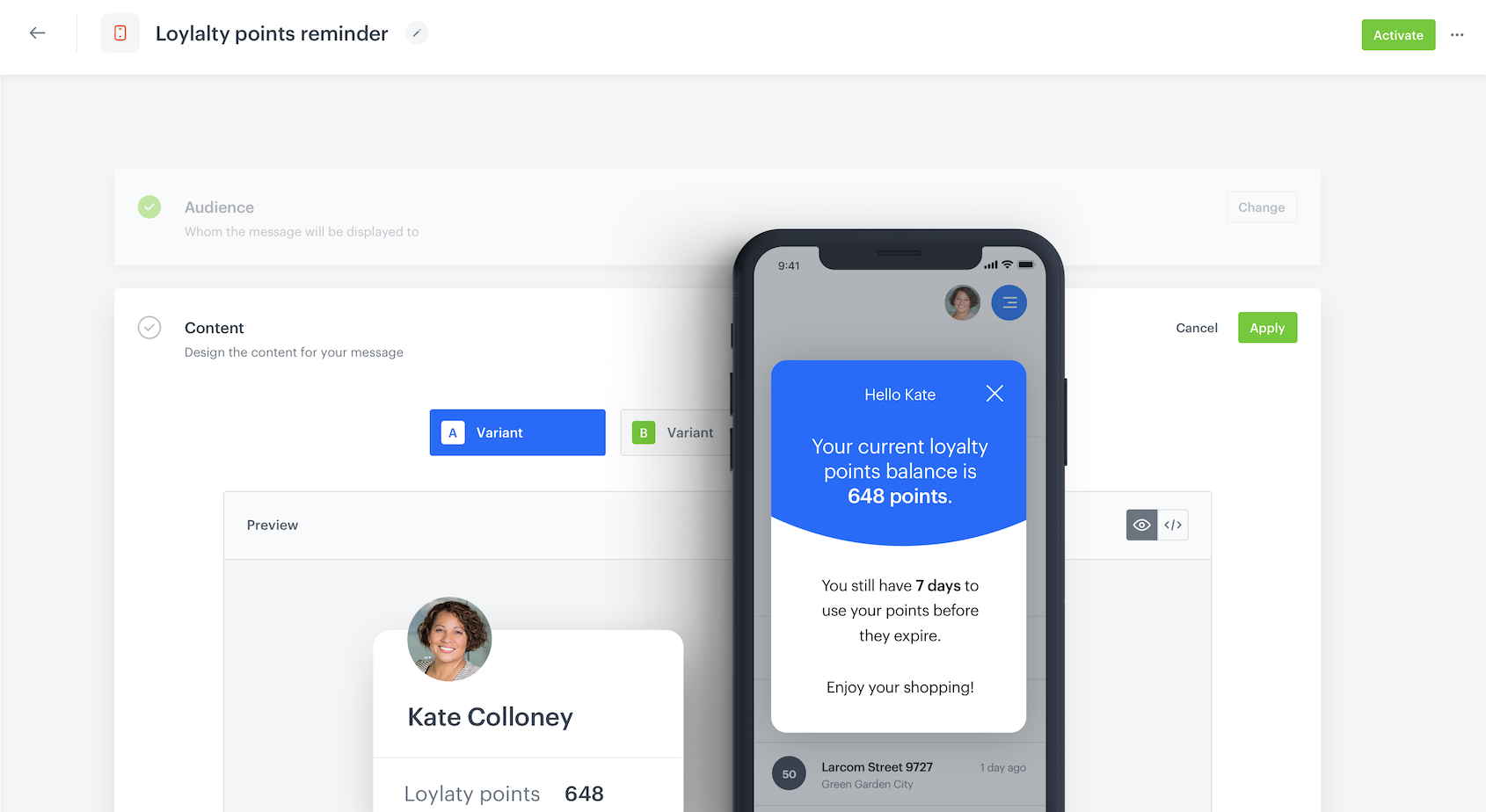
This use case describes the process of creating a reminder to customers about the balance of loyalty points they have in their account and the time left until points expire using an in-app message. The created in-app will be displayed on the trigger of adding the product to the shopping cart once a day. This is an effective form of communication with customers that allows for additional outreach in the mobile channel. In this case, we assume that the redemption of points takes place on a specific day each year. 

In this use case, we provide you with ready-to-use campaign code that you can use 1:1 in your business scenario.

<figure>
<img src="/api/docs/image/54176ad07f146575310749eba44b7c2f42c1b327/use-cases/all-cases/_gfx/Inapp-creator.png" alt="In-app message example"  class="full no-frame">
</figure> 

## Prerequisites 
---
- [Implement Synerise SDK in your mobile app](/developers/mobile-sdk).
- [Integrate mechanism for awarding loyalty points](/use-cases/loyalty-programs-basics).  
    For example, you can award loyalty points after a transaction. In such case, create an [expression that counts how many loyalty points](/docs/analytics/expressions/loyalty-point-count) are assigned to a customer for a transaction. Once you prepare the expression, please contact [Support Team](https://synerise.com/support) to configure materialization of loyalty points. After such configuration, every time loyalty points are assigned to a customer, the `points.loyalty` event will be generated in a customer’s profile with information about the number of loyalty points they received after a transaction (the `points` parameter).  

  <div class="admonition admonition-tip"><div class="admonition-icon"><svg xmlns="http://www.w3.org/2000/svg" fill="none" viewBox="0 0 24 24" stroke="currentColor" stroke-width="2.5"><path stroke-linecap="round" stroke-linejoin="round" d="M9.663 17h4.673M12 3v1m6.364 1.636l-.707.707M21 12h-1M4 12H3m3.343-5.657l-.707-.707m2.828 9.9a5 5 0 117.072 0l-.548.547A3.374 3.374 0 0014 18.469V19a2 2 0 11-4 0v-.531c0-.895-.356-1.754-.988-2.386l-.548-.547z" /></svg></div><div class="admonition-body"><div class="admonition-content">

  Learn more about events [here](/docs/assets/events).

  </div></div></div>

- Collect the [custom event](/developers/mobile-sdk/event-tracking) which sends information to Synerise about joining a loyalty program (for example `account.status` with parameter `accountStatus` equal to `active`). Such an event with the appropriate status should be sent each time the membership status changes (when the customer resigns from the program or joins again).
- [Implement point expiration logic](https://www.synerise.com/blog/manage-the-expiration-of-points-in-your-loyalty-program-with-synerise)
- Collect [add to cart event](/docs/assets/events).

## Security configuration
---
Before you start working with this hub, if you are a Synerise customer or partner, consider reading [the section about denylisting events](/docs/settings/tool/api#denylist). This natively accessible configuration will allow you to manage the restrictions in points management that may help you prevent fraud.

## Process
---
1. [Create an aggregate](/use-cases/in-app-point-balance-reminder#create-an-aggregate) that returns the sum of loyalty points for an individual customer
2. [Create an expression with points balance](/use-cases/in-app-point-balance-reminder#create-an-expression-with-points-balance)
3. [Current status of the membership](/use-cases/in-app-point-balance-reminder#current-status-of-the-membership)
4. [Create an In-app message](/use-cases/in-app-point-balance-reminder#create-an-in-app-message)

## Create an aggregate
---
Create an aggregate that returns the sum of loyalty points for an individual customer. 

1. Go to <img src="/api/docs/image/54176ad07f146575310749eba44b7c2f42c1b327/icons/behavioral-data-hub-icon.svg" alt="Behavioral Data Hub icon" class="icon"> **Behavioral Data Hub > Live Aggregates > Create aggregate**.
2. As the aggregate type, select **Profile**.  
2. Enter a meaningful name of the aggregate.  
3. Click **Analyze profiles by** and select **Sum**.  
4. Click the **Choose event** dropdown list.  
5. From the dropdown list, select the `points.loyalty` event.
6. From the **+ where** dropdown list, select `points` parameter.
7. Using the date picker in the lower-right corner, set the time range to **Lifetime**.  
8. Save the aggregate.

        <figure>
        <img src="/api/docs/image/54176ad07f146575310749eba44b7c2f42c1b327/use-cases/all-cases/_gfx/aggregate-transfer.png" alt="The aggregate that sums points from the points.loyalty event" class="full">
        <figcaption> The aggregate that sums points from the points.loyalty event </figcaption>
        </figure> 

## Create an expression with points balance
---
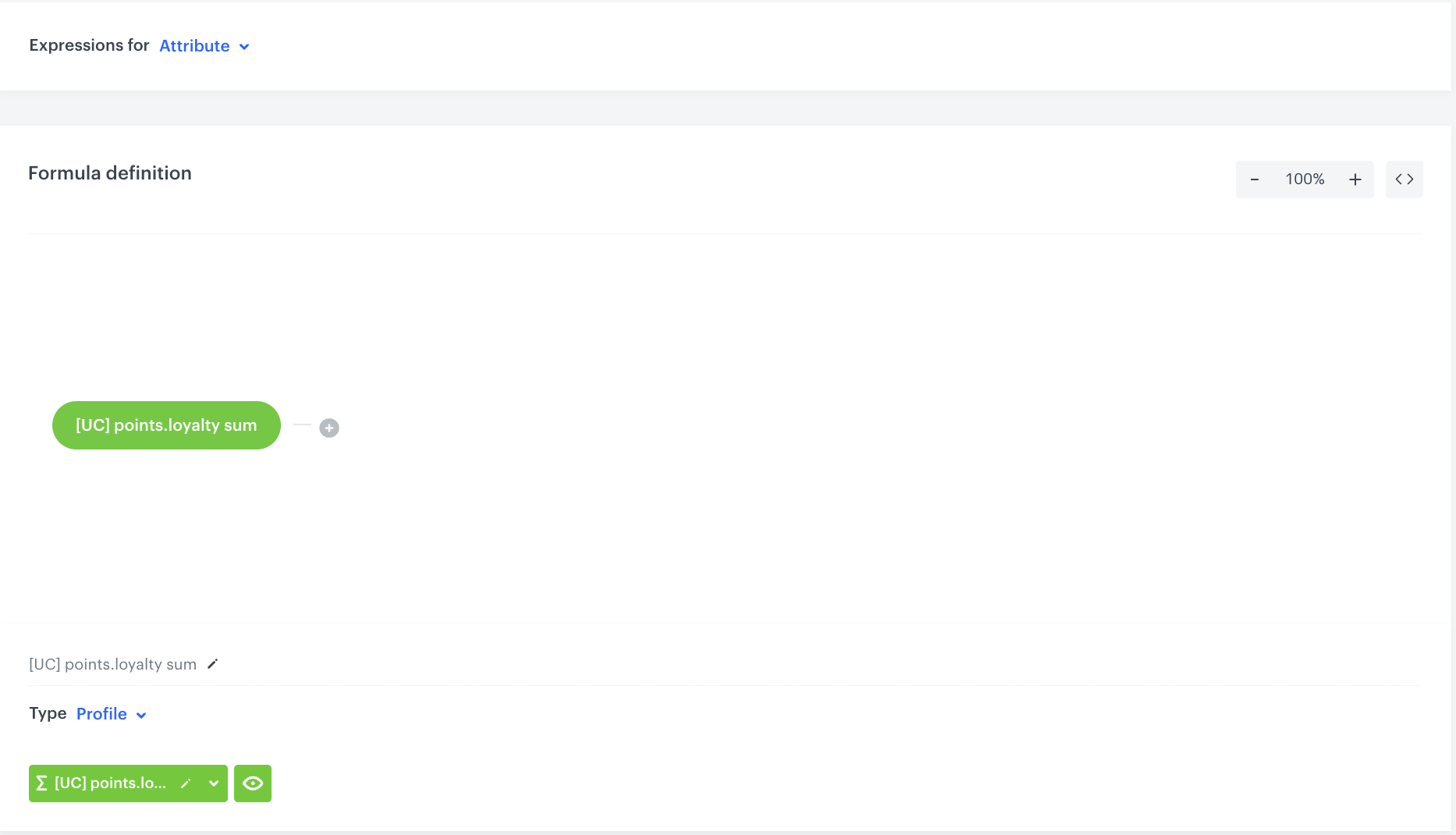
In this part of the process, create an [expression](/docs/analytics/expressions) which will be used to calculate points balance for the customer.  

In our case, the expression is built based on the `points.loyalty` event that is sent every time the customer is awarded with loyalty points. 


<div class="admonition admonition-note"><div class="admonition-icon"><svg xmlns="http://www.w3.org/2000/svg" fill="none" viewBox="0 0 24 24" stroke="currentColor" stroke-width="2.5"><path stroke-linecap="round" stroke-linejoin="round" d="M13 16h-1v-4h-1m1-4h.01M21 12a9 9 0 11-18 0 9 9 0 0118 0z" /></svg></div><div class="admonition-body"><div class="admonition-content">

The described expression configuration is just an example. You can define additional conditions according to your business specifications and requirements. Such additional conditions can be, for example, taking into account points burned or considering points added additionally for completing some other extra activity. It all depends on how your loyalty program is implemented.   
For more advanced scenarios with loyalty points, check out [this use case](/use-cases/loyalty-points-transfer-with-push) describing the process of configuring the transfer of loyalty points between customers.

</div></div></div>


 1. Go to <img src="/api/docs/image/54176ad07f146575310749eba44b7c2f42c1b327/icons/behavioral-data-hub-icon.svg" alt="Behavioral Data Hub icon" class="icon"> **Behavioral Data Hub > Expressions > New expression**.
2. Enter a meaningful name of the expression.  
3. Leave the expression type at default (**Attribute**).  
4. Build the formula of the expression.
    1. Click the **Select** node.  
    2. From the dropdown list, select **Profile**.  
    3. Click the **unnamed** node that appeared on the canvas.  
    4. Scroll down the page and click **Choose attribute**.  
    5. On the dropdown list select the aggegate for `points.loyalty` that you created [earlier](/use-cases/in-app-point-balance-reminder#create-an-aggregate). 
    6. Save the expression.
        <figure>
        <img src="/api/docs/image/54176ad07f146575310749eba44b7c2f42c1b327/use-cases/all-cases/_gfx/expression-points.loyalty.png" alt="The configuration of the expression" class="full">
        <figcaption> The configuration of the expression </figcaption>
         </figure> 

## Current status of the membership
---
Create an aggregate that analyzes a customer's current membership status. This aggregate will later be used in in-app messaging to define customers who are active participants in the loyalty program. 

1. Go to <img src="/api/docs/image/54176ad07f146575310749eba44b7c2f42c1b327/icons/behavioral-data-hub-icon.svg" alt="Behavioral Data Hub icon" class="icon"> **Behavioral Data Hub > Live Aggregates > Create aggregate**.
2. Enter the name of the aggregate.
3. Click **Analyze profiles by** and select **Last**.  
4. From the **Choose event** dropdown list, select the **account.status** event.
5. As the event parameter, choose **accountStatus**.
6. Using the date picker in the lower-right corner, set the time range to **Lifetime**. 
7. To save the aggregate, click **Save**.

<figure>
    <img src="/api/docs/image/54176ad07f146575310749eba44b7c2f42c1b327/use-cases/all-cases/_gfx/current-status-of-account.png" class="full" alt="Configuration of the aggregate">
    <figcaption>Configuration of the aggregate</figcaption>
    </figure>

## Create an in-app message
---
In this part of the process, configure an in-app campaign that displays the appropriate message to the user on the mobile app. 

1. Go to **Experience Hub > In-app messages > Create in app**.
2. In the **Audience** section, click **Define**.
3. In the **New Audience** section, click **Define conditions**.  
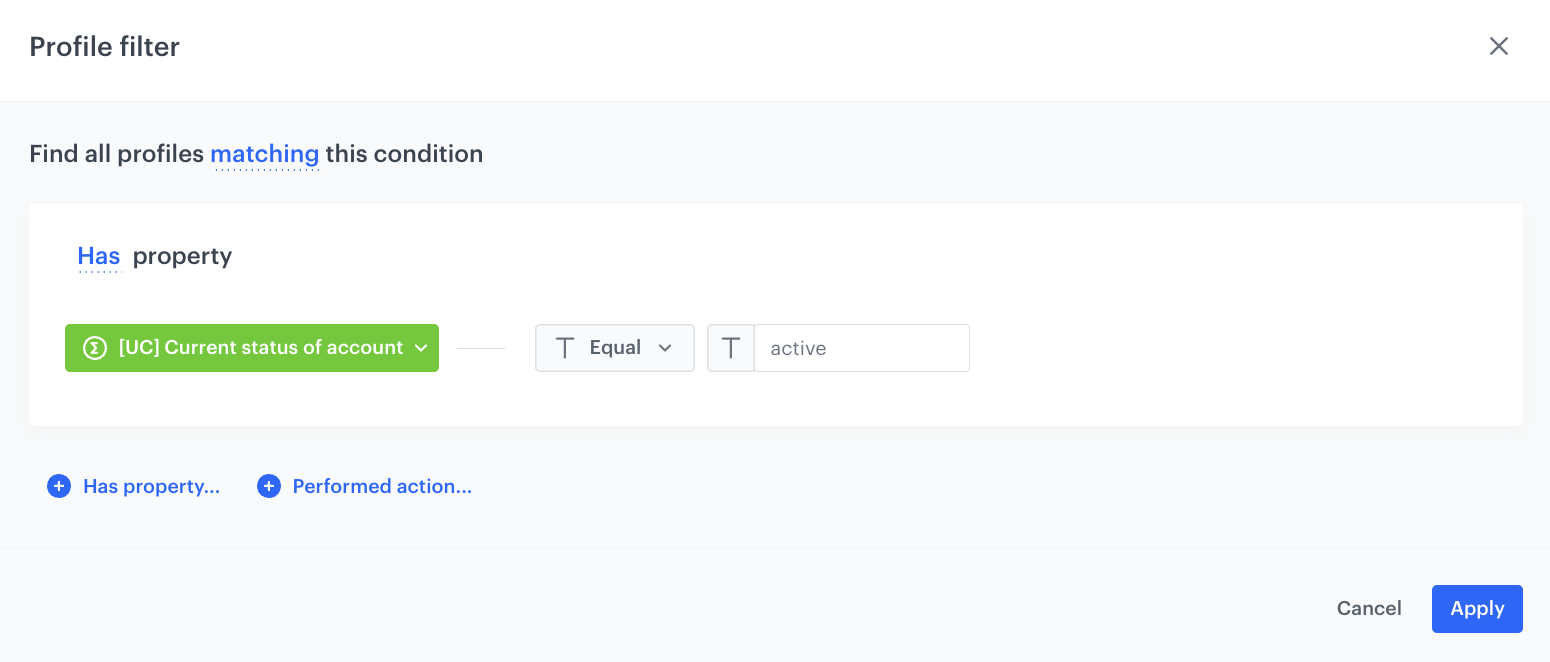
In this step, you define the group of customers who are currently active members of the loyalty program. 
4. Choose **Add condition** and find the [aggregate analyzing the status of the customer's membership](/use-cases/in-app-point-balance-reminder#current-status-of-the-membership), created earlier in the process.
5. As an operator, choose **Equal** and add the value `active`.
6. Click **Apply** to save the aggregate.
    <figure>
    <img src="/api/docs/image/54176ad07f146575310749eba44b7c2f42c1b327/use-cases/all-cases/_gfx/in-app-profile-filter.png" alt="The audience settings" class="full" >
    <figcaption>The audience settings</figcaption>
    </figure>  

7. In the **Content** section, click **Define**. 
8. Click **Create Message** and select **Code Editor** to create the code for your in-app message. 
9. Style the message according to your design preferences using HTML, CSS and JS sections. Below you can find sample code that you can use to create an in-app message.

   
   <div class="admonition admonition-important"><div class="admonition-icon"><svg xmlns="http://www.w3.org/2000/svg" fill="none" viewBox="0 0 24 24" stroke="currentColor" stroke-width="2.5"><path stroke-linecap="round" stroke-linejoin="round" d="M12 8v4m0 4h.01M21 12a9 9 0 11-18 0 9 9 0 0118 0z" /></svg></div><div class="admonition-body"><div class="admonition-content">

   The CSS and JS code snippets shown below can be directly copied into your in-app campaign. In the HTML code snippet, you need to replace the expression ID with the expression you created for your campaign.

   </div></div></div>


<details class="accordion"><summary>HTML</summary><div class="accordion-content"><pre><code class="language-html">&lt;div class="in-app-wrapper"&gt; &lt;div class="in-app-wrapper-inner"&gt; &lt;div class="in-app__upper"&gt; &lt;div class="in-app-close"&gt;&lt;/div&gt; &lt;p class="in-app-title"&gt; Hello {% customer firstname %}&lt;/p&gt; &lt;p class="in-app__upper--text"&gt;Your current loyalty &lt;br&gt; points balance is &lt;br&gt;&lt;strong&gt;{% expression %} 2d4c0862-31ac-43c7-a991-97a1e5455e8a {% endexpression %} points.&lt;/strong&gt;&lt;/p&gt; &lt;/div&gt; &lt;div class="in-app__lower"&gt; &lt;p class="in-app__lower--text changeDate"&gt;&lt;/p&gt; &lt;p class="in-app__lower--text"&gt;Enjoy your shopping!&lt;/p&gt; &lt;/div&gt; &lt;/div&gt; &lt;/div&gt;</code></pre></div></details>


<details class="accordion"><summary>CSS</summary><div class="accordion-content"><pre><code class="language-css">.in-app-wrapper * { font-family: sans-serif; } .in-app-wrapper { text-align: center; position: relative; background: #00000045; box-shadow: 0 30px 80px 0 rgba(35, 41, 54, 0.2); width: auto; height: 100vh; display: flex; flex-direction: column; flex-wrap: nowrap; align-content: center; justify-content: center; align-items: center; } .in-app-title { font-size: 20px; font-weight: normal; font-stretch: normal; font-style: normal; line-height: 1.5; letter-spacing: -0.67px; text-align: center; color: white; margin: 0; padding-top: 20px; } .in-app-subtitle { font-size: 16px; font-weight: normal; font-stretch: normal; font-style: normal; line-height: 1.43; letter-spacing: -0.47px; text-align: center; color: #13171e; } .in-app-close { position: absolute; z-index: 1; width: 50px; height: 50px; border: 0; top: 10px; right: 10px; cursor: pointer; background-color: transparent; } .in-app-close:after, .in-app-close:before { content: ''; position: absolute; height: 2px; width: 50%; top: 50%; left: 12px; margin-top: -1px; background: white; } .in-app-close:after { -webkit-transform: rotate(-45deg); -moz-transform: rotate(-45deg); -ms-transform: rotate(-45deg); -o-transform: rotate(-45deg); transform: rotate(-45deg); height: 2px; margin-top: -2px; } .in-app-close:before { -webkit-transform: rotate(45deg); -moz-transform: rotate(45deg); -ms-transform: rotate(45deg); -o-transform: rotate(45deg); transform: rotate(45deg); height: 2px; margin-top: -2px; } .in-app-wrapper-inner { background: #fff; border-radius: 6px; position: relative; border-radius: 20px; margin-left: 20px; margin-right: 20px; height: 300px; width: -webkit-fill-available } .in-app__upper { background-color: #0b68ff; border-radius: 4% 4% 50% 50% / 4% 4% 10% 10%; height: 170px; } .in-app__lower { height: 200px; } .in-app__upper--text { font-size: 20px; color: white; word-spacing: 2px; } .in-app__lower--text { font-size: 17px; color: black; word-spacing: 2px; }</code></pre></div></details>


<details class="accordion"><summary>JS</summary><div class="accordion-content"><pre><code class="language-javascript">(function () { var closeButton = document.querySelector(".in-app-close"); closeButton.addEventListener("click", function () { SRInApp.close(); SRInApp.trackCustomEvent( "inapp.custom", { action: "close", }, "Custom event from In-App message" ); }); var modalBackground = document.querySelector(".in-app-wrapper"); modalBackground.addEventListener("click", function (event) { if (event.target.getAttribute("class") == "in-app-wrapper") { SRInApp.close(); SRInApp.trackCustomEvent( "inapp.custom", { action: "click outside modal", }, "Custom event from In-App message" ); } }); var oneDay = 24 * 60 * 60 * 1000; var firstDate = new Date(); var endOfYear = new Date(2022, 12, 31); var diffDays = Math.round(Math.abs((firstDate - endOfYear) / oneDay)); var insertDate = document.querySelector(".changeDate"); if (diffDays &gt; 30) { insertDate.innerHTML = "You still have &lt;strong&gt;" + diffDays + " days&lt;/strong&gt; to &lt;br&gt; use your points before &lt;br&gt; they expire."; } else { insertDate.innerHTML = "You have only &lt;strong&gt;" + diffDays + " days&lt;/strong&gt; to &lt;br&gt; use your points before &lt;br&gt; they expire!"; } })();</code></pre></div></details>
  

10. Click **Next**.
11. Confirm by clicking **Apply**. 
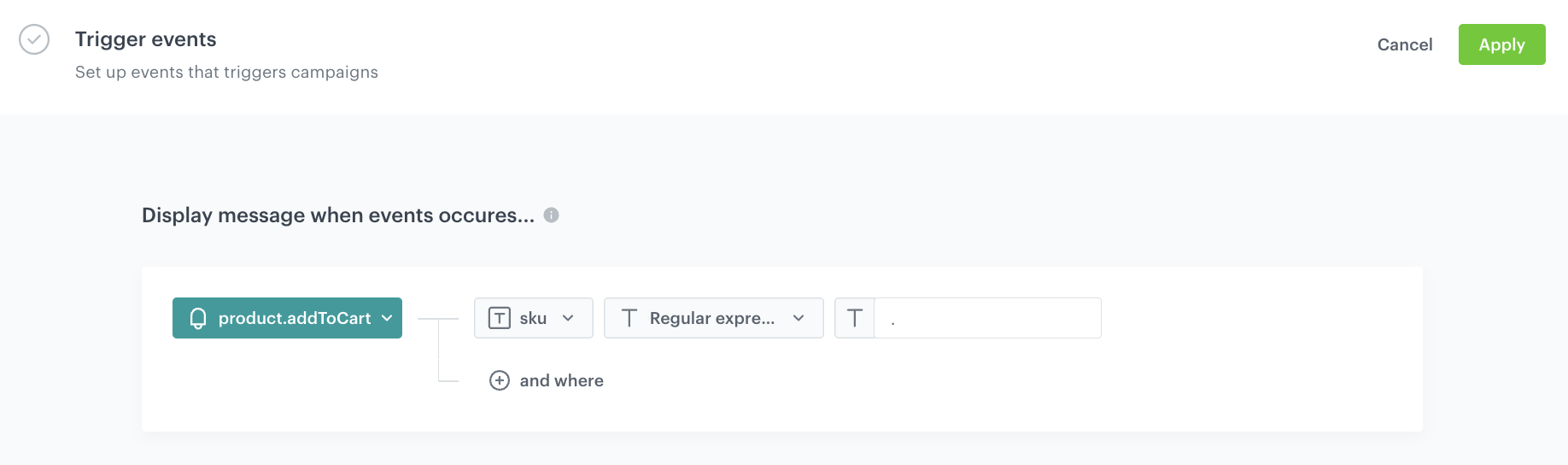
12. In the **Trigger events** section, click **Define**. 
13. Select **Add event** and find the **product.addToCart** event the mobile application generates.
14. From the **Parameter** dropdown list select **sku**.
15. From the **Choose operator** dropdown list, select **Regular expression**.
16. As the value, enter `.`
12. Confirm by clicking **Apply**. 
    <figure>
    <img src="/api/docs/image/54176ad07f146575310749eba44b7c2f42c1b327/use-cases/all-cases/_gfx/in-app-trigger-event.png" alt="The trigger events settings" class="full" >
    <figcaption>The audience settings</figcaption>
    </figure>  
13. In the **Schedule** section, click **Define** and set the time when the campaign will be active. 
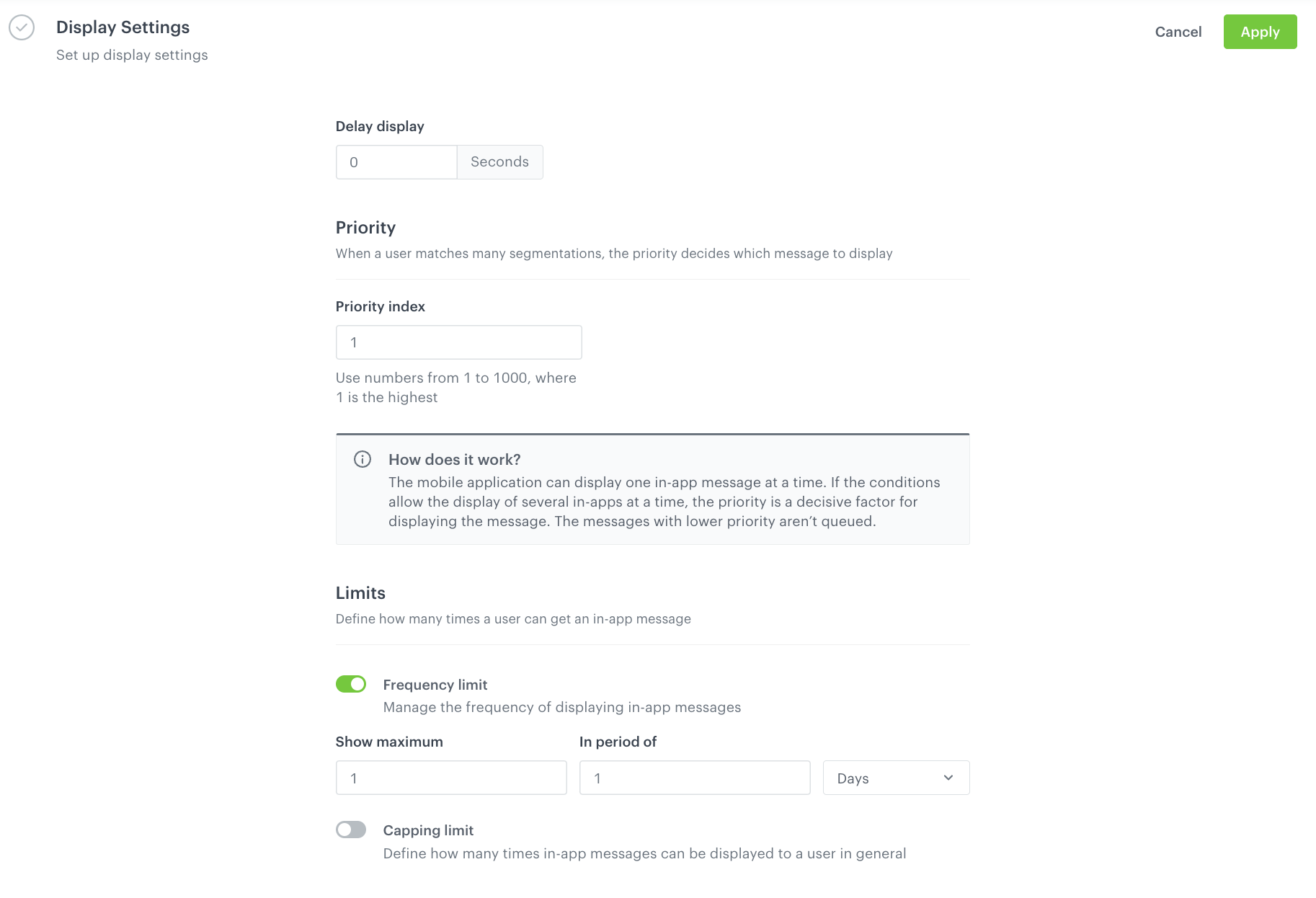
14. In the **Display Settings** section, click **Change**.
15. Define the **Priority index** and enable the **Frequency limit** toggle to manage the frequency of in-app message display in the application.  
    In our case, we want to display the massage to the customer a maximum of 1 time in period of 1 day. 

    
    <div class="admonition admonition-note"><div class="admonition-icon"><svg xmlns="http://www.w3.org/2000/svg" fill="none" viewBox="0 0 24 24" stroke="currentColor" stroke-width="2.5"><path stroke-linecap="round" stroke-linejoin="round" d="M13 16h-1v-4h-1m1-4h.01M21 12a9 9 0 11-18 0 9 9 0 0118 0z" /></svg></div><div class="admonition-body"><div class="admonition-content">

    You can additionaly enable the **Capping limit** toggle to limit the amount of time the in-app message can be displayed to user in general.

    </div></div></div>
  
    <figure>
    <img src="/api/docs/image/54176ad07f146575310749eba44b7c2f42c1b327/use-cases/all-cases/_gfx/in-app-display-settings.png" alt="The display settings" class="large" >
    <figcaption>The audience settings</figcaption>
    </figure>  

16. Confirm by clicking **Apply**. 
17. Optionally, you can define the **UTM parameters** and **Additional parameters** for your in-app campaign.
18. Activate the campaign. 

## Check the use case set up on the Synerise Demo workspace
---
You can check the configuration of each step directly in the Synerise Demo workspace:  
- [Aggregate](https://app.synerise.com/analytics/aggregates/174ba14c-b0d7-372d-acb2-8f1365af3083)
- [Expression with the points balance](https://app.synerise.com/analytics/expressions/2d4c0862-31ac-43c7-a991-97a1e5455e8a)
- [Aggregate with the current status of the membership](https://app.synerise.com/analytics/aggregates/4538a92b-b5e7-338e-a7f0-a4c690b63272)
- [In-app message configuration](https://app.synerise.com/communications/in-app/3e9721c6-ff3b-4124-9fe6-fb8799ca5a02)

If you’re our partner or client, you already have automatic access to the **Synerise Demo workspace (1590)**, where you can explore all the configured elements of this use case and copy them to your workspace.  

If you’re not a partner or client yet, we encourage you to fill out the contact [form](https://demo.synerise.com/request) to schedule a meeting with our representatives. They’ll be happy to show you how our demo works and discuss how you can apply this use case in your business. 

## Read more
---
- [Aggregates](/docs/analytics/aggregates)
- [Expressions](/docs/analytics/expressions)
- [In-app messages](/docs/campaign/in-app-messages)
- [Loyalty points transfer between customers](/use-cases/loyalty-points-transfer-with-push)