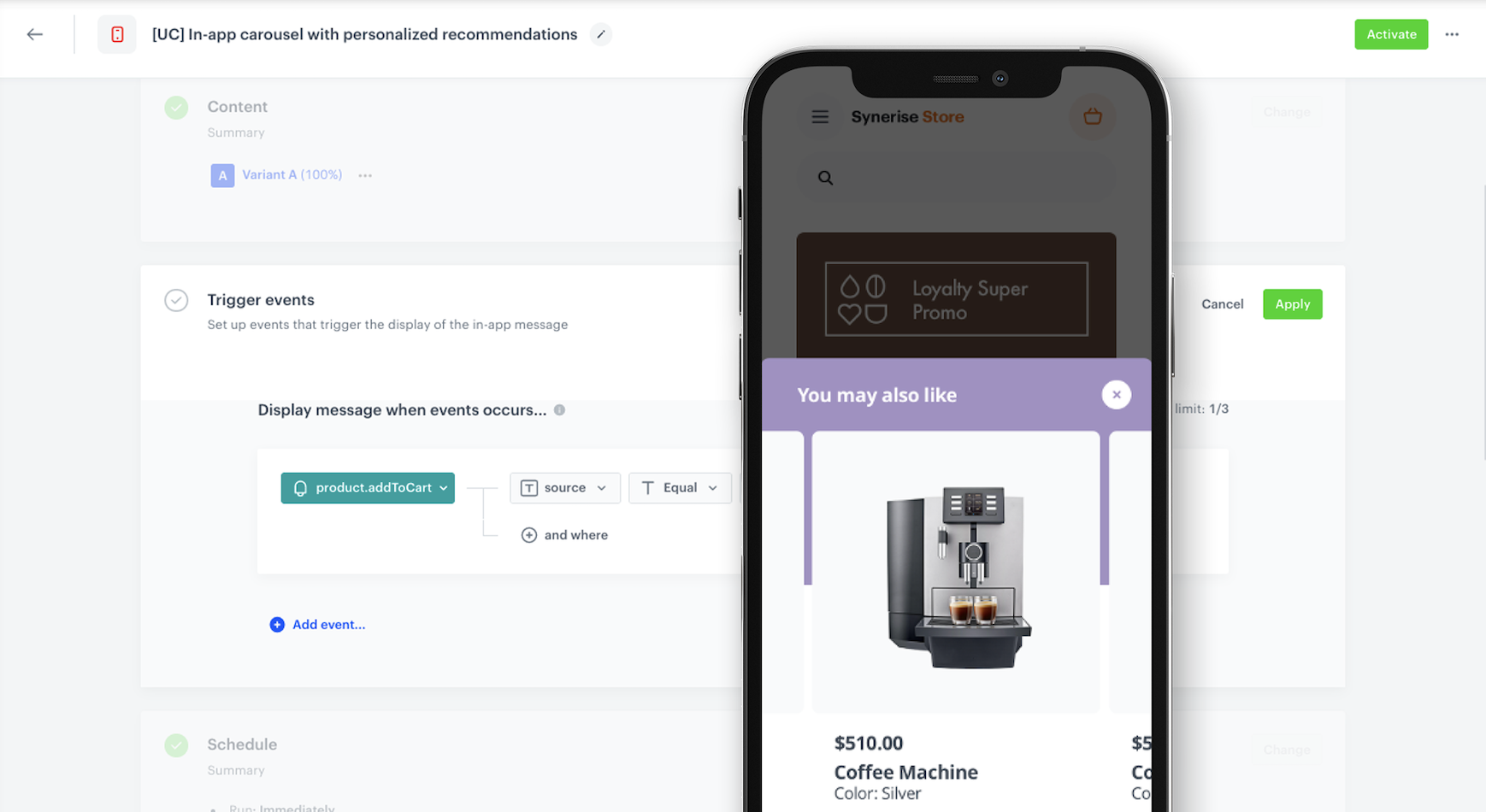
In-app message carousel with personalized products recommendations is a feature that displays a curated list of personalized products within a mobile application. It combines the AI recommendations possibilities of predicting the preferences of individual users and present them with relevant options through an in-app message. By offering personalized product recommendations, businesses can increase engagement, upsell opportunities and drive sales by providing users with tailored and convenient access to their preferred products.

This use case describes the process of creating a set of personalized recommendations in the form of carousel for customers who added products to their cart and sending it through an in-app message.

This use case provides you with an instruction how to use a ready-made in-app template that can be used 1:1 in a business scenario.

<figure>
<img src="/api/docs/image/54176ad07f146575310749eba44b7c2f42c1b327/use-cases/all-cases/_gfx/in-app-reco-main.png" alt="The in-app message view"  class="full no-frame">
</figure> 

## Prerequisites 
---
- [Configure AI engine](/docs/settings/configuration/ai-engine-configuration/engine-configuration-for-recommendations).
- [Configure an item catalog for recommendations](/docs/settings/configuration/ai-engine-configuration/engine-configuration-for-recommendations). Enable personalized recommendations.
- Implement the [transaction events](/developers/web/transactions-sdk) using [SDK](/developers/web/transactions-sdk) or [API](https://developers.synerise.com/DataManagement/DataManagement.html#operation/CreateATransaction).
- [Implement Synerise SDK in your mobile app](/developers/mobile-sdk).

## Process
---

In this use case, you will go through the following steps:
1. [Prepare AI recommendations](#prepare-ai-recommendations).
2. [Create an in-ap message](#create-an-in-app-message) with products recommendations using the predefined template.

## Prepare AI recommendations
---
In this part of the process, you will configure a personalized recommendation which will be later used in the in-app message.

1. Go to <img src="/api/docs/image/54176ad07f146575310749eba44b7c2f42c1b327/icons/ai-hub-icon.svg" alt="AI Hub icon" class="icon" > **AI Hub > (AI Recommendations) Models > Add recommendation**.
2. Enter the name of the recommendation (it is only visible on the list of recommendation).
3. In the **Type & Items feed** section, click **Define**.
4. From the **Items feed** dropdown list, select an item feed.
5. In the **Type** section, choose the **Personalized** recommendation type.
6. Confirm the settings by clicking **Apply**.
7. In the **Items** section, click **Define**.
    1. Click **Add slot**.
    2. Define the minimum and maximum number of items that will be recommended to the user in each slot.
    3. Optionally, define [Static filters](/docs/ai-hub/recommendations-v2/creating-recommendation-campaign#static-filters) and [Elastic filters](/docs/ai-hub/recommendations-v2/creating-recommendation-campaign#elastic-filters).
    4. Confirm by clicking **Apply**. 
8. Optionally, you can define the **Boosting** factors and settings in the **Additional settings** section.
9. In the right upper corner, click **Save**.

## Create an in-app message
---
In this part of the process, you create an in-app campaign triggered by the `product.addToCart`. We will use a predefined template for the message with personalized products, so there is no need to create a template from scratch.

1. Go to <img src="/api/docs/image/54176ad07f146575310749eba44b7c2f42c1b327/icons/experience-hub-icon.svg" alt="Experience Hub icon" class="icon" > **Experience Hub > In-app messages> Create in-app**.
2. Enter the name of the in-app.

### Define the audience
---
As the first step, define the target group of customers for the in-app message. In this case, the group will consist of the customers who had a `product.addToCart` event.

1. In the **Audience** section, click **Define**.
2. Click **Everyone**.
3. To save the audience, click **Apply**.

### Define content
---
In this part of the process, you will create the content of the in-app message that will appear in the mobile application with the help of ready-made template.

1. In the **Content** section, click **Define**.
2. Click **Create message** and from the list of template folders, select **Use Cases**.
3. Select the **In-app carousel with personalized recommendations** template.


**Result:** You are redirected to the code editor.
<div class="admonition admonition-note"><div class="admonition-icon"><svg xmlns="http://www.w3.org/2000/svg" fill="none" viewBox="0 0 24 24" stroke="currentColor" stroke-width="2.5"><path stroke-linecap="round" stroke-linejoin="round" d="M13 16h-1v-4h-1m1-4h.01M21 12a9 9 0 11-18 0 9 9 0 0118 0z" /></svg></div><div class="admonition-body"><div class="admonition-content">

You can edit the template in two ways, by editing the code of the template ([add snippets](/docs/campaign/in-app-messages/creating-inapp-templates/creating-inapp-template#adding-a-snippet-to-the-template-code), [add variables](/docs/campaign/in-app-messages/creating-inapp-templates/creating-inapp-template#adding-a-variable) and/or by filling out the form in the Config tab. In this use case, we will use the capabilities of the predefined Config tab.

</div></div></div>


#### Edit form in the Config tab 
---
The form in the **Config** tab is already filled in with default values. You can keep them or change them to fit your business needs.  
The fields in Config are split into two types: ones for dynamic content (related to Jinja) and ones for in-app appearance. The dynamic content fields must match the values in the catalog and the names of the attributes returned by the recommendations. The appearance fields only affect how the information presents itself in the in-app.


1. From the **Recommendation campaign** dropdown list, select the [recommendations you created in the previous step](#prepare-ai-recommendations). You can find it by typing its name or ID in the search box.
2. In the **Header text** text box, type the header you want to display in the in-app message.
3. In the **Name of product attribute with image link** field, change the default `imageLink` value to the name of the product attribute returning image link from the recommendation campaign defined before. In our case, the name of the column with image link is `image`.
4. In the **Name of the product attribute with title** field, change the default `title` value to the product attribute returning product name from the recommendation campaign defined before. In our case, the name of the column with the product name is `name`.
5. In the **Name of the product attribute with price** field, change the default `price.value` value to the product attribute returning price from the recommendation campaign defined before. In our case, the name of the column with price is `price`.
5. In the **Name of the product attribute with link** field, change the default `link` value to the product attribute returning link from the recommendation campaign defined before. In our case, the name of the column with the attribute returning link is `link`.
6. Define the color for the following fields: **Wrapper background, Header background, Header text, Close icon background** and **Close icon**.
6. **Name of the product attribute with average rating** and **Name of the product attribute with number of reviews** leave empty, because in this case we do not have this kind of attributes in our catalog.
7. After you make changes to the template, you can check the preview.
    1. Click the **Preview** button on the upper left side.
    2. Enter the ID of a customer.
    3. Click **Apply**.
  
   <div class="admonition admonition-important"><div class="admonition-icon"><svg xmlns="http://www.w3.org/2000/svg" fill="none" viewBox="0 0 24 24" stroke="currentColor" stroke-width="2.5"><path stroke-linecap="round" stroke-linejoin="round" d="M12 8v4m0 4h.01M21 12a9 9 0 11-18 0 9 9 0 0118 0z" /></svg></div><div class="admonition-body"><div class="admonition-content">

   Considering that the in-app is very interactive, the preview in the platform may not be enough to test the in-app performance. That’s why we suggest checking the campaign preview directly in the mobile app.

   </div></div></div>


8. If the template is ready, in the upper right corner click **Save this template > Save as**.
9. On the pop-up:
    1. In the **Template name field**, enter the name of the template.
    2. From the **Template folder** dropdown list, select the folder where the template will be saved.
    3. Confirm by clicking **Apply**.
10. To continue the process of configuring the in-app campaign, click **Next**.
11. To save your content changes, click **Apply**.

### Select events that trigger the in-app message display
---
In this part of the process, you will define the event triggering the display of the in-app message.

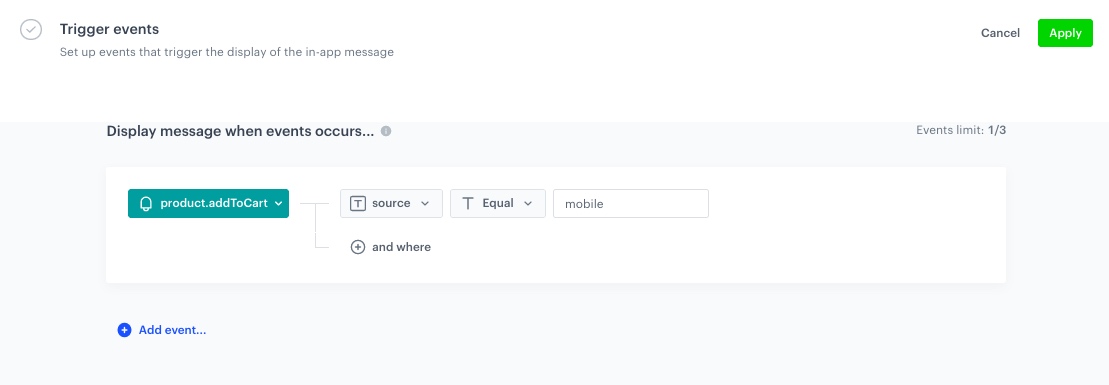
1. In the **Trigger events** section, click **Define**.
2. Select **Add event** and from the dropdown list, choose `product.addToCart` event.
3. Click the **+ where** button and select `source`.
4. As the logical operator, select **Equal**.
5. In the text field, type `mobile`.
5. Click **Apply**.

 <figure>
   <img src="/api/docs/image/54176ad07f146575310749eba44b7c2f42c1b327/use-cases/all-cases/_gfx/inapp_carousel_trigg.png" alt="The view of the in-app trigger event configuration" class="full">
   <figcaption> In-app trigger event configuration </figcaption>
   </figure>

### Schedule the message and configure display settings
---
As the final part of the process, you will set the display settings of the in-app message such as schedule, capping, priority of the message among other in-app messages.

1. In the **Schedule** section, click **Define** and set the time when the message will be active. 
2. In the **Display Settings** section, click **Change**.
3. Define the **Delay display**, **Priority index** and enable the **Frequency limit** toggle to manage the frequency of in-app message display in the application.  

    
   <div class="admonition admonition-note"><div class="admonition-icon"><svg xmlns="http://www.w3.org/2000/svg" fill="none" viewBox="0 0 24 24" stroke="currentColor" stroke-width="2.5"><path stroke-linecap="round" stroke-linejoin="round" d="M13 16h-1v-4h-1m1-4h.01M21 12a9 9 0 11-18 0 9 9 0 0118 0z" /></svg></div><div class="admonition-body"><div class="admonition-content">

   You can additionaly enable the **Capping limit** toggle to limit the amount of time the in-app message can be displayed to a user in general.

   </div></div></div>
  

16. Click **Apply**. 
17. Optionally, you can define the UTM parameters and additional parameters for your in-app campaign.
18. Click **Activate**.

## Check the use case set up on the Synerise Demo workspace
---
You can check the [Recommendations](https://app.synerise.com/ai-v2/recommendations/JmWFgGhNWtTq) and [In-app message](https://app.synerise.com/communications/in-app/a1a9fc4d-900d-4b05-977a-b81e23e11a4e) configuration directly in Synerise Demo workspace. 

If you’re our partner or client, you already have automatic access to the **Synerise Demo workspace (1590)**, where you can explore all the configured elements of this use case and copy them to your workspace.  

If you’re not a partner or client yet, we encourage you to fill out the contact [form](https://demo.synerise.com/request) to schedule a meeting with our representatives. They’ll be happy to show you how our demo works and discuss how you can apply this use case in your business. 

## Read more
---
- [In-app messages](/docs/campaign/in-app-messages)
- [Snippets](/docs/assets/snippets)
- [Recommendations](/docs/ai-hub/recommendations-v2)
- [Using in-app template builder](/docs/campaign/in-app-messages/creating-inapp-templates/creating-inapp-template)