 **AI Hub > (AI Recommendations) Models > Add recommendation**.
2. Enter the name of the recommendation (it is only visible on the list of recommendations).
3. In the **Type & Items feed** section, click **Define**.
4. From the **Items feed** dropdown list, select a product feed.
5. Select the **Attribute** recommendation type.
6. Confirm the recommendation type by clicking **Apply**.
6. In the **Items** section, click **Define**.
10. Click **Add slot**.
11. Define the minimum and maximum number of products that will be recommended to the user. In this example, it's from 3 to 5.
12. From the **Items attribute** dropdown menu, choose the **brand** attribute.
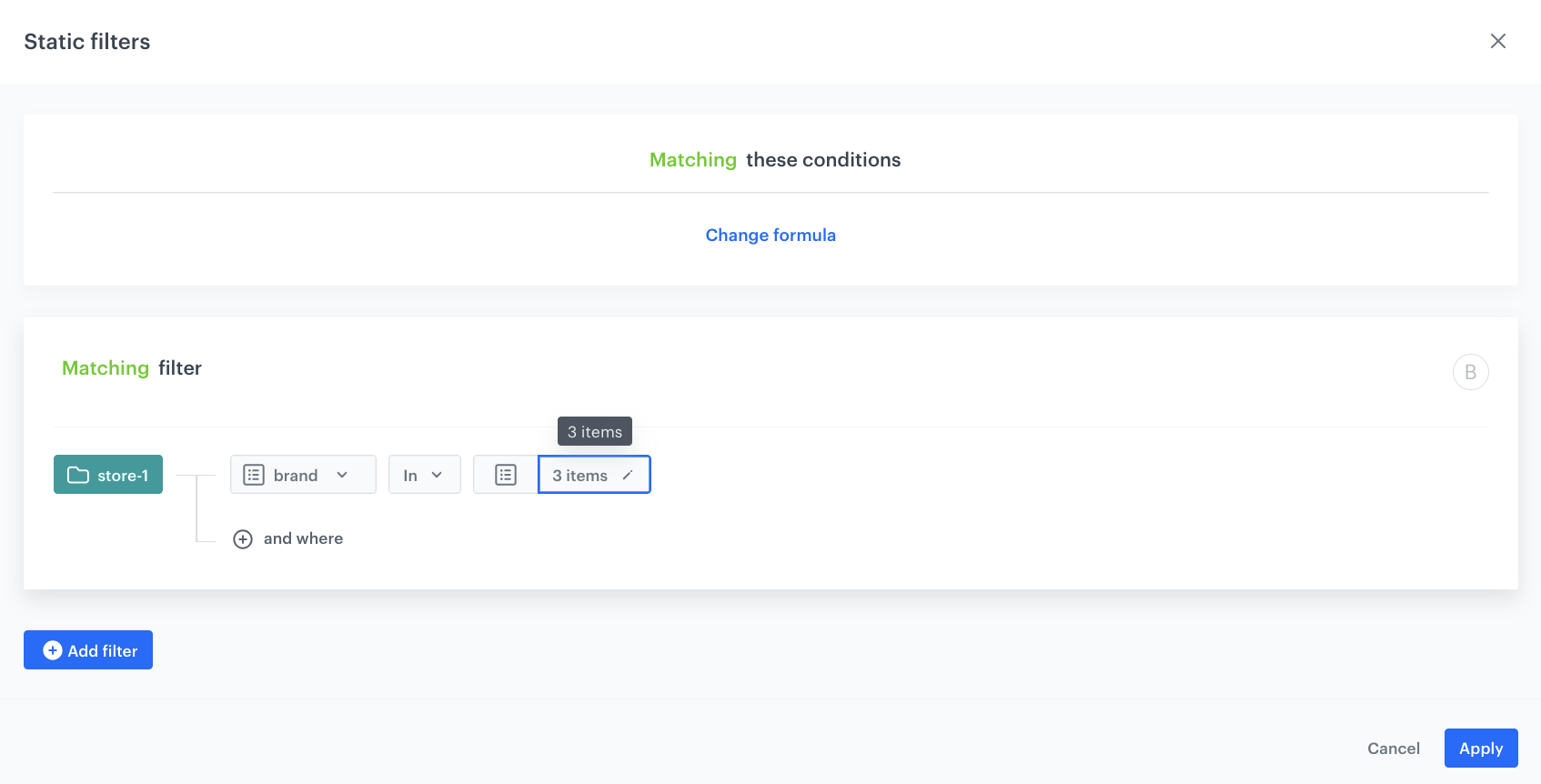
3. Click **Define filter** in the [Static filter](/docs/ai-hub/recommendations-v2/creating-recommendation-campaign#static-filters) section, and from the dropdown list choose **Visual Builder**.
4. From the **Select attribute** dropdown list, choose **brand**.
5. From the **Operator** dropdown list, select **In**.
7. From the **Select value** dropdown list, select the specific brands you want to promote.
8. Click **Apply**.
**AI Hub > (AI Recommendations) Models > Add recommendation**.
2. Enter the name of the recommendation (it is only visible on the list of recommendations).
3. In the **Type & Items feed** section, click **Define**.
4. From the **Items feed** dropdown list, select a product feed.
5. Select the **Attribute** recommendation type.
6. Confirm the recommendation type by clicking **Apply**.
6. In the **Items** section, click **Define**.
10. Click **Add slot**.
11. Define the minimum and maximum number of products that will be recommended to the user. In this example, it's from 3 to 5.
12. From the **Items attribute** dropdown menu, choose the **brand** attribute.
3. Click **Define filter** in the [Static filter](/docs/ai-hub/recommendations-v2/creating-recommendation-campaign#static-filters) section, and from the dropdown list choose **Visual Builder**.
4. From the **Select attribute** dropdown list, choose **brand**.
5. From the **Operator** dropdown list, select **In**.
7. From the **Select value** dropdown list, select the specific brands you want to promote.
8. Click **Apply**.
 **Experience Hub > Landing Page > Create new**.
2. Enter the name of the campaign.
### Define content
---
1. In the **Content** section, click **Create message**.
2. From the list of template folders, select the **Predefined templates** folder.
**Result:** You are redirected to the list of predefined templates.
3. Select the **QR Code Scanner** template.
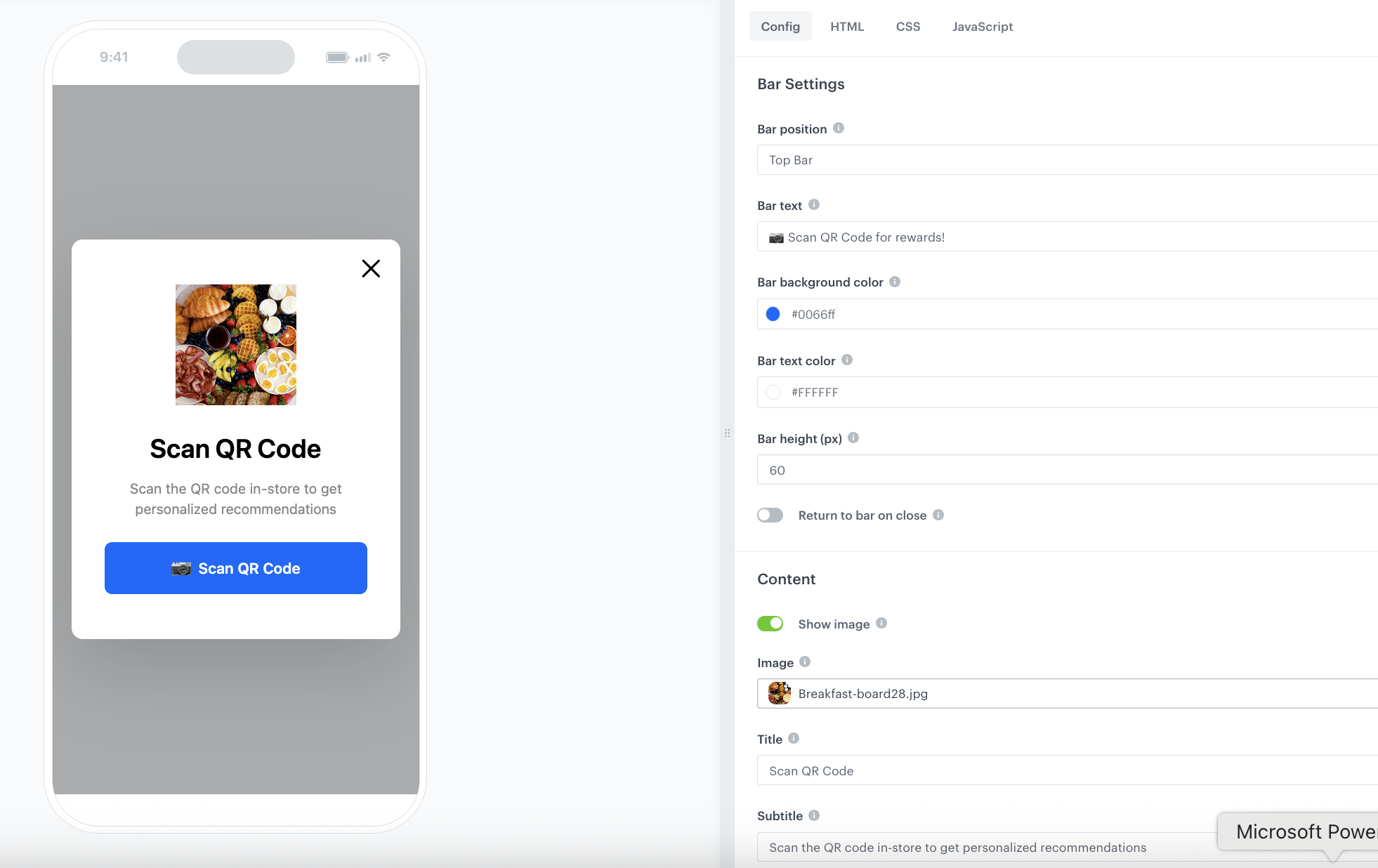
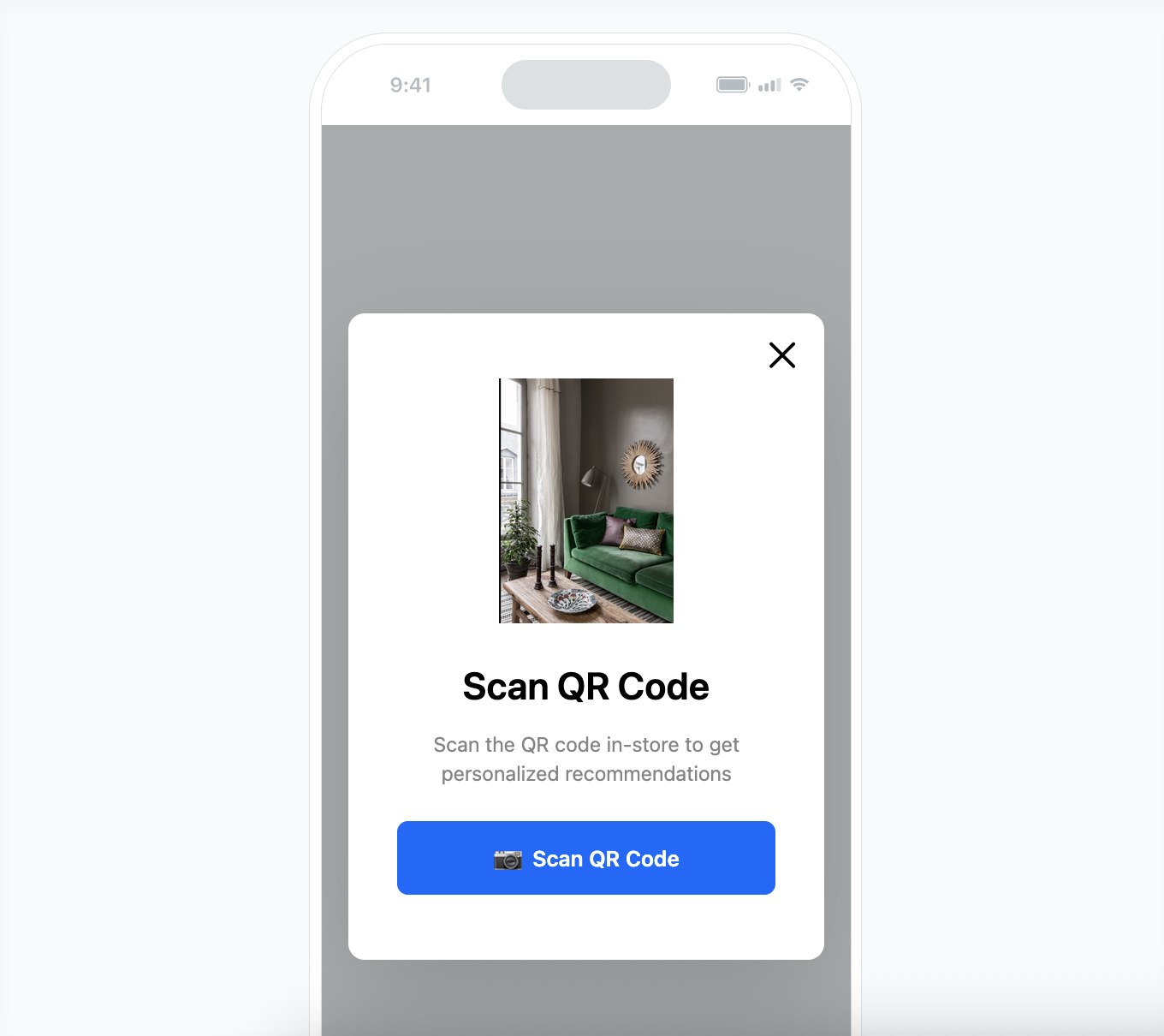
**Result:** You are redirected to the code editor. The form in the **Config** tab is pre-filled with default values, which you can modify to suit your business needs.
5. In the **Main Recommendation ID** field, enter the ID of recommendations you created as a part of [previous step](#create-ai-recommendations).
6. Modify **Buttons, Hero, Footer** and other sections, and appearance of your landing page, including fonts, colors, and backgrounds, to ensure it matches your branding.
7. After you make changes to the template, you can check the preview.
1. Click the **Preview Contexts** button on the upper left side.
2. Enter the ID of a customer.
3. Click **Apply**.
8. If the template is ready, click **Use in communication** in the upper right corner.
### Define schedule settings
---
1. In the **Schedule** section, click **Define**.
1. Select the timezone.
2. Select the time when the landing page will be active - in this case, choose the start and end date.
6. Click **Apply**
### Define the SEO settings
---
In this part of the process you may define technical details concerning search engine optimization and increase the chances of placing high in search results.
### Set up the URL
---
In this part of the process, you will define the URL to your landing page.
### Adjust optional settings
---
1. In the **HTTP headers** section, you can add custom HTTP headers to your landing page. In the **Key** and **Value** fields, enter a header and its value, respectively.
2. In the **Customize** section:
- you can add CSS and scripts to your landing page
- you can define the URLs to external sources or paste the snippets
- in the JS section under the **Advanced options** option, to enable additional tracking on your landing page, you can paste the [tracking code](/developers/web/installation-and-configuration#adding-the-tracking-code-to-your-site).
### Save your campaign
---
1. After you make changes to the campaign, you can check the preview. Click the **Preview** button on the upper right side.
2. When your landing page is ready you can **Save it as a draft** or directly click **Publish**.
3. Generate a QR code using any reliable online QR code generator. Use the link for the [landing page](#create-a-landing-page) created before.
## Create an in-app campaign
---
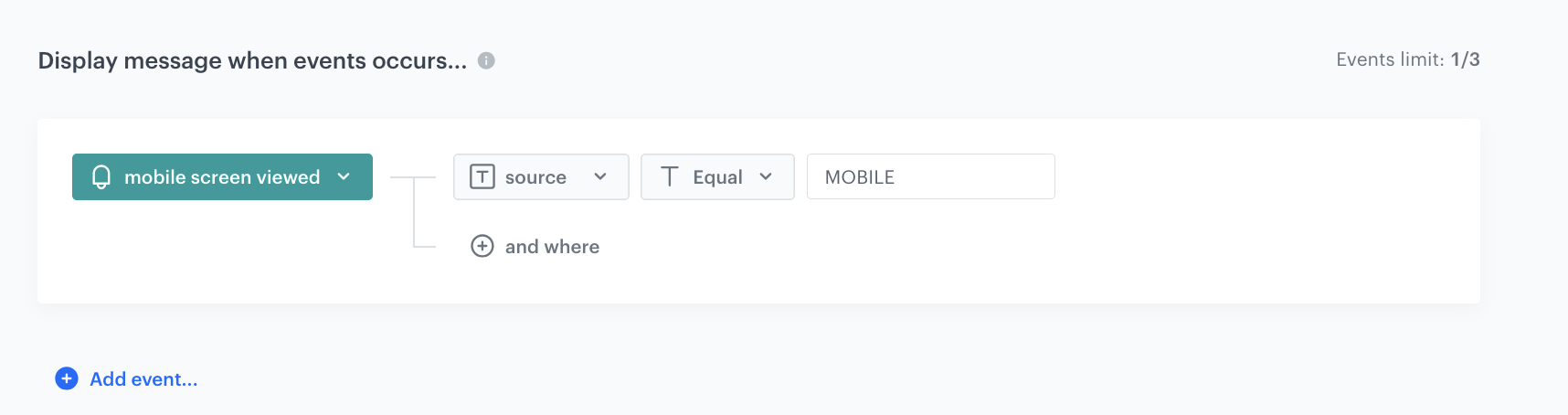
In this part of the process, you will create an in-app campaign, which uses the resize feature, meaning it is displayed continuously in the app as a top or bottom bar, allowing quick and seamless access to the QR code scanner without additional steps.
We will use a predefined template for the QR code scanner, so there is no need to create a template from scratch.
1. Go to **Experience Hub > In-app messages > Create new**
2. Enter a meaningful name for the in-app campaign.
### Define the audience
---
1. In the **Audience** section, click **Define**.
2. Select the **Everyone** tab.
3. Click **Apply**.
### Define content
---
1. In the **Content** section click **Define**.
2. Click **Create message** and from the list of template folders, select **Predefined templates**.
3. Select **QR code scanner**.
**Result:** You are redirected to the code editor.
**Experience Hub > Landing Page > Create new**.
2. Enter the name of the campaign.
### Define content
---
1. In the **Content** section, click **Create message**.
2. From the list of template folders, select the **Predefined templates** folder.
**Result:** You are redirected to the list of predefined templates.
3. Select the **QR Code Scanner** template.
**Result:** You are redirected to the code editor. The form in the **Config** tab is pre-filled with default values, which you can modify to suit your business needs.
5. In the **Main Recommendation ID** field, enter the ID of recommendations you created as a part of [previous step](#create-ai-recommendations).
6. Modify **Buttons, Hero, Footer** and other sections, and appearance of your landing page, including fonts, colors, and backgrounds, to ensure it matches your branding.
7. After you make changes to the template, you can check the preview.
1. Click the **Preview Contexts** button on the upper left side.
2. Enter the ID of a customer.
3. Click **Apply**.
8. If the template is ready, click **Use in communication** in the upper right corner.
### Define schedule settings
---
1. In the **Schedule** section, click **Define**.
1. Select the timezone.
2. Select the time when the landing page will be active - in this case, choose the start and end date.
6. Click **Apply**
### Define the SEO settings
---
In this part of the process you may define technical details concerning search engine optimization and increase the chances of placing high in search results.
### Set up the URL
---
In this part of the process, you will define the URL to your landing page.
### Adjust optional settings
---
1. In the **HTTP headers** section, you can add custom HTTP headers to your landing page. In the **Key** and **Value** fields, enter a header and its value, respectively.
2. In the **Customize** section:
- you can add CSS and scripts to your landing page
- you can define the URLs to external sources or paste the snippets
- in the JS section under the **Advanced options** option, to enable additional tracking on your landing page, you can paste the [tracking code](/developers/web/installation-and-configuration#adding-the-tracking-code-to-your-site).
### Save your campaign
---
1. After you make changes to the campaign, you can check the preview. Click the **Preview** button on the upper right side.
2. When your landing page is ready you can **Save it as a draft** or directly click **Publish**.
3. Generate a QR code using any reliable online QR code generator. Use the link for the [landing page](#create-a-landing-page) created before.
## Create an in-app campaign
---
In this part of the process, you will create an in-app campaign, which uses the resize feature, meaning it is displayed continuously in the app as a top or bottom bar, allowing quick and seamless access to the QR code scanner without additional steps.
We will use a predefined template for the QR code scanner, so there is no need to create a template from scratch.
1. Go to **Experience Hub > In-app messages > Create new**
2. Enter a meaningful name for the in-app campaign.
### Define the audience
---
1. In the **Audience** section, click **Define**.
2. Select the **Everyone** tab.
3. Click **Apply**.
### Define content
---
1. In the **Content** section click **Define**.
2. Click **Create message** and from the list of template folders, select **Predefined templates**.
3. Select **QR code scanner**.
**Result:** You are redirected to the code editor.