Understanding user preferences from the start is essential for creating a personalized app experience. A well-timed in-app survey after a user's first visit can capture valuable insights into their interests, expectations, and reasons for downloading the app. This direct engagement helps businesses tailor their offerings, improve user satisfaction, and foster long-term engagement.
In this specific use case, we plan to introduce a first-time user survey triggered after the app's introductory tour.
This use case provides instructions on how to implement a ready-made survey template designed to gather key user insights and enhance the overall experience.
## Prerequisites
---
- [Implement Synerise SDK in your mobile app](/developers/mobile-sdk).
- Implement a dedicated custom event that is sent to the customer's profile when they first enter the mobile app. This event should be sent only one time, during the first visit to the mobile application. In this use case, we use the `app.firstVisit` event.
## Create an in-app message
---
Create an in-app campaign triggered by the `app.firstVisit` event for customers who logged into the mobile application for the first time. We will use a predefined template for this message, so there is no need to create a template from scratch.
1. Go to **Experience Hub > In-app messages> Create in-app**.
2. Enter the name of the in-app.
### Define the audience
---
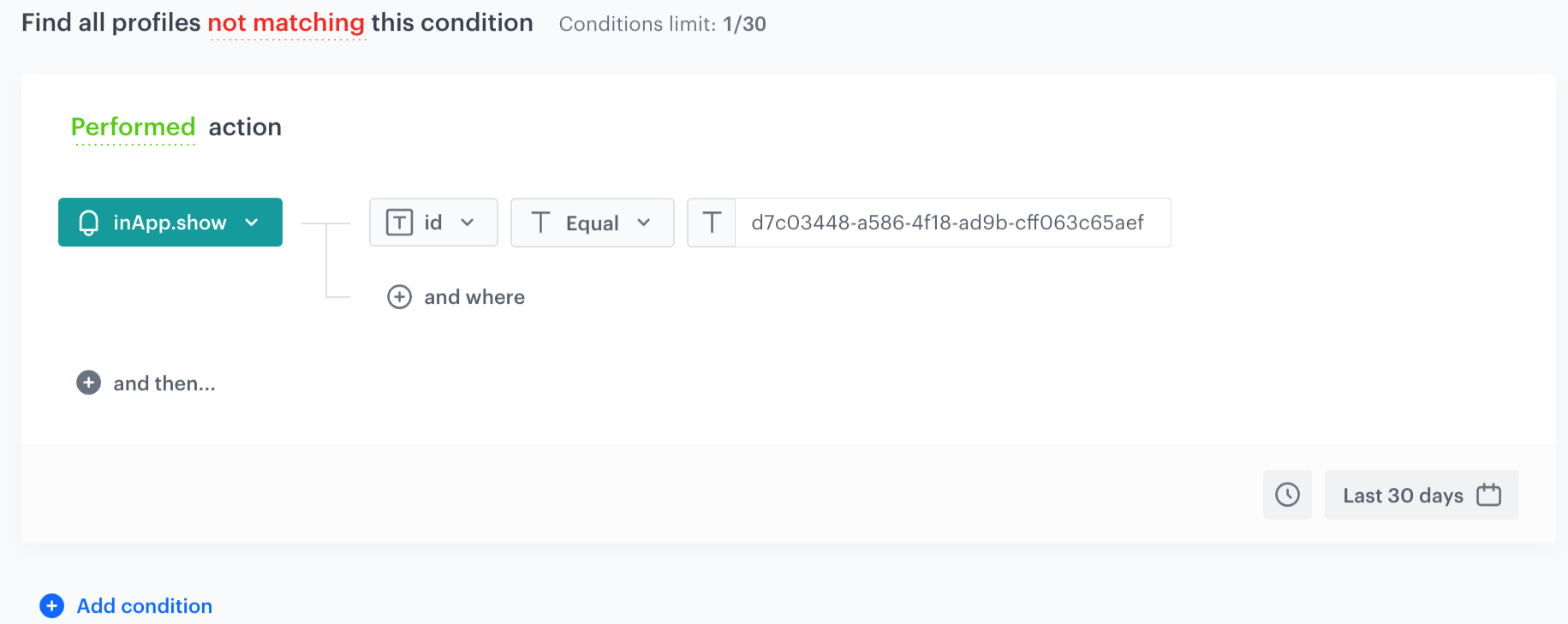
As the first step, define the target group of customers for the in-app message. In this use case, segmentation based on the [`inApp.show` event](/docs/assets/events/event-reference/inapp#inappshow) acts as an additional security measure that helps to include only people who have never seen this in-app message before.
The accuracy of this segmentation depends on the retention set for the **inApp.show** event.
1. In the **Audience** section, click **Define**.
2. Click **New Audience** and then **Define conditions**.
3. Click **Add condition**, from the dropdown list, select the **inApp.show** event.
4. Next to the **inApp.show**, click **+where**.
5. From the dropdown list, select **id**.
6. As the operator, choose **Equal**.
7. Enter the In-app campaign ID in the text field. You can locate the ID in the campaign's URL link.
For instance, in the URL https://app.synerise.com/communications/in-app/d7c03448-a586-4f18-ad9b-cff063c65aef the ID is `d7c03448-a586-4f18-ad9b-cff063c65aef`.
8. Change **matching** condition to **not matching** to find all profiles that don't meet the defined condition.
9. Use the time filter to define analysed time period.
10. Click **Apply**.
11. To save the audience, click **Apply**.
Audience configuration
### Define content
---
In the next step, you will create the content of the in-app message that will appear in the mobile application with the help of ready-made template.
1. In the **Content** section, click **Define**.
2. Click **Create message** and from the list of template folders, select **Predefined templates**.
3. Select the **Survey form** template.
**Result:** You are redirected to the code editor.
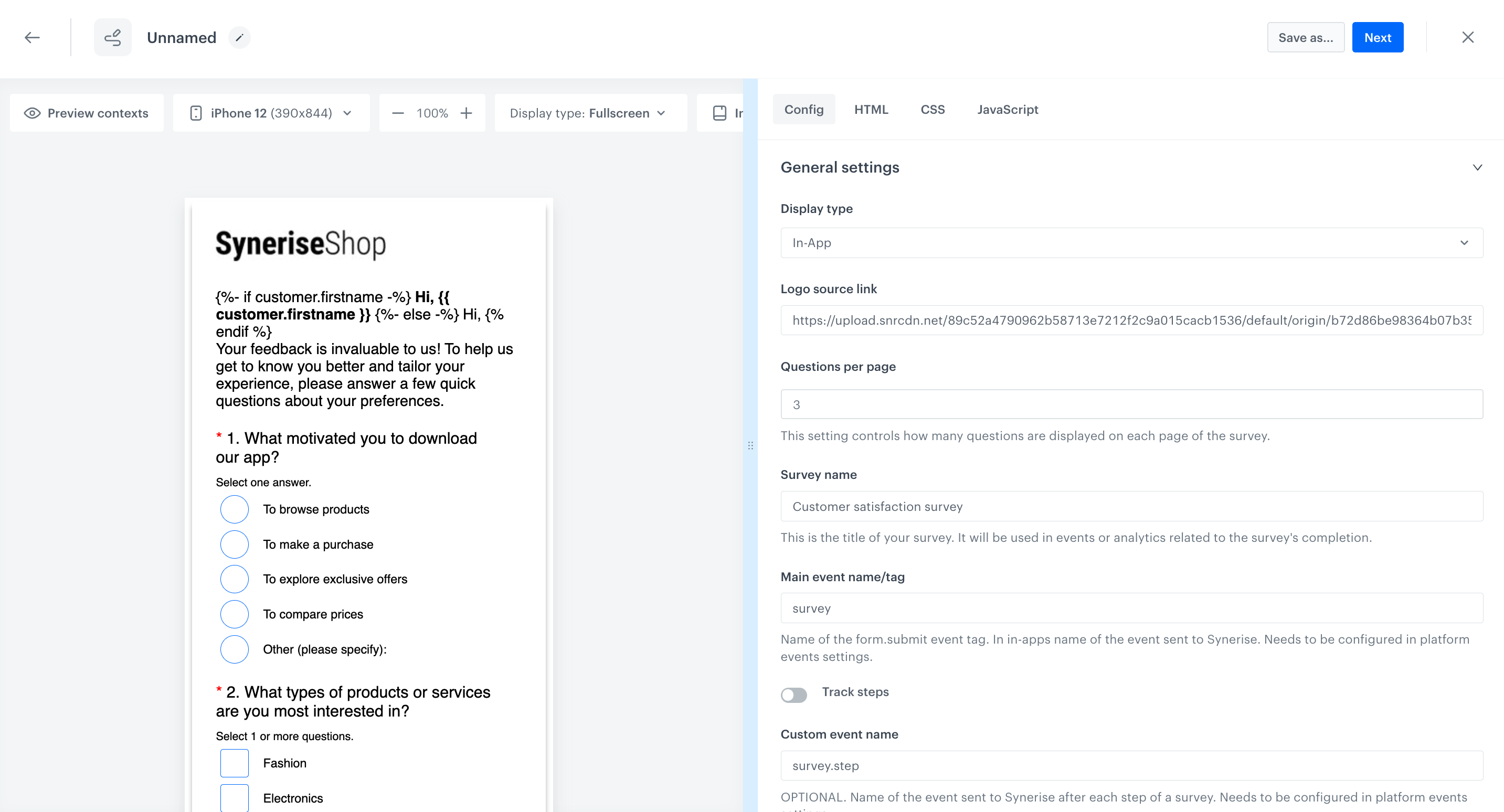
4. Edit the template according to your needs. In the Configuration panel, you'll find a comprehensive list with descriptions of the core components that make up your survey.
Config panel
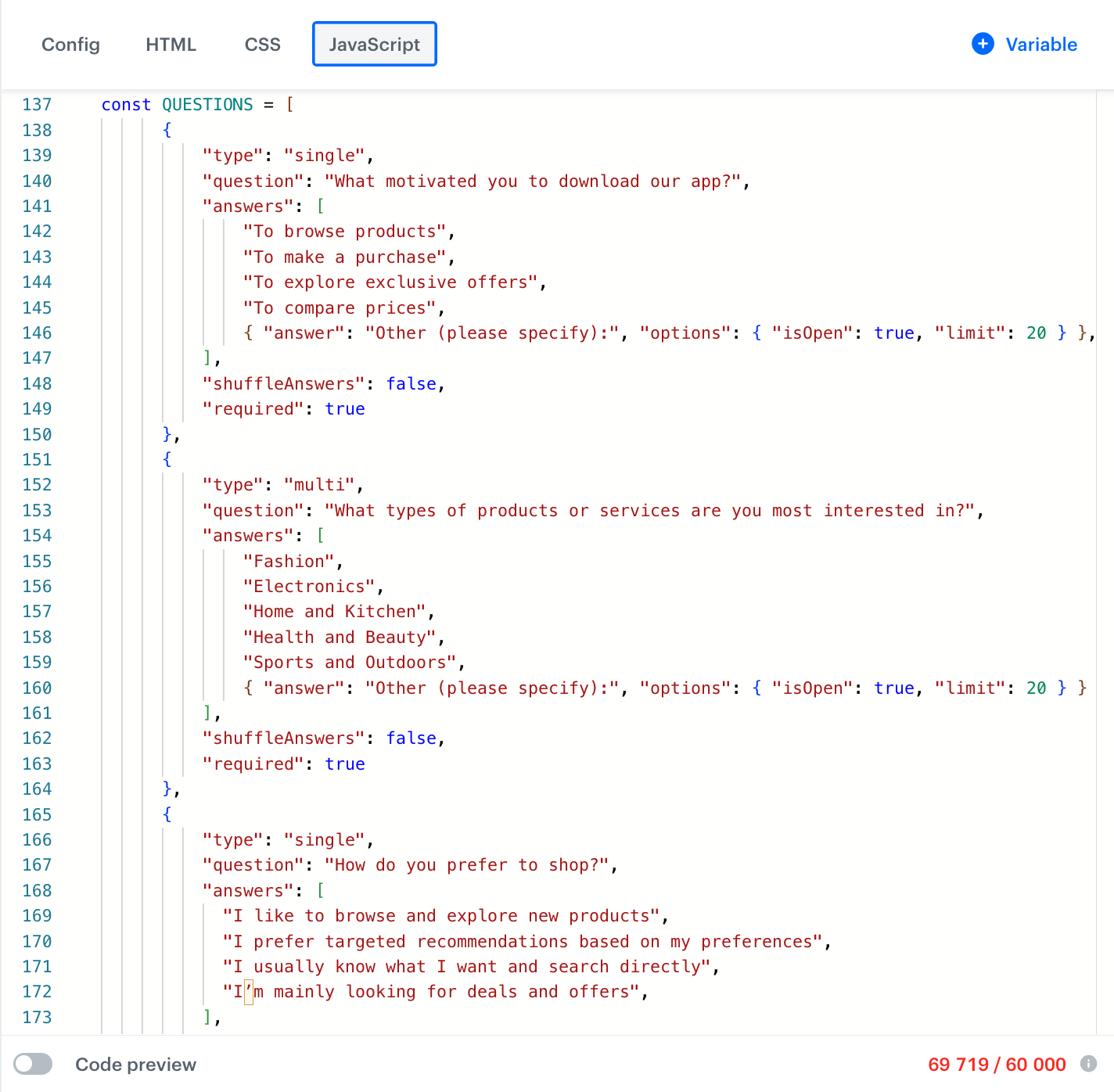
The configuration of the questions and answers themselves happens in JavaScript panel.
There is an object that you have to fill, according to the example given. It is an array of questions, where each question has its answers and settings depending on the type.
Javascript object with questions and answers
**Example:** You want to add/edit question
To add an additional question to the **QUESTIONS** array, you'll want to follow the pattern established by the existing questions. Each question is an object that may contain different properties depending on its type (single, multi, scale, text). Here's a step-by-step guide on how to do it:
Decide on the question you want to add and the type of question it will be. The type determines what properties the question object should have. For instance:
- `single` and `multi` types need question, `answers`, and `type`.
- `scale` needs `question`, `type`, and `length`.
- `text` needs `question`, `type`, and optionally `limit` for the character limit.
Construct the question object according to the type you've chosen.
Add the new question object to the `QUESTIONS` array.
Here's an example of how you can add a new question that asks about a favorite color (a single type question with predefined answers):
const QUESTIONS = [
              {
                  "type": "single",
                  "question": "What motivated you to download our app?",
                  "answers": [
                      "To browse products",
                      "To make a purchase",
                      "To explore exclusive offers",
                      "To compare prices",
                      { "answer": "Other (please specify):", "options": { "isOpen": true, "limit": 20 } },
                  ],
                  "shuffleAnswers": false,
                  "required": true
              },
              {
                  "type": "multi",
                  "question": "What types of products or services are you most interested in?",
                  "answers": [
                      "Fashion",
                      "Electronics",
                      "Home and Kitchen",
                      "Health and Beauty",
                      "Sports and Outdoors",
                      { "answer": "Other (please specify):", "options": { "isOpen": true, "limit": 20 } }
                  ],
                  "shuffleAnswers": false,
                  "required": true
              },
              {
                  "type": "single",
                  "question": "How do you prefer to shop?",
                  "answers": [
                  "I like to browse and explore new products",
                  "I prefer targeted recommendations based on my preferences",
                  "I usually know what I want and search directly",
                  "I’m mainly looking for deals and offers",
                  ],
                  "shuffleAnswers": false,
                  "required": true
              },
              {
                  "type": "multi",
                  "question": "What factors influence your purchasing decisions the most?",
                  "answers": [
                  "Product quality",
                  "Price",
                  "Brand reputation",
                  "Customer reviews",
                  "Sustainability",
                  { "answer": "Other (please specify):", "options": { "isOpen": true, "limit": 20 } }
                  ],
                  "shuffleAnswers": false,
                  "required": true
              },
              {
                  "type": "scale",
                  "question": "How likely would you recommend our company to your friends and known ones?",
                  "length": 10,
                  "required": true,
              },
          ];
5. After customising your survey, save the template.
### Select events that trigger the in-app message display
---
In this part of the process, you will define the event triggering the display of the in-app message.
1. In the **Trigger events** section, click **Define**.
2. Select **Add event...** and from the dropdown list, choose `app.firstVisit` event.
3. Click the **+ where** button and select `source`.
4. As the logical operator, select **Equal**.
5. In the text field enter **MOBILE_APP**.
5. Click **Apply**.
### Schedule the message and configure display settings
---
As the final part of the process, you will set the display settings of the in-app message such as schedule, capping, priority of the message among other in-app messages.
1. In the **Schedule** section, click **Define** and set the time when the message will be active.
2. In the **Display Settings** section, click **Define**.
1. Define the **Delay display**, **Priority index**, **Frequency limit** and/or **Capping limit**.
2. In our case, we want to display the message once per user. To do this, switch on **Capping limit**, and in the **Show maximum** section text field type `1`.
4. Click **Apply**.
5. Optionally, you can define the UTM parameters, additional parameters or test your in-app campaign.
6. Click **Activate**.
## Check the use case set up on the Synerise Demo workspace
---
You can check the [in-app message](https://app.synerise.com/communications/in-app/6d39ca33-542c-4c18-950c-0620ca5c486e) configuration directly in Synerise Demo workspace.
If you’re our partner or client, you already have automatic access to the **Synerise Demo workspace (1590)**, where you can explore all the configured elements of this use case and copy them to your workspace.
If you’re not a partner or client yet, we encourage you to fill out the contact [form](https://demo.synerise.com/request) to schedule a meeting with our representatives. They’ll be happy to show you how our demo works and discuss how you can apply this use case in your business.
## Read more
---
- [In-app messages](/docs/campaign/in-app-messages)
- [Mobile campaigns](/docs/campaign/Mobile)
- [Using in-app template builder](/docs/campaign/in-app-messages/creating-inapp-templates/creating-inapp-template)
 **Experience Hub > In-app messages> Create in-app**.
2. Enter the name of the in-app.
### Define the audience
---
As the first step, define the target group of customers for the in-app message. In this use case, segmentation based on the [`inApp.show` event](/docs/assets/events/event-reference/inapp#inappshow) acts as an additional security measure that helps to include only people who have never seen this in-app message before.
**Experience Hub > In-app messages> Create in-app**.
2. Enter the name of the in-app.
### Define the audience
---
As the first step, define the target group of customers for the in-app message. In this use case, segmentation based on the [`inApp.show` event](/docs/assets/events/event-reference/inapp#inappshow) acts as an additional security measure that helps to include only people who have never seen this in-app message before.