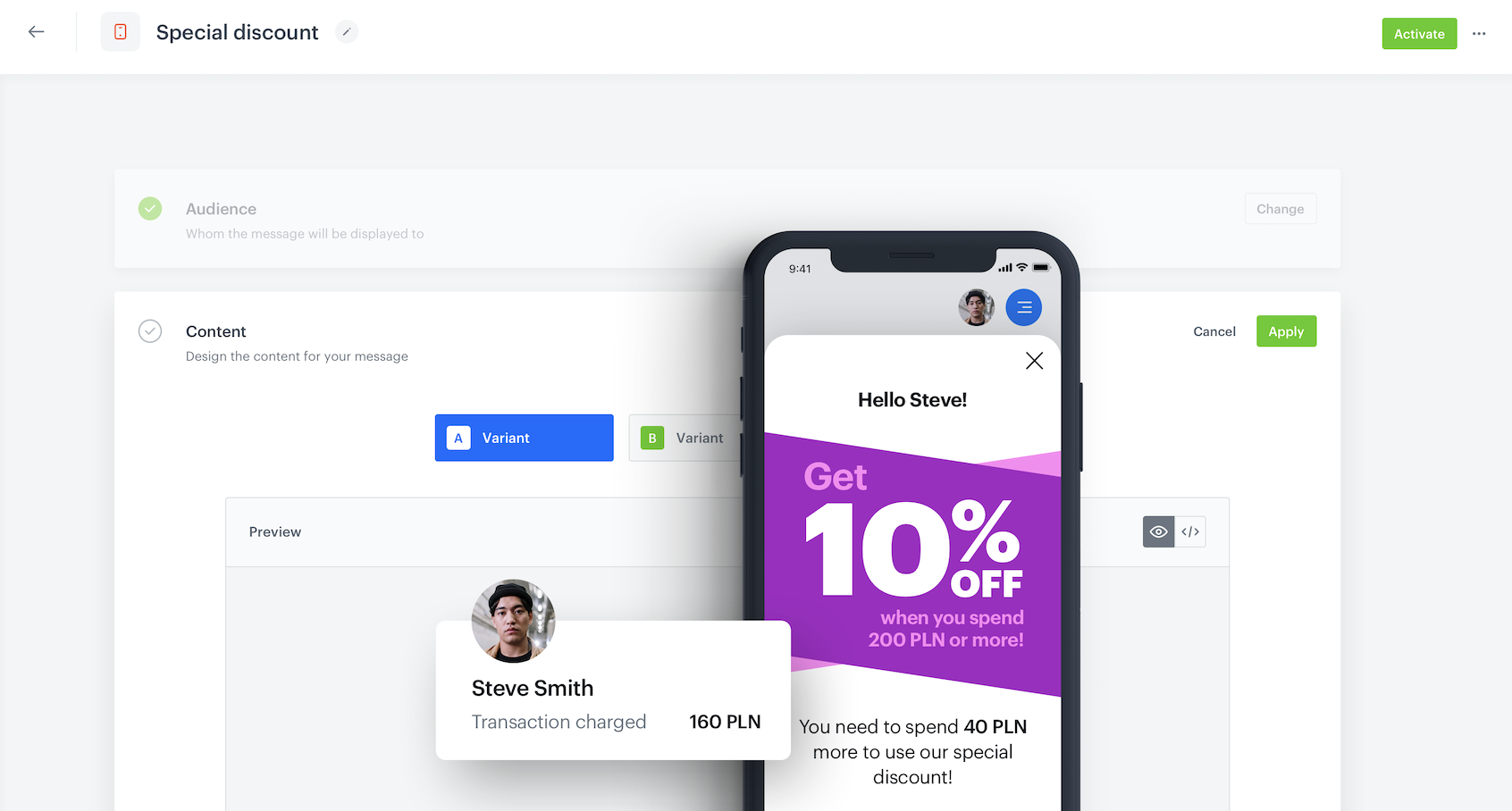
Personalized in-app campaigns within a mobile application can improve your customers' experience and help you increase your revenue from mobile shopping. 
Targeted in-app marketing campaigns are most effective when they’re personalized based on each individual’s in-app behavior and provide a better customer experience than campaigns developed for a general audience. 

Using [inserts](/developers/inserts/insert-usage) in your in-app campaigns, you can refer to analyses results, customer's attributes, prediction results, and so on created in the platform. It can be used in the content of various campaigns such as discount threshold campaign, which offers a discount to customers when the total value of a cart reaches a specified amount. 

In this use case, you will create an in-app campaign displayed in your mobile app. In the content of the message, you will inform the mobile app user about the amount of money they still have to spend to be able to use the discount. The campaign will be triggered when a product is added to a cart. This way you will encourage app users to spend more money and increase the value of the basket in the mobile application. Additional benefit of this campaign is a promotion support as every customer who adds the first product to the basket is informed about this campaign.

The promotion used as an example in this use case is a 10% discount triggered when the cart value reaches 200 PLN.


<div class="admonition admonition-tip"><div class="admonition-icon"><svg xmlns="http://www.w3.org/2000/svg" fill="none" viewBox="0 0 24 24" stroke="currentColor" stroke-width="2.5"><path stroke-linecap="round" stroke-linejoin="round" d="M9.663 17h4.673M12 3v1m6.364 1.636l-.707.707M21 12h-1M4 12H3m3.343-5.657l-.707-.707m2.828 9.9a5 5 0 117.072 0l-.548.547A3.374 3.374 0 0014 18.469V19a2 2 0 11-4 0v-.531c0-.895-.356-1.754-.988-2.386l-.548-.547z" /></svg></div><div class="admonition-body"><div class="admonition-content">

This use case contains ready-to-use code snippets. You can use them in your campaign as-is.

</div></div></div>
 

<figure>
<img src="/api/docs/image/54176ad07f146575310749eba44b7c2f42c1b327/use-cases/all-cases/_gfx/inapp-discount.png" alt="Screenshot presenting in-app with discount" class="full no-frame">
</figure>

## Prerequisites 
---
- [Implementation of Synerise SDK in your mobile app](/developers/mobile-sdk).
- Implementation of the [transaction events](/developers/web/transactions-sdk) using [SDK](/developers/web/transactions-sdk) or [API](https://developers.synerise.com/DataManagement/DataManagement.html#operation/CreateATransaction).
- [Implementation of the `cart.status` event](/developers/web/cart), which stores the current status of the basket in the form of an event on the customer's card. Event has to be sent to Synerise, after every change in the cart status.
- Collect [product.addToCart event](https://developers.synerise.com/DataManagement/DataManagement.html#operation/ClientAddedProductToCart).
- Implement a [promotion](/docs/ai-hub/promotions) which gives a discount after the customer reaches the discount threashold. In our case we assume a 10% discount for 200 PLN (or more) basket value. 

## Process
---

In this use case, you will go through the following steps:
1. [Create an aggregate](/use-cases/in-app-with-discount-threshold#create-an-aggregate) which shows the last cart status with the information about the total value of the cart.
2. [Create an expression](/use-cases/in-app-with-discount-threshold#create-an-expression) which returns information on how much money the customer has to spent to reach the discount threshold.
2. [Create an in-app message](/use-cases/in-app-with-discount-threshold#create-an-in-app-message) triggered by the `product.addToCart` event with information about the amount of money the customer still needs to spend to get the discount.

## Create an aggregate
---
In this part of the process, create an aggregate, which returns the last cart status with the information about the current value of the customer's cart. This aggregate will be used later in an expression that counts the remaining amount of money that must be spent to get the discount.

1. Go to <img src="/api/docs/image/54176ad07f146575310749eba44b7c2f42c1b327/icons/behavioral-data-hub-icon.svg" alt="Behavioral Data Hub icon" class="icon"> **Behavioral Data Hub > Live Aggregates > Create aggregate**.
2. As the aggregate type, select **Profile**.  
2. Enter the name of the aggregate.  
3. Set **Analyze profiles by** to **Last**.  
4. From the **Choose event** dropdown list, select the `cart.Status` event. 
5. As an event parameter, select `totalAmount`.
6. Set the date range to **Lifetime**.
6. Save your aggregate.

<figure>
<img src="/api/docs/image/54176ad07f146575310749eba44b7c2f42c1b327/use-cases/all-cases/_gfx/inapp-discount1.png" alt="Aggregate settings"  class="WYBIERZ ROZMIAR:full">
<figcaption>Aggregate settings </figcaption>
</figure> 

## Create an expression
---

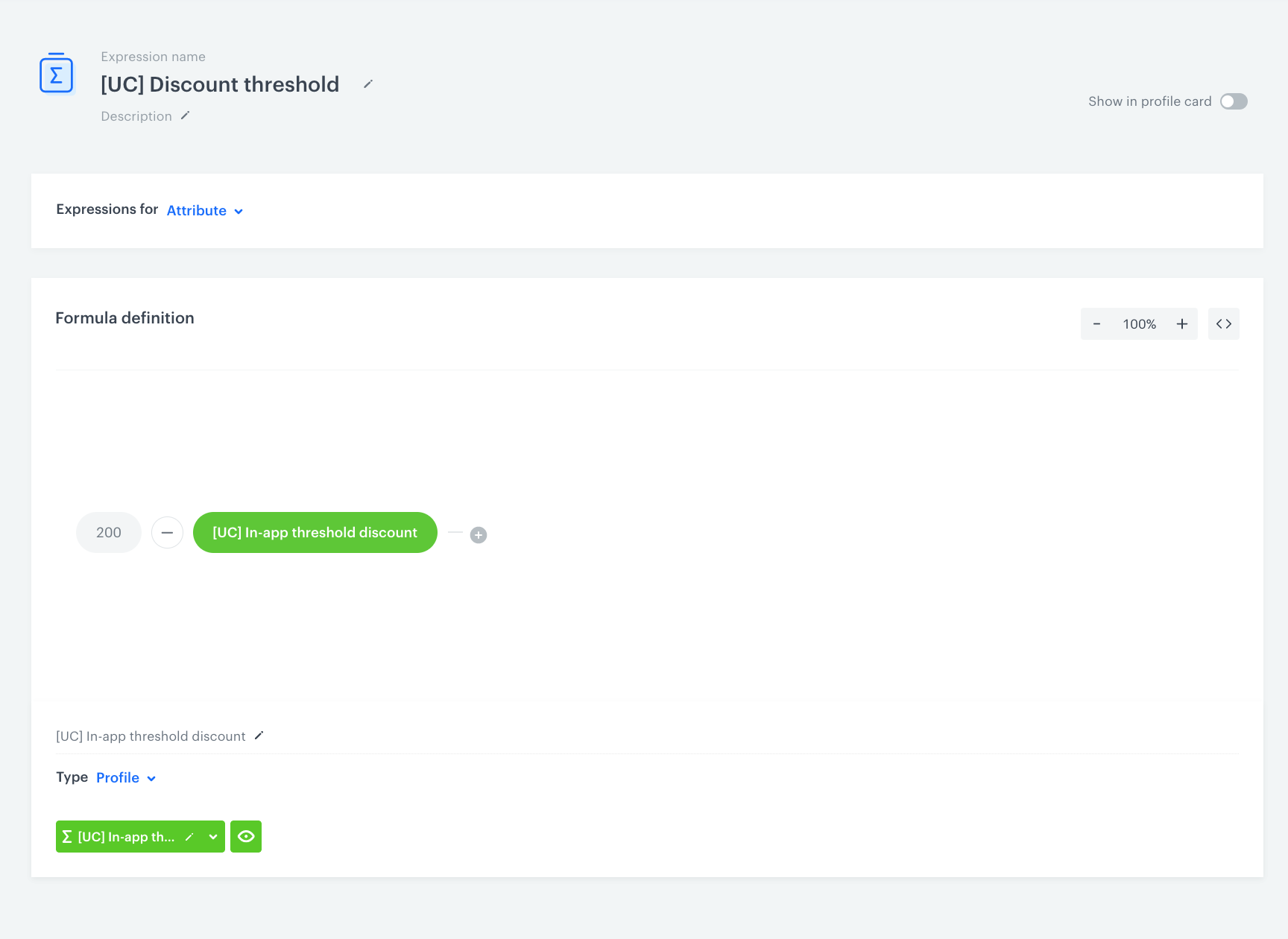
In this step, you will create an expression which returns the difference between the current basket value and the discount threshold (in our case 200 PLN or more). If the basket value exceeds the discount threshold, the result of the expression is a negative number (for example, -40, which means that the customer exceeded the threshold by 40). If not, the result of the expression is higher than 0 and it means that the customer hasn't reached the threshold yet.

1. Go to <img src="/api/docs/image/54176ad07f146575310749eba44b7c2f42c1b327/icons/behavioral-data-hub-icon.svg" alt="Behavioral Data Hub icon" class="icon"> **Behavioral Data Hub > Expressions > New expression**. 
2. Enter the name of the expression. 
2. As a type of expression, select **Attribute**.
3. In the **Formula definition** section, click **Select**.
4. From the list that opens, select **Constant** and set its value to the discount threshold value.
5. Click + button and from the dropdown list select **Profile**.
6. Click the **unnamed** node that appeared.
8. At the bottom of the page, click **Choose attribute**.
9. On the list of attributes, choose **Aggregates**, find and select the [aggregate](/use-cases/in-app-with-discount-threshold#create-an-aggregate) you have prepared in the previous part of the process.
10. Click the + button and change it to `-`.
11. In the upper-right corner, click **Save**.
12. In the upper-right corner, click **Publish**.
<figure>
    <img src="/api/docs/image/54176ad07f146575310749eba44b7c2f42c1b327/use-cases/all-cases/_gfx/inapp-discount0.png" alt="Expression settings"  class="WYBIERZ ROZMIAR:full">
    <figcaption>Expression settings</figcaption>
    </figure>

## Create an in-app message
---

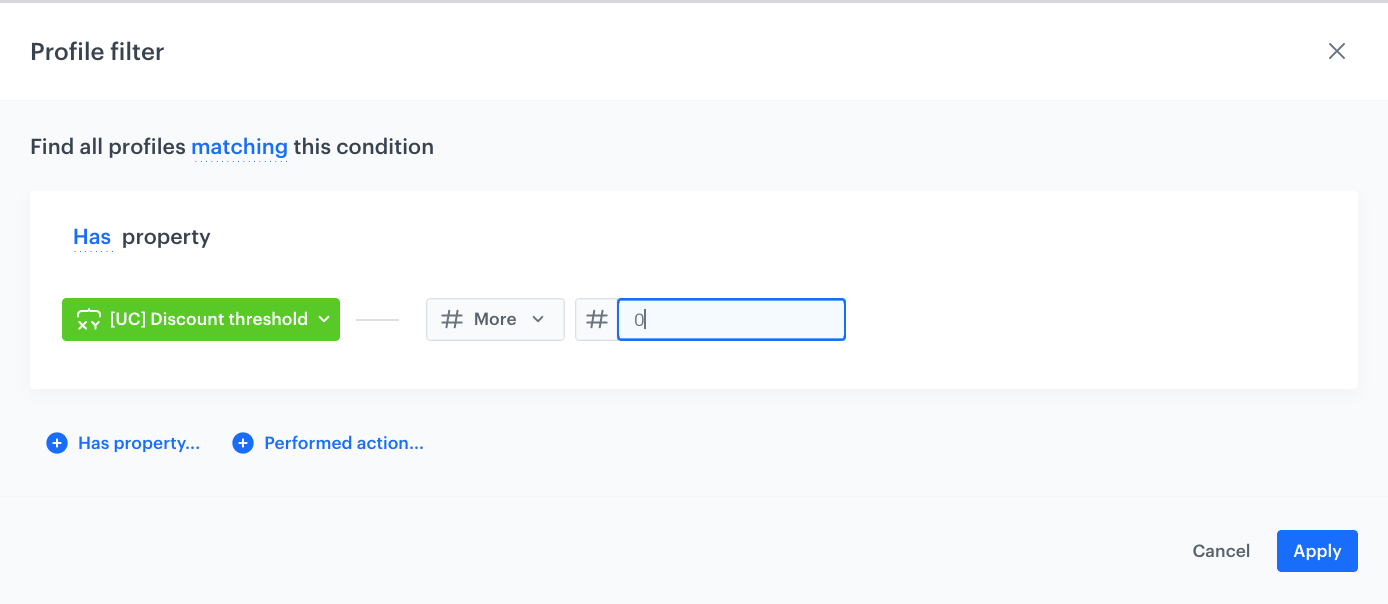
In this part of the process, you create an in-app campaign triggered by the `product.addToCart` event. The message contains information about the amount of money the customer needs to spend to get the discount. The audience of this campaign are the customers for whom the [expression](/use-cases/in-app-with-discount-threshold#create-an-expression) result is higher than 0. 
The capping for the in-app campaign is set to 1 time a week.

1. Go to <img src="/api/docs/image/54176ad07f146575310749eba44b7c2f42c1b327/icons/experience-hub-icon.svg" alt="Experience Hub menu icon" class="icon"> **Experience Hub > In-app messages > Create in-app**
2. Enter a meaningful name for the in-app campaign.

1. In the **Audience** section:
    1. Click **Define**.
    2. Select the **New audience** tab.
    3. Select **Define conditions**.
    4. Choose **Add condition** and find the [expression](/use-cases/in-app-with-discount-threshold#create-an-expression) created in the previous part of the process. 
    5. As an operator, choose **More** and set the value to `0`. This way, the message will be displayed to the customers who haven't reached the threshold yet.
    3. Click **Apply**.
    <figure>
    <img src="/api/docs/image/54176ad07f146575310749eba44b7c2f42c1b327/use-cases/all-cases/_gfx/inapp-discount3.png" alt="Audience settings"  class="WYBIERZ ROZMIAR:full">
    <figcaption>Audience settings</figcaption>
    </figure> 

1. In the **Content** section:
    1. Click **Define**.
    2. Click **Create message** and select **Code Editor**
    2. Create the content of your in-app campaign. You can reuse the code snippets presented below in your in-app template. The code snippet includes the [expression](/use-cases/in-app-with-discount-threshold#create-an-aggregate) that returns the amount of money customer has to spend to be given a discount.  

    
       <details class="accordion"><summary>Check the HTML code</summary><div class="accordion-content"><pre><code class="language-html">&lt;div class="in-app-wrapper"&gt; &lt;div class="in-app-wrapper-inner"&gt; &lt;div class="in-app__upper"&gt; &lt;div class="in-app-close"&gt;&lt;/div&gt; &lt;p class="in-app-title"&gt; Hello {% customer firstname %}&lt;/p&gt; &lt;/div&gt; &lt;div class="in-app__middle"&gt; &lt;div class="in-app__content"&gt;&lt;h1&gt;Get&lt;/h1&gt; &lt;div class="in-app__flexbox"&gt; &lt;div class="in-app__number"&gt;10&lt;/div&gt; &lt;div class="in-app__off"&gt;% &lt;br&gt; OFF&lt;/div&gt; &lt;/div&gt; &lt;p&gt;When you spend &lt;br&gt; 200 PLN or more! &lt;/p&gt; &lt;/div&gt; &lt;/div&gt; &lt;div class="in-app__lower"&gt; &lt;p class="in-app__lower--text"&gt;You need to spend &lt;span class="in-app__lower--span"&gt;{% expression %} d3b58957-febf-4374-b96e-85f1f3e462a0 {% endexpression %} PLN&lt;/span&gt;&lt;br&gt; more to use our special&lt;br&gt;discount!&lt;/p&gt; &lt;button&gt;Close&lt;/button&gt; &lt;/div&gt; &lt;/div&gt; &lt;/div&gt;</code></pre></div></details>


<details class="accordion"><summary>Check the CSS code</summary><div class="accordion-content"><pre><code class="language-css">.in-app-wrapper * { font-family: sans-serif; } .in-app-wrapper { text-align: center; position: relative; background: #00000045; box-shadow: 0 30px 80px 0 rgba(35, 41, 54, 0.2); width: auto; height: 100vh; display: flex; flex-direction: column; flex-wrap: nowrap; align-content: center; justify-content: center; align-items: center; } .in-app-title { font-size: 21px; font-weight: bold; font-stretch: normal; font-style: normal; line-height: 1.5; letter-spacing: -0.67px; text-align: center; color: black; margin: 0; padding-top: 45px; } .in-app-close { position: absolute; z-index: 1; width: 50px; height: 50px; border: 0; top: 10px; right: 10px; cursor: pointer; background-color: transparent; } .in-app-close:after, .in-app-close:before { content: ''; position: absolute; height: 2px; width: 50%; top: 50%; left: 12px; margin-top: -1px; background: black; } .in-app-close:after { -webkit-transform: rotate(-45deg); -moz-transform: rotate(-45deg); -ms-transform: rotate(-45deg); -o-transform: rotate(-45deg); transform: rotate(-45deg); height: 2px; margin-top: -2px; } .in-app-close:before { -webkit-transform: rotate(45deg); -moz-transform: rotate(45deg); -ms-transform: rotate(45deg); -o-transform: rotate(45deg); transform: rotate(45deg); height: 2px; margin-top: -2px; } .in-app-wrapper-inner { background: #fff; border-radius: 6px; position: relative; border-radius: 20px; width: 100%; height:90%; top:5%; } .in-app-wrapper-inner button { margin-top: 25px; border-radius: 6px; background-color:#13171E; padding: 18px; color: #fff; border: 0; width: 100%; font-size: 18px; font-weight:bold; cursor: pointer; } .in-app__upper { height: 15%; } .in-app__middle &gt; div &gt; h1 { font-size:40px; margin:0; padding:0; color:#E0E1E4; opacity: 0.9; text-align:left; position:relative; top:20px; } .in-app__content{ width:160px; margin:0 auto; margin-top:40px; } .in-app__middle { height: 50%; overflow:hidden; background-image:url(https://upload.snrcdn.net/89c52a4790962b58713e7212f2c9a015cacb1536/default/origin/5f084662f612418c91f6badfa9f8368b.png); color:white; background-position: center; background-repeat:no-repeat; } .in-app__middle &gt; div &gt; p { position:relative; left:10%; color:#E0E1E4; opacity: 0.9; margin:0; text-align:right; } .in-app__lower { height:20%; margin-left:30px; margin-right:30px; } .in-app__lower &gt; p{ margin:0; padding:0; } .in-app__upper--text { font-size: 20px; color: white; } .in-app__lower--text { font-size: 17px; color: black; padding-top:20px !important; } .in-app__flexbox{ display:flex; justify-content:center; flex-direction:row; } .in-app__number{ font-size: 76px; font-weight: 900; } .in-app__off{ font-size:40px; font-weight: 900; } .in-app__lower--span{ font-weight:bold; }</code></pre></div></details>


<details class="accordion"><summary>Check the JS code</summary><div class="accordion-content"><pre><code class="language-javascript">(function () { var closeButton = document.querySelector(".in-app-close"); closeButton.addEventListener("click", function () { SRInApp.close(); SRInApp.trackCustomEvent( "inapp.custom", { action: "close", }, "Custom event from In-App message" ); }); var ctaButton = document.querySelector('.in-app-wrapper-inner button'); ctaButton.addEventListener('click', function () { SRInApp.trackCustomEvent('inapp.custom', { 'action': 'call to action' }, 'Custom event from In-App message'); SRInApp.close(); }); var modalBackground = document.querySelector(".in-app-wrapper"); modalBackground.addEventListener("click", function (event) { if (event.target.getAttribute("class") == "in-app-wrapper") { SRInApp.close(); SRInApp.trackCustomEvent( "inapp.custom", { action: "click outside modal", }, "Custom event from In-App message" ); } }); })();</code></pre></div></details>

   
<div class="admonition admonition-important"><div class="admonition-icon"><svg xmlns="http://www.w3.org/2000/svg" fill="none" viewBox="0 0 24 24" stroke="currentColor" stroke-width="2.5"><path stroke-linecap="round" stroke-linejoin="round" d="M12 8v4m0 4h.01M21 12a9 9 0 11-18 0 9 9 0 0118 0z" /></svg></div><div class="admonition-body"><div class="admonition-content">

The CSS and JS codes snippets presented above let you create ready-to-use in app campaign presented in the example. In the HTML code snippet, replace the expression ID with the expression you created in your workspace.

</div></div></div>


1. In the **Trigger events** section:
    1. Click **Define**.
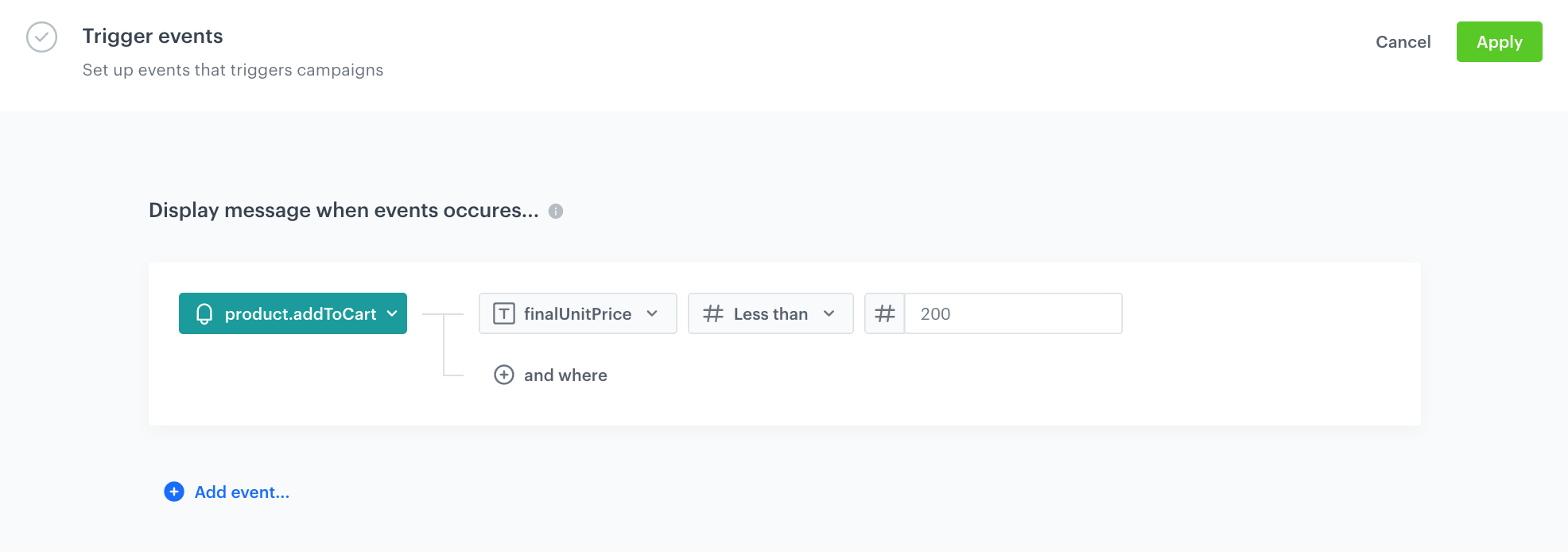
    2. Select **Add event** and from the dropdown list, choose the `product.addToCart` event.
    2. Click the **+ where** button and as the parameter, choose `finalUnitPrice`.
    3. As the logical operator, select **Less than** and set the value to the discount threshold value.
    4. Click **Apply**.

    <figure>
    <img src="/api/docs/image/54176ad07f146575310749eba44b7c2f42c1b327/use-cases/all-cases/_gfx/inapp-discount2.png" alt="Trigger event settings"  class="WYBIERZ ROZMIAR:full">
    <figcaption>Trigger event settings</figcaption>
    </figure> 

1. In the **Schedule** section:
    1. Click **Define**.
    2. Choose **Run immediately** option.
    3. Click **Apply**.

2. In the **Display settings** section:
    1. Click **Change**.
    2. Define the **Delay display** and **Priority index** option according to your business requirements. Enable the **Frequency limit** toggle to manage the frequency of in-app message display in the application, and set it to once per week.
    3. Click **Apply**.

    
   <div class="admonition admonition-note"><div class="admonition-icon"><svg xmlns="http://www.w3.org/2000/svg" fill="none" viewBox="0 0 24 24" stroke="currentColor" stroke-width="2.5"><path stroke-linecap="round" stroke-linejoin="round" d="M13 16h-1v-4h-1m1-4h.01M21 12a9 9 0 11-18 0 9 9 0 0118 0z" /></svg></div><div class="admonition-body"><div class="admonition-content">

   The mobile application can display one in-app message at a time. If the conditions allow the display of several in-apps at a time, the priority is a decisive factor for displaying the message. The messages with lower priority aren’t queued.

   </div></div></div>


1. Optionally, you can define the **UTM parameters**. Otherwise, click **Skip step**.
2. Optionally, you can add the custom parameters in the **Additional parameters** section. Otherwise, click **Skip step**.
3. To start your campaign, click **Activate**.

## Check the use case set up on the Synerise Demo workspace
---
You can check the [aggregate](https://app.synerise.com/analytics/aggregates/79712849-4a22-3ef4-8cec-fe36d5a6eb0f), [expression](https://app.synerise.com/analytics/expressions/d3b58957-febf-4374-b96e-85f1f3e462a0) and the final [in-app campaign configuration](https://app.synerise.com/communications/in-app/0a26a269-b22d-44a5-8034-3edf27037a42) directly in Synerise Demo workspace. 

If you’re our partner or client, you already have automatic access to the **Synerise Demo workspace (1590)**, where you can explore all the configured elements of this use case and copy them to your workspace.  

If you’re not a partner or client yet, we encourage you to fill out the contact [form](https://demo.synerise.com/request) to schedule a meeting with our representatives. They’ll be happy to show you how our demo works and discuss how you can apply this use case in your business. 

## Read more
---

- [Aggregates](/docs/analytics/aggregates)
- [In-app messages](/docs/campaign/in-app-messages)
- [Mobile campaigns](/docs/campaign/Mobile)
- [Promotion for entire basket](/use-cases/promotion-for-entire-basket#create-a-promotion)

