Personalized in-app promotions can significantly boost customer engagement by delivering relevant, AI-curated promotions exactly when customers are most likely to act on them. This approach allows brands to connect with their audience at the right moment, creating a sense of exclusivity and increasing the likelihood of redemption.

In this use case, personalized promotions are sent directly to a customer’s mobile application when a store visit trigger is detected. Using AI models based on past purchases and visit history, the system selects three tailored promotions for each user, ensuring high relevance and impact. Customers receive these personalized promotions immediately upon entering the store, making them timely and actionable.

The campaign is built on a predefined no-code template in Synerise. You only need to replace the template ID, and the in-app experience can automatically display the personalized promotions  to eligible users. This simplicity reduces setup time while still delivering a deeply personalized customer journey.

## Prerequisites  
--- 


- [Integrate Synerise promotions](/docs/ai-hub/promotions/introduction-to-promotions). 
- Implement promotions in your mobile application using Synerise [mobile SDK](/developers/mobile-sdk/loyalty) or [API](https://developers.synerise.com/LoyaltyandEngagement/LoyaltyandEngagement.html#operation/profileLogin).
- [Import your product feed to a catalog](/use-cases/import-product-feed-to-catalog).
- Apply [this method](https://developers.synerise.com/LoyaltyandEngagement/LoyaltyandEngagement.html#operation/getHandbillForClient_GET) to assign personalized promotions to a Profile. 
- [Create](/use-cases/landing-page-promotions) or [import](/use-cases/personalized-promotions#import-promotions) the list of promotions, based on your business needs. 

## Process 
--- 
In this use case, you will:

1. [Create a personalized promotions](#create-a-personalized-promotions) presenting 3 personalized promotions for each user.
2. [Create an in app campaign](#create-an-in-app-campaign) to display the personalized promotions in the application.

## Create a personalized promotions
---
In this part of the process, create a personalized promotion. The AI engine will select best offers from personalized promotions in check-in.

1. Go to <img src="/api/docs/image/54176ad07f146575310749eba44b7c2f42c1b327/icons/ai-hub-icon.svg" alt="AI Hub icon" class="icon" > **AI Hub > Personalized Promotions > New personalized promotion**.
    1. As the type, choose **Mobile**. 
    2. In **A/B Test settings**, click **Define**.
    3. Click <img src="/api/docs/image/54176ad07f146575310749eba44b7c2f42c1b327/icons/add-variant-icon.png" alt="Plus icon" class="icon">.
    4. Click **Advanced options**.  
    5. Select **AI Engine**.
    6. Confirm by clicking **Apply**. 
    7. In the **Filters and limits** section:  
        1. In the **Promotions in slot**, enter a number of personalized promotions to be used as candidates to display in a slot. In our case it will be 3.
        5. Confirm by clicking **Apply**.  
    8. In the **Activity** section:  
        1. Leave the **Lasting** option at default (**Relative**).
        2. Set the activity based on your business needs.  
        3. Confirm by clicking **Apply**. 
    9. Configure the **Engine settings** section according to your needs.  
    
   <div class="admonition admonition-note"><div class="admonition-icon"><svg xmlns="http://www.w3.org/2000/svg" fill="none" viewBox="0 0 24 24" stroke="currentColor" stroke-width="2.5"><path stroke-linecap="round" stroke-linejoin="round" d="M13 16h-1v-4h-1m1-4h.01M21 12a9 9 0 11-18 0 9 9 0 0118 0z" /></svg></div><div class="admonition-body"><div class="admonition-content">

   You can read more about engine settings [here](/docs/ai-hub/personalized-promotions/creating-ai-promotions#ai-engine-boosting-settings).

   </div></div></div>


2. To apply configuration and run the promotion, click **Publish**.

## Create an in app campaign
---

In this part of the process, you create an in-app campaign triggered by the `session.start` event. The mobile app user will get a message with 3 personalized offers, created based on the personalized promotions campaign. We will use a predefined template for the message with personalized promotions so there is no need to create a template from scratch.

1. Go to <img src="/api/docs/image/54176ad07f146575310749eba44b7c2f42c1b327/icons/experience-hub-icon.svg" alt="Experience Hub icon" class="icon" > **Experience Hub > In-app messages> Create in-app**.
2. Enter the name of the in-app.

### Define the audience
---
As the first step, define the target group of customers for the in-app message. In this case, the group will consist of the all customers who have mobile application. 

1. In the **Audience** section, click **Everyone**.
2. To save the audience, click **Apply**.

### Define content
---
In this part of the process, you will create the content of the in-app message that will appear in the mobile application with the help of ready-made template.

1. In the **Content** section, click **Define**.
2. Click **Create message** and from the list of template folders, select **Predefined templates**.
3. Select the **Personalized promotions** template.

**Result:** You are redirected to the code editor.
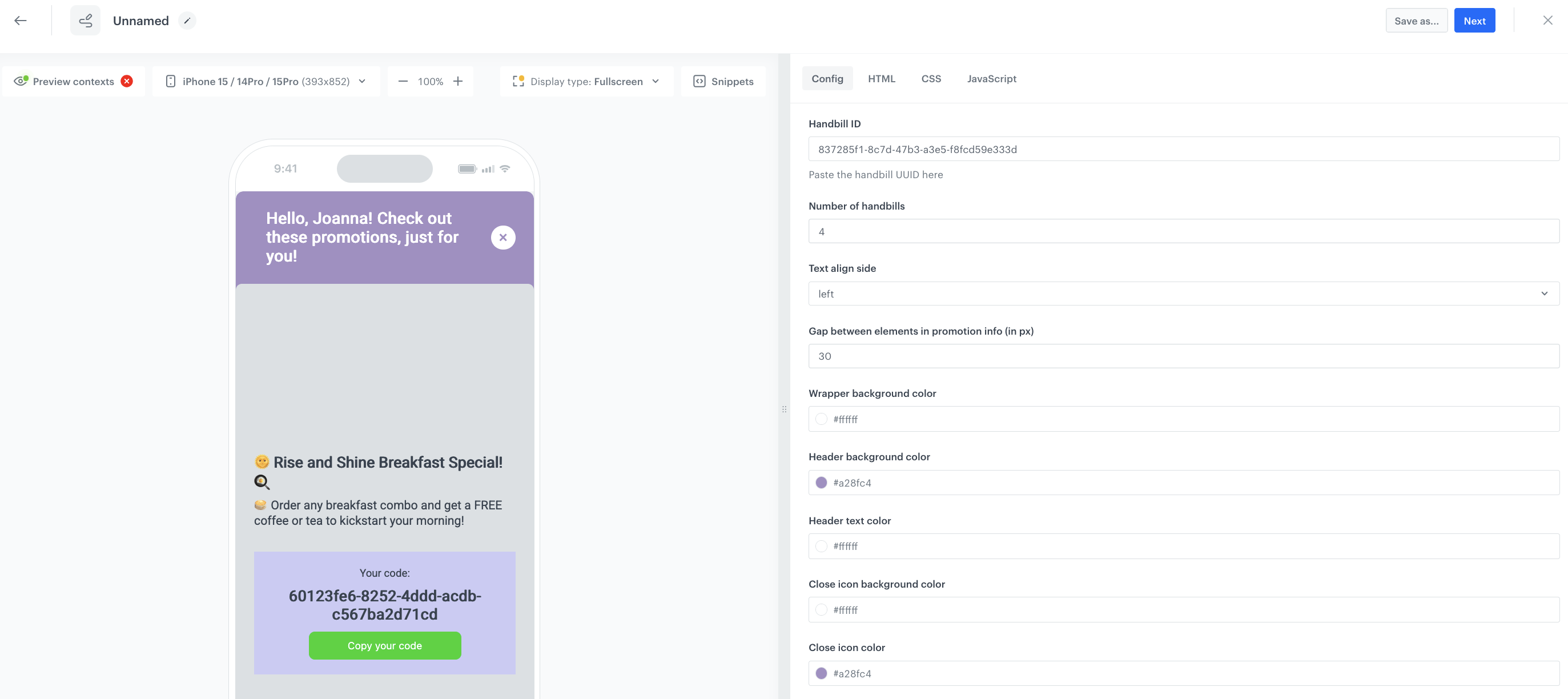
<div class="admonition admonition-note"><div class="admonition-icon"><svg xmlns="http://www.w3.org/2000/svg" fill="none" viewBox="0 0 24 24" stroke="currentColor" stroke-width="2.5"><path stroke-linecap="round" stroke-linejoin="round" d="M13 16h-1v-4h-1m1-4h.01M21 12a9 9 0 11-18 0 9 9 0 0118 0z" /></svg></div><div class="admonition-body"><div class="admonition-content">

You can edit the template in two ways, by editing the code of the template [add snippets](/docs/campaign/in-app-messages/creating-inapp-templates/creating-inapp-template#adding-a-snippet-to-the-template-code), [add variables](/docs/campaign/in-app-messages/creating-inapp-templates/creating-inapp-template#adding-a-variable) and/or by filling out the form in the Config tab. In this use case, we will use the capabilities of the predefined Config tab.

</div></div></div>


#### Edit form in the Config tab 
---
The form in the **Config** tab is already filled in with default values. You can keep them or change them to fit your business needs.

The fields in Config are split into two types: ones for dynamic content (related to Jinja) and ones for in-app appearance. The dynamic content fields must match the values in the catalog and the names of the attributes returned by the promotions. The appearance fields only affect how the information presents itself in the in-app.

3. In the **Personalized promotion ID** field, enter the identifier of the [personalized promotions campaign, created in the previous step](#create-a-personalized-promotions).
4. In **Number of personalized promotions**, set up how many of them will be displayed on the in-app.
5. In **Enable Elements**, you can decide which element will be visible on your in-app.
6. In the **Buttons, Hero, Footer,** and **General** sections, you can configure the layout and appearance of your message, including fonts, colors, and backgrounds, to ensure it matches your branding.

    
   <div class="admonition admonition-note"><div class="admonition-icon"><svg xmlns="http://www.w3.org/2000/svg" fill="none" viewBox="0 0 24 24" stroke="currentColor" stroke-width="2.5"><path stroke-linecap="round" stroke-linejoin="round" d="M13 16h-1v-4h-1m1-4h.01M21 12a9 9 0 11-18 0 9 9 0 0118 0z" /></svg></div><div class="admonition-body"><div class="admonition-content">

   To preview the template without switched off sections, use the **Preview Contexts** option.

   </div></div></div>


7. After you make changes to the template, you can check the preview. 
    1. Click the **Preview Contexts** button on the upper left side.
    2. Enter the ID of a customer.
    3. Click **Apply**.

  
   <div class="admonition admonition-important"><div class="admonition-icon"><svg xmlns="http://www.w3.org/2000/svg" fill="none" viewBox="0 0 24 24" stroke="currentColor" stroke-width="2.5"><path stroke-linecap="round" stroke-linejoin="round" d="M12 8v4m0 4h.01M21 12a9 9 0 11-18 0 9 9 0 0118 0z" /></svg></div><div class="admonition-body"><div class="admonition-content">

   Considering that the in-app is very interactive, the preview in the platform may not be enough to test the in-app performance. That’s why we suggest checking the preview directly in the mobile app.

   </div></div></div>


11. If the template is ready, in the upper right corner, click **Save this template > Save as**.
12. On the pop-up:
    1. In the **Template name field**, enter the name of the template.
    2. From the **Template folder** dropdown list, select the folder where the template will be saved.
    3. Confirm by clicking **Apply**.
13. To continue the process of configuring the in-app campaign, click **Next**.
14. To save your content changes, click **Apply**.

<figure>
<img src="/api/docs/image/54176ad07f146575310749eba44b7c2f42c1b327/use-cases/all-cases/_gfx/inapp-handbill.png" alt="The view of in-app trigger event configuration"  class="large">
<figcaption>In-app trigger event configuration</figcaption>
</figure> 

### Select events that trigger the in-app message display
---
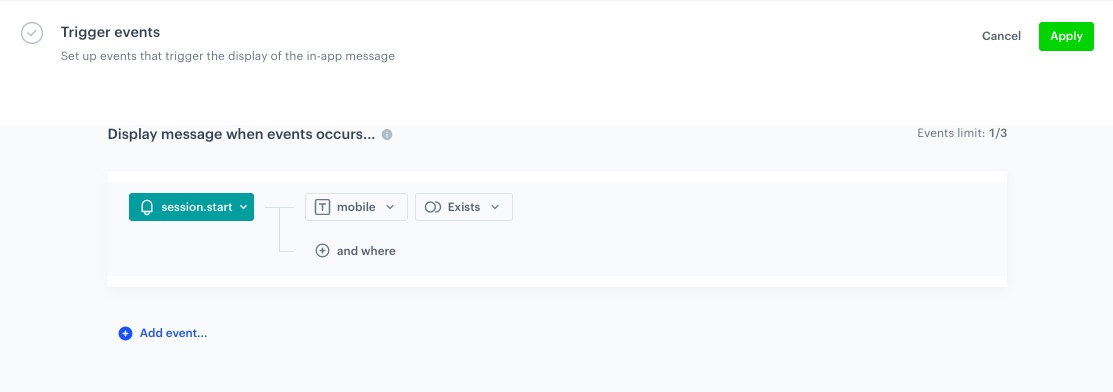
In this part of the process, you will define the event triggering the display of the in-app message.

1. In the **Trigger events** section, click **Define**.
2. Select **Add event** and from the dropdown list, choose `session.start` event.
3. Click the **+ where** button and select `mobile`.
4. As the logical operator, select **Is true**.
5. Click **Apply**. 

<figure>
<img src="/api/docs/image/54176ad07f146575310749eba44b7c2f42c1b327/use-cases/all-cases/_gfx/inapp-ab-trigg.png" alt="The view of in-app trigger event configuration"  class="large">
<figcaption>In-app trigger event configuration</figcaption>
</figure> 


### Schedule the message and configure display settings
---
As the final part of the process, you will set the display settings of the in-app message such as schedule, capping, priority of the message among other in-app messages.

1. In the **Schedule** section, click **Define** and set the time when the message will be active. 
2. In the **Display Settings** section, click **Change**.
3. Define the **Delay display**, **Priority index** and enable the **Frequency limit** toggle to manage the frequency of in-app message display in the application.  
   In our case, we want to display the message to the customer a maximum of 1 time in period of 1 days. 

    
   <div class="admonition admonition-note"><div class="admonition-icon"><svg xmlns="http://www.w3.org/2000/svg" fill="none" viewBox="0 0 24 24" stroke="currentColor" stroke-width="2.5"><path stroke-linecap="round" stroke-linejoin="round" d="M13 16h-1v-4h-1m1-4h.01M21 12a9 9 0 11-18 0 9 9 0 0118 0z" /></svg></div><div class="admonition-body"><div class="admonition-content">

   You can additionally enable the **Capping limit** toggle to limit the amount of time the in-app message can be displayed to a user in general.

   </div></div></div>
  

16. Click **Apply**. 
17. Optionally, you can define the UTM parameters and additional parameters for your in-app campaign.
18. Click **Activate**.

## Check the use case set up on the Synerise Demo workspace 
--- 

You can check the configuration directly in Synerise Demo workspace: 
- [Personalized promotions](https://app.synerise.com/campaigns/handbills/0219acec-e8bc-4475-bc87-2ebd78f473d1)  
- [In-app](https://app.synerise.com/communications/in-app/c3acb92b-95ed-4fd7-b8d4-f8771529028c)

If you’re our partner or client, you already have automatic access to the **Synerise Demo workspace (1590)**, where you can explore all the configured elements of this use case and copy them to your workspace.  

If you’re not a partner or client yet, we encourage you to fill out the contact [form](https://demo.synerise.com/request) to schedule a meeting with our representatives. They’ll be happy to show you how our demo works and discuss how you can apply this use case in your business.  

## Read more 
--- 
- [Promotions](/docs/ai-hub/promotions) 
