In-app walkthrough messages provide a seamless and user-friendly way to guide your customers through key features and updates within your application. Ensure your users stay informed about the latest enhancements, functionalities, and essential tips to maximize their experience. Enhance user engagement, foster a smooth onboarding process, and keep your audience effortlessly connected to the most valuable aspects of your application through strategically crafted in-app messages.

This scenario describes the process of creating an in-app message with information about new application updates in a walkthrough form for customers who have a new version of the application.

This use case provides you with an instruction how to use a ready-made in-app template that can be used 1:1 in a business scenario.

<!-- <figure>
<img src="/api/docs/image/54176ad07f146575310749eba44b7c2f42c1b327/use-cases/all-cases/_gfx/NAZWA-GRAFIKI.png" alt="NAZWA GRAFIKI ROZWINIĘTA W FORMIE PEŁNEGO ZDANIA"  class="full no-frame">
</figure> -->

## Prerequisites 
---
[Implement Synerise SDK in your mobile app](/developers/mobile-sdk).

## Create an in-ap message
---
In this part of the process, you create an in-app campaign triggered by the [client.applicationStarted](/docs/assets/events/event-reference/web-and-app#clientapplicationstarted) event. We will adapt a predefined template for the message with information about new application updates, so there is no need to create a template from scratch.

1. Go to <img src="/api/docs/image/54176ad07f146575310749eba44b7c2f42c1b327/icons/experience-hub-icon.svg" alt="Experience Hub icon" class="icon" > **Experience Hub > In-app messages> Create in-app**.
2. Enter a meaningful name for the in-app campaign.

### Define the audience
---
As the first step, define the target group of customers for the in-app message.

3. In the **Audience** section:
    1. Click **Define**.
    2. Select the **Everyone** tab.
    3. Click **Apply**.

### Define content
---
1. In the **Content** section, click **Define**.:
    1. Click **Create message**.
    2. Go to **Predefined templates** folder and choose **Walkthrough** template.
 

   <div class="admonition admonition-note"><div class="admonition-icon"><svg xmlns="http://www.w3.org/2000/svg" fill="none" viewBox="0 0 24 24" stroke="currentColor" stroke-width="2.5"><path stroke-linecap="round" stroke-linejoin="round" d="M13 16h-1v-4h-1m1-4h.01M21 12a9 9 0 11-18 0 9 9 0 0118 0z" /></svg></div><div class="admonition-body"><div class="admonition-content">

   You can edit the template in two ways, by editing the code of the template ([add inserts](/docs/campaign/in-app-messages/creating-inapp-templates/creating-inapp-template#adding-a-snippet-to-the-template-code), [add variables](/docs/campaign/in-app-messages/creating-inapp-templates/creating-inapp-template#adding-a-variable)) and/or by filling out the form in the **Config** tab. In this use case, we will use the capabilities of the predefined the **Config** tab.

   </div></div></div>


#### Edit form in the Config tab
---
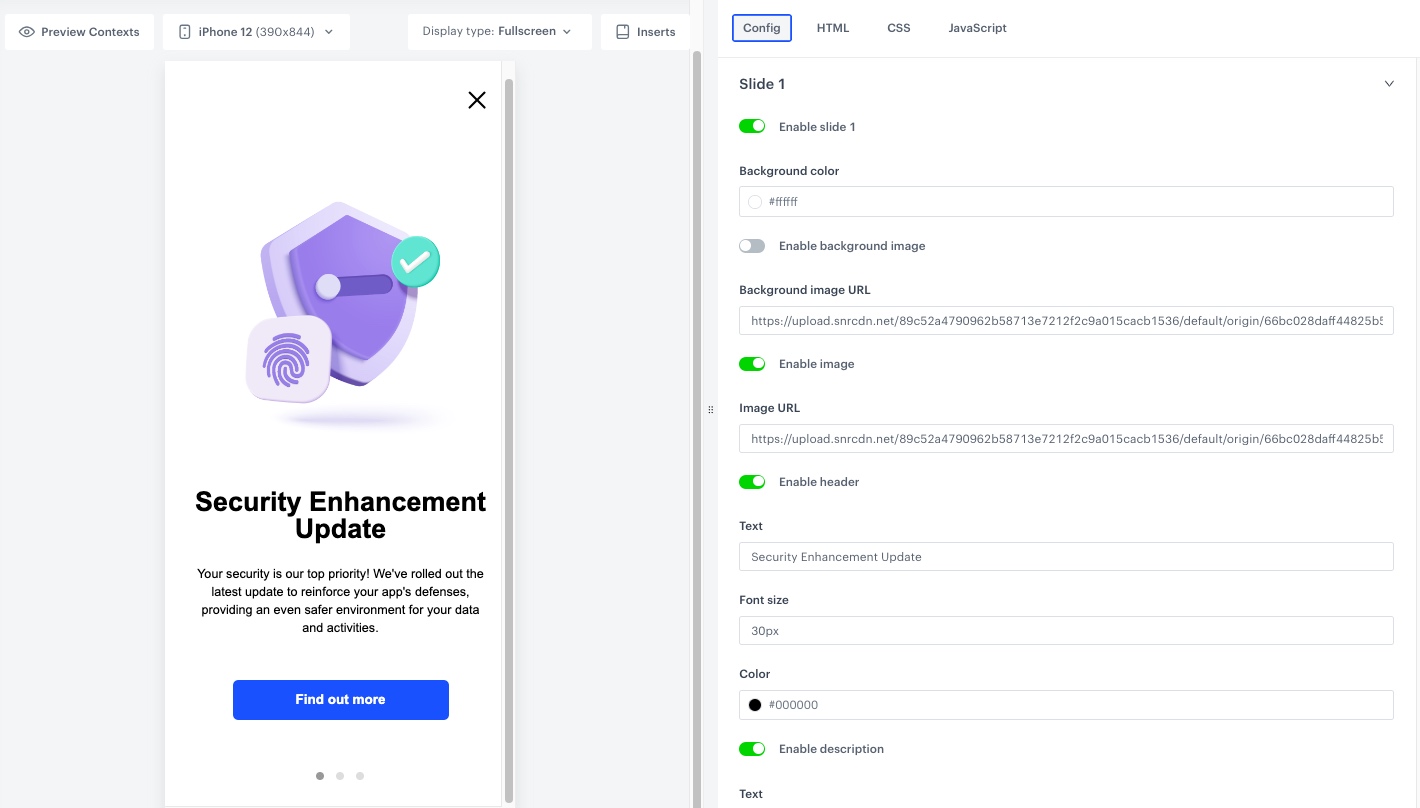
The form in the **Config** tab is already filled in with default values. You can keep them or change them to fit your business needs. These fields affect only the visual layer of the in-app message. 
 
1. In the **Background** section, use the color picker to select the color of the background or enable background image and enter the link to this image (add the image to **Data Modeling Hub > Files** and then you can find there the URL to this image).
2. In the **Image** section, enable the image in your banner campaign and add the link to this image (add the image to **Data Modeling Hub > Files** and then you can find there the URL to this image).
3. In the **Header** section, enable header and add the text, font size and color of the header you want to display in the in-app message.
4. In the **Description** section, enable description and add the text, font size and color of the description you want to display in the in-app message.
5. In the **CTA button** section, enable the CTA and add the text on the button, corner radius, color, background color of the button, and add the URL to which you want to redirect users afer clicking the button.
6. In the **Close button** section, enable this option and set up the close position.
7. In the **Slide 2** and **Slide 3** sections, enable slide options and repeat steps 1-6. You can create up to 5 slides.
7. After you make changes to the template, you can check the preview.
    1. Click the **Preview** button on the upper left side.
    2. Enter the ID of a customer or a product.
    3. Click **Apply**.
8. To continue the process of configuring the in-app campaign, click **Next**.
9. To save your content changes, click **Apply**.

<figure>
<img src="/api/docs/image/54176ad07f146575310749eba44b7c2f42c1b327/use-cases/all-cases/_gfx/inapp_walkthrough.png" alt="The view of the in-app content configuration" class="full">
<figcaption> In-app content configuration </figcaption>
</figure>

### Select events that trigger the in-app message display
---
In this part of the process, you will define the event triggering the display of the in-app message.

1. In the **Trigger events** section, click **Define**.
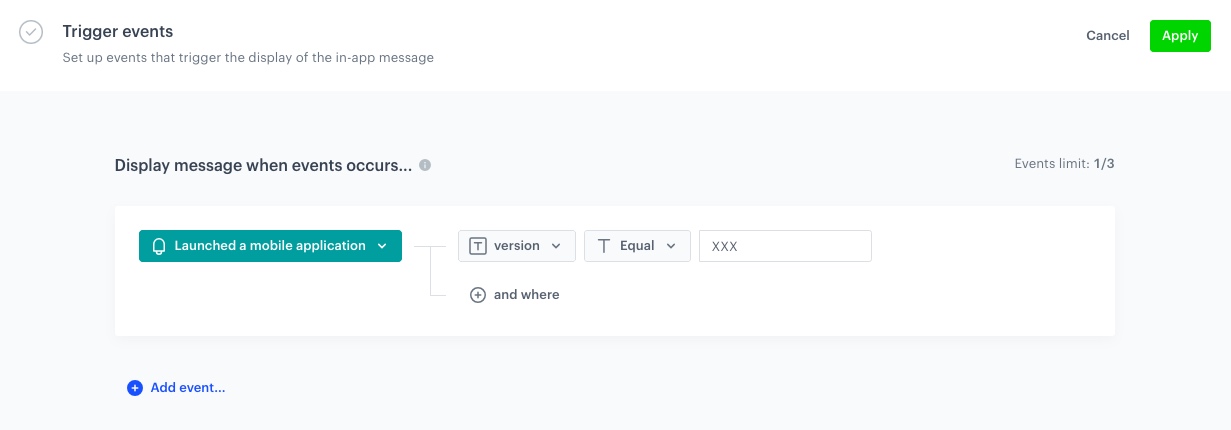
2. Select **Add event** and from the dropdown list, choose `client.applicationStarted` event.

   <div class="admonition admonition-note"><div class="admonition-icon"><svg xmlns="http://www.w3.org/2000/svg" fill="none" viewBox="0 0 24 24" stroke="currentColor" stroke-width="2.5"><path stroke-linecap="round" stroke-linejoin="round" d="M13 16h-1v-4h-1m1-4h.01M21 12a9 9 0 11-18 0 9 9 0 0118 0z" /></svg></div><div class="admonition-body"><div class="admonition-content">

   Event [`client.applicationStarted`](/docs/assets/events/event-reference/web-and-app#clientapplicationstarted) is retained (can be seen on the activity list in the customer profile), and it only generates when the application was closed, and then opened again.

   </div></div></div>

3. Click the **+ where** button and select `version`.
4. As the logical operator, select **Equal**.
5. In the text field, type the latest version of the application.
5. Click **Apply**.

<figure>
<img src="/api/docs/image/54176ad07f146575310749eba44b7c2f42c1b327/use-cases/all-cases/_gfx/walkthrough_trigg.png" alt="The view of the in-app trigger event configuration" class="full">
<figcaption> In-app trigger event configuration </figcaption>
</figure>

### Schedule the message and configure display settings
---
As the final part of the process, you will set the display settings of the in-app message such as schedule, capping, priority of the message among other in-app messages.

1. In the **Schedule** section, click **Define** and set the time when the message will be active. 
2. In the **Display Settings** section, click **Change**.
3. Define the **Delay display**, **Priority index** according to your business needs.
4. Enable the **Capping limit** toggle to limit the amount of time the in-app message can be displayed to a user in general, set it to **1**.
5. Click **Apply**. 
6. Optionally, you can define the **UTM parameters** and **Additional parameters** for your in-app campaign.
    
   <div class="admonition admonition-note"><div class="admonition-icon"><svg xmlns="http://www.w3.org/2000/svg" fill="none" viewBox="0 0 24 24" stroke="currentColor" stroke-width="2.5"><path stroke-linecap="round" stroke-linejoin="round" d="M13 16h-1v-4h-1m1-4h.01M21 12a9 9 0 11-18 0 9 9 0 0118 0z" /></svg></div><div class="admonition-body"><div class="admonition-content">

   You can find more on the in-app message settings in our documentation:
   - [Priority](/docs/campaign/in-app-messages/create-inapp-message#priority)
   - [Display settings](/docs/campaign/in-app-messages/create-inapp-message#configuration-of-display-settings)
   - [UTM and URL parameters](/docs/campaign/in-app-messages/create-inapp-message#define-utm-and-url-parameters)
   - [Additional parameters](/docs/campaign/in-app-messages/create-inapp-message#adding-custom-parameters)

   </div></div></div>

7. Click **Activate**.

## Check the use case set up on the Synerise Demo workspace
---
You can check the [in-app message](https://app.synerise.com/communications/in-app/72048dcc-f321-49b0-8fd1-6d9f598b4a64) directly in Synerise Demo workspace. 

If you’re our partner or client, you already have automatic access to the **Synerise Demo workspace (1590)**, where you can explore all the configured elements of this use case and copy them to your workspace.  

If you’re not a partner or client yet, we encourage you to fill out the contact [form](https://demo.synerise.com/request) to schedule a meeting with our representatives. They’ll be happy to show you how our demo works and discuss how you can apply this use case in your business. 

## Read more
---
- [In-app messages](/docs/campaign/in-app-messages)
- [Using in-app template builder](/docs/campaign/in-app-messages/creating-inapp-templates/creating-inapp-template)