While designing a sales campaign communication scenario, it's good to send messages at the time when the customer is most likely to react to them . To achieve this, you can make use of the [time optimizer](/docs/settings/configuration/time-optimizer) feature.
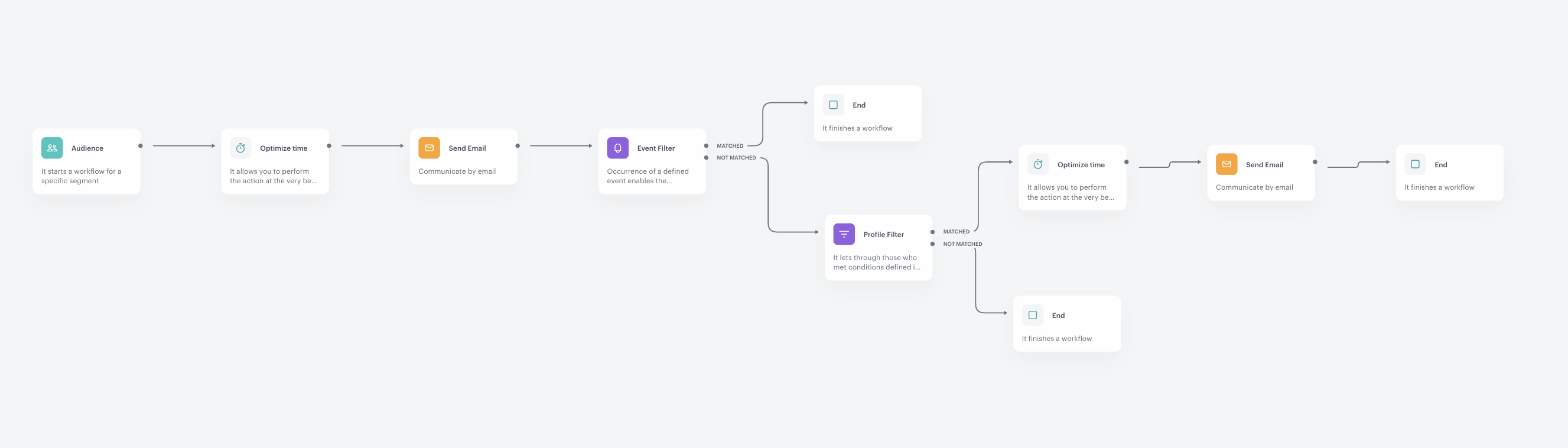
This use case describes sending a sales campaign through Automation Hub. The workflow starts with sending an email with a promotional code to all customers. The sending time of the email is adjusted to the customers' activity related to the email channel.
If a customer makes a purchase within 3 days after sending the email, they end the workflow. In the case when a customer didn't make the purchase, the system checks if they visited the website. If so, the system sends an email with recommendations of items from the last visit that have the same attributes as the items on sale.
The optimization of the sending date of the second email covers activity of your customers in all channels.
## Prerequisites
---
- [Implement a tracking code](/developers/web/installation-and-configuration).
- [Implement transaction events](/developers/web/transactions-sdk).
- [Create a sender account](/docs/campaign/e-mail/configuring-email-account).
- Enable [time optimizer](/docs/settings/configuration/time-optimizer).
- Create email templates:
1. Email with a discount code
2. Email with recommendations of items from the last visit that match attributes with items on sale
You can find instructions on preparing [email templates here](/docs/campaign/e-mail/creating-email-templates).
## Process
---
In this use case, you will go through the following steps:
1. [Create time optimizer modes](/use-cases/increase-effectiveness-of-sales-campaigns#create-modes).
2. [Crete a workflow](/use-cases/increase-effectiveness-of-sales-campaigns#create-a-workflow).
## Create modes
---
As the first part of the process, create two time optimizer modes. They will be used in the workflow in further part of the process.
- **Email mode** - which analyzes only the interactions in the email channel
- **Custom mode** - which analyzes the interactions from all channels you use to communicate with your customers
### Email mode
1. Go to **AI Engine Configuration**.
2. Select **Time optimizer** tab.
3. Click **Define**.
4. Click **Add a new mode**.
5. On the pop-up, select **Templates** tab.
6. Select **Email**.
7. Click **Apply**.
### Custom mode
1. Go to **AI Engine Configuration**.
2. Select **Time optimizer** tab.
3. Click **Define**.
4. Click **Add a new mode**.
5. Select **Custom**.
6. In the **Mode name** field, enter the name of the mode.
7. From the **Predicted event** dropdown list, select **page.visit**.
8. From the **Input events** dropdown list, select 6 events related with communication channels you use (for example, `newsletter.open` and `newsletter.click` (email), `screen.view` and `screen.click` (mobile), `webpush.show` and `webpush.click` (web), `sms.click` (SMS) and so on).
9. Confirm by clicking **Apply**.
## Create a workflow
---
As the second part of the process, create a workflow that manages email communication during your sales campaign.
1. Go to **Automation Hub > Workflows > New workflow**.
2. Enter the name of the workflow.
### Select audience
Select the customers for whom you want to run this workflow.
1. As the first node, select **Audience**.
2. In the configuration of the node:
1. Leave the **Run trigger** option, at default (one time).
2. As the audience, select **New audience**
3. Click **Define conditions**
4. Click **Choose filter** and from the list select the `email.agreement`. Choose operator `Boolean` and the value set as `true`.
5. Click **Apply**.
3. Confirm the settings of the audience by clicking **Apply**.
### Add time optimizer
The time of sending the message for each customer is adjusted to their activity in the email channel.
1. Add an **Optimize Time** node.
2. In the configuration of the node:
1. Select the [Email mode](/use-cases/increase-effectiveness-of-sales-campaigns#email-mode) you created in previous part of the process.
2. Select **Custom time period**.
3. Set the period 48 hours.
4. Confirm by clicking **Apply**.
### Send email with discount code
1. Add **Send Email**.
2. In the configuration of the node:
1. In the **Sender details** section, select the account from which you will send emails to your customers.
2. In the **Content** section:
1. Enter the subject of the email which will be visible in the inbox.
2. Select the email template with a discount code.
3. Optionally, in the **URL & UTM paramters** section, define the parameters. If you don't want to do it, click **Skip this step**.
3. Confirm by clicking **Apply**.
### Wait for transaction event
The workflow waits for 72 hours (3 days) since the sending of the message, after this time the system verifies whether a customer made a purchase. If a customer made a purchase, the workflow ends.
1. Add **Event Filter**.
2. In the configuration of the node:
1. Set the **Check** option to **for period of time**.
2. Select 72 hours.
3. From the **Choose event** dropdown list, select **transaction.charge**.
3. Confirm by clicking **Apply**.
4. To the *matched* path, add the **End** node.
5. To the *not matched* path, add the **Profile Filter** node.
### Check if customer visited website
If a customer didn't make a purchase, the system checks whether they visited a website in the last 3 days. If not, the customer ends a workflow.
1. In the configuration of the **Profile Filter** node:
1. From the **Choose filter** dropdown list, select **page.visit**.
2. As the date range, select **Last 3 days**.
2. Confirm by clicking **Apply**.
3. To the *matched* path, add the **Optimize Time** node.
4. To the *not matched* path, add the **End** node.
### Add time optimizer
If a customer visited the website during last 3 days, an email will be sent to them. Before it happens, the system adjust the time of the sending by analyzing the activity of the customers in all channels you used to communicate with them before.
2. In the configuration of the **Optimize Time** node (after the **Profile Filter** node):
1. Select the [Custom mode](/use-cases/increase-effectiveness-of-sales-campaigns#custom-mode) you created in previous part of the process.
2. Select **Custom time period**.
3. Set the period to 48 hours.
4. Confirm by clicking **Apply**.
### Send email with recommendations
An email with the recommendation of items visited during last visit is sent to a customer at the best time.
1. Add **Send Email**.
2. In the configuration of the node:
1. In the **Sender details** section, select the account from which you will send emails to your customers.
2. In the **Content** section:
1. Enter the subject of the email which will be visible in the inbox.
2. Select the email template with recommendations of items from the last visit that match attributes with items on sale.
3. Optionally, in the **URL & UTM paramters** section, define the parameters. If you don't want to do it, click **Skip this step**.
3. Confirm by clicking **Apply**.
4. After the **Send Email** node, add an **End** node.
5. To run the workflow, click **Save & Run**.
**Result**:
The final configuration of the workflow
## Check the use case set up on the Synerise Demo workspace
---
You can check described [workflow](https://app.synerise.com/automations/workflows/automation-diagram/523bae5d-d9da-4826-a8a6-75c7bc3f31ba) directly in Synerise Demo workspace.
If you’re our partner or client, you already have automatic access to the **Synerise Demo workspace (1590)**, where you can explore all the configured elements of this use case and copy them to your workspace.
If you’re not a partner or client yet, we encourage you to fill out the contact [form](https://demo.synerise.com/request) to schedule a meeting with our representatives. They’ll be happy to show you how our demo works and discuss how you can apply this use case in your business.
## Read more
---
- [Automation Hub](/docs/automation)
- [Time optimizer](/docs/settings/configuration/time-optimizer)