Birthday discounts and offers are a perfect chance to surprise your customers. One of the ideas for a birthday campaign may be sending a happy birthday message two weeks prior to a customer's birthday. This way, not only do you remind them about the celebration day, but can also  provide a birthday discount and offer a range of personalized products a customer can treat themselves to for their upcoming birthday. However you choose to wish your customers a happy birthday, it’s a great opportunity to show them how much they mean to your business.

In this use case, you will create a dynamic attribute which will be assigned to the customers whose birthday is in 14 days. In the further part of the process, you will use this attribute to group those customers and prepare a workflow which sends an email to them. 


<div class="admonition admonition-note"><div class="admonition-icon"><svg xmlns="http://www.w3.org/2000/svg" fill="none" viewBox="0 0 24 24" stroke="currentColor" stroke-width="2.5"><path stroke-linecap="round" stroke-linejoin="round" d="M13 16h-1v-4h-1m1-4h.01M21 12a9 9 0 11-18 0 9 9 0 0118 0z" /></svg></div><div class="admonition-body"><div class="admonition-content">

You can also check our other use cases for the [birthday campaigns](/use-cases/?query=birthday&ordering=DESC&sortBy=publishDate).

</div></div></div>
  

## Prerequisites
---
- Implement a [tracking code](/developers/web/installation-and-configuration) into your website.
- Customers' profiles must be supplied with the birthdate (ISO timestamp format).
- Configure an [email account](/docs/campaign/e-mail/configuring-email-account).
- Optionally, you can create a [voucher pool](/docs/assets/code-pools).

## Process
---

In this use case, you will go through the following steps:
1. [Create expressions](/use-cases/is-it-customers-birthday#create-expressions).
2. [Create an email template](/use-cases/is-it-customers-birthday#create-an-email-template).
3. [Create a workflow](/use-cases/is-it-customers-birthday#create-a-workflow).

## Create expressions 
---
In the first part of the process, you create four expressions. The first three expressions will be components of the last expression, which returns information whether a customer's birthday is in 14 days.  

### Return the day of birthday
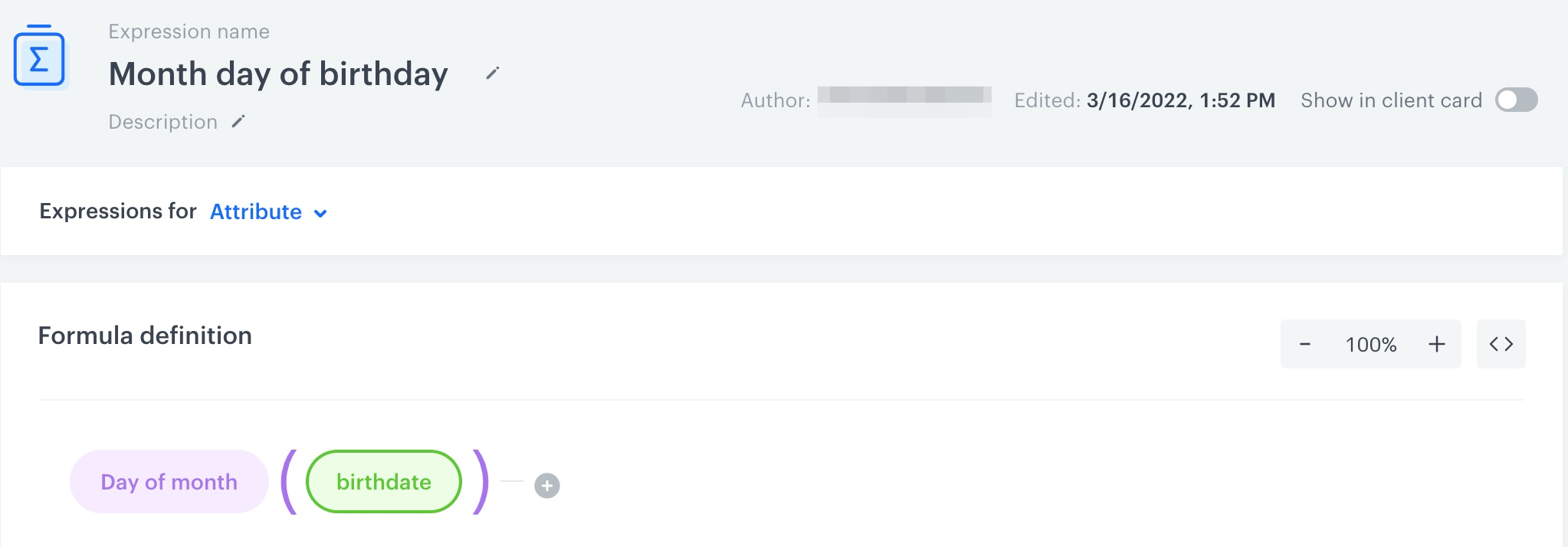
Create an expression which returns only the day of the birthday as a number.

1. Go to <img src="/api/docs/image/54176ad07f146575310749eba44b7c2f42c1b327/icons/behavioral-data-hub-icon.svg" alt="Behavioral Data Hub icon" class="icon"> **Behavioral Data Hub > Expressions > New expression**.  
2. As the name of the expression, enter `Month day of birthday`.  
3. Leave the **Expressions for** option at default (**Attribute**).
4. In the formula of the expression:  
    1. Click **Select**.
    2. From the dropdown list, select **Function > Day of month**.  
    3. Click the **Select** button in the brackets.  
    4. From the dropdown list, select **Profile**.  
    5. Click the **unnamed** node.  
    6. At the bottom of the page, click **Choose attribute**.  
    7. From the dropdown list, select the attribute which indicates birthday formatted as an ISO timestamp (<img src="/api/docs/image/54176ad07f146575310749eba44b7c2f42c1b327/icons/birthdate-attribute-icon.png" class="icon" alt= "Birthdate attribute label">).  
5. Click **Save**. 

    <figure>
    <img src="/api/docs/image/54176ad07f146575310749eba44b7c2f42c1b327/use-cases/all-cases/_gfx/monthday-of-birthday.png" class="full" alt="The configuration of the expression that returns the day of birthday">
    <figcaption>The configuration of the expression that returns the day of birthday</figcaption>
    </figure>  

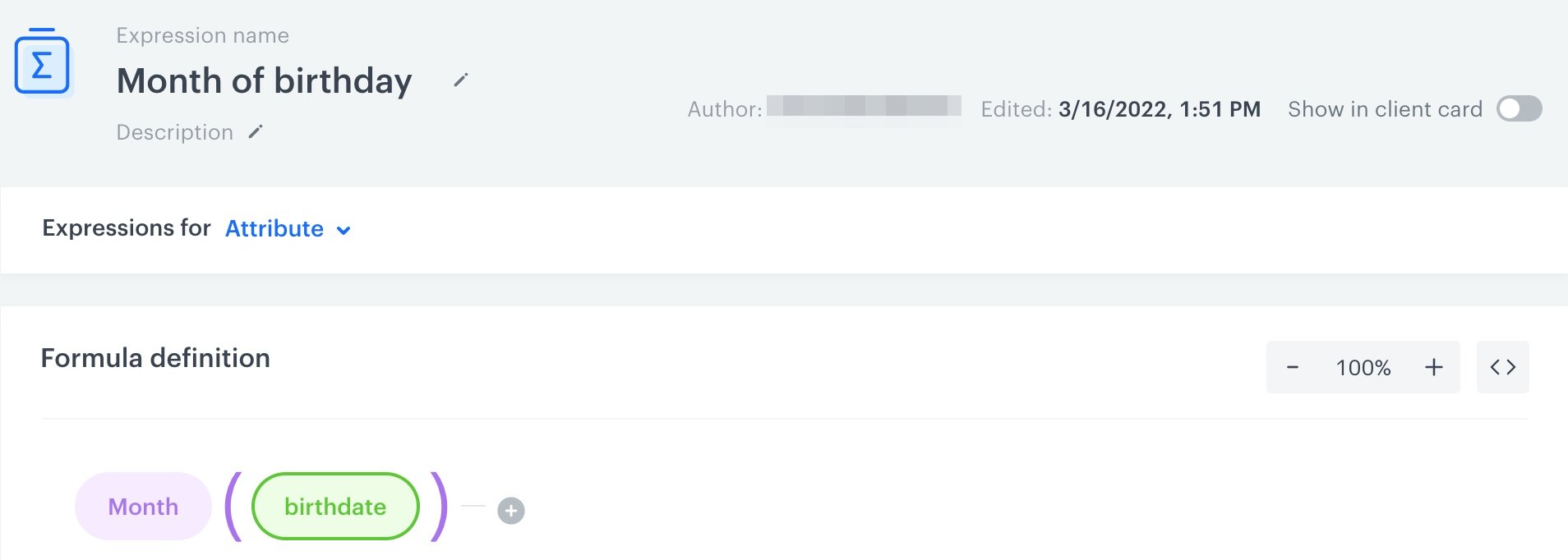
### Return the month of birthday

Create an expression which returns only the month of the birthday as a number (for example, `8` stands for August).

1. Go to <img src="/api/docs/image/54176ad07f146575310749eba44b7c2f42c1b327/icons/behavioral-data-hub-icon.svg" alt="Behavioral Data Hub icon" class="icon"> **Behavioral Data Hub > Expressions > New expression**.  
2. As the name of the expression, enter `Month of birthday`.  
3. Leave the **Expressions for** option at default (**Attribute**).
4. In the formula of the expression:  
    1. Click **Select**.
    2. From the dropdown list, select **Function > Month**.  
    3. Click the **Select** button in the brackets.  
    4. From the dropdown list, select **Profile**.  
    5. Click the **unnamed** node.  
    6. At the bottom of the page, click **Choose attribute**.  
    7. From the dropdown list, select the attribute which indicates birthday formatted as an ISO timestamp (<img src="/api/docs/image/54176ad07f146575310749eba44b7c2f42c1b327/icons/birthdate-attribute-icon.png" class="icon" alt= "Birthdate attribute label">).  
5. Click **Save**. 
    <figure>
    <img src="/api/docs/image/54176ad07f146575310749eba44b7c2f42c1b327/use-cases/all-cases/_gfx/month-of-birthday.png" class="full" alt="The configuration of the expression that returns the month of birthday">
    <figcaption>The configuration of the expression that returns the month of birthday</figcaption>
    </figure>

### Return the date 14 days ahead

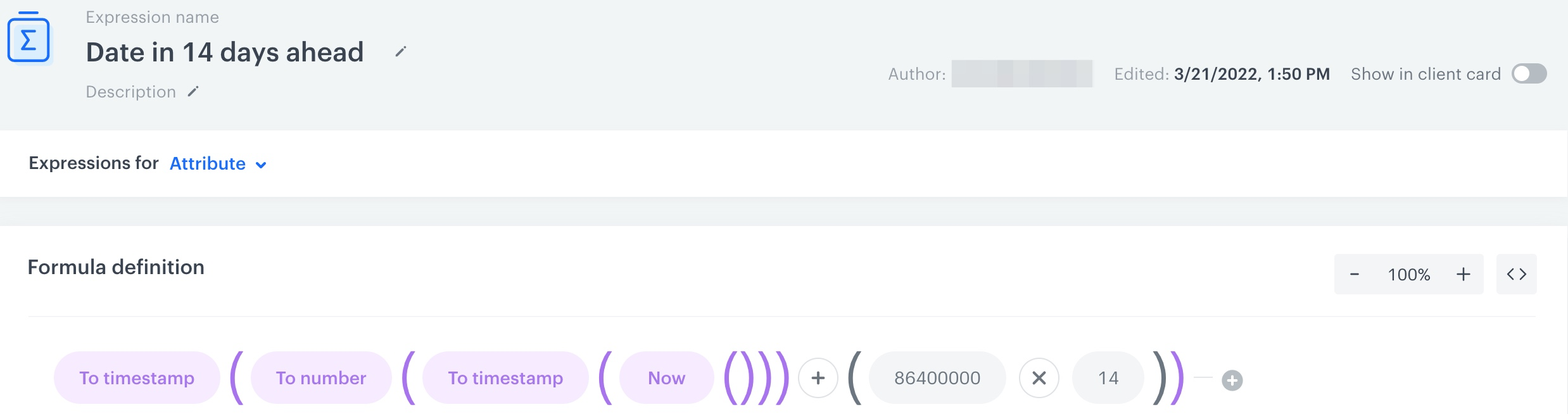
Create an expression that returns the date 14 days ahead (including the current day).

In the formula of the expression, you add the product of multiplying 86400000 by 14 to the current date. 86400000 is 24 hours in milliseconds and 14 stands for the 14 days.

The expression returns the timestamp of the date in 14 days in ISO 8601. For example, if the current date is `March 23, 2022, 15:00`, the expression will return `2022-04-05T15:00:00.000Z`

1. Go to <img src="/api/docs/image/54176ad07f146575310749eba44b7c2f42c1b327/icons/behavioral-data-hub-icon.svg" alt="Behavioral Data Hub icon" class="icon"> **Behavioral Data Hub > Expressions > New expression**.  
2. As the name of the expression, enter `Date 14 days ahead`.  
3. Leave the **Expressions for** option at default (**Attribute**).
4. On the dashboard, build the following formula of the expression:  
    <figure>
    <img src="/api/docs/image/54176ad07f146575310749eba44b7c2f42c1b327/use-cases/all-cases/_gfx/date-in-14-days.png" class="full" alt="The configuration of the expression that returns the date 14 days ahead">
    <figcaption>The configuration of the expression that returns the date 14 days ahead</figcaption>
    </figure>  

5. Click **Save**. 

### Identify customers whose birthday is in 14 days

Create an expression that informs if a customer's birthday is in 14 days. In the formula of the expression, you compare the day of the month and the month of birthday with the date 14 days ahead from now. If they are the same, the expression returns `true`, if not, `false`.

1. Go to <img src="/api/docs/image/54176ad07f146575310749eba44b7c2f42c1b327/icons/behavioral-data-hub-icon.svg" alt="Behavioral Data Hub icon" class="icon"> **Behavioral Data Hub > Expressions > New expression**.  
2. Enter the name of the expression.
3. Leave the **Expressions for** option at default (**Attributes**).  
3. Optionally, you can enable the **Show in profile card** toggle, so the result of the expression is visible in the profile of a customer.
4. On the dashboard, build the following expression formula using the expressions you created in the previous steps:    

    <figure>
    <img src="/api/docs/image/54176ad07f146575310749eba44b7c2f42c1b327/use-cases/all-cases/_gfx/is-it-customer-birthday.png" class="full" alt="The configuration of the expression that returns information whether customer has birthday in 14 days">
    <figcaption>The configuration of the expression that returns information whether customer has birthday in 14 days</figcaption>
    </figure>  
5. Click **Save**. 

## Create an email template
---
In this part of the process, create an email template with a birthday discount code for the customers who will celebrate their birthday in 14 days.  

1. Go to <img src="/api/docs/image/54176ad07f146575310749eba44b7c2f42c1b327/icons/experience-hub-icon.svg" alt="Image presents the Experience Hub icon" class="icon"> **Experience Hub > Email**.  
2. On the left pane, click **Templates**.  
3. Select the wizard:  
    - **Drag&drop builder** - use ready-made components to build an email template. 
    - **Code editor** - use HTML, CSS and JS to build an email template from scratch.
4. Build a template.  
    
   <div class="admonition admonition-tip"><div class="admonition-icon"><svg xmlns="http://www.w3.org/2000/svg" fill="none" viewBox="0 0 24 24" stroke="currentColor" stroke-width="2.5"><path stroke-linecap="round" stroke-linejoin="round" d="M9.663 17h4.673M12 3v1m6.364 1.636l-.707.707M21 12h-1M4 12H3m3.343-5.657l-.707-.707m2.828 9.9a5 5 0 117.072 0l-.548.547A3.374 3.374 0 0014 18.469V19a2 2 0 11-4 0v-.531c0-.895-.356-1.754-.988-2.386l-.548-.547z" /></svg></div><div class="admonition-body"><div class="admonition-content">

   [Insert a voucher](/developers/inserts/insert-usage#code-pools) in an email template. You can use other [inserts](/developers/inserts) as well.

   </div></div></div>

5. Save the template.

## Create a workflow
---
In this part of the process, create a workflow that will be targeted at customers who have birthday in 14 days from today. The workflow will be launched automatically every day.

1. Go to <img src="/api/docs/image/54176ad07f146575310749eba44b7c2f42c1b327/icons/automation-hub-icon.svg" alt="Automation Hub icon" class="icon" > **Automation > Workflow > New workflow**.  
2. Enter the name of the workflow.  
3. Set capping to 1 email in 12 months.  
    This configuration means that the capping remains in effect for a customer for 360 days since the day of the workflow launch for this customer (12 months multiplied by 30 days, in context of capping, a month always equals 30 days).
4. As the first node, add **Audience**.
1. In the configuration of the **Audience** node:  
    1. As the **Run trigger** option, select **repeatable**.  
    2. Set the interval to 1 day.  
    3. In the **Begin at** field, select the date.  
        
       <div class="admonition admonition-note"><div class="admonition-icon"><svg xmlns="http://www.w3.org/2000/svg" fill="none" viewBox="0 0 24 24" stroke="currentColor" stroke-width="2.5"><path stroke-linecap="round" stroke-linejoin="round" d="M13 16h-1v-4h-1m1-4h.01M21 12a9 9 0 11-18 0 9 9 0 0118 0z" /></svg></div><div class="admonition-body"><div class="admonition-content">

       It can't be the past date.

       </div></div></div>

    4. From the **Timezone** dropdown list, select the time zone consistent with the time zone of your workspace.  
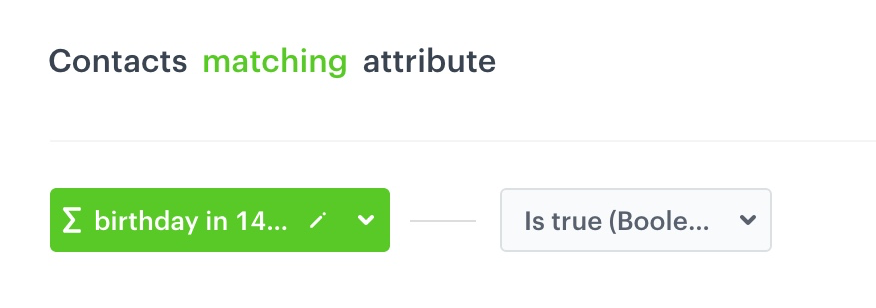
    5. In the **Define audience** section, click **New audience**.  
    6. Click **Choose filter**.  
    7. Select the **Clients** tab.
    8. Select the previously created [expression which checks if a customer's birthday is in 14 days](/use-cases/is-it-customers-birthday#identify-customers-whose-birthday-is-in-14-days).
    9. Click the <img src="/api/docs/image/54176ad07f146575310749eba44b7c2f42c1b327/icons/boolean-icon.png" class="icon" alt= "Boolean"> icon.
    10. Select **Is true**.  
        <figure>
        <img src="/api/docs/image/54176ad07f146575310749eba44b7c2f42c1b327/use-cases/all-cases/_gfx/birthday-audience.png" class="medium" alt="Filter settings in the Define audience section">
        <figcaption>Filter settings in the Define audience section</figcaption>
        </figure>
    11. Confirm by clicking **Apply**.
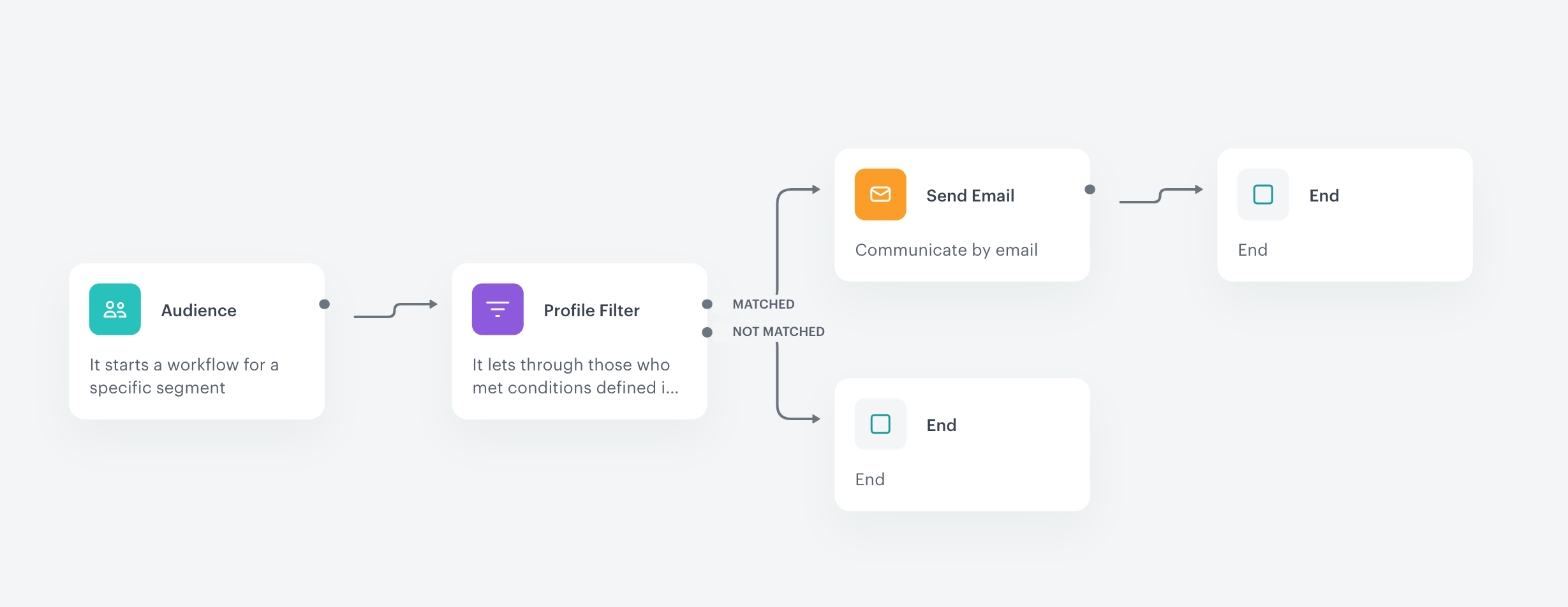
2. As the second node, add **Profile Filter**. 
3. In the configuration of the **Profile Filer** node:
    1. Select `newsletter_agreement`.  
    2. As the logical operator, select **Equal**.  
    3. In the text field, enter `enabled`.  
        <figure>
        <img src="/api/docs/image/54176ad07f146575310749eba44b7c2f42c1b327/use-cases/all-cases/_gfx/birthday-client-filter.png" class="medium" alt="Filter settings in the Profile Filter node">
        <figcaption>Filter settings in the Profile Filter node</figcaption>
        </figure>
    4. Confirm by clicking **Apply**. 
4.  At the `matched` path of the profile filter node, add a **Send Email** node.
5. In the configuration of the **Send Email** node:  
    1. In the **Sender details** section: 
        1. Select the account from which the email will be sent. 
        2. Confirm by clicking **Apply**.  
    2. In the **Content** section:  
        1. Enter the email subject which will be visible in the customer's inbox.  
        2. Select the [email template you created earlier](/use-cases/is-it-customers-birthday#create-an-email-template).  
        3. Confirm by clicking **Apply**.  
    3. In the **URL & UTM parameters** section:
        - If you don't want to add the parameters, click **Skip this step**. 
        - If you want to add the parameters, click **Define** and define the parameters.  
6. Add the **End** nodes to the `not matched` path of **Profile Filter** node and after the **Send Email** node.
7. Click **Save & Run**.

<figure>
<img src="/api/docs/image/54176ad07f146575310749eba44b7c2f42c1b327/use-cases/all-cases/_gfx/birthday-in-14-days-workflow.png" class="full" alt="The final configuration of a workflow that sends an email 14 days before birthday">
<figcaption>The final configuration of a workflow that sends an email 14 days before birthday</figcaption>
</figure>

## Check the use case set up on the Synerise Demo workspace
---

You can check described expressions below:
- [expression that returns the month day of birthday](https://app.synerise.com/analytics/expressions/c0a29824-dbe2-44be-a5b2-c025cbb14086)
- [expression which returns the month of birthday](https://app.synerise.com/analytics/expressions/f7978831-9989-485e-9325-e9e898b63d0c)
- [expression that returns the date in 14 days ahead](https://app.synerise.com/analytics/expressions/64c5df67-5c51-420f-8e7c-dd7ae4e49f58)
- [expression which presents customers whose birthday is in 14 days](https://app.synerise.com/analytics/expressions/826d75b1-5365-4d1a-9638-ed49e5f0c4d8).

Check also the created [workflow](https://app.synerise.com/automations/automation-diagram/a17b8b52-0bde-4327-8e4c-b7b4bfd0abe8) that will be targeted at customers who have birthday in 14 days from today.

If you’re our partner or client, you already have automatic access to the **Synerise Demo workspace (1590)**, where you can explore all the configured elements of this use case and copy them to your workspace.  

If you’re not a partner or client yet, we encourage you to fill out the contact [form](https://demo.synerise.com/request) to schedule a meeting with our representatives. They’ll be happy to show you how our demo works and discuss how you can apply this use case in your business.


## Read more
---
- [Automation Hub](/docs/automation)
- [Configuring an email account](/docs/campaign/e-mail/configuring-email-account)
- [Creating email templates](/docs/campaign/e-mail/creating-email-templates)
- [Functions in expressions](/docs/crm/expressions/functions-in-expressions)
- [Insert usage](/developers/inserts)