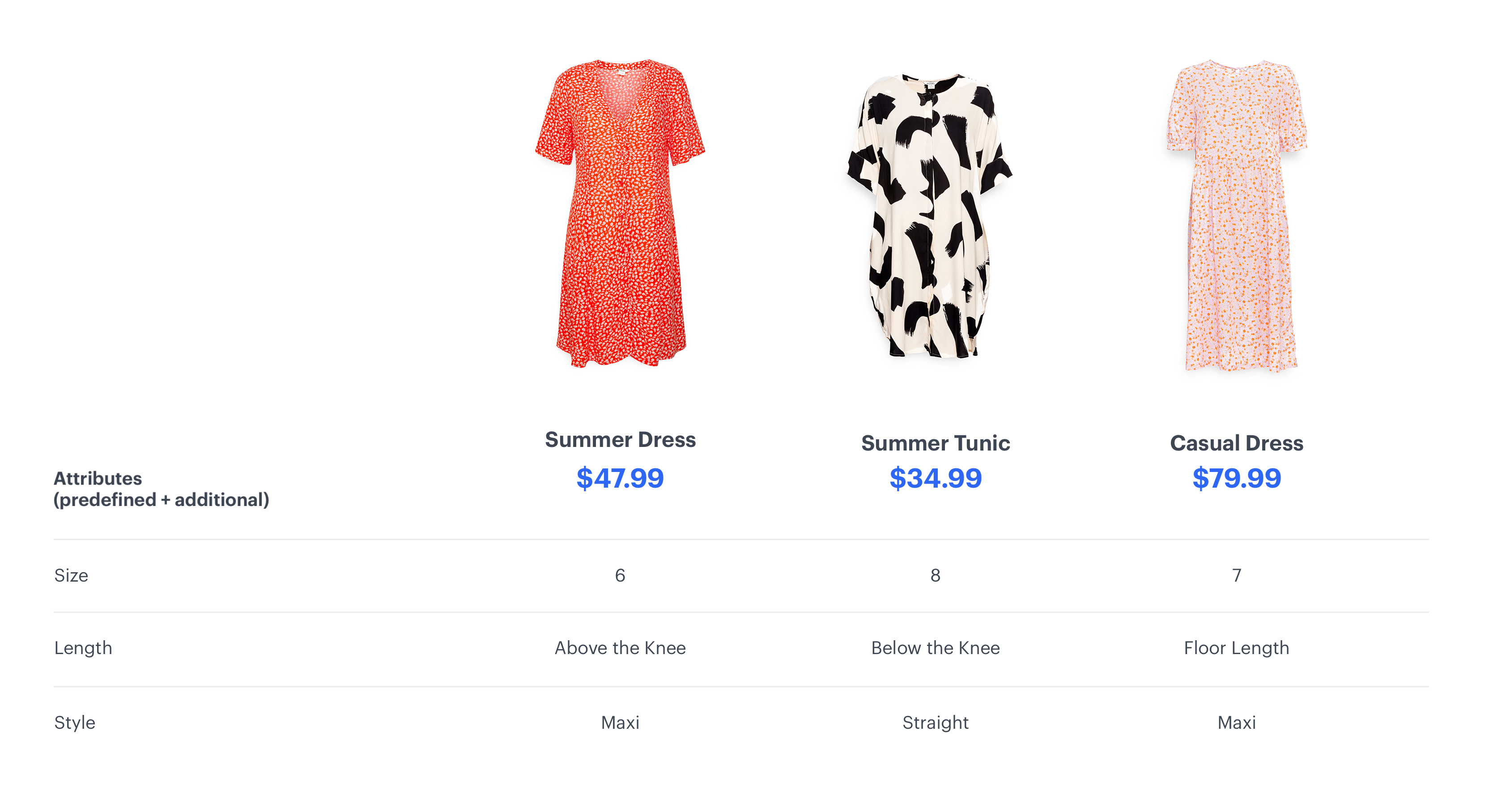
An overwhelming number of products can often discourage a customer from purchasing. An intelligent solution is to use product comparison recommendations to make the buying decision process smoother. Such offers make it easier for customers to decide when trying to choose between multiple models or styles of the same products to get a better idea of which option is best for them. But it also allows marketers to promote products with specific features. Such a solution is a great way to increase customer engagement and conversions. 

This use case describes the process of creating dress comparison recommendations for customers on the website. 

<img src="/api/docs/image/54176ad07f146575310749eba44b7c2f42c1b327/use-cases/all-cases/_gfx/item-comparison-reco-dress.png" class="full" alt="Item comparison recommendations">

## Prerequisites
---

- Implement [Synerise tracking code](/developers/web/installation-and-configuration) on your website.
- Implement [OG Tags](/developers/web/og-tags) on your website.
- [Prepare a product feed](/docs/ai-hub/recommendations-v2/item-feed-requirements) with attributes to be used in item comparison recommendations.
- [Configure an item catalog for recommendations](/docs/settings/configuration/ai-engine-configuration/engine-configuration-for-recommendations). Enable the item comparison recommendations.
- Meet the minimum data requirements of interactions and events.   
    At least 10,000 item page visits for **Item comparison recommendations**.

## Create a recommendation
---

1. Go to <img src="/api/docs/image/54176ad07f146575310749eba44b7c2f42c1b327/icons/ai-hub-icon.svg" alt="AI Hub icon" class="icon" > **AI Hub > (AI Recommendations) Models > Add recommendation**.
2. Enter a meaningful name of the recommendation.
3. In the **Type & Items feed** section, click **Define**.
    1. From the **Items feed** dropdown list, select the catalog that contains items for the recommendation. 
    2. As the type, select **Item comparison**.
    3. Click **Apply**.
4. In the **Compare attributes** section, click **Define**.
5. Click **Choose**. 
6. Select the item attributes from the list of all available attributes to be compared in the recommendations.
6. Click **Apply**.
7. In the **Items** section, click **Define**.
    1. Click **Add slot**. You can name the slot for later reference. 
    2. In the **Number of items** subsection, set the minimum and maximum number of items to `3`.         

       <div class="admonition admonition-tip"><div class="admonition-icon"><svg xmlns="http://www.w3.org/2000/svg" fill="none" viewBox="0 0 24 24" stroke="currentColor" stroke-width="2.5"><path stroke-linecap="round" stroke-linejoin="round" d="M9.663 17h4.673M12 3v1m6.364 1.636l-.707.707M21 12h-1M4 12H3m3.343-5.657l-.707-.707m2.828 9.9a5 5 0 117.072 0l-.548.547A3.374 3.374 0 0014 18.469V19a2 2 0 11-4 0v-.531c0-.895-.356-1.754-.988-2.386l-.548-.547z" /></svg></div><div class="admonition-body"><div class="admonition-content">

       Setting the minimum and maximum number of items to the same number ensures that exactly this many items will appear in the slot.

       </div></div></div>
 
    3. In **Static filters** set the following parameters:
        1. From the dropdown list, choose **Visual Builder**.  
        2. Click **Select attribute**.
        3. From the dropdown list, choose the **category** attribute.
        4. Click **Operator**.
        5. From the dropdown list, choose **Equals**.
        6. Click **Select value**.
        7. From the dropdown list, choose the `dress` category. 
        8. On the bottom of the static filter, click **Apply**.
        9. In the **Items** section, click **Apply**.  

    
   <div class="admonition admonition-note"><div class="admonition-icon"><svg xmlns="http://www.w3.org/2000/svg" fill="none" viewBox="0 0 24 24" stroke="currentColor" stroke-width="2.5"><path stroke-linecap="round" stroke-linejoin="round" d="M13 16h-1v-4h-1m1-4h.01M21 12a9 9 0 11-18 0 9 9 0 0118 0z" /></svg></div><div class="admonition-body"><div class="admonition-content">

   Learn about the difference among [elastic, static filters](/docs/ai-hub/recommendations-v2/creating-recommendation-campaign#select-conditions-of-displaying-items), and [distinct filters](/docs/ai-hub/recommendations-v2/creating-recommendation-campaign#distinct-filter).

   </div></div></div>
  

8. Optionally, you can define the settings in the **Boosting** and **Additional settings** sections.

    
   <div class="admonition admonition-tip"><div class="admonition-icon"><svg xmlns="http://www.w3.org/2000/svg" fill="none" viewBox="0 0 24 24" stroke="currentColor" stroke-width="2.5"><path stroke-linecap="round" stroke-linejoin="round" d="M9.663 17h4.673M12 3v1m6.364 1.636l-.707.707M21 12h-1M4 12H3m3.343-5.657l-.707-.707m2.828 9.9a5 5 0 117.072 0l-.548.547A3.374 3.374 0 0014 18.469V19a2 2 0 11-4 0v-.531c0-.895-.356-1.754-.988-2.386l-.548-.547z" /></svg></div><div class="admonition-body"><div class="admonition-content">

   Learn more about [boosting](/docs/ai-hub/recommendations-v2/creating-recommendation-campaign#define-the-boosting-factors) and [additional settings](/docs/ai-hub/recommendations-v2/creating-recommendation-campaign#additional-settings).

   </div></div></div>
 
    
9. Save the recommendation by clicking **Save**.


   <div class="admonition admonition-important"><div class="admonition-icon"><svg xmlns="http://www.w3.org/2000/svg" fill="none" viewBox="0 0 24 24" stroke="currentColor" stroke-width="2.5"><path stroke-linecap="round" stroke-linejoin="round" d="M12 8v4m0 4h.01M21 12a9 9 0 11-18 0 9 9 0 0118 0z" /></svg></div><div class="admonition-body"><div class="admonition-content">

   You can also check the recommendation configuration directly in Synerise Demo workspace at this [link](https://app.synerise.com/ai-v2/recommendations/psaucwbowxkX).  
       If you’re our partner or client, you already have automatic access to the **Synerise Demo workspace (1590)**, where you can explore all the configured elements of this use case and copy them to your workspace.  

       If you’re not a partner or client yet, we encourage you to fill out the contact [form](https://demo.synerise.com/request) to schedule a meeting with our representatives. They’ll be happy to show you how our demo works and discuss how you can apply this use case in your business.

   </div></div></div>


## What's next
---

You can display the recommendation to customers in a number of ways, for example by using the [recommendation insert](/developers/inserts/recommendations-v2) in [dynamic content](/docs/campaign/dynamiccontent/creating-dynamic-content).

## Read more
---
- [Creating recommendations](/docs/ai-hub/recommendations-v2/creating-recommendation-campaign)
- [Dynamic content campaigns](/docs/campaign/dynamiccontent/introduction-to-dynamic-content)
- [Dynamic content inserts](/developers/inserts/dynamic-content)
- [Filters in recommendations](/docs/ai-hub/recommendations-v2/recommendation-filters)
- [Requirements for item feed](/docs/ai-hub/recommendations-v2/item-feed-requirements)