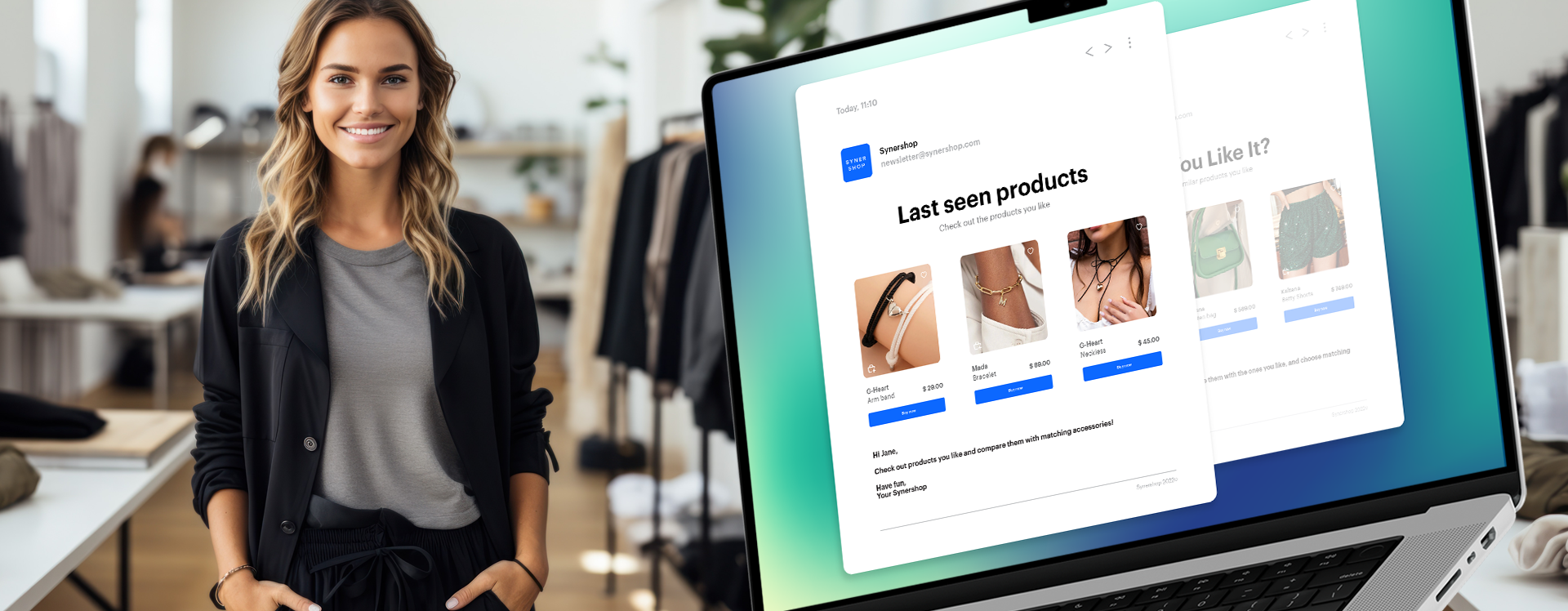
Boost your sales and strengthen customer relationships by providing personalized product recommendations based on customers' browsing history. By suggesting last seen items, you can enhance the shopping experience and drive engagement with a simple email.

This example explains **how to create a set of product recommendations with recently seen items for customers who have visited a page and have not made a purchase within the last 48 hours and send these recommendations through email.** In this use case, we will use a ready-made email template and show you how to use HTML block in this template to make the whole process of creation easier.   
Scenario described in this use case refers only to WEB integration.

It's worth noting that in this use case, the aggregate returns recently viewed products, but it can also be any other interactions, such as recently added to the cart, recently purchased, and so on. This predefined HTML block will work well regardless of the logic of the aggregate. Thanks to the HTML block, you can benefit from both the drag-and-drop builder, which allows you to create a creative and personalized email layout from scratch. At the same time, it simplifies the process of enriching such an email with dynamic elements, such as ready-to-use product frames, which already have built-in logic for how and what should be displayed. All you need to configure here is the aggregate responsible for selecting products for the customer. Everything is designed so that you can fully customize the email and display products according to your business needs.

<figure>
<img src="/api/docs/image/54176ad07f146575310749eba44b7c2f42c1b327/use-cases/all-cases/_gfx/lastseen01.png" alt="Last seen products in email message"  class="full no-frame">
</figure> 

## Prerequisites 
---
- Implement [Synerise tracking code](/developers/web/installation-and-configuration#creating-a-tracking-code) on your website.
- Add [product Feed](/developers/product-feed).
- Implement the [transaction events](/developers/web/transactions-sdk) using [SDK](/developers/web/transactions-sdk) or [API](https://developers.synerise.com/DataManagement/DataManagement.html#operation/CreateATransaction).

## Process
---

In this use case, you will go through the following steps:
1. [Create an aggregate](/use-cases/last-seen-html#create-an-aggregate) returning the ID of the last visited product, it will be used in the template configuration.
2. [Prepare an email template](/use-cases/last-seen-html#prepare-an-email-template) with the usage of the predefined template and predefined HTML block.
3. [Create an aggregate](/use-cases/last-seen-html#create-an-aggregate-1) which counts the number of products visited by customer.
3. [Prepare a workflow](/use-cases/last-seen-html#prepare-a-workflow) which sends an email to users.

## Create an aggregate
---
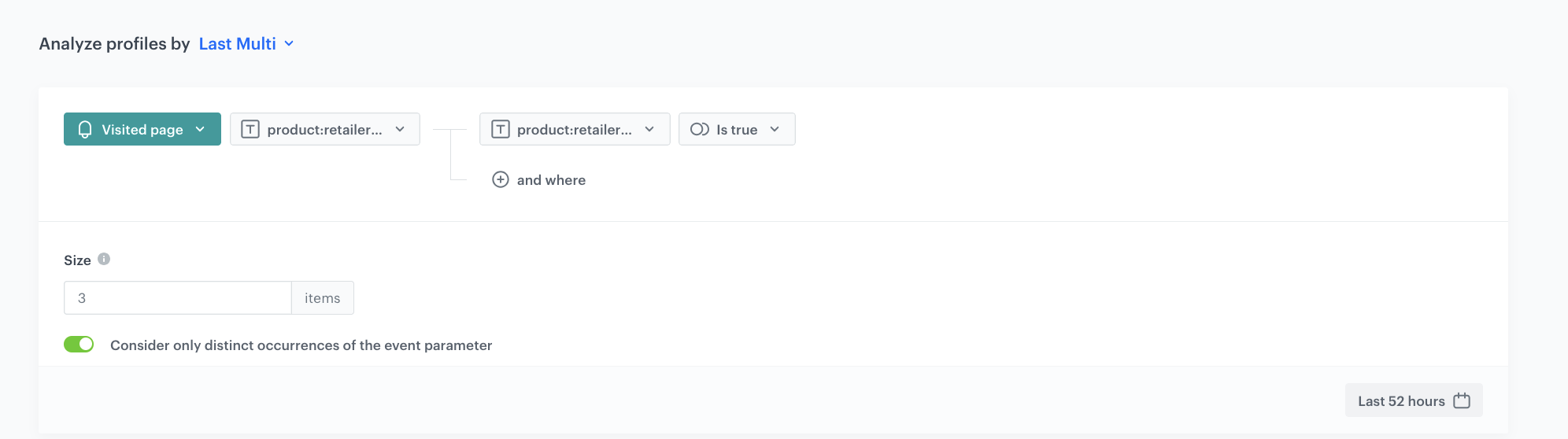
In this part of the process, create an aggregate that returns the IDs of the last 3 product a customer has visited. 

1. Go to <img src="/api/docs/image/54176ad07f146575310749eba44b7c2f42c1b327/icons/behavioral-data-hub-icon.svg" alt="Behavioral Data Hub icon" class="icon"> **Behavioral Data Hub > Live Aggregates > Create aggregate**.
2. As the aggregate type, select **Profile**.  
2. Enter the name of the aggregate.
3. Click **Analyze profiles by** and select **Last Multi**.
4. Select the **Consider only distinct occurrences of the event parameter** radio button.
4. From the **Choose event** dropdown list, select the **Visited page** event.
5. As the event parameter, select **product:retailer_part_no**.
6. Click the **+ where** button.
7. From the **Choose parameter** dropdown list, select the **product:retailer_part_no** parameter.
8. From the **Choose operator** dropdown list, select **Is true (Boolean)**.
9. Using the date picker in the lower-right corner, set the time range to **Last 52 hours**. Confirm your choice with the **Apply** button.
7. Click **Save**.
<figure>
<img src="/api/docs/image/54176ad07f146575310749eba44b7c2f42c1b327/use-cases/all-cases/_gfx/email_aggregate_3.png" alt="The view of the aggregate configuration"  class="large">
<figcaption>Configuration of the aggregate returing the ID of the last seen product</figcaption>
</figure> 

## Prepare an email template
---
In this part of the process, create an email template. You can use a predefined template or create your own template from scratch. In this case, we will use a predefined template. You will also use a specific HTML block which will let you configure the section with context recommendations in an easy way. In the configuration, we will use the [aggregate](#create-an-aggregate) created in the previous steps.

1. Go to <img src="/api/docs/image/54176ad07f146575310749eba44b7c2f42c1b327/icons/experience-hub-icon.svg" alt="Image presents the Experience Hub icon" class="icon"> **Experience Hub > Email**.  
2. On the left pane, click **Templates** and from the list of template folders, select **Predefined simple templates**.
3. Select any template that mostly fits the campaign assumptions.  
**Result:** You are redirected to the code editor. 
4. Edit the template according to your needs.

### Add the HTML block
---
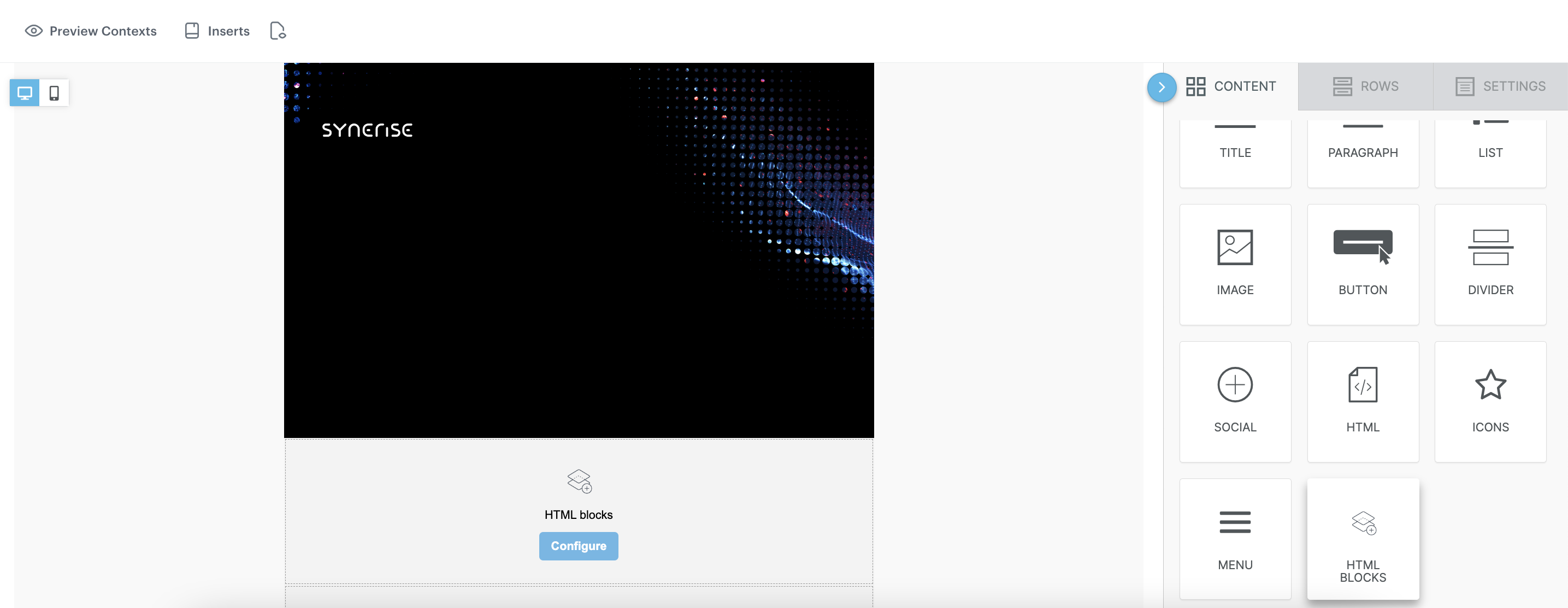
1. From the **Content** section, click **HTML block** and add pull it to the chosen place in your template.
    <figure>
    <img src="/api/docs/image/54176ad07f146575310749eba44b7c2f42c1b327/use-cases/all-cases/_gfx/lastseenhtml.png" class="full" alt="Email context preview">   
    <figcaption>Email context preview</figcaption>
    </figure>

2. Click the **Configure** button.
3. Choose the **Predefined blocks** folder where you will find the list of all predefined templates. In this case choose **Recently interacted products 1**.


   <div class="admonition admonition-note"><div class="admonition-icon"><svg xmlns="http://www.w3.org/2000/svg" fill="none" viewBox="0 0 24 24" stroke="currentColor" stroke-width="2.5"><path stroke-linecap="round" stroke-linejoin="round" d="M13 16h-1v-4h-1m1-4h.01M21 12a9 9 0 11-18 0 9 9 0 0118 0z" /></svg></div><div class="admonition-body"><div class="admonition-content">

   You can edit the template in two ways, by editing the code of the template in the **HTML** tab and/or by filling out the form in the Config tab. In this use case, we will use the capabilities of the predefined Config tab.

   </div></div></div>


#### Edit the form in the Config tab
---
The form in the **Config** tab is already filled in with default values. You can keep them or change them to fit your business needs.  

1. In the **Aggregate ID with recently interacted products**, add the Aggregate that returns SKUs of recently interacted products. Use the [aggregate](#create-an-aggregate) created in the previous step. You can find it by typing its name or ID in the search box.
2. In the **Catalog name** add the name of the main catalog with your product feed.

    
   <div class="admonition admonition-note"><div class="admonition-icon"><svg xmlns="http://www.w3.org/2000/svg" fill="none" viewBox="0 0 24 24" stroke="currentColor" stroke-width="2.5"><path stroke-linecap="round" stroke-linejoin="round" d="M13 16h-1v-4h-1m1-4h.01M21 12a9 9 0 11-18 0 9 9 0 0118 0z" /></svg></div><div class="admonition-body"><div class="admonition-content">

   If the catalog you're using has a custom structure, you'll need to change the attribute names in the code.

   </div></div></div>


3. Change the **Mail width** or leave it at default values.
4. Change **Number of product in row** or leave it at default values (recommended amount is 3 or less).
5. Define the style settings if you need (**Product title font color**, **Button background color**, **Button font color** and **Button border radius**).
6. In the **Button text** field, enter the text that will be displayed on the button.
7. Optionally, you can add more options to your block using HTML tab.
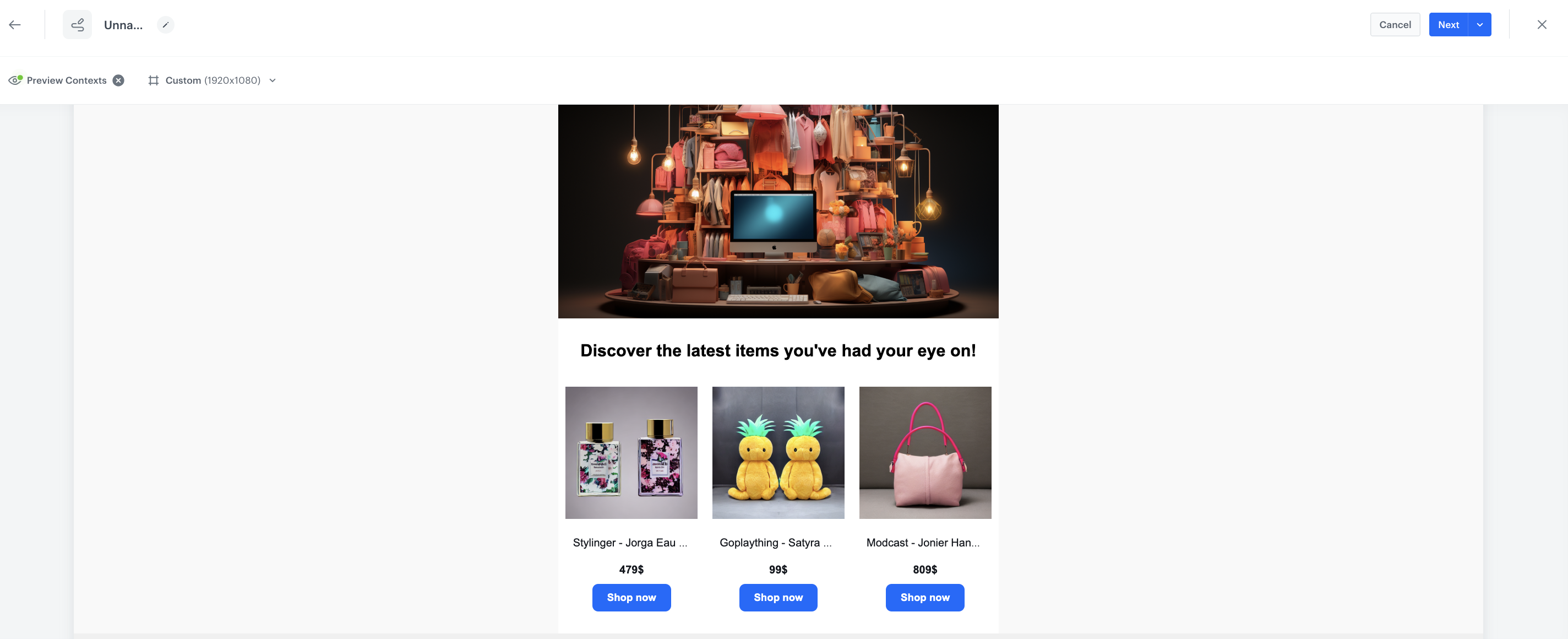
8. After you make changes to the template, you can check the preview.
    1. On the upper left side, click the **Preview Contexts** button.
    2. Enter the ID of a customer and define the product context.
    3. Click **Apply**.
7. If the template is ready, in the upper right corner, click the arrow next to **Next**, and from the dropdown select **Save as**.
8. On the pop-up:
    1. In the **Template name field**, enter the name of the template.
    2. From the **Template folder** dropdown list, select the folder where the template will be saved.
    3. Confirm by clicking **Save**.

Below you can find an example of the preview for the HTML block with the last seen products.
<figure>
<img src="/api/docs/image/54176ad07f146575310749eba44b7c2f42c1b327/use-cases/all-cases/_gfx/lastseenhtml2.png" class="full" alt="Email context preview">
<figcaption>Email context preview</figcaption>
</figure> 

### Final settings
---
6. Add final elements to your email template.
7. After you make changes to the template, you can check the preview of the whole template.
    1. On the upper left side, click the **Preview Contexts** button.
    2. Enter the ID of a customer.
    3. Click **Apply**.
7. If the template is ready, in the upper right corner, click the arrow next to **Next**, and from the dropdown select **Save as**.
8. On the pop-up:
    1. In the **Template name field**, enter the name of the template.
    2. From the **Template folder** dropdown list, select the folder where the template will be saved.
    3. Confirm by clicking **Save**.

## Create an aggregate
---
In this step you will create an aggregate which counts the number of products visited by customer. It will be used later in the workflow.

1. Go to <img src="/api/docs/image/54176ad07f146575310749eba44b7c2f42c1b327/icons/behavioral-data-hub-icon.svg" alt="Behavioral Data Hub icon" class="icon"> **Behavioral Data Hub > Live Aggregates > Create aggregate**.
2. As the aggregate type, select **Profile**.  
2. Enter the name of the aggregate.
3. Click **Analyze profiles by** and select **Count**.
4. From the **Choose event** dropdown list, select the **page.visit** event.
5. As the event parameter, select **product:retailer_part_no**.
4. From the **Choose operator** dropdown list, select **Is true (Boolean)**.
5. Using the date picker in the lower-right corner, set the time range to **last 52 hours**. Confirm your choice with the **Apply** button.
7. Click **Save**.

<figure>
<img src="/api/docs/image/54176ad07f146575310749eba44b7c2f42c1b327/use-cases/all-cases/_gfx/page.visit-count-aggregate.png" alt="The view of the configuration of the metric returning the number of all page visits"  class="full">
<figcaption>Configuration of the metric returning the number of all page visits</figcaption>
</figure> 

## Prepare a workflow
---
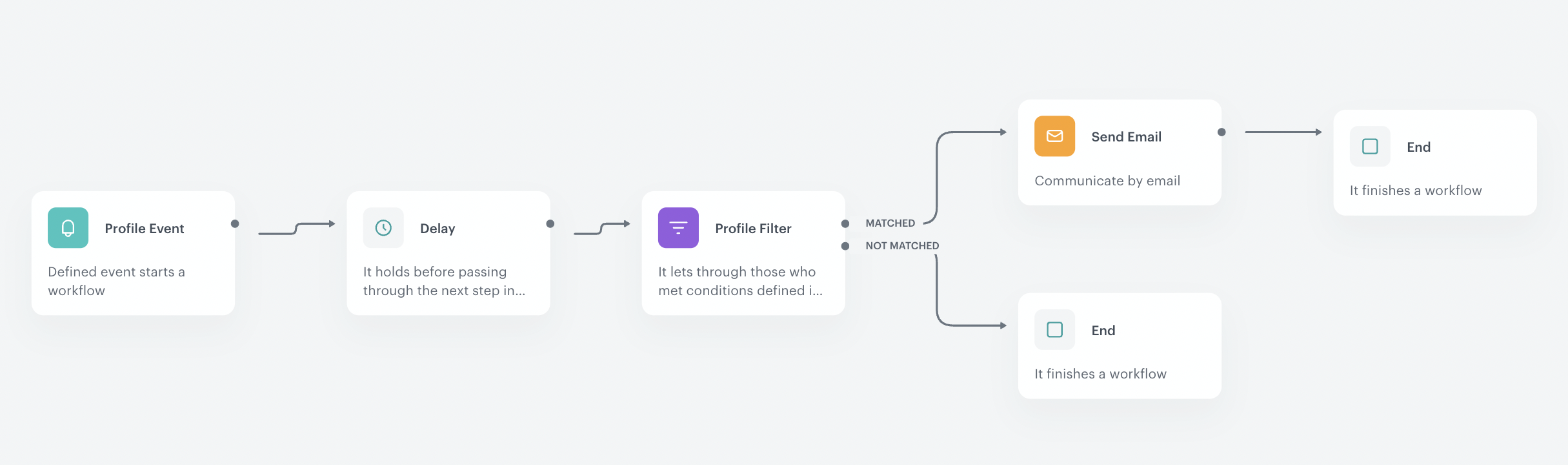
The workflow will be triggered by the `session.end` event. The delay is set to 48 hours, after this time customer will receive an email with 3 last seen products.

1. Go to <img src="/api/docs/image/54176ad07f146575310749eba44b7c2f42c1b327/icons/automation-hub-icon.svg" alt="Automation Hub icon" class="icon" > **Automation Hub > Workflows > New workflow**.  
2. Enter the name of the workflow.

### Define the trigger node
---
1. As the first node, add the **Profile Event**. In the settings of the node, select the **session.end** event.
2. Click **Apply**.

### Configure the Delay node
---
1. Add the **Delay** node. In the node settings:
    1. In the **Delay** field, type `48`.
    2. From the **Unit** dropdown list, choose **Hour**.
2. Click **Apply**.

### Configure the Profile Filter node
---
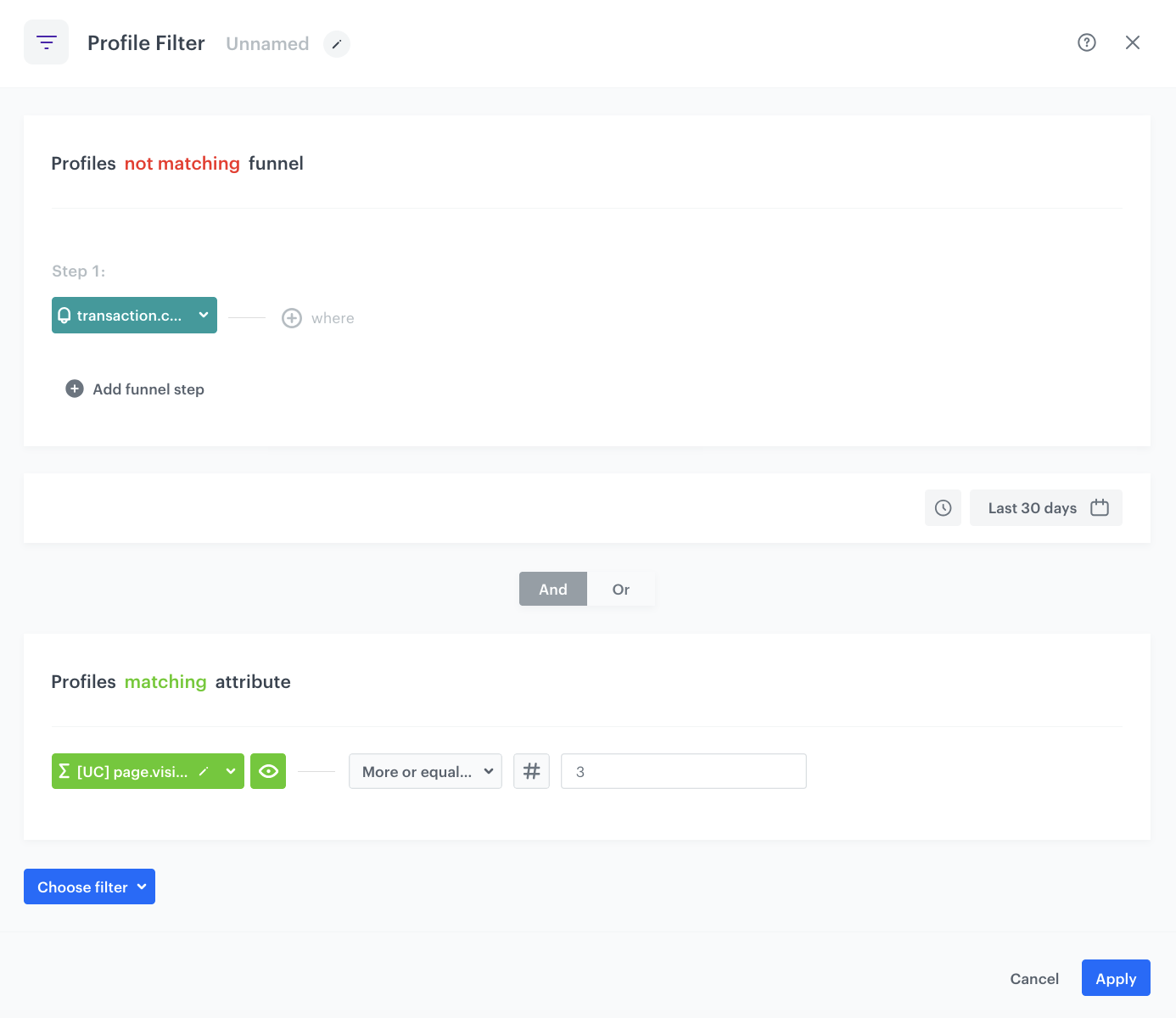
As this step, add the **Profile Filter** node, to check two conditions:
- if the customer competed a transaction within the last 48 hours,
- if the customer has browsed at least three different products.  
Only customers who fulfill both criteria will be sent an email featuring the last products they looked at. Customers with fewer product views will not receive tailored recommendations because of the lack of data.

1. Add **Profile Filter** node. 
2. In the settings of the node select `transaction.charge` event. 
3. Set the time range as the `last 30 days`.
4. Change the condition to "Profiles `not matching` funnel".
5. From the **Choose filter** dropdown list select the aggregate created in [this part of the process](/use-cases/last-seen-html#create-an-aggregate-1).
6. From the **Choose operator** dropdown list, select **More or equal to**.
7. On the input field type `3`.
5. Click **Apply**.
    <figure><img src="/api/docs/image/54176ad07f146575310749eba44b7c2f42c1b327/use-cases/all-cases/_gfx/profile-filter-last-seen.png" class="large" alt="The Profile Filter node configuration"><figcaption>The Profile Filter node configuration</figcaption></figure>

5. To the **Matched** path, add a **Send Email** node. 

### Configure the Send Email node
---
1. Add the **Send Email** node. In the node settings:
    1. In the **Sender details** section, choose the email account from which the email will be sent.
    2. In the **Content** section, in the **Subject** field, enter the subject of the email and from the **Template** dropdown, select [the template you have prepared in the previous step](/use-cases/last-seen-html#prepare-an-email-template).
    3. In the **UTM & URL parameters** section, you can define the UTM parameters added to the links included in the email. 
    4. In the **Additional parameters** section, you can optionally assign [parameters](/docs/campaign/e-mail/creating-email-campaigns#adding-custom-parameters). which will be added to every event generated by this communication.
2. Click **Apply**.

### Add the finishing nodes and set capping

1. Add the **End** nodes after **Send Email** node and to the **Not matched** path after the **Profile Filter** node.
2. In the upper right corner, click **Set Capping** and define the limit of workflows a profile can start.
4. Confirm by clicking **Apply**.

<figure>
<img src="/api/docs/image/54176ad07f146575310749eba44b7c2f42c1b327/use-cases/all-cases/_gfx/last-seen-workflow.png" alt="The view of the workflow configuration"  class="full">
<figcaption>Workflow configuration</figcaption>
</figure> 


## Check the use case set up on the Synerise Demo workspace
---
On Synerise Demo workspace, you can check:
- [aggregate](https://app.synerise.com/analytics/aggregates/245aa662-d642-352e-acef-18198604ac13),
- [email template](https://app.synerise.com/campaigns/create/898632d5-a9d1-40b6-9b6e-a1a396e17019)
- [aggregate](https://app.synerise.com/analytics/aggregates/79acbdbb-1462-3d6a-b428-262575bca4a5)
- [workflow](https://app.synerise.com/automations/automation-diagram/24cab624-aaa3-4d5a-a60f-6b0c4e963920)


If you’re our partner or client, you already have automatic access to the **Synerise Demo workspace (1590)**, where you can explore all the configured elements of this use case and copy them to your workspace.  

If you’re not a partner or client yet, we encourage you to fill out the contact [form](https://demo.synerise.com/request) to schedule a meeting with our representatives. They’ll be happy to show you how our demo works and discuss how you can apply this use case in your business.

## Read more
---
- [Aggregates](/docs/analytics/aggregates)
- [Automation Hub](/docs/automation)
- [Email template builder](/docs/campaign/e-mail/creating-email-templates/creating-custom-html-block-basic-builder)
