Marketers create promotions based on various criteria, such as promotions targeting a specific group of products, brands or even store locations. The choice of the promotion type depends largely on its objectives and desired results. 

This use case describes how to create a promotion for customers who make purchases in stores in a specific location - in Krakow. Such customers will receive a 15 PLN discount for purchases over 100 PLN. The promotion will work only for loyalty program members (customers logged into the mobile app). 

## Prerequisites
---
- Implement promotions in your [mobile application](/developers/mobile-sdk/loyalty), [API](https://developers.synerise.com/LoyaltyandEngagement/LoyaltyandEngagement.html#operation/profileLogin).
- [Import your product feed to catalog](/use-cases/import-product-feed-to-catalog).
- Add list of stores to a catalog. Such a catalog must contain a unique store ID and any other store attributes by which you will filter stores, such as city, zip code, and so on. More information about catalogs can be found [here](/docs/assets/catalogs).

## Security configuration
---
Before you start working with this hub, if you are a Synerise customer or partner, consider reading [the section about denylisting events](/docs/settings/tool/api#denylist). This natively accessible configuration will allow you to manage the restrictions in points management that may help you prevent fraud.

## Process
---
1. [Prepare a segmentation](/use-cases/location-based-promotion#prepare-a-segmentation) of customers who are members of the loyalty program.
2. [Create a promotion](/use-cases/location-based-promotion#create-a-promotion) based on location.

## Prepare a segmentation
---
In this part of the process, create a segmentation of customers who are members of the company's loyalty program.

1. Go to <img src="/api/docs/image/54176ad07f146575310749eba44b7c2f42c1b327/icons/decision-hub-icon.svg" alt="Behavioral Data Hub icon" class="icon"> **Decision Hub > Segmentations > New segmentation**.
2. Enter the name of segmentation. 
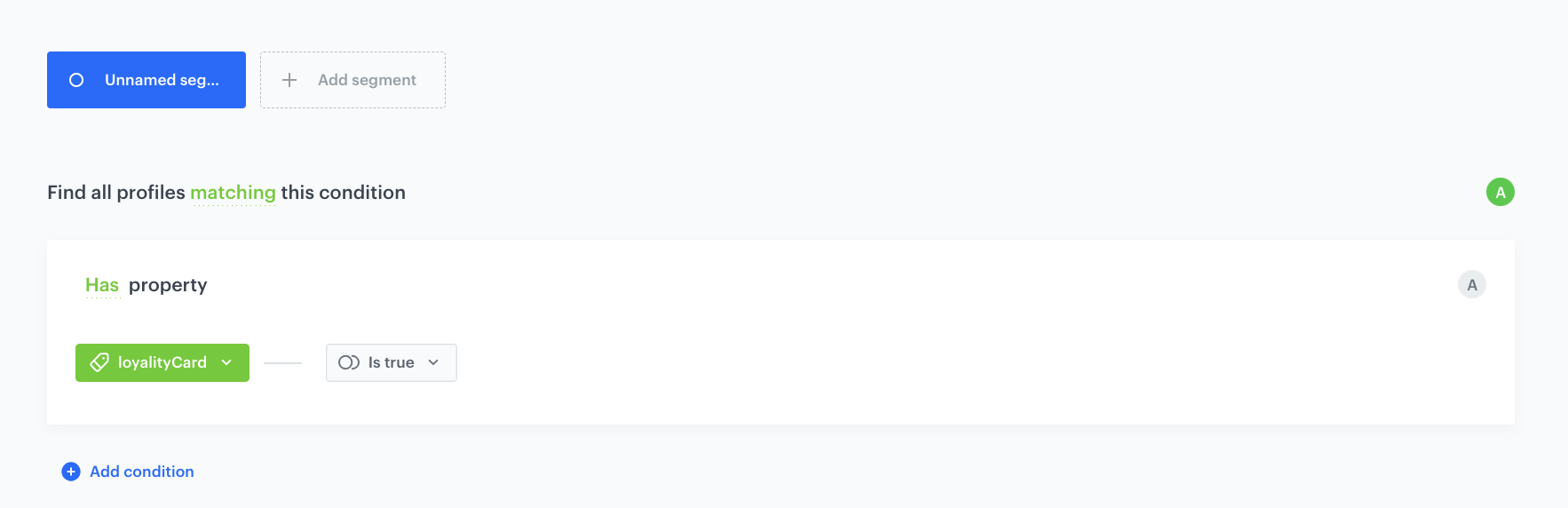
3. From the **Choose filter** dropdown list, select the **loyaltyCard** attribute.
4. As the logical operator select Boolean **Is true**.
5. Confirm by clicking **Save**.

    
   <div class="admonition admonition-important"><div class="admonition-icon"><svg xmlns="http://www.w3.org/2000/svg" fill="none" viewBox="0 0 24 24" stroke="currentColor" stroke-width="2.5"><path stroke-linecap="round" stroke-linejoin="round" d="M12 8v4m0 4h.01M21 12a9 9 0 11-18 0 9 9 0 0118 0z" /></svg></div><div class="admonition-body"><div class="admonition-content">

   The conditions used in the segmentation will vary depending on your loyalty program integration (for example, the name of the attribute may be different). You must define the segmentation accordingly.

   </div></div></div>
  

<figure>
<img src="/api/docs/image/54176ad07f146575310749eba44b7c2f42c1b327/use-cases/all-cases/_gfx/segment-loyalty-program-members.png" class="full" alt="An example of a segmentation of customers who participate in a loyalty program">
<figcaption>An example of a segmentation of customers who participate in a loyalty program</figcaption>
</figure>

## Create a promotion
---

1. Go to <img src="/api/docs/image/54176ad07f146575310749eba44b7c2f42c1b327/icons/ai-hub-icon.svg" alt="AI Hub icon" class="icon" > **AI Hub > Regular Promotions > Add promotion**.
2. Enter a name for the promotion.
2. Select the **For entire cart** option.
3. In the **Audience** section, select the segmentation created in [this step](/use-cases/location-based-promotion#prepare-a-segmentation).
4. In the **Content** section:
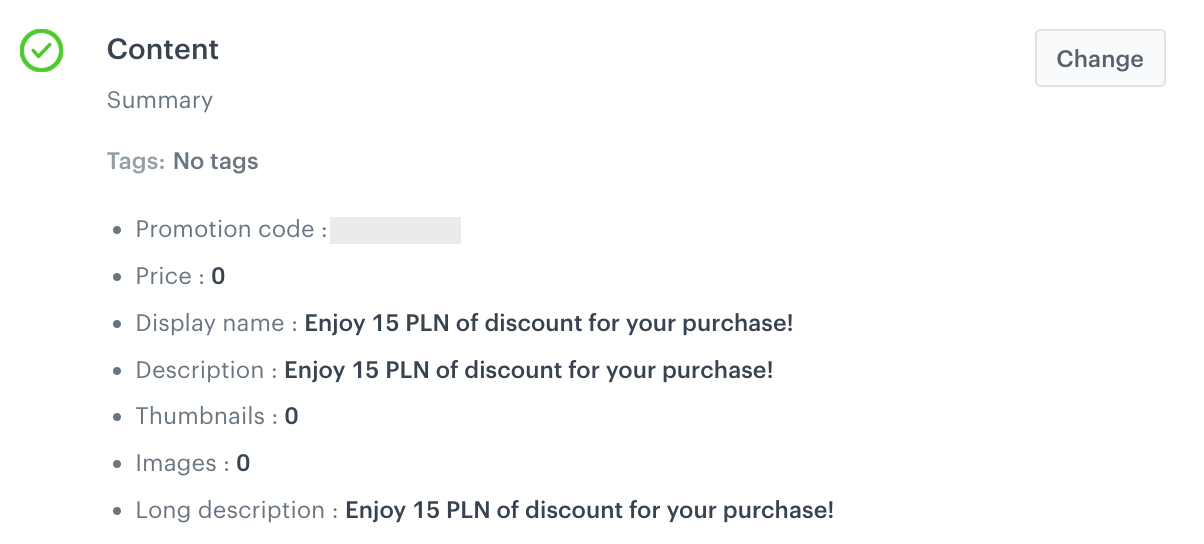
    1. Define the name, description, and image of the promotion. 
    2. In the **Price** field, enter `0`. 
    3. Confirm the settings by clicking **Apply**. 
        <figure>
        <img src="/api/docs/image/54176ad07f146575310749eba44b7c2f42c1b327/use-cases/all-cases/_gfx/location-based-promotion-content.png" class="large" alt="Example of promotion content">
        <figcaption>Example of promotion content</figcaption>
        </figure>

5. In the **Type and limits** section:
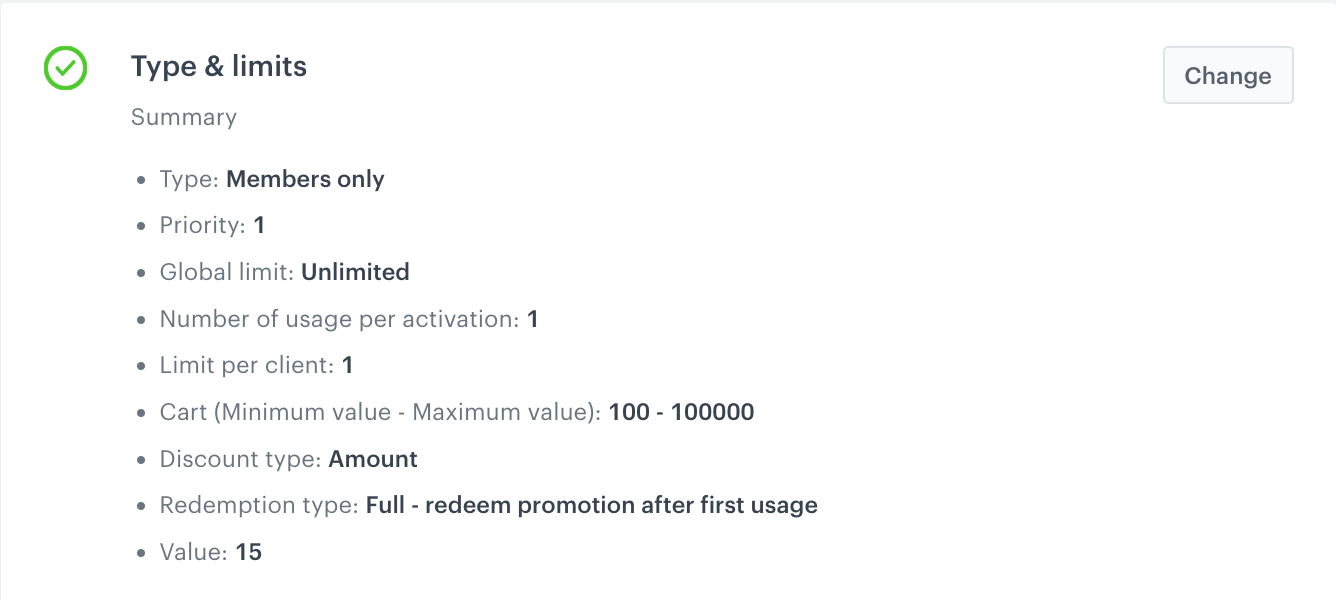
    1. As the **Type**, choose **Members only**.
    2. Select the **Single** tab.
    3. In the **Limit per profile** section, enter `1`.
    4. In the **Minimum value** and **Maximum value** fields, define the price caps that activate discount for the entire cart. 
    5. From the **Discount type** dropdown list, choose **Amount**.
    6. From the **Discount mode** dropdown list, choose **Static**.
    7. In the **Value** field, enter `15`.

        <figure>
        <img src="/api/docs/image/54176ad07f146575310749eba44b7c2f42c1b327/use-cases/all-cases/_gfx/location-based-promotion-types-and-limits.png" class="large" alt="Example of Type and limits settings">
        <figcaption>Example of Type and limits settings</figcaption>
        </figure>

6. In the **Schedule** section, define the promotion distribution period according to your business needs.
7. In the **Stores** section, specify stores where the promotion is available (in this case, stores located in Krakow were selected).

    
   <div class="admonition admonition-note"><div class="admonition-icon"><svg xmlns="http://www.w3.org/2000/svg" fill="none" viewBox="0 0 24 24" stroke="currentColor" stroke-width="2.5"><path stroke-linecap="round" stroke-linejoin="round" d="M13 16h-1v-4h-1m1-4h.01M21 12a9 9 0 11-18 0 9 9 0 0118 0z" /></svg></div><div class="admonition-body"><div class="admonition-content">

   This is possible only if the list of stores is imported into a [catalog](/docs/assets/catalogs).

   </div></div></div>
 

8. In the **Items** section, specify the catalog item to be discounted:
    1. In the **Source catalog** field, select an item catalog to select the promotional items from.
    2. Select **Entire catalog** using the **Select items** option, as in this use case promotion works on all items. 
11. To apply configuration and run the promotion, click **Publish**.

## Check the use case set up on the Synerise Demo workspace
---

You can also check the configuration of the [segmentation](https://app.synerise.com/analytics/segmentations/1f34841c-8dd8-49f6-acd9-aab7ce928e23) and [promotion settings](https://app.synerise.com/campaigns/promotions/18b845c0-b220-44ca-8d12-3321753f8fd0) directly in Synerise Demo workspace.

If you’re our partner or client, you already have automatic access to the **Synerise Demo workspace (1590)**, where you can explore all the configured elements of this use case and copy them to your workspace.  

If you’re not a partner or client yet, we encourage you to fill out the contact [form](https://demo.synerise.com/request) to schedule a meeting with our representatives. They’ll be happy to show you how our demo works and discuss how you can apply this use case in your business.

## Read more
---
- [Promotions](/docs/ai-hub/promotions)
- [Segmentations](/docs/analytics/segmentations)