In the constantly evolving e-commerce landscape, optimizing sales and minimizing shopping cart abandonment rates is crucial. There are several ways to prevent the abandoned cart scenarios. While the classic approach to solving this problem is well known, there is an even more effective strategy - low-stock campaigns.

To keep your potential customers from abandoning their shopping carts, consider implementing a low-stock campaign, which is a comprehensive solution that applies not only to abandoned shopping carts, but also to abandoned pages or abandoned favorite lists.

Here's how a low-stock campaign strategy unfolds, especially for abandoned shopping carts. When users add products to their shopping carts that either already have low-stock levels or are predicted to have limited availability in the near future, and fail to complete the purchase, you can capitalize on the situation by triggering your low-stock abandoned cart communication.

By promptly informing customers that the products they are at risk of selling out due to declining inventory, you provide them with a compelling reason to complete their purchase. This urgency can become a key element in the decision-making process, potentially leading to higher conversion rates.

The beauty of a low inventory campaign is that it is highly customizable. What constitutes "low inventory" is entirely up to your discretion and tailored to your specific business needs. Whether you have 10 units left or even 1000 , the definition of low inventory can fit perfectly with your inventory management strategy. This flexibility ensures that your campaign can be tailored to different product categories and customer preferences, optimizing its effectiveness.

In this use case you will learn how to create a low-stock campaign for customers with an abandoned shopping cart. 

<figure>
<img src="/api/docs/image/54176ad07f146575310749eba44b7c2f42c1b327/use-cases/all-cases/_gfx/low-stock-main-graphic.png" alt="Low stock campaign"  class="full no-frame">
</figure>

## Prerequisites 
---
- [Implement a tracking code](/docs/settings/tool/tracking_codes) into your website.
- [Implement the `cart.status` event](/developers/web/cart), which stores the current status of the basket in the form of an event on the customer's card. This event must to be sent to Synerise after every change in the cart status.
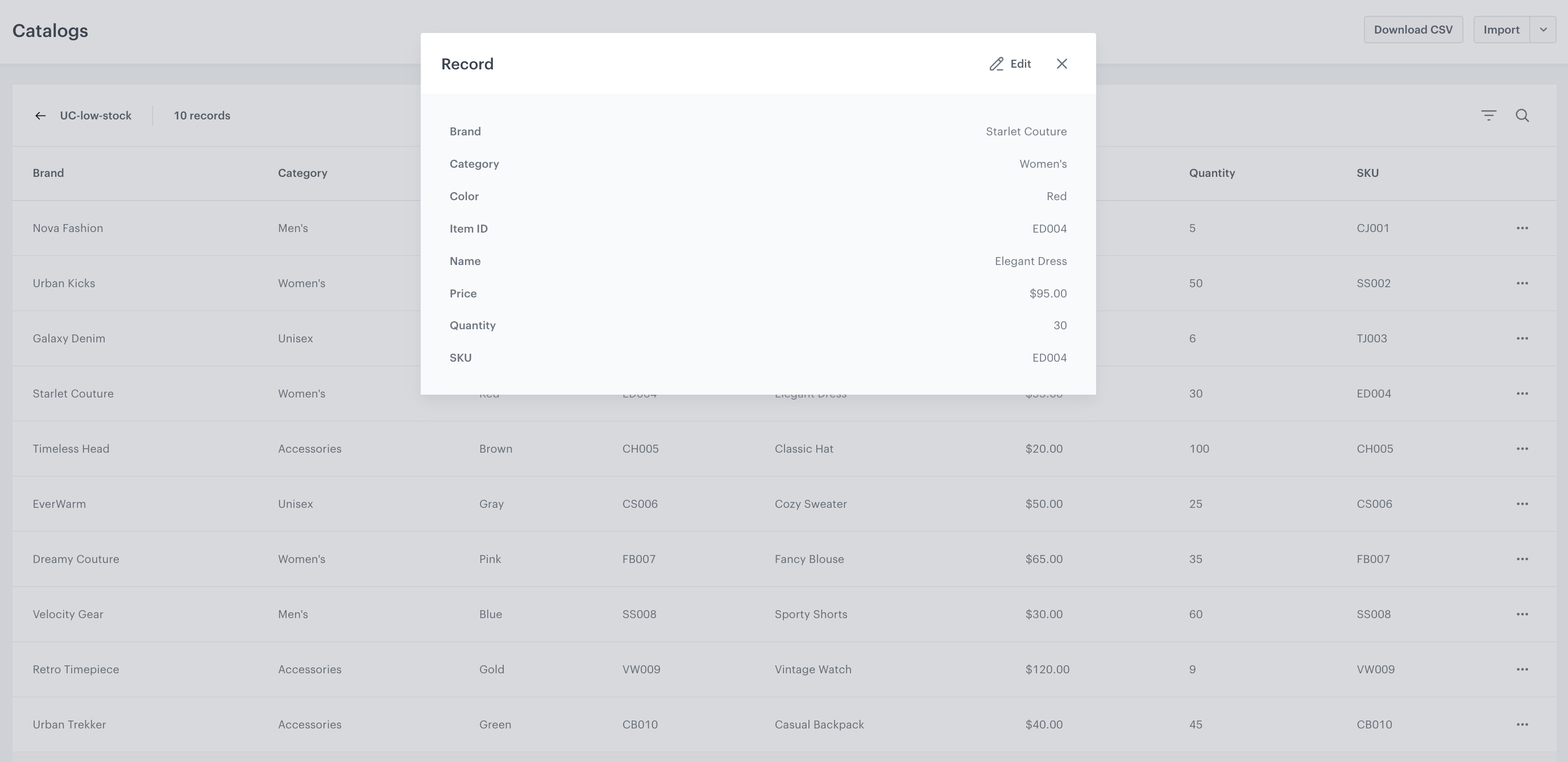
- [Import product feed into the Synerise catalog](/use-cases/import-product-feed-to-catalog).

  <details class="accordion"><summary>Click to see a sample catalog</summary><div class="accordion-content"><figure><img src="/api/docs/image/54176ad07f146575310749eba44b7c2f42c1b327/use-cases/all-cases/_gfx/low-stock-catalog.png" class="full" alt="Example of a catalog"><figcaption>Example of a catalog</figcaption></figure></div></details>

- Prepare an email template for Low stock campaign. This template will be used later in the workflow.  
In the template, you can retrieve the event context from the preceding nodes. In this case, you can reuse the context of a product that has been added to the cart, but has not been purchased and is running out of stock. For more information on how to reuse event parameters, check out this [article](/docs/automation/event-params-reuse). 

## Process
---
In this use case, you will go through the following steps:
1. [Create a product.LowInStock event](/use-cases/low-stock-campaign#create-a-productlowinstockevent)
2. [Create an aggregate that returns products in a cart](/use-cases/low-stock-campaign#create-an-aggregate-that-returns-the-products-in-a-cart)
3. [Create a workflow](/use-cases/low-stock-campaign#create-a-workflow)

## Create a product.LowInStock event
---
In this part of the process, add the **product.LowInStock** event, which will later be generated in the workflow that checks whether the product is low in stock. In addition, this event must include the **sku** parameter, which contains the SKU of the low-in-stock product which the customer added to the shopping cart. 

1.  Go to <img src="/api/docs/image/54176ad07f146575310749eba44b7c2f42c1b327/icons/data-modeling-hub-icon.svg" alt="Data Modeling Hub icon" class="icon"> **Data Modeling Hub > Events > Add event**.
3. In the **Name** field, enter `product.LowInStock`  
    In the API and SDK, the name parameter is usually called `action` or `action name`
4. Optionally, define a human-friendly display name that will be shown in **Data Modeling Hub** and **Decision Hub Hub**.
5. Optionally, in the **Description** field, enter the description of the event.
6. Enable the **Make this event available to anonymous profiles without JWT** toggle.
7. Click **Apply**. 
8. In the list of events, find the event you just created. 
9. On the right side of the screen, click **Add property**.
10. In the **Source parameter** field, enter `lowstock_cart`.
    This parameter will be used to save the SKUs of items which are low in stock.
11. In the **Property name** field, enter a human-readable label of the property for display in the Synerise platform.
12. Optionally, in the **Description** field, you can add an explanation about the purpose of this parameter. 
13. To complete the process, click **Save**.  

## Create an aggregate that returns the products in a cart 
---
This aggregate will be used later in the **product.LowInStock** event to get products a customer added to their cart.

1. Go to <img src="/api/docs/image/54176ad07f146575310749eba44b7c2f42c1b327/icons/behavioral-data-hub-icon.svg" alt="Behavioral Data Hub icon" class="icon"> **Behavioral Data Hub > Live Aggregates > Create aggregate**.
2. As the aggregate type, select **Profile**.  
2. Enter the name of the aggregate.
3. Click **Analyze profiles by** and select **Last**.
4. From the **Choose event** dropdown list, select the `cart.status` event.
5. As the event parameter, select **ItemIds**.
6. Set the period from which the aggregate will analyze the results. In our case, we set the time period to **Lifetime**. 
7. Save the aggregate.

<figure>
<img src="/api/docs/image/54176ad07f146575310749eba44b7c2f42c1b327/use-cases/all-cases/_gfx/last-cart.status-itemIds-updated.png" class="full" alt="The view of the configuration of the aggregate">
<figcaption>Configuration of the aggregate</figcaption>
</figure>

## Create an aggregate that returns the number of products in a cart
---

This aggregate will be used in the first workflow to check if a customer has any products in the shopping cart.

1. Go to <img src="/api/docs/image/54176ad07f146575310749eba44b7c2f42c1b327/icons/behavioral-data-hub-icon.svg" alt="Behavioral Data Hub icon" class="icon"> **Behavioral Data Hub > Live Aggregates > Create aggregate**.
2. As the aggregate type, select **Profile**.  
2. Enter the name of the aggregate.
3. Click **Analyze profiles by** and select **Last**.
5. From the **Choose event** dropdown list, select the `cart.status` event.
6. As the event parameter, select **totalQuantity**.
7. Set the period from which the aggregate will analyze the results to **Lifetime**. 
12. Save the aggregate.

<figure>
<img src="/api/docs/image/54176ad07f146575310749eba44b7c2f42c1b327/use-cases/all-cases/_gfx/cart.status-totalQuantity.png" class="full" alt="The view of the configuration of the aggregate">
<figcaption>Configuration of the aggregate</figcaption>
</figure>

## Create a workflow
---
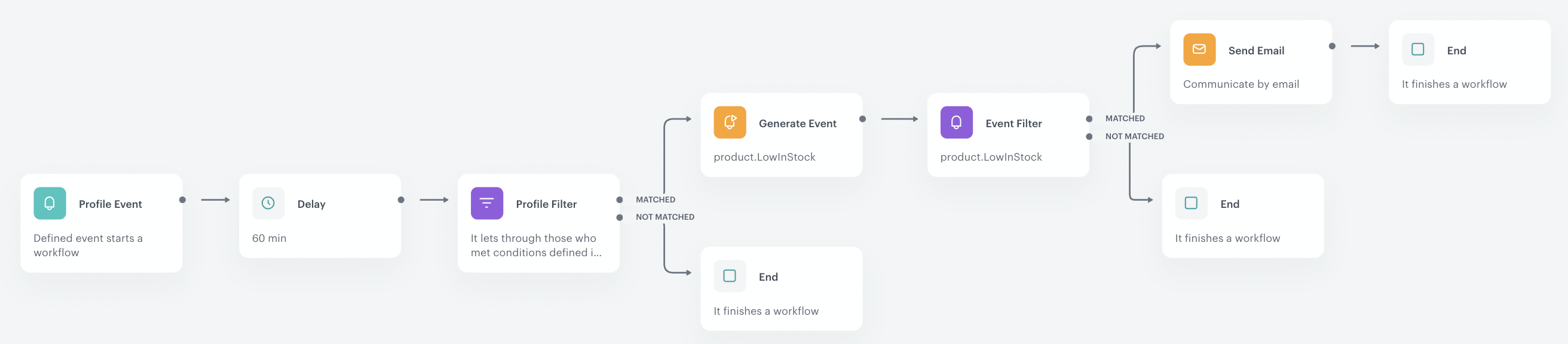
In this part of the process, we create a workflow to send an email campaign to customers who have added products to their cart but haven't completed their purchase. The workflow follows this logic:
1. Target customers who:
    - Have added products to their cart.
    - Haven't made a purchase in the last 60 minutes.
    - Have agreed to receive email communications.
2. If a customer meets all these conditions, we generate a **product.LowInStock** event. This event contains information about the items in the customer's cart that are running low in stock.
3. The workflow then waits for 10 minutes for the event to be generated.
4. Once the event is generated, the customer receives an email message with details about the products mentioned in the **product.LowInStock** event.

### Configure a trigger
---
In this part of the process, select the segmentation for which you want to target low-stock campaign.

1. As the first node of the workflow, add **Profile Event**.
2. From **Choose event** dropdown menu, choose the **product.addToCart** event.
3. Confirm by clicking **Apply**.

### Define the Delay node
---
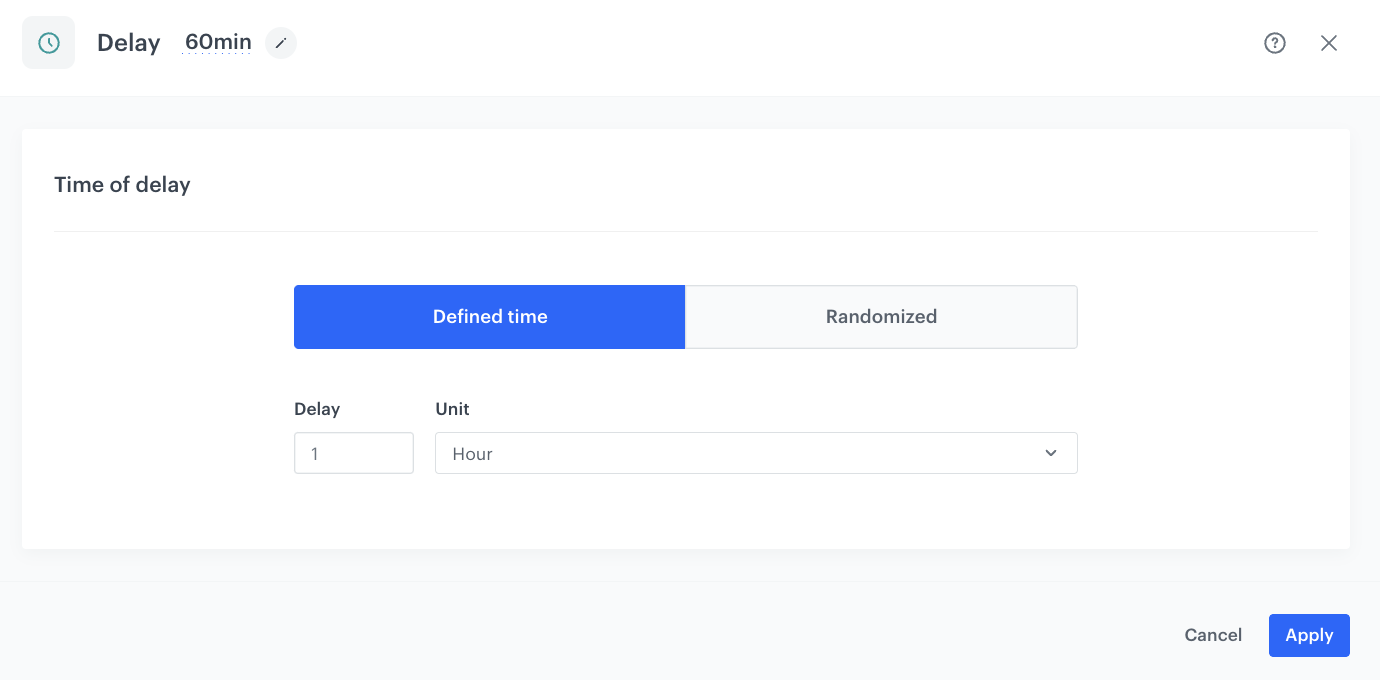
This node creates an hour's delay before moving to the next condition of the workflow.

1. Add the **Delay** node. In the node settings:
    1. In the **Delay** field, type `1`.
    2. From the dropdown list, choose **Hour**.
2. Click **Apply**.

<figure>
<img src="/api/docs/image/54176ad07f146575310749eba44b7c2f42c1b327/use-cases/all-cases/_gfx/delay-1-hour.png" alt="Configuration of the Delay node`" class="large">
<figcaption> Configuration of the Delay node </figcaption>
</figure>

### Configure the Profile Filter node
---
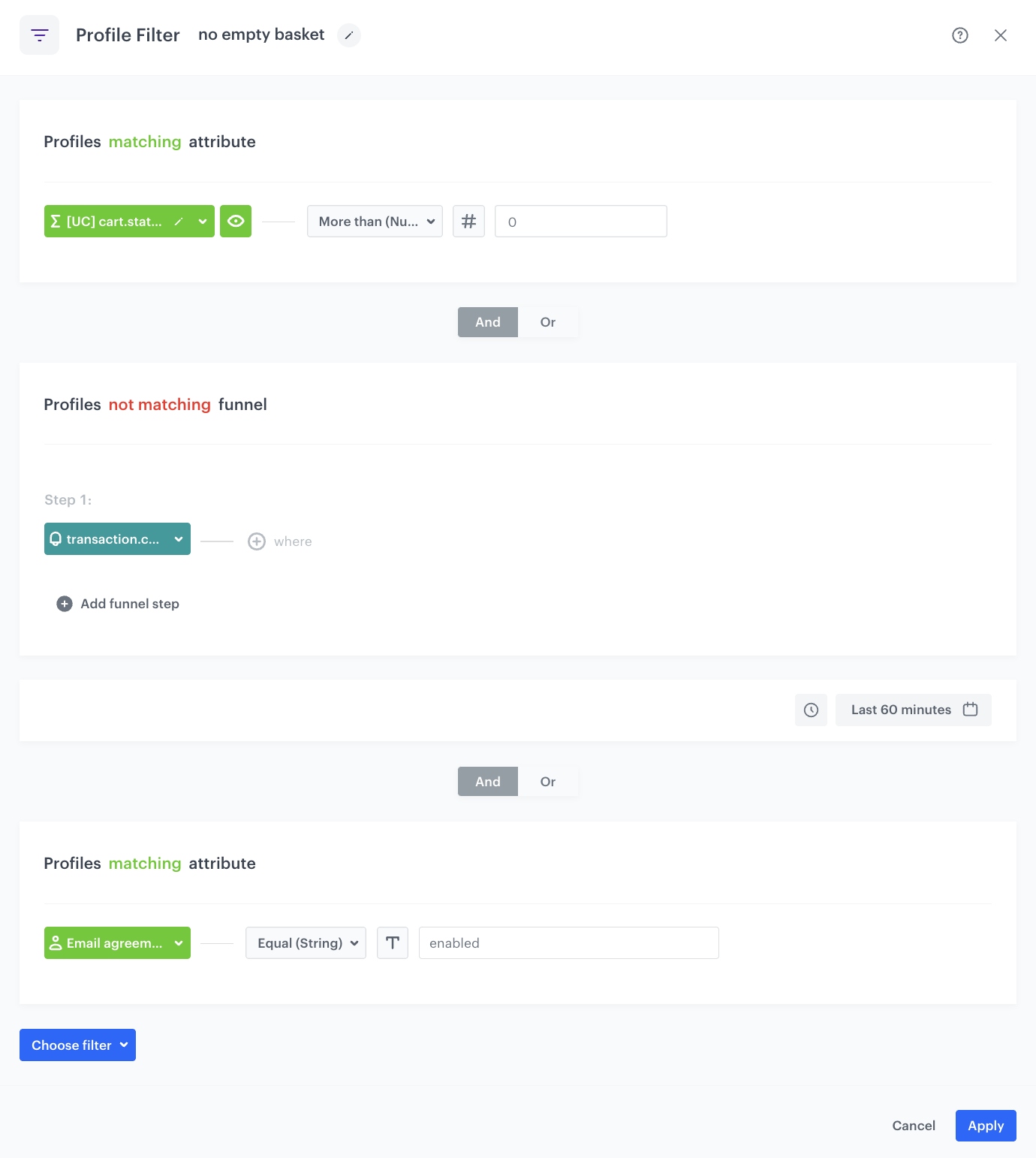
This part of the process defines the conditions that the customer should meet in order to move to the next step of the workflow. If the customer does not meet the defined conditions, the workflow ends for them.

1. Add the **Profile Filter** node. In the node settings:
    1. Click **Choose filter** and select the [aggregate](/use-cases/low-stock-campaign#create-an-aggregate-that-returns-the-number-of-products-in-a-cart) you created earlier in the process.
    2. From the **Choose operator** dropdown, choose **More than (Number)** and type `0` in the empty field. 
    3. From the **Choose filter** dropdown list, select the **transaction.charge** event. 
    4. Change the funnel type from **profiles matching** to **profiles not matching**.
    5. Click the calendar icon and set the date/time filter to **Last 60 minutes**.
    6. From the **Choose filter** dropdown list, select the **newsletter_agreement** attribute.
    7. From the **Choose operator** dropdown, choose **Equal (String)** and type `enabled` in the empty field. 
2. Click **Apply**.

<figure>
<img src="/api/docs/image/54176ad07f146575310749eba44b7c2f42c1b327/use-cases/all-cases/_gfx/profile-filter-no-empty-basket-new.png" alt="The view of the Profile Filter node configuration"  class="large">
<figcaption>Profile Filter node configuration</figcaption>
</figure> 

### Configure the Generate Event node for the Matched path
---
Before sending the email to the customer, an event must be generated on the customer's profile. The event must contain the IDs of products that are running low in stock (these are the products that will be sent to the customer in the email). 

1. Add the **Generate Event** node to the **Matched** path.
    In the configuration of the node:
    1. In **Event name**, enter `product.LowInStock`  
    2. In the **Body** section, use the following Jinjava and modify it to your needs:
    
   <div class="admonition admonition-note"><div class="admonition-icon"><svg xmlns="http://www.w3.org/2000/svg" fill="none" viewBox="0 0 24 24" stroke="currentColor" stroke-width="2.5"><path stroke-linecap="round" stroke-linejoin="round" d="M13 16h-1v-4h-1m1-4h.01M21 12a9 9 0 11-18 0 9 9 0 0118 0z" /></svg></div><div class="admonition-body"><div class="admonition-content">

   Jinjava inserted in **Generate event** body must have all empty spaces deleted.

   </div></div></div>


<pre><code class="language-jinja">{ 
  "lowstock_cart":  
"{% set skus = [] %} 
{% aggregate PRODUCTS-IN-CART %} {# replace PRODUCTS-IN-CART with the ID of the aggregate that returns products in the cart #} 
{% for items in aggregate_result %} 
{% do skus.append(items) %} 
{%endfor%} 
{% endaggregate %} 
{% set lowstock = []%} 
{% for sku in skus %} 
{% catalogitemv2.CATALOG-NAME(sku) %} {# replace CATALOG-NAME with the name of your feed catalog #} 
{% set object = catalog_result %} 
{% if object.get('Quantity')|int &lt; NUMBER %} {# NUMBER defines the amount of products you consider as low in stock #} 
{% set quantity = object.get('Quantity') %}
{% do lowstock.append(sku) %} 
{%else%} 
{%endif%} 
{% endcatalogitemv2 %} 
{%endfor%} 
{% if lowstock|count==0 %}0{% else %}{{lowstock[0]}}{% endif %}"
}</code></pre>
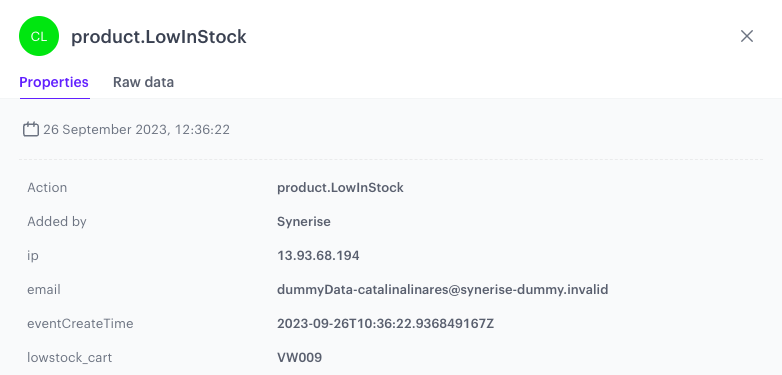

**Result:** a **product.LowInStock** event is generated. Its **lowstock_cart** parameter contains the ID of a product that is low in stock.   

An example of a generated event:
<figure>
<img src="/api/docs/image/54176ad07f146575310749eba44b7c2f42c1b327/use-cases/all-cases/_gfx/product.LowInStock_event.png" alt="The view of the Profile Filter node configuration"  class="large">
<figcaption>Profile Filter node configuration</figcaption>
</figure> 

### Configure the Event Filter node
---
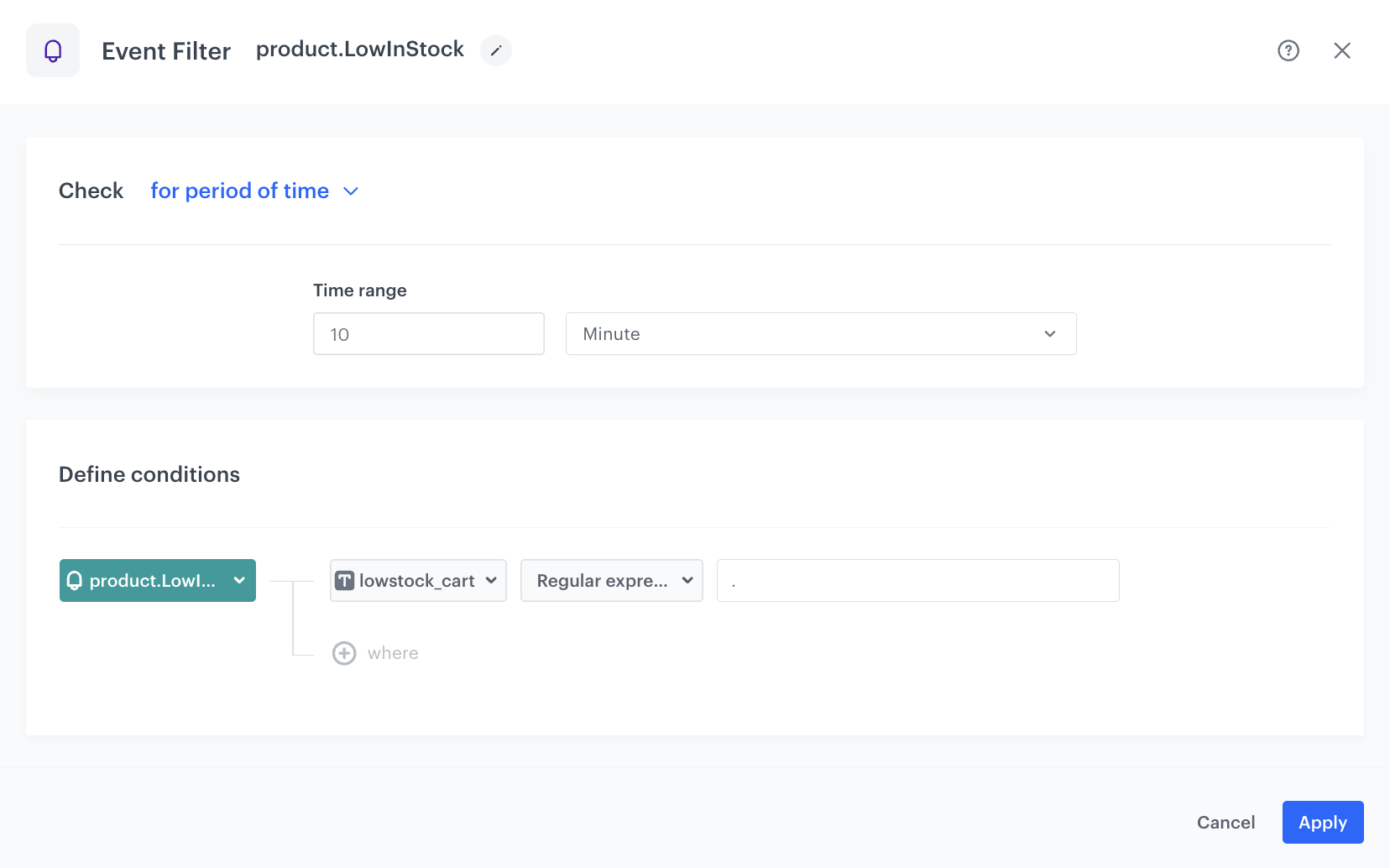
This filter serves as a security measure to ensure that the **product.LowInStock** event was generated in the previous step.

1. Add the **Event Filter** node. In the configuration of the node:  
    1. Set **Check** to **for period of time**.
    2. Define the time range to **10 minute**.
    3. From the **Choose event** dropdown list, select the **product.LowInStock** event.
    4. As the event parameter, select **lowstock_cart**.
    5. From the **Choose operator** dropdown list, select **Regular expression**.
    6. In the text field, type `.`

   <div class="admonition admonition-note"><div class="admonition-icon"><svg xmlns="http://www.w3.org/2000/svg" fill="none" viewBox="0 0 24 24" stroke="currentColor" stroke-width="2.5"><path stroke-linecap="round" stroke-linejoin="round" d="M13 16h-1v-4h-1m1-4h.01M21 12a9 9 0 11-18 0 9 9 0 0118 0z" /></svg></div><div class="admonition-body"><div class="admonition-content">

   This regular expression is necessary to exclude product.LowInStock events with the empty value of the lowstock_cart parameter.

   </div></div></div>

2. Confirm by clicking **Apply**. 

<figure>
<img src="/api/docs/image/54176ad07f146575310749eba44b7c2f42c1b327/use-cases/all-cases/_gfx/product.LowInStock-event-filter-updated.png" alt="The final configuration of the workflow"  class="large">
<figcaption>The final configuration of the workflow</figcaption>
</figure> 

If an event was not generated for a customer, then the workflow ends for this customer. If the event is generated, then the next step is sending an email to the customer. 

### Configure the Send Email node 
---
In this part of the process, send email communication to customers for whom the **product.LowInStock** event was generated. The email should contain the products returned in the event. 

1. Add the **Send Email** node and open its settings. 
2. In the **Sender details** section, choose the email account from which the email is sent.
3. In the **Content** section, select the template that you prepared as a part of the prerequisites. 
4. **Optional**: In the **UTM & URL parameters** section, define the UTM parameters added to the links included in the email. 
5. **Optional**: In the **Additional parameters** section, describe the campaign with [additional parameters](/docs/campaign/e-mail/creating-email-campaigns#adding-custom-parameters).
6. Click **Apply**.

### Add final settings to your workflow
---
1. Add the **End** nodes.
2. Launch the workflow by clicking **Save&Run**.

<figure>
<img src="/api/docs/image/54176ad07f146575310749eba44b7c2f42c1b327/use-cases/all-cases/_gfx/low-stock-campaign-workflow.png" alt="The final configuration of the workflow"  class="full">
<figcaption>The final configuration of the workflow</figcaption>
</figure> 

## Check the use case set up on the Synerise Demo workspace
---
You can check the configuration of each step from this use case in our Synerise Demo workspace:
- [Aggregate](https://app.synerise.com/analytics/aggregates/da49583b-f35a-349b-9906-55d5c1e820df) that returns the itemIds of products in the shopping cart for each customer.
- [Aggregate](https://app.synerise.com/analytics/aggregates/0d351702-fb43-356e-a90a-c405fa0a388c) that returns the total quantity of products in the shopping cart for each customer.
- [Workflow](https://app.synerise.com/automations/workflows/automation-diagram/e48f3760-2799-43d4-ae12-338ef8af0ea3)
- [Catalog](https://app.synerise.com/assets/catalogs/183729)

If you’re our partner or client, you already have automatic access to the **Synerise Demo workspace (1590)**, where you can explore all the configured elements of this use case and copy them to your workspace.  

If you’re not a partner or client yet, we encourage you to fill out the contact [form](https://demo.synerise.com/request) to schedule a meeting with our representatives. They’ll be happy to show you how our demo works and discuss how you can apply this use case in your business.

## Read more
---
- [Aggregates](/docs/analytics/aggregates)
- [Automation Hub](/docs/automation)
- [Catalogs](/docs/assets/catalogs/introduction-to-catalogs)
- [Email campaigns](/docs/campaign/e-mail)
- [Jinjava inserts](/developers/inserts)
- [Segmentation](/docs/analytics/segmentations)