In-store pickup creates a valuable and strategic touchpoint that can drive additional sales and boost loyalty program engagement.

By rewarding customers who pick up their orders quickly with extra loyalty points redeemable for discounts or gifts, you unlock additional operational and business benefits:

- accelerating the pickup process, which frees up backroom space and improves store operations;
- reducing the number of unclaimed orders, which helps lower return-related costs;
- increasing participation in your loyalty program.

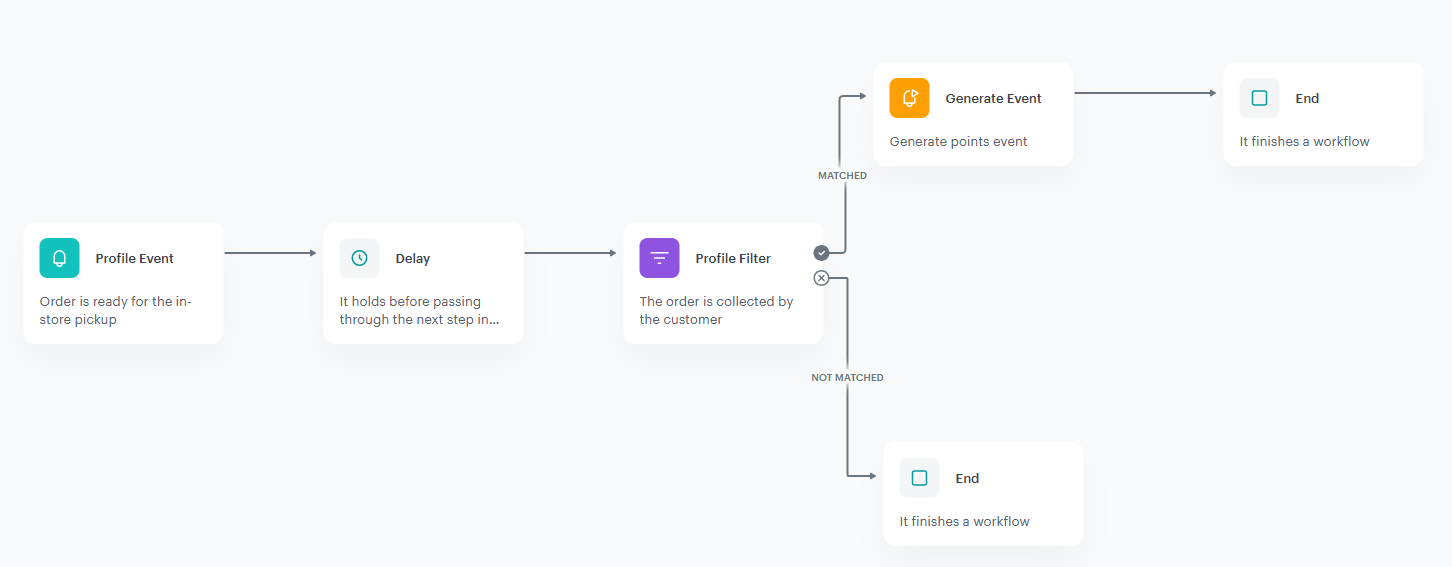
This use case presents a workflow that grants 40 loyalty points to customers who collect their order within 24 hours from the moment it becomes ready for pickup.

## Prerequisites 
---
- Integrate mechanism for awarding loyalty points.
- Implement custom events: 
  - `orderPickup.ready` when the order is ready for pickup in-store
  - `order.pickedUp` when the order is collected’
    You can use the [API](https://developers.synerise.com/DataManagement/DataManagement.html#operation/CustomEvent).  
    These events will be saved to the customers' profiles.
- Integrate Synerise [mobile SDK](/developers/) in your mobile application. 

  <div class="admonition admonition-note"><div class="admonition-icon"><svg xmlns="http://www.w3.org/2000/svg" fill="none" viewBox="0 0 24 24" stroke="currentColor" stroke-width="2.5"><path stroke-linecap="round" stroke-linejoin="round" d="M13 16h-1v-4h-1m1-4h.01M21 12a9 9 0 11-18 0 9 9 0 0118 0z" /></svg></div><div class="admonition-body"><div class="admonition-content">

  Find more in the [Loyalty programs basics](/use-cases/loyalty-programs-basics) use case.

  </div></div></div>


## Security configuration
---
Before you start working with this hub, if you are a Synerise customer or partner, consider reading [the section about denylisting events](/docs/settings/tool/api#denylist). This natively accessible configuration will allow you to manage the restrictions in points management that may help you prevent fraud.

## Create a workflow
---
Create a workflow that grants 40 loyalty points for fast order pickup.

1. Go to <img src="/api/docs/image/54176ad07f146575310749eba44b7c2f42c1b327/icons/automation-hub-icon.svg" alt="Automation Hub icon" class="icon" > **Automation Hub > Workflows > New workflow**.  
2. Enter the name of the workflow.

### Define the Profile Event trigger node
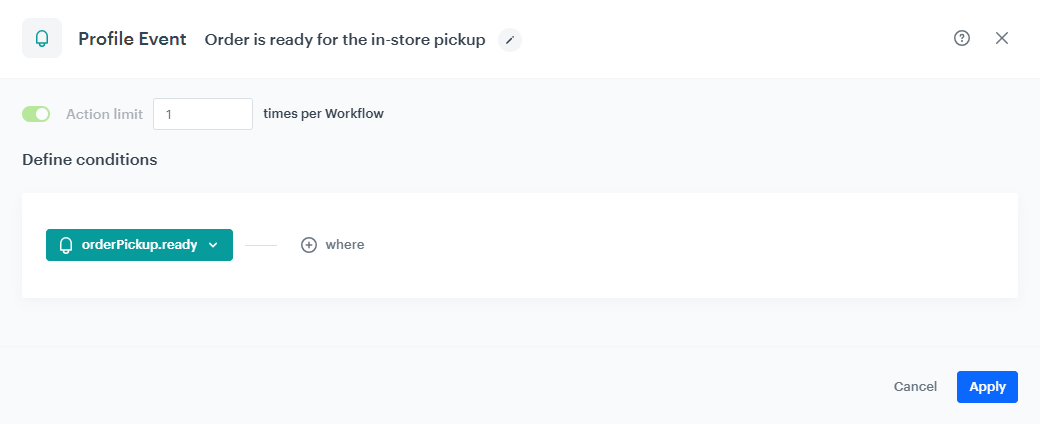
At this stage, we will configure the conditions that launch the workflow. As a trigger, we will use the `orderPickup.ready` event.

1. As the first node of the workflow, add **Profile Event**. In the configuration of the node: 
    1. From **Choose event** dropdown menu, choose the `orderPickup.ready` event.  
    2. Confirm by clicking **Apply**.
<figure>
<img src="/api/docs/image/54176ad07f146575310749eba44b7c2f42c1b327/use-cases/all-cases/_gfx/profile-event-order-is-ready-for-pickup.png" alt="The view of the Profile Event node configuration"  class="large">
<figcaption>Profile Event node configuration</figcaption>
</figure> 

### Configure the Delay node

1. Add the **Delay** node. In the node settings:
    1. In the **Delay** field, type `1`.
    2. From the dropdown list, choose **Day**.
2. Click **Apply**.

### Define the Profile Filter node
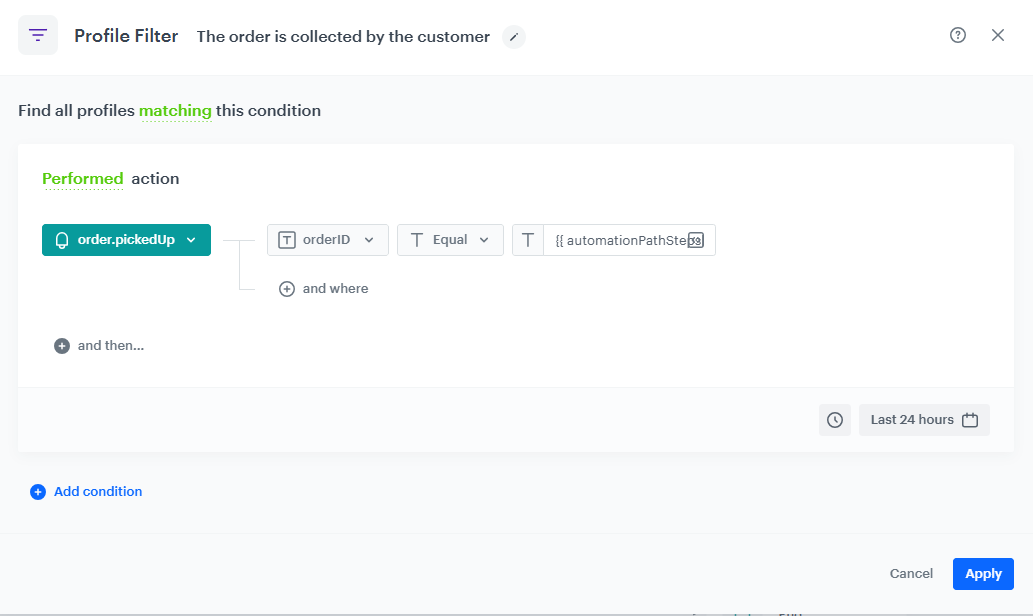
In this step, you will verify whether the customer has collected the order within 24 hours from the moment it becomes ready for pickup. If not, the workflow ends for a user. 

1. Add the **Profile Filter** node. 
2. From the **Choose filter** dropdown list, select the `order.pickedUp` event. 
3. From the **Choose parameter** dropdown list, select the `orderID` parameter. 
4. From the **Choose operator** dropdown list, choose **Equal (String)**.
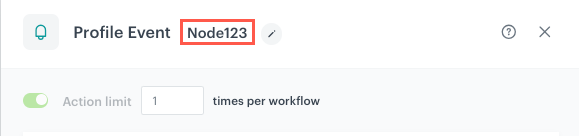
5. One customer can have several orders to collect, so to make sure that the `orderID` parameter for `order.pickedUp` event matches the `orderID` parameter for `orderPickup.ready` event, use the following syntax in the field `{{ automationPathSteps['nodeName'].event.params.paramName }}`, where:
    1. `nodeName` is the title of the node whose data you want to refer to (in this case the title introduced was 'Order is ready for the in-store pickup’)
    2. `paramName` is the name of the parameter (in this case `orderID`)  

    <figure>
    <img src="/api/docs/image/54176ad07f146575310749eba44b7c2f42c1b327/developers/inserts/_gfx/node-name.png" alt="The view of the title of the node"  class="large">
    <figcaption>The node title to be used as `nodeName`</figcaption>
    </figure> 

6. Click **Apply**.
7. To the unmatched path from the **Profile Filter** node, add the **End** node.

<figure>
<img src="/api/docs/image/54176ad07f146575310749eba44b7c2f42c1b327/use-cases/all-cases/_gfx/profile-filter-order-picked-up.png" alt="The view of the Profile Filter node configuration"  class="large">
<figcaption>Profile Filter node configuration</figcaption>
</figure> 

### Congifure the Generate Event node

1. Add the **Generate Event** node. 
2. In the settings of the node:
    1. In the **Event name** field, from the dropdown list, select the `points.loyalty` event.  
    2. In the **Body** section, use the following code and modify it to your needs:

        
       <pre><code class="language-json">{
               "points": "40",
               "source": "fast pickup"
               }</code></pre>
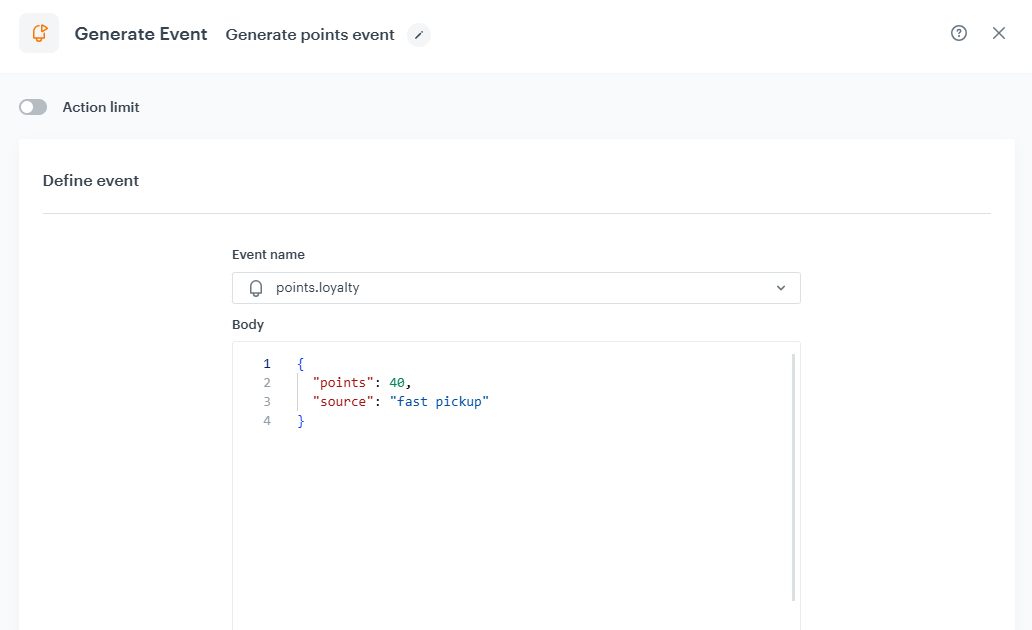

3. Click **Apply**.

<figure>
<img src="/api/docs/image/54176ad07f146575310749eba44b7c2f42c1b327/use-cases/all-cases/_gfx/generate-points-for-fast-pickup.png" alt="The view of the Generate Event node configuration"  class="large">
<figcaption>Generate Event node configuration</figcaption>
</figure>

### Add final setting to your workflow

1. Add the **End** node to both paths.
2. Launch the workflow by clicking **Save&Run**.

<figure>
<img src="/api/docs/image/54176ad07f146575310749eba44b7c2f42c1b327/use-cases/all-cases/_gfx/workflow-fast-pickup.png" alt="The view of the workflow configuration"  class="large">
<figcaption>Configuration of the workflow</figcaption>
</figure>

## Check the use case set up on the Synerise Demo workspace
---
In Synerise Demo workspace, you can check the configuration of the [workflow](https://app.synerise.com/automations/workflows/automation-diagram/a7e5ece3-6373-4a0d-8cd5-718ec0a3140c).

If you’re our partner or client, you already have automatic access to the **Synerise Demo workspace (1590)**, where you can explore all the configured elements of this use case and copy them to your workspace.  

If you’re not a partner or client yet, we encourage you to fill out the contact [form](https://demo.synerise.com/request) to schedule a meeting with our representatives. They’ll be happy to show you how our demo works and discuss how you can apply this use case in your business. 

## Read more
---

- [Automation Hub](/docs/automation)
- [Jinjava inserts](/developers/inserts)