This section introduces the concept of using rewards and loyalty points to foster customer loyalty and attract new clients to your product or service. By allowing customers to transfer loyalty points, your mobile application becomes more user-friendly and can also serve as a tool for customer acquisition. 

The provided use case will help you integrate a loyalty point transfer mechanism into your mobile app. This will enrich the user experience by adding mobile push notifications for the recipients of these points. The goal is to enhance customer engagement and satisfaction, ultimately contributing to the growth of your business.
 
    
## Prerequisites 
---

- Integrate mechanism for awarding loyalty points.  
    **For example**, you can award loyalty points after transaction. In such case, create an [expression that counts how many loyalty points](/docs/analytics/expressions/loyalty-point-count) are assigned to a customer for a transaction. Once you prepare the expression, please contact [Support Team](https://synerise.com/support) to configure materialization of loyalty points. After such configuration, every time loyalty points are assigned to a customer, the `points.loyalty` event will be generated in a customer’s profile with information about the number of loyalty points they received after a transaction (the `points` parameter).  

  <div class="admonition admonition-tip"><div class="admonition-icon"><svg xmlns="http://www.w3.org/2000/svg" fill="none" viewBox="0 0 24 24" stroke="currentColor" stroke-width="2.5"><path stroke-linecap="round" stroke-linejoin="round" d="M9.663 17h4.673M12 3v1m6.364 1.636l-.707.707M21 12h-1M4 12H3m3.343-5.657l-.707-.707m2.828 9.9a5 5 0 117.072 0l-.548.547A3.374 3.374 0 0014 18.469V19a2 2 0 11-4 0v-.531c0-.895-.356-1.754-.988-2.386l-.548-.547z" /></svg></div><div class="admonition-body"><div class="admonition-content">

  Learn more about events [here](/docs/assets/events).

  </div></div></div>

- Implement mobile pushes in your mobile application: [iOS](/developers/mobile-sdk/configuring-push-notifications/ios), [Android](/developers/mobile-sdk/configuring-push-notifications/android).

## Security configuration
---
Before you start working with this hub, if you are a Synerise customer or partner, consider reading [the section about denylisting events](/docs/settings/tool/api#denylist). This natively accessible configuration will allow you to manage the restrictions in points management that may help you prevent fraud.

## Process
---
In this use case, you will go through the following steps:
1. [Configure loyalty points transfer](/use-cases/loyalty-points-transfer-with-push#configure-loyalty-points-transfer). 
    1. [Define segmentations of senders](/use-cases/loyalty-points-transfer-with-push#define-segmentations-of-senders) to group customers who are allowed to make a transfer.
    2. [Define segmentations of recipients](/use-cases/loyalty-points-transfer-with-push#define-segmentations-of-recipients) to group customers who are allowed to receive a transfer.
    3. [Define an expression with points balance](/use-cases/loyalty-points-transfer-with-push#define-an-expression-with-points-balance) to calculate how many loyalty points the customer currently owns.
    4. [Complete configuration](/use-cases/loyalty-points-transfer-with-push#complete-configuration).
2. [Implement loyalty points transfer module in the mobile app](/use-cases/loyalty-points-transfer-with-push#implement-loyalty-points-transfer-module-in-the-mobile-app). 
3. [Create a mobile push template](/use-cases/loyalty-points-transfer-with-push#create-a-mobile-push-template). 
4. [Create a workflow](/use-cases/loyalty-points-transfer-with-push#create-a-workflow). 

## Configure loyalty points transfer
---
### Define segmentations of senders
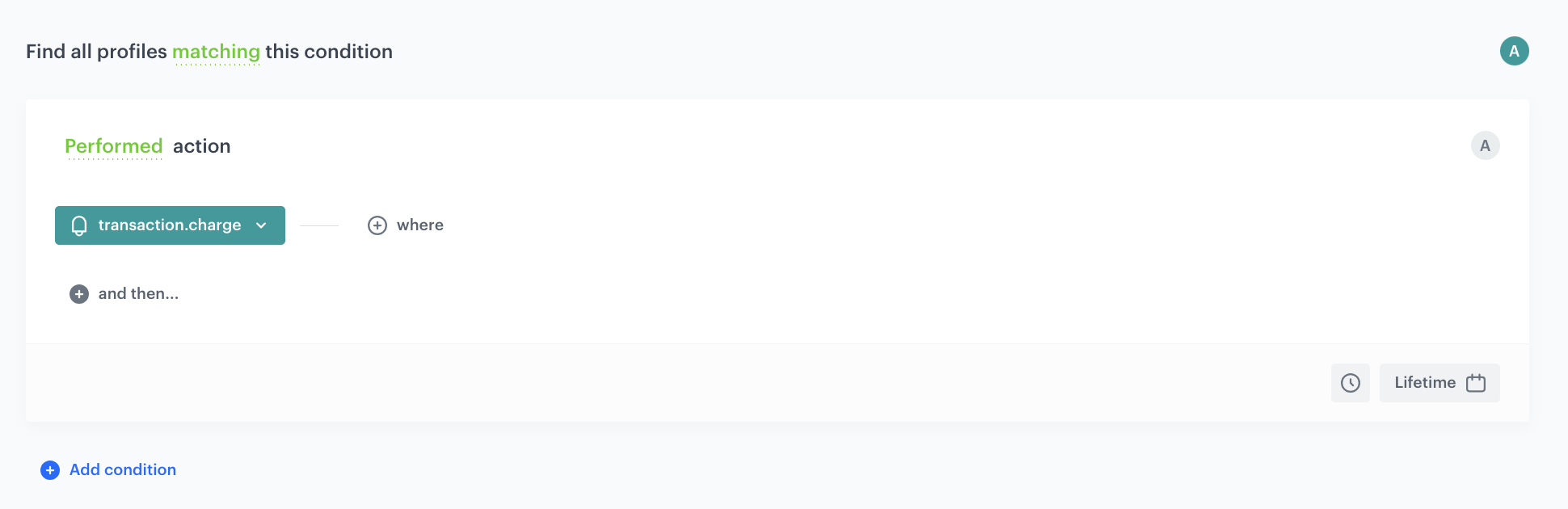
In this part of the process, create a segmentation or segmentations of people who can transfer loyalty points. In our case, we select people who made at least one transaction.

1. Go to <img src="/api/docs/image/54176ad07f146575310749eba44b7c2f42c1b327/icons/decision-hub-icon.svg" alt="Behavioral Data Hub icon" class="icon"> **Decision Hub > Segmentations > New segmentation**.
2. Enter the name of segmentation. 
3. From the **Add condition** dropdown list, select the **transaction.charge** event.
4. Using the date picker in the lower-right corner, set the time range to **Lifetime**.
5. Confirm the settings by clicking **Save**.
    
   <div class="admonition admonition-important"><div class="admonition-icon"><svg xmlns="http://www.w3.org/2000/svg" fill="none" viewBox="0 0 24 24" stroke="currentColor" stroke-width="2.5"><path stroke-linecap="round" stroke-linejoin="round" d="M12 8v4m0 4h.01M21 12a9 9 0 11-18 0 9 9 0 0118 0z" /></svg></div><div class="admonition-body"><div class="admonition-content">

   The conditions used in the segmentation may vary depending on your business needs and loyalty program assumptions.

   </div></div></div>
 

<figure>
<img src="/api/docs/image/54176ad07f146575310749eba44b7c2f42c1b327/use-cases/all-cases/_gfx/segment-senders.png" class="full" alt="An example of a customer segmentation of senders">
<figcaption>An example of a customer segmentation of senders</figcaption>
</figure>

### Define segmentations of recipients
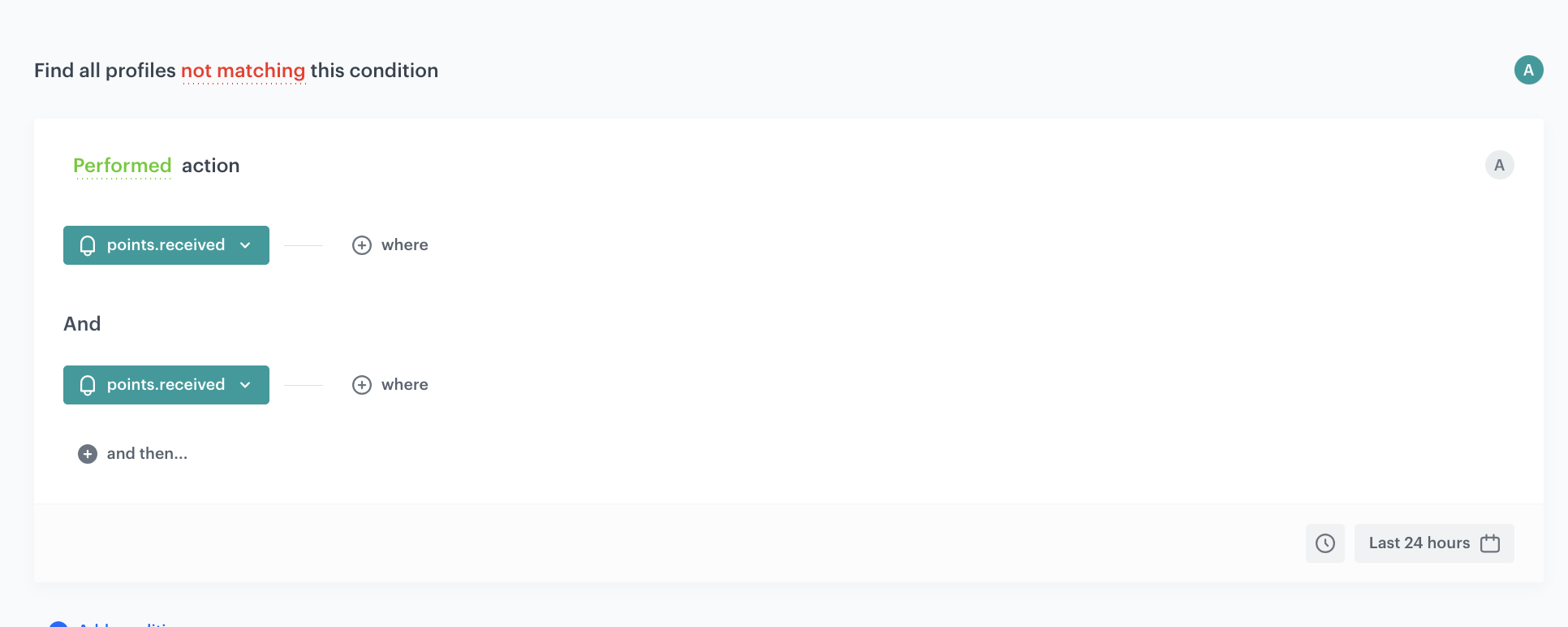
In this process, create a segmentation or segmentations of people who can receive loyalty points from other customers. In our case, we select people who received less than 2 transfers during last 24 hours.

1. Go to <img src="/api/docs/image/54176ad07f146575310749eba44b7c2f42c1b327/icons/decision-hub-icon.svg" alt="Behavioral Data Hub icon" class="icon"> **Decision Hub > Segmentations > New segmentation**.
2. Enter the name of segmentation. 
3. From the **Add condition** dropdown list, select the **points.received** event.
4. Click **and then**.
5. From the **Add condition** dropdown list, select the **points.received** event once again.
6. Using the date picker in the lower-right corner, set the time range to **Last 24 hours**.
7. Change the **Contacts matching funnel** expression to **Contacts not matching funnel** by clicking the **matching** word.
    
   <div class="admonition admonition-important"><div class="admonition-icon"><svg xmlns="http://www.w3.org/2000/svg" fill="none" viewBox="0 0 24 24" stroke="currentColor" stroke-width="2.5"><path stroke-linecap="round" stroke-linejoin="round" d="M12 8v4m0 4h.01M21 12a9 9 0 11-18 0 9 9 0 0118 0z" /></svg></div><div class="admonition-body"><div class="admonition-content">

   The conditions used in the segmentation may vary depending on your business needs and loyalty program assumptions.

   </div></div></div>
 

<figure>
<img src="/api/docs/image/54176ad07f146575310749eba44b7c2f42c1b327/use-cases/all-cases/_gfx/segment-recipients.png" class="full" alt="An example of a customer segmentation of recipients">
<figcaption>An example of a customer segmentation of recipients</figcaption>
</figure>

### Define an expression with points balance
In this part of the process, create an [expression](/docs/analytics/expressions) which will be used to calculate points balance for the customer. First, we will create the aggregates based on the following events:
- `points.loyalty` (event that is sent every time the customer is awarded with loyalty points),
- `points.received` (it is sent when a customer receives points from someone), 
- `points.sent` (it is sent when the customer sends points to someone).   
Based on the aggregates, we will create the expression that calculates the loyalty points for every customer.

1. Define 3 aggregates that sum points from the events mentioned above. 
    1. Go to <img src="/api/docs/image/54176ad07f146575310749eba44b7c2f42c1b327/icons/behavioral-data-hub-icon.svg" alt="Behavioral Data Hub icon" class="icon"> **Behavioral Data Hub > Live Aggregates > Create aggregate**.
    2. As the aggregate type, select **Profile**.  
    2. Enter a meaningful name of the aggregate.  
    3. Set the **Analyze profiles by** option to **Sum**.  
    4. Click the **Choose event** dropdown list.  
    5. From the dropdown list, select the `points.loyalty` event.
    6. From the second dropdown list, select `points` parameter.
    7. Using the date picker in the lower-right corner, set the time range to **Lifetime**.  

    <figure>
    <img src="/api/docs/image/54176ad07f146575310749eba44b7c2f42c1b327/use-cases/all-cases/_gfx/aggregate-transfer.png" alt="The aggregate that sums points from event points.loyalty" class="full">
    <figcaption> The aggregate that sums points from event points.loyalty </figcaption>
    </figure> 
    
    8. Save the aggregate.
    9. Repeat steps 1-8 for `points.received` and `points.sent` event.
2. Create an expression using the aggregates created in step 1.
    1. Go to <img src="/api/docs/image/54176ad07f146575310749eba44b7c2f42c1b327/icons/behavioral-data-hub-icon.svg" alt="Behavioral Data Hub icon" class="icon"> **Behavioral Data Hub > Expressions > New expression**.
    2. Enter a meaningful name of the expression.  
    3. Leave the expression type at default (**Attribute**).  
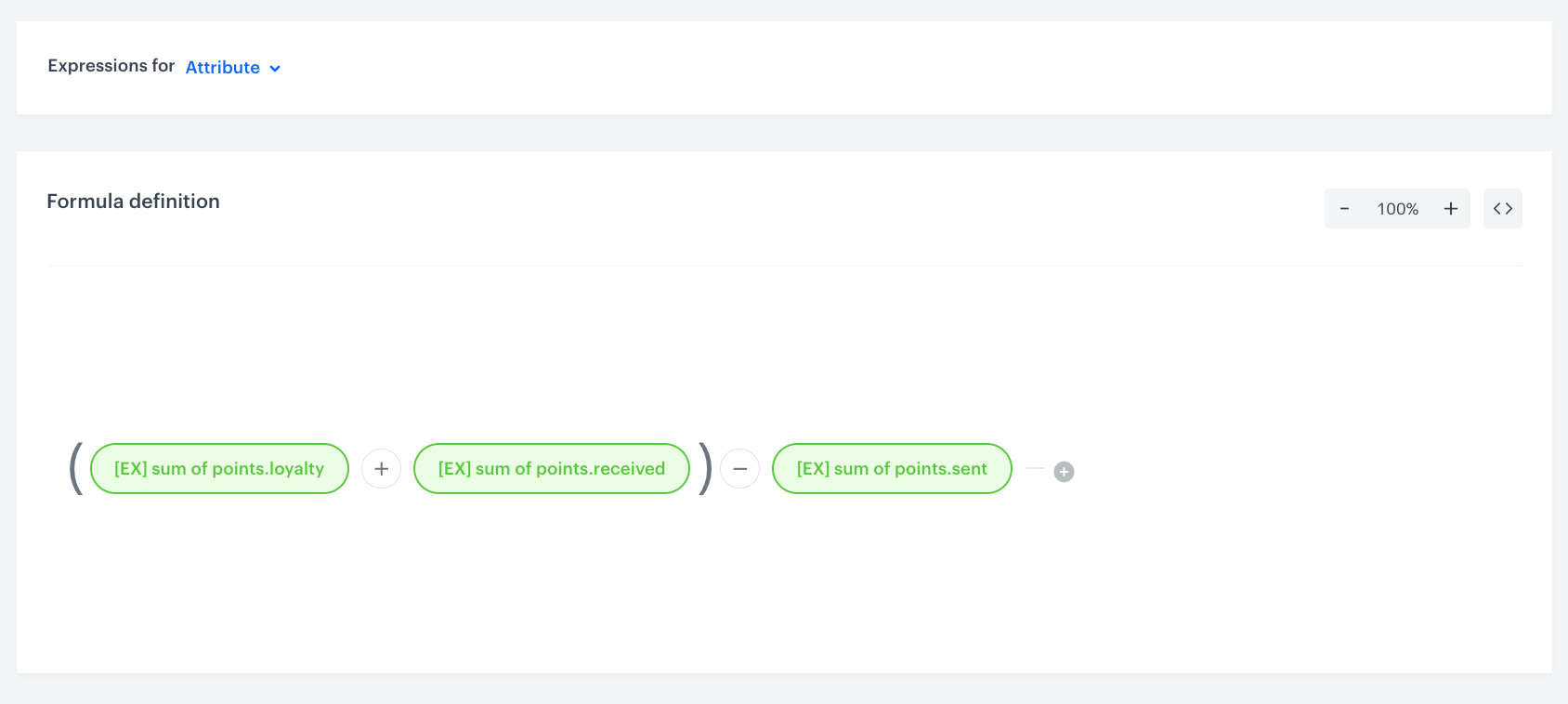
    4. Build the formula of the expression.
        1. Click the **Select** node.  
        2. From the dropdown list, select **Profile**.  
        3. Click the **unnamed** node that appeared on the canvas.  
        4. Scroll down the page and click **Choose attribute**.  
        5. On the dropdown list select the aggegate for `points.loyalty` that you created in step 1.
        6. Next to the aggregate added to the canvas, click the plus button.
        7. Repeat steps from 1 to 6 for the aggregates with `points.received` and `points.sent`.
        8. Click the mathematical operator between **points.loyalty** and **points.received** node and select the brackets icon.
        7. Click the mathematical operator between **points.received** and **points.sent** node and select the subtraction icon.  
        <figure>
            <img src="/api/docs/image/54176ad07f146575310749eba44b7c2f42c1b327/use-cases/all-cases/_gfx/expression-transfer.png" alt="The configuration of the expression" class="full">
            <figcaption> The configuration of the expression </figcaption>
            </figure> 
    5. Save the expression.  

### Complete configuration
In this part of the process, you must complete the points transfer settings by executing [configuration method](https://developers.synerise.com/LoyaltyandEngagement/LoyaltyandEngagement.html#operation/endpointSettingsUpdateSettingsPUT). To define `transferSettings`, use analysis created in the following steps: 
- [Define segmentations of senders](/use-cases/loyalty-points-transfer-with-push#define-segmentations-of-senders), 
- [Define segmentations of recipients](/use-cases/loyalty-points-transfer-with-push#define-segmentations-of-recipients) and 
- [Create an expression that calculates loyalty points](/use-cases/loyalty-points-transfer-with-push#define-an-expression-with-points-balance).  
In order to execute request, you can use Postman or similar tool.

## Implement loyalty points transfer module in the mobile app
---
In this part of the process, implement the loyalty points module in your mobile app that enables a user to transfer their points. Use the [points transfer method](https://developers.synerise.com/LoyaltyandEngagement/LoyaltyandEngagement.html#operation/PointsTransfer) when the transfer is sent. This method automatically generates the  `points.received` event on the profile of customer who received points and the `points.sent` event on the profile of customer who sent points.

## Create a mobile push template
---

In this part of the process, create a mobile push template that will be used later in a [workflow](/use-cases/loyalty-points-transfer-with-push#create-a-workflow). It should inform a mobile app user that they just received points transfer from someone.
1. Go to **Experience Hub > Mobile Push > Templates**.
2. You can use the template from the folder or create your own one using the mobile push code editor. Click **New Template > Simple Push**.
3. Create your mobile push in the code editor.

For more information on creating a simple mobile push, visit our [User Guide](/docs/campaign/Mobile/simple_push).

<figure>
<img src="/api/docs/image/54176ad07f146575310749eba44b7c2f42c1b327/use-cases/all-cases/_gfx/push-transfer-loy.png" class="full" alt="Example of a mobile push notification">
<figcaption>Example of a mobile push notification</figcaption>
</figure>

## Create a workflow
---
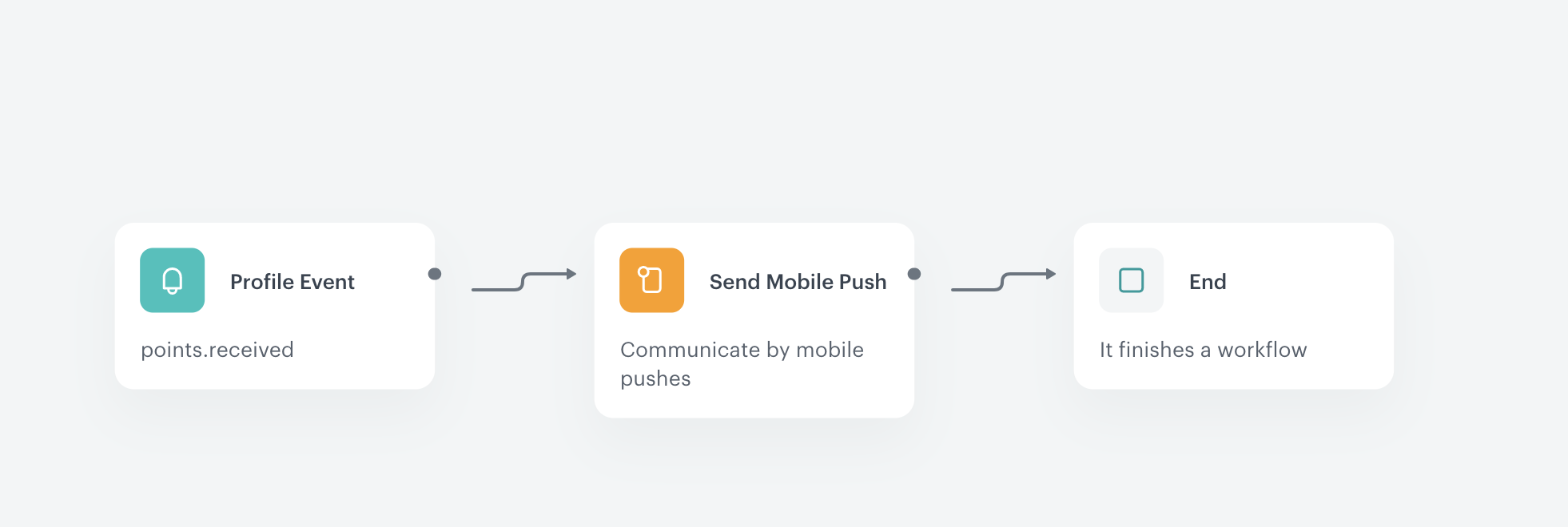
In this part of the process, prepare a workflow that will be triggered by receiving points transfer from someone and will send push notification for the customer who received them. 

1. Go to **Automation Hub > Workflows > New workflow**.
2. Enter the name of the workflow. 
3. As the first node of the workflow, add **Profile Event**. In the node settings:
    1. From the **Choose event** dropdown menu, select `points.received` event.
    2. Confirm by clicking **Apply**.
4. As the next node, add **Send Mobile Push**. In the configuration of the node:
    1. From the **Template type** dropdown list, select **Simple Push**.
    2. Select the **Push template** created in [this step](/use-cases/loyalty-points-transfer-with-push#create-a-mobile-push-template) of the process.
    3. Confirm by clicking **Apply**.
7. Add the **End** node to finish the workflow.
8. Click **Save & Run**. 

<figure>
<img src="/api/docs/image/54176ad07f146575310749eba44b7c2f42c1b327/use-cases/all-cases/_gfx/transfer-workflow.png" class="large" alt="Final configuration of a workflow that is triggered by receiving points transfer from someone and sends push notification for the customer">
<figcaption>Final configuration of a workflow that is triggered by receiving points transfer from someone and sends push notification for the customer</figcaption>
</figure>


## Check the use case set up on the Synerise Demo workspace
---
You can check the configuration of use case in Synerise Demo workspace:
- [Segmentation of senders](https://app.synerise.com/analytics-v2/segmentations/4275cb6c-39f6-42ad-838c-ba400ae4140e)
- [Segmentation of recipients](https://app.synerise.com/analytics-v2/segmentations/389c90a2-d7b8-439c-90a3-4b58f712102c)
- [Aggregate1](https://app.synerise.com/analytics/aggregates/7f6e7c7e-ea20-3227-89b6-0241ab18cff7)
- [Aggregate2](https://app.synerise.com/analytics/aggregates/595910c2-9a94-341e-97dd-0b90b585b2ec)
- [Aggregate 3](https://app.synerise.com/analytics/aggregates/58e98322-6f5a-333a-ba3e-e1ef06b987b9)
- [Expression](https://app.synerise.com/analytics/expressions/0efafdb2-57f4-4180-b993-8ba1b89679f1)
- [Mobile push template](https://app.synerise.com/campaigns/mobile-push/content-manager/template/153968)
- [Workflow](https://app.synerise.com/automations/workflows/automation-diagram/f20bfd4d-be5b-4587-9e20-c2ea1b597b13)

If you’re our partner or client, you already have automatic access to the **Synerise Demo workspace (1590)**, where you can explore all the configured elements of this use case and copy them to your workspace.  

If you’re not a partner or client yet, we encourage you to fill out the contact [form](https://demo.synerise.com/request) to schedule a meeting with our representatives. They’ll be happy to show you how our demo works and discuss how you can apply this use case in your business. 


## Read more
---
- [Inserts](/developers/inserts/automation)
- [Mobile campaigns](/docs/campaign/Mobile)
- [Workflow](/docs/automation/creating-automation)