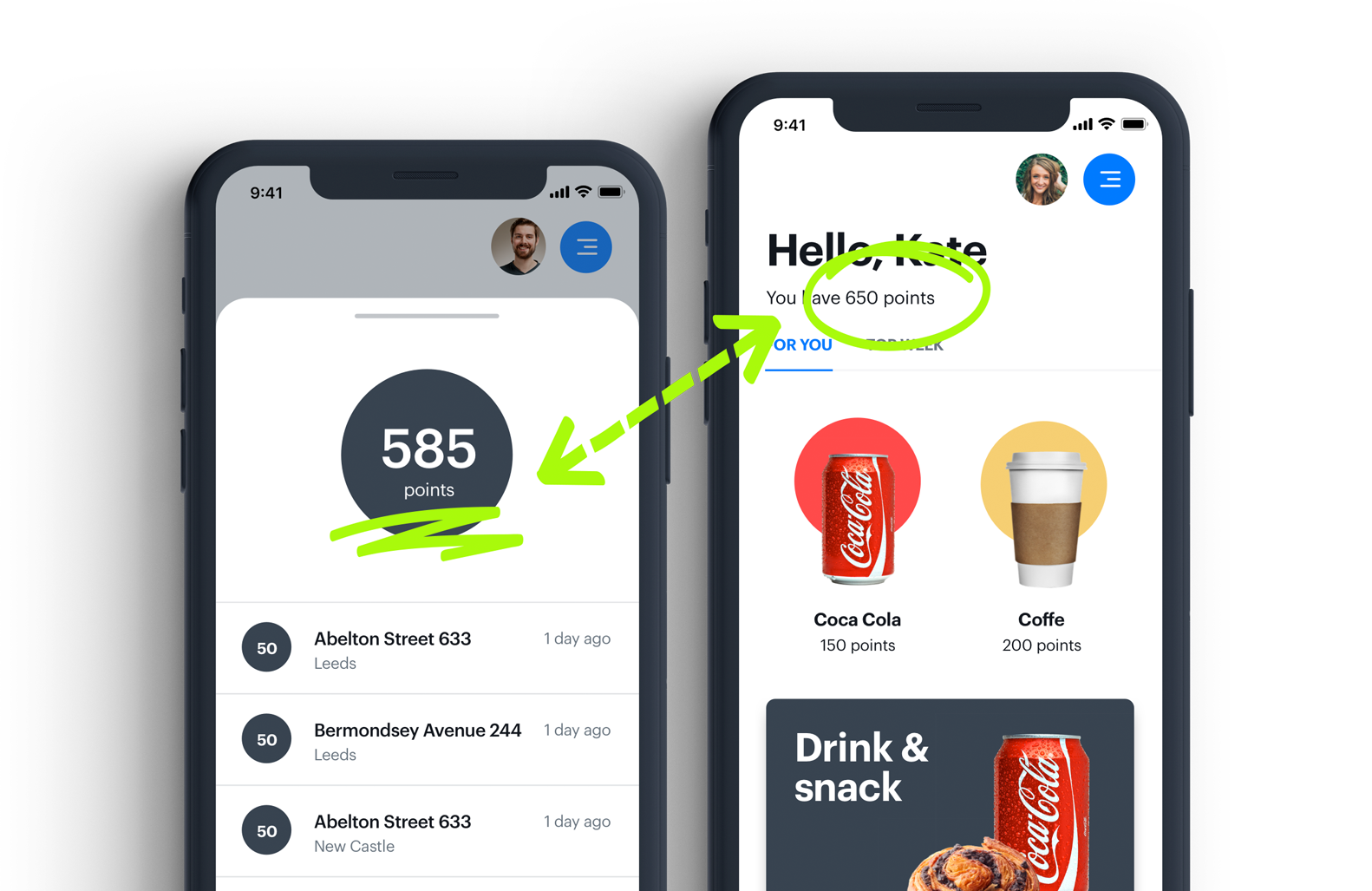
There are a lot of ways to encourage existing customers to continue being returning customers, but one of the best and most effective ways to do this is via creating a customer loyalty program. Its most important advantages are increasing Customer Lifetime Value, boosting loyalty, and avoiding churn.

Examples of activities that can be taken into account in the loyalty program are:

- Product page view,
- Product category page view,
- Adding a product to the basket,
- Product purchase,
- Purchase above a certain price,
- Purchase a product from a specific category,
- Newsletter subscription,
- After-sales survey submission,
- Events from ticketing system (customer care), 
- Events connected with the external partnerships.

Without any coding, based on Synerise possibilities we can manage to develop rules for calculating points for such activities. 

In this use case, we will present a **basic schema for building loyalty program**, which is the necessary first step you have to make in the beginning if you wish to calculate points for purchased products. 
We will describe the basic rules, based on which: 
- we granted customers with 1 point for every 1 PLN spent,
- we count the points separately for every product in one transaction,
- we multiply the number of points by number of products bought, if the customer has bought more than one item of specific product, 
- we round down the number of points (for example, for spending 80,60 PLN, the customer gets 80 points),
- we count the point balance for every customer. 

Those rules are the fundamental elements which might be treated as the basic loyalty program as a whole. We use basic conditions, awarding 1 point for every 1 PLN spent, but you can adjust those settings to your business needs. It is worth mentioning that, based on these elements, you can add more rules, exclusions, and requirements, to make your program more complex. For example, you can multiply the number of points awarded for specific products or product categories or opt out of awarding points for them at all. In this use case, we focus on the mechanism of earning points, but Synerise also provides functionalities for [spending points](/loyalty/lesson-4/type-of-promotion).

<figure>
<img src="/api/docs/image/54176ad07f146575310749eba44b7c2f42c1b327/use-cases/all-cases/_gfx/loyalty-points.png" alt="Loyalty program" class="full no-frame">
</figure>

## Security configuration
---
Before you start working with this hub, if you are a Synerise customer or partner, consider reading [the section about denylisting events](/docs/settings/tool/api#denylist). This natively accessible configuration will allow you to manage the restrictions in points management that may help you prevent fraud.

## Prerequisites 
---
Implement transaction events using [SDK](/developers/web/transactions-sdk) or [API](https://developers.synerise.com/DataManagement/DataManagement.html#operation/CreateATransaction). 


<div class="admonition admonition-tip"><div class="admonition-icon"><svg xmlns="http://www.w3.org/2000/svg" fill="none" viewBox="0 0 24 24" stroke="currentColor" stroke-width="2.5"><path stroke-linecap="round" stroke-linejoin="round" d="M9.663 17h4.673M12 3v1m6.364 1.636l-.707.707M21 12h-1M4 12H3m3.343-5.657l-.707-.707m2.828 9.9a5 5 0 117.072 0l-.548.547A3.374 3.374 0 0014 18.469V19a2 2 0 11-4 0v-.531c0-.895-.356-1.754-.988-2.386l-.548-.547z" /></svg></div><div class="admonition-body"><div class="admonition-content">

Additionally, you can also collect a [custom event](/developers/mobile-sdk/event-tracking) which sends information to Synerise about joining a loyalty program (for example `account.status` with parameter `accountStatus` equal to `active`). Such an event with the appropriate status should be sent each time the membership status changes (when the customer joins, resigns, or re-joins).

</div></div></div>


## Process 
---

The process of creating the basic loyalty program described in this use case is divided into two main stages:

1. **Prepare the points schema** -
this part of the process consists of the following:
    1. [Create an aggregate](/use-cases/loyalty-programs-basics#create-an-aggregate-which-counts-number-of-productbuy-events-in-a-single-transaction) which counts number of product.buy events in a single transaction
    2. [Create an expression](/use-cases/loyalty-programs-basics#create-an-expression) which contains the aggregate from step 1.
    3. [Create an expression](/use-cases/loyalty-programs-basics#create-an-expression-that-counts-money-spent-for-a-single-productbuy-event) that counts amount of money spent on the products for a single product.buy event
    4. [Create an aggregate](/use-cases/loyalty-programs-basics#create-an-aggregate-counting-money-spent-on-the-products-within-a-single-transaction) which counts the amount of money spent on the products within a single transaction.
    5. [Create an expression](/use-cases/loyalty-programs-basics#create-an-expression-which-adds-points-for-money-spent) which calculates how many points a transaction is worth and rounds them down. 
 6. Contact Synerise support to implement the `points.loyalty` event which saves the result of the point calculation as an event in a customer's profile. A parameter in the event is then used for creating an aggregate.
2. **Count the points balance** -
this part of the process consists of the following procedures:
    1. [Create an aggregate](/use-cases/loyalty-programs-basics#create-an-aggregate-counting-the-number-of-points) which counts the number of points gained by customer.
    2. [Create an expression](/use-cases/loyalty-programs-basics#create-an-expression-which-returns-the-number-of-points-gained-by-customer) which returns the value of the aggregate with the number of points.

## Prepare the points schema
In this part of the process, you will create the basic schema of counting points in a loyalty program, in which you grant customer with 1 point for every 1 PLN spent. This includes rounding points down when the amount includes hundredths. For example, for 80,60 PLN the customer gets 80 points.

### Create an aggregate which counts number of product.buy events in a single transaction
---
In this part, you create an aggregate which counts number of product events in every processed transaction. It is used for checking integrity of the process.

1. Go to <img src="/api/docs/image/54176ad07f146575310749eba44b7c2f42c1b327/icons/behavioral-data-hub-icon.svg" alt="Behavioral Data Hub icon" class="icon">  **Behavioral Data Hub > Live Aggregates > Create aggregate**.
2. As the aggregate type, select **Profile**.  
2. Enter the name of the aggregate
4. Set **Analyze profiles by** to **Count**.
4. In the formula of the aggregate:  
    1. Click **Select**.
    2. From the **Select property** dropdown list, pick **Event** attribute.
    3. Click **Choose event** and enter `product.buy`.
    3. From the **Choose parameter** dropdown list, select `$orderId`.   
    5. From the **Choose operator** dropdown list, pick **Equal (String)**.
    6. Click the icon next to the Equal operator twice to get <img src="/api/docs/image/54176ad07f146575310749eba44b7c2f42c1b327/icons/dynamic-key-analytics.png" alt="Dynamic key icon" class="icon">
    7.	In the first box, add `orderId` and in the second add any value (in our case it might be `1`).
    8.	Define the period from which the aggregate will return products from the event as Lifetime.
    9.	Click **Save**.

    
<figure>
<img src="/api/docs/image/54176ad07f146575310749eba44b7c2f42c1b327/use-cases/all-cases/_gfx/loyalty-basics1.png" alt="Aggregate settings"  class="full">
<figcaption>Aggregate which counts number of product.buy events in a single transaction</figcaption>
</figure> 

### Create an expression
---
 
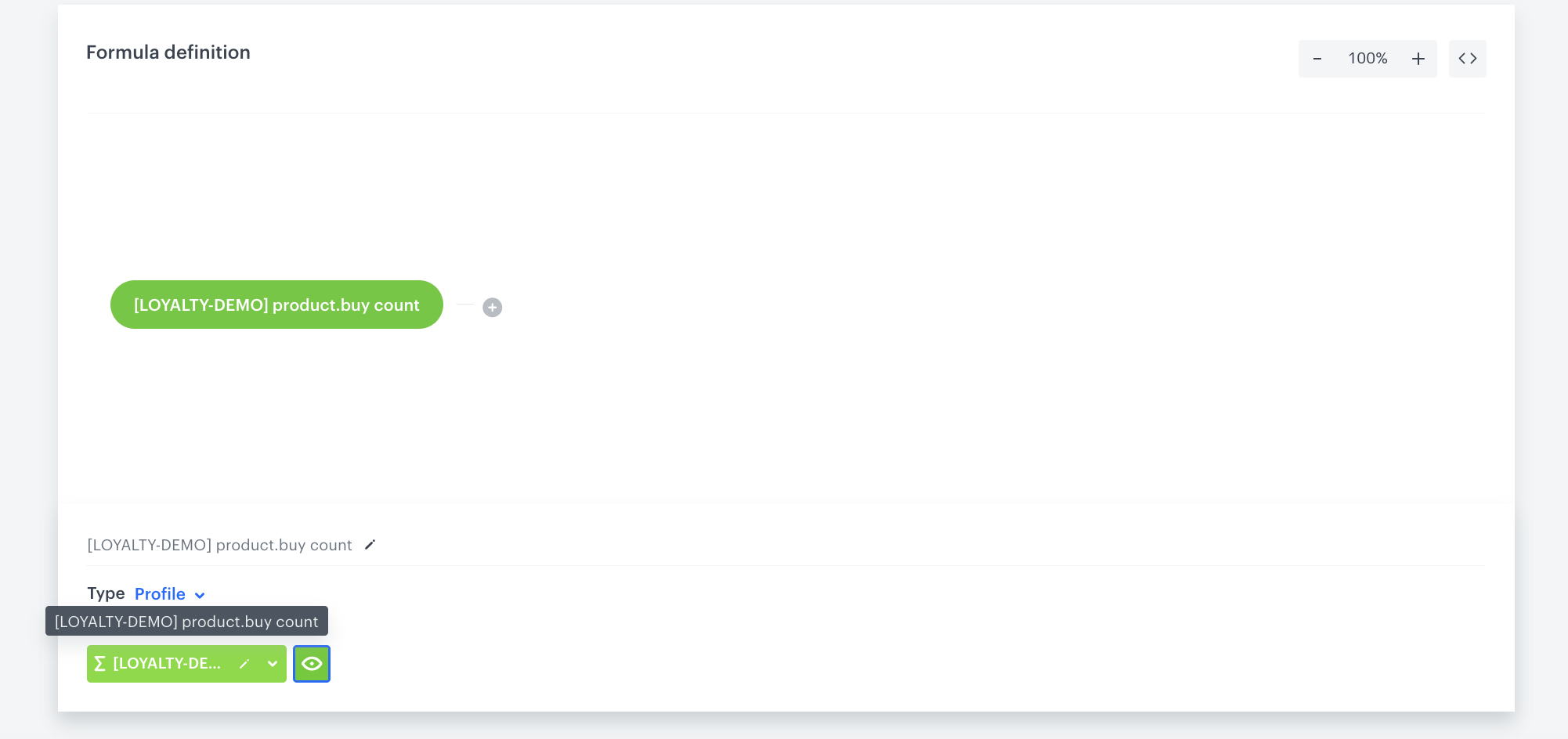
In this step, you create an expression which contains the aggregate from the previous part of the process. It will be used for workspace configuration by Synerise CSI team.

1. Go to <img src="/api/docs/image/54176ad07f146575310749eba44b7c2f42c1b327/icons/behavioral-data-hub-icon.svg" alt="Behavioral Data Hub icon" class="icon"> **Behavioral Data Hub > Expression > New expression**.  
2. Enter the name of the expression.
3. As a type of expression, select **Attribute**.
4. Click the **Select** button and select **Profile**.
7. To configure the settings, click **Unnamed**.
8. Click the **Choose attribute** button and select the aggregate created in the previous step.
9. Click **Publish**.
<figure>
<img src="/api/docs/image/54176ad07f146575310749eba44b7c2f42c1b327/use-cases/all-cases/_gfx/loyalty-basicss.png" alt="Expression settings"  class="full">
<figcaption>Expression settings</figcaption>
</figure> 


### Create an expression that counts money spent for a single productbuy event
---
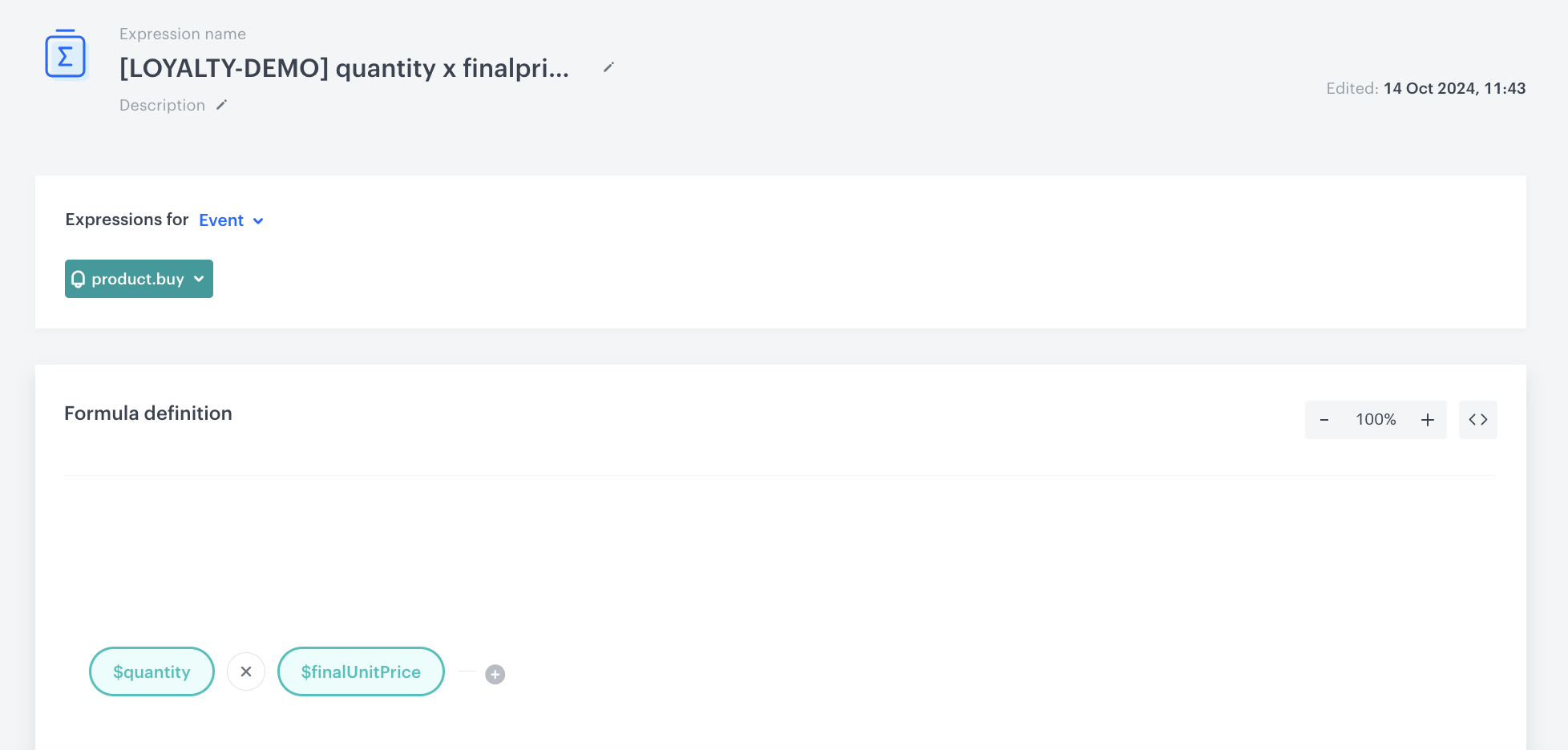
In this part, you create an expression which counts amount of money spent on all products within a single transaction. This is also a place where you can exclude products from points calculation. 

1. Go to <img src="/api/docs/image/54176ad07f146575310749eba44b7c2f42c1b327/icons/behavioral-data-hub-icon.svg" alt="Behavioral Data Hub icon" class="icon"> **Behavioral Data Hub > Expressions > New expression**.
2. Enter the name of the expression.
3. Set the **Expression for** option to **Event**.
4. From the **Choose event** dropdown list, select **product.buy** event.  
3. Click the **Select** button and select **Event attribute**.
4. Choose parameter **$quantity** from the list.
5. Click the **+** button and select **Event attribute**.
4. Choose parameter **$finalUnitPrice** from the list. 
9. Change the mathematical operator between these two parameters to multiplication.
10. Click **Save**.
<figure>
<img src="/api/docs/image/54176ad07f146575310749eba44b7c2f42c1b327/use-cases/all-cases/_gfx/loyalty-basics9.png" alt="Expression settings"  class="full">
<figcaption>Expression counting money spent on every product within transaction</figcaption>
</figure> 


### Create an aggregate counting money spent on the products within a single transaction
---
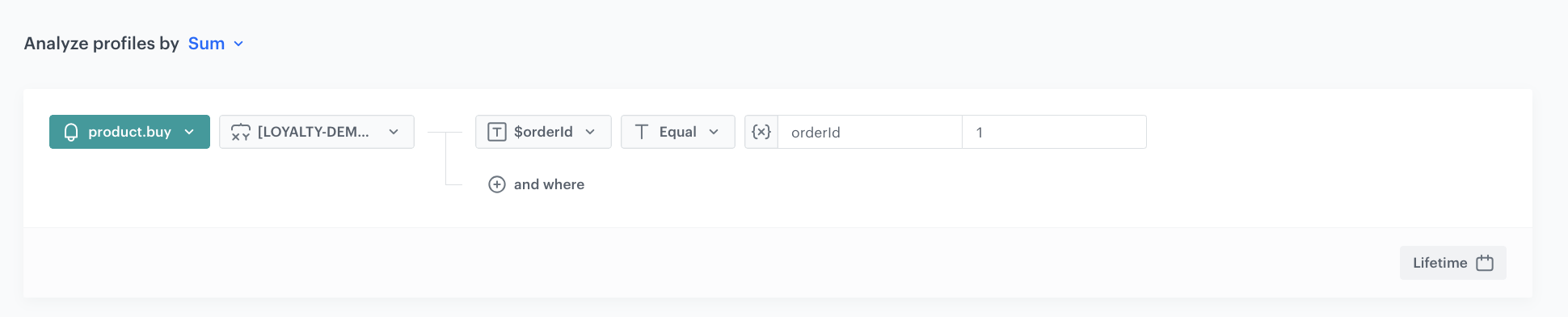
In this part, you create an aggregate which counts amount of money spent on all products within a single transaction. This is also a place where you can exclude products from points calculation.

1. Go to <img src="/api/docs/image/54176ad07f146575310749eba44b7c2f42c1b327/icons/behavioral-data-hub-icon.svg" alt="Behavioral Data Hub icon" class="icon"> **Behavioral Data Hub > Live Aggregates > Create aggregate**.
2. As the aggregate type, select **Profile**.  
2. Enter the name of the aggregate.
3. Click **Analyze profiles by** and select **Sum**.  
4. From the **Choose event** dropdown list, select the `product.buy` event.
5. As the event parameter, choose the [expression](/use-cases/loyalty-programs-basics#create-an-expression-that-counts-money-spent-for-a-single-productbuy-event) created in the previous step.
6. Click the **+ where** and as the parameter select the `$orderId`.

    
   <div class="admonition admonition-note"><div class="admonition-icon"><svg xmlns="http://www.w3.org/2000/svg" fill="none" viewBox="0 0 24 24" stroke="currentColor" stroke-width="2.5"><path stroke-linecap="round" stroke-linejoin="round" d="M13 16h-1v-4h-1m1-4h.01M21 12a9 9 0 11-18 0 9 9 0 0118 0z" /></svg></div><div class="admonition-body"><div class="admonition-content">

   ID of the transaction is necessary for Synerise Team to be able to charge points after every transaction separately.

   </div></div></div>


7. As the operator select **Equal**.
8. Click the icon next to the **Equal** operator two times, to find dynamic key icon<img src="/api/docs/image/54176ad07f146575310749eba44b7c2f42c1b327/icons/dynamic-key-icon.png" alt="Dynamic key icon" class="icon">.
9. In the first box add `orderId` and in the second add any value (in our case it might be `1`).
10. Define the period from which the aggregate will return products from the event as **Lifetime**. 
11. Click **Save**.
<figure>
<img src="/api/docs/image/54176ad07f146575310749eba44b7c2f42c1b327/use-cases/all-cases/_gfx/loyalty-basics2.png" alt="Aggregate settings"  class="WYBIERZ ROZMIAR:full">
<figcaption>Aggregate counting money spent on every product within transaction</figcaption>
</figure> 

### Create an expression which adds points for money spent 
---

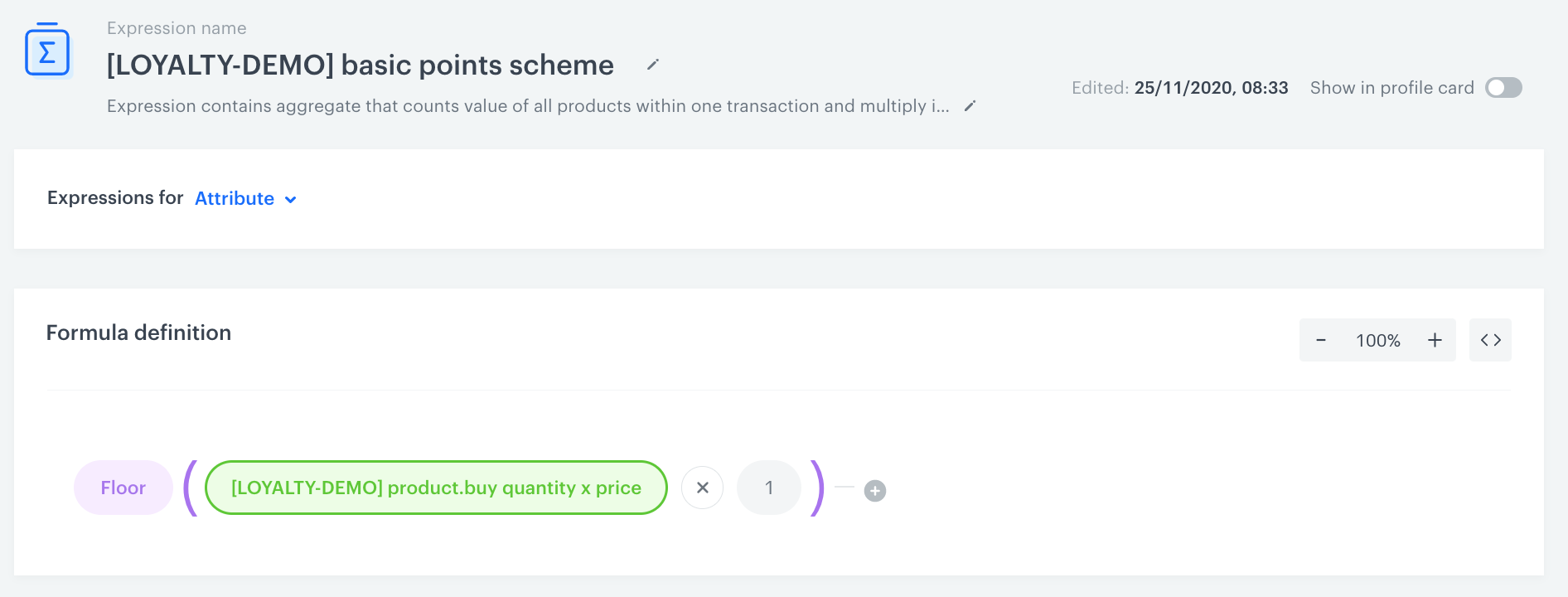
In this part, you create an expression which adds 1 point for every 1 PLN spent and additionally rounds down to full units (for example, for spending 80,60 PLN, the customer gets 80 points). This expression is also used by Synerise CSI team for workspace loyalty configuration.

1. Go to <img src="/api/docs/image/54176ad07f146575310749eba44b7c2f42c1b327/icons/behavioral-data-hub-icon.svg" alt="Behavioral Data Hub icon" class="icon"> **Behavioral Data Hub > Expressions > New expression**. 
2. Enter the name of the expression. 
2. As a type of expression, select **Attribute**. 
3. Click the **Select** button and select **Function**.
4. From the dropdown list, select **Floor**.  
    This function rounds down the results of expressions (for example 4.99 will be rounded down to 4).
5. Click the **Select** button. 
6. From the dropdown list, select **Profile**.
6. Click **Unnamed** to display the settings.
7. Click the **Choose attribute** button and select the [aggregate created in the previous step](/use-cases/loyalty-programs-basics#create-an-aggregate-counting-money-spent-on-the-products-within-a-single-transaction).
7. Click **+** button and select **Constant**.
8. As the value of the **Constant**, add `1`
    This way, you define that for every 1 PLN spent, the customer will get 1 point. 
9. Change the mathematical operator between these two parameters to multiplication.
10. Click **Save**.
<figure>
<figure>
<img src="/api/docs/image/54176ad07f146575310749eba44b7c2f42c1b327/use-cases/all-cases/_gfx/loyalty-basics3.png" alt="Expression settings"  class="WYBIERZ ROZMIAR:full">
<figcaption>Expression which adds 1 point for every 1 PLN spent and additionally use the round down mechanism</figcaption></figure>
</figure> 

### Contact Synerise to enable loyalty points 
---
Once you prepare all the above analytics, contact the Synerise [Support Team](https://synerise.com/support) to configure the materialization of loyalty points. You need to send links or IDs of both created expressions and let our Support Team launch your loyalty program. After such configuration, every time loyalty points are assigned to a customer, the `points.loyalty` event will be generated in a customer’s profile with information about the number of loyalty points they received after a transaction (the `points` parameter).

## Count the points balance
---
In this part of the process, you will create analytics which counts the points balance for each customer. It is important to have that information in one place so it can be used in further communication with customers. 

### Create an aggregate counting the number of points
---
In this step, you create an aggregate which counts the number of points in a loyalty program.

1. Go to <img src="/api/docs/image/54176ad07f146575310749eba44b7c2f42c1b327/icons/behavioral-data-hub-icon.svg" alt="Behavioral Data Hub icon" class="icon"> **Behavioral Data Hub > Live Aggregates > Create aggregate**.
2. As the aggregate type, select **Profile**.  
2. Enter the name of the aggregate.
3. Click **Analyze profiles by** and select **Sum**.  
4. From the **Choose event** dropdown list, select the **points.loyalty** event.
5. As the event parameter, select **points**.
6. Define the date filter as **Lifetime**.
7. Click **Save**. 

<figure>
<figure>
<img src="/api/docs/image/54176ad07f146575310749eba44b7c2f42c1b327/use-cases/all-cases/_gfx/loyalty-basics4.png" alt="Aggregate settings"  class="WYBIERZ ROZMIAR:full">
<figcaption>Aggregate counting the number of points</figcaption></figure>
</figure> 

### Create an expression which returns the number of points gained by customer
---
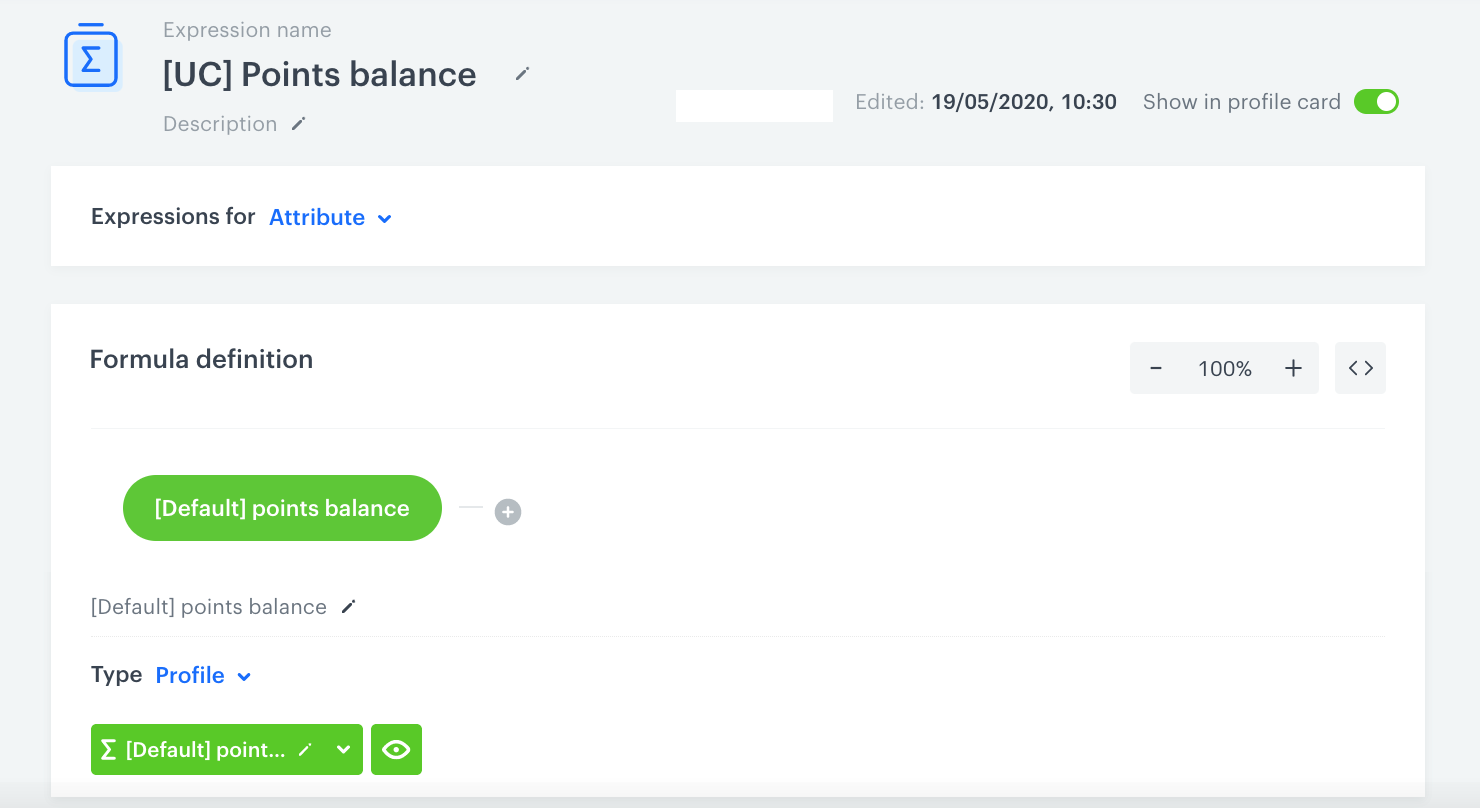
In this part, you create an expression which counts the number of points for a specific customer.


<div class="admonition admonition-note"><div class="admonition-icon"><svg xmlns="http://www.w3.org/2000/svg" fill="none" viewBox="0 0 24 24" stroke="currentColor" stroke-width="2.5"><path stroke-linecap="round" stroke-linejoin="round" d="M13 16h-1v-4h-1m1-4h.01M21 12a9 9 0 11-18 0 9 9 0 0118 0z" /></svg></div><div class="admonition-body"><div class="admonition-content">

The expression in this is a simple example whose only purpose is to show the result of an aggregate. Unlike an aggregate, for the purpose of a loyalty program you can make it more advanced by adding mathematical operations, conditions, and exclusions based on your business needs. For example, you can add points collected from other campaigns, take into account [expired and spent points](https://www.synerise.com/blog/loyalty-points-balance-management-with-synerise) and [transfer of the points](/use-cases/loyalty-points-transfer-with-push) between customers. Remember that regardless of how many elements you have implemented in your loyalty program and how extensive it should be, you can include all the necessary elements directly in this expression.

</div></div></div>


1. Go to <img src="/api/docs/image/54176ad07f146575310749eba44b7c2f42c1b327/icons/behavioral-data-hub-icon.svg" alt="Behavioral Data Hub icon" class="icon"> **Behavioral Data Hub > Expressions > New expression**. 
2. Enter the name of the expression. 
2. As a type of expression, select **Attribute**. 
3. Click the **Select** button and select **Profile**.
4. Click **Unnamed** to display the settings.
7. Click the **Choose attribute** button and select the [aggregate created earlier](/use-cases/loyalty-programs-basics#create-an-aggregate-counting-the-number-of-points).
10. Click **Save**.
<figure>
<figure>
<img src="/api/docs/image/54176ad07f146575310749eba44b7c2f42c1b327/use-cases/all-cases/_gfx/loyalty-basics5.png" alt="Expression settings"  class="WYBIERZ ROZMIAR:full">
<figcaption>Expression which counts the points balance for every customer</figcaption></figure>
</figure> 

## What's next 
---
You can use the created [expression](/use-cases/loyalty-programs-basics#create-an-expression-which-returns-the-number-of-points-gained-by-customer) with the points balance as an [insert](/developers/inserts) and use it on the website, display it in personalized dynamic content campaigns, send it in a push message, SMS, or email campaign with the information about current points balance.  
Also, you can use it as a part of the dedicated promotions for users with a specific number of points and take into account the number of points gained by a customer in the conditions of promotions displayed, for example, in your mobile application.

The expression is also available as a profile attribute, so you can use it in analytics, for example to create a segmentation of customers depending on their collected points, and then use that segmentation as a workflow audience.

In this article, we described the fundamental requirements for a basic loyalty program, but we encourage you to develop it and make it more personalized and adjusted to your business needs. Here are a few examples to help you in adding more complex elements and options to your loyalty program:
- Learn how to manage the [expired and burned points](https://www.synerise.com/blog/loyalty-points-balance-management-with-synerise).
- Learn how to [add points for custom events](/use-cases/adding-points-for-custom-event).
- Learn how to [transfer the points between customers](/use-cases/loyalty-points-transfer-with-push).
- Learn how to create [promotion for joining loyalty program](/use-cases/discount-promotion-for-first-transaction).

## Check the use case set up on the Synerise Demo workspace
---
You can check the configuration of all described analytics directly in Synerise Demo workspace:
1. Preparation of points schema:
    - [Aggregate](https://app.synerise.com/analytics/aggregates/3999696a-0bc2-38a6-90b8-1edfb501f4ef) which counts number of product.buy events in a single transaction.
    - [Expression](https://app.synerise.com/analytics/expressions/e68f934c-143d-4bbc-92b4-fa342bf5526e) which contains the aggregate from step 1.
    - [Expression](https://app.synerise.com/analytics/expressions/8e1ea568-2a13-44fd-8e76-967a8356dbdf) that counts amount of money spent on the products for a single product.buy event.
    - [Aggregate](https://app.synerise.com/analytics/aggregates/6c316763-b3ef-3427-90ed-e1934b6207fd) which counts the amount of money spent on the products within a single transaction.
    - [Expression](https://app.synerise.com/analytics/expressions/5b4644ae-c1c9-4bb8-90a5-6a19b7aa60f5) which calculate how many points a transaction is worth and rounds them down. 
2. Counting the point balance:
- [Aggregate](https://app.synerise.com/analytics/aggregates/90878ebe-d993-37d1-b1b6-06cc1d7a2015) which counts the total number of points gained by a customer.
- [Expression](https://app.synerise.com/analytics/expressions/702c634e-b142-4dfb-8d10-dd7873eaf5d6) which return the value of the aggregate with the number of points.

If you’re our partner or client, you already have automatic access to the **Synerise Demo workspace (1590)**, where you can explore all the configured elements of this use case and copy them to your workspace.  

If you’re not a partner or client yet, we encourage you to fill out the contact [form](https://demo.synerise.com/request) to schedule a meeting with our representatives. They’ll be happy to show you how our demo works and discuss how you can apply this use case in your business. 

## Read more
---

- [Aggregates](/docs/analytics/aggregates)
- [Expressions](/docs/analytics/expressions)

Check our loyalty use cases:
- [Award loyalty points for reaching a specific number of transactions](/use-cases/mechanism-of-stamps)
- [Promotion for the first transaction after joining the loyalty program](/use-cases/discount-promotion-for-first-transaction)
- [Promotion triggered by basket value](/use-cases/promotion-triggered-by-basket-value)
- [Rewarding customers in loyalty program for custom activities](/use-cases/adding-points-for-custom-event)
- [Send mobile push notifications with birthday promotion](/use-cases/mobile-push-birthday-promotion)
- [Transfer loyalty points between customers](/use-cases/loyalty-points-transfer-with-push)
