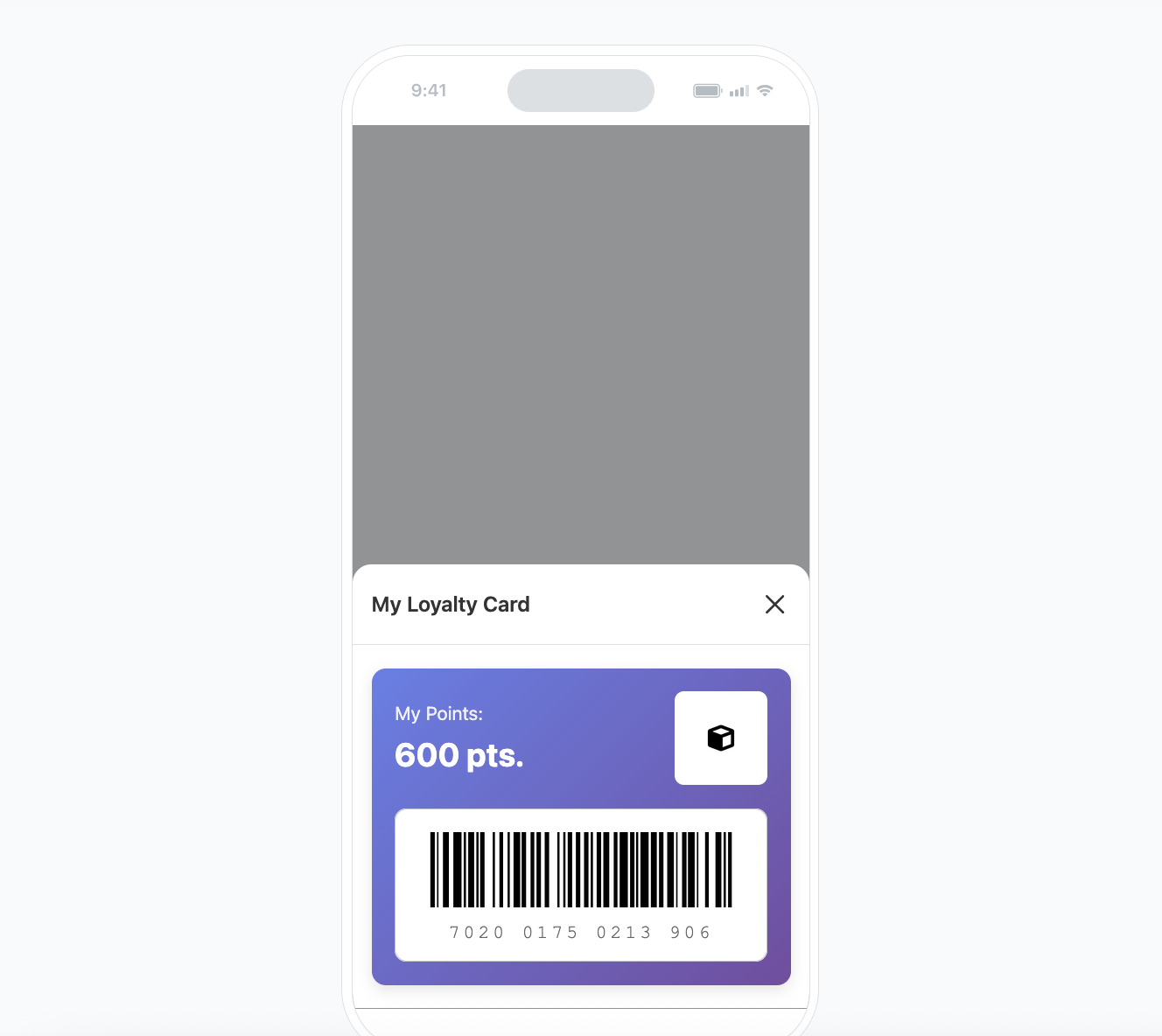
This use case describes a scenario where you can display a loyalty card inside your mobile app, including a unique barcode that the customer can scan and the current number of collected points. 

The setup is based on a predefined in-app template that you can implement easily. All you need is an in-app campaign sent to all users, triggered by an event you choose (for example, tapping the My Card button in the app). You only have to specify the attribute that contains the customer ID—this value is used to generate the barcode—and provide the ID of the expression that calculates the user’s points.

## Prerequisites 
---
- Create an [item catalog](/docs/assets/catalogs).
- Integrate Synerise [mobile SDK](/developers/mobile-sdk) in your mobile application. 
- Implement the [transaction events](/developers/web/transactions-sdk) using [SDK](/developers/web/transactions-sdk) or [API](https://developers.synerise.com/DataManagement/DataManagement.html#operation/CreateATransaction).
 - Implement [basic loyalty program with points](/use-cases/loyalty-programs-basics).
- Create the [basic aggregate which counts the point balance](/use-cases/earn-burn#create-an-aggregate-counting-the-number-of-points).

## Implement a loyalty card template
---
This template displays the basic information needed to identify a loyalty member:

Example use cases:
- Showing the card at checkout
- Opening the card in the app menu


### Create an in-app message
---
In this part of the process, you create an in-app campaign triggered by your custom event.
The trigger should come from a dedicated event generated by your mobile application — for example, an action such as tapping the ‘My Card’ button. This ensures that the card is displayed only when the user intentionally requests it, instead of being triggered automatically.

We will use a predefined template, so there is no need to create a template from scratch.

1. Go to <img src="/api/docs/image/54176ad07f146575310749eba44b7c2f42c1b327/icons/experience-hub-icon.svg" alt="Experience Hub icon" class="icon" > **Experience Hub > In-app messages> Create in-app**.
2. Enter the name of the in-app.

### Define the audience
---
As the first step, define the target group of customers for the in-app message. 

1. In the **Audience** section, click **Define**.
4. Click **Everyone**.
8. To save the audience, click **Apply**.

### Define content
---
In this part of the process, you will create the content of the in-app message that will appear in the mobile application with the help of ready-made template.

1. In the **Content** section, click **Define**.
2. Click **Create message** and from the list of template folders, select **Predefined templates**.
3. Select the **Loyalty card** template.

**Result:** You are redirected to the code editor.

<div class="admonition admonition-note"><div class="admonition-icon"><svg xmlns="http://www.w3.org/2000/svg" fill="none" viewBox="0 0 24 24" stroke="currentColor" stroke-width="2.5"><path stroke-linecap="round" stroke-linejoin="round" d="M13 16h-1v-4h-1m1-4h.01M21 12a9 9 0 11-18 0 9 9 0 0118 0z" /></svg></div><div class="admonition-body"><div class="admonition-content">

You can edit the template in two ways, by editing the code of the template [add snippets](/docs/campaign/in-app-messages/creating-inapp-templates/creating-inapp-template#adding-a-snippet-to-the-template-code), [add variables](/docs/campaign/in-app-messages/creating-inapp-templates/creating-inapp-template#adding-a-variable) and/or by filling out the form in the Config tab. In this use case, we will use the capabilities of the predefined Config tab.

</div></div></div>


<figure>
<img src="/api/docs/image/54176ad07f146575310749eba44b7c2f42c1b327/use-cases/all-cases/_gfx/inapp-loyal.png" alt="The view of in-app configuration"  class="large">
<figcaption>In-app configuration</figcaption>
</figure> 

#### Edit form in the Config tab 
---
The form in the **Config** tab is already filled in with default values. You can keep them or change them to fit your business needs.

1. To the **Expression ID** field, add the ID of the [expression with the point balance, created as the part of prerequisites](#prerequisites). Based on that you will see the current points balance for each user. 
2. To the **Customer identifier** field, enter the name of the attribute that holds the customer’s unique code. We use this value to generate the loyalty card code. It needs to be an attribute that is unique for each customer — for example, an identifier that is aligned with your source systems and Synerise, so that both Synerise and your external systems can consistently recognize the same customer. The source of the value is up to you, as long as it stays unique per customer, because it becomes the basis for the barcode and its unique number.


   <div class="admonition admonition-important"><div class="admonition-icon"><svg xmlns="http://www.w3.org/2000/svg" fill="none" viewBox="0 0 24 24" stroke="currentColor" stroke-width="2.5"><path stroke-linecap="round" stroke-linejoin="round" d="M12 8v4m0 4h.01M21 12a9 9 0 11-18 0 9 9 0 0118 0z" /></svg></div><div class="admonition-body"><div class="admonition-content">

   The template uses the EAN_128 barcode format. If a different format is required for integration with the client’s systems, Synerise supports multiple barcode types listed in the [documentation](/developers/inserts/insert-usage#barcodes).

   </div></div></div>


2. Edit the copy using Title, and all the fileds connected with the Headers of the loyalty card.
9. Define the colors and style for the following fields: Borders, Backgrounds,and Text colors.
10. After you make changes to the template, you can check the preview.
    1. Click the **Preview** button on the upper left side.
    2. Enter the ID of a customer.
    3. Click **Apply**.
  
    <div class="admonition admonition-important"><div class="admonition-icon"><svg xmlns="http://www.w3.org/2000/svg" fill="none" viewBox="0 0 24 24" stroke="currentColor" stroke-width="2.5"><path stroke-linecap="round" stroke-linejoin="round" d="M12 8v4m0 4h.01M21 12a9 9 0 11-18 0 9 9 0 0118 0z" /></svg></div><div class="admonition-body"><div class="admonition-content">

    Considering that the in-app is very interactive, the preview in the platform may not be enough to test the in-app performance. That’s why we suggest checking the preview directly in the mobile app.

    </div></div></div>


    <figure></figure>
11. If the template is ready, in the upper right corner, click **Save this template > Save as**.
12. On the pop-up:
    1. In the **Template name field**, enter the name of the template.
    2. From the **Template folder** dropdown list, select the folder where the template will be saved.
    3. Confirm by clicking **Apply**.
13. To continue the process of configuring the in-app campaign, click **Next**.
14. To save your content changes, click **Apply**.

### Select events that trigger the in-app message display
---
In this part of the process, you will define the event triggering the display of the in-app message. In our case it should be custom event generated by your app, after e.g. tapping the `my card` button.

1. In the **Trigger events** section, click **Define**.
2. Select **Add event** and from the dropdown list, choose your custom event.
4. As the logical operator, select **Exists**.
5. Click **Apply**.


### Schedule the message and configure display settings
---
As the final part of the process, you will set the display settings of the in-app message such as schedule, capping, priority of the message among other in-app messages.

1. In the **Schedule** section, click **Define** and set the time when the message will be active. 
2. In the **Display Settings** section, click **Change**.
3. Define the **Delay display**, **Priority index** and enable the **Frequency limit** toggle to manage the frequency of in-app message display in the application.  

    
   <div class="admonition admonition-note"><div class="admonition-icon"><svg xmlns="http://www.w3.org/2000/svg" fill="none" viewBox="0 0 24 24" stroke="currentColor" stroke-width="2.5"><path stroke-linecap="round" stroke-linejoin="round" d="M13 16h-1v-4h-1m1-4h.01M21 12a9 9 0 11-18 0 9 9 0 0118 0z" /></svg></div><div class="admonition-body"><div class="admonition-content">

   You can additionally enable the **Capping limit** toggle to limit the amount of time the in-app message can be displayed to a user in general.

   </div></div></div>
  

16. Click **Apply**. 
17. Optionally, you can define the UTM parameters and additional parameters for your in-app campaign.
18. Click **Activate**.


## Check the use case set up on the Synerise Demo workspace
---
You can check the configuration of all described objects (aggregate and the in-app message) directly in the Synerise Demo workspace:
- [Aggregate](https://app.synerise.com/analytics/aggregates/174ba14c-b0d7-372d-acb2-8f1365af3083) which counts the number of points gained by customer.
- [Loyalty coupon in-app campaign](https://app.synerise.com/communications/in-app/44f75fec-f096-4891-913d-73546ebb8df4)


If you’re our partner or client, you already have automatic access to the **Synerise Demo workspace (1590)**, where you can explore all the configured elements of this use case and copy them to your workspace.  

If you’re not a partner or client yet, we encourage you to fill out the contact [form](https://demo.synerise.com/request) to schedule a meeting with our representatives. They’ll be happy to show you how our demo works and discuss how you can apply this use case in your business. 

## Read more
---

- [Expressions](/docs/analytics/expressions)
- [In-app messages](/docs/campaign/in-app-messages)
- [Using in-app template builder](/docs/campaign/in-app-messages/creating-inapp-templates/creating-inapp-template)
- [Promotions](/docs/ai-hub/promotions)