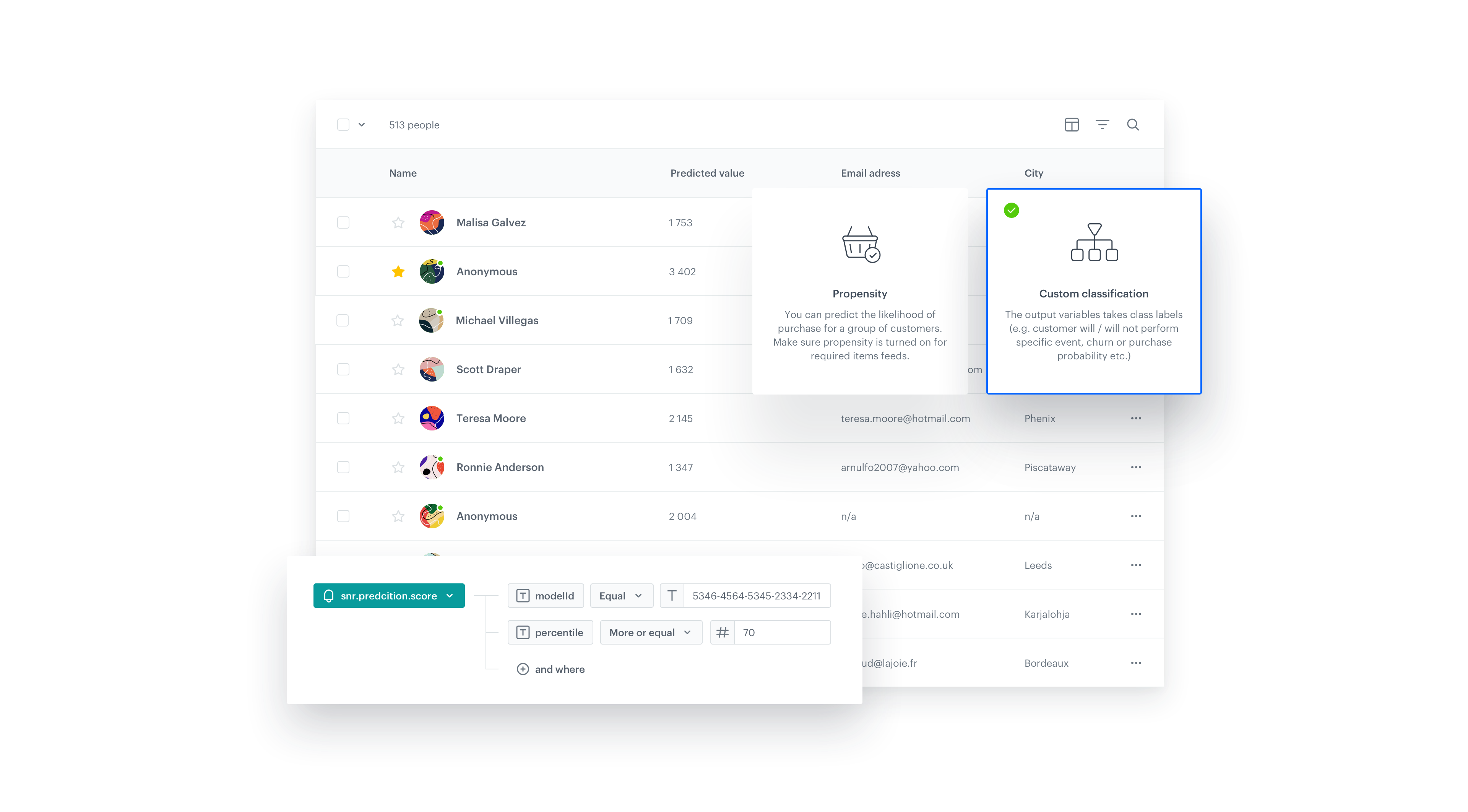
Knowing how much money customers will spend in the next couple of days or weeks can be crucial for creating precise marketing campaigns. This use case describes how to make a prediction that returns the expected number of transactions in 90 days ahead for a specific group of customers. 

<figure><img src="/api/docs/image/54176ad07f146575310749eba44b7c2f42c1b327/use-cases/all-cases/_gfx/ltv-prediction.png" class="full no-frame" alt="LTV prediction"><figcaption>LTV prediction</figcaption></figure>

## Prerequisites
---
- [Integrate JS SDK](/developers/web/installation-and-configuration).
- [Enable the Custom prediction model](/docs/ai-hub/predictions/enabling-predictions#enabling-regression-and-classification-predictions).

## Process
---

In this use case, you will go through the following steps:
1. [Create prediction target](/use-cases/ltv-prediction#create-prediction-target) based on aggregate and expression.
2. [Create the segmentation](/use-cases/ltv-prediction#create-a-segmentation) for whom the prediction will be made.
3. [Create the prediction](/use-cases/ltv-prediction#create-a-prediction).

## Create prediction target
---
In the first part of the process, create an analyses based on which the system will make a prediction.

1. Go to <img src="/api/docs/image/54176ad07f146575310749eba44b7c2f42c1b327/icons/behavioral-data-hub-icon.svg" alt="Behavioral Data Hub icon" class="icon"> **Behavioral Data Hub > Live Aggregates > Create aggregate**.
2. As the aggregate type, select **Profile**.  
2. Enter the name of the aggregate.
3. Set the **Analyze profiles by** option to **Sum**.
4. Click **Choose event**. 
5. From the dropdown list, select **transaction.charge**.

    
   <div class="admonition admonition-note"><div class="admonition-icon"><svg xmlns="http://www.w3.org/2000/svg" fill="none" viewBox="0 0 24 24" stroke="currentColor" stroke-width="2.5"><path stroke-linecap="round" stroke-linejoin="round" d="M13 16h-1v-4h-1m1-4h.01M21 12a9 9 0 11-18 0 9 9 0 0118 0z" /></svg></div><div class="admonition-body"><div class="admonition-content">

   Events may have different labels between workspaces, but you can always find them by their action name (in this step, it's **transaction.charge**).

   </div></div></div>

6. As the parameter of the event, select **$totalAmount**.
5. Using the date picker in the lower-right corner, set the time range to **Relative time range > Custom > last 90 days**.  
6. Save the aggregate. 

<figure>
    <img src="/api/docs/image/54176ad07f146575310749eba44b7c2f42c1b327/use-cases/all-cases/_gfx/ltv-prediction-aggregate.png" alt="The formula of the aggregate" class="full">
    <figcaption>The formula of the aggregate</figcaption>
    </figure>

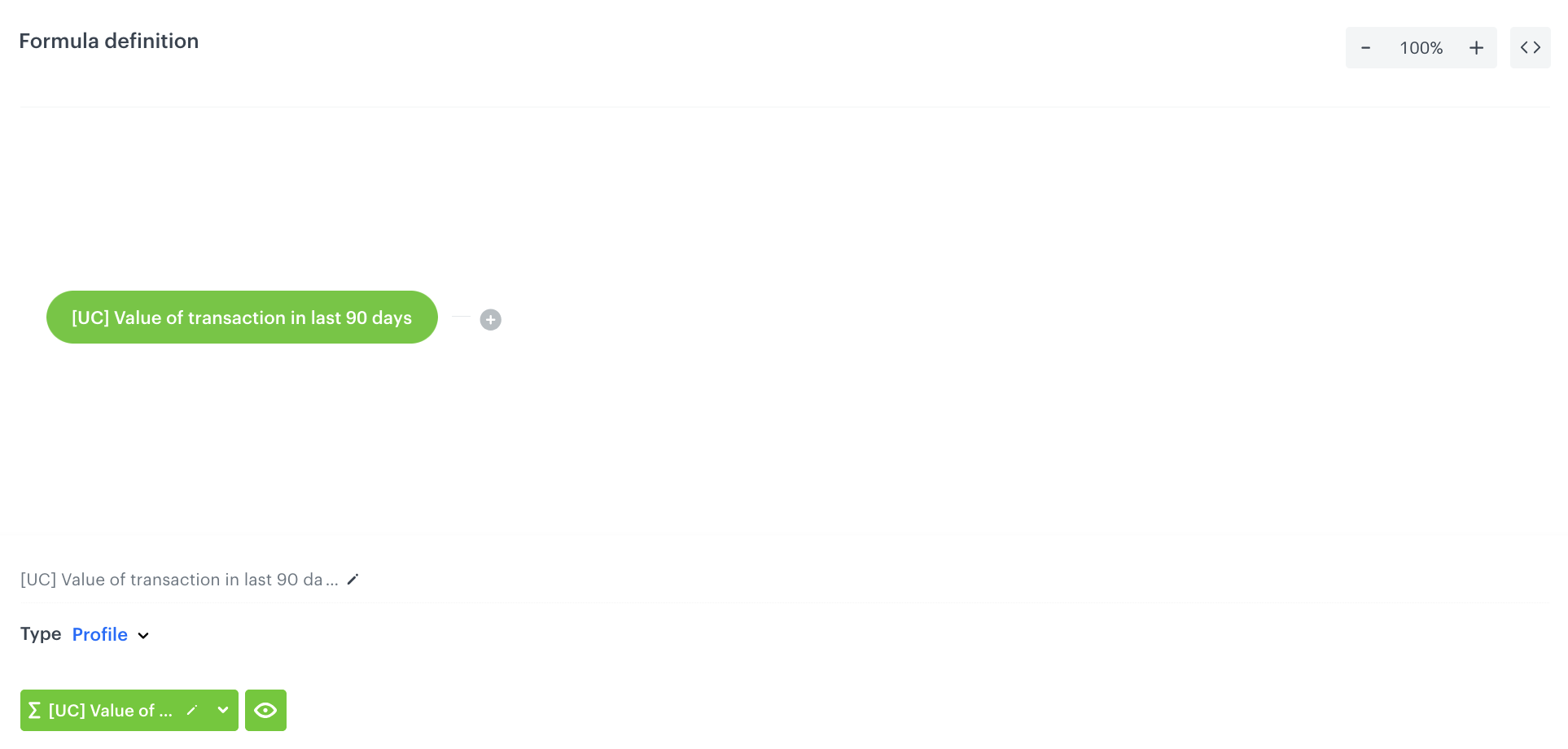
After building the aggregate, you have to create new expression.

1. Go to <img src="/api/docs/image/54176ad07f146575310749eba44b7c2f42c1b327/icons/behavioral-data-hub-icon.svg" alt="Behavioral Data Hub icon" class="icon"> **Behavioral Data Hub > Expressions > New expression**.
2. Enter the name of the expression.
3. Set the **Expression** to **Attribute**. Predictions work only with attribute expressions.
4. On the canvas, click **Select**.
5. From the dropdown list, select **Profile**.
6. Click the **unnamed** input that appeared on the canvas. 
7. From the **Choose attribute** dropdown list, select the aggregate you created in the previous [part of the process](/use-cases/ltv-prediction#create-prediction-target).
8. **Save** the expression.
 <figure>
    <img src="/api/docs/image/54176ad07f146575310749eba44b7c2f42c1b327/use-cases/all-cases/_gfx/ltv-prediction-expression.png" alt="The formula of the expression" class="full">
    <figcaption>The formula of the expression</figcaption>
    </figure>

## Create a segmentation
---
In this part of the process, create a group of customers for whom the prediction will be made.


<div class="admonition admonition-tip"><div class="admonition-icon"><svg xmlns="http://www.w3.org/2000/svg" fill="none" viewBox="0 0 24 24" stroke="currentColor" stroke-width="2.5"><path stroke-linecap="round" stroke-linejoin="round" d="M9.663 17h4.673M12 3v1m6.364 1.636l-.707.707M21 12h-1M4 12H3m3.343-5.657l-.707-.707m2.828 9.9a5 5 0 117.072 0l-.548.547A3.374 3.374 0 0014 18.469V19a2 2 0 11-4 0v-.531c0-.895-.356-1.754-.988-2.386l-.548-.547z" /></svg></div><div class="admonition-body"><div class="admonition-content">

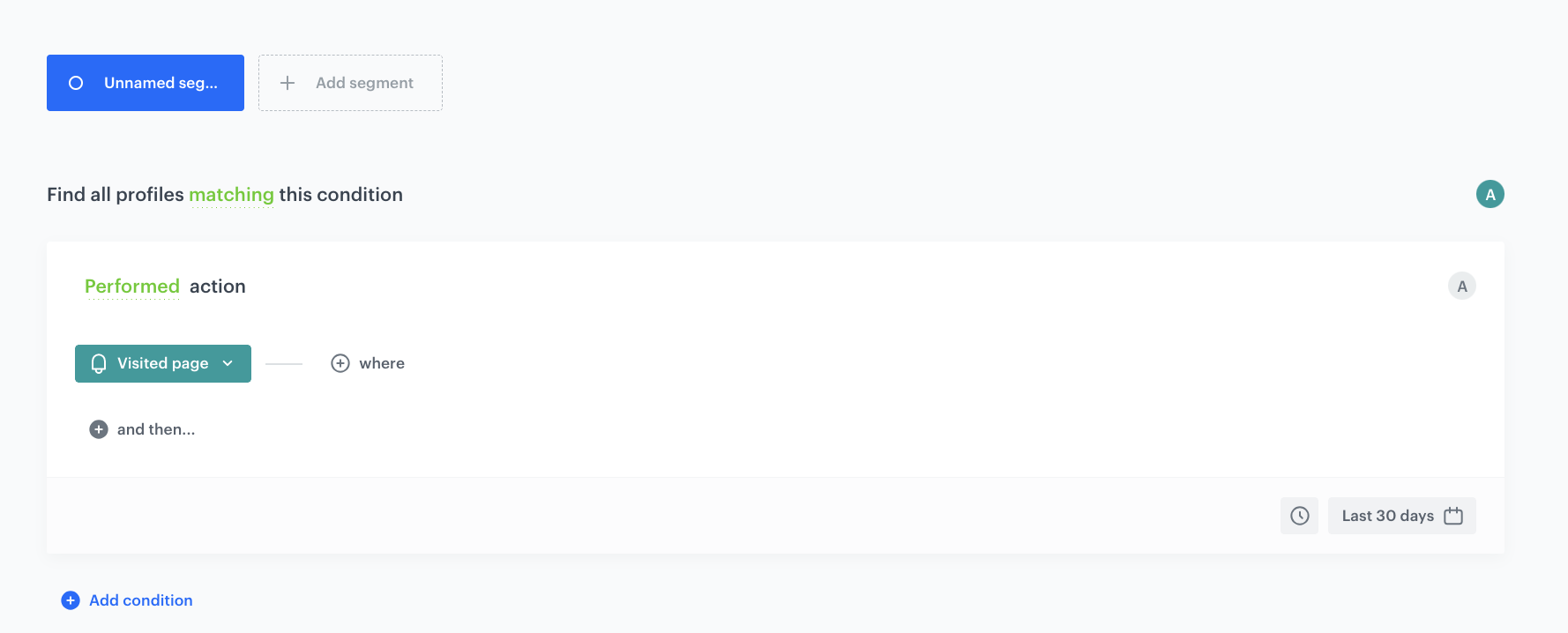
The conditions of the segmentation can be very complex. It usually makes sense to analyze customers with some activities observed, so in this use case, the segmentation contains customers who have at least one page visit during the last 30 days.

</div></div></div>


1. Go to **Decision Hub > Segmentation > New segmentation**.  
2. Enter the name of the segmentation.  
3. Create a segmentation of customers who visited your website in the last 30 days.
    
   <div class="admonition admonition-note"><div class="admonition-icon"><svg xmlns="http://www.w3.org/2000/svg" fill="none" viewBox="0 0 24 24" stroke="currentColor" stroke-width="2.5"><path stroke-linecap="round" stroke-linejoin="round" d="M13 16h-1v-4h-1m1-4h.01M21 12a9 9 0 11-18 0 9 9 0 0118 0z" /></svg></div><div class="admonition-body"><div class="admonition-content">

   You can find the instructions on creating segmentations [here](/docs/analytics/segmentations/creating-segmentations).

   </div></div></div>

4. **Save** the segmentation.

<figure>
    <img src="/api/docs/image/54176ad07f146575310749eba44b7c2f42c1b327/use-cases/all-cases/_gfx/ltv-prediction-segment.png" alt="The formula of the aggregate" class="full">
    <figcaption>Segmentation</figcaption>
    </figure>

## Create a prediction
---
In this part of the process, create a prediction that returns the number of transactions that will be made in the 90 days in advance.

1. Go to <img src="/api/docs/image/54176ad07f146575310749eba44b7c2f42c1b327/icons/ai-hub-icon.svg" alt="AI Hub icon" class="icon" > **(AI Predictions) Models > New prediction**.
2. On the pop-up, select **Create from scratch**, and then select **Regression**. 

### Select the audience

In this section, select the group of customers you created in [this part](/use-cases/ltv-prediction#create-a-segmentation) of the process.


<div class="admonition admonition-note"><div class="admonition-icon"><svg xmlns="http://www.w3.org/2000/svg" fill="none" viewBox="0 0 24 24" stroke="currentColor" stroke-width="2.5"><path stroke-linecap="round" stroke-linejoin="round" d="M13 16h-1v-4h-1m1-4h.01M21 12a9 9 0 11-18 0 9 9 0 0118 0z" /></svg></div><div class="admonition-body"><div class="admonition-content">

Selecting the audience, especially its size, is always a trade-off between reach, duration of calculation and costs of data points produce.

</div></div></div>


1. In the **Audience** section, click **Define**.
2. Click **Choose segmentation**. 
3. Select the the group of customers you created in [this part](/use-cases/ltv-prediction#create-a-segmentation) of the process.
4. Click **Apply**.

### Select the target

1. In the **What would you like to predict?** section, click **Define**.
2. Click **Select expression**. 
3. From the dropdown list, select the expression you created in [this part](/use-cases/ltv-prediction#create-prediction-target) of the process.

### Select events

[Events](/docs/assets/events/introduction-to-events) are customer activities on the website (visits to a website, adding a product to a shopping cart, and so on) and also your activities towards customers (such as sending messages to them). Select the events that the system will use as input to make a prediction. By default, the list already contains the events recommended for the prediction you are creating. The contents of the list is defined while enabling [Custom predictions](/docs/ai-hub/predictions/enabling-predictions#enabling-regression-and-classification-predictions).

1. Leave the **Auto-select events** option toggle on.

### Schedule recalculation and result settings

In this section, define the frequency of recalculating the prediction and settings of the event that is generated for customers for whom the prediction is made.

1. In the **Prediction time window** section, from the **How many days in advance do you want to make a prediction?** dropdown list, select **90 days** as the number of days in advance.  
    The time must correspond to the time range selected earlier in the prediction target.
2. In the **Calculation frequency** section, leave the settings at default (**One-time calculation**). As a result, the prediction is run only one time.
3. In the **Prediction start** section, leave the settings at default (**Immediately**). As a result, the prediction is calculated immediately after saving.
4. In the **How would you like to display results?** section, leave the settings at default (**5-point scale**).
5. In the **Define the value of the score name parameter** section, in the **Name** field, enter the user friendly name of predictions scores. The score name parameter is shown in the `snr.prediction.score` event. In our case it is 'Lifetime value'.
6. Click **Apply**.
7. Complete the prediction by clicking **Save&Calculate**.  
    **Result**: The calculation begins. After it completes, an event named `snr.prediction.score` is saved to the customer profiles selected in the segmentation. The event will be available in the platform, for instance in Decision, Behavioral Data, and Automation Hubs.

## What's next
---

You can use the prediction results in your work, for example to [Evaluate results](/use-cases/predictions-dashboard).

## Check the aggregate set up on the Synerise Demo workspace
---

Check the settings of all analytics created in this use case in Synerise Demo workspace:
- [Aggregate](https://app.synerise.com/analytics/aggregates/84991085-f72c-3684-a1eb-57fc643830a8)
- [Expression](https://app.synerise.com/analytics/expressions/ee582e83-0667-4580-b509-1ad1cd4aaad0)
- [Segmentation](https://app.synerise.com/analytics/segmentations/11295db2-80c2-464e-b9be-61fa8e78b98b)
- [Prediction](https://app.synerise.com/ai-v2/predictions/generic-scoring/ylhrexxshcak)

If you’re our partner or client, you already have automatic access to the **Synerise Demo workspace (1590)**, where you can explore all the configured elements of this use case and copy them to your workspace.  

If you’re not a partner or client yet, we encourage you to fill out the contact [form](https://demo.synerise.com/request) to schedule a meeting with our representatives. They’ll be happy to show you how our demo works and discuss how you can apply this use case in your business.

## Read more
---
- [Predictions](/docs/ai-hub/predictions)