Loyalty programs can build customer loyalty at a very low cost and make your customers more willing to shop in your store. You can award your customers with points for various activities which can be exchanged for specific products from your offer.

You can use different types of mechanisms of awarding points, based on your business needs. For example, awarding points for making a specific number of transactions during the specific time period, helps you encourage customers to spend more money and increases the number of bought products. What is more, if we use this mechanism in the FMCG brand, awarding points for buying specific products regularly, can develop a new habit in customers' daily routine.

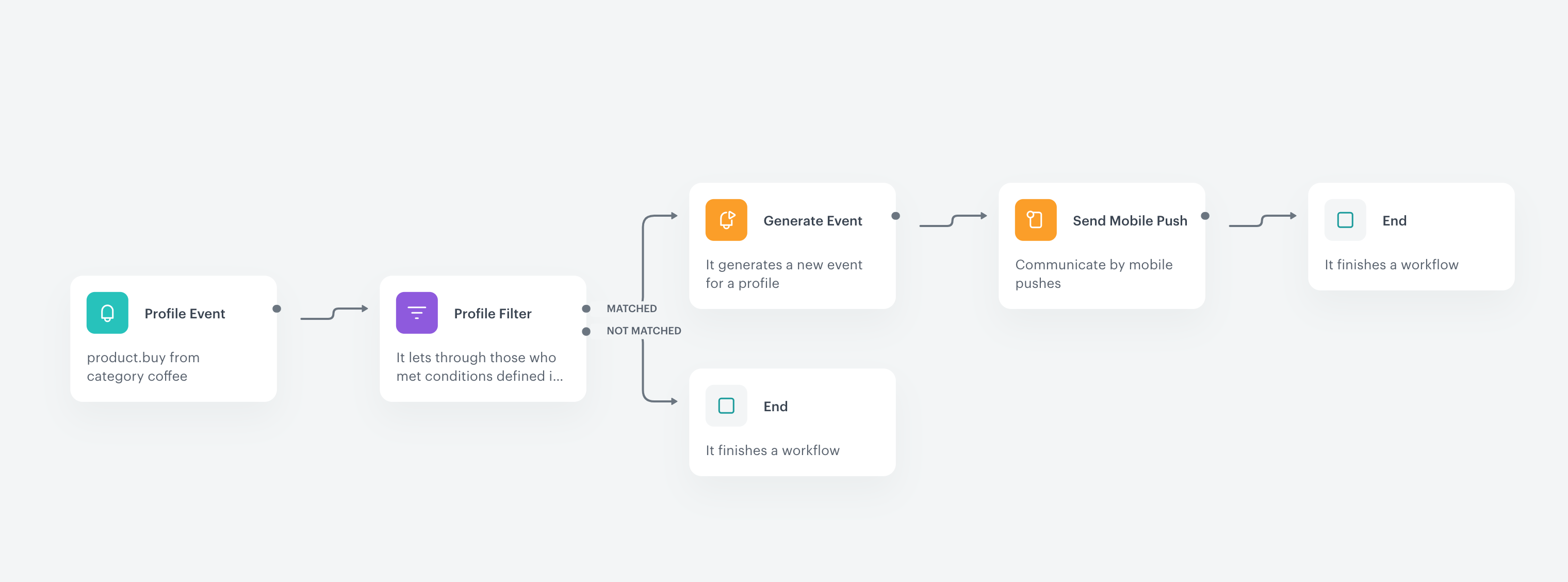
In this use case, we create a mechanism for awarding 1000 points for buying 10 coffees in the last 14 days. Then, we send a mobile push message with the information about awarded points. The workflow works only for the members of the loyalty program.

## Prerequisites 
---
- Implement transaction events using [SDK](/developers/web/transactions-sdk) or [API](https://developers.synerise.com/DataManagement/DataManagement.html#operation/CreateATransaction). Make sure that you implement `category` parameter in the transaction events.
- Integrate mechanism for awarding loyalty points.  
    For example, you can award loyalty points after transaction. In such case, create an [expression that counts how many loyalty points](/docs/analytics/expressions/loyalty-point-count) are assigned to a customer for a transaction. Once you prepare the expression, please contact [Support Team](https://synerise.com/support) to configure materialization of loyalty points. After such configuration, every time loyalty points are assigned to a customer, the `points.loyalty` event will be generated in a customer’s profile with information about the number of loyalty points they received after a transaction (the `points` parameter). During implementation of `points.loyalty` event remember about adding parameter `description` which describe for which activity customer get points.

  <div class="admonition admonition-tip"><div class="admonition-icon"><svg xmlns="http://www.w3.org/2000/svg" fill="none" viewBox="0 0 24 24" stroke="currentColor" stroke-width="2.5"><path stroke-linecap="round" stroke-linejoin="round" d="M9.663 17h4.673M12 3v1m6.364 1.636l-.707.707M21 12h-1M4 12H3m3.343-5.657l-.707-.707m2.828 9.9a5 5 0 117.072 0l-.548.547A3.374 3.374 0 0014 18.469V19a2 2 0 11-4 0v-.531c0-.895-.356-1.754-.988-2.386l-.548-.547z" /></svg></div><div class="admonition-body"><div class="admonition-content">

  Learn more about events [here](/docs/assets/events).

  </div></div></div>


- Collect the [custom event](/developers/mobile-sdk/event-tracking) which sends information to Synerise about joining a loyalty program (for example `account.status` with parameter `accountStatus` equal to `active`). Such an event with the appropriate status should be sent each time the membership status changes (when the customer resigns from the program or joins again).


  <div class="admonition admonition-tip"><div class="admonition-icon"><svg xmlns="http://www.w3.org/2000/svg" fill="none" viewBox="0 0 24 24" stroke="currentColor" stroke-width="2.5"><path stroke-linecap="round" stroke-linejoin="round" d="M9.663 17h4.673M12 3v1m6.364 1.636l-.707.707M21 12h-1M4 12H3m3.343-5.657l-.707-.707m2.828 9.9a5 5 0 117.072 0l-.548.547A3.374 3.374 0 0014 18.469V19a2 2 0 11-4 0v-.531c0-.895-.356-1.754-.988-2.386l-.548-.547z" /></svg></div><div class="admonition-body"><div class="admonition-content">

  In this case, when a customer joins the loyalty program, a custom event is generated on their card. However, these conditions and the scenario can be adapted to your business needs, for example, you can count the customers who joined the loyalty program using the registration event in the mobile application.

  </div></div></div>


- Integrate Synerise [mobile SDK](/developers/) in your mobile application. 
- Implement mobile pushes in your mobile application: [iOS](/developers/mobile-sdk/configuring-push-notifications/ios), [Android](/developers/mobile-sdk/configuring-push-notifications/android).
- [Create a mobile push template](/docs/campaign/Mobile/simple_push) with information about granted points, that will be used later in a [workflow](/use-cases/mechanism-of-stamps#create-a-workflow).

## Security configuration
---
Before you start working with this hub, if you are a Synerise customer or partner, consider reading [the section about denylisting events](/docs/settings/tool/api#denylist). This natively accessible configuration will allow you to manage the restrictions in points management that may help you prevent fraud.


## Process 
---

In this use case, you will go through the following steps:
1. [Create an aggregate](/use-cases/mechanism-of-stamps#create-an-aggregate-checking-the-status-of-the-membership) which returns the current status of customer's membership. 
2. [Create an aggregate](/use-cases/mechanism-of-stamps#create-an-aggregate-which-counts-the-bought-products-in-last-14-days) which counts bought products from category `coffee` in last 14 days.
3. [Create a workflow](/use-cases/mechanism-of-stamps#create-a-workflow) in which you award the specific number of points and send mobile push to customers who meet the conditions of the promotion.

## Create an aggregate checking the status of the membership
---

In this part of the process, you will create the aggregate that returns the current status of the customer's membership.

1. Go to <img src="/api/docs/image/54176ad07f146575310749eba44b7c2f42c1b327/icons/behavioral-data-hub-icon.svg" alt="Behavioral Data Hub icon" class="icon"> **Behavioral Data Hub > Live Aggregates > Create aggregate**.
2. As the aggregate type, select **Profile**.  
2. Enter the name of the aggregate.
3. Click **Analyze profiles by** and select **Last**.  
4. From the **Choose event** dropdown list, select the **account.status** event.
5. As the event parameter, choose **accountStatus**.
6. Set the date range for this aggregate to **Lifetime**. 
7. To save the aggregate, click **Save**.

<figure>
    <img src="/api/docs/image/54176ad07f146575310749eba44b7c2f42c1b327/use-cases/all-cases/_gfx/current-status-of-account.png" class="full" alt="Configuration of the aggregate">
    <figcaption>Configuration of the aggregate</figcaption>
    </figure>

## Create an aggregate which counts the bought products in last 14 days
---

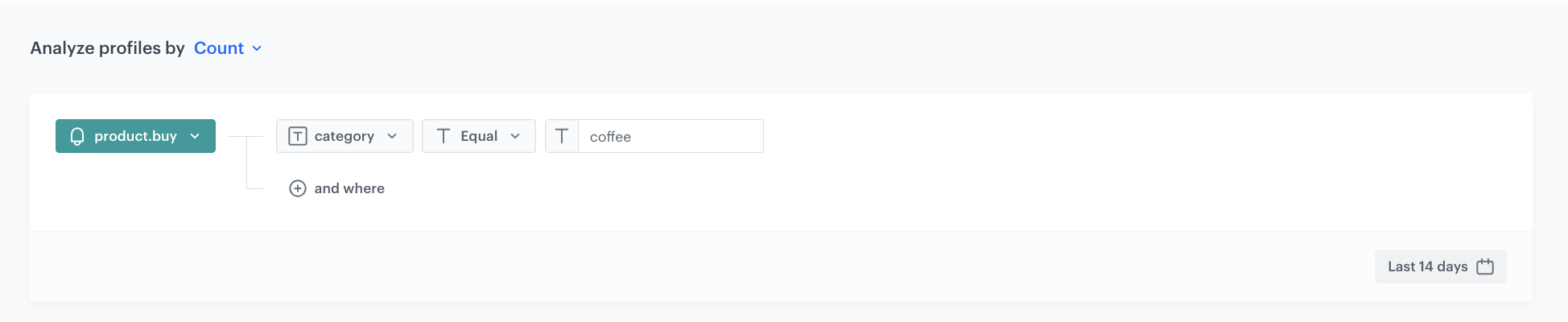
In this part of the process, you will create an aggregate which counts the bought products from the `coffee` category in last 14 days. 

1. Go to <img src="/api/docs/image/54176ad07f146575310749eba44b7c2f42c1b327/icons/behavioral-data-hub-icon.svg" alt="Behavioral Data Hub icon" class="icon"> **Behavioral Data Hub > Live Aggregates > Create aggregate**.
2. As the aggregate type, select **Profile**.  
2. Enter the name of the aggregate.
3. Click **Analyze profiles by** and select **Count**.  
4. From the **Choose event** dropdown, select the **product.buy** event.
5. As the event parameter, choose **category**.
6. As the operator, choose **Equal**.
6. As the value of the parameter, add `coffee`.
6. Set the period for the aggregate to **last 14 days**. 
7. To save the aggregate, click **Save**.
<figure>
    <img src="/api/docs/image/54176ad07f146575310749eba44b7c2f42c1b327/use-cases/all-cases/_gfx/product-bought-last-days.png" class="full" alt="Configuration of the aggregate">
    <figcaption>Configuration of the aggregate</figcaption>
    </figure>

## Create a workflow
---

At this stage, you will create a workflow which is triggered by the transaction event. The workflow progresses to the filter which checks if:
- the customer has purchased at least 10 coffees in the last 14 days,
- the customer is a member of the loyalty program,
- the customer hasn't received points for purchasing 10 coffees yet

If the conditions are met, the system generates an event that awards loyalty points for the customer and sends the mobile push to that customer. 
If the conditions are not met, the customer finishes the workflow.

1. Go to <img src="/api/docs/image/54176ad07f146575310749eba44b7c2f42c1b327/icons/automation-hub-icon.svg" alt="Automation Hub icon" class="icon" > **Automation Hub > Workflows > New workflow**.  
2. Enter the name of the workflow.

### Define the Profile Event trigger node
---
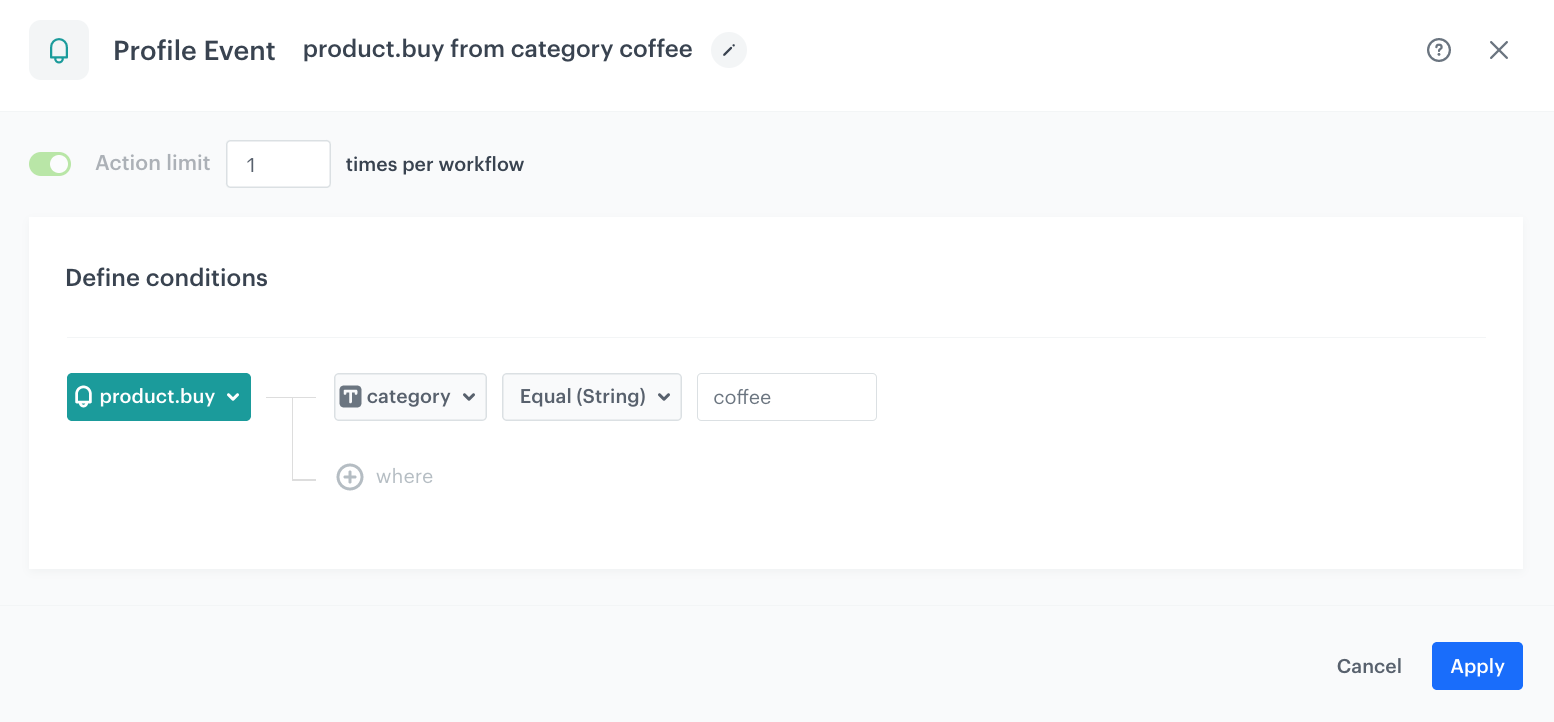
Configure the conditions that trigger the workflow. Use the `product.buy` event and the `coffee` category as the event parameter. 

1. As the first node of the workflow, add **Profile Event**. 
2. From the **Choose event** dropdown menu, choose the `product.buy` event. 
3. As the parameter, choose **category**.
4. As the operator, choose **Equal**.
5. As the value of the parameter, add `coffee`.
6. Confirm by clicking **Apply**.
<figure>
    <img src="/api/docs/image/54176ad07f146575310749eba44b7c2f42c1b327/use-cases/all-cases/_gfx/mechanism-of-stamps1.png" class="full" alt="Configuration of the Profile Event node">
    <figcaption>Configuration of the Profile Event node</figcaption>
    </figure>

### Define the Profile Filter node
---
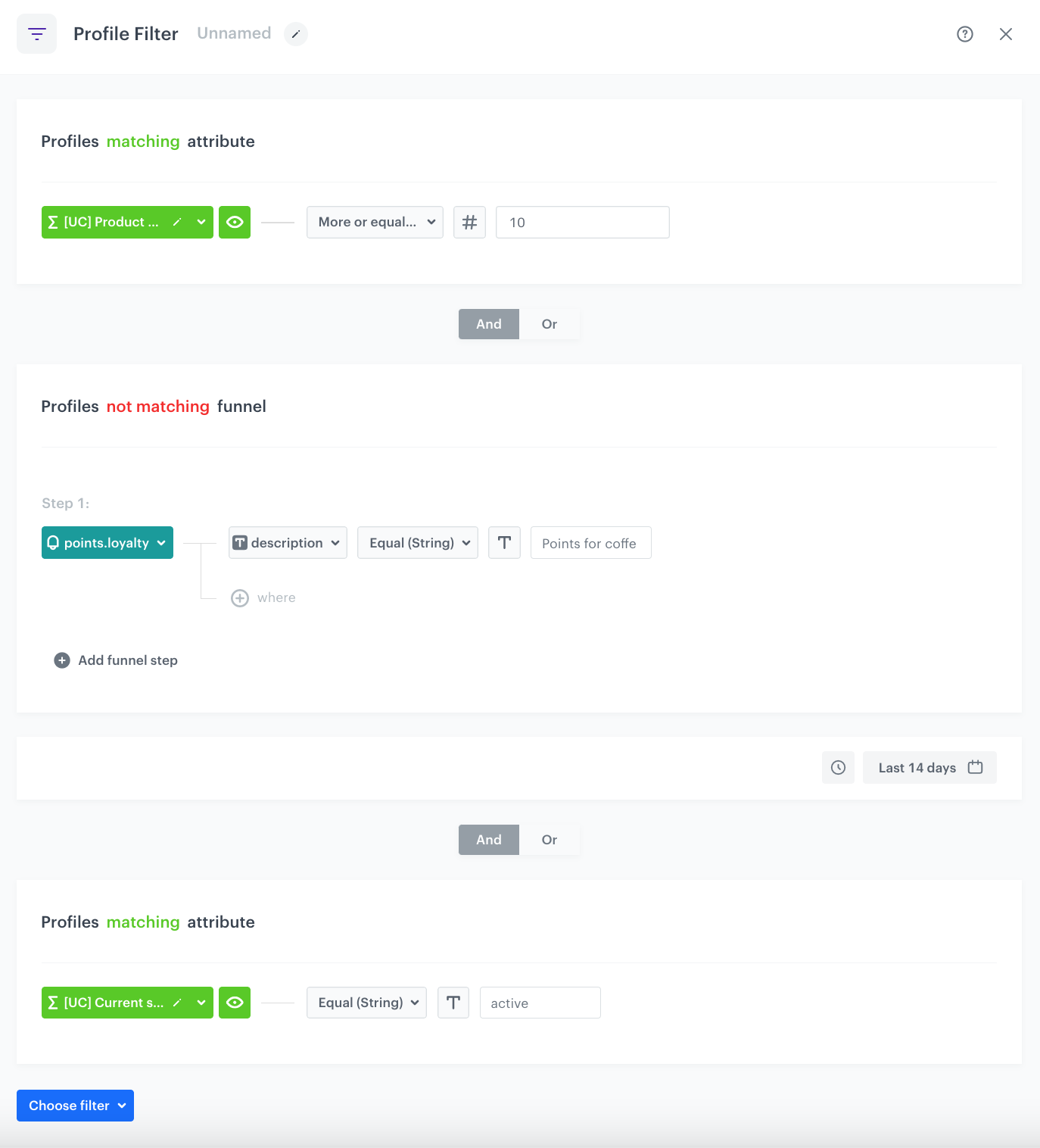
As the next step, add the Profile Filter node which contains the conditions a customer must meet be awarded with loyalty points: 
- the customer has purchased at least 10 coffees in the last 14 days,
- the customer is a member of the loyalty program,
- the customer hasn't received points for purchasing 10 coffees yet


1. Add the **Profile Filter** node. 
2. Click **Choose filter** button.
2. Choose **Profiles > Aggregates** and select the [aggregate counting the number of coffees bought](/use-cases/mechanism-of-stamps#create-an-aggregate-which-counts-the-bought-products-in-last-14-days) created in the previous part of the process. 
3. As the **Operator**, choose **More or equal to**.
4. As the value, enter `10`.
5. Click **Choose filter** button.
6. As the next condition, select the **Events** and select the `points.loyalty` event from the list.
7. Click **+ where** and select the **description** parameter.
8. As the operator, choose **Equal**.
5. As the value of the parameter, enter the name of the promotion. In our case we called it `Points for Coffee`.
6. Change the **Profiles matching funnel** expression to **Profiles not matching funnel** by clicking the **matching** word.
7. Set the time range to **last 14 days**.
7. Click **Choose filter** button.
8. As the last condition, choose **Profiles > Aggregates** and select the [aggregate which returns the current status of customer's membership](/use-cases/mechanism-of-stamps#create-an-aggregate-checking-the-status-of-the-membership) created in the previous part of the process.
9. As the operator, choose **Equal**.
5. As the value of the aggregate, enter `active`.
12. Click **Apply**.

    <figure><img src="/api/docs/image/54176ad07f146575310749eba44b7c2f42c1b327/use-cases/all-cases/_gfx/mechanism-of-stamps2.png" class="full" alt="The Profile Filter node configuration"><figcaption>The Profile Filter node configuration</figcaption></figure>

### Define the Generate Event node
---

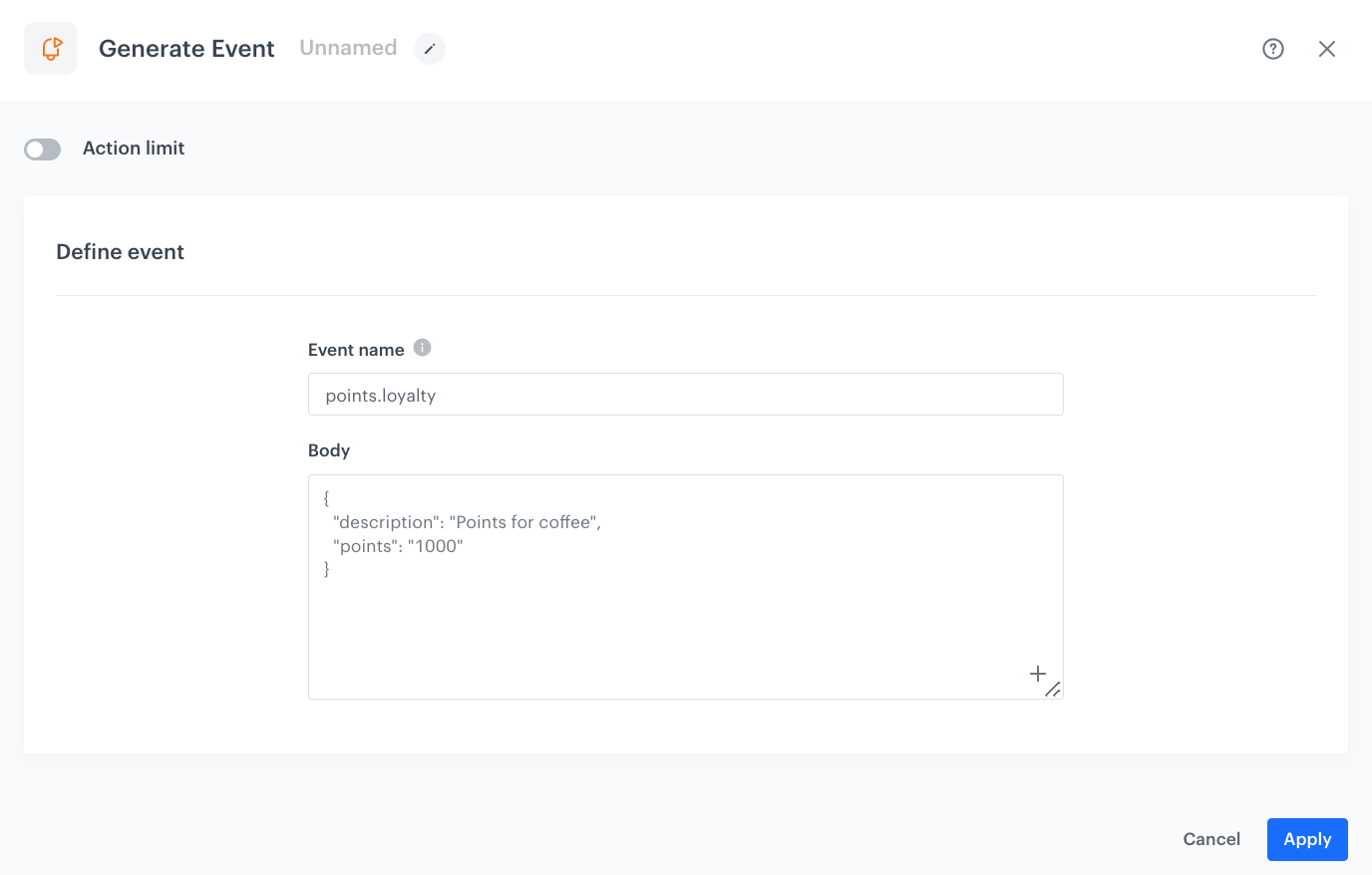
At this stage, the workflow will generate an event on the customer's profile with loyalty points awarded for the purchase of 10 coffees during last 14 days.

1. To the **matched** path, add **Generate Event**. In the configuration of the node:
    2. In the **Event name** field, enter the name of the event that will be generated on the customer's profile. In this case, it is `points.loyalty`. 

    
       <div class="admonition admonition-note"><div class="admonition-icon"><svg xmlns="http://www.w3.org/2000/svg" fill="none" viewBox="0 0 24 24" stroke="currentColor" stroke-width="2.5"><path stroke-linecap="round" stroke-linejoin="round" d="M13 16h-1v-4h-1m1-4h.01M21 12a9 9 0 11-18 0 9 9 0 0118 0z" /></svg></div><div class="admonition-body"><div class="admonition-content">

       While naming your custom event, follow the pattern used for the default events in the application, such as `page.visit`, `product.buy`, and so on.

       </div></div></div>


    4. In the **Body** section, define the parameters of this event, and click **Apply**.

  **Example content of **Body** section:**

    
   <pre><code class="language-json">{
     "description": "Points for Coffee",
     "points": 1000
   }</code></pre>


<div class="admonition admonition-important"><div class="admonition-icon"><svg xmlns="http://www.w3.org/2000/svg" fill="none" viewBox="0 0 24 24" stroke="currentColor" stroke-width="2.5"><path stroke-linecap="round" stroke-linejoin="round" d="M12 8v4m0 4h.01M21 12a9 9 0 11-18 0 9 9 0 0118 0z" /></svg></div><div class="admonition-body"><div class="admonition-content">

The action of this event and the description parameter must correspond to the condition in [the Profile Filter](/use-cases/mechanism-of-stamps#define-the-profile-filter-node) that checks if a customer received points for purchasing 10 coffees already.

</div></div></div>


<div class="admonition admonition-note"><div class="admonition-icon"><svg xmlns="http://www.w3.org/2000/svg" fill="none" viewBox="0 0 24 24" stroke="currentColor" stroke-width="2.5"><path stroke-linecap="round" stroke-linejoin="round" d="M13 16h-1v-4h-1m1-4h.01M21 12a9 9 0 11-18 0 9 9 0 0118 0z" /></svg></div><div class="admonition-body"><div class="admonition-content">

The event body is an example. You can add more parameters or change the point calculation formula according to your business needs.

</div></div></div>


  <figure><img src="/api/docs/image/54176ad07f146575310749eba44b7c2f42c1b327/use-cases/all-cases/_gfx/mechanism-of-stamps3.png" class="full" alt="The Generate Event node configuration"><figcaption>The Generate Event node configuration</figcaption></figure>

### Define the Send Mobile Push node
---

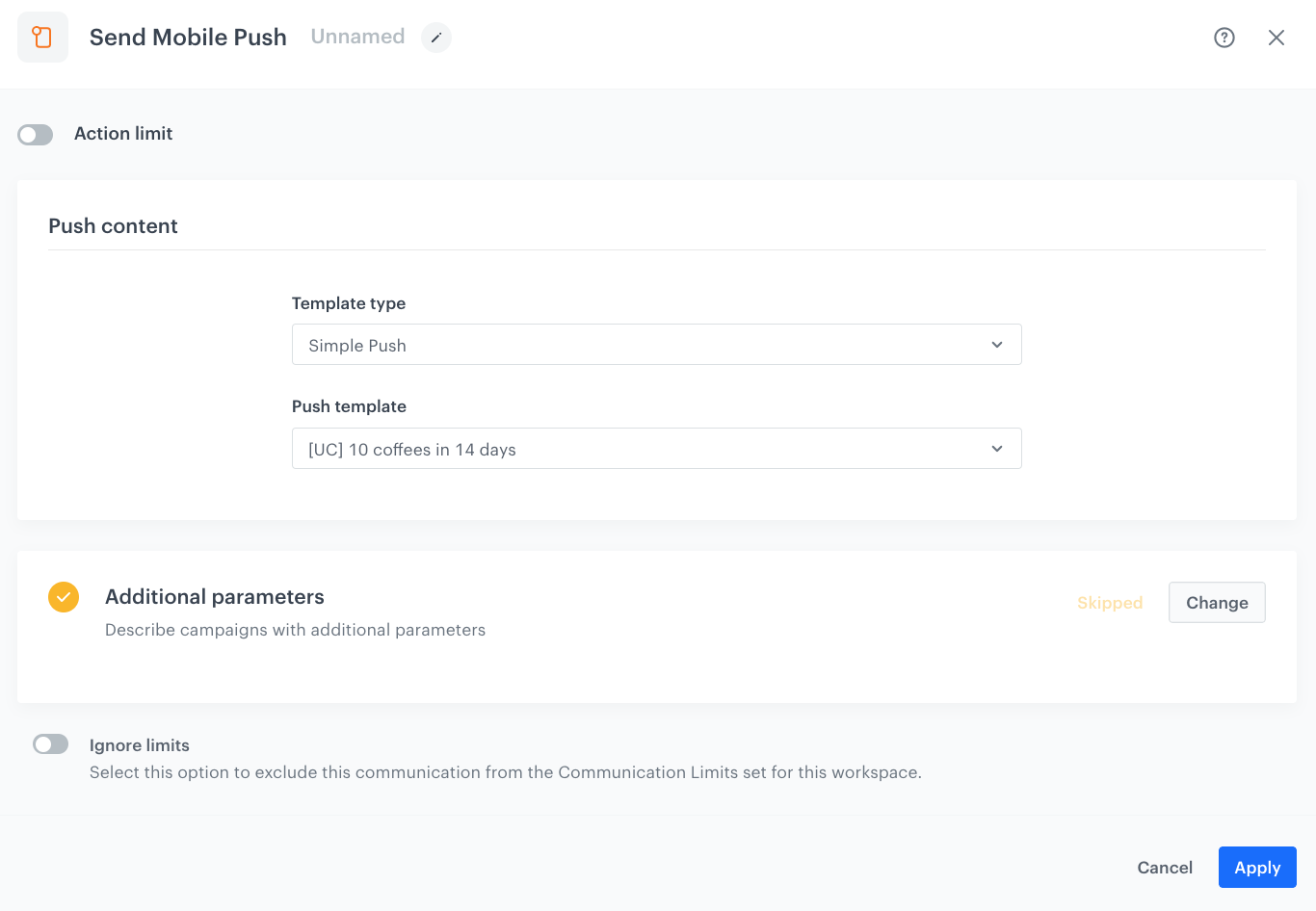
Add **Send Mobile Push** node. This node will send the mobile push to customers who meet the conditions and gained 1000 points.  

1. Select the type of the mobile push notification as **Simple Push**.
2. Select the push template, created as the part of prerequisites with the information about points gained.
3. Skip the **Additional parameters**.
3. Confirm the settings by clicking **Apply**.

  <figure><img src="/api/docs/image/54176ad07f146575310749eba44b7c2f42c1b327/use-cases/all-cases/_gfx/mechanism-of-stamps4.png" class="full" alt="The Send Mobile Push node configuration"><figcaption>The Send Mobile Push Event node configuration</figcaption></figure>


### Set up final settings of the workflow
---

  1. Add **End** nodes to:
   - **Not matched** path from the **Profile Filter** node.
   - After the **Send Mobile Push** node.
  2. Set the capping for the workflow to one time for 14 days.
  3. Optionally, add titles to each node so the workflow will be more understandable to your colleagues.
  4. To save it as a draft, click **Save** or activate by clicking **Save & Run**.


<figure><img src="/api/docs/image/54176ad07f146575310749eba44b7c2f42c1b327/use-cases/all-cases/_gfx/mechanism-of-stamps5.png" class="full" alt="The workflow configuration"><figcaption>The workflow configuration</figcaption></figure>


## Check the use case set up on the Synerise Demo workspace
---
You can check directly in Synerise Demo account the configuration of the:
- [aggregate](https://app.synerise.com/analytics/aggregates/4538a92b-b5e7-338e-a7f0-a4c690b63272) which returns the current status of customer membership,
- [aggregate](https://app.synerise.com/analytics/aggregates/6202c38f-2ce0-38cd-9825-448fe2cb4eea) which counts bought products from category "coffee" in last 14 days,
- [workflow](https://app.synerise.com/automations/automation-diagram/dae488d5-0f2d-4cf1-b7a4-501f7c5a6380) in which you add the specific number of points and send mobile push to customers who meet the conditions of the promotion.

If you’re our partner or client, you already have automatic access to the **Synerise Demo workspace (1590)**, where you can explore all the configured elements of this use case and copy them to your workspace.  

If you’re not a partner or client yet, we encourage you to fill out the contact [form](https://demo.synerise.com/request) to schedule a meeting with our representatives. They’ll be happy to show you how our demo works and discuss how you can apply this use case in your business. 

## Read more
---

- [Aggregates](/docs/analytics/aggregates)
- [Automation Hub](/docs/automation)
- [Loyalty programs basics](/use-cases/loyalty-programs-basics)
- [Mobile campaigns](/docs/campaign/Mobile)