A truly personalized and targeted marketing campaign can significantly improve your customers' experience. This approach has the potential to lead to more satisfied customers, greater revenue, and greater customer loyalty to your business. 

Customers may feel happy if you offer them a birthday discount to celebrate their big day. In this use case, you will learn how to prepare a mobile push campaign with a discount on products from specific categories for customers who have a birthday on the current day. The promotion will be available for 14 days after the birthday. 

## Prerequisites
---
- Implement promotions in your [mobile application](/developers/mobile-sdk/loyalty), [API](https://developers.synerise.com/LoyaltyandEngagement/LoyaltyandEngagement.html#operation/profileLogin).
- Implement mobile pushes in your mobile application: [iOS](/developers/mobile-sdk/configuring-push-notifications/ios), [Android](/developers/mobile-sdk/configuring-push-notifications/android).
- [Import your product feed to catalogs](/use-cases/import-product-feed-to-catalog).
- Collect data about customers' birthdays in their profiles.
- If you want to limit the promotion to only some of your stores, add the list of stores to a catalog. Such a catalog must contain a unique store ID and any other store attributes by which you will filter stores, such as city, zip code, etc. More information about catalogs can be found [here](/docs/assets/catalogs).

## Security configuration
---
Before you start working with this hub, if you are a Synerise customer or partner, consider reading [the section about denylisting events](/docs/settings/tool/api#denylist). This natively accessible configuration will allow you to manage the restrictions in points management that may help you prevent fraud.

## Process
---
1. Create segmentation:
    1. [A segmentation of customers whose birthday is on the current day](/use-cases/mobile-push-birthday-promotion#create-a-segmentation-of-customers-whose-birthday-is-on-the-current-day) - needed to send the push notification.
    2. [A segmentation of customers whose birthday was in the last 14 days](/use-cases/mobile-push-birthday-promotion#create-a-segmentation-for-customers-whose-birthday-was-in-the-last-14-days) - needed to keep the promotion active for 14 days after the birthday.
2. [Create a promotion](/use-cases/mobile-push-birthday-promotion#create-a-promotion) for customers who have celebrated their birthday within the last 14 days on products in specific categories.
3. [Prepare a mobile push notification](/use-cases/mobile-push-birthday-promotion#prepare-a-mobile-push-notification).
4. [Create a workflow](/use-cases/mobile-push-birthday-promotion#create-a-workflow) to send the mobile push. The workflow runs once a day. 

## Prepare segmentations
---
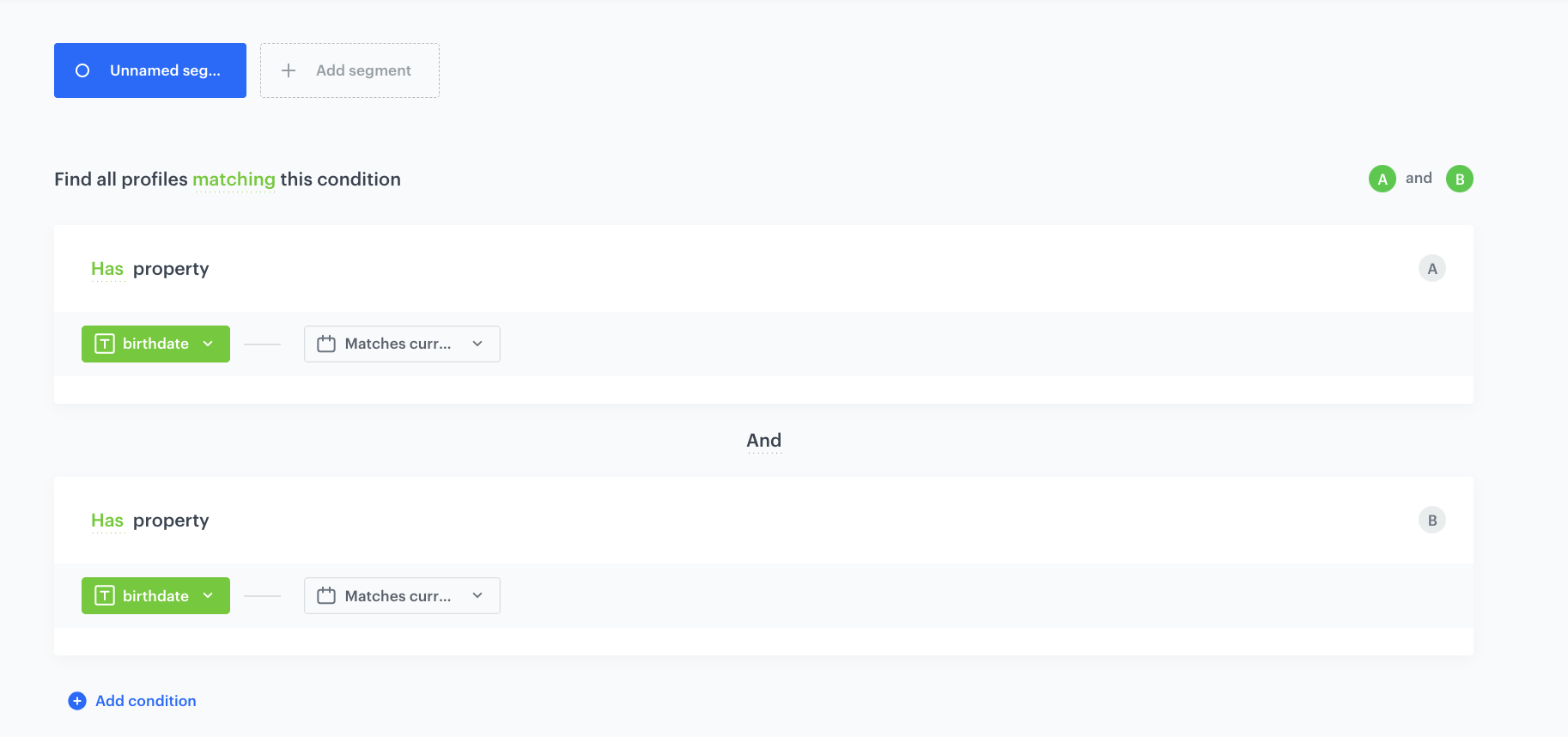
### Create a segmentation of customers whose birthday is on the current day

1. Go to <img src="/api/docs/image/54176ad07f146575310749eba44b7c2f42c1b327/icons/decision-hub-icon.svg" alt="Behavioral Data Hub icon" class="icon"> **Decision Hub > Segmentations > New segmentation**.
2. Enter the name of segmentation. 
3. From the **Choose filter** dropdown list, select the birthday attribute. 
4. In the operator selection menu that opens:
    1. Click the calendar icon.
    2. Click **Current date**.
    3. Click **Matches current day**.
5. From the **Choose filter** dropdown list, select the birthday attribute.
6. In the operator selection menu that opens:
    1. Click the calendar icon.
    2. Click **Current date**.
    3. Click **Matches current month**.
7. Click **Save**. 

    <figure>
    <img src="/api/docs/image/54176ad07f146575310749eba44b7c2f42c1b327/use-cases/all-cases/_gfx/birthday.png" class="large" alt="Segment of customers who have a birthday on the current day">
    <figcaption>Segment of customers who have a birthday on the current day</figcaption>
    </figure>  

### Create a segmentation for customers whose birthday was in the last 14 days

This segment identifies customers who have received a mobile notification about the birthday promotion within the last 14 days. 

1. Go to <img src="/api/docs/image/54176ad07f146575310749eba44b7c2f42c1b327/icons/decision-hub-icon.svg" alt="Behavioral Data Hub icon" class="icon"> **Decision Hub > Segmentations > New segmentation**.
2. Enter the name of segmentation. 
3. From the **Choose filter** dropdown list, select the **Mobile push sent** event.
4. Add the **campaignName** parameter. 
5. As the logical operator, select **Equal**.
6. In the blank field enter the campaign name.
    You must use the same name later, when creating the mobile push template. 
7. In the time range settings:
    1. Click **Custom**.
    2. Set the range to last 14 days.
8. Add additional filters identical to the ones in the previous segmentation. The operator between the funnel filter and the first contact filter must be `OR`.  
    This is to ensure that customers who immediately respond to the push will have the promotion active in case of a delay in processing the "push received" event.

<figure>
<img src="/api/docs/image/54176ad07f146575310749eba44b7c2f42c1b327/use-cases/all-cases/_gfx/birthday-segmentation1.png" class="full" alt="Segment of customers who have received a mobile notification of a birthday promotion within the last 14 days">
<figcaption>Segment of customers who have received a mobile notification of a birthday promotion within the last 14 days.</figcaption>
</figure>

## Create a promotion
---
Create a promotion for customers whose birthday was within the last 14 days (including the current day) on products from the following categories: sweets, cosmetics, and coffee. 

1. Go to <img src="/api/docs/image/54176ad07f146575310749eba44b7c2f42c1b327/icons/ai-hub-icon.svg" alt="AI Hub icon" class="icon" > **AI Hub > Regular Promotions > Add promotion**.
2. Select the **For selected items** option.
3. In the **Audience** section, select the segment created in [this step](/use-cases/mobile-push-birthday-promotion#create-a-segmentation-for-customers-whose-birthday-was-in-the-last-14-days). 
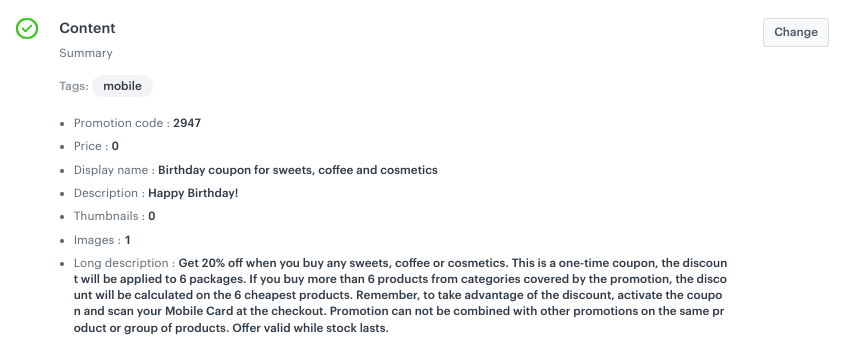
4. In the **Content** section,:
    1. Define the name, description, and image of the promotion..
    2. In the price field, enter `0`.
    3. Confirm the settings by clicking **Apply**.
    <figure>
    <img src="/api/docs/image/54176ad07f146575310749eba44b7c2f42c1b327/use-cases/all-cases/_gfx/birthday-promotion.png" class="full" alt="Example of birthday promotion content">
    <figcaption>Example of birthday promotion content</figcaption>
    </figure> 

5. In **Type & limits**, define the settings so that the promotion is available for use for up to 6 products in the cart, while giving a 20% discount on products defined in the "items" section.
    1. As the **Discount type**, choose **Percentage**.
    2. In the **Limit per profile**, as the maximum value, enter `6`. 
    3. In the **Value** section, define the discount as `20%`.
6. In the **Schedule** section, define the distribution period of your promotion. 
7. **Optional** In the **Stores** section, specify stores where the promotion is available. 

    
   <div class="admonition admonition-note"><div class="admonition-icon"><svg xmlns="http://www.w3.org/2000/svg" fill="none" viewBox="0 0 24 24" stroke="currentColor" stroke-width="2.5"><path stroke-linecap="round" stroke-linejoin="round" d="M13 16h-1v-4h-1m1-4h.01M21 12a9 9 0 11-18 0 9 9 0 0118 0z" /></svg></div><div class="admonition-body"><div class="admonition-content">

   This is possible only if the list of stores is imported into a [catalog](/docs/assets/catalogs).

   </div></div></div>


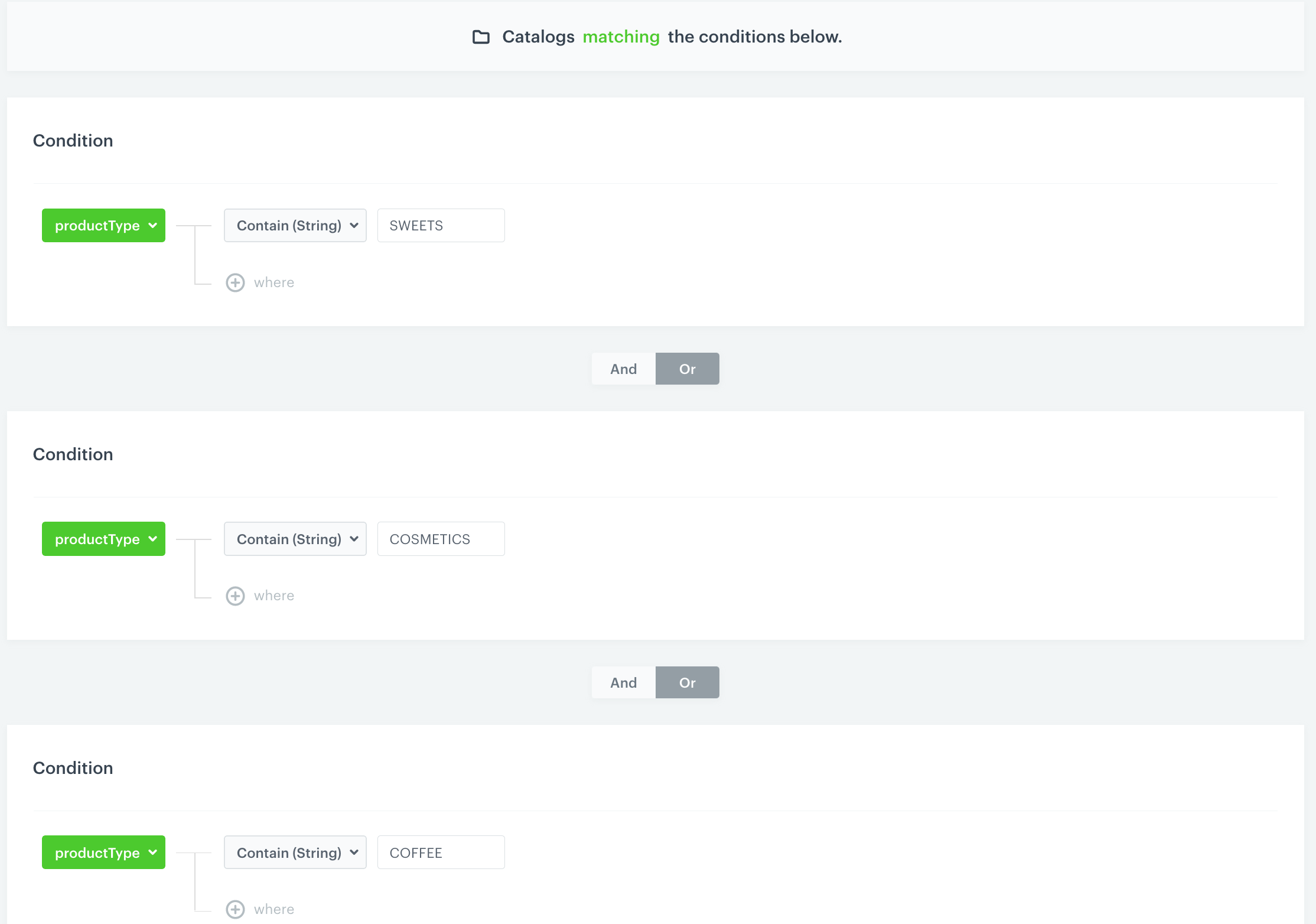
8. In the **Items** section, define a product catalog and a filter -  specifying the products that will be discounted.
    <figure>
    <img src="/api/docs/image/54176ad07f146575310749eba44b7c2f42c1b327/use-cases/all-cases/_gfx/catalog-product-filter.png" class="large" alt="Example of a catalog filter with products from specific categories">
    <figcaption>Example of a catalog filter with products from specific categories</figcaption>
    </figure>

    
   <div class="admonition admonition-note"><div class="admonition-icon"><svg xmlns="http://www.w3.org/2000/svg" fill="none" viewBox="0 0 24 24" stroke="currentColor" stroke-width="2.5"><path stroke-linecap="round" stroke-linejoin="round" d="M13 16h-1v-4h-1m1-4h.01M21 12a9 9 0 11-18 0 9 9 0 0118 0z" /></svg></div><div class="admonition-body"><div class="admonition-content">

   You can define the filter directly in the catalog with the products for which the promotion is created. To do this, go to **Catalogs** located in  **Data Modeling Hub**, select the catalog you need and define a filter for the products in the categories that are included in the promotion.

   </div></div></div>
 

   <figure>
    <img src="/api/docs/image/54176ad07f146575310749eba44b7c2f42c1b327/use-cases/all-cases/_gfx/catalog-filter.png" class="medium" alt="Catalog filter">
    <figcaption>Catalog filter</figcaption>
    </figure>

10. To apply all changes and run the promotion, clich **Publish**.

## Prepare a mobile push notification
---

1. Go to **Experience Hub > Mobile > Templates**.
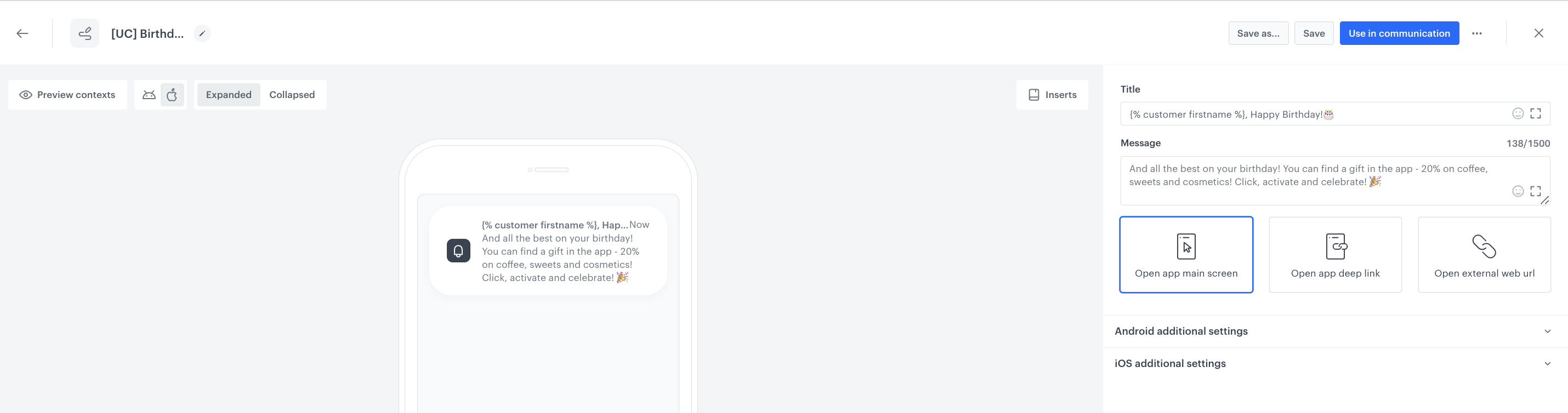
2. Create your mobile push in the code editor.

For more information on creating a simple mobile push, visit our [User Guide](/docs/campaign/Mobile/simple_push).


<div class="admonition admonition-important"><div class="admonition-icon"><svg xmlns="http://www.w3.org/2000/svg" fill="none" viewBox="0 0 24 24" stroke="currentColor" stroke-width="2.5"><path stroke-linecap="round" stroke-linejoin="round" d="M12 8v4m0 4h.01M21 12a9 9 0 11-18 0 9 9 0 0118 0z" /></svg></div><div class="admonition-body"><div class="admonition-content">

The campaign name in the template must be the same as the one you used in the filter when [creating the segmentation](/use-cases/mobile-push-birthday-promotion#create-a-segmentation-for-customers-whose-birthday-was-in-the-last-14-days) earlier!

</div></div></div>


<figure>
<img src="/api/docs/image/54176ad07f146575310749eba44b7c2f42c1b327/use-cases/all-cases/_gfx/birthday-mobile-push.png" class="large" alt="Example of mobile push notification">
<figcaption>Example of mobile push notification</figcaption>
</figure>

## Create a workflow
---
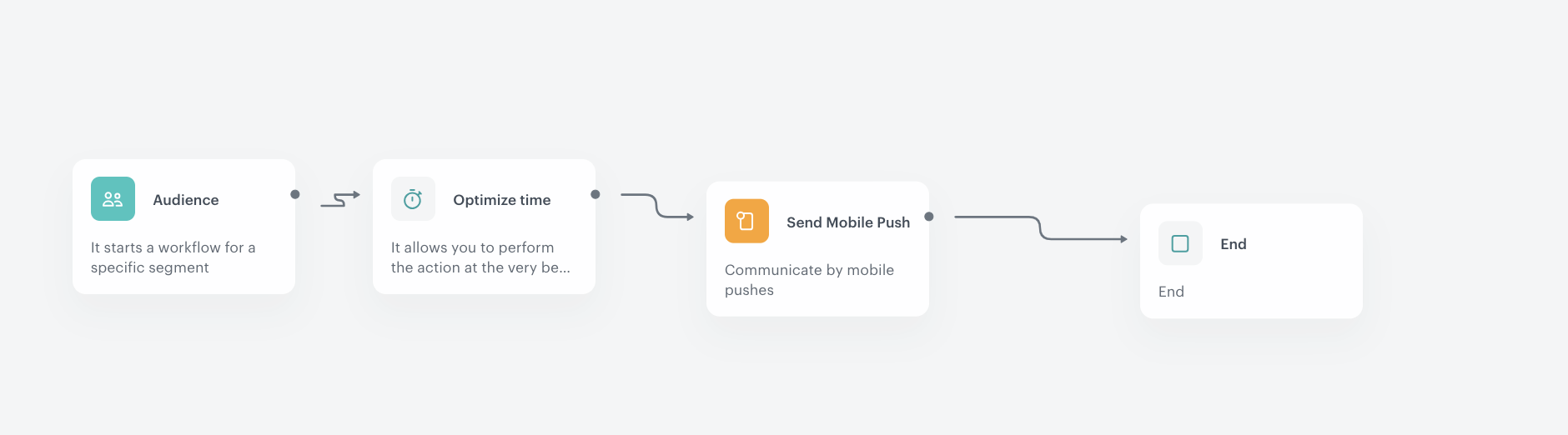
In this part of the process, prepare a workflow that notifies customers who celebrate their birthday today of their birthday promotion. 

1. Go to **Automation Hub > Workflows > New workflow**.
2. Enter the name of the workflow. 
3. As the first node of the workflow, add **Audience**. In the node settings:
    1. As the **Run trigger** option, select **repeatable**.
    2. Set the interval to 1 day.
    3. In the **Begin at** field, select the date.
    4. From the **Timezone** dropdown list, select the time zone consistent with the time zone of your workspace.
    5. In the **Define audience** section, click **Segments**.
    6. Click **Select segment**.
    7. Select the segment of [customers whose birthday is on the current day](/use-cases/mobile-push-birthday-promotion#create-a-segmentation-of-customers-whose-birthday-is-on-the-current-day).
    8. Confirm by clicking **Apply**.
    
4. As the next node, add **Send Mobile Push**. 
5. In the configuration of the **Send Mobile Push** node:
    1. Define the **Template type**.
    2. Select the **Push template** created in [this part](/use-cases/mobile-push-birthday-promotion#prepare-a-mobile-push-notification) of the process.
6. Confirm by clicking **Apply**.
7. Add the **End** node to finish the workflow.
8. Click **Save & Run**. 

<figure>
<img src="/api/docs/image/54176ad07f146575310749eba44b7c2f42c1b327/use-cases/all-cases/_gfx/birthday-workflow.png" class="large" alt="Final configuration of a workflow that sends a mobile push to customers whose birthday is on the current day">
<figcaption>Final configuration of a workflow that sends a mobile push to customers whose birthday is on the current day</figcaption>
</figure>

## Check the use case set up on the Synerise Demo workspace
---

You can check the configuration of the segmentations directly in Synerise demo workspace:
- [a segmentation of customers whose birthday is on the current day](https://app.synerise.com/analytics/segmentations/eb0dc5de-da7b-420e-a20a-3f96e57546ff),
- [a segmentation of customers whose birthday was in the last 14 days](https://app.synerise.com/analytics/segmentations/5c1343d0-c156-4f1f-9389-b04b5bf8da24).

Check also the [configuration of the promotion](https://app.synerise.com/campaigns/promotions/42cfd4d0-dea4-43b5-aa19-34440a3ca350) and [workflow](https://app.synerise.com/automations/automation-diagram/aad0b2b5-401c-43f4-8f1a-48c8f2e265af) created for this use case.

If you’re our partner or client, you already have automatic access to the **Synerise Demo workspace (1590)**, where you can explore all the configured elements of this use case and copy them to your workspace.  

If you’re not a partner or client yet, we encourage you to fill out the contact [form](https://demo.synerise.com/request) to schedule a meeting with our representatives. They’ll be happy to show you how our demo works and discuss how you can apply this use case in your business.


## Read more
---
- [Creating promotions](/docs/ai-hub/promotions)
- [Mobile push notifications](/docs/campaign/Mobile)
- [Workflow](/docs/automation/creating-automation)