You can use expressions to examine the most frequently visited category of items for every customer. This expression can be used later in an analytical dashboard to monitor the results for the expression.

## Prerequisites 
---
- Implement [tracking code](/developers/web/installation-and-configuration#creating-a-tracking-code) on your website.

## Process
---
In this use case, you will go through the following steps:
1. [Create aggregates](/use-cases/most-visited-category#create-aggregates) that count the number of page visits of items in two specific categories - each aggregate calculates page visits to one category.
2. [Create an expression](/use-cases/most-visited-category#create-an-expression) that returns values: `women`, `men`, and `unknown` depending on the number of page visits in the categories selected in the aggregates. 
3. [Create an analytical dashboard](/use-cases/most-visited-category#create-an-analytical-dashboard).

## Create aggregates
---

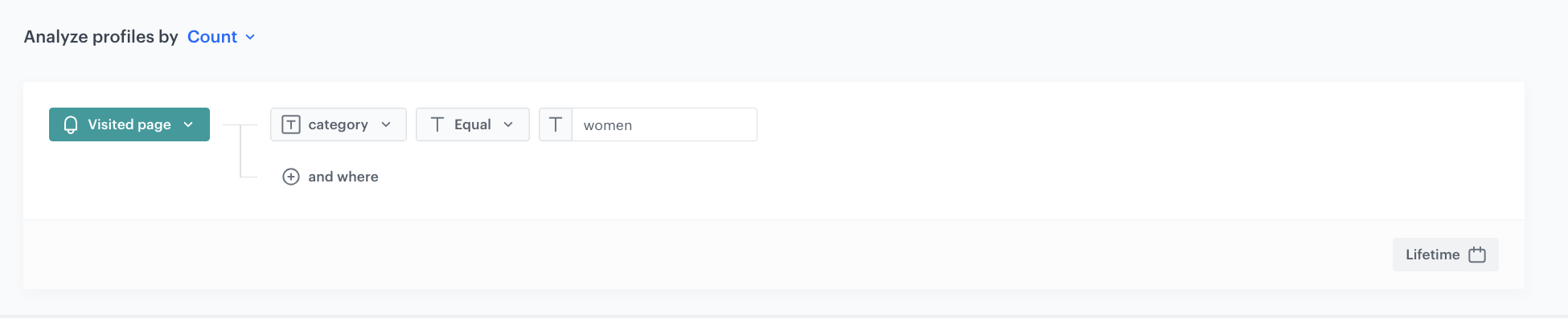
In this part of the process, create two aggregates that count the number of page visits of items in two specific categories - each aggregate calculates page visits to one category.

1. Go to <img src="/api/docs/image/54176ad07f146575310749eba44b7c2f42c1b327/icons/behavioral-data-hub-icon.svg" alt="Behavioral Data Hub icon" class="icon"> **Behavioral Data Hub > Live Aggregates > Create aggregate**.
2. As the aggregate type, select **Profile**.  
2. Enter the name of the aggregate. 
3. Set **Analyze profiles by** to **Count**.
3. Click **Choose event**.
4. From the dropdown list, select **page.visit**.  
5. Click **+ where**.
6. Find the **category** parameter.  
7. From the logical operator dropdown list, select **Equal**.  
8. In the text field, enter `women`.  

    
   <div class="admonition admonition-important"><div class="admonition-icon"><svg xmlns="http://www.w3.org/2000/svg" fill="none" viewBox="0 0 24 24" stroke="currentColor" stroke-width="2.5"><path stroke-linecap="round" stroke-linejoin="round" d="M12 8v4m0 4h.01M21 12a9 9 0 11-18 0 9 9 0 0118 0z" /></svg></div><div class="admonition-body"><div class="admonition-content">

   Modify this name of the parameter according to the actual values of the category parameter you send to Synerise.

   </div></div></div>

9. As the time range, select **Lifetime**.
10. Click **Save**.  
    <figure>
    <img src="/api/docs/image/54176ad07f146575310749eba44b7c2f42c1b327/use-cases/all-cases/_gfx/female-items-visits.png" alt="The construction of the first aggregate" class="full">
    <figcaption>The construction of the first aggregate</figcaption>
    </figure>
11. Repeat steps from 1 to 11. In step 8, replace `women` with `men`.  
    <figure>
    <img src="/api/docs/image/54176ad07f146575310749eba44b7c2f42c1b327/use-cases/all-cases/_gfx/male-items-category.png" alt="The construction of the second aggregate" class="full">
    <figcaption>The construction of the second aggregate</figcaption>
    </figure>

## Create an expression
---
In this part of the process, create an expression that returns values: `women`, `men`, and `unknown` depending on the number of page visits in the categories selected in the aggregates. 


1. Go to **Behavioral Data Hub > Expressions > New expression**.  
2. Enter the name of the expression. 
2. Leave the selection of the **Expression for** option at default (**Attribute**).
3. Create the following formula:  
    <figure>
    <img src="/api/docs/image/54176ad07f146575310749eba44b7c2f42c1b327/use-cases/all-cases/_gfx/preferred-category-expression-formula.png" alt="The construction of the expression" class="full">
    <figcaption>The construction of the expression</figcaption>
    </figure>
    
   <details class="accordion"><summary>Explanation of the expression logic</summary><div class="accordion-content"><p>The expression creates the following logic:</p> <ul> <li>If the number of page visits in the <code>women</code> category is higher, return <code>women</code>.</li> <li>If the above condition is not met:<ul> <li>If the number of page visits in the <code>men</code> category is higher, return <code>men</code>.</li> <li>If the above condition is not met, return <code>unknown</code>.</li> </ul> </li> </ul></div></details>

4. To complete the expression, click **Save**.  
5. To check the result of the expression for individual customers, click the **Preview tab**. In the search box, enter the email of a customer.

## Create an analytical dashboard
---
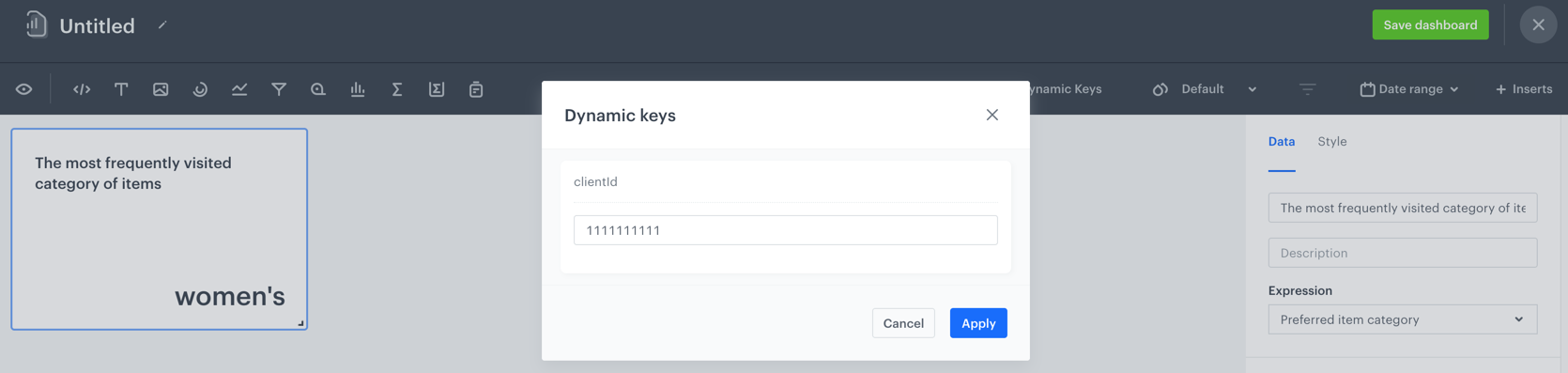
You can add this expression to the analytical dashboard and monitor the result of the expression for individual customers.  

1. Go to **Decision Hub > Dashboards > New dashboard**.  
2. Click the <img src="/api/docs/image/54176ad07f146575310749eba44b7c2f42c1b327/docs/analytics/_gfx/expression-icon.png" alt="Expression icon" class="icon"> icon on the dashboard.  
2. Double-click the expression added to the dashboard.
3. On the right side, from the dropdown list, select the expression you created.  
5. Click the <img src="/api/docs/image/54176ad07f146575310749eba44b7c2f42c1b327/icons/dynamic-key-icon.png" alt="Dynamic key icon" class="icon"> icon.
6. Enter the ID of a customer.
7. Click **Apply**.  
    <figure>
    <img src="/api/docs/image/54176ad07f146575310749eba44b7c2f42c1b327/use-cases/all-cases/_gfx/preferred-category-dashboard.png" alt="The result of the expression in the analytical dashboard for an example customer" class="full">
    <figcaption>The result of the expression in the analytical dashboard for an example customer</figcaption>
    </figure>

## Check the use case set up on the Synerise Demo workspace
---

Check the configuration of analyses created in this expressions on Synerise Demo workspace: 
- [Aggregate that returns the number of page visits to women's category](https://app.synerise.com/analytics/aggregates/150a51cd-c175-3b33-94cb-c2e778330576).
- [Aggregate that returns the number of page visits to men's category](https://app.synerise.com/analytics/aggregates/f23889e9-b915-3c40-b97f-2662660d9c0a).
- [Expression that returns preferred item category](https://app.synerise.com/analytics/expressions/a9f8f10b-f25c-4ecd-88cf-96e2068dc6e3).
- [Analytical dashboard that uses the expression](https://app.synerise.com/analytics/dashboards/839d3cea-4da9-4927-b343-be1cc59df31b?clientId=11111111111).

If you’re our partner or client, you already have automatic access to the **Synerise Demo workspace (1590)**, where you can explore all the configured elements of this use case and copy them to your workspace.  

If you’re not a partner or client yet, we encourage you to fill out the contact [form](https://demo.synerise.com/request) to schedule a meeting with our representatives. They’ll be happy to show you how our demo works and discuss how you can apply this use case in your business.

## Read more
---
- [Aggregates](/docs/analytics/aggregates)
- [Expressions](/docs/analytics/expressions)
