In the realm of marketing automation, Synerise stands out as a platform that empowers users with advanced capabilities, allowing for dynamic and efficient campaign management. One notable feature that enhances the flexibility of Synerise is its support for **multi-parameter expressions.** This functionality becomes particularly valuable in scenarios where obtaining multiple pieces of information from a single aggregate operation is crucial.
Consider a use case in which a marketing campaign revolves around a price drop strategy. The challenge in this use case is combining both the SKU (Stock Keeping Unit) and corresponding price from a [`page.visit` event](/docs/assets/events/event-reference/web-and-app#pagevisit) within a single analysis in Synerise. Synerise [aggregates](/docs/analytics/aggregates) let you produce results concerning one particular parameter at a time. This means that obtaining a combination of SKU and price information would require creating two separate aggregates - one for SKU and another for price. However, using expressions enables you to analyze more than one parameter of a selected event. You can then use the result of this expression as a special parameter of that event in other types of analyses. This approach simplifies the implementation of a price drop strategy.
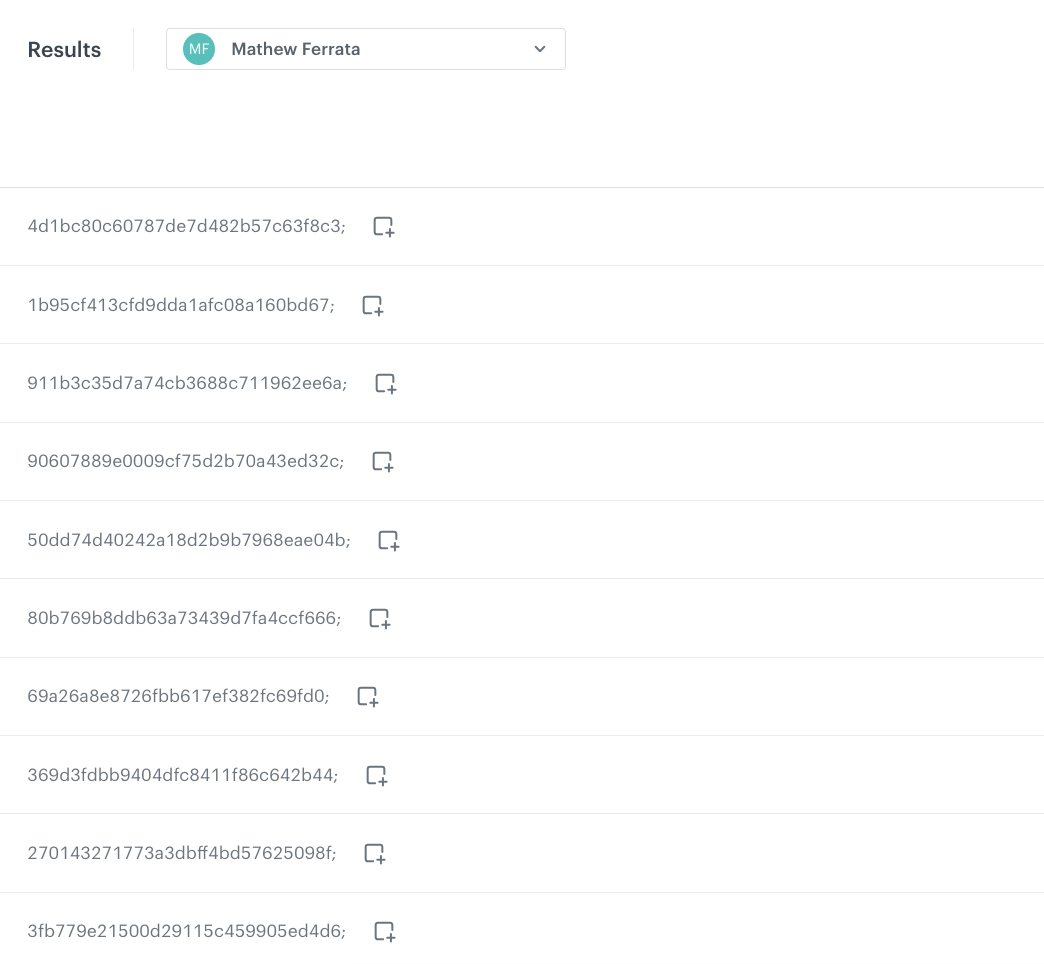
In this use case, we will create an event expression that combines SKU of a product and its price into one string from a page visit event. Later on, we will create an aggregate that returns SKUs and prices of 10 last visited products and the aggregate will reuse the event expression created in the first part of the process.
## Prerequisites
---
- Implement [tracking code](/developers/web/installation-and-configuration#creating-a-tracking-code) on your website with [OG:tags](/developers/web/og-tags).
- Implement [product feed](/developers/product-feed).
- Implement [product catalog](/docs/assets/catalogs).
- [Implement transaction events](/developers/web/transactions-sdk).
- [Implement tracking cart status](/developers/web/cart).
## Process
---
In this use case, you will go through the following steps:
1. [Prepare an expression](/use-cases/multi-params-expression#prepare-an-expression) that retrieves the values of `product:retailer_part_no` and `product:price` parameters from a page visit event and joins them by separating it with semicolon (`;`).
2. [Prepare an aggregate](/use-cases/multi-params-expression#prepare-an-aggregate) that returns SKUs of 10 last visited items with their prices.
### Prepare an expression
---
In this part of the process, create an expression that will retrieve values of the SKU (Stock Keeping Unit) and the corresponding price from a `page.visit` event and join them in one string which is separated by semicolon (`;`).
1. Go to **Behavioral Data Hub > Expressions > New expression**.
2. Enter a meaningful name of the expression.
3. Set the **Expression for** option to **Event**.
4. From the **Choose event** dropdown list, select **page.visit** event.
4. In the **Formula definition** section of the page, click **Select**.
**Result**: A dropdown list appears.
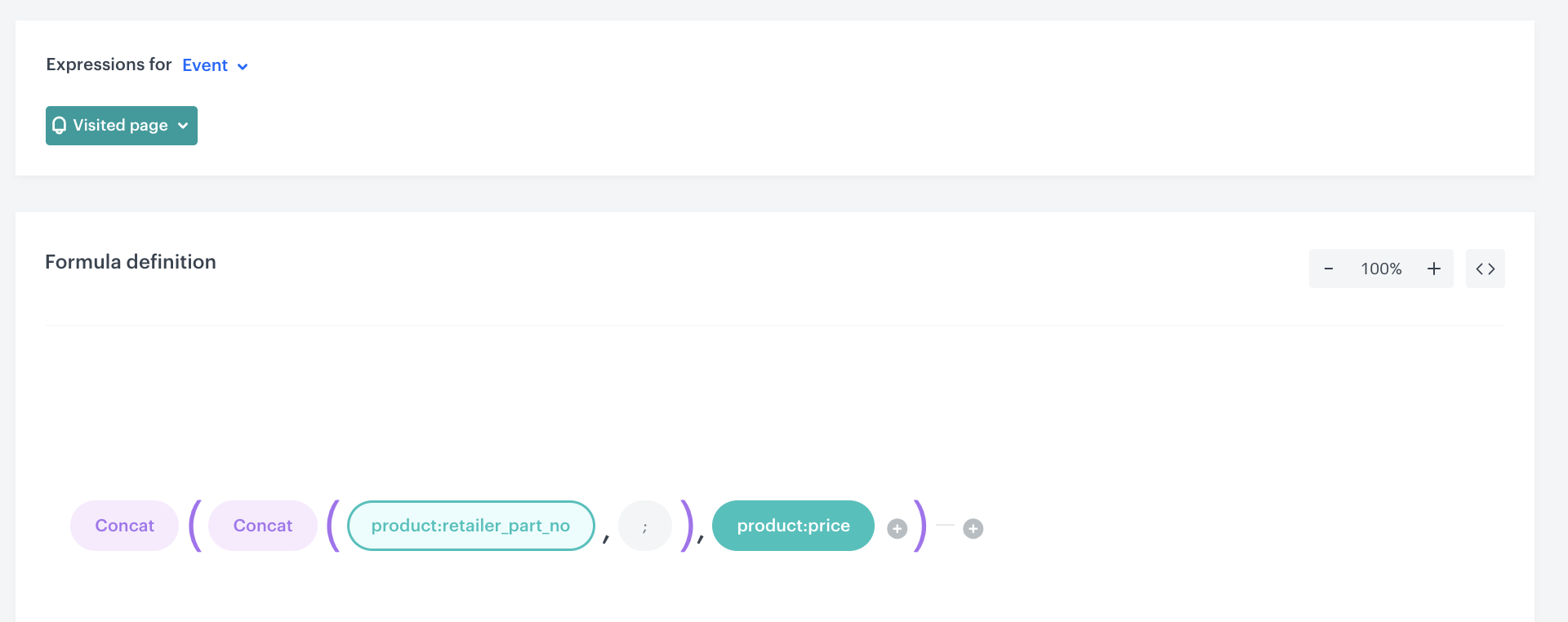
6. From the dropdown list, select **Function**, and form the list select **Concat**. This function joins two or more strings together and returns the joint string as the result.
5. Click the first **Select** element that appeared. From the dropdown list, select **Function**, and form the list select **Concat**.
5. Click the left **Select** element. From the dropdown list, select **Event attribute**.
9. Open the settings of the event attribute by clicking the **unnamed** expression element that appeared.
10. From the **Choose parameter** dropdown, select `product:retailer_part_no`.
15. Click the middle **Select** element, from the dropdown list select **Constant** and set its value to `;`.
16. Click the right **Select** element, and from the dropdown list, select **Event attribute**.
9. Open the settings of the event attribute by clicking the **unnamed** expression element that appeared.
10. From the **Choose parameter** dropdown, select `product:price`.
10. From the **Choose parameter** dropdown, select `product:price`.
Configuration of the expression.
16. Save the expression.
### Prepare an aggregate
---
In this part of the process, create an aggregate that returns SKUs and prices of 10 last visited items. In this aggregate, the expression from the previous part of the process will be used.
1. Go to **Behavioral Data Hub > Live Aggregates > Create aggregate**.
2. As the aggregate type, select **Profile**.
2. Enter the name of the aggregate.
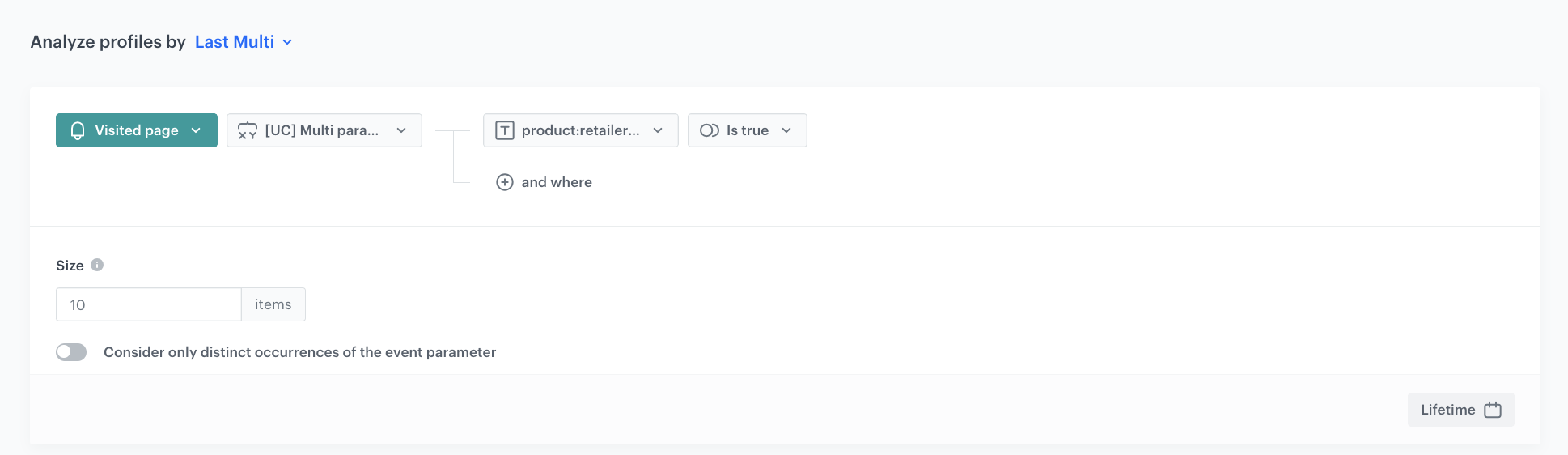
3. Click **Analyze profiles by** and select **Last Multi** and as the size, set `10`.
4. Click **Choose event** and from the dropdown list, select **page.visit**.
5. From the **Choose parameter** dropdown list, select the [expression created in the previous step](/use-cases/multi-params-expression#prepare-an-expression).
5. Click **+ where**.
6. From the **Choose parameter** dropdown list, select **product:retailer_part_no**
7. From the **Choose operator** dropdown list, as the value, select **Is true (Boolean)**.
8. Set the analyzed period to **Lifetime**.
Configuration of the aggregate
9. Click **Save**.
**Result**:
Configuration of the aggregate
## What's next
---
As a next step, you can use this solution in many use cases in which you can simplify multiple operations by creating an event expression and use it in the parts of the process where it is necessary. This will make the process of gathering data easier. A one example in which you can use this solution to make it easier might be [price drop](/use-cases/price-drop-alert).
## Check the use case set up on the Synerise Demo workspace
---
Check the prepared [expression](https://app.synerise.com/analytics/expressions/a9434d9b-f465-45b0-851c-a81586e52e7a) and [aggregate](https://app.synerise.com/analytics/aggregates/f53dfb1a-71ea-34b1-ac47-8a8081f367dd) directly in the Synerise Demo workspace.
If you’re our partner or client, you already have automatic access to the **Synerise Demo workspace (1590)**, where you can explore all the configured elements of this use case and copy them to your workspace.
If you’re not a partner or client yet, we encourage you to fill out the contact [form](https://demo.synerise.com/request) to schedule a meeting with our representatives. They’ll be happy to show you how our demo works and discuss how you can apply this use case in your business.
## Read more
---
- [Aggregates](/docs/analytics/aggregates)
- [Expressions](/docs/analytics/expressions)
- [Functions in expressions](/docs/crm/expressions/functions-in-expressions)
 **Behavioral Data Hub > Live Aggregates > Create aggregate**.
2. As the aggregate type, select **Profile**.
2. Enter the name of the aggregate.
3. Click **Analyze profiles by** and select **Last Multi** and as the size, set `10`.
4. Click **Choose event** and from the dropdown list, select **page.visit**.
5. From the **Choose parameter** dropdown list, select the [expression created in the previous step](/use-cases/multi-params-expression#prepare-an-expression).
5. Click **+ where**.
6. From the **Choose parameter** dropdown list, select **product:retailer_part_no**
7. From the **Choose operator** dropdown list, as the value, select **Is true (Boolean)**.
8. Set the analyzed period to **Lifetime**.
**Behavioral Data Hub > Live Aggregates > Create aggregate**.
2. As the aggregate type, select **Profile**.
2. Enter the name of the aggregate.
3. Click **Analyze profiles by** and select **Last Multi** and as the size, set `10`.
4. Click **Choose event** and from the dropdown list, select **page.visit**.
5. From the **Choose parameter** dropdown list, select the [expression created in the previous step](/use-cases/multi-params-expression#prepare-an-expression).
5. Click **+ where**.
6. From the **Choose parameter** dropdown list, select **product:retailer_part_no**
7. From the **Choose operator** dropdown list, as the value, select **Is true (Boolean)**.
8. Set the analyzed period to **Lifetime**.