<figure>
<img src="/api/docs/image/54176ad07f146575310749eba44b7c2f42c1b327/use-cases/all-cases/_gfx/omnibus-price-new.png" alt="Recommendations with Omnibus price"  class="full no-frame">
</figure> 

The e-commerce industry is the new frontier of innovation, providing both consumers and companies with a better experience. However, there are some issues that can disrupt the relationship between the two parties. The volatility of pricing information along with promotions and discounts is one of them: it often leads to situations where users have been misled or deceived by a company's promotional scenarios. That's why the Omnibuse Directive was introduced to strengthen consumer rights and ensure a better customer experience. 

The directive implements a new obligation to regulate price transparency for discounts and promotions. The purpose of this new regulation is to strengthen control over misleading business practices, ensure free access to price information, and guarantee that citizens and businesses can benefit from clear and effective information. To comply with the Omnibus Directive, for discounted products/services, companies must additionally display the lowest price that was applied during the 30-day period before the price reduction. 

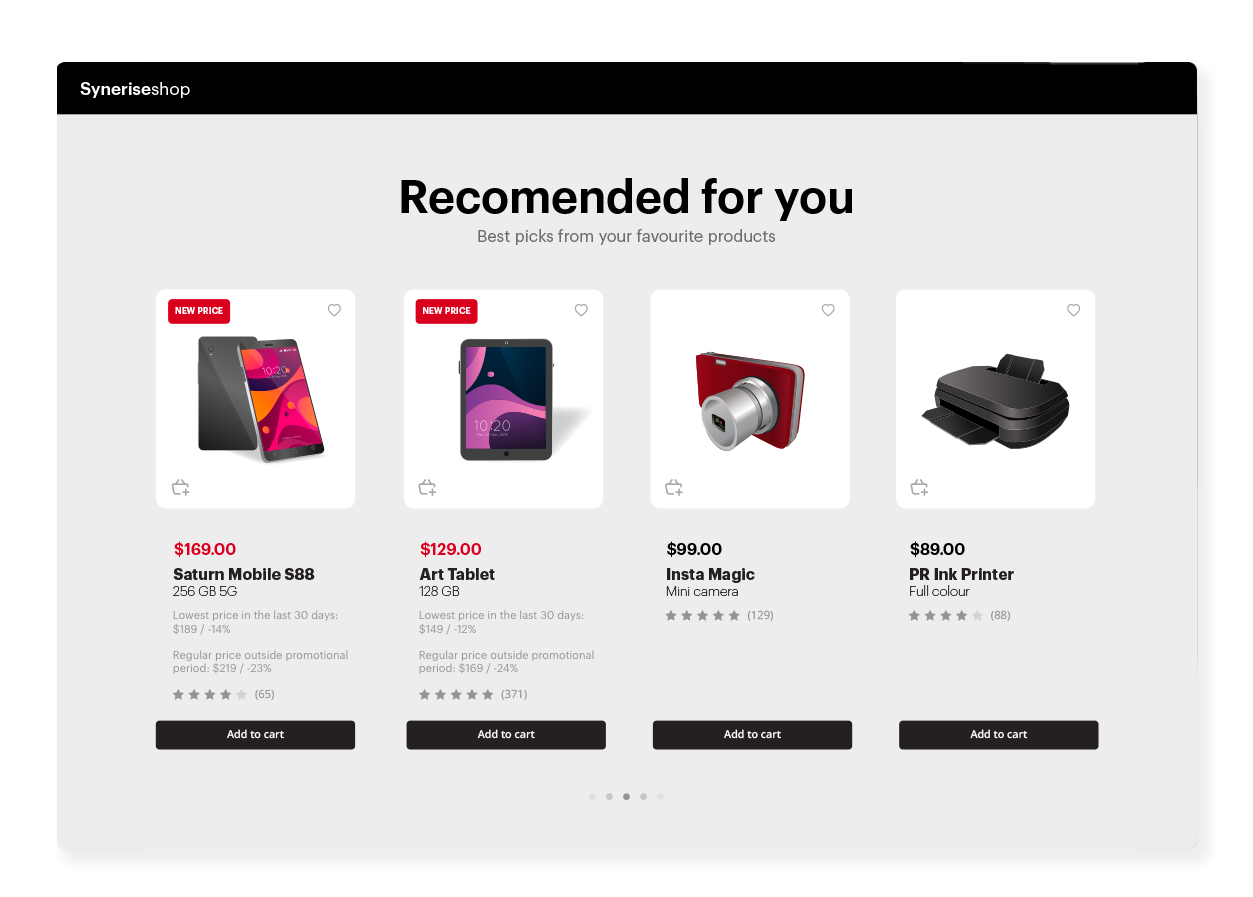
In this case, you will learn how to create personalized recommendations that additionally include the price that must be mandatorily displayed for discounted products using dynamic content. We want customers to know the real deal when they shop, so we've got three prices for discounted products:  
- **The current promotional price**,  
- **The lowest price in the last 30 days (the omnibus price)**,  
- **The regular price outside the promotional period.**    

This way, customers can see all the savings and get even more motivated to grab that sweet promo offer!


<div class="admonition admonition-note"><div class="admonition-icon"><svg xmlns="http://www.w3.org/2000/svg" fill="none" viewBox="0 0 24 24" stroke="currentColor" stroke-width="2.5"><path stroke-linecap="round" stroke-linejoin="round" d="M13 16h-1v-4h-1m1-4h.01M21 12a9 9 0 11-18 0 9 9 0 0118 0z" /></svg></div><div class="admonition-body"><div class="admonition-content">

The most important step to take before creating a recommendation is to update your product feed. You need to expand your product feed with an additional attribute that indicates the lowest price of the discounted product from the last 30 days. In our case, this attribute is marked as **c:omnibus_price**.  
Later in the process, you will see a Jinjava code containing a rule that checks if the sale price (**g:salePrice.value**) of the product is lower than the actual price (**g:price.value**). If so, this indicates that the product is discounted and the omnibus will be displayed with the discount percentage.   
Note that all attribute names shown in this use case are just examples, you can use any naming for your own purposes.

</div></div></div>


<div class="admonition admonition-tip"><div class="admonition-icon"><svg xmlns="http://www.w3.org/2000/svg" fill="none" viewBox="0 0 24 24" stroke="currentColor" stroke-width="2.5"><path stroke-linecap="round" stroke-linejoin="round" d="M9.663 17h4.673M12 3v1m6.364 1.636l-.707.707M21 12h-1M4 12H3m3.343-5.657l-.707-.707m2.828 9.9a5 5 0 117.072 0l-.548.547A3.374 3.374 0 0014 18.469V19a2 2 0 11-4 0v-.531c0-.895-.356-1.754-.988-2.386l-.548-.547z" /></svg></div><div class="admonition-body"><div class="admonition-content">

If you don’t want to use dynamic content, you can retrieve recommendations through API, [using this method](https://developers.synerise.com/AIRecommendations/AIRecommendations.html#operation/GetRecommendationsByCampaignV2). This way, you may keep fragile or frequently changing parameters at your end. Using the mentioned method, you retrieve the product ID from Synerise via API and pull all other necessary product information on your side.

</div></div></div>


## Prerequisites 
---
- [Configure an item catalog for recommendations](/docs/settings/configuration/ai-engine-configuration/engine-configuration-for-recommendations). Enable personalized recommendations.
- [Import your product feed to AI engine](/docs/settings/configuration/ai-engine-configuration/engine-configuration-for-recommendations).

## Process 
---
In this use case, you will go through the following steps:
1. [Prepare AI recommendations](/use-cases/recommendations-bestsellers#prepare-ai-recommendation).
2. [Create dynamic content campaign](/use-cases/recommendations-bestsellers#create-dynamic-content).

## Prepare AI recommendation
---
1. Go to <img src="/api/docs/image/54176ad07f146575310749eba44b7c2f42c1b327/icons/ai-hub-icon.svg" alt="AI Hub icon" class="icon" > **AI Hub > (AI Recommendations) Models > Add recommendation**.
2. Enter the name of the recommendation (it is only visible on the list of recommendations).
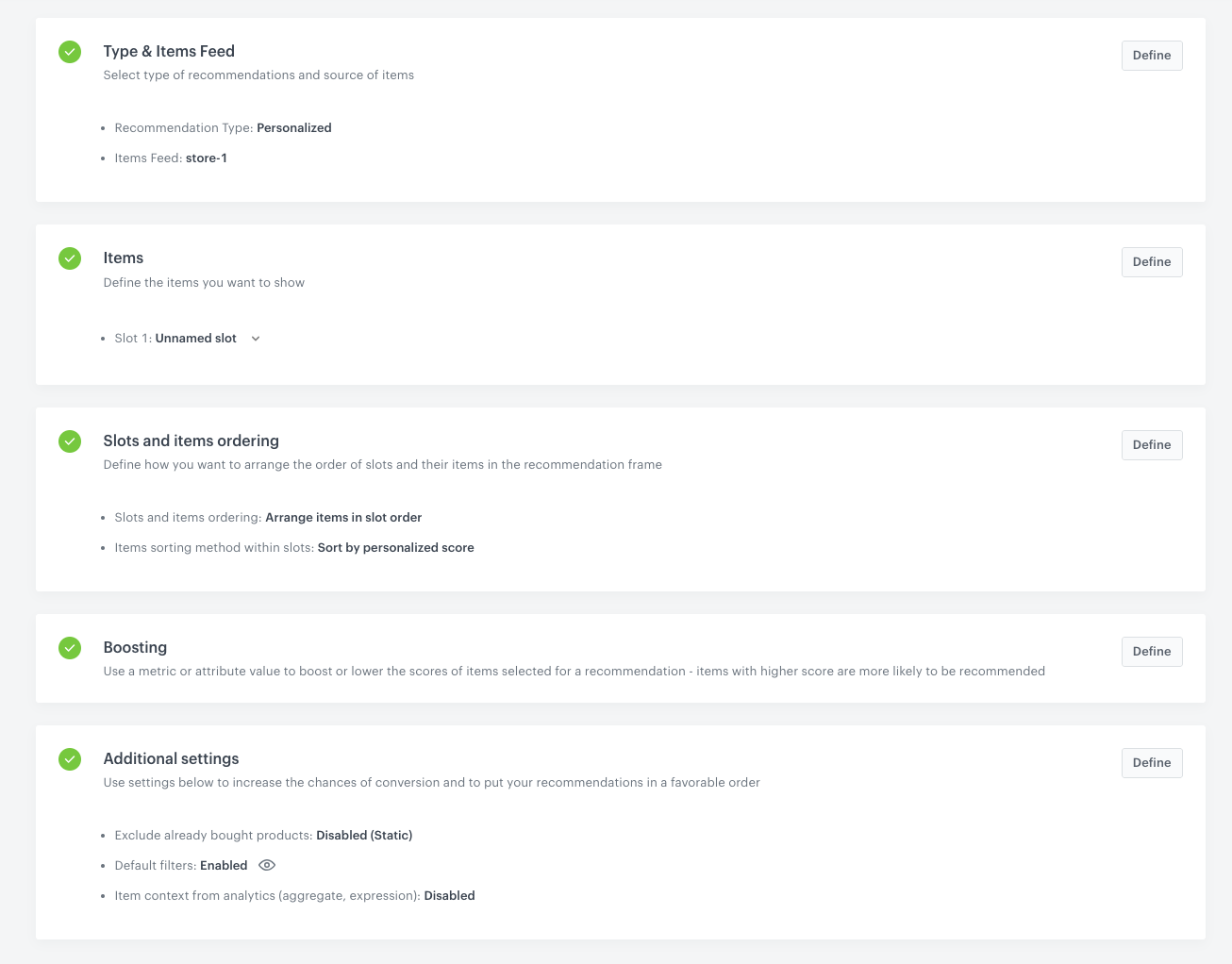
3. In the **Type & Items feed** section, click **Define**.
4. From the **Items feed** dropdown list, select a product feed that has a trained model.
5. Select the **Personalized** recommendation type.  
6. Confirm the recommendation type by clicking **Apply**.  
7. In the **Items** section, click **Define**.  
8. Click **Add slot**.  
9. Click the **Unnamed slot** that was created.    
10. Define the minimum and maximum number of products displayed in the frame according to your needs.
11. Optionally, you can use filters to include specific items in the recommendation frame.
12. Confirm the configuration by clicking **Apply**.  
13. Optionally, you can define the settings in the **Boosting** and **Additional settings** sections.
    
    <div class="admonition admonition-tip"><div class="admonition-icon"><svg xmlns="http://www.w3.org/2000/svg" fill="none" viewBox="0 0 24 24" stroke="currentColor" stroke-width="2.5"><path stroke-linecap="round" stroke-linejoin="round" d="M9.663 17h4.673M12 3v1m6.364 1.636l-.707.707M21 12h-1M4 12H3m3.343-5.657l-.707-.707m2.828 9.9a5 5 0 117.072 0l-.548.547A3.374 3.374 0 0014 18.469V19a2 2 0 11-4 0v-.531c0-.895-.356-1.754-.988-2.386l-.548-.547z" /></svg></div><div class="admonition-body"><div class="admonition-content">

    Learn more about [boosting](/docs/ai-hub/recommendations-v2/creating-recommendation-campaign#define-the-boosting-factors) and [additional settings](/docs/ai-hub/recommendations-v2/creating-recommendation-campaign#additional-settings).

    </div></div></div>
 

14. Click **Save**.

    <figure>
    <img src="/api/docs/image/54176ad07f146575310749eba44b7c2f42c1b327/use-cases/all-cases/_gfx/personalized-inapp.png" alt="AI recommendation configuration" class="full">
    <figcaption> AI recommendation campaign configuration</figcaption>
    </figure>

## Create dynamic content
---

1. Go to <img src="/api/docs/image/54176ad07f146575310749eba44b7c2f42c1b327/icons/experience-hub-icon.svg" alt="Image presents the Experience Hub icon" class="icon"> **Experience Hub > Dynamic content > Create new**.
2. Enter the name of the dynamic content.
3. Choose the **Insert Object** type.
4. As an audience, select the user segment for which you want to display the recommendation. 
5. In the **Content** section, select **Simple message**, and specify the CSS selector where you want to insert the dynamic content with recommendations.
6. In the **Content** tab, click **Create Message**.
7. In the code editor, insert Jinjava with the AI recommendation. 


   <div class="admonition admonition-note"><div class="admonition-icon"><svg xmlns="http://www.w3.org/2000/svg" fill="none" viewBox="0 0 24 24" stroke="currentColor" stroke-width="2.5"><path stroke-linecap="round" stroke-linejoin="round" d="M13 16h-1v-4h-1m1-4h.01M21 12a9 9 0 11-18 0 9 9 0 0118 0z" /></svg></div><div class="admonition-body"><div class="admonition-content">

   Replace `your_campaign_ID` with the ID of the AI recommendation. The ID of the AI campaign is contained in the URL of the recommendation.  
   Replace the price attributes used in the jinjava below with price attributes with the nomenclature you have implemented at your site. In this use case, we use **g:price.value** for the original price of the product, **g:salePrice.value** for the sale price of the product and **c:omnibus_price** for the omnibus price.

   </div></div></div>

   
   <details class="accordion"><summary>Click to see Jinjava</summary><div class="accordion-content"><pre><code class="language-jinja">&lt;!-- Downloading the AI campaign --&gt; &lt;ul&gt; {% recommendations3 campaignId=your_campaign_ID %} {% for p in recommended_products3 %} &lt;li data-snr-ai-product-id="{{p.itemId}}"&gt; &lt;a class="snrs-AI--item-link" href="{{p.link}}" title="{{p.title}}"&gt; &lt;img src="{{ p.imageLink }}"class="products-slider__item-image snrAI-product-image snrAI-product-image-{{p.itemId}}" width="90" alt="{{p.title}}" id="snrAI-image-{{p.itemId}}"&gt; &lt;h3 class="snrs-AI-product--product-name"&gt; &lt;span class="snrs-AI-product--name-first"&gt;{{p.title}}&lt;/span&gt; &lt;/h3&gt; &lt;span class="snrs-AI-product--price"&gt; {% if p.salePrice.value &lt; p.price.value %} &lt;span class="snrs-AI-product--price-sale"&gt; {{ p.salePrice.value }} $&lt;/span&gt; &lt;span class="snrs-AI-product--price-omnibus"&gt; Last lowest price: {{ p.attributes.omnibus_price }} $ / {{ ((p.salePrice.value|float / p.attributes.omnibus_price|float - 1) * 100) | round(0) }} &lt;/span&gt; &lt;span class="snrs-AI-product--price-original"&gt; Original price: {{ p.price.value }} $ / {{ ((p.salePrice.value|float / p.price.value|float - 1) * 100) | round(0) }} &lt;/span&gt; {% else %} &lt;span class="snrs-AI-product--price-base"&gt; {{ p.price.value }} $&lt;/span&gt; {% endif %} &lt;/span&gt; &lt;/a&gt; &lt;/li&gt; {% endfor %} {% endrecommendations3 %} &lt;/ul&gt;</code></pre></div></details>
  

8. Save the template.
9. In the **Schedule** section, select the date when the dynamic content is activated.
10. In **Display settings**, define the circumstances for displaying the content.
    
    <div class="admonition admonition-note"><div class="admonition-icon"><svg xmlns="http://www.w3.org/2000/svg" fill="none" viewBox="0 0 24 24" stroke="currentColor" stroke-width="2.5"><path stroke-linecap="round" stroke-linejoin="round" d="M13 16h-1v-4h-1m1-4h.01M21 12a9 9 0 11-18 0 9 9 0 0118 0z" /></svg></div><div class="admonition-body"><div class="admonition-content">

    Instructions how to do it are available [here](/docs/campaign/dynamiccontent/creating-dynamic-content/creating-dynamic-content).

    </div></div></div>

11. Confirm by clicking **Apply**.
12. In the **UTM & URL parameters** section, click **Skip step**.  
13. Activate the dynamic content.  

## What's next
---
You can also use the ID of the recommendation in other types of communication, described [here](/docs/ai-hub/recommendations-v2/creating-recommendation-campaign#distributing-recommendations).

## Check the use case set up on the Synerise Demo workspace
---
You can check the configuration of the campaign components directly in Synerise Demo workspace:
- [AI recommendation](https://app.synerise.com/ai-v2/recommendations/Bav1emo6BnwX),
- [Dynamic content](https://app.synerise.com/campaigns/preview/75feed6e-fee2-4562-bc63-6248714c8ed1).

If you’re our partner or client, you already have automatic access to the **Synerise Demo workspace (1590)**, where you can explore all the configured elements of this use case and copy them to your workspace.  

If you’re not a partner or client yet, we encourage you to fill out the contact [form](https://demo.synerise.com/request) to schedule a meeting with our representatives. They’ll be happy to show you how our demo works and discuss how you can apply this use case in your business. 

## Read more
---
- [Dynamic content](/docs/campaign/dynamiccontent)
- [Recommendations](/docs/ai-hub/recommendations-v2/recommendation-statistics)
- [Using recommendations in dynamic content](/developers/inserts/recommendations-v2)