In online retail, timing and relevance are key when presenting promotions. Shoppers often browse multiple sections of a website but don’t always convert immediately. By leveraging the last visited main category, businesses can deliver contextually relevant promotions that feel timely and personalized.

This use case illustrates how to dynamically display a promotion related to the last main category visited by the user — for example, if the customer recently viewed items from "Electronics", a banner or content block can highlight current deals or featured products from that specific category. This approach increases the chance of re-engagement and encourages return visits or immediate conversions by matching promotional content to current user interest.


<div class="admonition admonition-note"><div class="admonition-icon"><svg xmlns="http://www.w3.org/2000/svg" fill="none" viewBox="0 0 24 24" stroke="currentColor" stroke-width="2.5"><path stroke-linecap="round" stroke-linejoin="round" d="M13 16h-1v-4h-1m1-4h.01M21 12a9 9 0 11-18 0 9 9 0 0118 0z" /></svg></div><div class="admonition-body"><div class="admonition-content">

In this use case, we return personalized promotions based on the last visited main category by the user. However, the same configuration logic can be easily adapted to display category-specific promotions directly on each category page.

To do this, you simply skip the use of segments and aggregates related to browsing history and instead implement static personalization rules per category. For example, on the “Electronics” category page, you display promotions tailored specifically to electronics products. This approach allows for consistent and relevant promotional messaging across the entire website structure.

</div></div></div>


## Prerequisites
---
- [Import your product feed to catalog](/use-cases/import-product-feed-to-catalog).
- [Integrate Synerise promotions](/docs/ai-hub/promotions/introduction-to-promotions).
- Implement transaction events using [API](https://developers.synerise.com/DataManagement/DataManagement.html#operation/CreateATransaction).

## Process
---

2. [Create an aggregate](/use-cases/personalized-category-promotions#create-an-aggregate) which returns the last visited category.
1. [Create a segmentation](/use-cases/personalized-category-promotions#create-a-segmentation) for each category. 
1. [Create a promotion](/use-cases/personalized-category-promotions#create-a-promotion) for each category.
4. [Create a dynamic content](/use-cases/personalized-category-promotions#create-a-dynamic-content) with the personalized promotions.

## Create an aggregate
---
In this part of the process, create an aggregate that will return the category that the user last visited.

1. Go to <img src="/api/docs/image/54176ad07f146575310749eba44b7c2f42c1b327/icons/behavioral-data-hub-icon.svg" alt="Behavioral Data Hub icon" class="icon"> **Behavioral Data Hub > Live Aggregates > Create aggregate**.
2. As the aggregate type, select **Profile**.  
2. Enter the name of the aggregate.
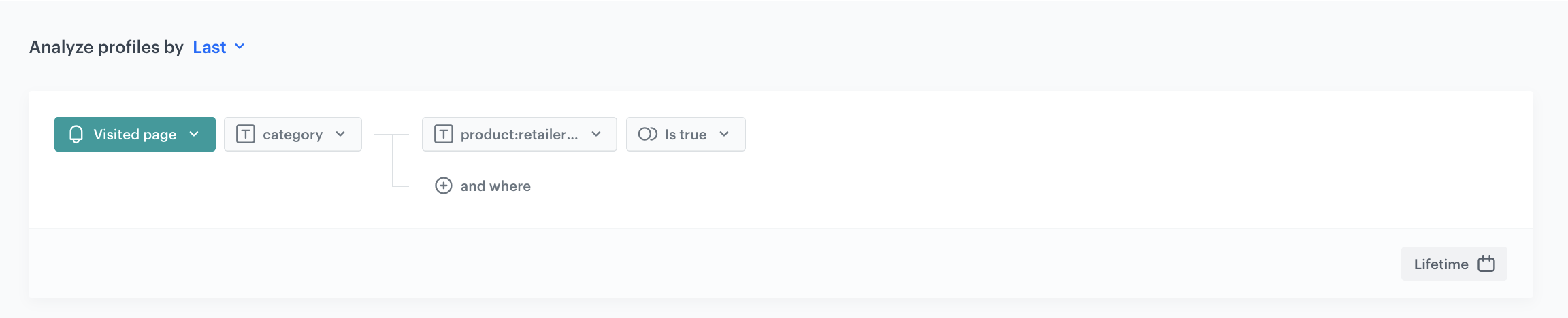
3. Click **Analyze profiles by** and select **Last**.
5. From the **Choose event** dropdown list, select the `page.visit` event.
6. As the event parameter, select **category**.
7. Add the value **product:retailer_part_no**. 
8. As the value add **Is true**.
7. Set the period from which the aggregate will analyze the results to **Lifetime**. 
12. Save the aggregate.

<figure>
<img src="/api/docs/image/54176ad07f146575310749eba44b7c2f42c1b327/use-cases/all-cases/_gfx/lastvsitedcategoryaggregate.png" class="full" alt="The view of the configuration of the aggregate">
<figcaption>Configuration of the aggregate</figcaption>
</figure>

## Create a segmentation
---
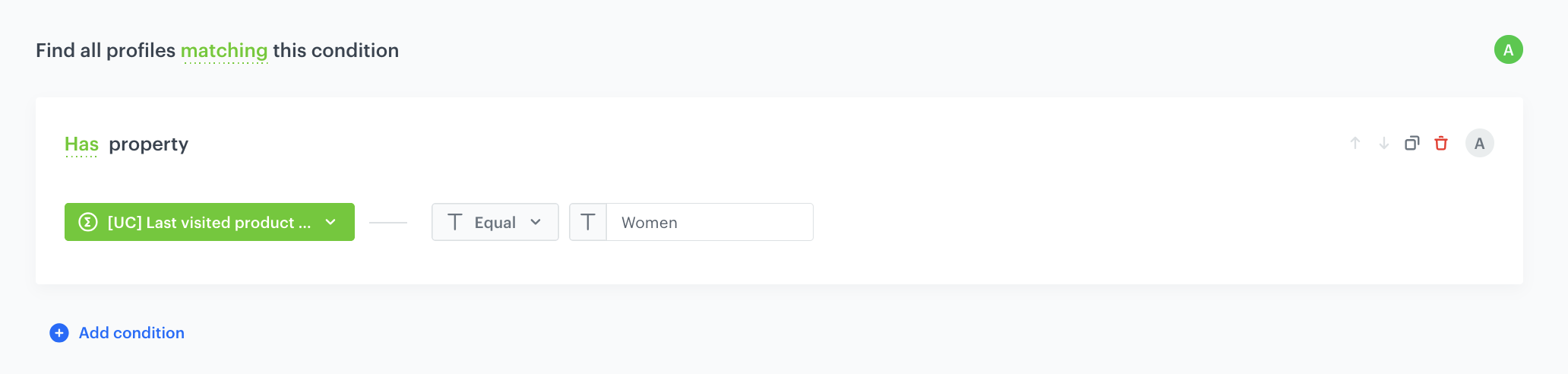
Create a segmentation for each category on your page. It will group the users based on the specific category being the last one they visited.

1. Go to <img src="/api/docs/image/54176ad07f146575310749eba44b7c2f42c1b327/icons/decision-hub-icon.svg" alt="Decision Hub icon" class="icon" > **Decision Hub > Segmentations > New segmentation**.  
2. Enter the name of the segmentation.
3. From the **Choose filter** dropdown list, select the [aggregate you created](#create-an-aggregate).  
4. As the logical operator, select **Equal**.  
5. Next to the logical operator, in the text field enter the name of the specific category.  
    <figure>
    <img src="/api/docs/image/54176ad07f146575310749eba44b7c2f42c1b327/use-cases/all-cases/_gfx/segmentation-category.png" alt="Configuration of the segmentation" class="full">
    <figcaption> Configuration of the segmentation </figcaption>
    </figure>

Duplicate the segmenaton, and repeat this step as many times as you have categories on your website, changing only the name of the category.

## Create a promotion
---

In this step, create set of promotions for each category on the website. It will be good, if all of them will be connected to categories choosen in the segmentation. In this way we will have minimum 1 promo for each form choosen categories. What is more aeach of them will be **marked with a special tag** to distinguish them from other promotions.

You can create a promotion with the following scopes:
- [For selected items](/docs/ai-hub/promotions/creating-promotions) - you can select items to which you want to apply a discount
- [For entire basket](/docs/ai-hub/promotions/creating-promotions-for-entire-basket) - you can reduce the value of the whole shopping cart if its value matches the fixed price limit

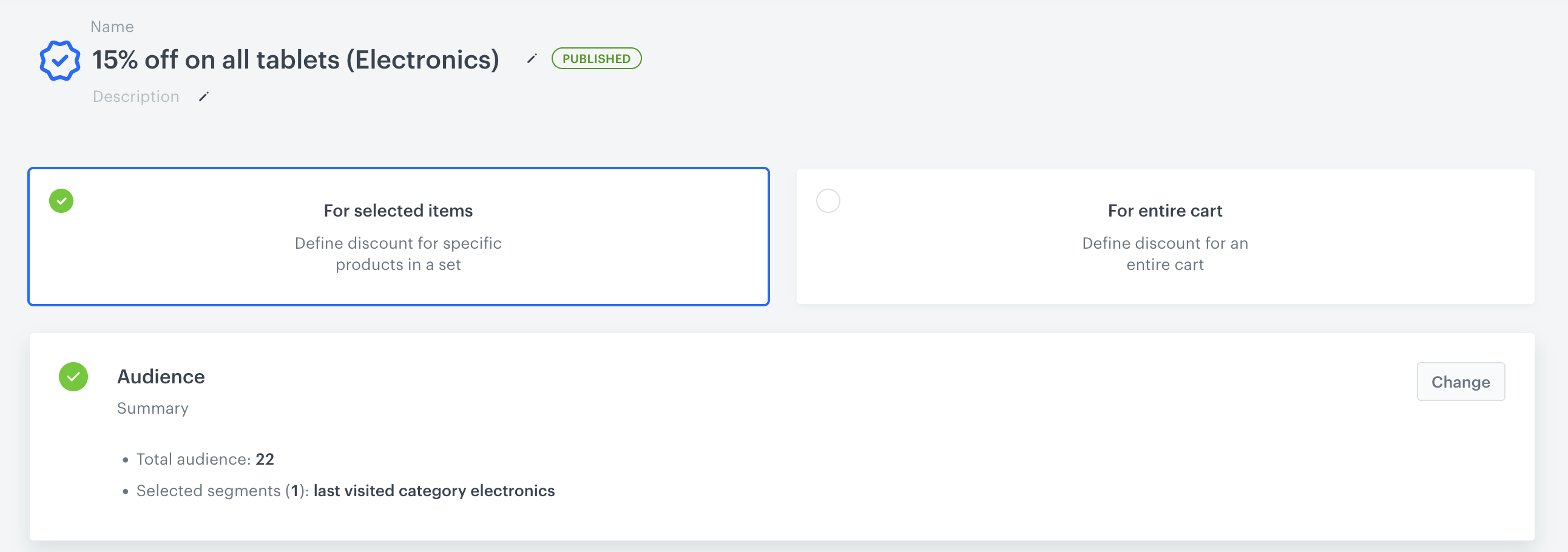
1. In the **Audience** section, choose the [segmentation](#create-a-segmentation). This way you make sure that, for example, the promotion for Electronics is only visible on the main page to users for whom Electronics was the last visited category.

    <figure>
    <img src="/api/docs/image/54176ad07f146575310749eba44b7c2f42c1b327/use-cases/all-cases/_gfx/promotion-category.png" alt="Configuration of the promotion" class="full">
    <figcaption> Configuration of the the audience of the promotion </figcaption>
    </figure>

2. Include all necessary promotional elements such as the product image, promotion name, description, and any other details required for displaying the promotion on the landing page. This ensures a clear presentation of the promotion to the customer, enhancing their engagement and understanding of the offer.

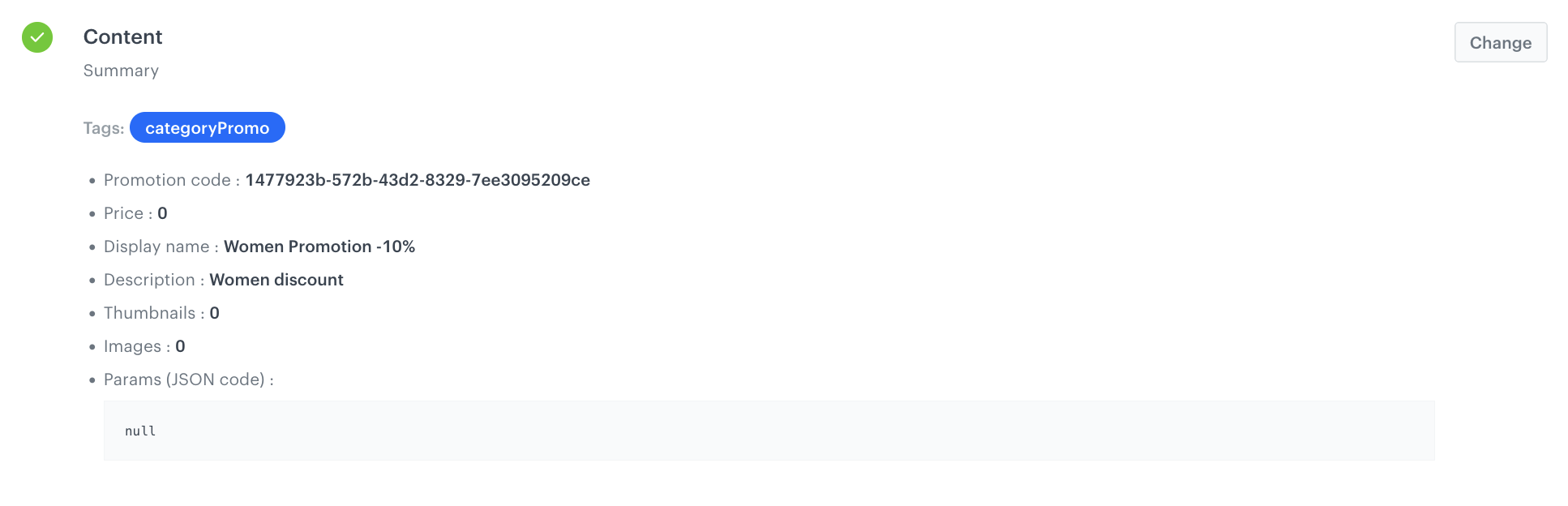
3. In **Content** section add informaton about promotion and its details. Also add there a tag of your choice. The selection of the promotions of the dynamic content will be narrowed down to those labeled with this tag.  In our case they can be tagged as **CategoryPromo**.

<figure>
    <img src="/api/docs/image/54176ad07f146575310749eba44b7c2f42c1b327/use-cases/all-cases/_gfx/promotion-category2.png" alt="Configuration of the content" class="full">
    <figcaption> Configuration of the the content of the promotion </figcaption>
    </figure>

3. In the **Items** section, select the specific products or categories to which the promotion should apply.

3. In the **Types & Limits** section, define the logic of the promotion — for example, whether it’s a fixed discount, a percentage-based reduction, or a special offer limited to a certain number of uses. This configuration determines how the promotion behaves and under what conditions it is applied.


   <div class="admonition admonition-tip"><div class="admonition-icon"><svg xmlns="http://www.w3.org/2000/svg" fill="none" viewBox="0 0 24 24" stroke="currentColor" stroke-width="2.5"><path stroke-linecap="round" stroke-linejoin="round" d="M9.663 17h4.673M12 3v1m6.364 1.636l-.707.707M21 12h-1M4 12H3m3.343-5.657l-.707-.707m2.828 9.9a5 5 0 117.072 0l-.548.547A3.374 3.374 0 0014 18.469V19a2 2 0 11-4 0v-.531c0-.895-.356-1.754-.988-2.386l-.548-.547z" /></svg></div><div class="admonition-body"><div class="admonition-content">

   Make sure that all necessary promotional elements are included in the content, such as the product image, name, description, and any other details required for displaying the promotion on the landing page. Including all key elements ensures that the promotion is presented clearly and effectively to the customer, enhancing their engagement and understanding of the offer.

   </div></div></div>


Alternatively, if you already created promotions in an external service, you can [import them to Synerise](/docs/automation/actions/synerise-integrations#import-promotions).

## Create a dynamic content
---

You can display the promotions on your home page (or category page) by using [dynamic content](/docs/campaign/dynamiccontent).  

1. Go to **Experience Hub > Dynamic content > Create new**
2. Enter the name of the dynamic content.
3. Choose the **Insert Object** type.
2. As the audience, select **New Audience**. 
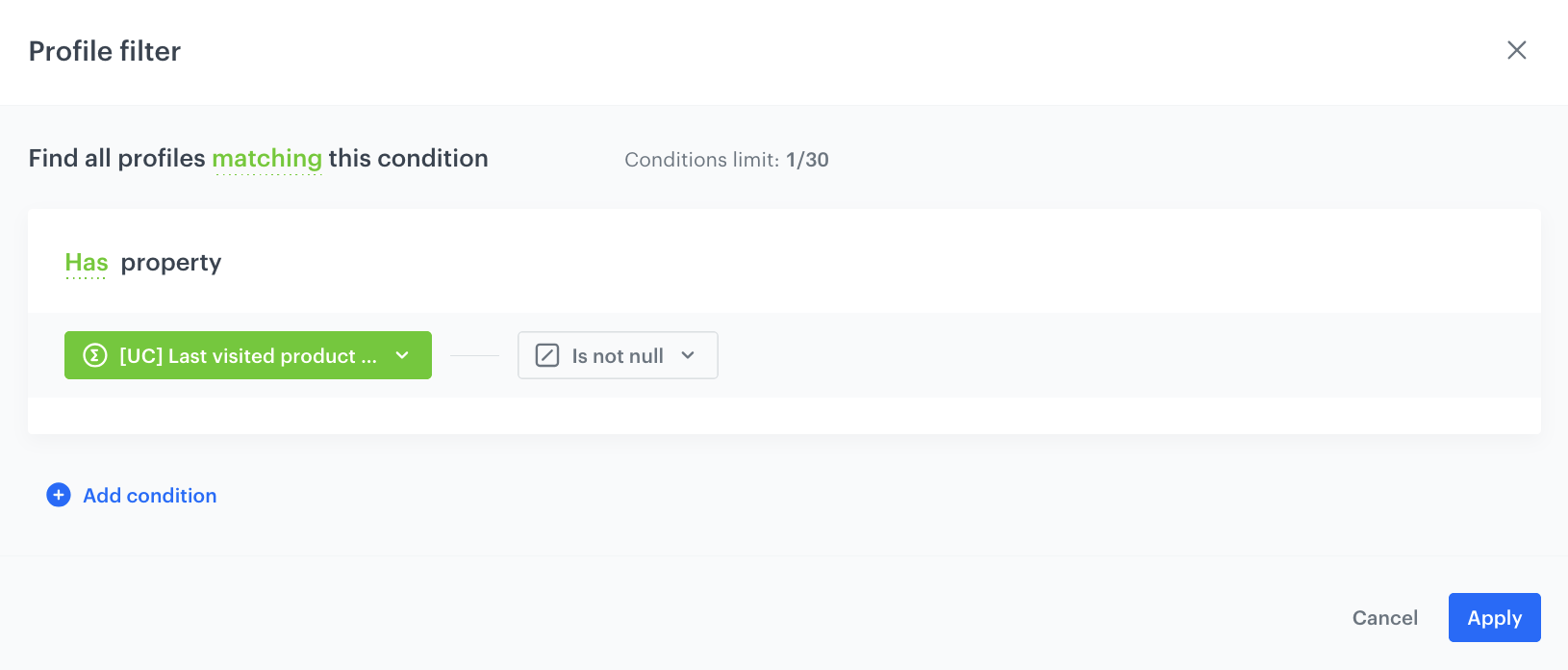
    1. Click **Define conditions**.
    2. Click **Add condition** and choose the [aggregate, created in the previous step](#create-an-aggregate).
    4. As the operator choose **Is not null**. In this way, the campaign will be visible only for users who have any value in the aggregate, so they have visited any category previously.
    2. Confirm by clicking **Apply**.

    <figure>
    <img src="/api/docs/image/54176ad07f146575310749eba44b7c2f42c1b327/use-cases/all-cases/_gfx/promotion-category4.png" alt="Configuration of the dc" class="full">
    <figcaption> Configuration of the the dc </figcaption>
    </figure>

2. In the body of the dynamic content, use the promotion snippet. 
    
   <div class="admonition admonition-note"><div class="admonition-icon"><svg xmlns="http://www.w3.org/2000/svg" fill="none" viewBox="0 0 24 24" stroke="currentColor" stroke-width="2.5"><path stroke-linecap="round" stroke-linejoin="round" d="M13 16h-1v-4h-1m1-4h.01M21 12a9 9 0 11-18 0 9 9 0 0118 0z" /></svg></div><div class="admonition-body"><div class="admonition-content">

   Read more about how to use snippets [here](/docs/assets/snippets).

   </div></div></div>

    <figure>
    <img src="/api/docs/image/54176ad07f146575310749eba44b7c2f42c1b327/use-cases/all-cases/_gfx/promotion-category.png" alt="Configuration of the sippet" class="full">
    <figcaption> Configuration of the the snippet </figcaption>
    </figure>
4. Click the snippet widget, providing quick access to a variety of useful code sections.
5. Select a category of snippets: **Profiles promotions** and add them to the template. 
3. In the template editor add CSS and/or HTML to the dynamic content.

    
   <div class="admonition admonition-note"><div class="admonition-icon"><svg xmlns="http://www.w3.org/2000/svg" fill="none" viewBox="0 0 24 24" stroke="currentColor" stroke-width="2.5"><path stroke-linecap="round" stroke-linejoin="round" d="M13 16h-1v-4h-1m1-4h.01M21 12a9 9 0 11-18 0 9 9 0 0118 0z" /></svg></div><div class="admonition-body"><div class="admonition-content">

   Be cautious when using the default Profile’s Promotions insert, as it may display more promotions than intended for the current campaign. To maintain control over the display, use tags specifically designated for the promotions in this use case

   </div></div></div>


4. In this step, we will customize the snippet by including a line that limits the selection of promotions to those from the current campaign. In case you need to add more personalized options - read more about inserts [here](/developers/inserts/insert-usage).
5. Add **tagNames=["XXX"]** to the code in the place presented below in the example code. Remember to add the name of the tag created earlier in the place of **XXX**.

    
   <pre><code class="language-jinja">{%- set getFields=["code"] -%}
   {%- promotions fields=getFields tagNames=["categoryPromo"] -%}
   {%- for item in promotions_result -%}
   {{ item }}{%- endfor -%}
   {%- endpromotions -%}</code></pre>


4. [Define the rest of the settings](/docs/campaign/dynamiccontent/creating-dynamic-content).

## Check the use case set up on the Synerise Demo workspace
---
You can check the [aggregate](https://app.synerise.com/analytics-v2/aggregates/78b590fc-88bd-3831-8419-5c080efceeec), [segmentation](https://app.synerise.com/analytics-v2/segmentations/3ae2e8a9-8f63-4c51-978b-32e245cfb331) and [promotion configuration](https://app.synerise.com/campaigns/promotions/ca9b580d-e0a6-47ad-9c65-520dd68398ae) directly in Synerise Demo workspace. 

If you’re our partner or client, you already have automatic access to the **Synerise Demo workspace (1590)**, where you can explore all the configured elements of this use case and copy them to your workspace.  

If you’re not a partner or client yet, we encourage you to fill out the contact [form](https://demo.synerise.com/request) to schedule a meeting with our representatives. They’ll be happy to show you how our demo works and discuss how you can apply this use case in your business. 

## Read more
---
- [Dynamic content](/docs/campaign/dynamiccontent)
- [Recommendations](/docs/ai-hub/recommendations-v2)