The navigation menu serves as a roadmap for category discovery, allowing customers to explore important site areas. However, sometimes, if the menu is not personalized, it can highlight items that are not interesting for to them. Optimizing and reorganizing the menu items based on a customer's previous visits and preferences not only eases the website navigation but also can reduce the time it takes to reach the desired categories and drive conversions more effectively.


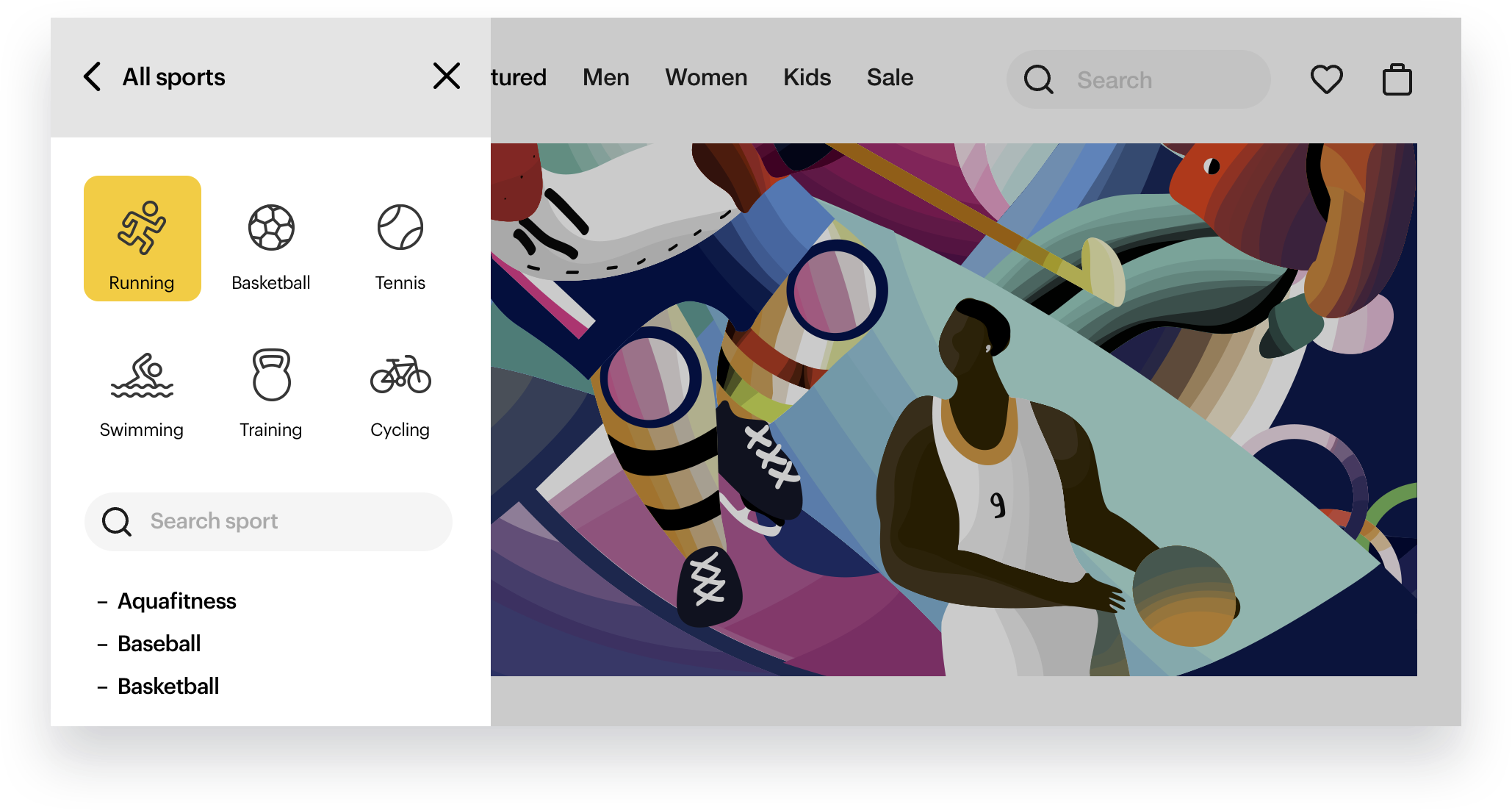
This use case describes an example of menu personalization for a sports company's website. When the customer clicks the hamburger menu and selects a list of all sports, the list of categories is displayed in an alphabetical order. Above the list, a recommendation with six personalized categories (based on visits and interactions) is added to facilitate navigation and promote the most frequently viewed categories. 

<figure>
<img src="/api/docs/image/54176ad07f146575310749eba44b7c2f42c1b327/use-cases/all-cases/_gfx/personalized-menu.png" alt="Personalized menu implemented on the website"  class="full no-frame">
</figure> 

## Prerequisites 
---
- A [tracking code](/developers/web/installation-and-configuration#creating-a-tracking-code) implemented in the source of your website.
- Implement [OG Tags](/developers/web/og-tags) on your website.
- Create [items feed](/docs/ai-hub/recommendations-v2/item-feed-requirements). 
- Activate basic menu with all product categories on your website. 
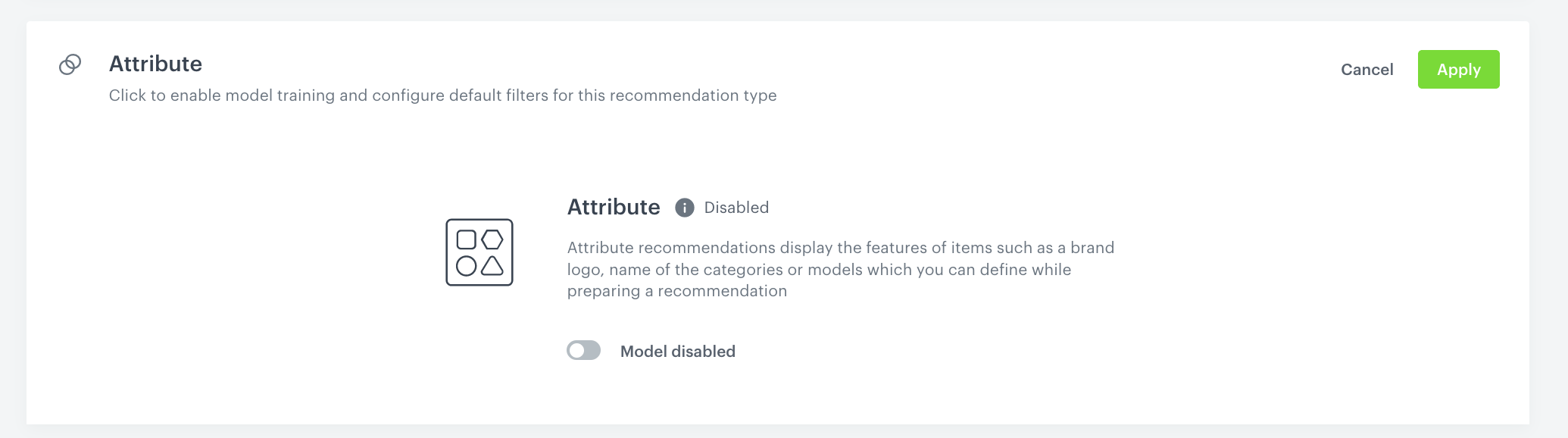
- Enable [the Attribute recommendation model](/docs/settings/configuration/ai-engine-configuration/engine-configuration-for-recommendations).

<figure>
<img src="/api/docs/image/54176ad07f146575310749eba44b7c2f42c1b327/use-cases/all-cases/_gfx/attribute-recommendations.png" alt="Attribute recommendations settings"  class="full">
<figcaption>Attribute recommendation settings</figcaption>
</figure> 

## Process
---
In this use case, you will go through the following steps:
1. [Prepare metadata catalog](/use-cases/personalized-menu#prepare-metadata-of-categories).
2. [Import metadata of categories to a catalog](/use-cases/personalized-menu#import-metadata-of-categories-to-a-catalog).
3. Create [attribute recommendation campaign](/use-cases/personalized-menu#create-recommendation-campaign).

## Prepare metadata of categories
---
1. Go to **Data Modeling Hub > Catalogs**.
2. Create a new catalog with meaningful name, for example `Metadata catalog`. It will be necessary during the import process.
3. Prepare a file (CSV, JSON Lines or XML Google Merchant format) with all product categories available in your menu on the website. Include 4 parameters: `itemId`, `title`, `link` and `imageLink`. You can add more additional parameters if you want.

    
   <div class="admonition admonition-important"><div class="admonition-icon"><svg xmlns="http://www.w3.org/2000/svg" fill="none" viewBox="0 0 24 24" stroke="currentColor" stroke-width="2.5"><path stroke-linecap="round" stroke-linejoin="round" d="M12 8v4m0 4h.01M21 12a9 9 0 11-18 0 9 9 0 0118 0z" /></svg></div><div class="admonition-body"><div class="admonition-content">

   `itemId` values must correspond with the same values of the `category` attribute in your general product feed. In metadata catalog, all values must start with lower case letter.

   </div></div></div>


## Import metadata of categories to a catalog
---

Create the workflow that imports the metadata of categories into the Synerise catalog.

1. Go to <img src="/api/docs/image/54176ad07f146575310749eba44b7c2f42c1b327/icons/automation-hub-icon.svg" alt="Automation Hub icon" class="icon" > **Automation Hub > Workflows > New workflow**.  
3. Enter the name of the workflow. 
4. As the trigger node, add **Scheduled Run**.
5. In the configuration of the node:
    1. In the **Run trigger** dropdown, leave the default option **One time**.
    2. Choose option **Immediately**. 
    3. Confirm by clicking **Apply**.
4. Add the **Local File** node.
7. In the configuration of the node, add your file prepared in previous step. 
8. Add the **Import to Catalog** node.
9. In the configuration of the node:  
    1. Select [the catalog created in previous step](/use-cases/personalized-menu#prepare-metadata-of-categories) to which the data will be imported.
    2. As the primary key, enter the name of the file column which contains the unique identifiers of the items (in this case: `itemId`).
    3. Confirm by clicking **Apply**.
4. Add the **End** node.  
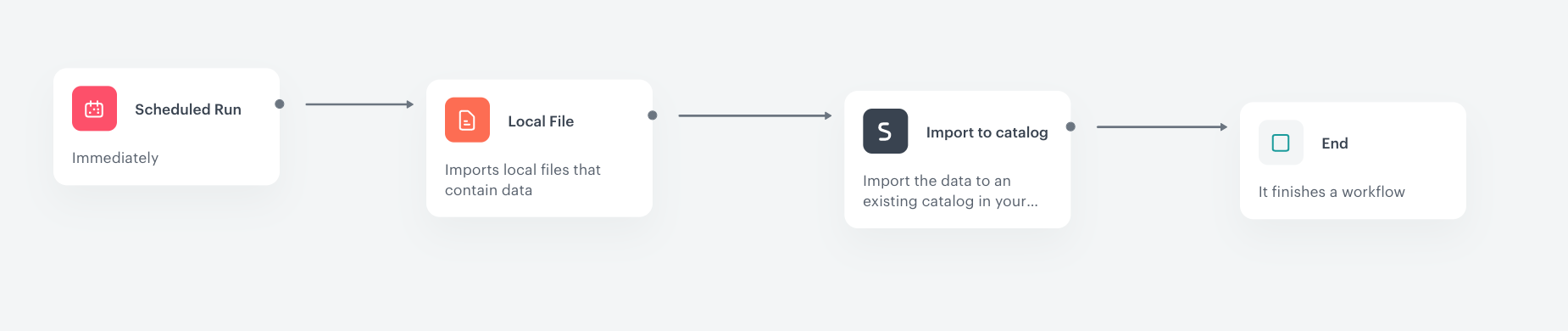
    <figure><img src="/api/docs/image/54176ad07f146575310749eba44b7c2f42c1b327/use-cases/all-cases/_gfx/data-import-to-catalog-workflow2.png" class="large" alt="The workflow configuration"><figcaption>The workflow configuration</figcaption></figure>

## Create recommendation campaign
---
Create an attribute recommendation for the `0` level category. Such recommendation will return personalized categories for customers based on their behavior on the website and browsing history.

1. Go to <img src="/api/docs/image/54176ad07f146575310749eba44b7c2f42c1b327/icons/ai-hub-icon.svg" alt="Image presents the AI Hub icon" class="icon"> **AI Hub > (AI Recommendations) Models > Add recommendation**
2. Enter the meaningful name of the recommendation.
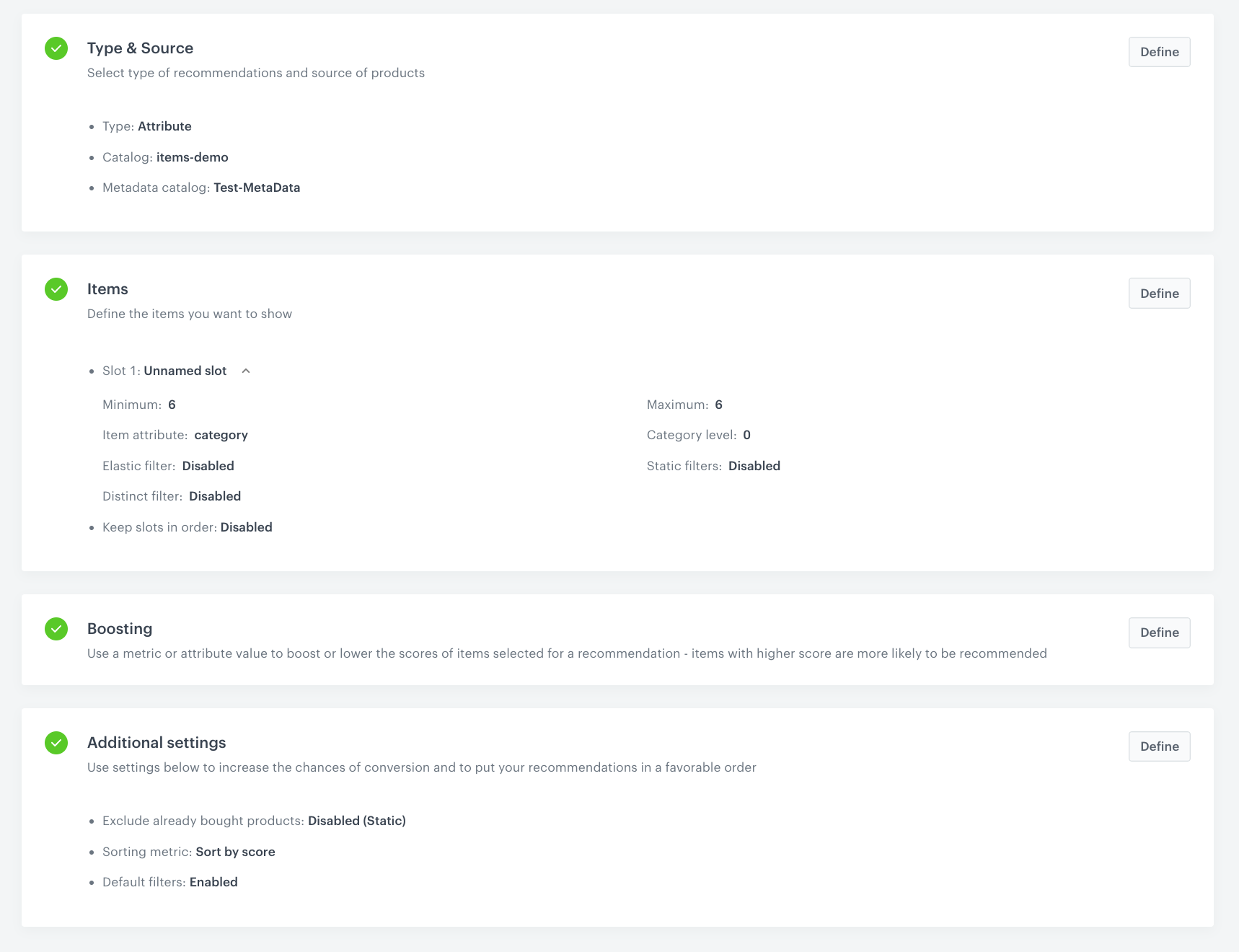
3. In the **Type & Items feed** section, click **Define**.
    1. From the **Items feed** dropdown list, select the main catalog with all products and categories.
    2. As the type, select **Attribute**.
    3. As the **Metada catalog**, choose the catalog created in [this step](/use-cases/personalized-menu#import-metadata-of-categories-to-a-catalog) that contains additional information about categories.  
    4. Click **Apply**.
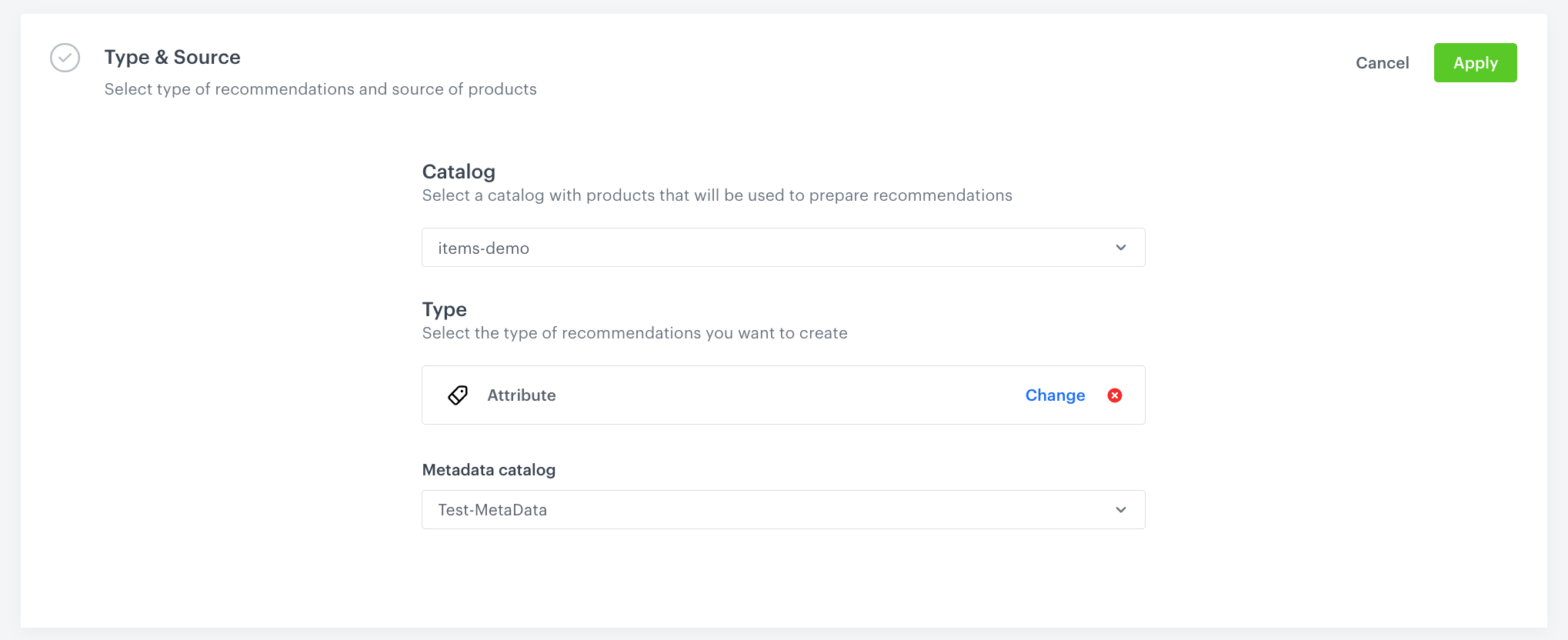
    <figure>
    <img src="/api/docs/image/54176ad07f146575310749eba44b7c2f42c1b327/use-cases/all-cases/_gfx/attribute-recommendations1.png" alt="Attribute recommendations settings"  class="full">
    <figcaption>Attribute recommendation - Type&Source settings</figcaption>
    </figure> 

4. In the **Items** section, click **Define**.
5. Click **Add slot**. You can name the slot for later reference. 
6. In the **Number of items** subsection, set the minimum and maximum number of items to `6`.       
    
   <div class="admonition admonition-tip"><div class="admonition-icon"><svg xmlns="http://www.w3.org/2000/svg" fill="none" viewBox="0 0 24 24" stroke="currentColor" stroke-width="2.5"><path stroke-linecap="round" stroke-linejoin="round" d="M9.663 17h4.673M12 3v1m6.364 1.636l-.707.707M21 12h-1M4 12H3m3.343-5.657l-.707-.707m2.828 9.9a5 5 0 117.072 0l-.548.547A3.374 3.374 0 0014 18.469V19a2 2 0 11-4 0v-.531c0-.895-.356-1.754-.988-2.386l-.548-.547z" /></svg></div><div class="admonition-body"><div class="admonition-content">

   Setting the minimum and maximum number of items to the same number ensures that exactly this many items will appear in the slot.

   </div></div></div>
 
7. From the **Item attribute** dropdown, choose **category**. Remember, that this attribute must have the same values as itemId in the metadata catalog.
8. Additionally, if you want to, you can use [additional filters](/docs/ai-hub/recommendations-v2/recommendation-filters) to make this recommendations more personalized.
9. In the **Items** section, click **Apply**.  
10. In **Boosting**, you can enable [boosting](/docs/ai-hub/recommendations-v2/creating-recommendation-campaign#define-the-boosting-factors).
11. In **Additional settings**, optionally you can add metrics or filters to increase the chances of conversion and to put your recommendations in a favorable order.
12. Save the recommendation by clicking **Save**.

<figure>
<img src="/api/docs/image/54176ad07f146575310749eba44b7c2f42c1b327/use-cases/all-cases/_gfx/attribute-recommendations2.png" alt="Attributes recommendations - final settings"  class="full">
<figcaption>Attributes recommendations - final settings</figcaption>
</figure> 

## What's next
---
We recommend to implement this recommendation campaign on your website through [API](https://developers.synerise.com/AIRecommendations/AIRecommendations.html#operation/GetRecommendationsByCampaignV2).


<details class="accordion"><summary>Example of API response</summary><div class="accordion-content"><pre><code class="language-json">{ "data": [ {"imageLink": "https://contents.demoshop.com/s568172/k$?format=auto&amp;?f=220x220", "itemId": "surfing", "link": "/browse/c0-sporty/c1-surfing/_/N-vfplmx", "title": "Surfing" }, { "imageLink": "https://contents.demoshop.com/s568173/k$?format=auto&amp;?f=220x220", "itemId": "basketball", "link": "/browse/c0-sporty/c1-basketball/_/N-1krujl5", "title": "Basketball" }, { "imageLink": "https://contents.demoshop.com/s568123/k$?format=auto&amp;?f=220x220", "itemId": "snorkeling", "link": "/browse/c0-sporty/c1-snorkeling/_/N-1hhjr0v", "title": "Snorkeling" }, { "imageLink": "https://contents.demoshop.com/s568159/k$?format=auto&amp;?f=220x220", "itemId": "swimming", "link": "/browse/c0-sporty/c1-swimming/_/N-1tkzd7k", "title": "Swimming" }, { "imageLink": "https://contents.demoshop.com/p2097249/k$?format=auto&amp;?f=220x220", "itemId": "bushcraft", "link": "/browse/c0-sporty/c1-bushcraft/_/N-1a5bddf", "title": "Bushcraft" }, { "imageLink": "https://contents.demoshop.com/s567762/k$?format=auto&amp;?f=220x220", "itemId": "aquafitness", "link": "/browse/c0-sporty/c1-aquafitness/_/N-1o54845", "title": "Aquafitness" } ], "extras": { "contextItems": null, "correlationId": "5ea91ef7-64de-49ad-bb6d-7eddb8abcce9", "slots": [ { "id": 0, "itemIds": [ "surfing", "basketball", "snorkeling", "swimming", "bushcraft", "aquafitness" ], "name": "Unnamed slot"}]}}</code></pre></div></details>


However, as an alternative option you can display the recommended categories to your customers using the [recommendation insert](/developers/inserts/recommendations-v2) in [dynamic content](/docs/campaign/dynamiccontent/creating-dynamic-content).

## Check the use case set up on the Synerise Demo workspace
---
You can check the [recommendation configuration](https://app.synerise.com/ai-v2/recommendations/iTt1yuoP0l6B), and [workflow](https://app.synerise.com/automations/workflows/automation-diagram/4de44dca-a712-4a89-a518-45597207e8ee) directly in Synerise Demo workspace.

If you’re our partner or client, you already have automatic access to the **Synerise Demo workspace (1590)**, where you can explore all the configured elements of this use case and copy them to your workspace.  

If you’re not a partner or client yet, we encourage you to fill out the contact [form](https://demo.synerise.com/request) to schedule a meeting with our representatives. They’ll be happy to show you how our demo works and discuss how you can apply this use case in your business. 

## Read more
---
- [Catalogs](/docs/assets/catalogs/introduction-to-catalogs)
- [Dynamic content](/docs/campaign/dynamiccontent)
- [Jinjava inserts](/developers/inserts)
- [Recommendations](/docs/ai-hub/recommendations-v2)
- [Recommendation filters](/docs/ai-hub/recommendations-v2/recommendation-filters)