Giving a personalized set of promotion is one of the best options to help your customer make a purchase decision.

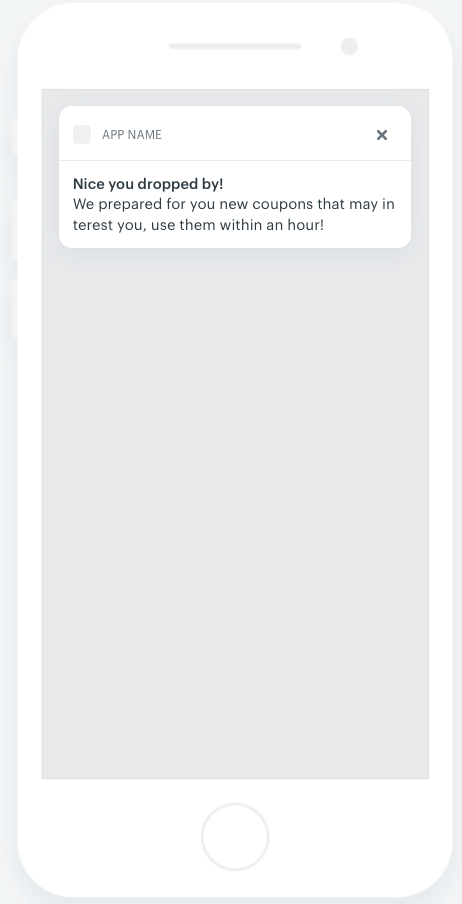
In this use case, you will learn how to create a set of personalized promotions for customers who will receive them when they enter the brick and mortar store. After a promotion is assigned, a customer receives a mobile push notification that contains information about new promotion. An additional incentive to use the promotion at once is that the are valid only an hour from assigning.   

Assigned promotions are dedicated for every customer. Based on their purchase history, the AI engine chooses the promotions that a customer is the most likely to use.

## Prerequisites 
---
- Implement promotions in your [mobile application](/developers/mobile-sdk/loyalty), [API](https://developers.synerise.com/LoyaltyandEngagement/LoyaltyandEngagement.html#operation/profileLogin).
- [Import your product feed to catalog](/use-cases/import-product-feed-to-catalog).
- Implement mobile pushes in your mobile application: [iOS](/developers/mobile-sdk/configuring-push-notifications/ios), [Android](/developers/mobile-sdk/configuring-push-notifications/android).
- Implement [event](https://developers.synerise.com/DataManagement/DataManagement.html#operation/CustomEvent) sent to Synerise when a customer enters the store. This event can be triggered, for example, by scanning the mobile application in the store.

## Security configuration
---
Before you start working with this hub, if you are a Synerise customer or partner, consider reading [the section about denylisting events](/docs/settings/tool/api#denylist). This natively accessible configuration will allow you to manage the restrictions in points management that may help you prevent fraud.

## Process
---
In this use case, you will go through the following steps:
1. [Create personalized promotions](/use-cases/personalized-promotions-in-mobile-app#create-personalized-promotions).

    
   <div class="admonition admonition-tip"><div class="admonition-icon"><svg xmlns="http://www.w3.org/2000/svg" fill="none" viewBox="0 0 24 24" stroke="currentColor" stroke-width="2.5"><path stroke-linecap="round" stroke-linejoin="round" d="M9.663 17h4.673M12 3v1m6.364 1.636l-.707.707M21 12h-1M4 12H3m3.343-5.657l-.707-.707m2.828 9.9a5 5 0 117.072 0l-.548.547A3.374 3.374 0 0014 18.469V19a2 2 0 11-4 0v-.531c0-.895-.356-1.754-.988-2.386l-.548-.547z" /></svg></div><div class="admonition-body"><div class="admonition-content">

   More about creating personalized promotions is available [here.](/docs/ai-hub/personalized-promotions/creating-ai-promotions#create-promotion-candidates)

   </div></div></div>


2. [Define groups of promotions](/use-cases/personalized-promotions-in-mobile-app#define-a-group-of-promotions) to use them as base for AI engine.
3. [Define a personalized promotion](/use-cases/personalized-promotions-in-mobile-app#define-a-personalized-promotion).
4. [Create a mobile push template](/use-cases/personalized-promotions-in-mobile-app#create-a-mobile-push-template).
5. [Create a workflow](/use-cases/personalized-promotions-in-mobile-app#create-a-workflow).

## Create personalized promotions
---
In this part of the process, create a few personalized promotions which will be candidates for a personalized promotions. The personalized promotions will be selected by the AI engine.

1. Go to <img src="/api/docs/image/54176ad07f146575310749eba44b7c2f42c1b327/icons/ai-hub-icon.svg" alt="AI Hub menu icon" class="icon"> **> Regular Promotions > Add promotion**.
2. According to your business needs select one of the scopes:
   - **For selected items**
   - **For entire basket**
3. Select the group of customers for whom you want to prepare promotion.
4. In the **Content** section:
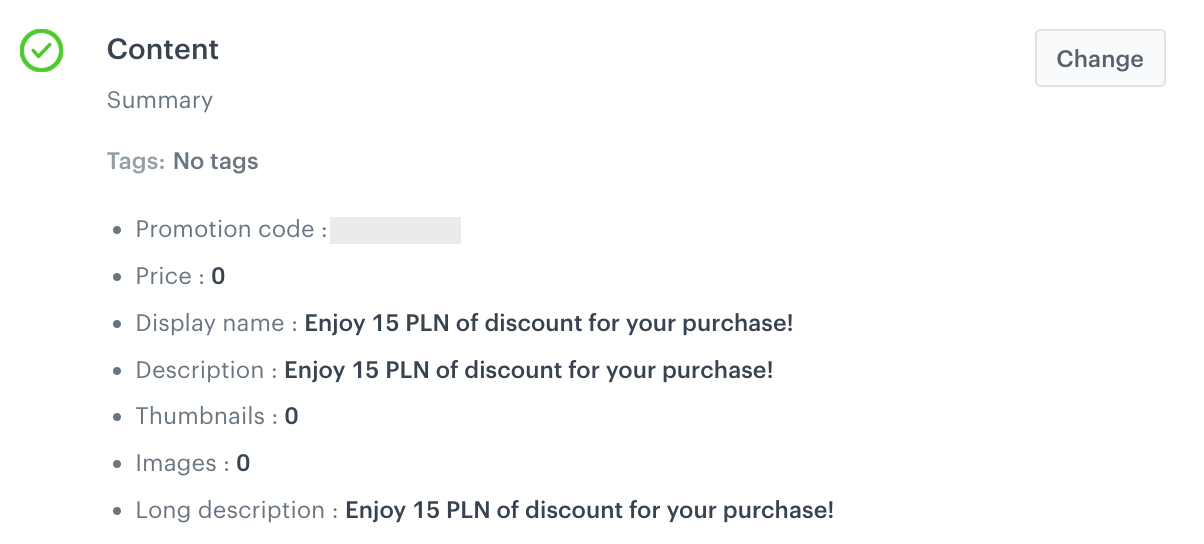
    1. Define the name, description, and image of the promotion. 
    2. In the **Price** field, enter `0`. 
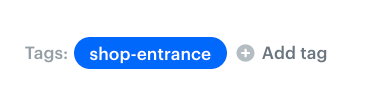
    3. Add a [tag](/docs/settings/configuration/customer-tag) so that we can use it later to make a base group of promotions.
    <figure>
    <img src="/api/docs/image/54176ad07f146575310749eba44b7c2f42c1b327/use-cases/all-cases/_gfx/personalized-promo-mobile-tag.png" class="small" alt="Example of tag">
    <figcaption>Example of tag</figcaption>
    </figure>
    
    4. Confirm the settings by clicking **Apply**. 

        <figure>
        <img src="/api/docs/image/54176ad07f146575310749eba44b7c2f42c1b327/use-cases/all-cases/_gfx/location-based-promotion-content.png" class="large" alt="Example of promotion content">
        <figcaption>Example of promotion content</figcaption>
        </figure>
5. <span id="selecthandbill"></span>In the **Types & limits** section, select **Handbill** as the promotion type.
   <figure>
   <img src="/api/docs/image/54176ad07f146575310749eba44b7c2f42c1b327/docs/campaign/_gfx/selected-handbill.png" alt="personalized promotion type of promotion" class="full">
   <figcaption>Handbill type of promotion</figcaption>
   </figure>
6. In the **Schedule** section, define the promotion distribution period according to your business needs.
7. Optionally, in the **Stores** section, select the stores in which the promotion is available.

    
   <div class="admonition admonition-note"><div class="admonition-icon"><svg xmlns="http://www.w3.org/2000/svg" fill="none" viewBox="0 0 24 24" stroke="currentColor" stroke-width="2.5"><path stroke-linecap="round" stroke-linejoin="round" d="M13 16h-1v-4h-1m1-4h.01M21 12a9 9 0 11-18 0 9 9 0 0118 0z" /></svg></div><div class="admonition-body"><div class="admonition-content">

   This is possible only if the list of stores is imported into a [catalog](/docs/assets/catalogs).

   </div></div></div>
 

8. In the **Items** section, select the catalog of items from which you select items for a discount: 
    1. From the **Source catalog** dropdown list, select a catalog of items.
    2. Select the **Entire catalog** option.
    3. Confirm by clicking **Apply**.
9. To apply configuration and run the promotion, click **Publish**.
10. Repeat all the steps and create more personalized promotions. In step 8, instead of entire catalog, select specific items (for example, a brand, a category of items - depending on your business assumptions).

## Define a group of promotions
---
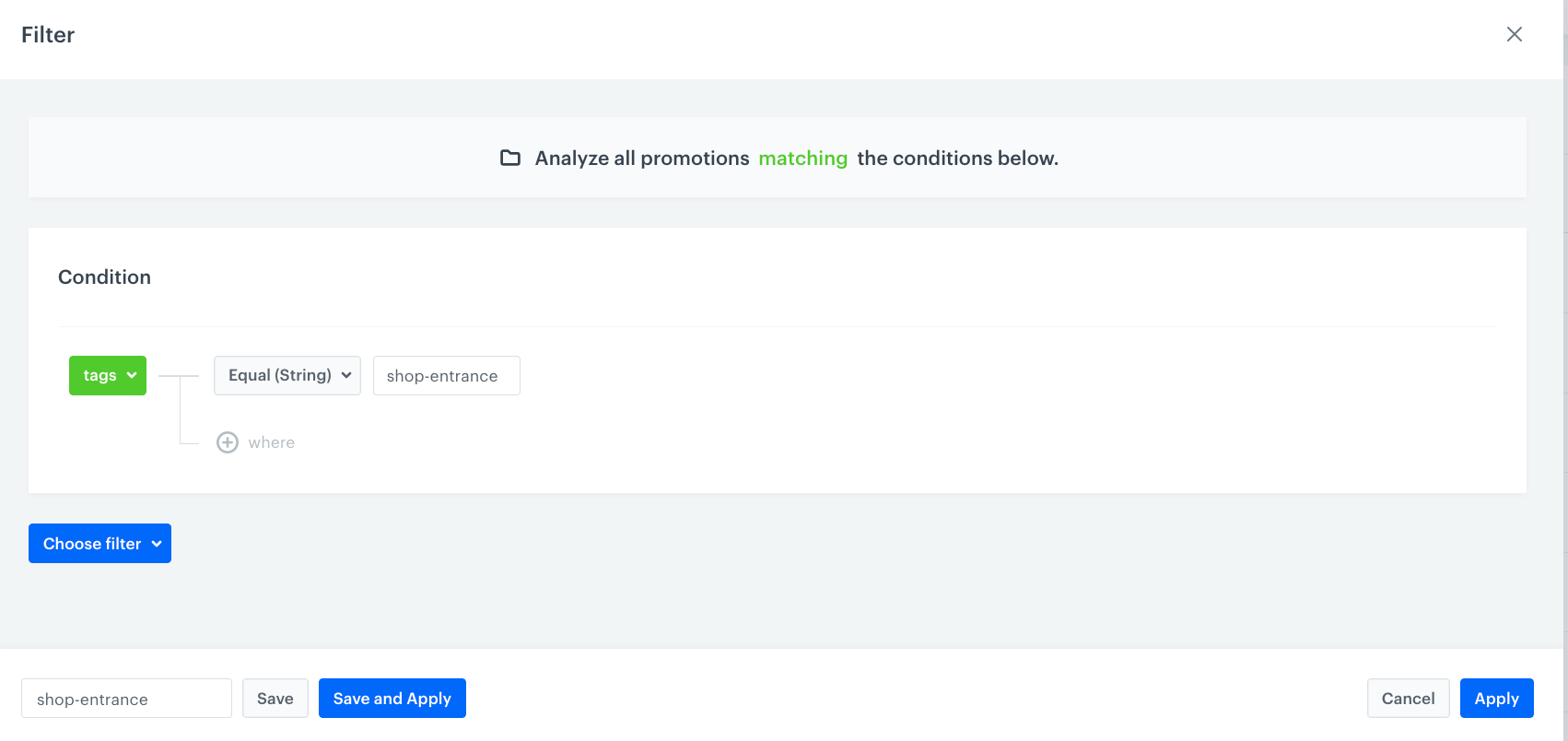
In this part of the process, you create a filter of promotions which will be used in a personalized promotion. If you have other personalized promotions active, the engine will only select among personalized promotions with a defined filter.

1. In **Promotions**, above the list of promotions, click <img src="/api/docs/image/54176ad07f146575310749eba44b7c2f42c1b327/use-cases/all-cases/_gfx/filter-icon2.png" alt="Filter icon" class="icon"> **> Define.**
2. Click **Choose filters**. 
3. Use the tag you assigned to [personalized promotions](#create-personalized-promotions). This filter will be used while creating a personalized promotion.
    
    <figure>
    <img src="/api/docs/image/54176ad07f146575310749eba44b7c2f42c1b327/use-cases/all-cases/_gfx/personalized-promo-mobile-group.png" class="large" alt="Example of filter">
    <figcaption>Example of filter</figcaption>
    </figure>
4. Save the filter
5. Confirm the settings by clicking **Apply**. 

## Define a personalized promotion
---
In this part of the process, create a personalized promotion. The AI engine will select items from personalized promotions with a shop-entrance tag assigned.

1. 1. Go to <img src="/api/docs/image/54176ad07f146575310749eba44b7c2f42c1b327/icons/ai-hub-icon.svg" alt="AI Hub icon" class="icon" > **AI Hub > Personalized Promotions > New personalized promotion**.
    1. As the type, choose **Mobile**. 
    2. In the **A/B Test settings**, click **Define**.
    3. Click <img src="/api/docs/image/54176ad07f146575310749eba44b7c2f42c1b327/icons/add-variant-icon.png" alt="Plus icon" class="icon">.
    4. Click **Advanced options**.  
    5. Select **AI Engine**.
    6. Confirm by clicking **Apply**. 
    7. In the **Filters and limits** section:  
        1. In the **Promotions in set**, enter a number of personalized promotions to be used as candidates to display in a slot.  
        2. Click **Define filter**.  
        3. Select the filter you created in this [step](/use-cases/personalized-promotions-in-mobile-app#define-a-group-of-promotions). 
        4. To add more slots, click **Ad another** and repeat steps a-c.  
        5. Confirm by clicking **Apply**.  
    8. In the **Activity** section:  
        1. Leave the **Lasting** option at default (**Relative**).
        2. Set the activity to 1 hour.  
        3. Confirm by clicking **Apply**. 
    9. Configure the **Engine settings** section according to your needs.  
    
   <div class="admonition admonition-note"><div class="admonition-icon"><svg xmlns="http://www.w3.org/2000/svg" fill="none" viewBox="0 0 24 24" stroke="currentColor" stroke-width="2.5"><path stroke-linecap="round" stroke-linejoin="round" d="M13 16h-1v-4h-1m1-4h.01M21 12a9 9 0 11-18 0 9 9 0 0118 0z" /></svg></div><div class="admonition-body"><div class="admonition-content">

   You can read more about engine settings [here](/docs/ai-hub/personalized-promotions/creating-ai-promotions#ai-engine-boosting-settings).

   </div></div></div>


2. To apply configuration and run the promotion, click **Publish.**

## Create a mobile push template
---

1. Go to **Experience Hub > Mobile > Templates**.
2. Create your mobile push in the code editor.

For more information on creating a simple mobile push, visit our [User Guide](/docs/campaign/Mobile/simple_push).

<figure>
<img src="/api/docs/image/54176ad07f146575310749eba44b7c2f42c1b327/use-cases/all-cases/_gfx/personalized-promo-push.png" class="small" alt="Example of mobile push notification">
<figcaption>Example of mobile push notification</figcaption>
</figure>

## Create a workflow
---

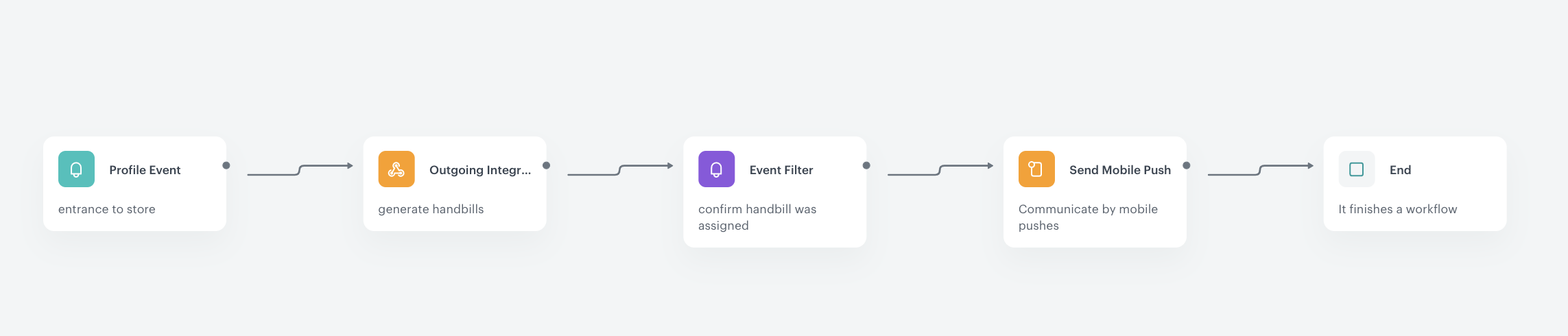
In this part of the process, prepare a workflow that assigns personalized promotions and notifies a customer about it when they enter the store.

1. Go to **Automation Hub > Workflows > New workflow**.
2. Enter the name of the workflow. 
3. As the first node of the workflow, add **Profile Event**. In the node settings:
    1. From the **Choose event** dropdown menu, select event that is sent to Synerise when a customer enters the store.
    2. Confirm by clicking **Apply**.
    
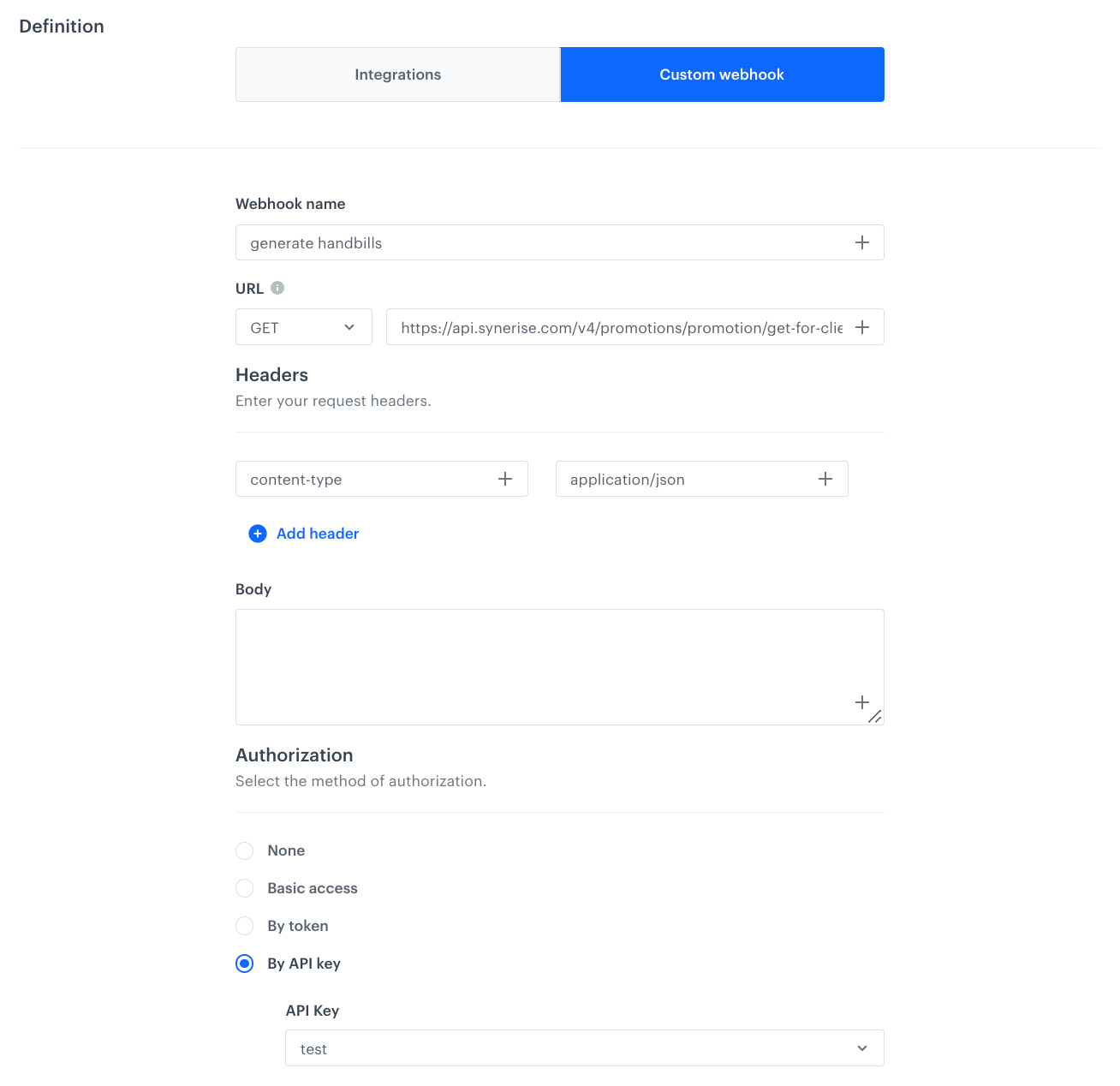
4. As the next node, add **Outgoing Integration**.
    1. Select the **Custom webhook** tab.
    2. Enter the name of the webhook.
    3. Select the `GET` method.
    4. In the URL field, enter: `https://api.synerise.com/v4/promotions/promotion/get-for-client/clientId/{{client.id}}/handbill/HANDBILL-ID`, where `HANDBILL-ID` value must be replaced with the ID of the personalized promotion created in [this step](/use-cases/personalized-promotions-in-mobile-app#define-a-personalized-promotion).
    5. As authorization type choose `By API key` and select an API key with the proper permission according to documentation of [endpoint that assigns personalized promotion](https://developers.synerise.com/LoyaltyandEngagement/LoyaltyandEngagement.html#operation/getAssignHandbillForClient_GET).
    6. Confirm by clicking **Apply**. 
<figure>
<img src="/api/docs/image/54176ad07f146575310749eba44b7c2f42c1b327/use-cases/all-cases/_gfx/pers-promo-mobile-outgoing.png" class="large" alt="Configuration of the Outgoing Integration">
<figcaption>Configuration of the Outgoing Integration</figcaption>
</figure>

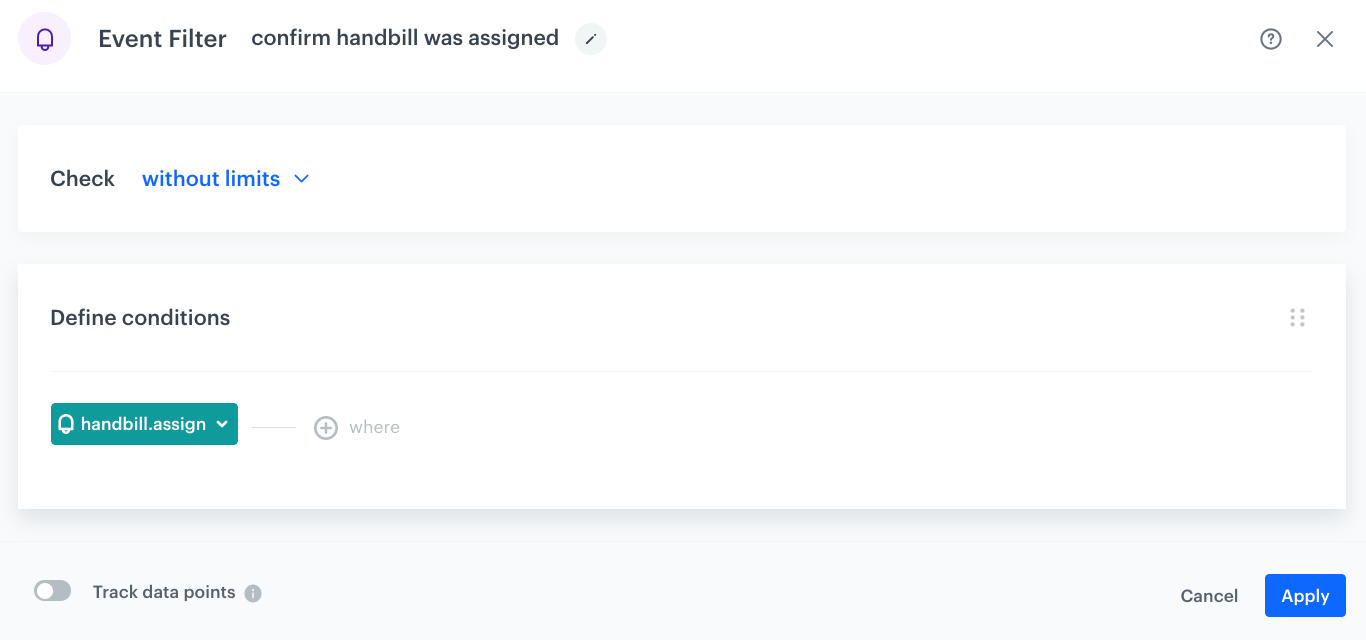
5. As the next node, add **Event Filter**. This node ensures that a mobile push is sent after the personalized promotion is assigned to a customer. In the node settings:
    1. From the **Choose event** dropdown menu, select the `handbill.assign` event.
    2. Confirm by clicking **Apply**.
<figure>
<img src="/api/docs/image/54176ad07f146575310749eba44b7c2f42c1b327/use-cases/all-cases/_gfx/confirm-handbill-event-filter.png" class="large" alt="Configuration of the Event Filter node">
<figcaption>Configuration of the Event Filter node</figcaption>
</figure>

6. As the next node, add **Send Mobile Push**. In the configuration of the node:
    1. Define the **Template type**.
    2. Select the **Push template** created in [this step](/use-cases/personalized-promotions-in-mobile-app#create-a-mobile-push-template) of the process.
    3. Confirm by clicking **Apply**.

7. Add the **End** node to finish the workflow.
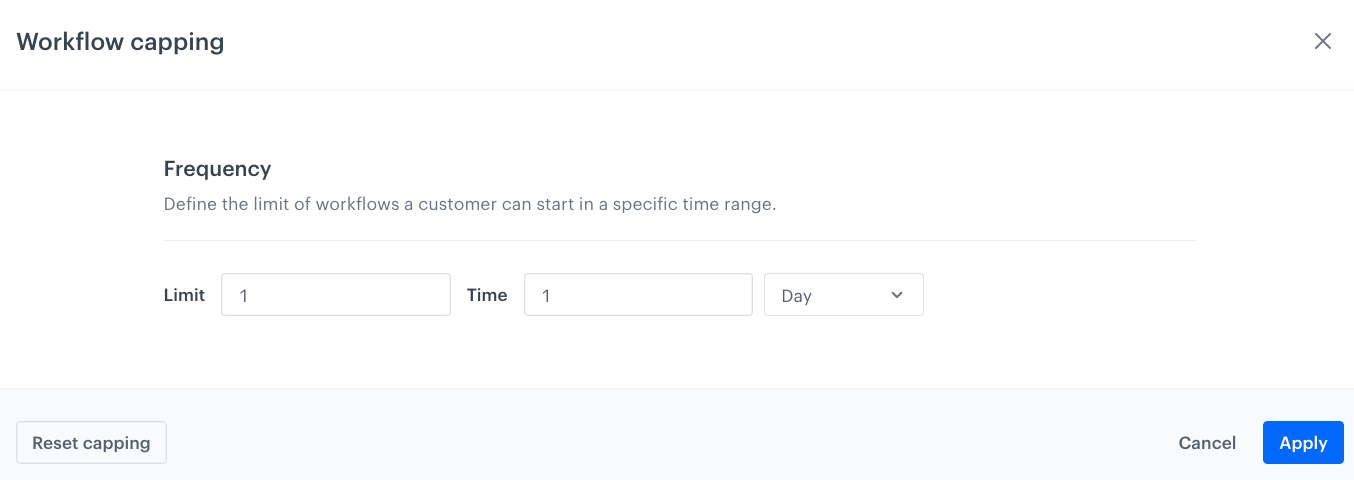
8. Optionally, you can define **capping** in right upper corner. In capping configuration:
    1. Define Limit adn Time.
    2. Confirm by clicking **Apply**.
    <figure>
    <img src="/api/docs/image/54176ad07f146575310749eba44b7c2f42c1b327/use-cases/all-cases/_gfx/workflow-capping.png" class="large" alt="Example configuration of workflow capping">
    <figcaption>Example configuration of workflow capping</figcaption>
    </figure>

9. Click **Save & Run**. 

<figure>
<img src="/api/docs/image/54176ad07f146575310749eba44b7c2f42c1b327/use-cases/all-cases/_gfx/shop-entrance.png" class="large" alt="Final configuration of a workflow that assigns personalized promotions and sends a mobile push to customers who entered the store">
<figcaption>Final configuration of a workflow that assigns personalized promotions and sends a mobile push to customers who entered the store</figcaption>
</figure>

Once the personalized promotion is assigned to your customer, they will be displayed with all other promotions that are assigned to a specific customer in your mobile app.

## Check the use case set up on the Synerise Demo workspace
---

You can also check the 
- [personalized promotion](https://app.synerise.com/campaigns/promotions/160c4f57-4bac-4805-a7b5-f25efd5582c8) 
- [personalized promotion](https://app.synerise.com/campaigns/handbills/ca9ff2d0-746e-455a-8ad2-97a6b3e4c598)
- [mobile template](https://app.synerise.com/campaigns/mobile-push/content-manager/template/153486)
- [workflow](https://app.synerise.com/automations/workflows/automation-diagram/065c8f93-4d92-47ff-a67f-0f96d3d73bea)
directly in Synerise Demo workspace.

If you’re our partner or client, you already have automatic access to the **Synerise Demo workspace (1590)**, where you can explore all the configured elements of this use case and copy them to your workspace.  

If you’re not a partner or client yet, we encourage you to fill out the contact [form](https://demo.synerise.com/request) to schedule a meeting with our representatives. They’ll be happy to show you how our demo works and discuss how you can apply this use case in your business.


## Read more
---

- [Personalized promotions](/docs/ai-hub/personalized-promotions/creating-ai-promotions)
- [Workflows](/docs/automation).