 **AI Hub > (AI Recommendations) Models > Add recommendation**.
2. Enter the name of the recommendation (it is only visible on the list of recommendation).
3. In the **Type & Items feed** section, click **Define**.
4. From the **Items feed** dropdown list, select an item feed.
5. In the **Type** section, choose the **Personalized** recommendation type.
6. Confirm the settings by clicking **Apply**.
7. In the **Items** section, click **Define**.
1. Click **Add slot**.
2. Define the minimum and maximum number of items that will be recommended to the customer in each slot.
3. Optionally, define [Static filters](/docs/ai-hub/recommendations-v2/creating-recommendation-campaign#static-filters) and [Elastic filters](/docs/ai-hub/recommendations-v2/creating-recommendation-campaign#elastic-filters).
4. Confirm by clicking **Apply**.
8. Optionally, you can define the **Boosting** factors and settings in the **Additional settings** section.
9. In the right upper corner, click **Save**.
## Prepare an email template
---
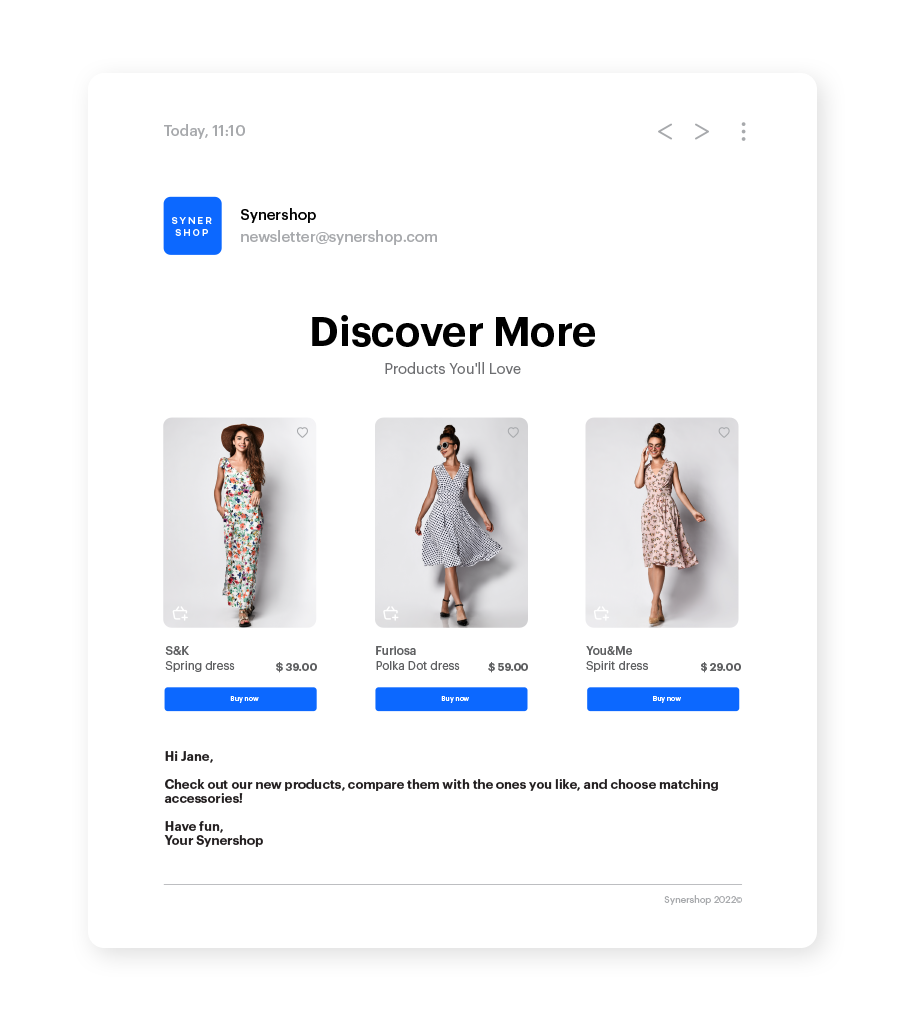
In this part of the process, you will create an email templpate. We will use a predefined template for the personalized recommendations, so there is no need to create a template from scratch.
1. Go to
**AI Hub > (AI Recommendations) Models > Add recommendation**.
2. Enter the name of the recommendation (it is only visible on the list of recommendation).
3. In the **Type & Items feed** section, click **Define**.
4. From the **Items feed** dropdown list, select an item feed.
5. In the **Type** section, choose the **Personalized** recommendation type.
6. Confirm the settings by clicking **Apply**.
7. In the **Items** section, click **Define**.
1. Click **Add slot**.
2. Define the minimum and maximum number of items that will be recommended to the customer in each slot.
3. Optionally, define [Static filters](/docs/ai-hub/recommendations-v2/creating-recommendation-campaign#static-filters) and [Elastic filters](/docs/ai-hub/recommendations-v2/creating-recommendation-campaign#elastic-filters).
4. Confirm by clicking **Apply**.
8. Optionally, you can define the **Boosting** factors and settings in the **Additional settings** section.
9. In the right upper corner, click **Save**.
## Prepare an email template
---
In this part of the process, you will create an email templpate. We will use a predefined template for the personalized recommendations, so there is no need to create a template from scratch.
1. Go to  **Experience Hub > Email**.
2. On the left pane, click **Templates** and from the list of template folders, select **Predefined dynamic templates**.
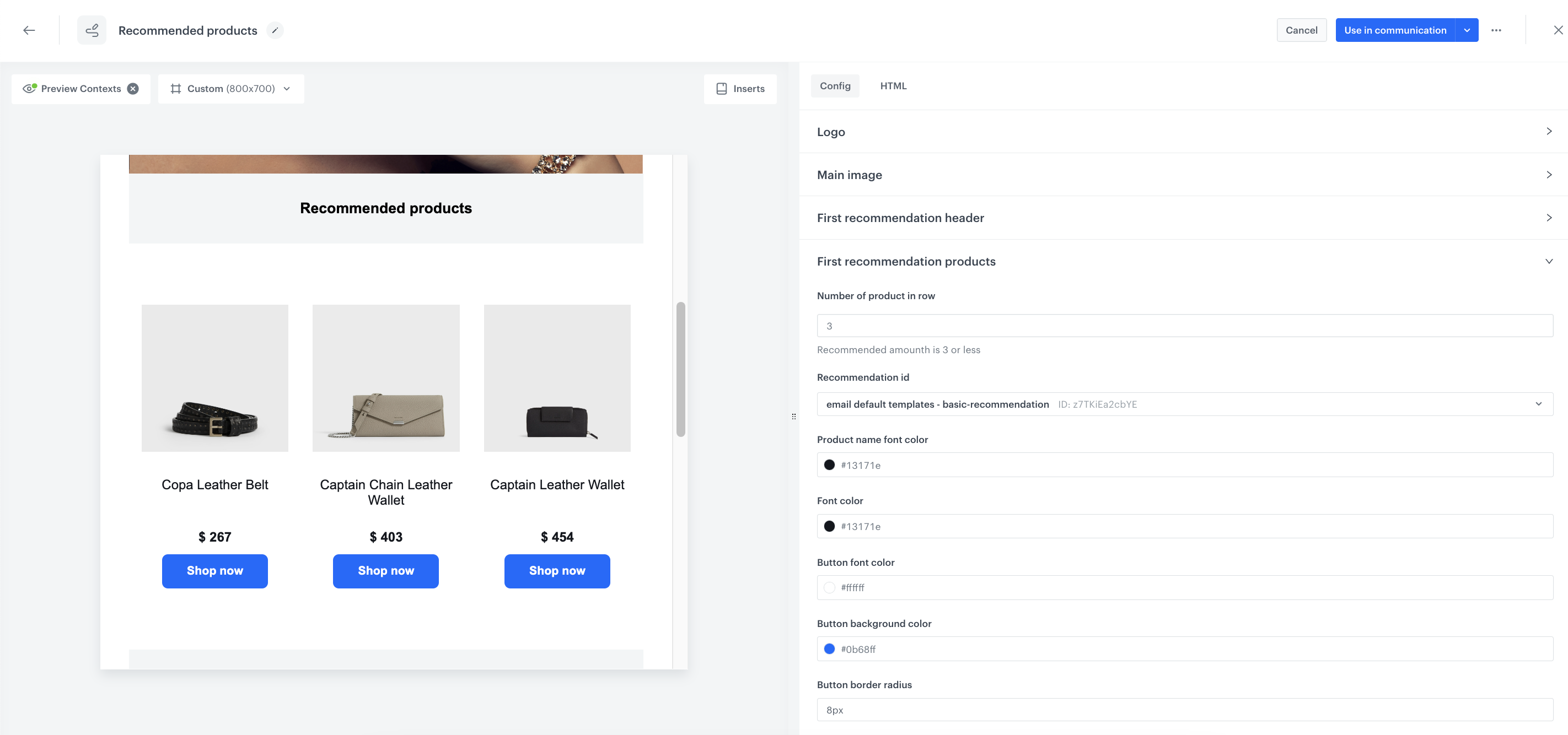
3. Select the **Recommended products** template.
**Result:** You are redirected to the code editor.
**Experience Hub > Email**.
2. On the left pane, click **Templates** and from the list of template folders, select **Predefined dynamic templates**.
3. Select the **Recommended products** template.
**Result:** You are redirected to the code editor.
 **Automation Hub > Workflows > New workflow**.
2. Enter the name of the workflow.
### Define the Profile Event trigger node
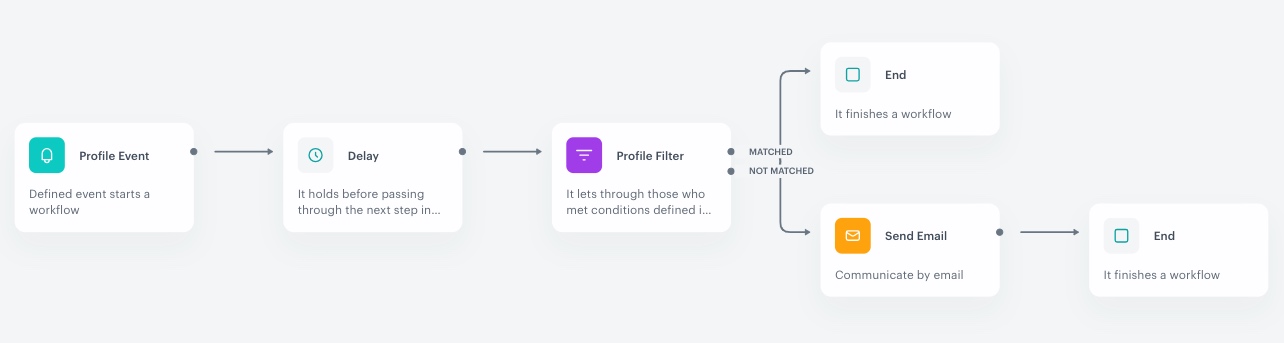
At this stage, we will configure the conditions that launch the workflow. As a trigger, we will use the `session.end` event.
1. As the first node of the workflow, add **Profile Event**. In the configuration of the node:
1. From the **Choose event** dropdown menu, choose the `session.end` event.
2. Confirm by clicking **Apply**.
### Define the delay
Add the Delay node to define the lag between the `session.end` event and sending an email with recommendations to specific segment of customers. In this example it is 1 hour.
1. Add the **Delay** node, in the configuration of the node:
1. In the **Delay** field, enter `1`.
2. From the **Unit** dropdown list, choose **Hour**.
3. Confirm by clicking **Apply**.
### Define the Profile Filter node
As the next step, add the **Profile Filter** node, which checks if the customer made a transaction in the last 30 days. If the customer made a transaction, we will send them an email with recommendations, and if they have not purchased, then the workflow ends.
1. Add the **Profile Filter** node.
2. From the **Choose filter** dropdown list, select the **transaction.charge** event.
4. Using the date picker in the lower-right corner, set the time range to **Custom> Last 30 days**. Confirm your choice with the **Apply** button.
5. Click **Apply**.
### Configure the Send Email node
1. To the **Matched** path, add the **Send Email** node. In the node settings:
1. In the **Sender details** section, choose the email account from which the email will be sent.
2. In the **Content** section, in the **Subject** field, enter the subject of the email and from the **Template** dropdown, select [the template you prepared in the previous step](#prepare-an-email-template).
3. In the **UTM & URL parameters** section, you can define the UTM parameters added to the links included in the email.
4. In the **Additional parameters** section, you can optionally assign [parameters](/docs/campaign/e-mail/creating-email-campaigns#adding-custom-parameters). which will be added to every event generated by this communication.
2. Click **Apply**.
### Add the finishing nodes and set capping
1. Add the **End** nodes after **Send Email** node and to the **Not matched** path after the **Profile Filter** node.
2. In the upper right corner, click **Set Capping** and define the limit of workflows a profile can start:
1. Set **Limit** to 1.
2. Set **Time** to 30 days.
4. Confirm by clicking **Apply**.
**Automation Hub > Workflows > New workflow**.
2. Enter the name of the workflow.
### Define the Profile Event trigger node
At this stage, we will configure the conditions that launch the workflow. As a trigger, we will use the `session.end` event.
1. As the first node of the workflow, add **Profile Event**. In the configuration of the node:
1. From the **Choose event** dropdown menu, choose the `session.end` event.
2. Confirm by clicking **Apply**.
### Define the delay
Add the Delay node to define the lag between the `session.end` event and sending an email with recommendations to specific segment of customers. In this example it is 1 hour.
1. Add the **Delay** node, in the configuration of the node:
1. In the **Delay** field, enter `1`.
2. From the **Unit** dropdown list, choose **Hour**.
3. Confirm by clicking **Apply**.
### Define the Profile Filter node
As the next step, add the **Profile Filter** node, which checks if the customer made a transaction in the last 30 days. If the customer made a transaction, we will send them an email with recommendations, and if they have not purchased, then the workflow ends.
1. Add the **Profile Filter** node.
2. From the **Choose filter** dropdown list, select the **transaction.charge** event.
4. Using the date picker in the lower-right corner, set the time range to **Custom> Last 30 days**. Confirm your choice with the **Apply** button.
5. Click **Apply**.
### Configure the Send Email node
1. To the **Matched** path, add the **Send Email** node. In the node settings:
1. In the **Sender details** section, choose the email account from which the email will be sent.
2. In the **Content** section, in the **Subject** field, enter the subject of the email and from the **Template** dropdown, select [the template you prepared in the previous step](#prepare-an-email-template).
3. In the **UTM & URL parameters** section, you can define the UTM parameters added to the links included in the email.
4. In the **Additional parameters** section, you can optionally assign [parameters](/docs/campaign/e-mail/creating-email-campaigns#adding-custom-parameters). which will be added to every event generated by this communication.
2. Click **Apply**.
### Add the finishing nodes and set capping
1. Add the **End** nodes after **Send Email** node and to the **Not matched** path after the **Profile Filter** node.
2. In the upper right corner, click **Set Capping** and define the limit of workflows a profile can start:
1. Set **Limit** to 1.
2. Set **Time** to 30 days.
4. Confirm by clicking **Apply**.