Every customer wants to feel special and wants to be able to get their needs met without effort. That's why personalization is so useful, which makes the shopping process for each user simpler and more enjoyable. Using mobile applications, companies can create various types of recommendations, helping to personalize the product offer to each user.

In this use case, you will learn how to create a personalized recommendation frame in a mobile app. Based on the product browsing history, the recommendations will display items that match customer's preferences.

## Prerequisites
---
- [Implement Synerise SDK in your mobile application](/developers/mobile-sdk).
- Implement [product.view event in your mobile application](/developers/mobile-sdk/event-tracking#product-viewed) and [transactions](https://developers.synerise.com/DataManagement/DataManagement.html#tag/Events). 
- [Configure an item catalog for recommendations](/docs/settings/configuration/ai-engine-configuration/engine-configuration-for-recommendations). Enable personalized recommendations.
- [Import your product feed to AI engine](/docs/settings/configuration/ai-engine-configuration/engine-configuration-for-recommendations).

## Process
---  
In this use case, you will go through the following steps:
1. [Preparing recommendations](/use-cases/personalized-recommendations-in-mobile-app#prepare-recommendations).
2. [Preparing a document with recommendations](/use-cases/personalized-recommendations-in-mobile-app#prepare-a-document-with-recommendations).

## Prepare recommendations
---

1. Go to <img src="/api/docs/image/54176ad07f146575310749eba44b7c2f42c1b327/icons/ai-hub-icon.svg" alt="AI Hub icon" class="icon" > **AI Hub > (AI Recommendations) Models > Add recommendation**.
2. In the top left corner, enter the name of your recommendation.
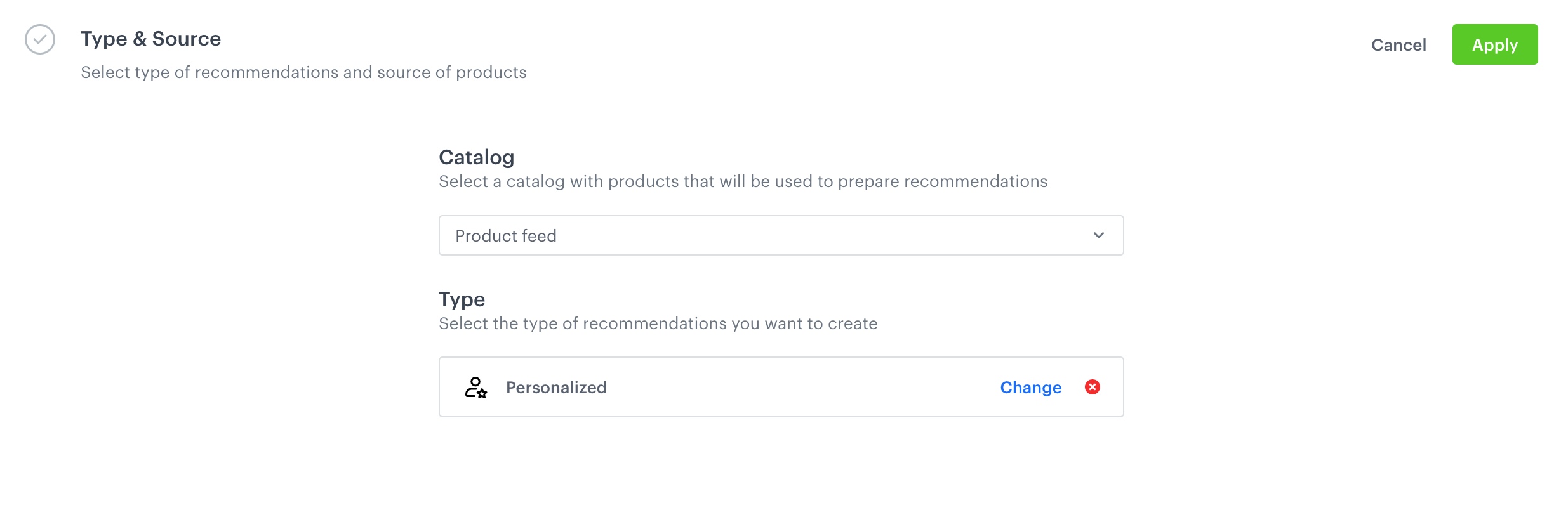
3. In the **Type & Items feed** section, click Define.
4. From the **Items feed** dropdown menu, choose the provided feed.
5. Choose the **Personalized** recommendation type.
    <figure>
    <img src="/api/docs/image/54176ad07f146575310749eba44b7c2f42c1b327/use-cases/all-cases/_gfx/personalized-recommendations-type.png" class="full" alt="Configuraion of the catalog and recommendation type section">
    <figcaption>Configuraion of the catalog and recommendation type section</figcaption>
    </figure>

6. Click **Apply**.
7. In the **Items** section, click **Define**.
    1. Click **Add slot**.
    2. Define the minimum and maximum number of items that will be recommended to the user in each slot.
    In our example, one slot returns from 5 (minimum) to 10 (maximum) products.
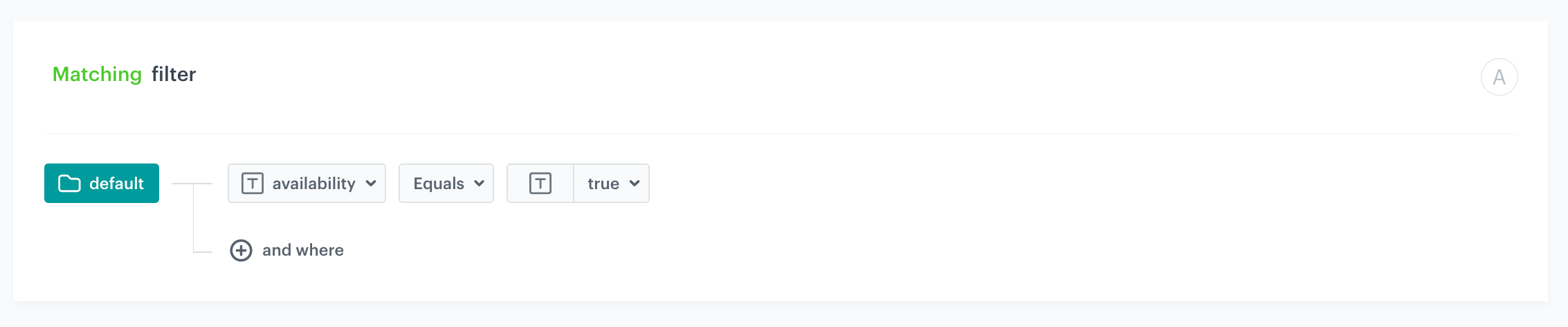
    3. In **Static filters**, set the following parameter: 
    - `availability` to `true` - it shows only available products.

        <figure>
        <img src="/api/docs/image/54176ad07f146575310749eba44b7c2f42c1b327/use-cases/all-cases/_gfx/personalized-recommendations-static-filter.png" class="full" alt="Configuraion of the filters">
        <figcaption>Configuraion of the filters</figcaption>
        </figure> 
        
    4. Confirm by clicking **Apply**.
8. Optionally, you can define the settings in the **Boosting** and **Additional settings** sections.

    
   <div class="admonition admonition-tip"><div class="admonition-icon"><svg xmlns="http://www.w3.org/2000/svg" fill="none" viewBox="0 0 24 24" stroke="currentColor" stroke-width="2.5"><path stroke-linecap="round" stroke-linejoin="round" d="M9.663 17h4.673M12 3v1m6.364 1.636l-.707.707M21 12h-1M4 12H3m3.343-5.657l-.707-.707m2.828 9.9a5 5 0 117.072 0l-.548.547A3.374 3.374 0 0014 18.469V19a2 2 0 11-4 0v-.531c0-.895-.356-1.754-.988-2.386l-.548-.547z" /></svg></div><div class="admonition-body"><div class="admonition-content">

   Learn more about [boosting](/docs/ai-hub/recommendations-v2/creating-recommendation-campaign#define-the-boosting-factors) and [additional settings](/docs/ai-hub/recommendations-v2/creating-recommendation-campaign#additional-settings).

   </div></div></div>
 

9. Save the recommendation by clicking the **Save** button in the upper right corner.


## Prepare a document with recommendations
---

1. Go to **Data Modeling Hub > Documents > Add document**.
2. Define name and description.
3. From the **Type** dropdown menu, choose the type of document.
4. Define **Content (JSON)** section.
   **Example**:

   <pre><code class="language-json">{
    "name": "Personalized Products",
    "recommendations": "{% recommendations_json3 campaignId=XXX %} {% endrecommendations_json3 %}"
   }</code></pre>

   Where `XXX` is the value that needs to be replaced with the ID of the recommendation created in [this step](/use-cases/personalized-recommendations-in-mobile-app#prepare-recommendations)
5. Save the document by clicking the **Apply** button in the bottom right corner.

## What’s next
---

Recommendations in the mobile app can be displayed in a number of ways, such as referring to the document by using the content widget in [iOS](/developers/mobile-sdk/displaying-recommendations/content-widget/ios) or [Android](/developers/mobile-sdk/displaying-recommendations/content-widget/android).

## Check the use case set up on the Synerise Demo workspace
---
You can check the configuration of use case in Synerise Demo workspace:
- [Recommendation configuration](https://app.synerise.com/ai-v2/recommendations/uq5juAkds44q) 
- [Document](https://app.synerise.com/assets/documents/94081f9b-ee19-42c2-bf8a-4c25542e0854)

If you’re our partner or client, you already have automatic access to the **Synerise Demo workspace (1590)**, where you can explore all the configured elements of this use case and copy them to your workspace.  

If you’re not a partner or client yet, we encourage you to fill out the contact [form](https://demo.synerise.com/request) to schedule a meeting with our representatives. They’ll be happy to show you how our demo works and discuss how you can apply this use case in your business. 

## Read more
---
- [Building documents](/docs/assets/documents)
- [Recommendations](/docs/ai-hub/recommendations-v2)

