 **Decision Hub > Segmentations > New segmentation**.
3. Enter the name of the segmentation.
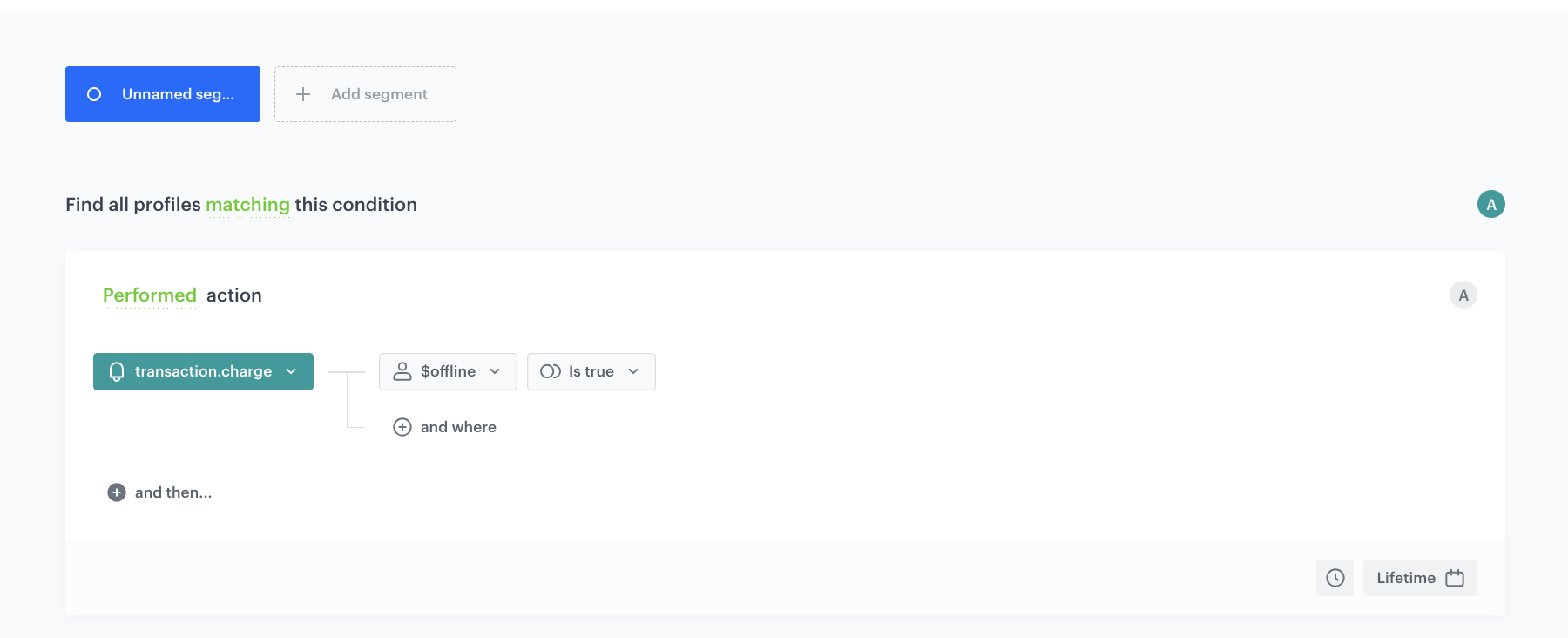
4. From the **Add condition** dropdown list, select the `transaction.charge` event.
5. Click the **+ where** button, from the **Choose parameter** dropdown menu, choose `$offline`.
6. From the **Choose operator** dropdown, choose **Boolean**, and then select **Is true**.
7. Using the date picker in the lower-right corner, set the time range to **Relative time range > Lifetime**. Confirm by clicking **Apply**.
6. Save the segmentation.
**Decision Hub > Segmentations > New segmentation**.
3. Enter the name of the segmentation.
4. From the **Add condition** dropdown list, select the `transaction.charge` event.
5. Click the **+ where** button, from the **Choose parameter** dropdown menu, choose `$offline`.
6. From the **Choose operator** dropdown, choose **Boolean**, and then select **Is true**.
7. Using the date picker in the lower-right corner, set the time range to **Relative time range > Lifetime**. Confirm by clicking **Apply**.
6. Save the segmentation.
 **Behavioral Data Hub > Expressions > New expression**.
8. Enter the name of the expression.
9. From the **Expressions for** dropdown list, select **Attribute**.
Predictions work only with attribute expressions.
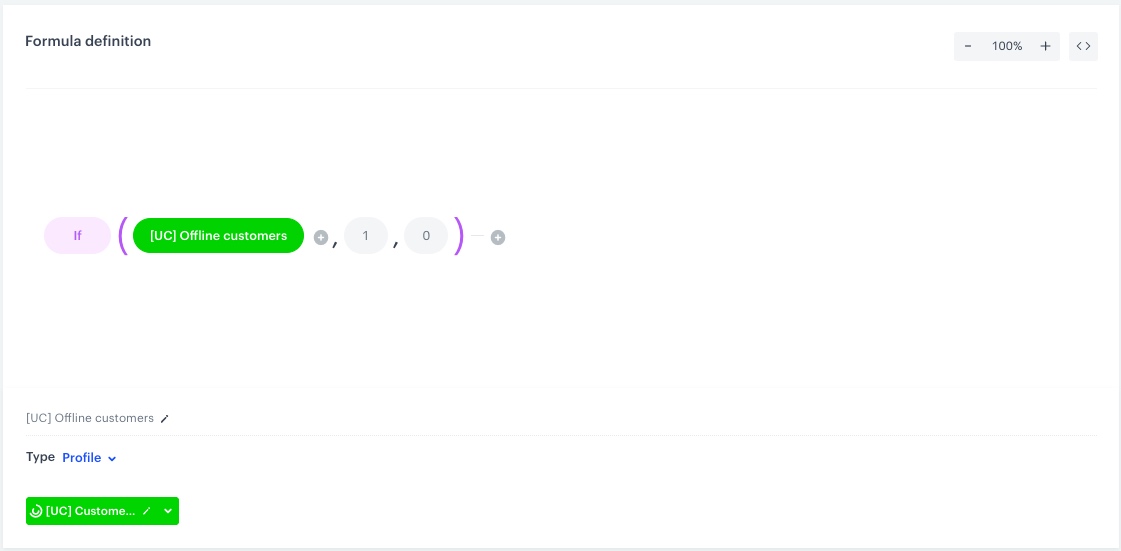
10. In the formula creator, click the **Select** node and from the drop-down list select **Function > If**.
11. As the first argument, select the [segmentation you created earlier](#create-a-segmentation):
12. As the second argument, select **Constant** with a value of `1`.
12. As the third argument, select **Constant** with a value of `0`.
13. Save the expression.
**Behavioral Data Hub > Expressions > New expression**.
8. Enter the name of the expression.
9. From the **Expressions for** dropdown list, select **Attribute**.
Predictions work only with attribute expressions.
10. In the formula creator, click the **Select** node and from the drop-down list select **Function > If**.
11. As the first argument, select the [segmentation you created earlier](#create-a-segmentation):
12. As the second argument, select **Constant** with a value of `1`.
12. As the third argument, select **Constant** with a value of `0`.
13. Save the expression.
 **Decision Hub > Segmentations > New segmentation**.
3. Enter the name of the segmentation.
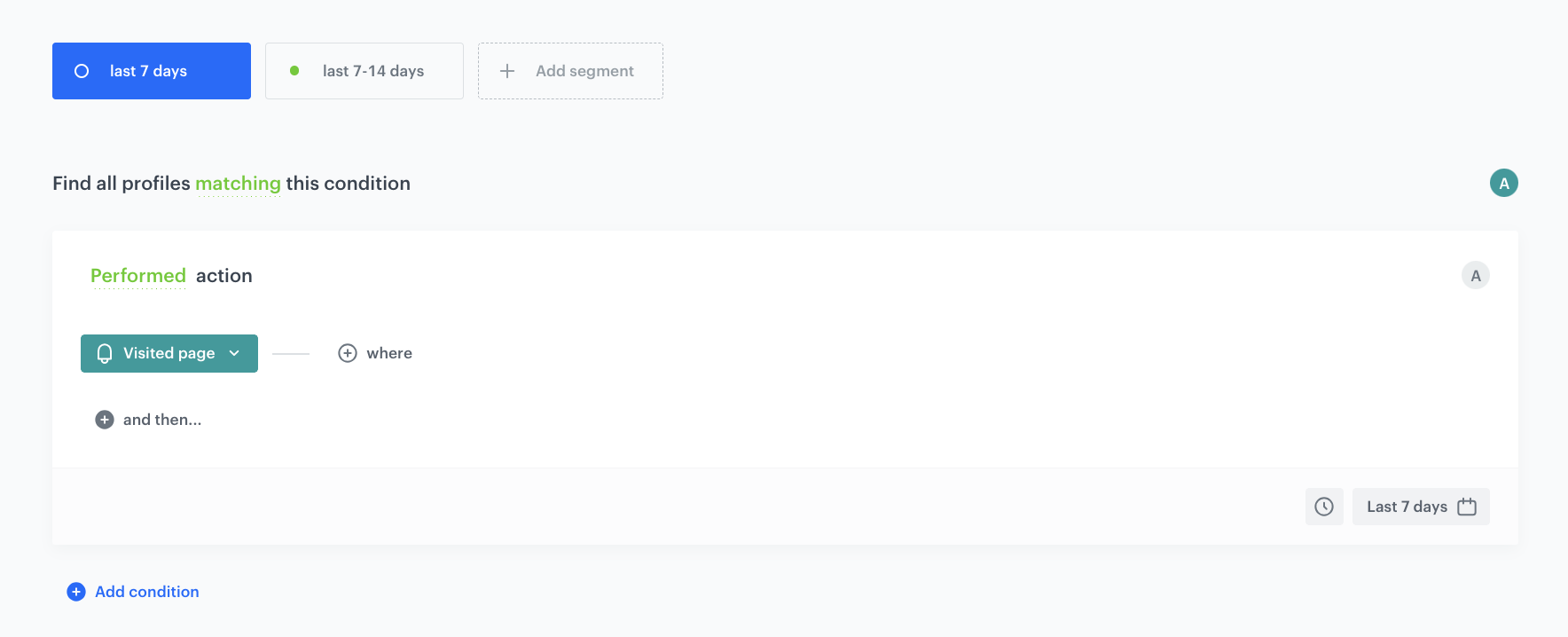
4. From the **Add condition** dropdown list, select the `Visited page` event.
5. Using the date picker in the lower-right corner, set the time range to **Relative time range > More > Last 7 days**. Confirm by clicking **Apply**.
6. Click **Add segment**.
7. From the **Add condition** dropdown list, select the `Visited page` event.
5. Using the date picker in the lower-right corner, set the time range to **Relative time range > Custom > Last 14 days**. Confirm by clicking **Apply**.
6. Save the segmentation.
**Decision Hub > Segmentations > New segmentation**.
3. Enter the name of the segmentation.
4. From the **Add condition** dropdown list, select the `Visited page` event.
5. Using the date picker in the lower-right corner, set the time range to **Relative time range > More > Last 7 days**. Confirm by clicking **Apply**.
6. Click **Add segment**.
7. From the **Add condition** dropdown list, select the `Visited page` event.
5. Using the date picker in the lower-right corner, set the time range to **Relative time range > Custom > Last 14 days**. Confirm by clicking **Apply**.
6. Save the segmentation.
 **AI Hub > (AI Predictions) Models > New prediction**.
2. Enter a name for the prediction.
3. In the **Prediction type** section, click **Define**.
4. Select **Classification** and click **Apply**.
### Select the audience
In this section you decide which group of the customers will be taken into account while making a prediction. For every individual in the segmentation, Synerise produces a single prediction.
Segmentations can be very complex and the possibilities of building the conditions are practically unlimited. In this example, a simple segmentation will include customers who have made a transaction in the last week or two weeks.
1. In the **Audience** section, click **Define**.
2. Click **Choose segmentation**.
3. Enter the name of the [segmentation you've created in the previous step](#create-a-segmentation-of-customers-for-whom-the-prediction-is-made).
./8. Click **Apply**.
### Select prediction target
1. In the **What would you like to predict?** section, click **Define**.
2. Click **Select expression** and select the [expression created earlier](#create-an-expression).
3. Click **Apply**.
### Select inputs
In this section, you set up input [features](/docs/glossary#feature) based on which the prediction model will be trained.
It is possible to select feature inputs manually, but we recommend using the automatic selection, as explained below. Our algorithms evaluate feature relevance in context of the prediction target and are, in most cases, more effective than manual selection.
1. In the **Model inputs** section, click **Define**.
2. Click **Add feature > Automatically**.
**Result:** The list is populated with input features.
3. Click **Apply**.
### Configure additional settings
The additional settings define how often re-calculations are made and the content of events produced by the prediction.
1. In the **Settings** section, click **Define**.
2. From the **How many days in advance do you want to make a prediction** list, select **30 days**.
3. For the purposes of this example, select **One-time calculation** checkbox.
4. In the **Prediction start** section, select **Immediately**.
4. In **How would you like to display results**, select **5-point scale**.
The algorithm detects the importance of a prediction.
6. In the **Define the value of the score name parameter** section, enter a user-friendly name for the prediction score.
The name is shown as the value of the `scoreName` parameter in the `snr.prediction.score` event.
7. Click **Apply**.
7. To finish and calculate the prediction, click **Save & Calculate**.
**Result:**
The prediction results are saved as `snr.prediction.score` events in customer profiles.
## Create a workflow
---
As the final part of the process, create a workflow that manages the push notifications. The `snr.prediction.score` event with the high score triggers the start of the workflow. The push notification will be sent to customers with the high prediction score to visit offline store on the day they are most likely to visit.
1. Go to **Automation Hub > Workflows > New workflow**.
2. Enter the name of the workflow.
### Define the Profile Event trigger node
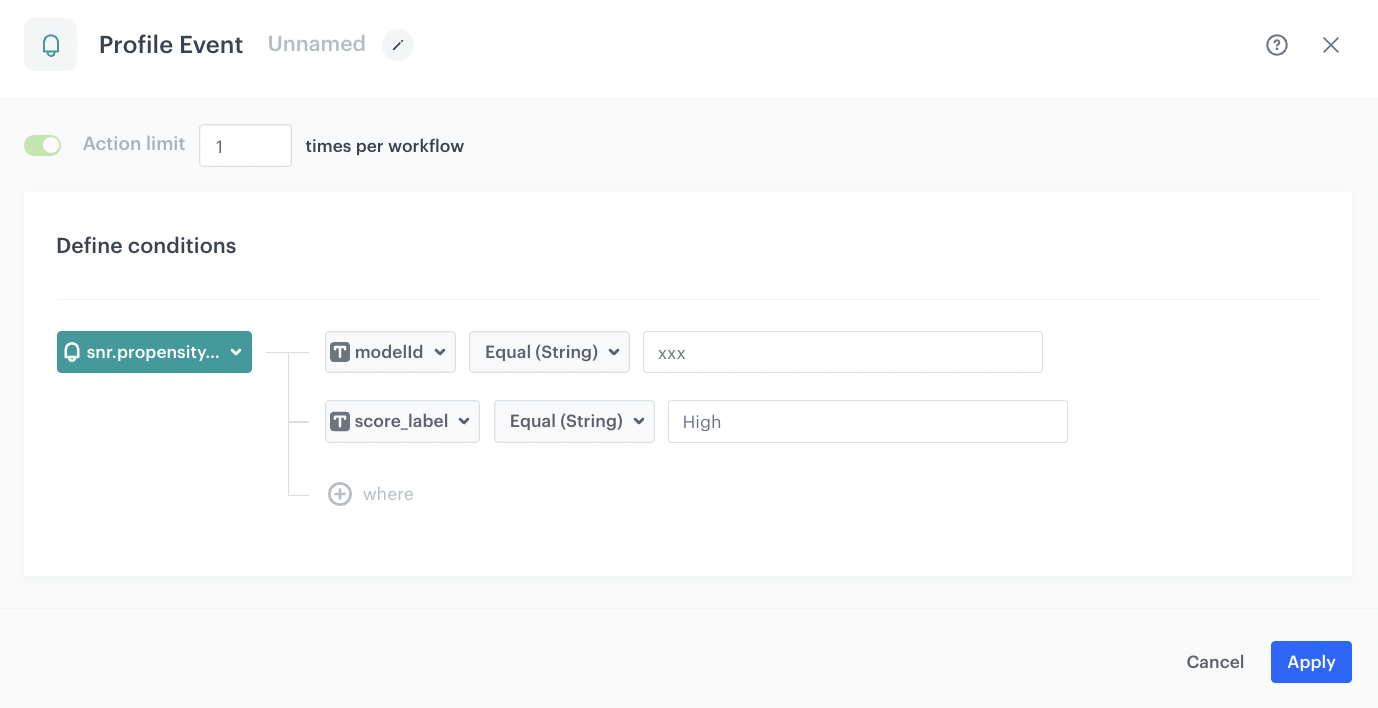
1. As the first node of the workflow, add **Profile Event**. In the node settings:
1. Click **Choose filter** and from the dropdown list, select the `snr.prediction.score` event.
2. For the event parameter, click the **+ where** button and select `modelId`.
2. As the logical operator, select **Equal**.
3. Enter the ID of the [custom prediction](#create-a-prediction) created in the previous step.
4. Click the **+ and where** button and select `score_label`.
5. As the logical operator, select **Equal**.
6. Type `High`.
**AI Hub > (AI Predictions) Models > New prediction**.
2. Enter a name for the prediction.
3. In the **Prediction type** section, click **Define**.
4. Select **Classification** and click **Apply**.
### Select the audience
In this section you decide which group of the customers will be taken into account while making a prediction. For every individual in the segmentation, Synerise produces a single prediction.
Segmentations can be very complex and the possibilities of building the conditions are practically unlimited. In this example, a simple segmentation will include customers who have made a transaction in the last week or two weeks.
1. In the **Audience** section, click **Define**.
2. Click **Choose segmentation**.
3. Enter the name of the [segmentation you've created in the previous step](#create-a-segmentation-of-customers-for-whom-the-prediction-is-made).
./8. Click **Apply**.
### Select prediction target
1. In the **What would you like to predict?** section, click **Define**.
2. Click **Select expression** and select the [expression created earlier](#create-an-expression).
3. Click **Apply**.
### Select inputs
In this section, you set up input [features](/docs/glossary#feature) based on which the prediction model will be trained.
It is possible to select feature inputs manually, but we recommend using the automatic selection, as explained below. Our algorithms evaluate feature relevance in context of the prediction target and are, in most cases, more effective than manual selection.
1. In the **Model inputs** section, click **Define**.
2. Click **Add feature > Automatically**.
**Result:** The list is populated with input features.
3. Click **Apply**.
### Configure additional settings
The additional settings define how often re-calculations are made and the content of events produced by the prediction.
1. In the **Settings** section, click **Define**.
2. From the **How many days in advance do you want to make a prediction** list, select **30 days**.
3. For the purposes of this example, select **One-time calculation** checkbox.
4. In the **Prediction start** section, select **Immediately**.
4. In **How would you like to display results**, select **5-point scale**.
The algorithm detects the importance of a prediction.
6. In the **Define the value of the score name parameter** section, enter a user-friendly name for the prediction score.
The name is shown as the value of the `scoreName` parameter in the `snr.prediction.score` event.
7. Click **Apply**.
7. To finish and calculate the prediction, click **Save & Calculate**.
**Result:**
The prediction results are saved as `snr.prediction.score` events in customer profiles.
## Create a workflow
---
As the final part of the process, create a workflow that manages the push notifications. The `snr.prediction.score` event with the high score triggers the start of the workflow. The push notification will be sent to customers with the high prediction score to visit offline store on the day they are most likely to visit.
1. Go to **Automation Hub > Workflows > New workflow**.
2. Enter the name of the workflow.
### Define the Profile Event trigger node
1. As the first node of the workflow, add **Profile Event**. In the node settings:
1. Click **Choose filter** and from the dropdown list, select the `snr.prediction.score` event.
2. For the event parameter, click the **+ where** button and select `modelId`.
2. As the logical operator, select **Equal**.
3. Enter the ID of the [custom prediction](#create-a-prediction) created in the previous step.
4. Click the **+ and where** button and select `score_label`.
5. As the logical operator, select **Equal**.
6. Type `High`.